DomDom
- 유틸리티
-
Wasin Thonkaew
 I use MQL5 and C++ to develop related tools on MetaTrader 5.
Products in Market - 버전: 1.92
- 활성화: 10
DomDom turns MetaTrader 5 into an order-flow workstation: read the book and the tape, trade by click or hotkey, and replay the session after hours.
DomDom is built for exchange-traded instruments such as futures, where the broker streams Depth of Market and real trades. It never invents a book: when the broker sends no size, the size cells stay empty.
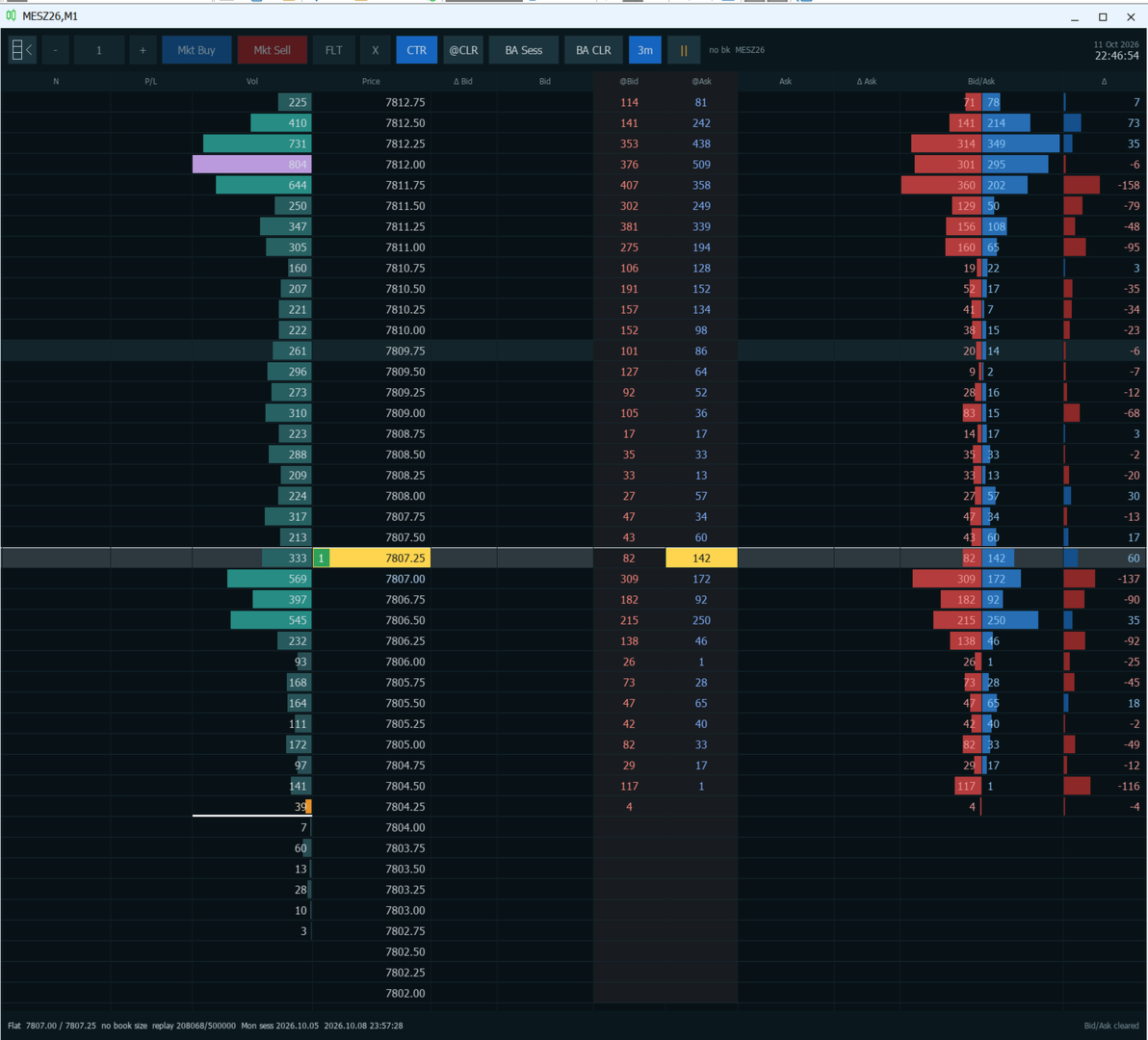
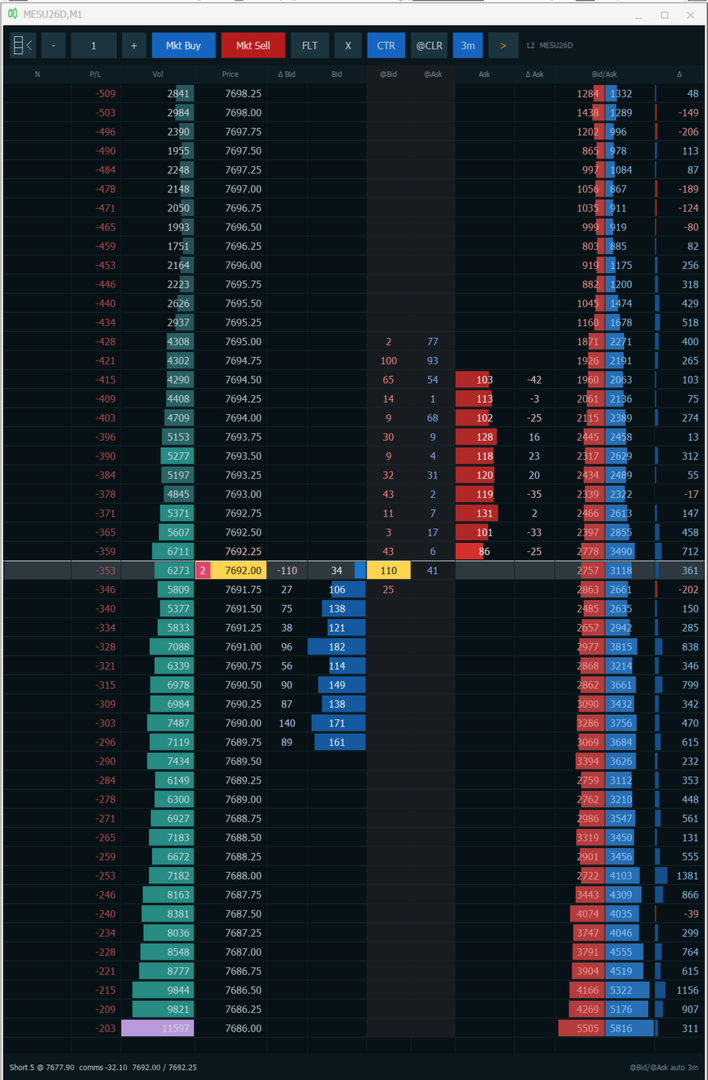
The panel at a glance
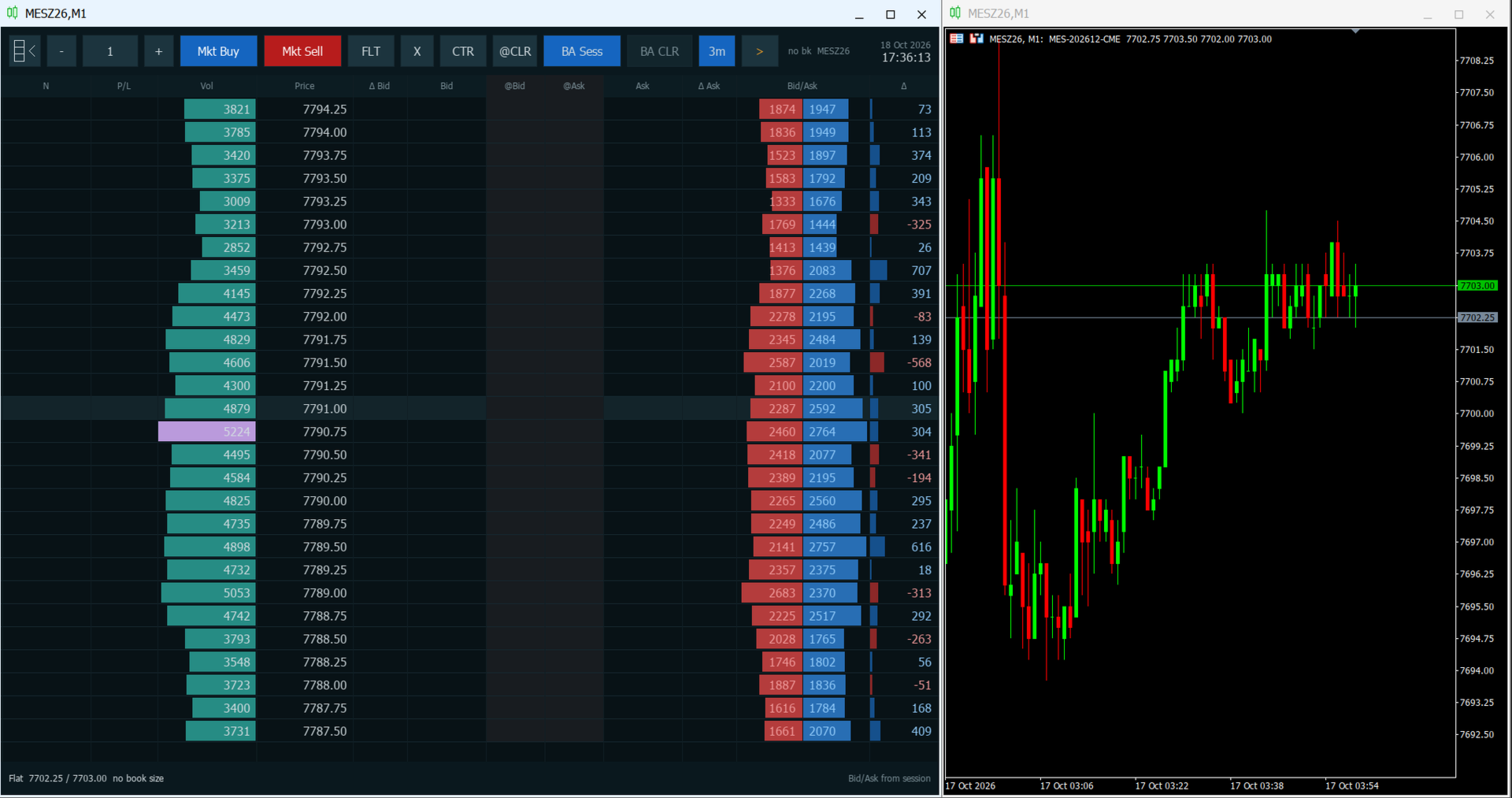
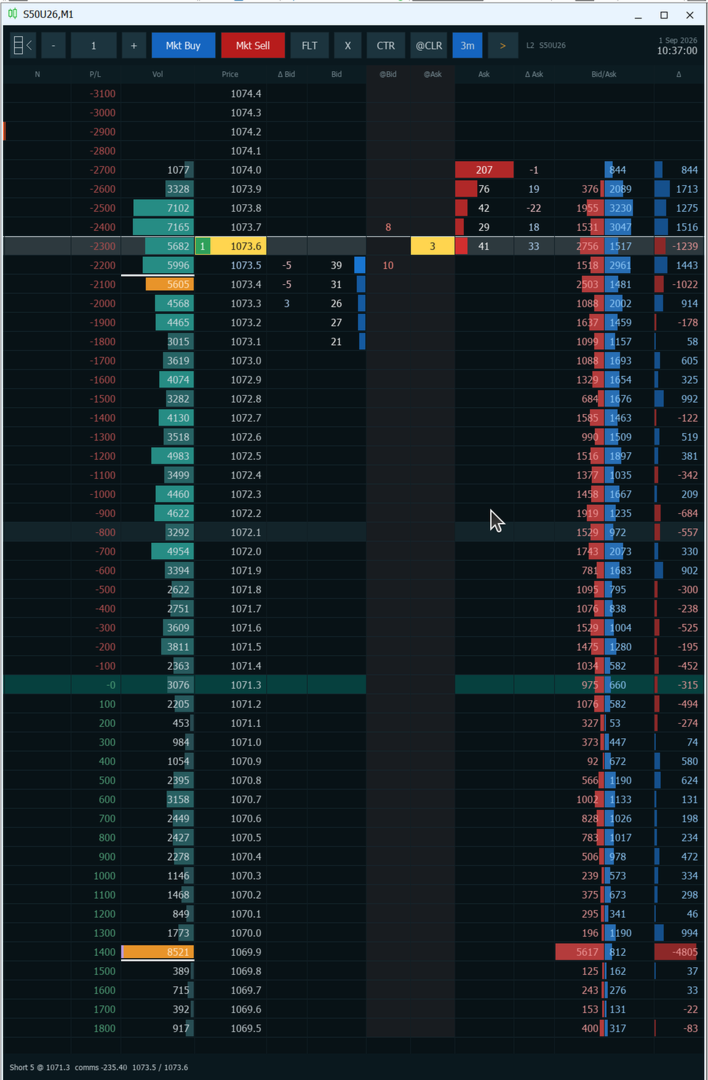
The panel has three parts: the toolbar at the top, the price ladder in the middle and the status line at the bottom. Hover over a toolbar button for a moment to see its tip.
Toolbar, from left to right:
- Ladder button: hides or shows the panel. Hiding it brings the price chart back, and showing it covers the chart again. Session volume is kept.
- Minus, quantity, plus: the size of the next order. Minus and plus change it by one volume step.
- Mkt Buy and Mkt Sell: a market order for the shown quantity. A second click within half a second is ignored.
- FLT: flatten. Cancels every working order and closes every open position on the symbol.
- X: cancels the working orders on the symbol. The position stays open.
- CTR: centers the ladder on the last price and turns auto-center on. It stays lit while auto-center is on.
- @CLR: clears the @Bid and @Ask columns.
- BA Sess: when lit, Vol, Bid/Ask and Delta count from the session open (see "Reading order flow").
- BA CLR: restarts the Bid/Ask count from now. It works only while BA Sess is off.
- 3m: when lit, @Bid and @Ask clear themselves every three minutes.
- Play and pause: starts or pauses session replay.
- Status: "L2" when the broker sends a book with sizes and "no bk" when it does not, followed by the symbol. The broker's server date and time are on the right.
Ladder columns, from left to right:
- N: your note on that price.
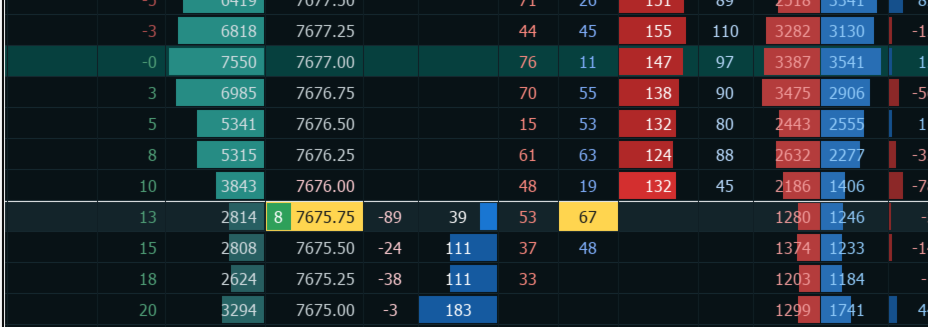
- P/L: the result of your whole position if price traded at that row, in money or in ticks. Empty while you are flat.
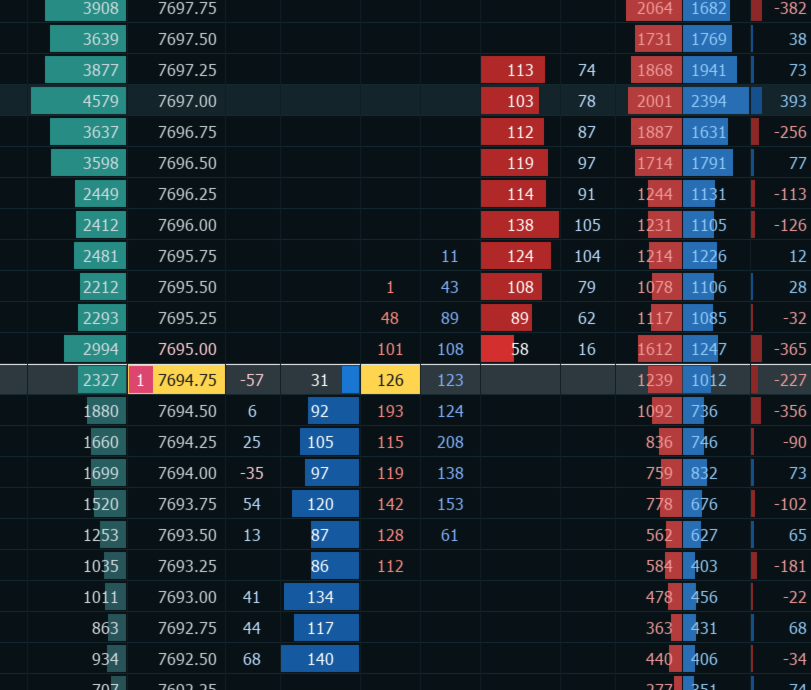
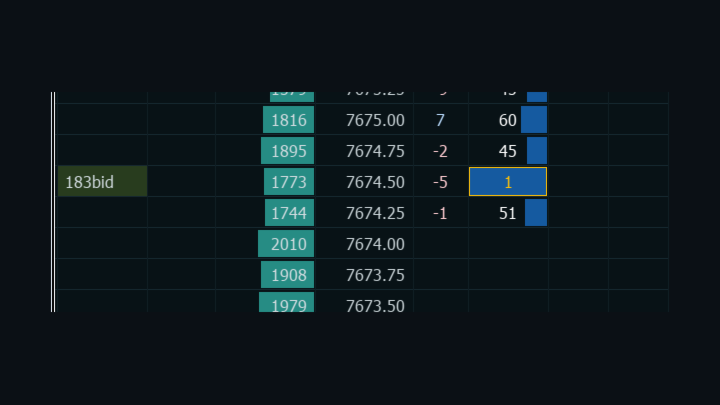
- Vol: traded volume at each price. The point of control is purple. The 70 percent value area is amber, and its high and low have white edges.
- Price: the row of the last trade is highlighted, with the size of that print colored by side.
- Delta Bid and Bid: the change in resting bid size, and the resting bid size from the broker's book.
- @Bid and @Ask: prints that sold into the bid or bought at the ask since the last clear.
- Ask and Delta Ask: the resting ask size, and its change.
- Bid/Ask: volume traded at the bid and at the ask, as two bars.
- Delta: ask volume minus bid volume at that price.
The status line shows Flat, or your side, size and average price with an estimated commission. Then come the current bid and ask, "no book size" when the broker sends quotes without depth, and in replay the replay position and clock. The last action, such as "Bid/Ask cleared", appears on the right.
Why DomDom
A candle shows where price went. The ladder shows how it got there: who was resting, who pulled, who hit, and where volume built up. DomDom puts that next to your order entry.
- Watch liquidity being added or pulled at each price as it happens, not after the bar closes.
- See whether volume traded at the bid or at the ask, and where the session's value sits.
- Act from the same row: one click for a limit, stop or market order, one more to cancel or protect it.
- Mark the levels you care about with notes that are still there the next time you attach DomDom.
- Study the last session after hours with replay.
Who it is for: discretionary day traders and scalpers on futures and other exchange-traded instruments who read the book and the tape and want to trade from a ladder in MetaTrader 5. DomDom does not trade for you, give signals or predict price.
How to use DomDom
- Attach DomDom to a chart of the symbol you trade. The ladder fills that chart window.
- Optionally, open a second chart of the same symbol on any timeframe, M1 or M5 for example, and place the two windows side by side.
- That is all. DomDom works on its own; the second chart only adds context.
Before your first trade
- Turn on Algo Trading in the MetaTrader 5 toolbar.
- When you attach DomDom, tick "Allow Algo Trading" on the Common tab.
Without both, every order is rejected. Click the chart once so that it has keyboard focus for the hotkeys.
Reading order flow
Each print is assigned to a side by the exchange's buy or sell flag when the feed has one. Otherwise DomDom compares its price with the quote: at or above the ask is a buy, at or below the bid is a sell. Prints between the bid and the ask count in Vol only. A change of the bid or ask alone is never counted as a trade.
With BA Sess lit, Vol, Bid/Ask and Delta cover the whole session from its open. Turn BA Sess off, or press BA CLR while it is off, and the bid and ask counts start again from that moment: Vol, Bid/Ask, Delta, the point of control and the value area then show what has traded since. Prints between the bid and the ask keep their session totals in Vol. Turn BA Sess on again to reload the full session.
@Bid and @Ask are separate. They build a short-term tape at each price until you clear them or the 3m timer does.
The session starts at the end of the symbol's daily trading break. If the broker defines none, DomDom uses 17:00 Chicago time.
In the book, Bid and Ask show resting size as bars, with the best bid and best ask emphasized and your own working orders framed. Delta Bid and Delta Ask show size added (positive) or pulled (negative) at a price since DomDom first saw it.
DomDom only shows the book your broker sends. It does not estimate resting liquidity from tick volume.
Trading from the ladder
A left click on these columns trades:
- Bid or @Bid: below the ask a buy limit, at the ask a market buy, above the ask a buy stop.
- Ask or @Ask: above the bid a sell limit, at the bid a market sell, below the bid a sell stop.
- Price: sells while you are long and buys while you are short. While you are flat, a row below the ask buys and any other row sells.
- P/L: sets a stop loss or take profit at that price.
Other columns:
- N: opens the note editor at that price.
- Vol, Delta Bid, Delta Ask, Bid/Ask and Delta: no action.
With modifiers:
- Ctrl+click on Bid, @Bid, Ask, @Ask or Price: a stop order on that side.
- Shift+click on any column except N: a stop loss or take profit at that price. A price on the profit side of your average, or on the average itself, becomes the target. A price on the loss side becomes the stop. Both need an open position.
- Click a row that holds your own working order to cancel it: Bid or @Bid for a buy, Ask or @Ask for a sell, or Price for either.
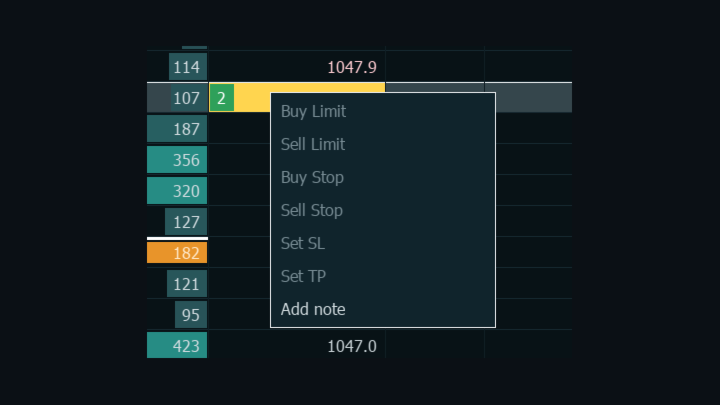
A right-click on a row opens a menu:
- Buy Limit, Sell Limit, Buy Stop, Sell Stop: at that price.
- Set SL and Set TP: at that price. On a row that already holds them they read Cancel SL and Cancel TP. Both need an open position.
- Add note: opens the note editor.
During replay the order items are dimmed and only Add note works.
A stop price that is not valid is corrected rather than rejected. A buy stop below the ask becomes a buy limit, a sell stop above the bid becomes a sell limit, and a stop exactly at the ask or the bid becomes a market order. Before sending, DomDom checks the symbol's volume limits, your free margin and the broker's stop and freeze distances. A request that fails a check is not sent, and the reason is written to the Experts log.
Notes mark a level that mattered, such as a large resting bid, or a point of interest to check later. Click the N cell, or choose Add note, then type up to 80 letters, digits and punctuation. Enter or a click elsewhere saves, Esc cancels, and Backspace or Delete removes the last character. Saving an empty note clears it. Notes are stored per symbol and return when you attach DomDom again.
Keyboard and mouse
The keys work while the chart has focus and are ignored while you type a note.
- Ctrl+Alt+B: market buy.
- Ctrl+Alt+S: market sell.
- Ctrl+Alt+F: flatten.
- X: cancel all working orders on the symbol.
- C: center on the last price and turn auto-center on.
- L: clear @Bid and @Ask.
- Shift+L: clear Bid/Ask, only while BA Sess is off.
- Plus and minus, on the main keyboard or the numeric keypad: change the quantity. They repeat while held.
- Up and Down arrows: move the ladder one price. They repeat while held.
- Esc: close the right-click menu.
X, C and L do nothing while Ctrl or Alt is held. The mouse wheel moves the ladder three prices. The wheel and the arrows turn auto-center off. While the pointer is over the panel, the chart does not scroll and the terminal's own right-click menu stays closed.
Order types
DomDom sends market, limit and stop orders. Pending orders are good till cancelled and use the toolbar quantity. Stop loss and take profit are written onto the open position rather than placed as separate orders, so one stop and one target apply to the whole position.
Position, P/L and account handling
The row of your average price is tinted teal, and the P/L column shows the result of the whole position at every price. The status line shows the size, the average price and an estimated round-trip commission: the commission and fees per lot already charged on the open position, counted again for the exit.
DomDom reads the account type when it is attached.
- Netting and exchange accounts: the broker keeps one position per symbol, and a close only changes its size.
- Hedging accounts: DomDom shows one net position. A close reduces the oldest ticket of that side first. Selling more than your long, or buying more than your short, covers it and opens the remainder the other way in the same click. Opposite tickets on the symbol are paired off with Close By, and stop loss and take profit are copied to every ticket.
Please note: DomDom treats every position on the chart symbol as one net position, including positions opened by hand or by other programs. Flatten closes all of them.
Session replay
When the market is closed, DomDom can replay the latest session from the tick history that MetaTrader 5 has already stored for the chart symbol. The terminal keeps this history in its own tick cache files, and DomDom reads it through the terminal. It does not download or build history itself. Stored ticks hold trades and best prices but no book sizes, so the Bid and Ask columns stay empty in replay.
While replay runs, every button and key that would send, change or cancel an order is disabled, and so are the quantity controls. Notes, centering, the clear buttons, BA Sess and play and pause still work. If replay is required and the symbol has no tick history, DomDom stops and writes the reason to the Experts log.
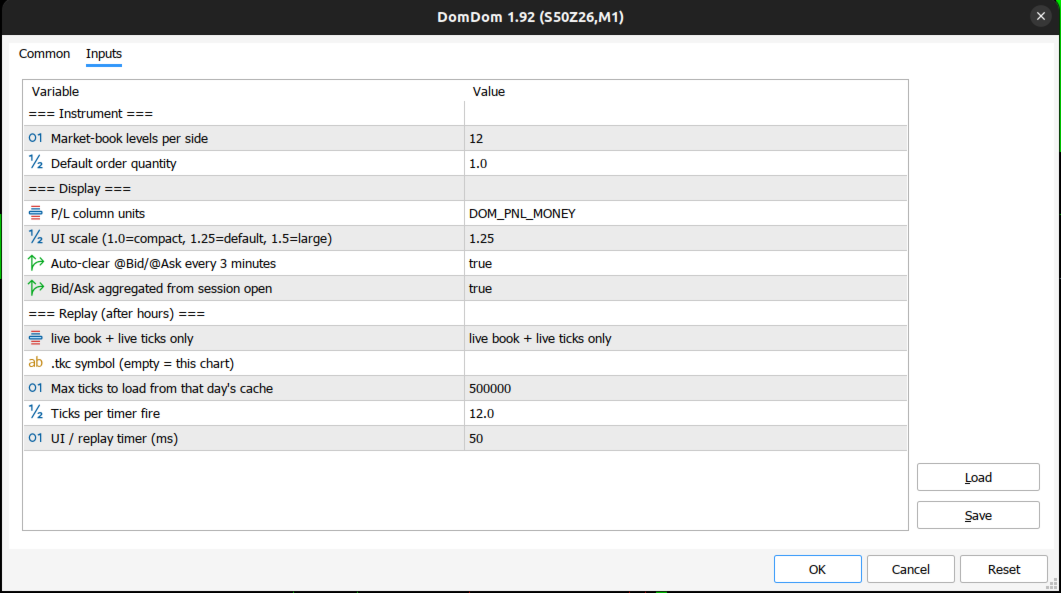
Settings
Instrument:
- Market-book levels per side (12): reserved. The ladder shows every level the broker sends with a size.
- Default order quantity (1.0): the starting order size, rounded to the symbol's volume step.
Display:
- P/L column units (DOM_PNL_MONEY): money, or DOM_PNL_TICKS for ticks.
- UI scale (1.25): 1.0 is compact and 1.5 is large.
- Auto-clear @Bid/@Ask every 3 minutes (true): the starting state of the 3m button.
- Bid/Ask aggregated from session open (true): the starting state of the BA Sess button.
Replay (after hours):
- Replay mode, shown as "live book + live ticks only" (the default): live data only. "always drive the ladder from cached M1/ticks" always replays, and "replay when the market is quiet / closed" replays when the last quote is more than 15 seconds old or the symbol is not fully tradable. Replay always uses ticks.
- .tkc symbol (empty = this chart): leave it empty. Replay always uses the chart symbol.
- Max ticks to load from that day's cache (500000): caps how many ticks of the session are loaded, for replay and for the session recap at attach.
- Ticks per timer fire (12.0): the replay speed, up to 80.
- UI / replay timer (ms) (50): the screen refresh and replay step, at least 40.
Requirements and limitations
- MetaTrader 5 with algorithmic trading allowed (see "Before your first trade").
- A symbol for which the broker provides Depth of Market with sizes. To check, right-click the symbol in Market Watch and open Depth of Market. If its volume column is empty, DomDom's book columns will be empty too.
- A feed with real trades. Most forex and CFD symbols have no book and no trade prints, so the book, volume, print and delta columns stay empty.
- One DomDom per symbol. Other symbols can run on other charts at the same time.
The free demo runs only in the Strategy Tester. The tester has no order book and passes no mouse or keyboard input, and DomDom does not run its session recap, replay or screen refresh there, so the demo cannot show the ladder at work. The one-month rental is the practical way to try DomDom on a live or demo account.
Support
Questions, bug reports and suggestions are welcome in the product comments or by private message on MQL5.
Disclaimer
Trading involves risk. DomDom is a tool for reading the market and entering orders. It does not predict prices or promise any result. The author has done his best to develop DomDom as a high-quality application that is safe to use as part of your trading, but every trading decision and its outcome remain your own. The author is not responsible for any financial loss resulting from the use of DomDom in the real market.