Easy Trade Manager Pro
- Utilità
- Versione: 2.0
- Attivazioni: 10

MQL5 MARKET PRODUCT LISTING & USER MANUAL
1. Short Description
Easy Trade Manager is a manual trade assistant for MetaTrader 5. It automatically calculates your lot size based on your chosen risk, allows you to set Stop Loss and Take Profit levels by dragging them on the chart, and places orders for you.
It does not trade automatically. You remain in control of every trade.
2. Product Description
Easy Trade Manager is a visual position-sizing and order-placement utility for MetaTrader 5.
Designed for manual traders, it makes order entry faster, more consistent and less prone to calculation errors by handling lot-size calculations and displaying your complete trade setup directly on the chart before execution.
Simply select your preferred risk per trade, position your Stop Loss and Take Profit levels, and let Easy Trade Manager calculate the appropriate lot size.
Your trade setup is displayed using draggable chart lines and colour-coded zones, accompanied by live calculations showing points, monetary values and account percentages. You can review and adjust everything before placing an order.
The tool supports Forex, indices and metals, with pip values handled according to the relevant trading instrument.
3. Main Features
1. Risk-Based Lot Sizing
-
Calculate lot sizes automatically based on your selected risk percentage.
-
Choose Balance, Equity or Free Margin as your risk calculation base.
-
Lot size adjusts according to the distance between Entry and Stop Loss.
-
Include broker commission per lot for more accurate risk calculations.
2. Interactive On-Chart Trade Setup
-
Entry, Stop Loss and Take Profit are displayed as draggable lines.
-
Green and red shaded zones visually represent your potential reward and risk areas.
-
Drag individual Stop Loss or Take Profit levels to adjust your trade.
-
Move the entire trade setup horizontally or vertically.
-
Dashboard figures update in real time as you adjust your levels.
3. Risk-to-Reward Management
-
Set your preferred Reward-to-Risk (R/R) and Risk-to-Stop-Loss (R/SL) ratios.
-
Take Profit automatically adjusts when you move Stop Loss.
-
Alternatively, drag Take Profit manually and the reward ratio updates accordingly.
4. Automatic Order Type Detection
Easy Trade Manager automatically determines the appropriate order type based on your selected Entry price:
-
Market orders
-
Buy Limit orders
-
Sell Limit orders
-
Buy Stop orders
-
Sell Stop orders
5. Two Operating Modes
-
Calculator Mode: Automatically calculates lot size using your selected risk percentage.
-
Manual Mode: Allows you to enter Lot Size, Entry, Stop Loss and Take Profit manually.
6. Live On-Chart Information
View important trade information directly on your chart, including:
-
Entry price
-
Stop Loss price
-
Take Profit price
-
Lot size
-
Risk amount
-
Risk percentage
-
Distance in pips
-
Monetary values
-
Achieved reward-to-risk ratio
7. Trade Confirmation
A confirmation prompt appears before an order is placed. This feature is enabled by default but can be disabled in the settings for one-click order placement.
8. Automatic Settings Preservation
Your preferred risk settings, ratios, lot size and operating mode are saved and restored when the terminal restarts.
9. Adjustable Interface
-
Move the dashboard anywhere on the chart.
-
Minimise and restore the dashboard.
-
Adjust dashboard scaling.
-
Customise font sizes.
-
Show or hide the on-chart trading widget with one button.
10. Strategy Tester Compatibility
Easy Trade Manager can be used in MetaTrader 5 Strategy Tester visual mode to measure and place trades using historical data.
If you scroll away from the current price and the on-chart widget disappears from view, simply switch the widget off and on again to bring it back into view.
4. Take Control of Your Manual Trading
Easy Trade Manager is designed to help you execute your own trading decisions in a more controlled and organised way.
It does not generate trading signals, predict market movements or execute trades automatically.
You choose the direction, entry, risk and trade levels. Easy Trade Manager handles the calculations and order placement.
PART 2: USER INSTRUCTION MANUAL1. Installation
Follow these steps to install and start using Easy Trade Manager.
-
Purchase or rent Easy Trade Manager from the MQL5 Market.
-
Install the product through your MetaTrader 5 terminal.
-
Open a chart for the trading instrument you want to use.
-
Open the Navigator window.
-
Drag Easy Trade Manager onto the chart or double-click the product.
-
In the settings window, open the Common tab and allow algorithmic trading.
-
Adjust the input settings if necessary.
-
Click OK to load the tool.
-
Ensure that the AutoTrading button on the MetaTrader 5 toolbar is switched on.
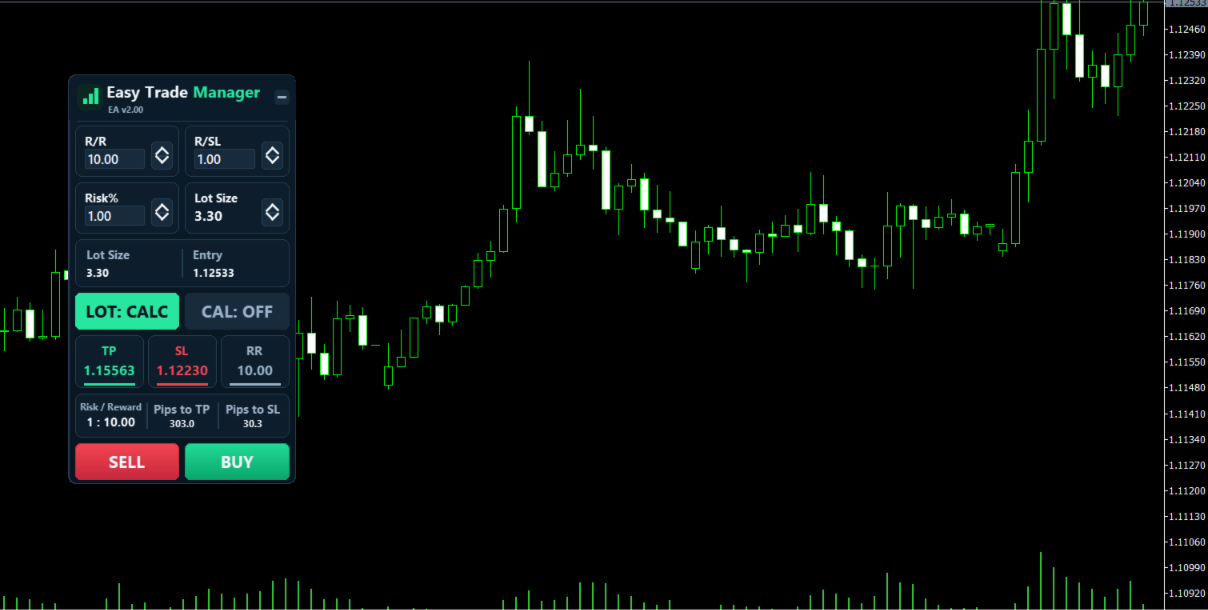
The Easy Trade Manager dashboard will appear in the top-left corner of your chart.
2. Understanding the Dashboard
The dashboard is the main control panel displayed on your chart.
Its components are arranged as follows:
| Component | Function |
|---|---|
| Title Bar | Displays the product name. You can drag the dashboard using this bar. |
| Minimise Button | Minimises or restores the dashboard. |
| R/R | Sets your preferred reward ratio. |
| R/SL | Sets your preferred risk ratio. |
| Risk % | Specifies the percentage of your account you want to risk. |
| Lot Size | Displays the calculated lot size or allows manual entry, depending on the selected mode. |
| LOT Button | Switches between Calculator Mode and Manual Mode. |
| CAL Button | Shows or hides the on-chart trading widget. |
| TP | Displays or allows editing of the Take Profit price. |
| SL | Displays or allows editing of the Stop Loss price. |
| RR | Displays the achieved reward-to-risk ratio. |
| Risk / Reward | Summarises the monetary risk and potential reward. |
| Pips to TP | Shows the distance to Take Profit. |
| Pips to SL | Shows the distance to Stop Loss. |
| SELL | Places a Sell order. |
| BUY | Places a Buy order. |
Editing dashboard values
Where editing is permitted, you can change a value directly:
-
Click on the displayed number.
-
Enter your preferred value.
-
Press Enter to apply the change.
3. Understanding the On-Chart Trading Widget
The on-chart widget provides a visual representation of your proposed trade.
To display it, click the CAL button on the dashboard.
The widget displays three main horizontal lines:
-
Entry Line
-
Stop Loss Line
-
Take Profit Line
The areas between these levels are colour-coded:
-
Green Zone: Represents the potential reward area.
-
Red Zone: Represents the potential risk area.
Each level displays relevant information, including distance in pips, monetary value, account percentage and price.
3.1 On-Chart Controls
The Entry line contains a small toolbar with the following controls:
Move Handle
Allows you to move the entire trade setup.
-
Drag left or right to reposition the widget.
-
Drag up or down to move Entry, Stop Loss and Take Profit together.
Flip
Switches the trade direction between Buy and Sell by mirroring the Stop Loss and Take Profit levels around the Entry price.
M
Moves the Entry price to the current market price while adjusting Stop Loss and Take Profit accordingly.
C
Cancels and hides the on-chart widget.
Order Bar
Displays the order type, lot size and Entry price.
Click the order bar to place the trade.
3.2 Adjusting Stop Loss and Take Profit
To adjust your trade levels:
-
Drag the green Take Profit bar to your preferred price.
-
Drag the red Stop Loss bar to your preferred price.
-
Observe the updated calculations on the dashboard and chart.
In Calculator Mode, Take Profit automatically follows your selected reward ratio when you move Stop Loss.
If you manually drag Take Profit, the reward ratio automatically adjusts to match the new level.
To hide the widget, click CAL again or use the C button.
4. Calculator Mode vs Manual Mode
The LOT button allows you to switch between two operating modes.
4.1 Calculator Mode (LOT: CALC)
In Calculator Mode, Easy Trade Manager automatically calculates the appropriate lot size based on:
-
Your selected Risk %.
-
Your selected risk calculation base.
-
The distance between Entry and Stop Loss.
-
Applicable broker commission settings.
The lot size updates automatically whenever you adjust the Stop Loss distance.
You only need to select your risk and position your trade levels.
4.2 Manual Mode (LOT: MANUAL)
In Manual Mode, you control the trade parameters yourself.
You can manually enter:
-
Lot Size
-
Entry Price
-
Stop Loss
-
Take Profit
The Risk % setting is not used to calculate the lot size in this mode.
This mode is suitable for traders who prefer to determine their position size independently.
5. How to Place a Trade
Follow these steps to execute a trade using Easy Trade Manager.
Step 1: Set Your Risk
Enter your preferred Risk % on the dashboard.
Step 2: Set Your Reward and Risk Ratios
Adjust the R/R and R/SL values according to your trading strategy.
Step 3: Open the On-Chart Widget
Click CAL to display the trade setup on your chart.
Step 4: Position Your Trade Levels
Drag the Stop Loss and Take Profit bars to your preferred price levels.
The lot size and monetary risk calculations will update automatically in Calculator Mode.
Step 5: Review Your Trade
Check the following information:
-
Entry Price
-
Stop Loss
-
Take Profit
-
Lot Size
-
Risk Amount
-
Reward-to-Risk Ratio
Step 6: Select Your Trade Direction
Click BUY or SELL on the dashboard, or click the order bar on the chart.
Step 7: Confirm Your Order
If trade confirmation is enabled, a confirmation window will appear displaying the order details.
-
Confirm to place the order.
-
Cancel to abort the order.
Automatic Order Type Selection
Easy Trade Manager automatically selects the appropriate order type based on the position of your Entry price relative to the current market price.
-
An Entry at the current market price results in a Market Order.
-
An Entry away from the current price may result in a Buy/Sell Limit or Stop Pending Order, depending on its position.
The tool also checks that Stop Loss and Take Profit are positioned on the correct sides of the Entry price before placing an order.
6. Using Easy Trade Manager in the Strategy Tester
Easy Trade Manager supports MetaTrader 5 Strategy Tester in visual mode.
This allows you to measure and place trades using historical market data.
Important notes:
-
The trade confirmation prompt is not displayed in Strategy Tester mode.
-
If you scroll far away from the current market price and the widget is no longer visible, click CAL to switch it off.
-
Click CAL again to switch it back on.
The widget will reappear in the centre of the visible chart area.
PART 3: INPUT SETTINGSThe following settings are available when loading Easy Trade Manager.
| Input | Description |
|---|---|
| Panel X | Sets the starting horizontal position of the dashboard in pixels. |
| Panel Y | Sets the starting vertical position of the dashboard in pixels. |
| Default Risk % | Sets the initial risk percentage when the tool starts. |
| Default R/R | Sets the default reward ratio. |
| Default R/SL | Sets the default risk ratio. |
| Risk Base | Determines whether risk is calculated from Balance, Equity or Free Margin. |
| Commission per Lot | Sets the broker's round-turn commission per lot in the deposit currency. This is included in the lot calculation. |
| Magic Number | Identifies orders placed by Easy Trade Manager. |
| On-Chart Zone Width | Sets the width of the on-chart trading widget in pixels. |
| Confirm Before Placing Trades | Enables or disables the confirmation prompt before placing an order. Enabled by default. |
| Dashboard Size Scale | Adjusts the overall dashboard size. A value of 1.0 represents the original size. |
| Font Sizes | Allows you to fine-tune the dashboard text size. |
Settings Preservation
Your preferred settings, including risk, ratios, lot size and operating mode, are saved and restored when MetaTrader 5 restarts.
To return to the input defaults, change one of the default inputs in the settings window.
PART 4: IMPORTANT NOTESPlease take note of the following before using Easy Trade Manager:
-
Easy Trade Manager is a manual trading utility. It does not generate signals or execute trades automatically.
-
You remain responsible for selecting your trading direction, Entry, Stop Loss and Take Profit levels.
-
Test the tool on a demo account first to familiarise yourself with its controls.
-
Ensure that algorithmic trading permissions are enabled and AutoTrading is switched on.
-
For technical support, use the built-in MQL5 chat and the product comments section.