KT Drawing Tool
- Indicatori
- Versione: 1.0

KT Drawing Tool - Pro Magnetic Snapping & MTF Auto-Coloring
Stop struggling with manual alignment! Experience the ultimate precision for Price Action trading.
The KT Drawing Tool is a professional assistant designed to replace the native MT4 drawing objects. It solves the common pain point of "imprecise levels" by automatically snapping your lines to the exact market prices. Whether you are trading Smart Money Concepts (SMC), ICT, or classic Support & Resistance, this tool will significantly speed up your analysis.
🔥 Key Features
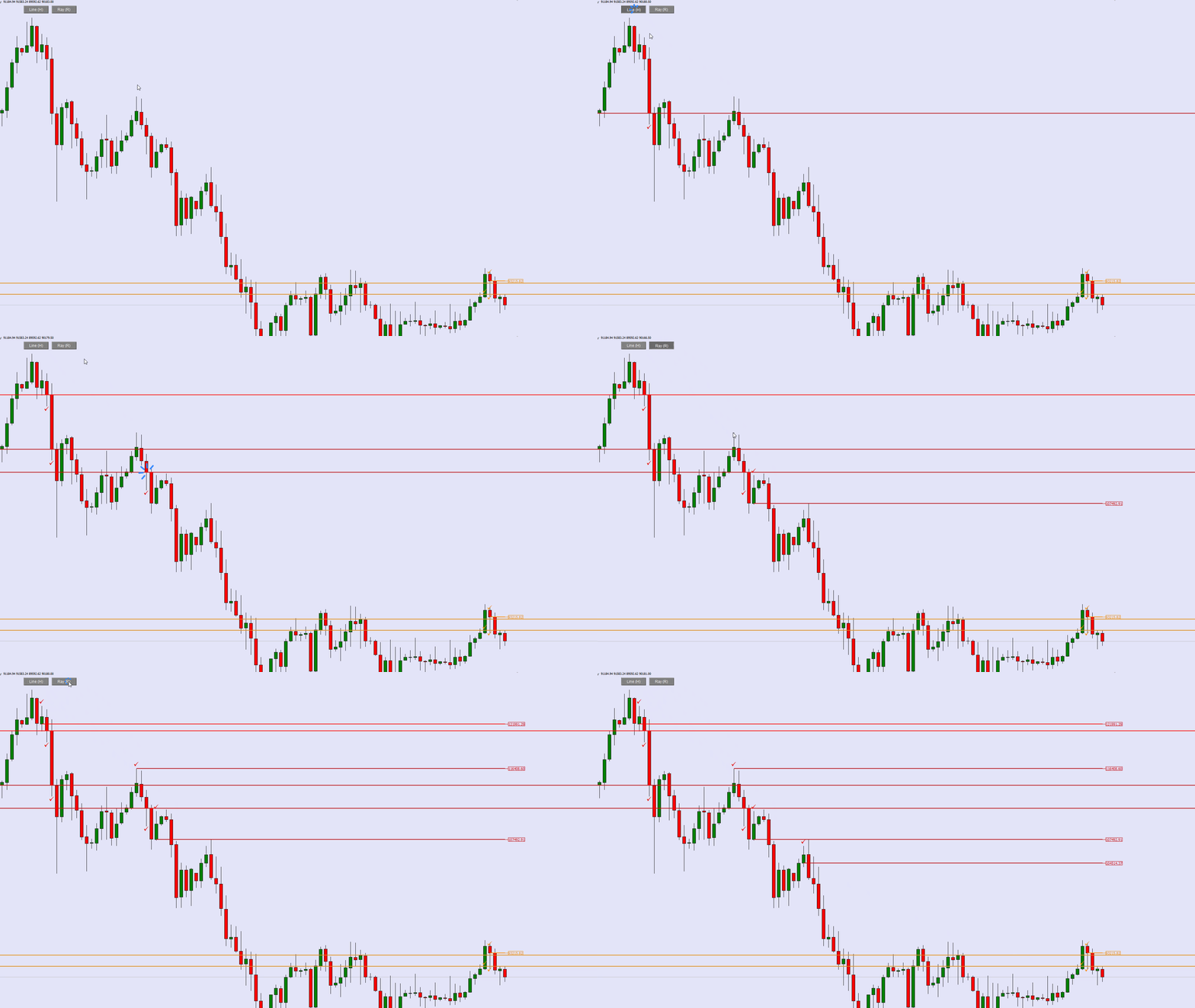
1. 🧲 OHLC Magnetic Snapping Never miss a pip again. When you click near a candle, the tool intelligently calculates and snaps the line to the nearest Open, High, Low, or Close price of that specific candle.
-
100% Precision: Ensures your key levels are drawn at the exact tick value.
-
Zero Ambiguity: Perfect for defining Order Blocks, Breakers, and Rejection Blocks.
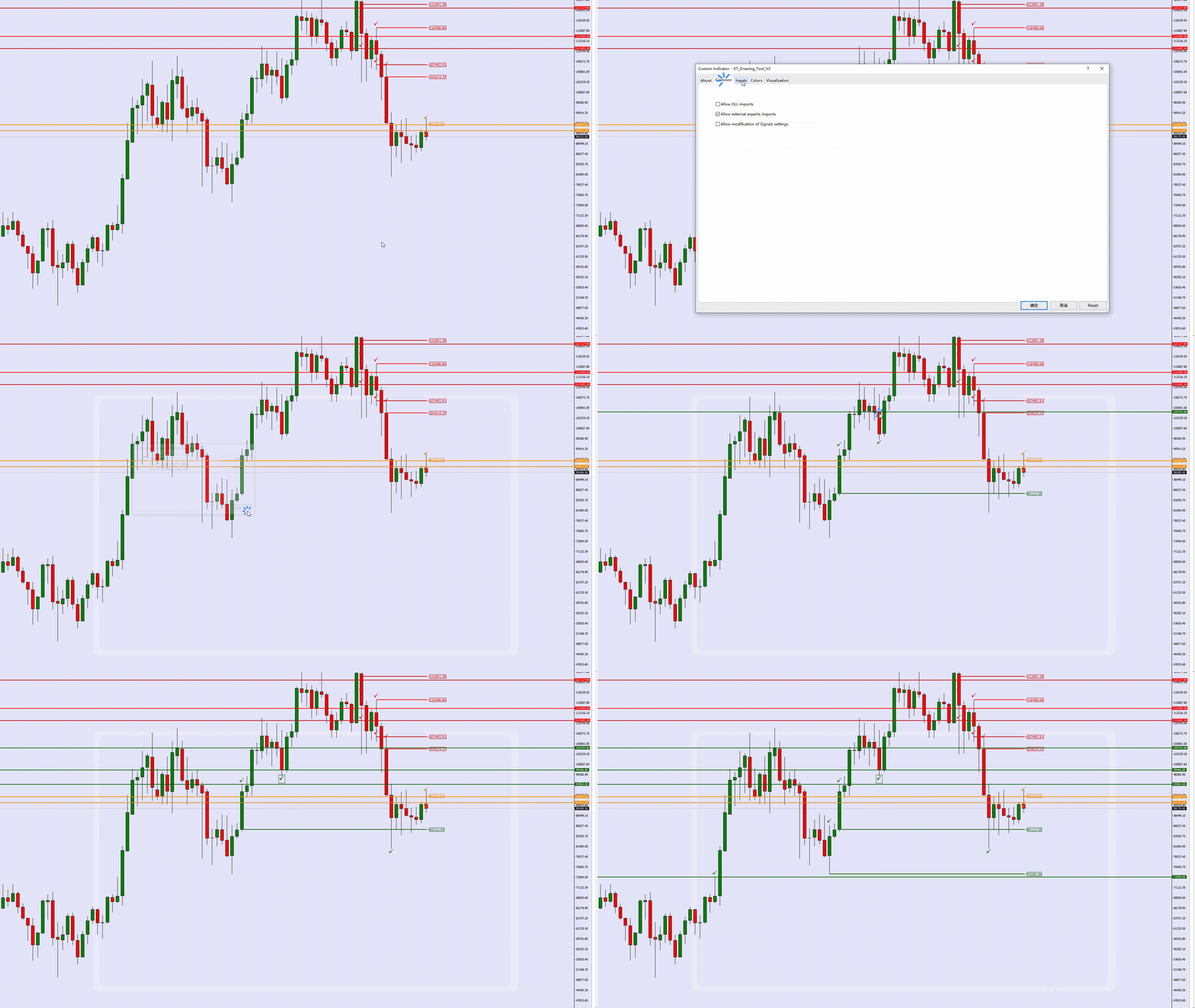
2. 🎨 Multi-Timeframe (MTF) Auto-Coloring Instantly recognize the importance of every line. The tool automatically detects your current chart timeframe and applies a specific color to the drawing.
-
H1 = Blue (Default)
-
H4 = Orange
-
D1 = Red
-
W1/MN1 = Green/Violet
-
Note: All colors are fully customizable in the settings.
3. ⚡ One-Click Control Panel Access your tools instantly from a clean dashboard on the chart.
-
Horizontal Line (H): Draws an infinite horizontal line for key levels.
-
Ray / Segment (R): Draws a fixed-length line from a historical high/low to the current candle. Keeps your chart clean and focused.
4. ✅ Visual & Audio Confirmation
-
Checkmarks: A small check mark (✓) appears on the high or low of the selected candle to confirm the snap.
-
Sound Effects: Provides an audible cue when a drawing is successfully placed.
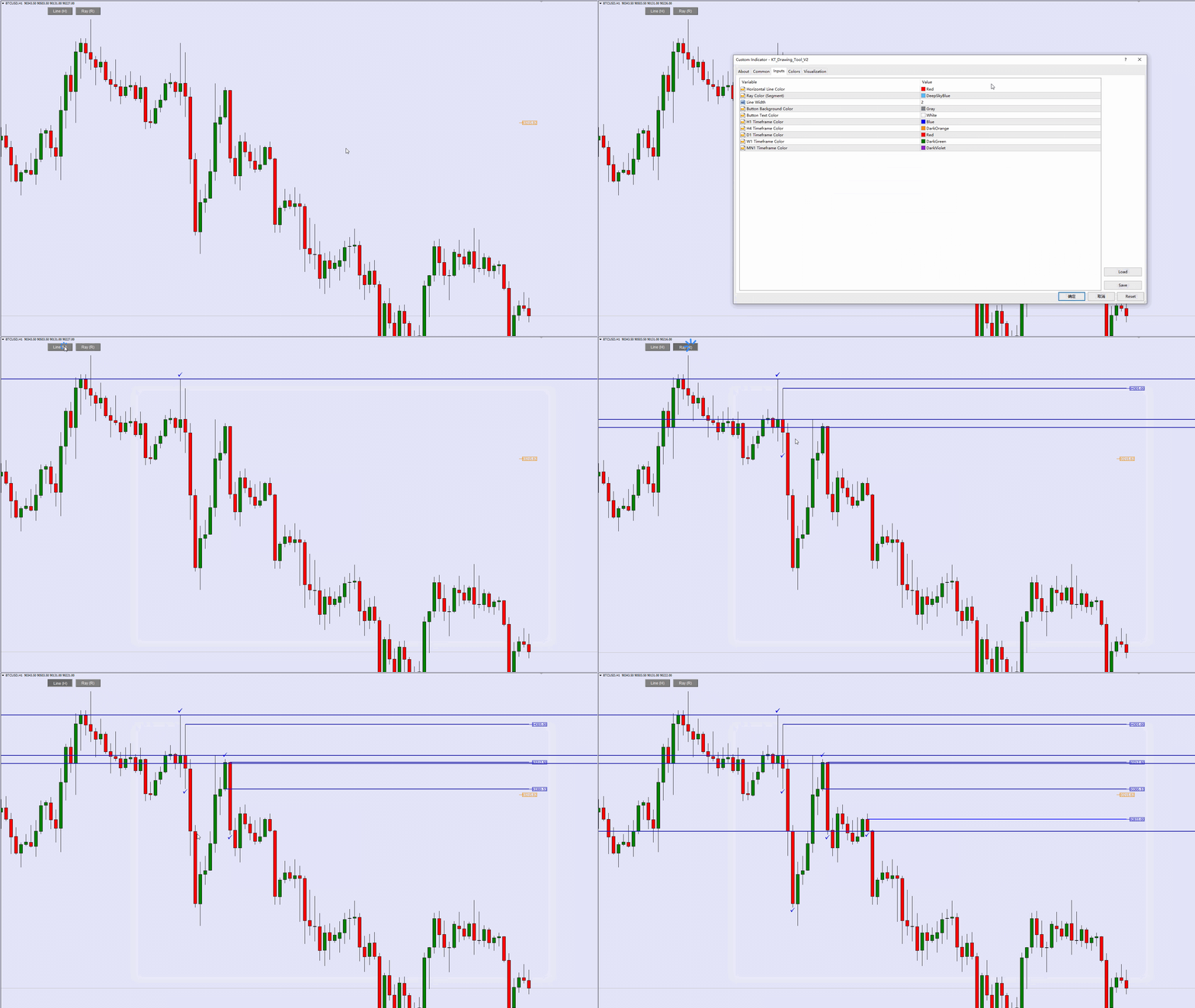
🛠️ Parameters (Inputs)
-
ColorHLine: Default color for horizontal lines (if not matching specific TFs).
-
ColorRay: Default color for rays.
-
LineWidth: Thickness of the lines.
-
Color_H1 / H4 / D1 / W1 / MN1: Custom colors for specific timeframes. Customize these to match your personal charting theme (Light/Dark mode friendly).
🚀 How to Use
-
Attach the indicator to your chart.
-
Click the "Line (H)" or "Ray (R)" button on the panel. The button will stay pressed, indicating "Drawing Mode" is active.
-
Click anywhere near a candle on the chart.
-
Done! The line will instantly snap to the nearest High/Low, and the correct color will be applied automatically.