The Symbol Cycler and Object Sync Tool
- Utilità
- Versione: 1.0
- Attivazioni: 5

Symbol Cycler & Sync Tool - User Guide
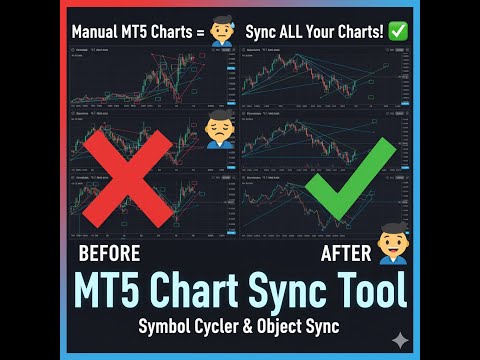
This Expert Advisor (EA) is a powerful utility designed to streamline the management of multiple charts in MetaTrader 5. It allows you to group charts together and control them simultaneously, saving you time and improving your workflow.
Core Features
-
Multi-Chart Syncing: Create "Sync Groups" by assigning the same SyncGroupID to multiple charts. All charts in a group act as one, allowing you to change their symbols and sync objects across them instantly.
-
Custom Symbol Cycling: Forget manually changing symbols on each chart. Define your own custom list of tickers and cycle through them effortlessly on all grouped charts using your keyboard's Up and Down Arrow Keys.
-
One-Click Object Synchronization: Draw your technical analysis (trendlines, rectangles, Fibonacci retracements, etc.) on one chart. With a single click of the "SYNC GROUP" button, you can instantly clone all your drawings to every other chart in the same sync group.
-
Candle Information Tool: Quickly see the Open, High, Low, and Close (OHLC) data for any candle. You can configure this to appear when you either hover your mouse over a candle or click on it. The information is displayed neatly in the top-left corner of the chart.
-
Persistent Candle Highlight: When you click on a specific candle, a persistent highlight box will appear around it. This is perfect for marking key candles for future reference. Clicking the same candle again will toggle the highlight off.
How to Use This Expert Advisor
Step 1: Setting up a Sync Group
-
Open two or more charts you want to link together.
-
Attach the "Symbol Cycler" EA to the first chart.
-
In the "Inputs" tab, look for SyncGroupID. Leave it at its default value of 1.
-
Attach the EA to the second chart. Make sure its SyncGroupID is also set to 1.
-
Repeat for any other charts you want in this group. You now have a synced group! You can create different groups by using a different ID (e.g., 2).
Step 2: Customizing Your Symbol List
-
In the EA's "Inputs" tab, find the setting named TickerList.
-
Enter the symbols you want to cycle through, separated by commas (e.g., EURUSD,GBPUSD,USDJPY,AUDUSD).
-
Click "OK." The EA will now use your custom list.
Step 3: Using the Features
-
To Cycle Symbols: Click on any chart in your sync group to make it active. Then, simply press the Up and Down Arrow Keys on your keyboard. All charts in the group will change to the next/previous symbol on your list.
-
To Sync Objects: Draw any lines, shapes, or Fibonacci tools on one chart. When you are ready to copy them, click the "SYNC GROUP" button on the chart. The objects will instantly appear on all other charts in the group.
Description for MQL5 Marketplace
Title: Symbol Cycler & Object Sync Tool
Description:
Improve your multi-chart workflow with the Symbol Cycler & Object Sync Tool. This utility is designed for traders who use multiple charts for their analysis and want to manage them more efficiently.
This tool helps reduce the time spent on repetitive tasks, such as changing symbols or applying graphical analysis across several charts. By grouping charts, you can perform these actions on all of them simultaneously. Key Features:
-
Keyboard Symbol Cycling: Define a custom list of symbols and cycle through them across all grouped charts using the arrow keys.
-
One-Click Object Sync: Copy trendlines, channels, Fibonacci tools, and other graphical objects from one chart to all others in the group with a single button click.
-
Multiple Chart Groups: Organize your workspace by creating different, independent groups of synced charts.
-
Instant Candle Data: Get quick OHLC information for any candle on hover or click.
-
Persistent Candle Highlighting: Mark key candles for future reference with a persistent highlight box.
This utility provides a practical solution for managing and synchronizing multiple charts in your trading environment.