Full Control Trader
- Utilità
- Versione: 1.1
- Aggiornato: 12 maggio 2026
- Attivazioni: 5

Full Control Trader is an excellent tool for fast and convenient trading. It gives you full control over the risk of every position you open.
The tool requires a Stop Loss to be set. Based on the Stop Loss level and the defined risk, it dynamically calculates the appropriate order lot size.
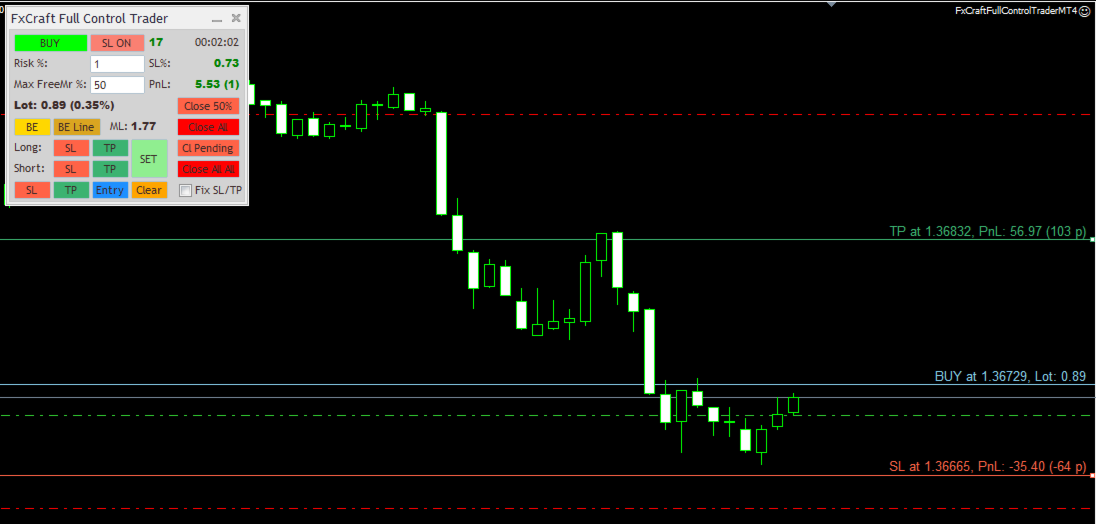
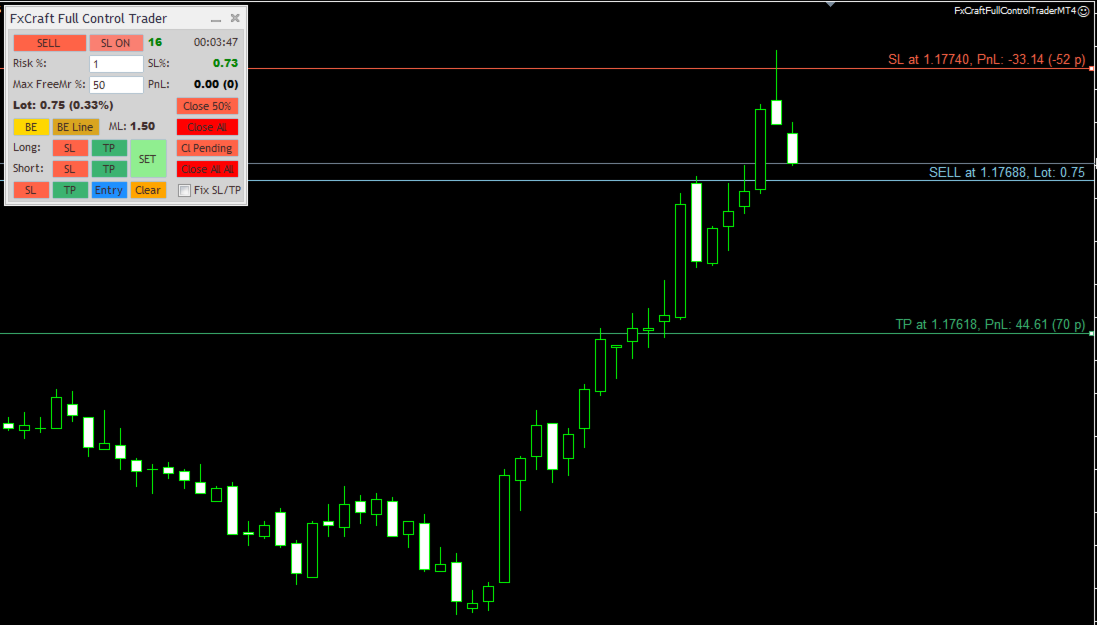
You can adjust the Stop Loss, Take Profit, or order entry price directly on the chart using the mouse, and the lot size will automatically update in real time to reflect these changes.
You can also specify the maximum percentage of your available funds (Free Margin) that can be used for a single order.
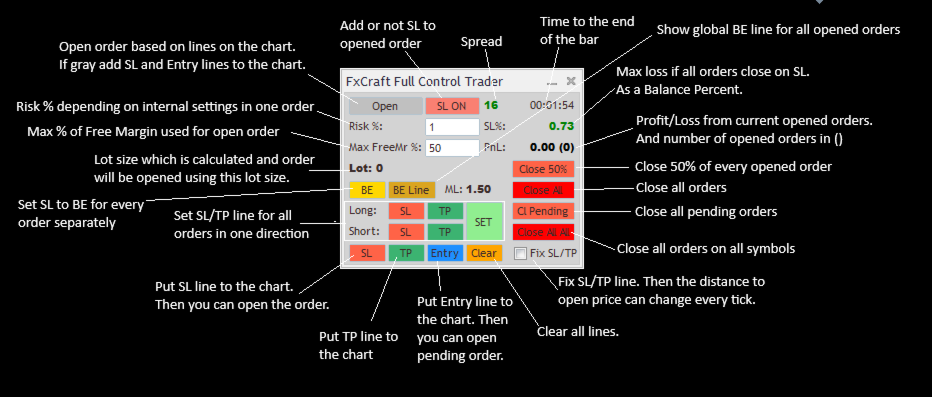
First, place the Stop Loss line on the chart (by clicking the "SL" or "Open" button). Then, depending on the Stop Loss position relative to the entry price, you can open the appropriate trade position.
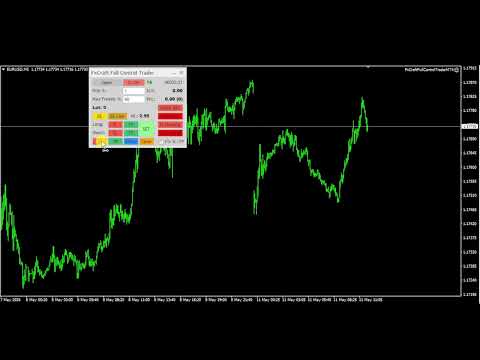
You can use the tool on MT4 tester using visual mode and simulate your manual trading!
Main Features:
- Dynamic lot size calculation based on changes to Stop Loss or risk.
- Convenient and intuitive placement of Stop Loss, Take Profit, and Entry Price lines on the chart using the mouse before opening an order.
- Fast and easy adjustment of Stop Loss and Take Profit levels for all open orders to a single price level.
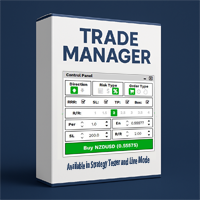
- Useful information about profits, lot size, Stop Loss risk, and more displayed on the panel.
- Ability to close all orders on the account at a specified profit/loss level or daily profit/loss target.
Other Useful Features:
- Multiple lot size calculation methods:
- Risk percentage of Balance / Equity / Custom Amount
- Fixed amount risked per order
- Fixed lot size
- Risk is defined as the maximum amount that can be lost if the order closes at the Stop Loss level.
- Lot size can be limited by a specified percentage of available Free Margin. The tool calculates the lot size so that it does not exceed the defined percentage of current Free Margin.
- Manual and automatic Break Even functionality applied separately to each order.
- Trailing Stop functionality applied separately to each order.
- Maximum spread filter — orders will not be opened if the spread exceeds the specified value.
- Maximum total Stop Loss risk protection — the tool prevents opening an order if the total potential loss from all Stop Losses exceeds the specified percentage of account Balance.
- Close All All function based on a specified profit/loss amount in account currency. "Close All All" means that all orders across all symbols on the platform are taken into account.
- Daily Stop Loss / Take Profit limits in percentage values. If all orders across all symbols on the platform reach the specified percentage of current Balance, Equity, or Balance from the beginning of the day, all positions will be closed automatically.
Daily profit/loss limits can also be defined as a fixed amount in account currency ( custom_amount_in_currency option). - Ability to set a custom order comment for trades opened by the tool.
- Ability to specify a Magic Number used by the tool.
- Lot_Risk_Mode – Selects how the lot size is calculated. Available options:
- risk_percentage_balance – You define the risk percentage (on the panel; the initial value is set by the initial_Risk_Percent parameter) and the Stop Loss level. The order lot size is calculated so that if the order closes at Stop Loss, the loss will not exceed the specified percentage of the account Balance.
- risk_percentage_equity – Same as above, but the percentage is calculated based on the current Equity.
- risk_percentage_customAmount – Same as above, but the percentage is calculated from the custom amount defined in the CustomAmount_for_Risk_Percent parameter.
- customAmount_in_currency – The risk amount is defined directly in the account currency (on the panel; the initial value is set by the initial_Risk_CustomAmount parameter).
- fixed_lot – The tool opens orders with a fixed lot size defined on the panel. The initial value is set by the initial_fixedLotSize parameter.
- initial_MaxEq_Percent – Initial value for the panel field: "Max FreeMr %". It defines the maximum percentage of Free Margin that can be used to open an order. The calculated lot size is limited by this value. The tool will neither display nor open a position with a lot size exceeding this limit.
- Max Lot Size – Defines the maximum lot size that the tool can open. If the calculated lot size exceeds this value, the tool will display and open the maximum allowed lot size instead.
- BE Gain (points) – If you click the "BE" button on the panel, the Stop Loss for every order will be moved to the order open price plus the specified BE Gain (in points).
- Max Spread (points) – Defines the maximum allowed spread (in points) for opening an order. If the current spread exceeds this value, the order will not be opened. You can monitor the current spread at the top of the panel. If the value is displayed in red, it means the spread exceeds the Max Spread limit and opening an order is blocked.
- Max Loss % on SL – If opening a new order would cause the total potential loss from all opened orders Stop Losses to exceed the specified percentage of the account Balance, the order will not be opened.
- use Auto BE – Enables/disables the automatic Break Even function. If an order reaches the profit level defined in Auto BE start (points), the Stop Loss for that order will automatically be moved to Open Price + Auto BE gain (points).
-
use Auto Trailing Stop – Enables/disables the automatic Trailing Stop function. If an order reaches at least the profit level defined in Auto TrailingStop Start (points), the Stop Loss for that order will trail the current price at a distance defined in Auto TrailingStop Distance (points).
The Stop Loss will be updated every Auto TrailingStop Step (points) - use CloseAllAll On Global Profit – Enables/disables automatic closing of all orders across all symbols on the platform when the total profit of all open orders reaches the value defined in Global Profit to Close (currency).
- use CloseAllAll On Global Loss – Enables/disables automatic closing of all orders across all symbols on the platform when the total loss of all open orders reaches the value defined in Global Loss to Close (currency).
-
use Daily StopLoss – Enables/disables automatic closing of all orders across all symbols on the platform if the combined result of: currently open orders and orders closed during the current day exceeds the limit defined in the following parameters: Daily StopLoss Mode and Daily StopLoss amount/%.
- Daily StopLoss Mode – Defines how the Daily Stop Loss trigger is calculated. Available options:
- custom_amount_in_currency – Uses a fixed amount in account currency defined in Daily StopLoss amount/%.
- percent_from_balance – Daily Stop Loss is calculated as a percentage of the current account Balance. The percentage value is defined in Daily StopLoss amount/%.
- percent_from_starting_balance – Daily Stop Loss is calculated as a percentage of the account Balance at the beginning of the day. The percentage value is defined in Daily StopLoss amount/%.
- percent_from_equity – Daily Stop Loss is calculated as a percentage of the current Equity. The percentage value is defined in Daily StopLoss amount/%.
- order_Comment – Defines the comment added to every order opened by the tool.
- magic [-1 = all magics] – Defines the Magic Number managed by the tool. The tool opens, manages, and closes orders with this Magic Number. If set to -1, the tool will manage orders with all Magic Numbers.
ATTENTION – All Global Close functions take into account all orders on the platform, regardless of Magic Number settings. - slippage – Defines the maximum allowed price slippage during order execution (in points).
- Visual_Settings – In this section, you can define the colors and styles of the lines plotted by the tool.
- initial panel X offset – Initial X coordinate of the panel when displayed on the chart. The panel can later be moved using the mouse.
- initial panel Y offset – Initial Y coordinate of the panel when displayed on the chart. The panel can later be moved using the mouse.
- font size – Defines the font size of all texts displayed on the panel.