Risk Control Pro
- Utilitaires
-
Andres Eduardo Rodriguez Fortunato
 I am a software developer and independent quantitative trading researcher with a passion for understanding how markets behave beyond traditional indicators.
 - Version: 1.19
- Activations: 5
Présentation
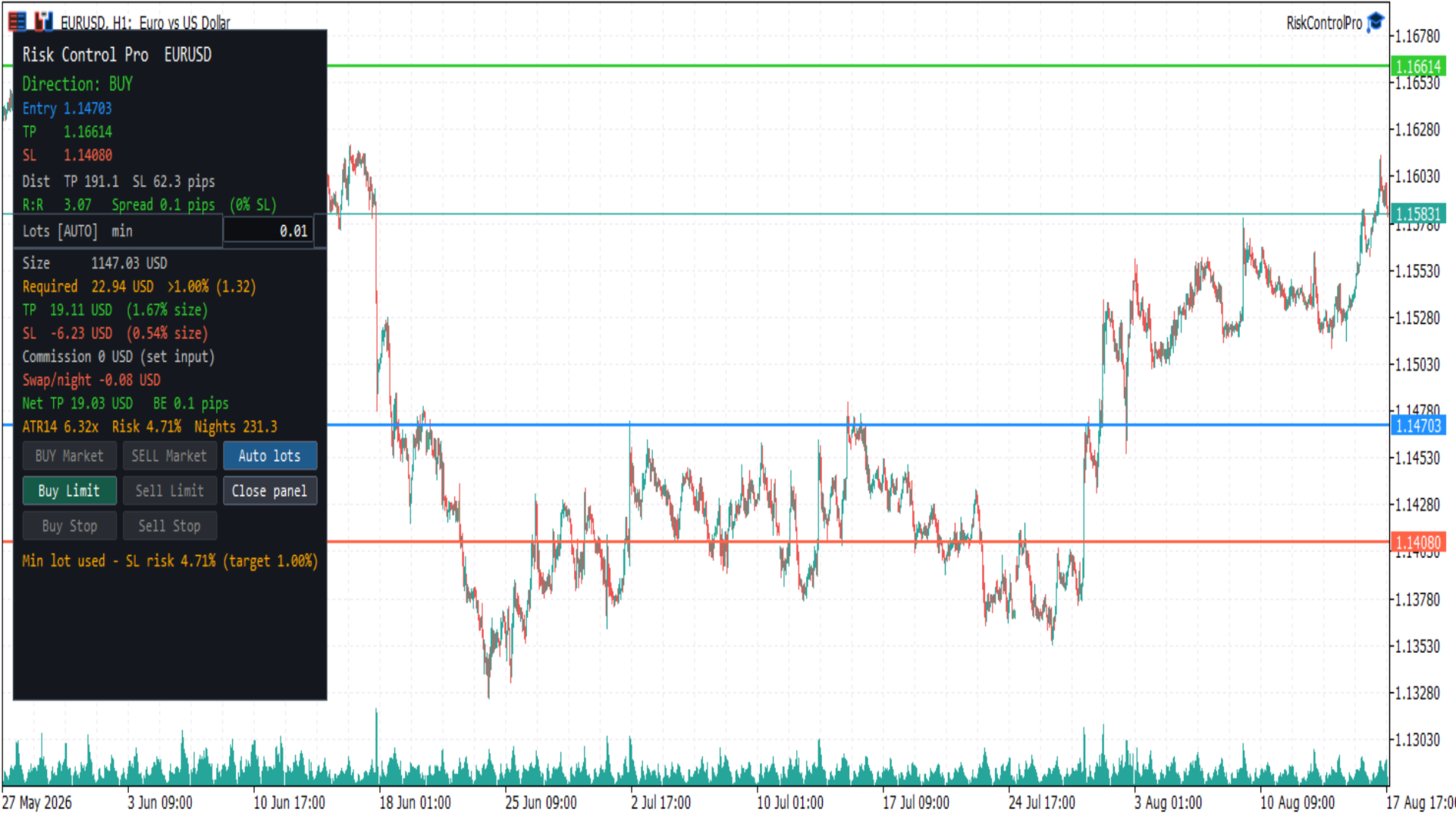
Risk Control Pro est un Expert Advisor MetaTrader 5 (utilitaire) pour planifier et vérifier le risque d’une opération avant d’entrer. Il trace trois lignes horizontales déplaçables (Entry, Take Profit, Stop Loss) et un panneau avec la direction, les distances, le risk/reward, le lot, l’argent et le pourcentage du solde, le spread, la commission, le swap et des boutons d’ordre optionnels.
C’est un outil de risque. Les boutons d’ordre, une fois activés, envoient les trades immédiatement ; ils n’ouvrent pas le ticket d’ordre standard de MetaTrader. Vérifiez toujours le lot, la distance du stop et les autorisations du compte avant de cliquer.
Avant de commencer
Ce produit est un Expert Advisor (utilitaire de trading), pas un indicateur. MetaTrader n’autorise qu’un seul EA par graphique. Pour l’utiliser avec un autre EA, par exemple DualVisionAI, ouvrez un second graphique du même symbole.
Dans l’onglet Common de l’EA, activez Allow Algo Trading. Allumez aussi AutoTrading dans la barre d’outils (ce EA doit afficher un sourire vert).
Pour envoyer des ordres depuis le panneau :
- Activez AutoTrading dans la barre MetaTrader.
- Laissez le paramètre Show order buttons activé.
- La session de marché du symbole doit être ouverte. Le Forex est en général fermé le week-end.
Si AutoTrading est éteint ou le marché fermé, le panneau calcule quand même le risque. Les boutons d’ordre restent désactivés et la dernière ligne du panneau explique pourquoi.
Objets du graphique
Lignes horizontales (faites glisser pour définir les prix) :
- Entry (bleu) — prix d’exécution prévu. Commence au milieu Bid/Ask.
- Take Profit (vert)
- Stop Loss (rouge)
Au premier chargement, la direction est BUY : Stop Loss environ 1× ATR(14) sous Entry et Take Profit environ 1.5× ATR au-dessus. Si l’ATR n’est pas prêt, un repli en pips est utilisé. Les prix des lignes peuvent être restaurés entre sessions si la persistance est activée.
Panneau (boîte flottante) :
- Mesures de risque pour les lignes actuelles et le lot
- Champ de lot modifiable
- Boutons d’ordre lorsque le trading est autorisé
- Ligne d’état en bas
Close panel masque la boîte et laisse une petite pastille Open. Les trois lignes restent sur le graphique.
Utilisation
- Attachez Risk Control Pro depuis Navigator → Expert Advisors (pas Indicators). Autorisez Algo Trading, puis allumez AutoTrading.
- Faites glisser Entry, Take Profit et Stop Loss vers les prix à évaluer.
- Lisez la direction, le R:R, le lot et l’argent / pourcentage du solde dans le panneau.
- Ajustez le lot si besoin (voir Auto lots ci-dessous).
- Pour passer le trade depuis le panneau, utilisez un bouton d’ordre actif. Un clic envoie tout de suite, avec le lot, le TP et le SL actuels.
Sur les symboles rapides (par exemple BTCUSD), le prix peut s’éloigner d’Entry en quelques secondes. Les boutons Market s’éteignent alors et un type en attente (Limit ou Stop) peut rester allumé. C’est voulu : Market exige qu’Entry soit près du Bid ou de l’Ask actuel.
Direction
- BUY — Take Profit au-dessus d’Entry et Stop Loss en dessous d’Entry
- SELL — Take Profit en dessous d’Entry et Stop Loss au-dessus d’Entry
- INVALID — Take Profit et Stop Loss du même côté d’Entry, ou deux lignes au même prix. Les boutons d’ordre restent éteints.
Seul le côté correspondant est activé. Une disposition BUY n’active jamais les boutons SELL, et l’inverse.
Boutons d’ordre
Le bouton qui s’allume dépend d’Entry par rapport au Bid/Ask en direct et au stop level du courtier :
- BUY Market / SELL Market — Entry est proche du prix d’exécution (Ask à l’achat, Bid à la vente). La distance doit tenir dans le spread ou SYMBOL_TRADE_STOPS_LEVEL, le plus grand des deux. L’ordre part au marché ; TP et SL viennent des lignes.
- Buy Limit — disposition BUY et Entry sous l’Ask (acheter moins cher si le prix baisse jusqu’à Entry)
- Sell Limit — disposition SELL et Entry au-dessus du Bid (vendre plus haut si le prix monte jusqu’à Entry)
- Buy Stop — disposition BUY et Entry au-dessus de l’Ask (acheter si le prix casse à la hausse jusqu’à Entry)
- Sell Stop — disposition SELL et Entry sous le Bid (vendre si le prix casse à la baisse jusqu’à Entry)
Les boutons gris n’envoient pas d’ordres. Il n’y a pas de dialogue de confirmation supplémentaire.
Les ordres en attente utilisent la ligne Entry comme prix d’ordre. Les ordres marché ignorent un Entry trop loin et exigent qu’il soit près de la cotation actuelle.
Auto lots
Le lot peut suivre le risque du compte ou une valeur que vous tapez.
- AUTO — le lot est calculé pour que le risque Stop Loss égale Risk % of balance (1 % par défaut). Déplacer le Stop Loss met à jour le lot. Le panneau affiche Lots [AUTO] et une taille suggérée.
- MAN — vous avez modifié le champ lot. La valeur est conservée jusqu’à Auto lots.
Le lot suggéré est limité au minimum, maximum et pas de volume du symbole. Formule :
Lot = (balance × risk percent / 100) / (distance SL en pips ou ticks × valeur pip/tick par lot)
Vous pouvez aussi taper auto dans le champ lot pour revenir en AUTO.
Informations du panneau
- Direction — BUY, SELL ou INVALID
- Entry / TP / SL — prix des trois lignes
- Dist — distance Take Profit et Stop Loss en pips (Forex) ou ticks (indices, crypto et similaires)
- R:R — distance Take Profit divisée par la distance Stop Loss. Couleur : rouge sous 1, or de 1 à 2, vert au-dessus de 2
- Spread — spread actuel en pips ou ticks, et en pourcentage du Stop Loss. Un avertissement apparaît lorsque ce pourcentage est supérieur ou égal à Warn if spread > % of SL
- Lots — AUTO ou MAN, lot suggéré et champ modifiable
- Size — valeur de la position en devise du compte (lot × prix × contrat). C’est le montant sur lequel s’appuie la formule de marge, pas ce qui est prélevé sur le compte.
- Required — marge que le courtier bloque (débite de la marge libre) pour ouvrir ce lot. LOW signifie que la marge libre est inférieure à ce montant. Ce n’est pas le risque Stop Loss. Si Required dépasse votre budget de risque (solde × risk %), la ligne passe à l’orange et affiche >N% (par exemple le lot mini sur l’or peut demander plus de marge que 1 % d’un petit compte). Si le risk % AUTO implique un lot sous le minimum du symbole, le minimum est utilisé et le risque SL sera plus élevé que le pourcentage cible.
- TP / SL money — profit et perte estimés en devise du compte, chacun en pourcentage de Size (valeur de position), pas du solde. Le risque sur le solde reste sur la ligne Risk.
- Commission — commission aller-retour du lot actuel, issue du paramètre (non lue automatiquement chez le courtier)
- Swap/night — swap overnight estimé pour la direction déduite. Affiché n/a pour les modes de swap non pris en charge
- Net TP — argent Take Profit moins commission plus une nuit de swap. Un swap négatif est un coût et réduit Net TP ; un swap positif l’augmente.
- BE — distance de seuil de rentabilité en pips ou ticks couvrant spread et commission
- ATR — distance Stop Loss comparée à l’ATR (par exemple 1.20× signifie que le SL vaut 1,2 fois l’ATR)
- Risk % — argent Stop Loss en pourcentage du solde
- Nights — nuits estimées de swap négatif avant que le Take Profit net soit consommé ; n/a lorsque le swap n’est pas négatif
La dernière ligne est le statut : prêt, marché fermé, allumez AutoTrading, lignes invalides, spread élevé, ou le résultat / l’erreur du dernier ordre.
Paramètres
Ouvrez Inputs dans les propriétés de l’EA (clic droit sur le graphique, Expert List, RiskControlPro, Properties, Inputs).
Risk
- Risk % of balance — pourcentage du solde utilisé pour dimensionner le lot AUTO à partir du Stop Loss (défaut 1.0). Doit être supérieur à 0 et au plus 100.
- Round-trip commission per lot — commission pour ouvrir et fermer 1.0 lot, en devise du compte. Défaut 0. Si le courtier facture une commission, saisissez le montant aller-retour (exemple : 3.5 ouverture + 3.5 clôture = 7). Si le symbole n’a que le spread, laissez 0. Le panneau affiche “set input” tant que c’est 0 pour indiquer que la valeur ne vient pas du courtier.
- ATR period — période de l’Average True Range pour le premier placement TP/SL et la comparaison ATR (défaut 14).
- Warn if spread > % of SL — seuil d’alerte du spread en pourcentage de la distance Stop Loss (défaut 25).
- Decimals for money / ratio — décimales pour l’argent, le pourcentage et le R:R (défaut 2).
Lines
- Entry / TP / SL color — couleurs des lignes
- Line width — épaisseur des trois lignes
- Save line prices between sessions — si true, Entry/TP/SL sont stockés dans les GlobalVariables du terminal par symbole et timeframe et restaurés au prochain attachement
Panel
- Corner — coin du graphique servant d’origine au panneau
- Offset X / Offset Y — décalage en pixels depuis ce coin
- ATR, % balance, swap nights — afficher ou masquer la ligne de métriques extra
Trading
- Show order buttons — si false, le panneau est en lecture seule (pas de boutons d’ordre)
- Magic number — identifiant écrit sur les ordres envoyés par cet EA
- Deviation (points) — écart de prix maximal pour les ordres marché
- Order comment — commentaire sur les ordres envoyés
Valeur du pip et du tick
Les estimations monétaires utilisent la valeur de tick du symbole :
Pip value per lot = SYMBOL_TRADE_TICK_VALUE × (pip size / SYMBOL_TRADE_TICK_SIZE)
Taille du pip :
- Forex à 3 ou 5 décimales — 10 × Point
- Forex à 2 ou 4 décimales — Point
- Autres symboles (indices, crypto et similaires) — taille de tick ; distances étiquetées en ticks
Ce sont des estimations. L’exécution réelle, le spread, la commission et le swap dépendent du courtier et peuvent différer du panneau.
Notes
Risk Control Pro ne garantit ni profit, ni qualité d’exécution, ni commission/swap exacts. Les marchés rapides peuvent bouger entre la mise à jour du panneau et l’ordre. Utilisez vos propres règles de risque et vérifiez le champ lot avant d’envoyer. Retirer l’EA du graphique supprime ses objets. Les prix de lignes enregistrés restent dans les GlobalVariables uniquement si la persistance est activée.