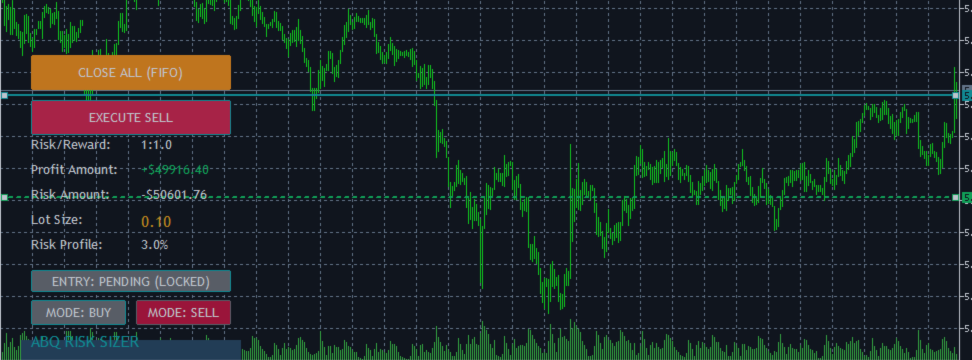

ABQ Visual Risk Sizer - Official User Manual
Author: Cristian Castillo | AbacuQuant
Version: 1.60
Platform: MetaTrader 5 (MT5)
1. Installation and Setup (MQL5 Market Perspective)
Since this utility is purchased through the MQL5 Market, the installation process is automated and integrated directly into your terminal. Follow these steps:
- Download and Install:
- Open your MetaTrader 5 terminal.
- In the Toolbox window (Ctrl+T), navigate to the Market tab.
- Go to the Purchased sub-tab. You will see ABQ Visual Risk Sizer in your list of products.
- Click the Install button. The terminal will automatically download and place the file in the correct directory.
- Locating the Utility:
- Open the Navigator window (Ctrl+N).
- Expand the Expert Advisors folder and then the Market sub-folder.
- The ABQ_Visual_Risk_Sizer will be listed there.
- Attaching to a Chart:
- Drag and drop the utility onto any chart you wish to trade.
- A settings window will appear. In the Common tab, ensure that Allow Algo Trading is checked.
- Final Activation:
- Click OK.
- Make sure the Algo Trading button at the top of your MT5 terminal is Green. If it is red, the execution buttons will not function.
2. Interface and Dashboard Overview
The dashboard is designed to be intuitive and provides all critical data for your trade at a glance:
- Mode Toggle: Switch between BUY and SELL setups. The lines will automatically re-position based on your selection.
- Entry Mode Toggle:
- MARKET (FOLLOW): The Entry line sticks to the current price (Bid/Ask).
- PENDING (LOCKED): Activated when you manually drag the Entry line. It allows you to set Limit or Stop orders.
- Risk Profile: Displays the risk percentage per trade as defined in your settings (e.g., 1.0%).
- Lot Size: Displays the exact volume calculated based on your Stop Loss distance.
- Risk Amount: Shows the exact monetary loss if the Stop Loss is hit.
- Profit Amount: Shows the projected monetary gain if the Take Profit is hit.
- Risk/Reward (R:R): Shows the ratio between your risk and potential reward (e.g., 1:2.0).
3. How to Execute a Trade
- Select Direction: Click MODE: BUY or MODE: SELL.
- Position the Lines:
- Drag the Red Line (Stop Loss) to your desired invalidation level.
- Drag the Green Line (Take Profit) to your target level.
- If using a pending order, drag the Teal Line (Entry) to your desired entry price.
- Verify Data: Check the Lot Size and Risk Amount on the dashboard.
- Execute: Click the large EXECUTE TRADE button.
- If in Market mode, a market order will open instantly.
- If in Pending mode, the system will automatically place the correct Limit or Stop order.
4. Emergency Tools: Close All (FIFO)
The orange CLOSE ALL (FIFO) button is designed for rapid capital preservation:
- Clicking this button will close all open positions for the current symbol only.
- It follows the FIFO (First In, First Out) protocol, closing the oldest trades first.
- The system includes execution delays to ensure every request is processed correctly by the broker's server without triggering too many requests errors.
5. Safety and Validation Features
- Invalid SL Protection: If you place your Stop Loss on the wrong side of the Entry price, the dashboard will display ERR: SL and block execution.
- Margin Check: The system calculates if you have enough free margin before sending an order. If funds are insufficient, an alert will notify you.
- Stops Level Compliance: It automatically respects your broker's minimum distance requirements for SL and TP levels.
6. Input Parameters
- InpCorner: Choose the chart corner for dashboard anchoring.
- InpLabelColor: Customize the color of the labels.
- InpTextColor: Customize the color of the values and button text.
- InpRiskPercent: Set your risk per trade as a percentage of your account balance.
- InpDefaultSL / InpDefaultTP: Set the initial distance for the lines when the utility is loaded.
This manual is property of Cristian Castillo and is part of the ABQ (AbacuQuant) tool ecosystem.