Collaborative analysis in MetaTrader 5: how to share your chart drawings with other traders in real time

Do you follow a trading mentor, trade alongside a friend, or run a small group of traders? Then you know the problem: everyone draws their own levels, trendlines and Fibonacci retracements in their own MetaTrader 5… and to show them to the others, you take a screenshot, post it on Discord or Telegram, and hope it is still relevant when someone reads it.
A screenshot is a dead analysis: you cannot zoom, switch timeframes, or see how price reacts to the level afterwards.
In this post, I explain the method I use to share live analyses between several MT5 terminals, and the tool I built for it.
1. WHAT MT5 ALREADY OFFERS (AND ITS LIMITS)
- Templates (.tpl): you can save a chart with its objects and send it. But it is a snapshot: every new drawing means sending the file again, and the template also replaces the recipient's indicators and colors.
- Chart synchronization tools: several tools copy objects from one chart to another, but within the same terminal, or from a master terminal to a slave terminal on the same PC.
- Screenshots: simple, but frozen.
What is missing: my drawing appearing directly on my colleagues' charts, on their own PCs, while they trade, without overwriting anything on their side.
2. THE PRINCIPLE: ONE SHARED FOLDER, ONE FILE PER TRADER
The idea is simple:
- each trader saves their drawings in a small text file named after them;
- these files sit in a folder synchronized between the group's PCs;
- the indicator reads the other traders' files and draws their analyses on your chart.
For synchronization I use Syncthing: free, open-source software (Windows, Linux, macOS) that syncs a folder directly between PCs, with no server and no online account. Your analyses do not go through any third-party service. A drawing appears on the other PCs within seconds.
Each trader only writes to their own file: nobody can modify or delete someone else's analysis.
3. THE TOOL: SCAT (SHARED CHART ANALYSIS TOOL)
SCAT is an MT5 indicator that combines drawing tools and sharing.
Drawing tools (one click on a button, then on the chart):
- LOW and HIGH zones (support and resistance as rectangles);
- trendlines;
- Fibonacci retracement and Fibonacci extension;
- text;
- delete.
Drawings are saved per symbol and reappear when the chart is opened, on every timeframe. If you open several charts of the same symbol, a drawing made on one appears instantly on the others.
Sharing (SHARE button):
- other traders' drawings are displayed with their name next to them;
- one button per trader lets you show or hide their analyses;
- you can assign a color to each trader to see at a glance who drew what;
- a presence indicator shows who is online and when the others were last seen;
- the IMPORT button copies a colleague's drawing (or all their drawings on the symbol) into your own, so you can adjust it your way. Each trader can allow or refuse the import of their analyses.
A SCAT ON/OFF button hides all drawings at once when you want a clean chart. The interface is in English or French, depending on the terminal language.


4. USE CASES
- Mentor and students: the mentor prepares their levels before the session opens; students see them on their own chart, on their own timeframe, and can import the ones they want.
- Group of traders: everyone contributes their analysis on the same index; you see at a glance where opinions converge.
- One trader, several PCs: your analyses follow you between your office PC, your home PC and a VPS.
5. SETUP IN 5 STEPS
1) Install Syncthing on each PC.
2) Link the PCs together (exchange of Syncthing device IDs).
3) Share the SCAT_Share folder, located in the terminals' common folder (Terminal\Common\Files).
4) Attach SCAT to the chart and enter your trader name in the inputs.
5) Click SHARE.
The detailed procedure, with the recommended Syncthing settings, is in the product description.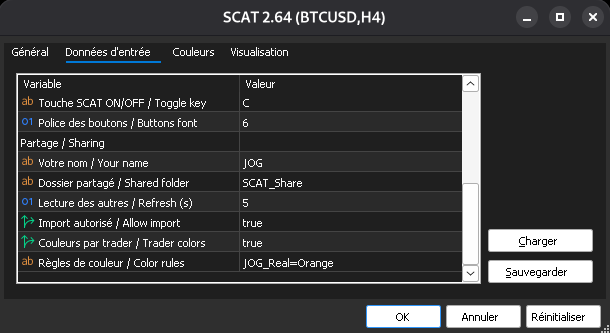
Good to know:
- traders must use the same broker and the same symbol name (for example US30.cash for everyone), otherwise drawings are not displayed;
- PC clocks must be on time (automatic setting) for the presence indicator to be accurate.
6. TRY IT
SCAT is available on the MQL5 Market, with a free demo version:
https://www.mql5.com/en/market/product/209982
A demo video is available on the product page.
I would love your feedback: how do you share your analyses today? Which features would you need to work as a group? Reply in the comments, I read everything.