✔️ Risk to Reward Ratio Manager MT4©: https://www.mql5.com/en/market/product/110797
✔️ Risk to Reward Ratio Manager MT5©: https://www.mql5.com/en/market/product/110798
Your risk. Planned on the chart.
Stop calculating lot sizes by hand. With Risk to Reward Ratio Manager, you set your risk, drag the stop loss and take profit lines on the chart and see the lot, the risk and the reward before you trade. Then open the order with one click, with the stop loss and take profit already set.
Choose your risk in percent or in money. Pick the ratio 1:2, 1:3, 1:4 or your own. Watch the total open risk, the margin and your daily results. And let the loss guard stop new orders when your daily limit is reached.
👉 Plan every trade, risk the same amount every time, and keep your trading disciplined.
Installation:
- Buy or download Risk to Reward Ratio Manager from the MQL5 Market, then open MetaTrader and go to the "Navigator" window, "Expert Advisors" section.
- Drag "Risk to Reward Ratio Manager" onto the chart you trade. Make sure "Allow Algo Trading" (MT5) or "Allow live trading" (MT4) is enabled in the Common tab, and that the AutoTrading / Algo Trading button in the toolbar is on. The tool has no other inputs: everything is set in the panel.
- The tool trades only when you ask: an order is sent when you press Open Buy / Open Sell, or your shortcut key. It does not give signals and does not trade by itself.
- Press Lines to draw the entry, stop loss and take profit lines, and plan your first trade.
Main Panel Explanation:
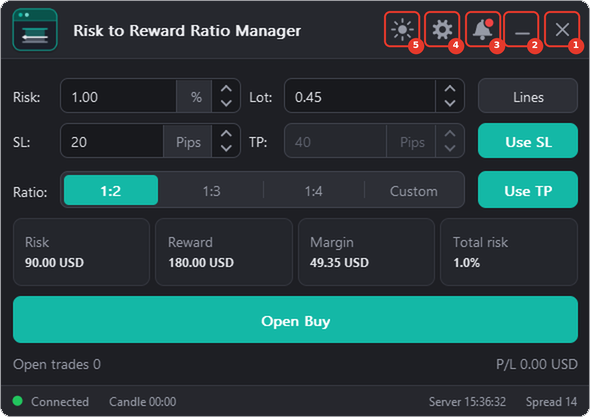
The five buttons in the title bar are numbered on the image:
-
❌Close Button: This button is used to stop the Expert Advisor (EA) and remove it from the chart. Your settings are kept and come back when you attach the EA again.
-
➖Minimize Button: This button is used to collapse the panel to its title bar. Click it again to open the panel.
-
🔔Notifications Button: This button is used to open the notifications panel for the tool. The notifications panel displays important notifications and news about the EA. A red dot shows that there is a new message.
-
⚙️Settings Button: This button is used to open the settings panel. The settings panel allows you to configure everything in the tool (General, Shortcuts, Risk & Lines, Box and Panel tabs).
-
🌗Theme Button: This button is used to switch the panel between a light and a dark look quickly (the icon is a sun in a dark theme and a moon in a light theme). You can pick any of the 5 themes in the General tab of the settings panel.
The rest of the main panel:
- Risk: the risk of the trade, in percent or in money (see the Risk & Lines tab). The lot is worked out from it.
- Lot: the lot size. Type your own lot and the risk follows it. A new risk or stop loss calculates the lot again.
- SL: the stop loss distance, in pips, points or percent of the price.
- TP: the take profit distance. It follows the ratio; with the Custom ratio you type it yourself.
- Ratio: 1:2, 1:3, 1:4 or Custom: the take profit as a multiple of the stop loss.
- Lines: shows or hides the entry, stop loss and take profit lines and the boxes on the chart.
- Use SL / Use TP: send the stop loss and the take profit with the order, or leave them out. With Use SL off the risk cannot be calculated from the stop, so the Risk box is disabled; with Use TP on and a fixed ratio the TP follows the SL.
- Cards: Risk, Reward, Margin and Total risk of the trade in the account currency. Total risk includes your open trades.
- Open Buy / Open Sell: opens the order. The text follows the side and the entry line: Buy Limit, Sell Limit, Buy Stop or Sell Stop when the entry line is moved away from the price.
- Open trades and P/L: the number of open trades and their profit or loss.
- Information sections and Status Bar: below the buttons, the sections you choose in the Panel tab (see below).
Themes:
Risk to Reward Ratio Manager comes with 5 themes: Dark, Light, Midnight, Contrast and Soft. Pick one in the General tab of the settings panel, or switch quickly between a light and a dark look with the Theme button. The logo follows the accent colour you choose.

How it works:
From the panel, you can:
- Set the risk and the stop loss, and see the lot, the risk and the reward at once.
- Drag the stop loss and take profit lines on the chart; everything is calculated again while you drag.
- Drag the stop loss line over the entry line to turn a buy into a sell.
- Move the entry line away from the price to place a limit or a stop order.
- Lock a line, reverse the trade, and show or hide the lines with one button.
- Work in pips, in points or in percent of the price, and in percent of the balance, the equity or the free margin, or in money.
- Watch the account, the day range, the last 10 trades, the daily target, the loss guard and your statistics.
- Change the theme, the language and the size of the panel to fit your screen.
Quick start:
- Attach the EA to a chart. Type your risk (for example 1%) and choose the ratio.
- Press Lines. Drag the stop loss and take profit lines to your levels.
- Check the cards: risk, reward, margin and total risk.
- Press Open Buy / Open Sell, or press your shortcut key (Shortcuts tab).
Chart Explanation:
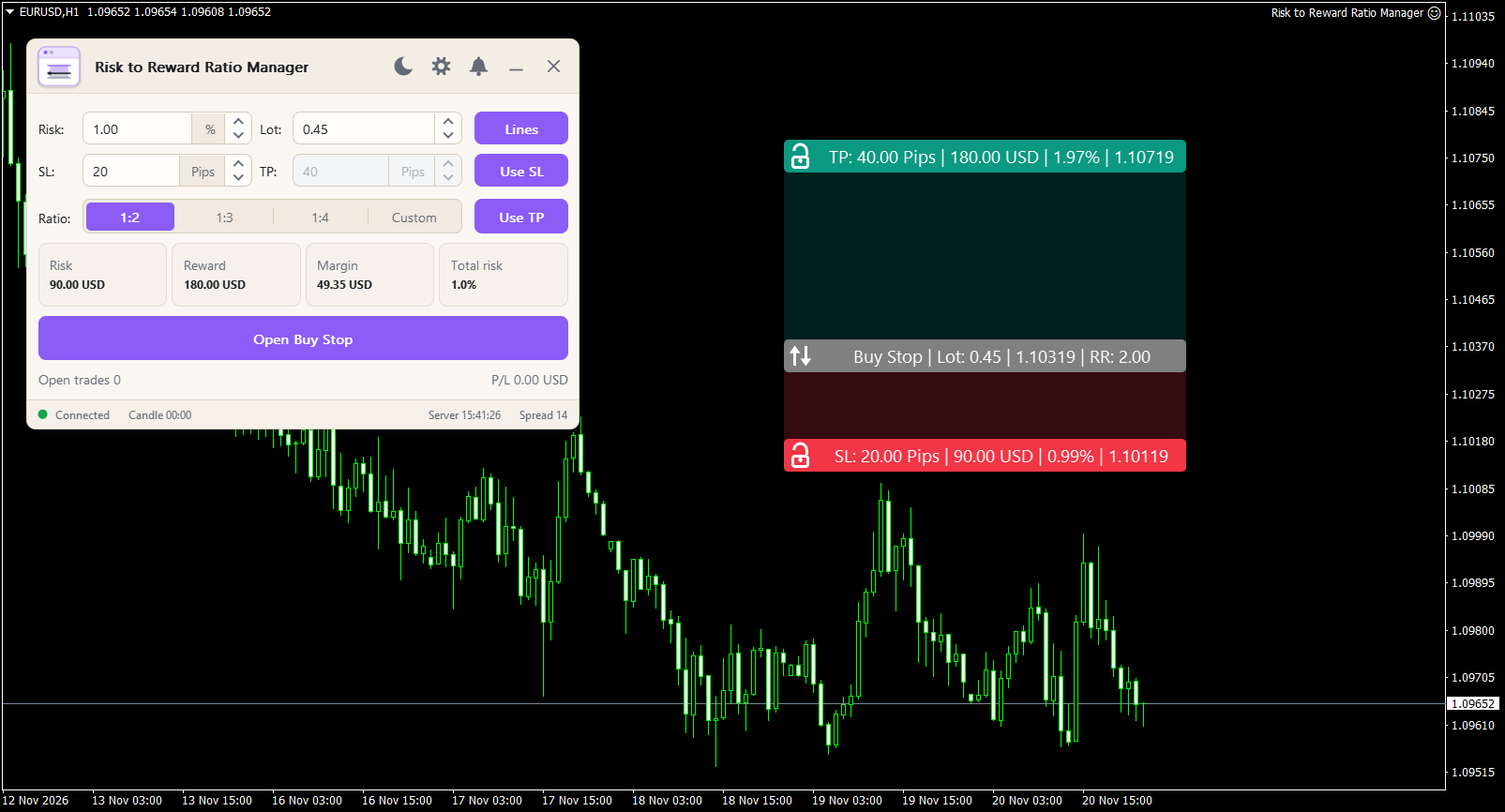
When you press Lines, three lines and their boxes appear on the chart. The entry line follows the price until you move it. The numbers on the image:
- Take profit line and box: drag it to change the target. The box shows the pips, the money and the ratio.
- Order (entry) line and box: follows the price. Move it away from the price to make a limit or a stop order.
- Stop loss line and box: drag it to change the stop. Drag it over the order line to turn a buy into a sell.
- L button: locks the stop loss or take profit line, so it does not move while you move the order line.
- R button: reverses the trade (buy becomes sell, sell becomes buy).
- Zones: the area between the lines is filled in colour, so you see the reward and the risk at a glance.
The look of the boxes (style, radius, font, zone fill) and their texts are set in the Box tab. The colours of the lines are set in the Risk & Lines tab.
Information Sections Explanation:
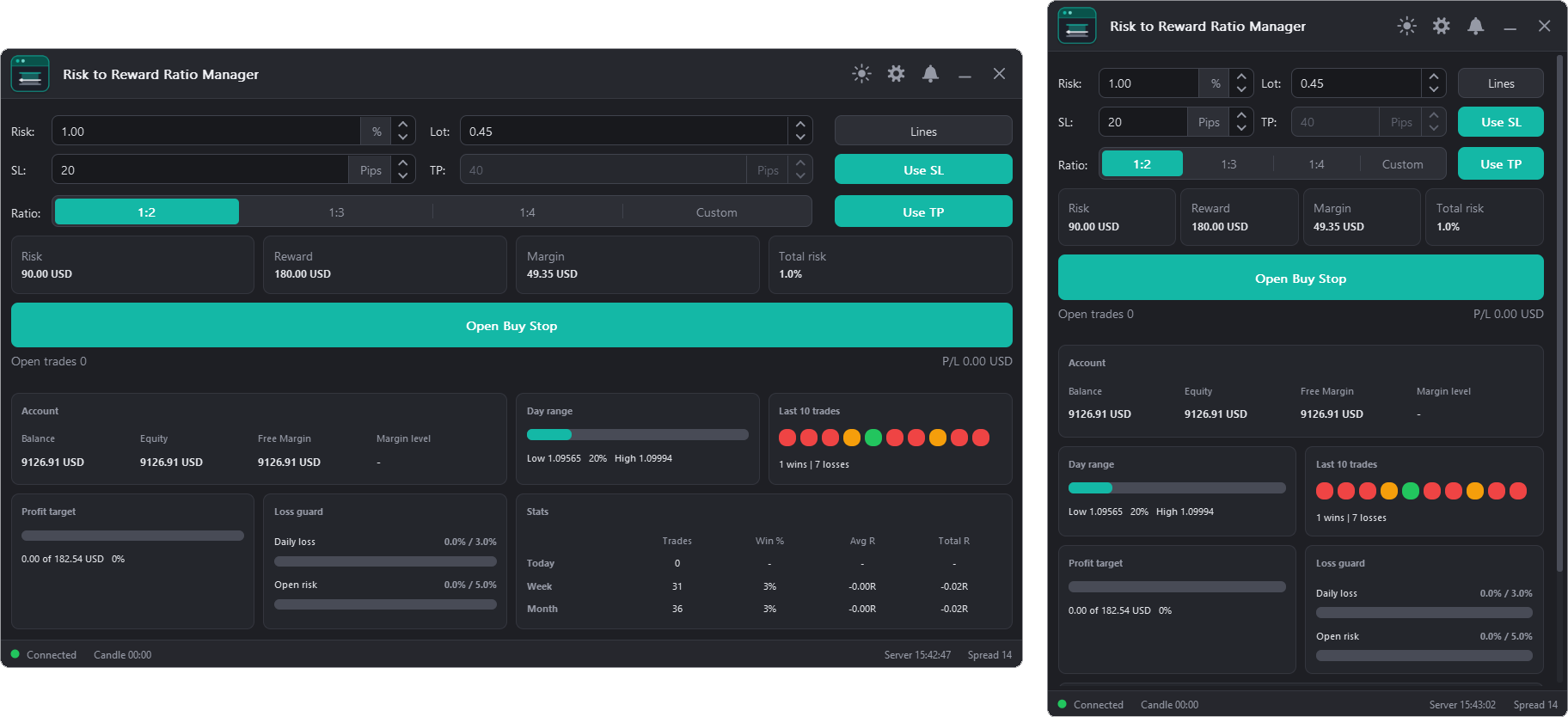
Choose which sections the panel shows in the Panel tab. The panel arranges them in 1 to 4 columns.
- Account: balance, equity, free margin and margin level.
- Day range: a bar with the position of the price between the low and the high of the day.
- Last 10 trades: ten dots, green for a win and red for a loss, with the number of wins and losses.
- Profit target: a bar with the progress to your daily profit target.
- Loss guard: two bars: the daily loss and the open risk, each against its limit.
- Stats: trades, win rate, average R and total R for today, this week and this month.
- Status bar: the connection, the time to the next candle, the server time and the spread. Each item can be turned off.
The loss guard works when you open an order. With Only show it only shows the bars. With Warn first a message tells you the limit is reached and you press the button again within 5 seconds to open the order anyway. With Block orders the order is not opened.
Settings Panel Explanation:
The settings panel has five tabs: General, Shortcuts, Risk & Lines, Box and Panel. Every change is saved at once. Press Done to go back to the panel, or Reset to defaults to start again. Point at any setting to see a tooltip that explains it.

General tab
- Animations: turn the panel animations on or off.
- Window shadows: turn the shadows of the windows on or off.
- Show tooltips: turn the help texts on or off.
- Corner radius: the roundness of buttons, panels and windows (0 to 14 px).
- Language: English, Deutsch, Español, Français or Arabic (Arabic shows right to left).
- Scale: Auto, 100%, 125%, 150% or 200%. Use a bigger scale on high resolution screens.
- Theme: Dark, Light, Midnight, Contrast or Soft.
- Accent colour: the main colour of buttons and highlights. Pick one of the colours; the logo follows it.
- Hover colour: the colour of a button when you point at it. The arrow button goes back to the theme's hover colour.
Shortcuts tab
Every action has its own key: one letter or digit. Click a box and type the key. A key can be used once; if it is taken, a message tells you and the old key stays. Shortcuts do nothing while you type in a box. Default keys:
- Open Buy (B)
- Open Sell (S)
- Show / hide lines (L)
- Switch Buy / Sell (F)
- Show / hide the panel (H)
Risk & Lines tab
- Calculate On: the amount the risk percent is taken from: Balance, Equity or Free Margin.
- Risk by: Percent, or a Fixed amount of money. When you change it, the Risk box keeps the same risk in the new unit.
- Distance unit: the unit of the SL and TP boxes: Pips, Points or Percent of price.
- Order Line Color, SL Line Color, TP Line Color: the colours of the three lines.
Box tab
- Box style: Full bars, Chips, Price tags or Outlined.
- Corner radius: the roundness of the boxes (0 to 12).
- Font size: the text size in the boxes (7 to 16).
- Zone fill %: how strongly the areas between the lines are filled (0 to 80).
- TP text, Order text, SL text: your own text for each box. Leave it empty for the default text.
- Add to: choose which text the placeholder buttons are added to, then press a button: {symbol} {side} {type} {lot} {pips} {money} {ccy} {percent} {price} {rr} {balance} {spread}. Clear empties the text.
Panel tab
- Sections shown on the panel: Account, Day range, Last 10 trades, Profit target, Loss guard and Stats.
- Show titles on sections and Columns (1 to 4).
- Daily loss limit %: the loss of the day, in percent of the base, that stops trading. 0 = off.
- Open risk limit %: the most total open risk you allow, in percent of the base. 0 = off.
- Daily profit target %: the target of the day, shown on the Profit target bar.
- When a limit is reached: Only show, Warn first or Block orders.
- Status bar: turn the bar on or off, and choose what it shows: Connection, Candle, Server time and Spread.
Notifications Panel Explanation:
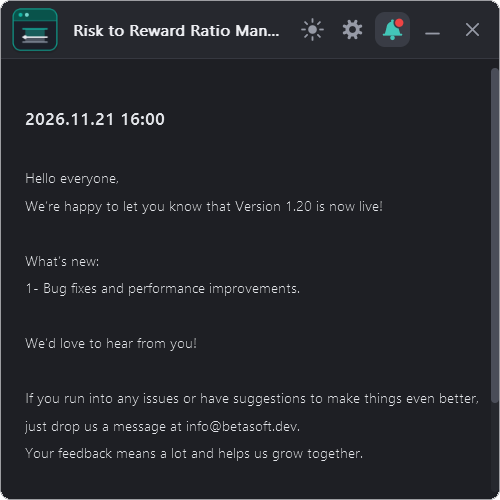
Open it with the bell button (3 on the main panel image). A red dot on the bell shows that there is a new message.
The Date refers to the date and time when the notification was generated.
The Notification refers to the message that is displayed. This can include information about the EA or the updates or message from the developer.
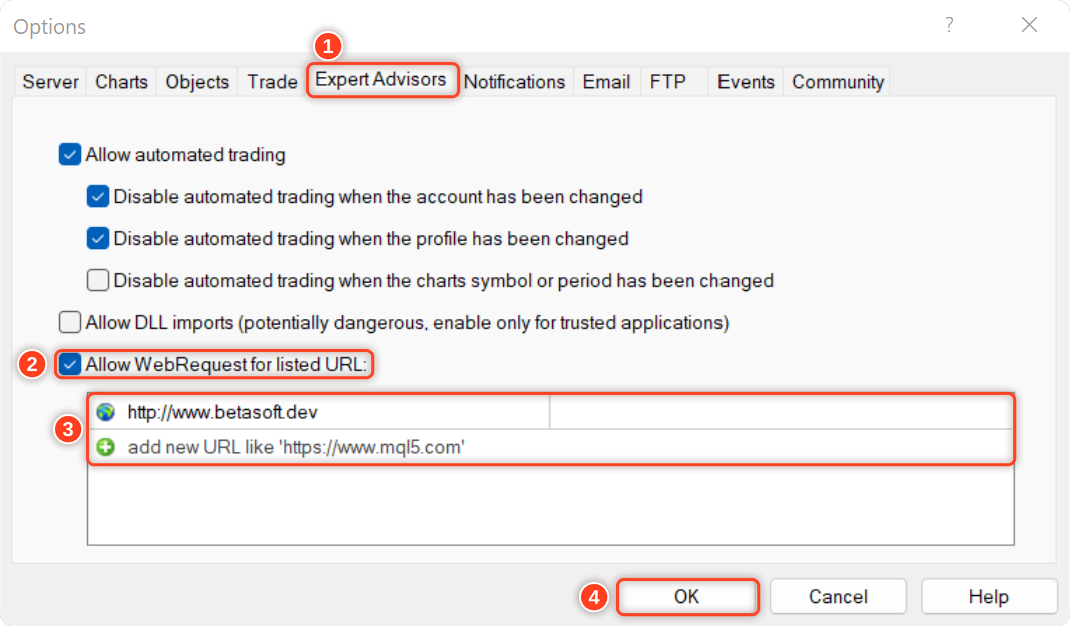
To allow EA getting the notifications, you need to add our website link to the list of allowed URLs in the platform's settings.
Here are the steps to add a link to the allowed URLs list in MetaTrader (Check The Image Below):
- Open the MetaTrader platform and go to "Tools" in the top menu, then select "Options".
- In the "Options" window, click on the "Expert Advisors" tab.
- Check the "Allow WebRequests for listed URL" option and click on the "Add" button.
- In the "New URL" field, enter the URL that you want to allow web requests for (http://www.betasoft.dev).
- Click "OK" to save the URL to the list of allowed URLs.
Why Traders Love Risk to Reward Ratio Manager
✅ Plan on the chart – entry, stop loss and take profit lines you can drag.
✅ The right lot every time – calculated from your risk and your stop loss.
✅ Know the reward – ratios 1:2, 1:3, 1:4 or your own, with the money shown.
✅ Stay in control – total open risk, daily loss limit and a loss guard.
✅ Know your results – last 10 trades, win rate, average R and total R.
✅ Made for your screen – 5 themes, 5 languages and a scalable panel.
We’d love to hear what you think about the tool! Please feel free to share your feedback and let us know if there are any improvements you’d like to see. Please contact me for any questions or assistance here.
✔️ Risk to Reward Ratio Manager MT4©: https://www.mql5.com/en/market/product/110797
✔️ Risk to Reward Ratio Manager MT5©: https://www.mql5.com/en/market/product/110798