✔️ Notes Manager MT4©: https://www.mql5.com/en/market/product/209449
✔️ Notes Manager MT5©: https://www.mql5.com/en/market/product/209450
Your notes. Right on the chart.
Stop keeping your plans, levels and rules in a text file next to MetaTrader. With Notes Manager, you can write sticky notes and checklists directly on your charts, pin them to a price or a candle, and get a reminder when the market reaches your level.
Write your trade plan before the session. Tick off your pre-trade checklist. Keep a journal note of every closed trade with its result. And find any note again in seconds with the notes list, tags and search.
👉 Plan better, remember more, and learn from every trade.
Installation:
- Buy or download Notes Manager from the MQL5 Market, then open MetaTrader and go to the "Navigator" window, "Expert Advisors" section.
- Drag "Notes Manager" onto any chart. Make sure "Allow Algo Trading" (MT5) or "Allow live trading" (MT4) is enabled in the Common tab, and that the AutoTrading / Algo Trading button in the toolbar is on.
- You can attach the EA to as many charts as you like. All copies share the same notes, and only one chart sends each reminder alert.
- Press Shift+N on the chart (or the New note button) to write your first note.
Main Panel Explanation:
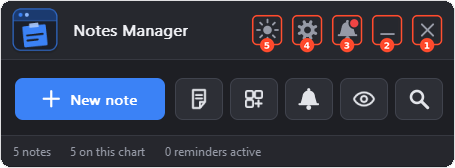
The five buttons in the title bar are numbered on the image:
-
❌Close Button: This button is used to stop the Expert Advisor (EA) and remove it from the chart. Your notes are kept and come back when you attach the EA again.
-
➖Minimize Button: This button is used to collapse the panel to its title bar. Click it again to open the panel.
-
🔔Notifications Button: This button is used to open the notifications panel for the tool. The notifications panel displays important notifications and news about the EA. A red dot shows that there is a new message.
-
⚙️Settings Button: This button is used to open the settings panel. The settings panel allows you to configure everything in the tool (General, Notes, Display, Reminders, Storage, Keys and Trades tabs).
-
🌗Theme Button: This button is used to switch the panel between a light and a dark look quickly (the icon is a sun in a dark theme and a moon in a light theme). You can pick any of the 5 themes in the General tab of the settings panel.
The rest of the main panel:
- ➕New note: makes a new note on the chart. The arrow on the button opens the templates and your own templates.
- Notes list: opens the notes list with all your notes.
- Templates: opens the templates window to start a note from a ready template.
- Reminders: opens the reminders.
- Show / Hide: hides all notes on the chart, without deleting them. Click again to show them.
- Find: opens the notes list with the search box ready for typing.
- Status Bar: shows how many notes you have, how many are on this chart, and how many reminders are active.
Themes:
Notes Manager comes with 5 themes: Dark, Light, Midnight, Contrast and Soft. Pick one in the General tab of the settings panel, or switch quickly between a light and a dark look with the Theme button. The logo follows the accent colour you choose.

How it works:
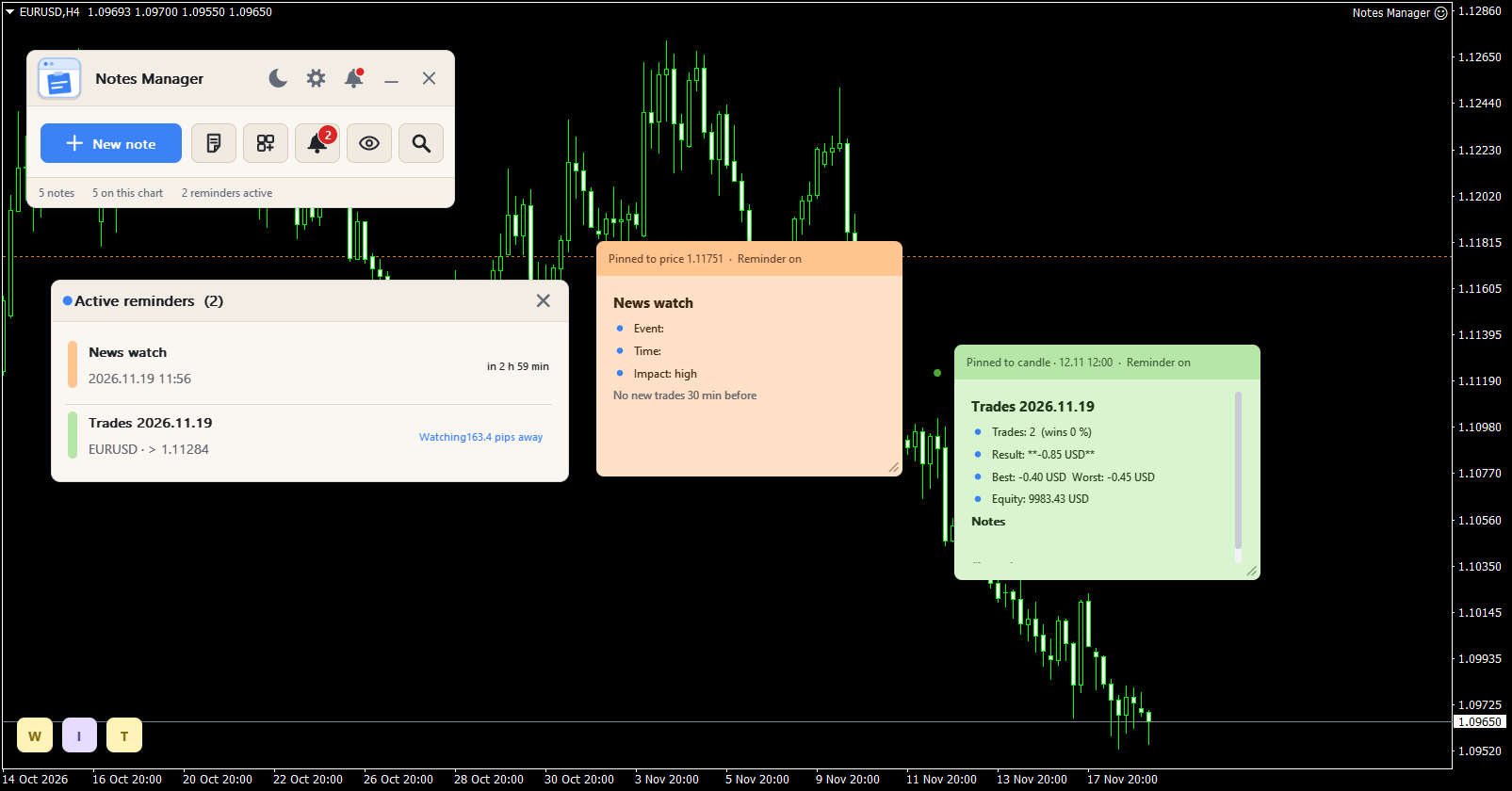
From the panel, you can:
- Write text notes with simple formatting, or checklists you can tick off.
- Pin a note to the screen, to a price level (it moves with the price scale) or to a candle (it moves with the bars).
- Show a note on this chart only, on every chart of the symbol, or on all charts, and only on the timeframes you choose.
- Set reminders at a time, at a price, at a candle close, or on your trades, with pop-up, sound, push and email alerts.
- Keep a journal note of every closed trade, and attach a note to an open position to watch its profit live.
- Start notes from 24 ready templates that fill in your symbol, price, balance and trade results.
- Find every note in the notes list with search, tags, colour filter and sorting.
- Share the same notes between all your MT4 and MT5 terminals, with a backup every day.
- Change the theme, the language and the size of the panel to fit your screen.
Quick start:
- Attach the EA to a chart and press Shift+N or the New note button.
- Click the note and write. Press Esc or the tick to finish.
- Open the ... menu of the note to choose its colour, pin it to a price or a candle, or add a reminder.
- Press Shift+L to open the notes list and see all your notes.
Note Explanation:
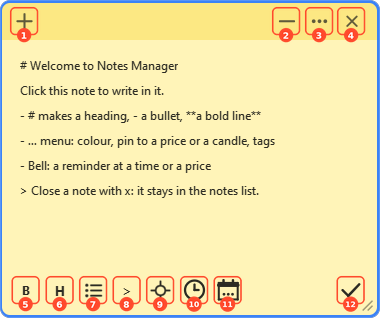
Each note has a coloured title bar and a body. The buttons in the bar show on the note you are working with, and while the mouse is on a note. The buttons are numbered on the image:
- ➕New note: makes a new note next to this one.
- ➖Minimize: makes the note small. A minimized note is a chip, a bubble, a square or a title bar (Display tab). Click it to open the note again.
- ... Menu: opens the note menu (see below).
- ❌Close: closes the note. It stays in the notes list, and you can undo it.
- B Bold line: makes the line at the caret a bold line.
- H Heading: makes the line at the caret a heading.
- Bullet: starts a bullet line.
- > Grey line: makes the line at the caret a grey line, for side notes.
- Price: writes the current price of the symbol at the caret.
- Time: writes the current time at the caret.
- Date: writes today's date at the caret.
- ✔️Done: finishes writing and shows the formatted note. Esc does the same.
The format bar (5 to 12) shows while you write. Click the note to write in it. Drag the title bar to move the note, and the bottom right corner to resize it. When the note is pinned to a price or a candle, has a reminder or is locked, small icons show in its title bar; an arrow shows when the pinned price or candle is outside the visible chart, and the note waits at that edge.
You can also type the marks yourself: # heading, - bullet, **bold line**, > grey line.
Checklist notes: tick an item to mark it done, type a new item and press Enter to add it, and press x to remove one. The footer shows how many items are done, for example "2/5".
Note Menu (... button):
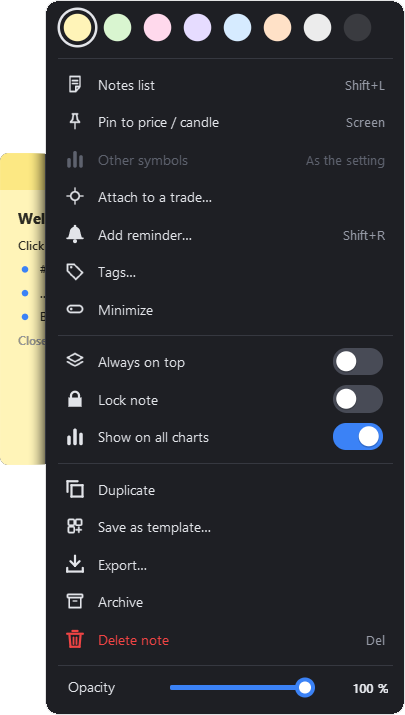
- Colours: 8 colours: yellow, green, pink, purple, blue, orange, gray and charcoal.
- Notes list: opens the notes list.
- Pin to price / candle: each click changes the pin: screen, price, candle. A price note shows a dotted line in its colour; a candle note shows a dot at its candle.
- Add reminder: opens the reminder window for this note.
- Tags: add tags to the note (for example "levels" or "eurusd") to find it later.
- Minimize: makes the note small.
- Always on top: keeps the note above the other notes.
- Lock note: the note can no longer be moved or edited until you unlock it.
- Show on all charts: shows the note on every chart, not only on this one.
- Other symbols: for a pinned note: show it only on its own symbol, or on every symbol.
- Attach to a trade: links the note to an open position (see below).
- Duplicate: makes a copy of the note.
- Save as template: saves the note as your own template.
- Export: saves the note as a .txt file.
- Archive: moves the note to the archive. It leaves the chart but stays in the notes list.
- Delete note: moves the note to the recycle bin.
- Opacity: makes the note see-through (20% to 100%), so you can see the candles behind it.
Notes List Explanation:
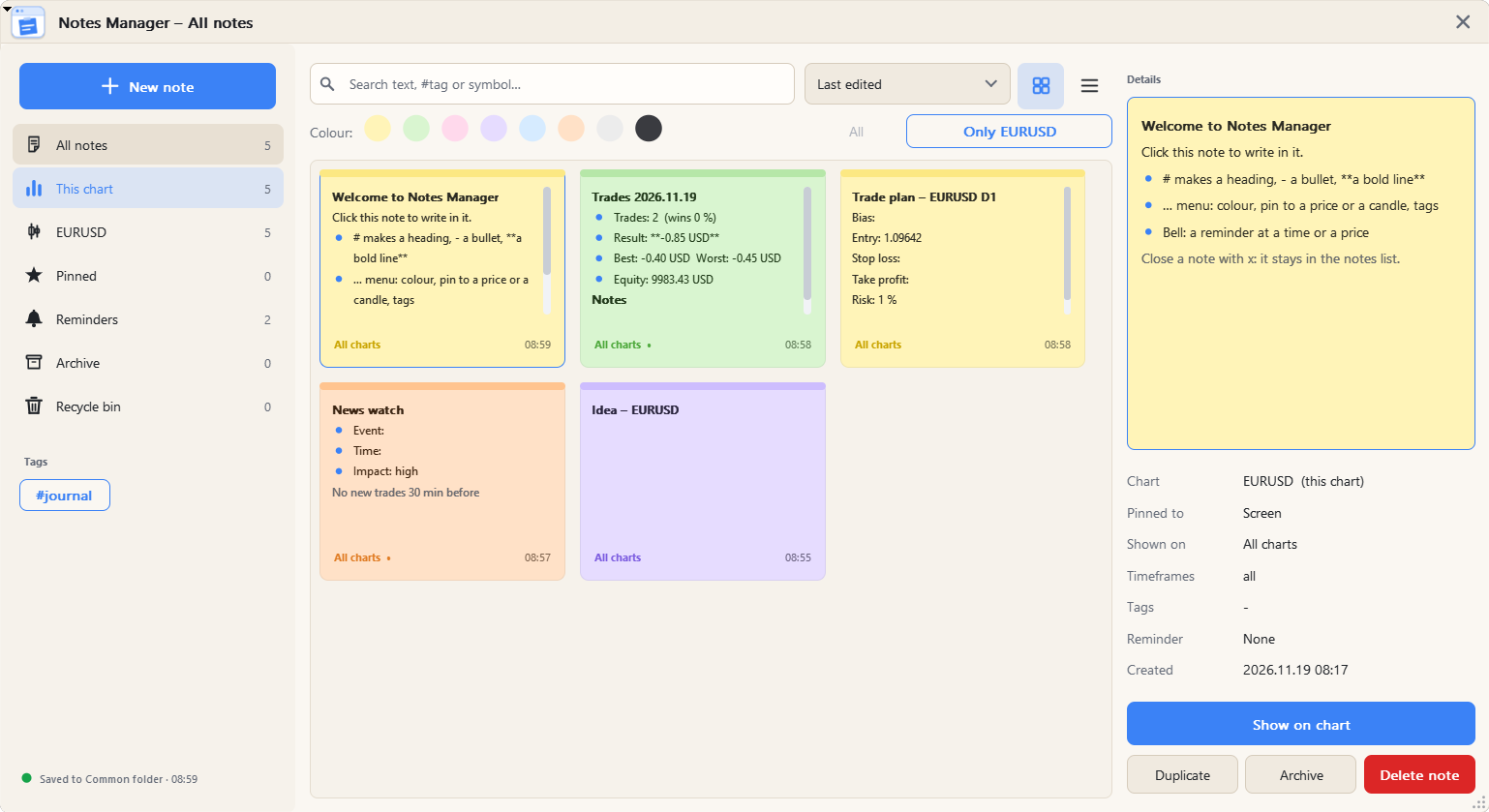
Open it with the Notes list button or Shift+L. You can resize the window from its corner; the cards use as many columns as fit.
- Side bar: All notes, This chart, the current symbol, Pinned, Reminders, Archive and Recycle bin, each with its count, and your tags.
- Search: searches the text, the symbols and the tags. Type #levels to find the notes with the tag "levels". The x in the box clears the search.
- Filter and sort: filter by colour, and sort by last edited, created, title, colour or symbol.
- Grid or list: show the notes as cards in their colours, or as a list.
- Details: the selected note with its symbol, pin, reminder and dates. Buttons: Show on chart, Duplicate, Archive / Unarchive and Delete.
- Recycle bin: restore a deleted note, delete it forever, or empty the bin. The bin empties itself after the number of days you set.
Reminder Window Explanation:
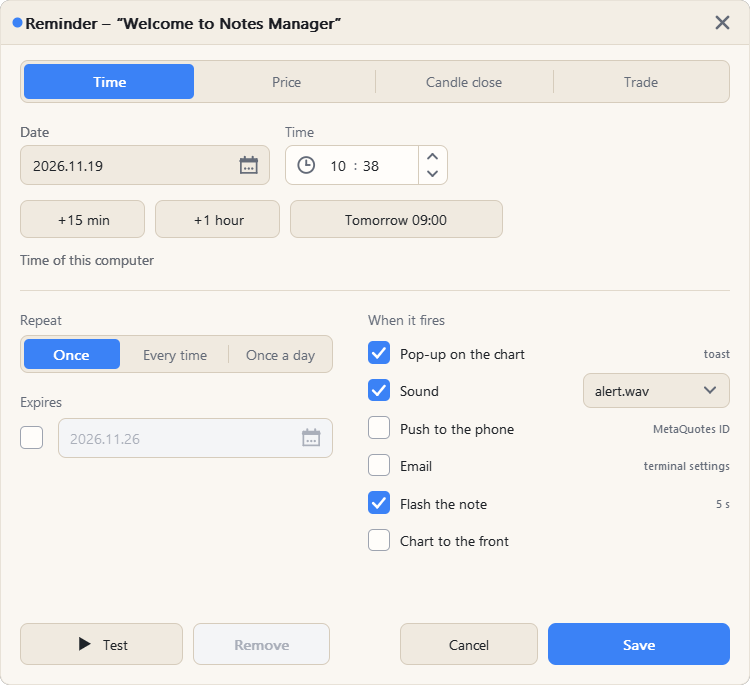
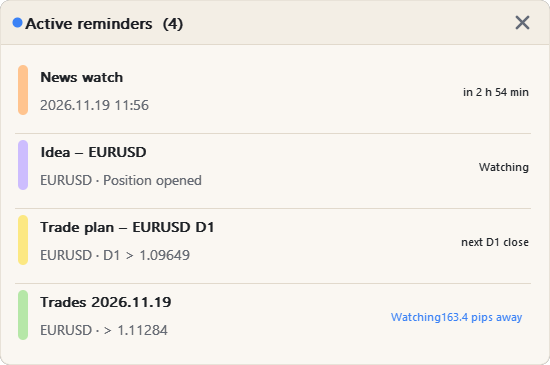
Open it from the note menu: ... > Add reminder. Choose what starts the reminder:
- Time: a date and a time (the time of your computer). Quick buttons: +15 min, +1 hour and Tomorrow 09:00.
- Price: any symbol of the Market Watch, and the condition: the Bid crosses above, crosses below or touches the price. Use Pick on chart to click the price on the chart, or use the pinned price of the note. The note's pin can move with this price.
- Candle: when a candle of the chosen timeframe closes above or below the price.
- Trade: a position of this symbol (or the note's own trade) is opened or closed, stop loss or take profit is hit, or the open profit or loss reaches an amount.
- Repeat: once, every time, or once a day, with an optional end date.
- When it fires: pop-up on the chart (click it to open the note), sound, push notification to your phone, email, a flashing note, or the chart brought to the front.
- Buttons: Test plays the alert now, Remove deletes the reminder, Save keeps it.
Push and email use the settings of the terminal (Tools > Options > Notifications and Email). The reminders widget on the chart shows the next active reminders with a live countdown; click a row to show its note.
Templates Window Explanation:
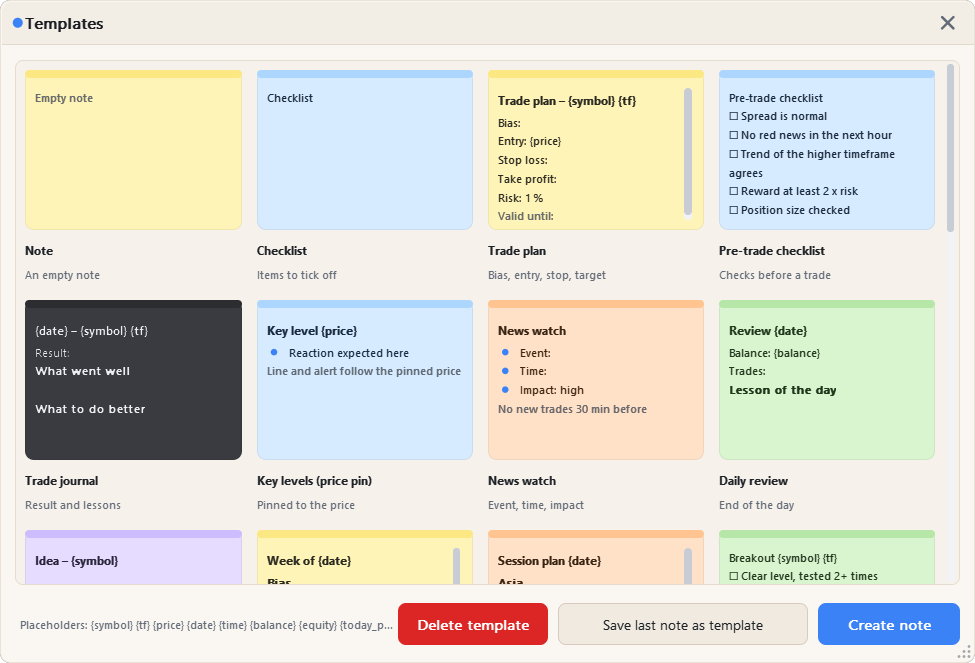
Open it with the Templates button or Shift+T. Each card shows a preview of the template in its colour. Double click a card, or select it and press Create note.
- 24 ready templates: Note, Checklist, Trade plan, Pre-trade checklist, Trade journal, Key levels, News watch, Daily review, Idea, Weekly plan, Session plan, Breakout setup, Pullback setup, Mistakes log, Watchlist, My rules, Mind check, Backtest notes, Goals, Today's trades, Weekly trade review, Last trade, Risk calculator and Open positions.
- Your own templates: "Save last note as template" here, or ... > Save as template on any note. Select one of yours and press Delete template to remove it.
- Placeholders: filled in when the note is made: {symbol} {tf} {price} {date} {time} {balance} {equity} {spread} {risk1} {lots_sl20} {today_n} {today_win} {today_pl} {today_best} {today_worst} {week_n} {week_win} {week_pl} {week_best} {week_worst} {last_trade} {open_list}.
Attach to a Trade Window Explanation:
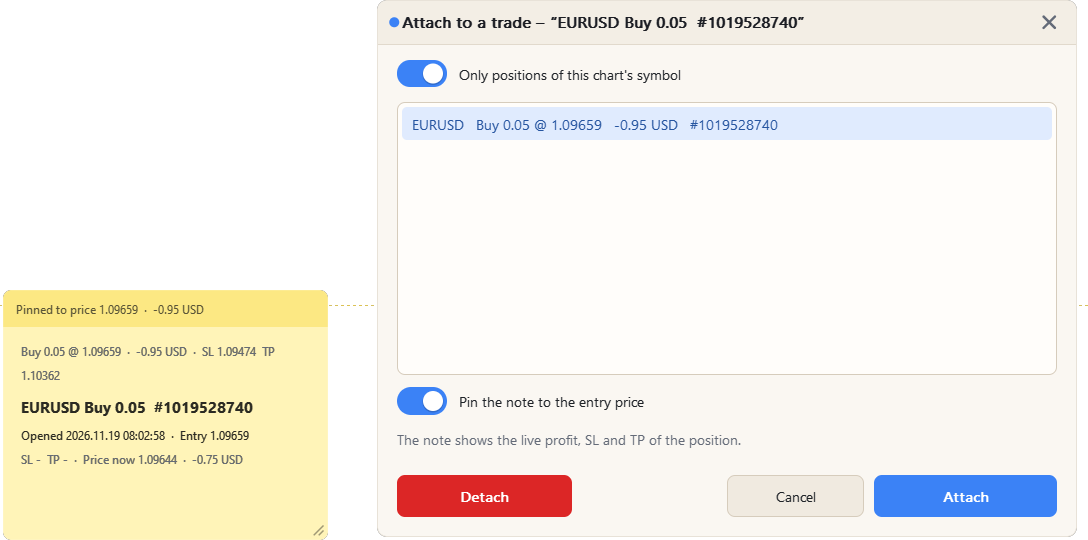
Open it from the note menu: ... > Attach to a trade.
- Positions: the open positions. "Only positions of this chart's symbol" makes the list shorter.
- Pin the note to the entry price: the note sits at the entry price of the trade.
- Attach / Detach: links the note to the selected position, or removes the link.
The note gets all details of the trade at once: symbol, side, lots, ticket, open time, entry, SL, TP, price now, profit, magic, swap and comment, and it shows the live profit. When "Write the result into the note" is on, the close is added when the trade closes: close time, how it closed, exit price, result, pips, R, time held and costs.
Settings Panel Explanation:
The settings panel has seven tabs: General, Notes, Display, Reminders, Storage, Keys and Trades. Every change is saved at once. Press Done to go back to the panel, or Reset to defaults to start again. At a big scale the page scrolls, so it always fits the chart.
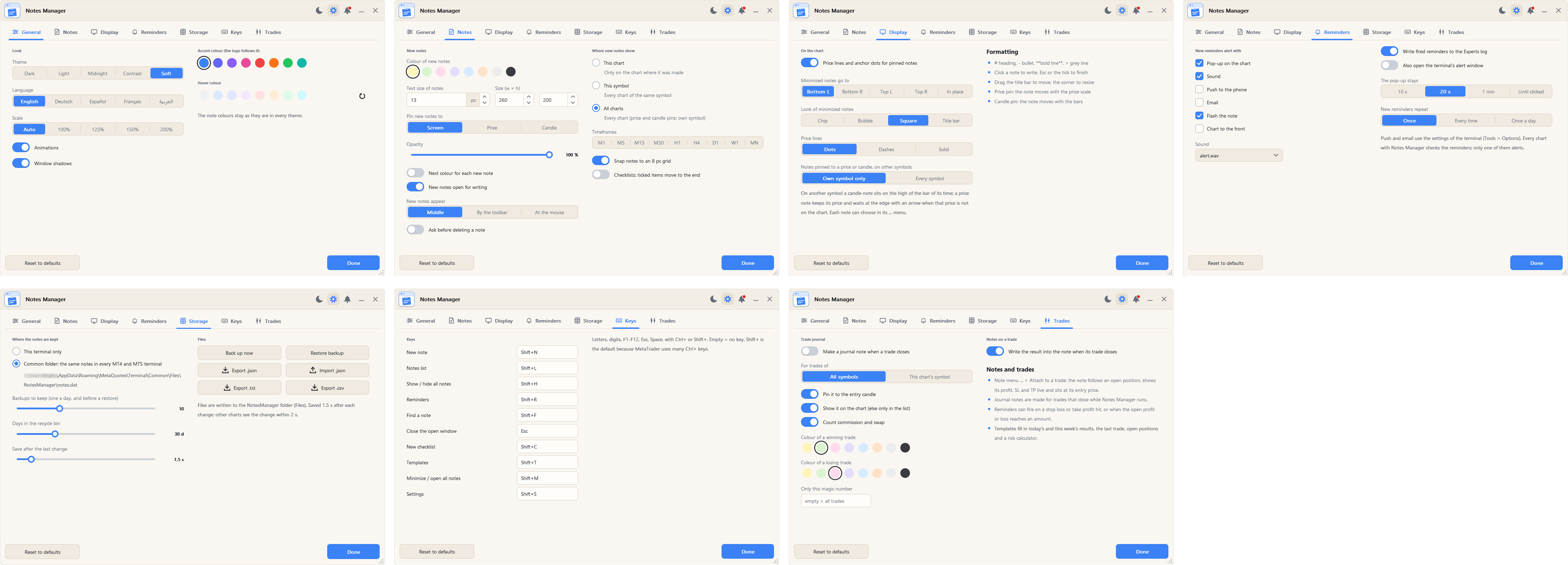
General tab
- Theme: Dark, Light, Midnight, Contrast or Soft (see the Themes image above).
- Language: English, Deutsch, Español, Français or Arabic (Arabic shows right to left).
- UI Scale: Auto, 100%, 125%, 150% or 200%. Use a bigger scale on high resolution screens.
- Animations: Turn the panel animations on or off.
- Window shadows: Turn the shadows of the windows on or off.
- Accent colour: The main color of buttons and highlights. Pick one of the colours; the logo follows it.
- Hover colour: The color of a button when you point at it. The arrow button goes back to the theme's hover colour.
Notes tab
- Colour of new notes: the colour a new note gets, or "Next colour for each new note" to change the colour every time.
- Size, text size and opacity: the size of a new note, its text size (9 to 24 px) and how see-through it is.
- Pin new notes to: the screen, the price or the candle.
- New notes show on: this chart, every chart of the symbol, or all charts, and on which timeframes.
- New notes appear: in the middle of the chart, by the panel, or at the mouse.
- New notes open for writing: start typing at once.
- Ask before deleting a note.
- Snap notes to an 8 px grid: when you drag a note, it moves in steps of 8 pixels, so your notes line up neatly. Off = free position.
- Checklists: ticked items move to the end.
- My templates: your own templates, with a button to delete one.
Display tab
- Price lines and anchor dots: show the line of a price note and the dot of a candle note.
- Price lines: dots, dashes or a solid line.
- Minimized notes go to: bottom left, bottom right, top left or top right of the chart, or stay where the note is.
- Look of minimized notes: a chip with the title, a round bubble, a square with the first letter, or the title bar.
- Notes pinned to a price or candle, on other symbols: only on their own symbol, or on every symbol. On another symbol a candle note sits on the high of the bar of its time; a price note keeps its price.
Reminders tab
- New reminders alert with: the alerts a new reminder gets (pop-up, sound, push, email, flash, chart to front).
- Sound and repeat: the sound and the repeat of new reminders.
- The pop-up stays: how long the pop-up stays on the chart.
- Also open the terminal's alert window.
- Show the active reminders widget on the chart.
- Write fired reminders to the Experts log.
Storage tab
- Where the notes are kept: the Common folder (the same notes in every MT4 and MT5 terminal on your computer) or this terminal only.
- Backups to keep: one backup is made every day, and before a restore.
- Days in the recycle bin: 7 to 90 days.
- Save after the last change: 0.5 to 10 seconds. Other charts see the change within 2 seconds.
- Files: Back up now, Restore backup, Export .json / .txt / .csv and Import .json. Files are written to the NotesManager folder (Files).
Keys tab
Every action has its own key, and you can change any key in this tab. Keys do nothing while you type in a box. Default keys:
- New note (Shift+N)
- Notes list (Shift+L)
- Show / hide all notes (Shift+H)
- Reminders (Shift+R)
- Find a note (Shift+F)
- Close the open window (Esc)
- New checklist (Shift+C)
- Templates (Shift+T)
- Minimize / open all notes (Shift+M)
- Settings (Shift+S)
Trades tab
- Make a journal note when a trade closes: a note with symbol, side, lots, result, entry and exit, pips, R, open time, time held, SL / TP, and "What went well / What to do better".
- For trades of: this symbol only, or all symbols.
- Pin it to the entry candle, and show it on the chart (else only in the notes list).
- Count commission and swap in the result.
- Colour of a winning trade / a losing trade.
- Only this magic number: empty = all trades.
- Write the result into the note when its trade closes: for notes attached to a trade.
Journal notes are made for trades that close while the EA is running. With the EA on many charts, each trade gets only one journal note.
Notifications Panel Explanation:
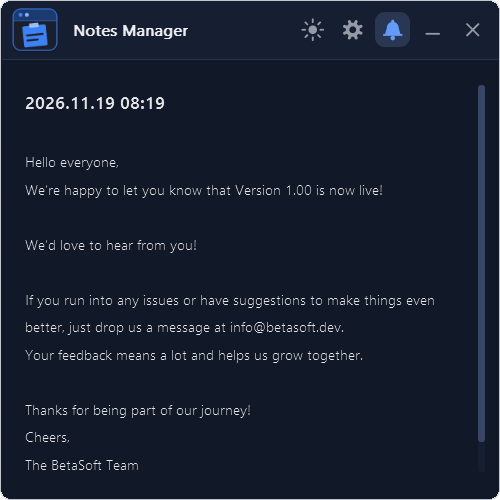
Open it with the bell button (3 on the main panel image). A red dot on the bell shows that there is a new message.
The Date refers to the date and time when the notification was generated.
The Notification refers to the message that is displayed. This can include information about the EA or the updates or message from the developer.
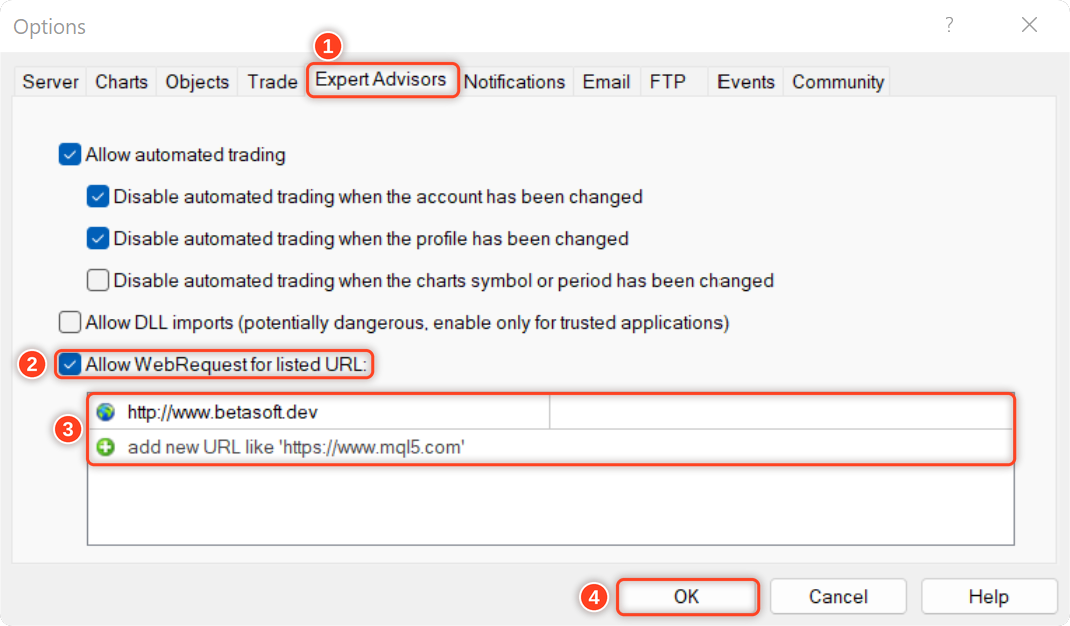
To allow EA getting the notifications, you need to add our website link to the list of allowed URLs in the platform's settings.
Here are the steps to add a link to the allowed URLs list in MetaTrader (Check The Image Below):
- Open the MetaTrader platform and go to "Tools" in the top menu, then select "Options".
- In the "Options" window, click on the "Expert Advisors" tab.
- Check the "Allow WebRequests for listed URL" option and click on the "Add" button.
- In the "New URL" field, enter the URL that you want to allow web requests for (http://www.betasoft.dev).
- Click "OK" to save the URL to the list of allowed URLs.
Why Traders Love Notes Manager
✅ Everything on the chart – your plans, levels and rules where you trade.
✅ Never miss a level – price, time, candle and trade reminders with phone alerts.
✅ Learn from every trade – automatic journal notes with the full result.
✅ Stay organized – tags, search, archive and a recycle bin.
✅ Your notes are safe – shared between terminals, with a backup every day.
✅ Made for your screen – 5 themes, 5 languages and a scalable panel.
We’d love to hear what you think about the tool! Please feel free to share your feedback and let us know if there are any improvements you’d like to see. Please contact me for any questions or assistance here.
✔️ Notes Manager MT4©: https://www.mql5.com/en/market/product/209449
✔️ Notes Manager MT5©: https://www.mql5.com/en/market/product/209450