

How to Run MT Radar on Your Computer
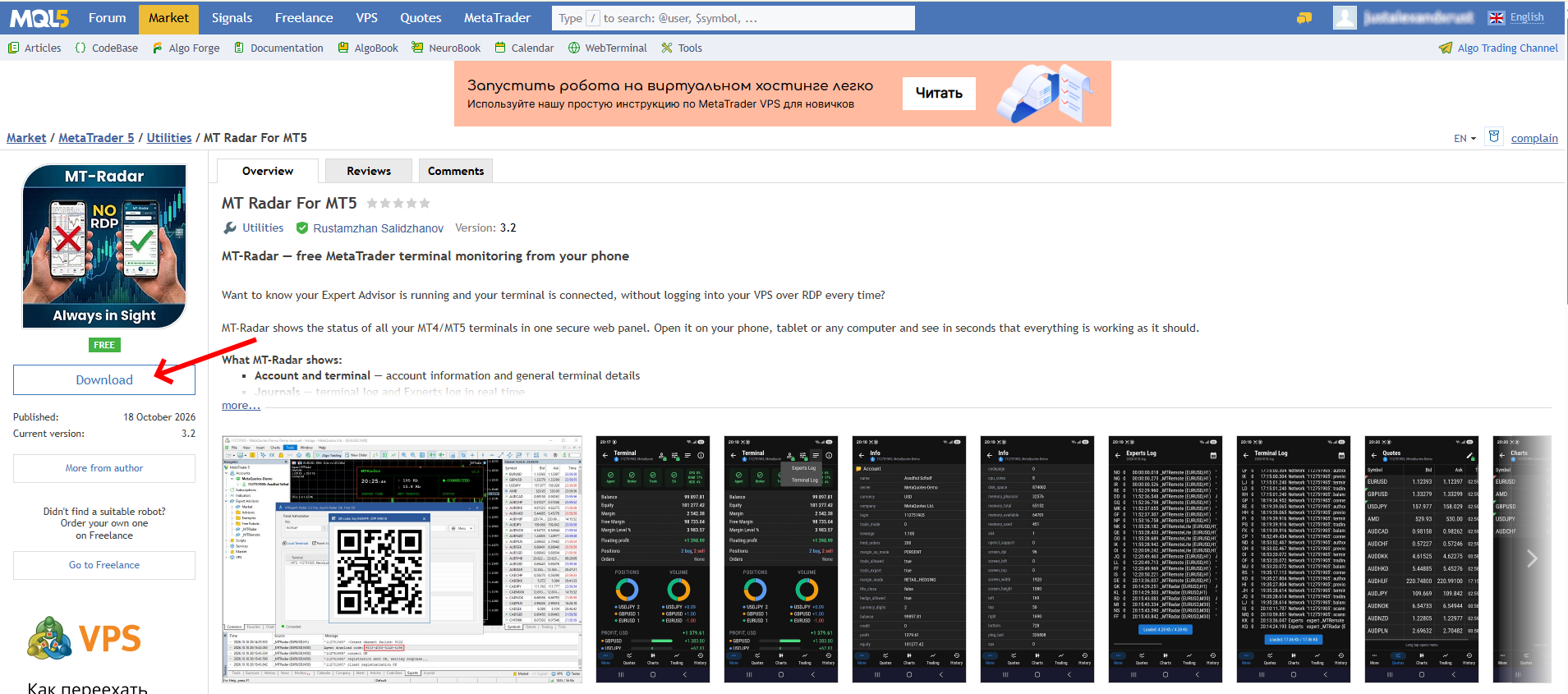
- Download MT Radar from the MQL5 Market.
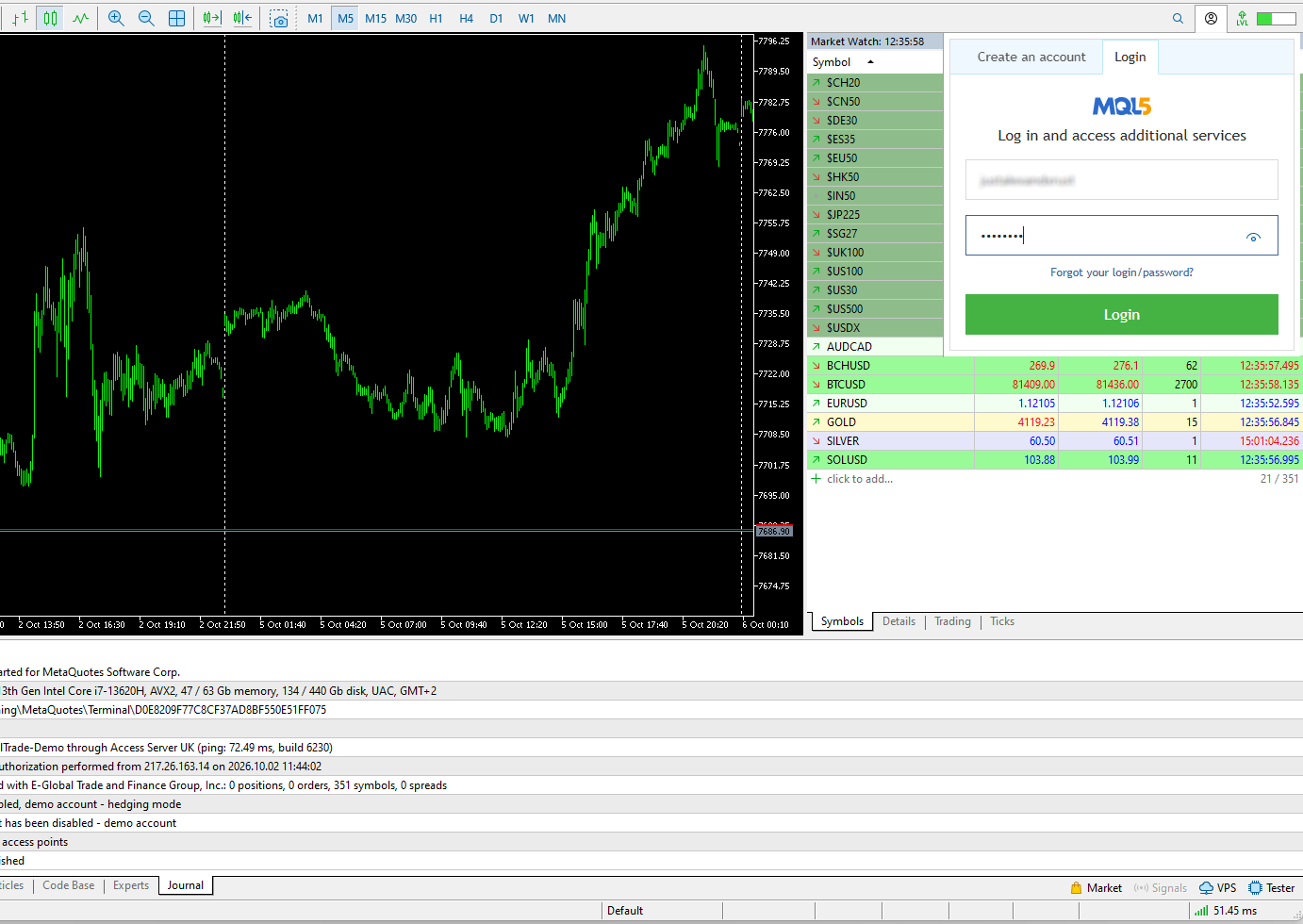
- Open your terminal and log in to your MQL5.community account.
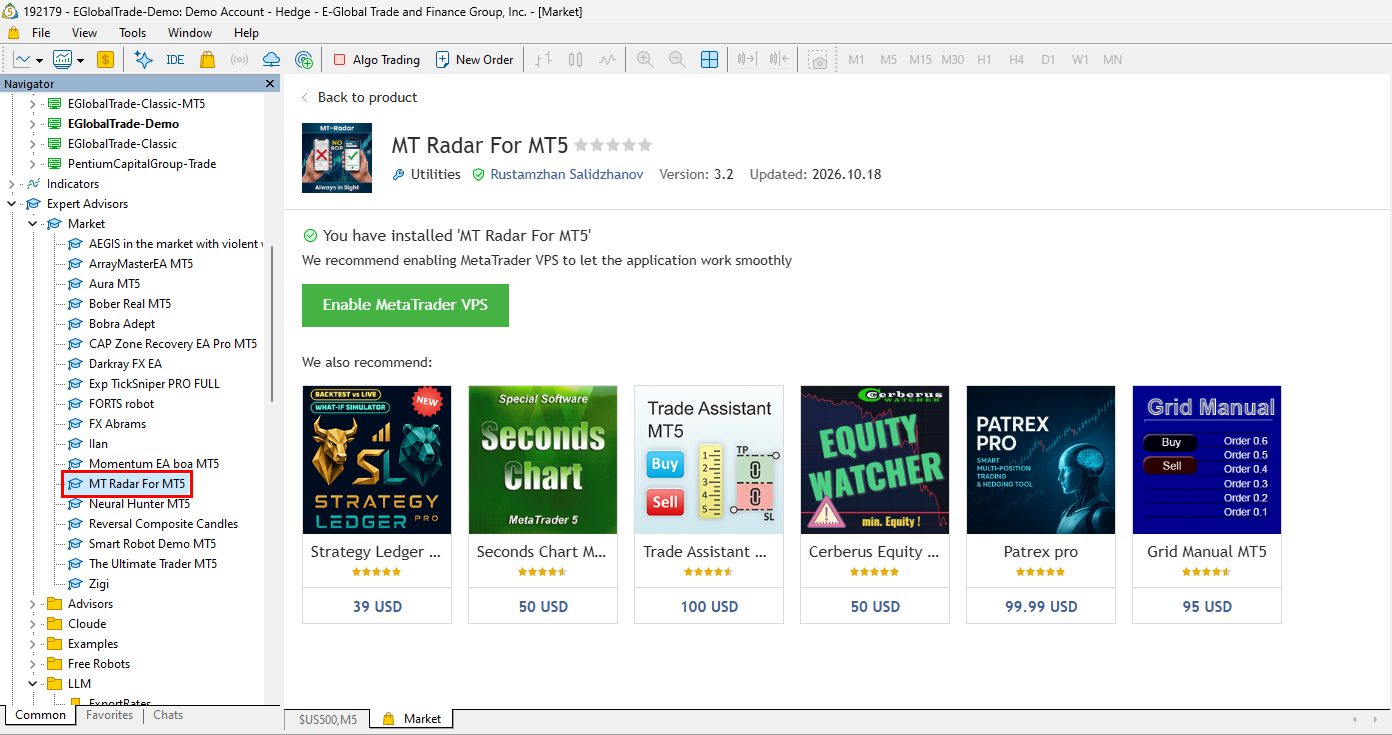
- In the Navigator window, open the Market folder and find the MT Radar for MT4 or MT Radar for MT5 Expert Advisor, depending on your terminal version.
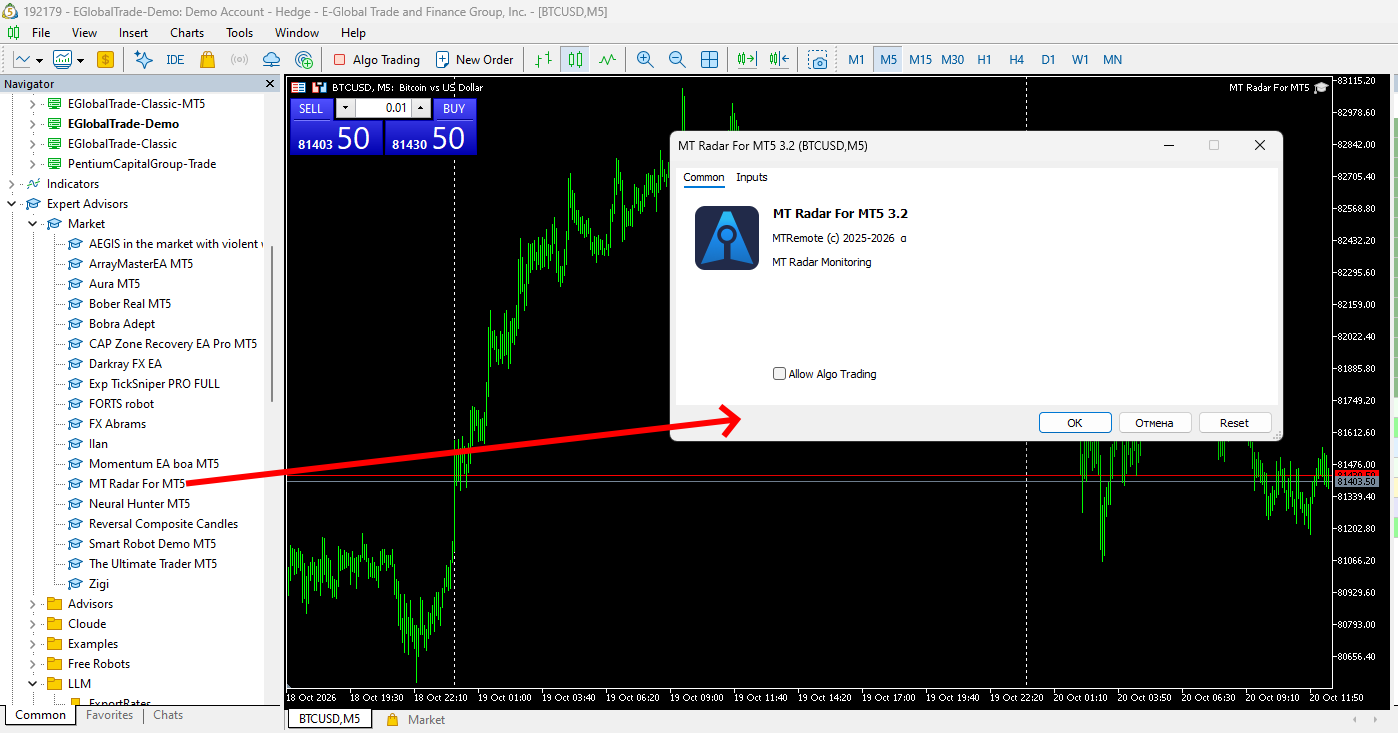
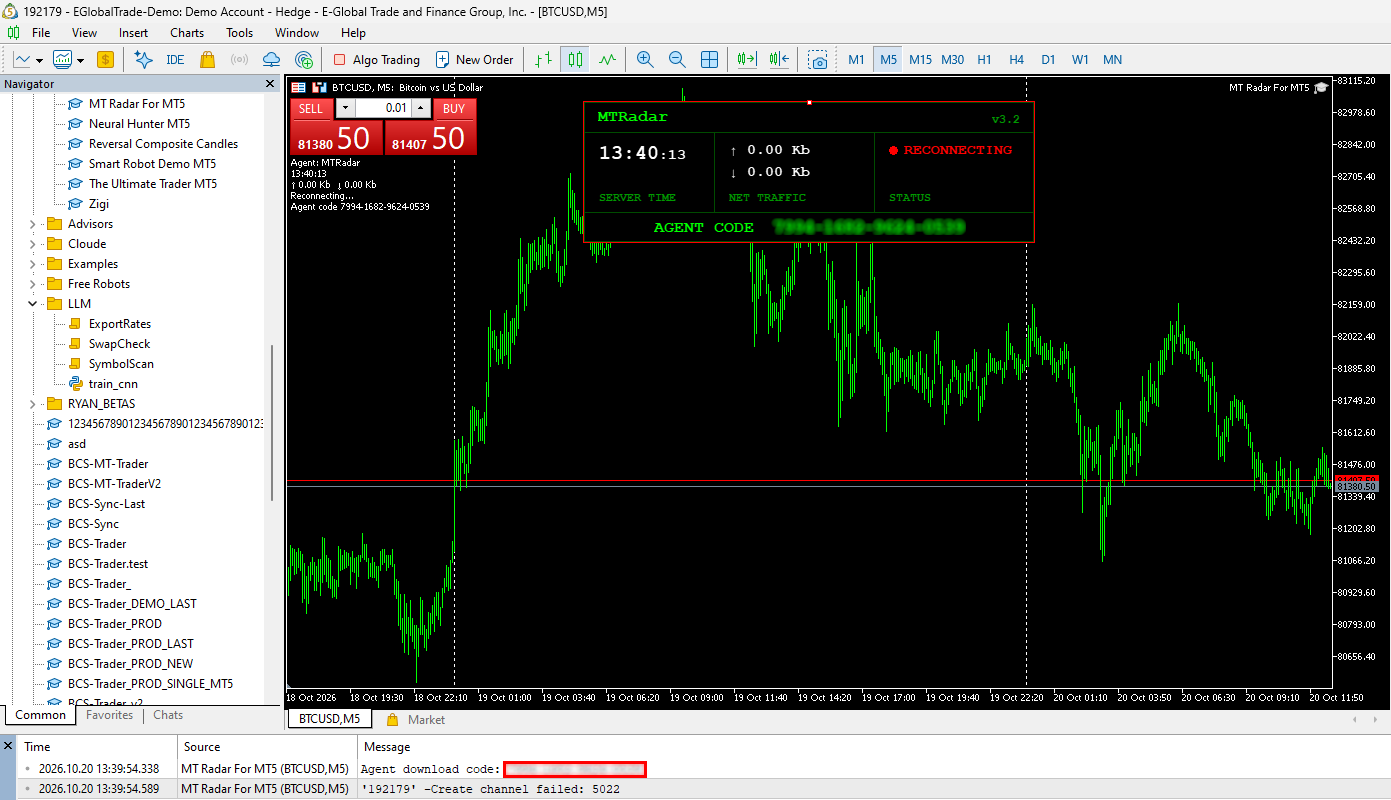
- Drag the MT Radar EA onto any chart.
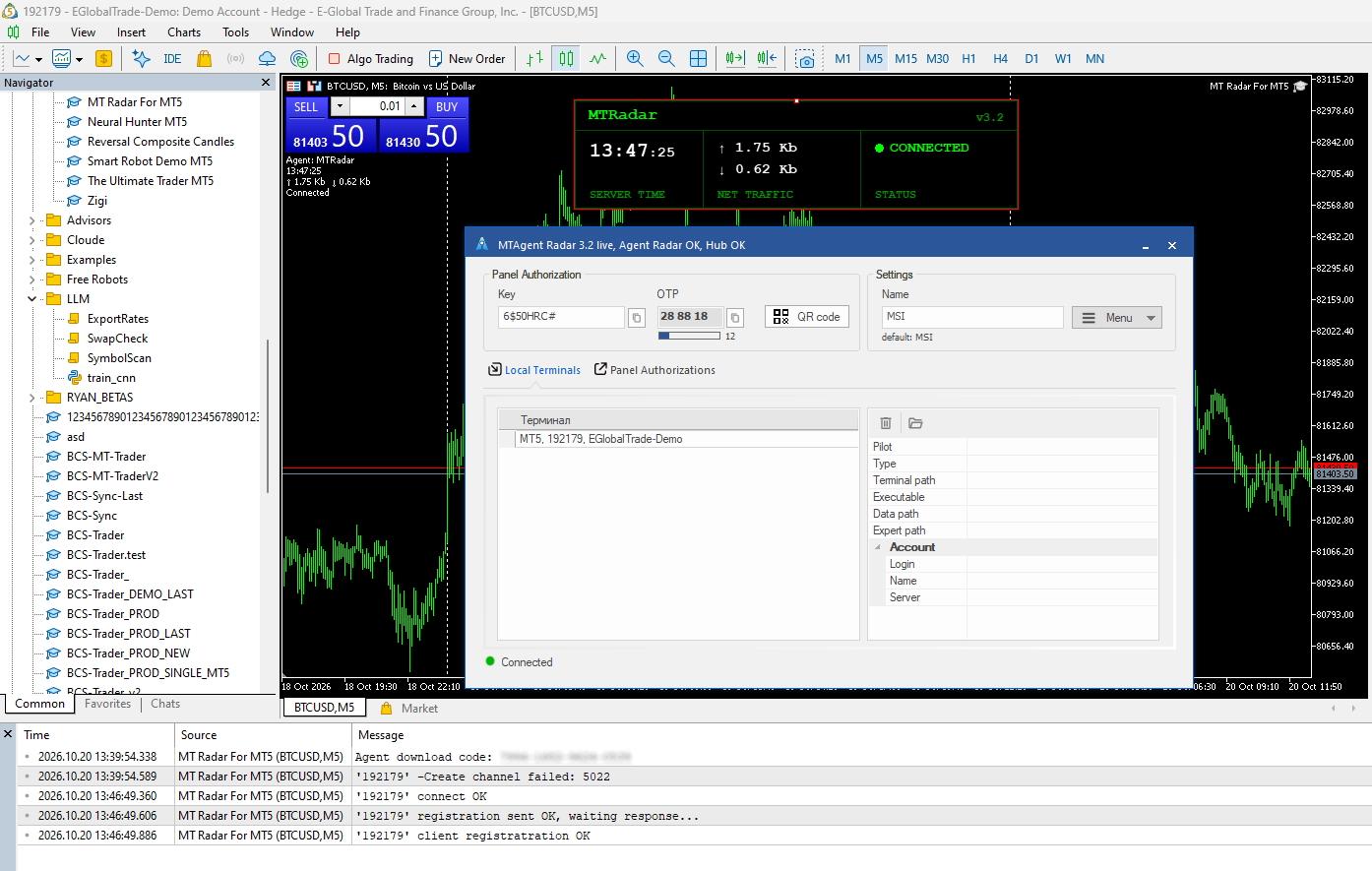
- On launch, the EA displays your agent download code and also writes it to the log.
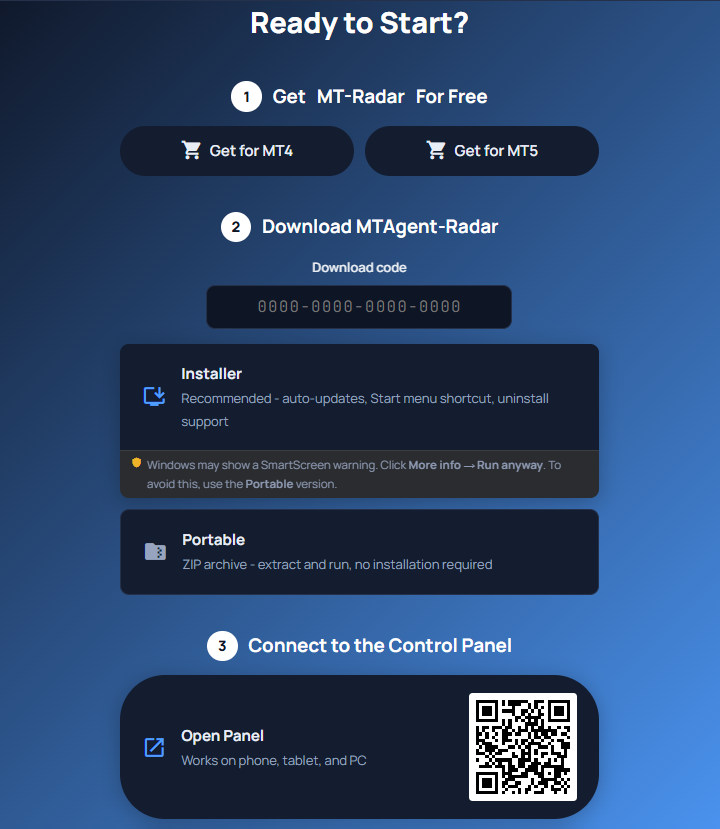
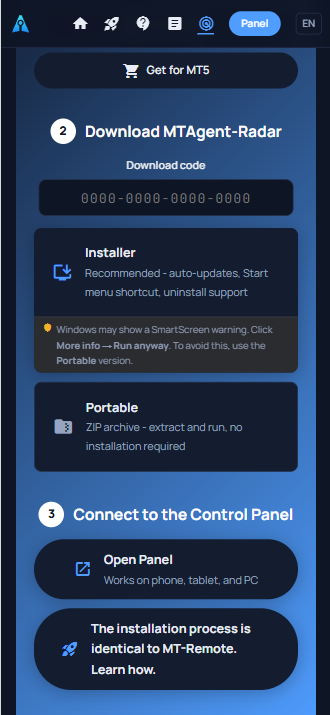
- Go to the website of Project MT Radar, enter the code in the “Download code” field, and download either the installer or the portable version of the agent.
- Your browser may flag the file as suspicious. This is common for new software, so just click “Download anyway” (or “Keep”).
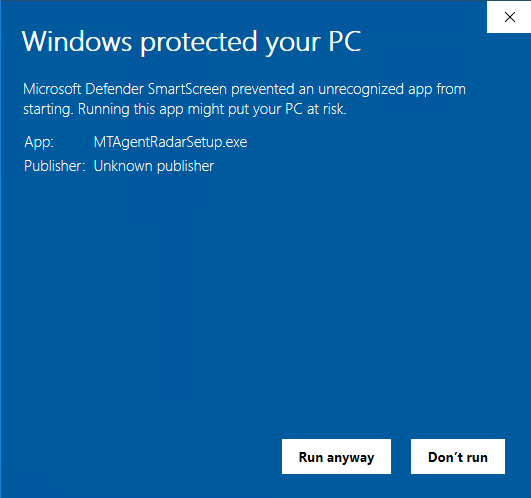
- When you run the installer, Windows may show a warning as well. Click “More info”, then “Run anyway”.
- The agent contains no backdoors, worms or viruses. If you’d like to check for yourself, scan the file with any antivirus.
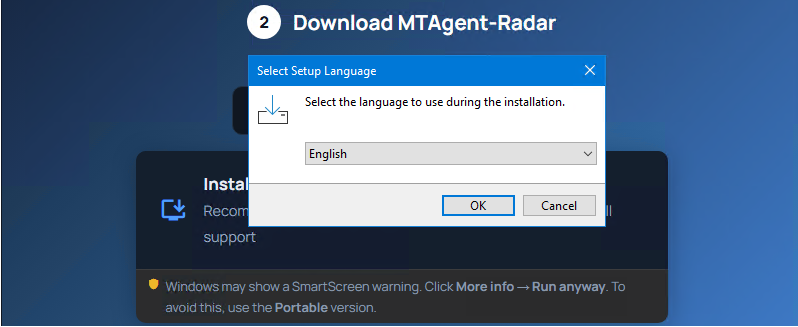
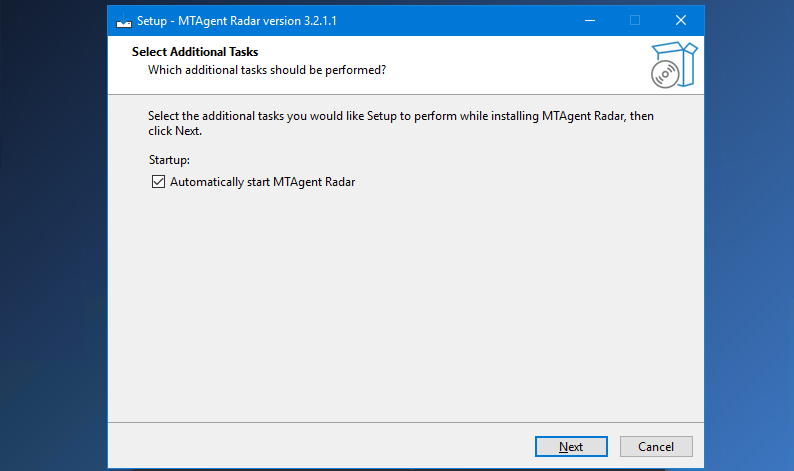
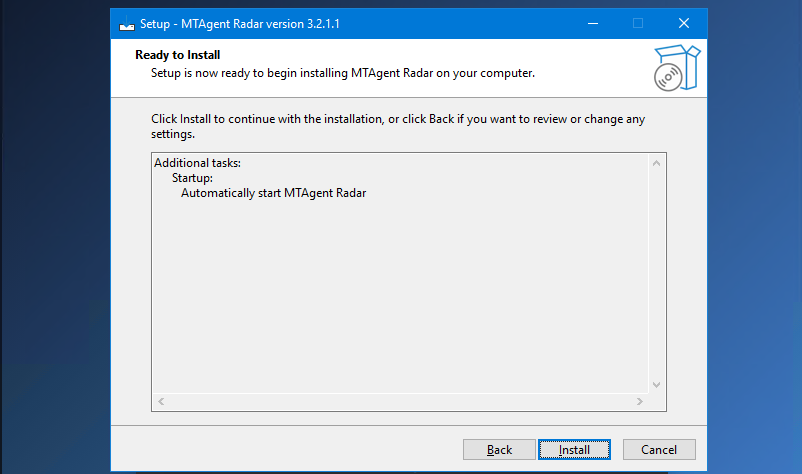
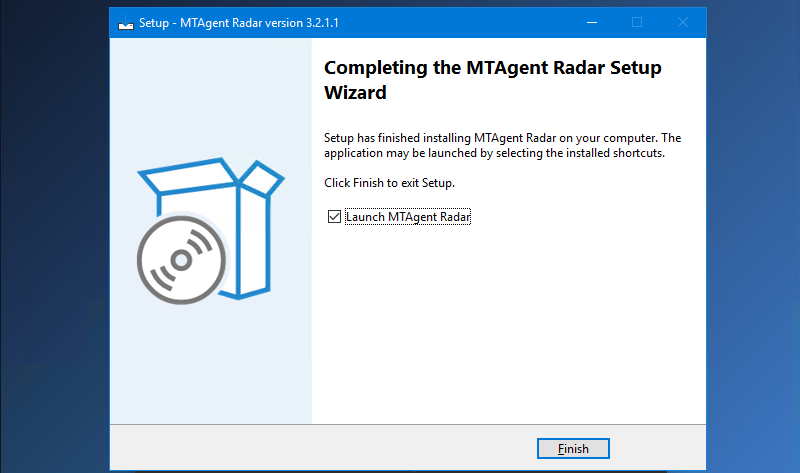
- In the installer, choose your language and the installation folder, go through all the steps, and click “Launch” at the end.
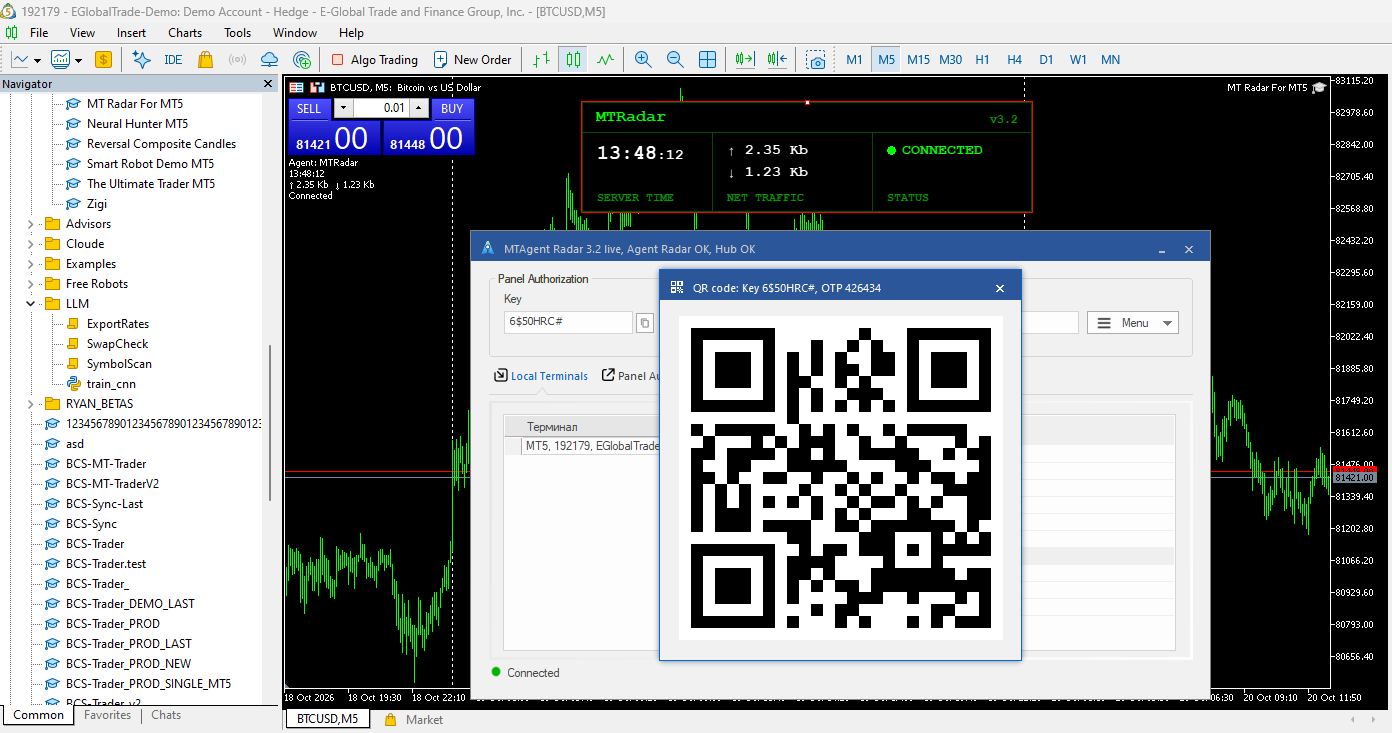
- Once the agent is running, you’ll see that it has connected to the EA.
- Open the website of Project MT Radar on your mobile device and tap “Go to panel”.
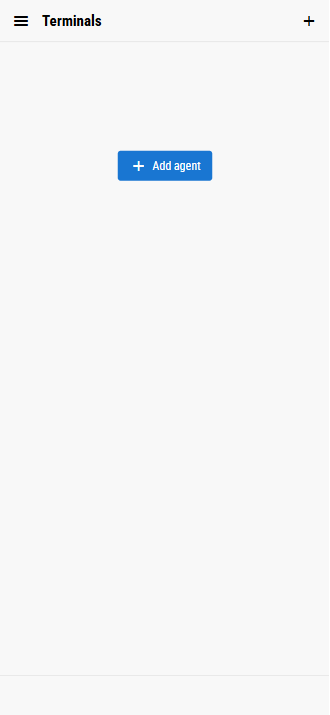
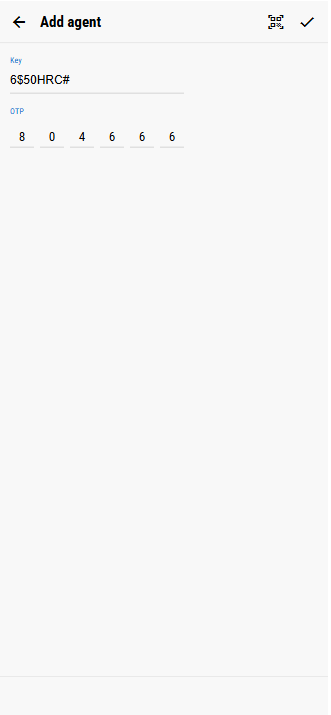
- In the panel, tap “Add agent”.
- In the agent window, click “Show QR code”.
- Scan the QR code from the panel.
- That’s it, you’re in!
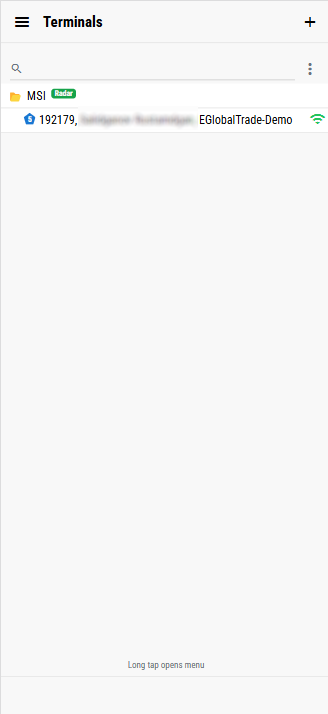
- Tap on the terminal. If you have several agents installed, choose the terminal you want.
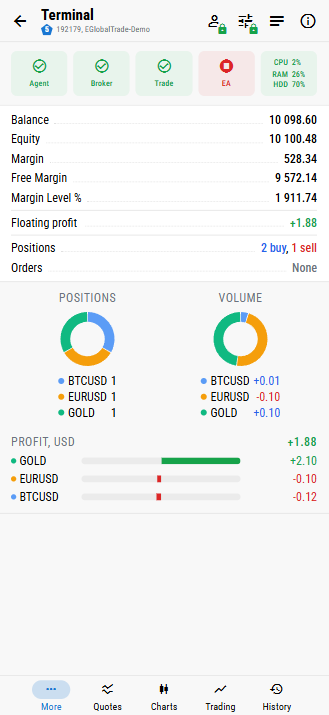
- Now you can see everything that’s happening in your terminal.
Need more features? Check out MT Remote.




