
1. Introduction
Polar Star is an Expert Advisor for MetaTrader 5 designed for multi-symbol night scalping. It evaluates selected instruments during a defined entry session and uses Buy Limit and Sell Limit orders to enter trades when its price and volatility conditions are met.
The EA includes fixed or balance-based position sizing, configurable position management, and optional grid additions. When grid trading is enabled, it may add positions in the same direction after an adverse price movement and recalculate the take-profit target for that group of positions.
Polar Star can manage several configured symbols from one chart. Its initial-entry calculations use M15 data internally. The attached chart supplies the ticks that drive the EA, so chart selection and quote availability still matter.
Trading results depend on market conditions, spreads, commissions, liquidity and broker execution. Neither profits nor a particular trading frequency are guaranteed.
2. Installation Guide
For installation through the MetaTrader Market, see the official installation guide: MetaTrader Market Installation Guide
After installation:
- Attach Polar Star to an MT5 chart and enable algorithmic trading
- Enter the exact symbol names used by your broker, including any suffixes
- Check the lot-sizing method, server time settings and grid settings before enabling trading
- Test the intended configuration on a demo account first
The compiled EX5 contains its compiled code dependencies. Customers do not need to install the source-code include files separately.
3. Parameter Settings
Pending Execution Safety
-
InpPendingBufferSpreads — Default: 1.0
Adds a spread-based safety buffer to the minimum distance required for a new pending order. With a positive value, the extra buffer is at least two price ticks. Requests that do not meet the distance requirement are skipped; the EA does not move the planned entry price to force acceptance. Set to 0 to disable this additional buffer.
-
InpPendingMaxQuoteAgeMs — Default: 2000
Sets the maximum permitted age of the target symbol’s quote for a new pending order, in milliseconds. Allowed values are 1–60000. This stricter entry filter does not apply in the same way to management of existing positions and orders.
Strategy Settings
-
Inp_symbols — Default: empty
The symbols to trade, separated by commas without spaces, for example EURUSD,GBPUSD. Use complete broker symbol names. An empty value uses the attached chart’s symbol. The example is a formatting example, not a recommended portfolio.
-
maxTradingSymbol — Default: 4
Limits initial entries according to the number of symbols currently held by this EA’s Magic Number. It is not a strict cap on every symbol that has an unfilled pending order. Use a positive value.
-
lots_type — Default: AutoLot
Select FixedLot for a specified lot size or AutoLot for balance-based sizing.
-
baseLot — Default: 0.01 lots
The lot size used in FixedLot mode. It must comply with the target symbol’s minimum, maximum and volume step. Invalid fixed sizes are skipped rather than automatically increased.
-
balancePerLot — Default: 100
Controls AutoLot sizing. The raw calculation is account balance ÷ balancePerLot ÷ 100. For example, a USD 1,000 balance with this setting at 100 produces 0.10 lots before broker volume constraints are applied. This is balance-based sizing, not a fixed percentage of capital risked at the stop loss.
-
Inp_ordersCount — Default: 1
The planned number of initial pending orders per eligible direction. It is not the maximum total number of orders in the account.
-
Inp_maxTP — Default: 115 points
Controls the upper limit of the initial dynamic take-profit base distance. Initial pending orders add a further 10 points to that calculated distance. Grid take-profit calculations use this setting relative to the group’s weighted average entry price.
-
Inp_movePosTP — Default: false
Enables periodic adjustments that bring position take-profit targets closer, together with recalculation of existing pending orders. This is not a conventional trailing stop. Adjustments remain subject to valid prices and broker restrictions.
-
Inp_SL — Default: 600 points
The stop-loss distance used for initial orders and new grid entries. On a five-digit forex quote, 600 points equals 60 pips. Do not use 0 as an assumed “disable stop loss” setting.
-
Inp_maxFloating — Default: 1.0
An account-equity-based exit trigger. For example, 0.20 triggers an attempt to close this EA’s positions and delete its pending orders when account equity falls to 80% of balance or below. The calculation includes the whole account, although the closing action targets this Magic Number. The default 1.0 is not a practical routine loss cap.
-
Inp_filterLevel — Default: 2
Adjusts the volatility filter. Lower values generally make the filter stricter. This is not a news filter.
-
Inp_slippagePoints — Default: 10 points
The requested price deviation used by applicable trade requests. Its effect depends on the broker’s execution mode; it does not guarantee a maximum realized slippage.
-
ClosewithProfit — Default: false
Outside the initial-entry session, attempts to close this EA’s positions when total account equity is at least equal to account balance. It does not select only individually profitable trades, and activity elsewhere in the account can affect the condition.
-
Inp_gridDistance — Default: 10 pips
The adverse price distance used to trigger an additional position in an existing direction. Grid additions increase exposure and may deepen losses if the market continues moving against the positions.
-
Inp_maxGrid — Default: 5
Controls the grid threshold using the current number of positions for the symbol, Magic Number and direction. A value of 0 or below disables grid additions. This is not a reliable count of completed additions on netting accounts, where trades merge into one position.
Time Settings
-
inp_gmt — Default: 2
The broker server’s GMT/UTC offset in whole hours. Check this against your broker, especially when backtesting.
-
Inp_autoGMT — Default: true
Enables automatic server-offset estimation in applicable live-trading time logic. Automatic detection is disabled in the tester. Broker timezone and daylight-saving handling should still be checked rather than assumed correct in every environment.
-
Inp_durationTradeHours — Default: 2 hours
The length of the initial-entry session. New entries stop five minutes before its calculated end. The entry start time is defined internally and is not a separate user input. Existing-position management and grid logic can continue outside this session.
-
Inp_maxPositionHour — Default: 4 hours
The holding-time threshold after which the EA attempts an exit, subject to its management conditions and trade execution. It is not a guarantee that every position closes after exactly four hours.
-
FridayTurn — Default: false
Controls initial entries on Fridays using the server calendar. Disabling Friday entries does not disable management of existing positions or all grid activity.
-
festivalOff — Default: true
Pauses initial entries from December 15 through January 15, inclusive. This is a fixed year-end filter, not a worldwide holiday or economic-news calendar.
General Settings
-
Inp_magic — Default: 406
Identifies the EA’s orders and positions. Avoid conflicting Magic Numbers between independent strategies. On netting accounts, Magic Numbers alone cannot isolate merged positions in the same symbol.
-
Inp_comment — Default: PolarStar
The order comment. Grid orders add a grid label.
-
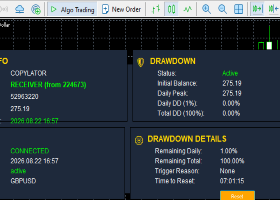
InpShowPanel — Default: true
Shows the information panel during normal operation. The panel is hidden in the strategy tester.
-
InpPanelOpacity — Default: 244
Controls the panel background opacity on a 0–255 scale.
4. Risk Management
Choose the lot-sizing method deliberately. In AutoLot mode, changing baseLot does not change the calculated lot size. Exposure can also increase through multiple initial orders, multiple symbols and grid additions.
Grid trading is enabled by default in this version. It does not apply a grid-level lot-doubling multiplier, but adding positions against an adverse move still increases risk. Netting accounts require particular care because merged positions affect the grid-count logic.
Stop losses, holding-time exits and floating-loss actions depend on available quotes and successful execution. The floating-loss setting is an exit trigger, not a guaranteed maximum drawdown or a permanent trading shutdown.
The EA checks trading sessions, volume constraints and price conditions before submitting applicable requests. These checks reduce invalid requests but cannot eliminate all rejections caused by price changes or execution delays.
5. FAQ
Why has Polar Star not traded for a day or two?
A valid signal does not guarantee an executed trade. A limit order may remain unfilled if the market never reaches its entry price. Trading may also be blocked by the session, filters, existing exposure, insufficient margin, broker restrictions, quote age or pending-order buffer. Review the Experts and Journal tabs for details.
Can I trade multiple symbols from one chart?
Yes. Enter the full broker symbol names in Inp_symbols. Leave it empty to trade only the attached chart’s symbol. The attached chart still drives the EA’s tick processing.
Why does the lot size differ from baseLot?
baseLot applies only in FixedLot mode. AutoLot uses account balance and balancePerLot, then applies the target symbol’s volume constraints.
Does Polar Star use grid or martingale?
It includes optional same-direction grid additions after adverse price movements. It does not use a grid-level lot-doubling formula. Grid trading still increases exposure and should be evaluated carefully.
Does passing a backtest guarantee live results?
No. Historical testing, platform validation and live trading use different conditions. Spreads, commissions, quote timing, liquidity and execution delays can change both trade acceptance and results.



![[iVISTscalp5]: XAUUSD. Forecast First. Market Reaction Afterwards](https://c.mql5.com/6/1035/splash-preview-777232.png "[iVISTscalp5]: XAUUSD. Forecast First. Market Reaction Afterwards")