
Chart Copilot — Setup
Getting started: purchase Chart Copilot from the MQL5 Market and attach it to any chart.
Step 1 — Allow the WebRequest URL (required)
Chart Copilot talks to language models over the internet, so MetaTrader 5 needs permission to reach them.
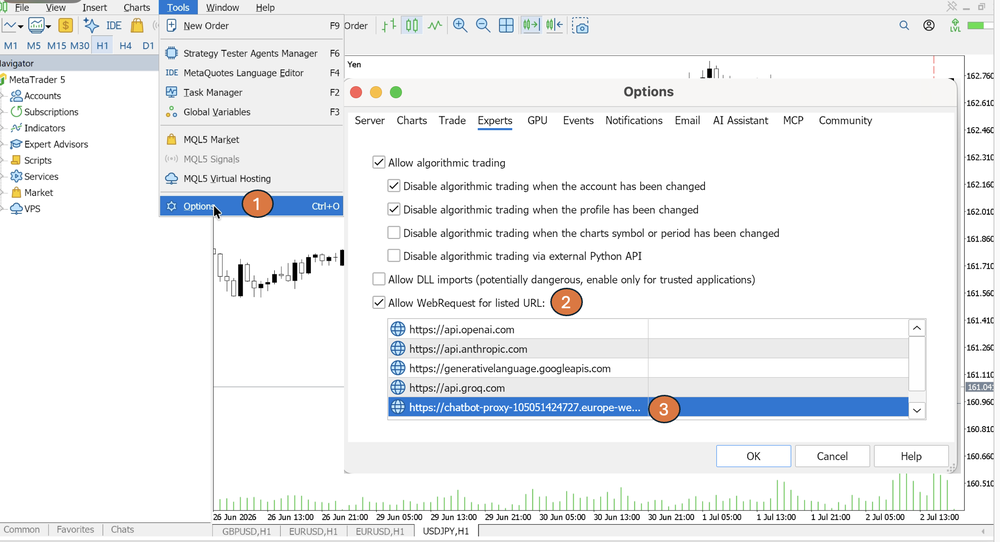
In MT5, open Tools > Options > Expert Advisors tab, tick "Allow WebRequest for listed URL:" and add the address below:
- https://chatbot-proxy-105051424727.europe-west4.run.app — the default Chart Copilot proxy. This one works out of the box, no API key needed.
Step 2 — Use your own API key (optional)
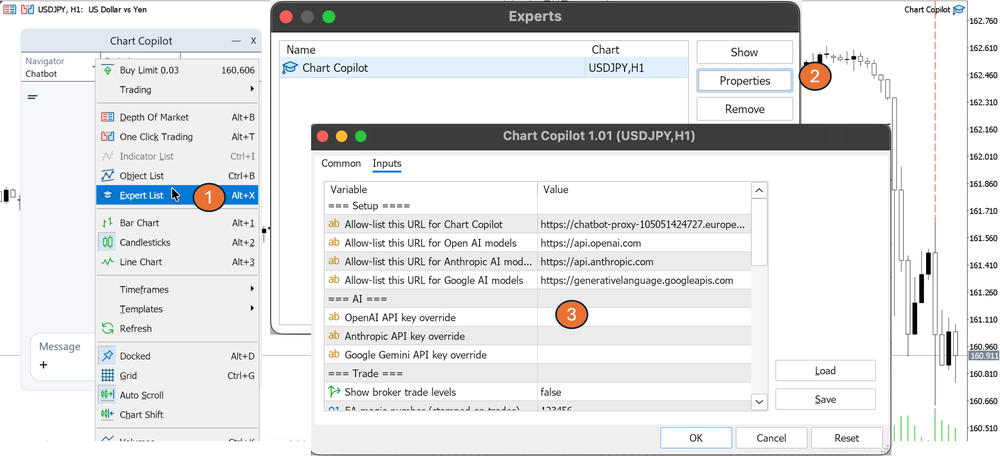
Prefer to connect directly to a provider with your own key? Add that provider's URL to the same WebRequest list, then paste your key into Chart Copilot's settings (see the screenshot below). Only add the ones you actually plan to use.
1. OpenAI (ChatGPT / GPT models)
- Whitelist: https://api.openai.com
- Get a key: platform.openai.com/api-keys → Create new secret key. Requires a payment method on file. The key starts with sk- and is shown only once — copy it right away.
2. Anthropic (Claude)
- Whitelist: https://api.anthropic.com
- Get a key: console.anthropic.com/settings/keys → Create Key. Add billing credit first, otherwise the key returns errors. The key starts with sk-ant- and is shown only once.
3. Google (Gemini)
- Whitelist: https://generativelanguage.googleapis.com
- Get a key: aistudio.google.com/app/apikey → Create API key. Has a free tier (no card required for most models). The key starts with AIza; new keys are restricted to the Gemini API by default, which is exactly what you want.
Tip: treat API keys like passwords. Never share a screenshot of MT5's Options window with a key visible, and revoke a key immediately if it leaks.
Step 3 — Async Worker on a second chart (optional)
This step is optional. Chart Copilot works perfectly on a single chart. The Async Worker is a performance option for users who want the main chart to stay perfectly smooth.
Why: In MetaTrader 5, a WebRequest runs on the chart's own execution thread, so while a request to the model is in flight, that chart is busy waiting for the reply. On a single chart this can cause a brief pause during a request. Offloading those requests to a separate "worker" chart keeps the chart you're actually using fully responsive — the main chart hands the network call to the worker and carries on.
How to enable it:
- Open a second chart (any symbol or timeframe — it only needs to exist; a spare, minimized chart is fine).
- Attach the Async Worker EA (included with this post) to that chart.
- Leave your primary Chart Copilot chart in its normal mode — it will route its WebRequests through the worker automatically.
Notes:
- If you skip this step, everything still works — you may just notice a short pause on the main chart during a request.



