
X ROBOT GOLD EA
TECHNICAL PARAMETERS & USER MANUAL
Hello from the X Robot Gold EA family! Our algorithm is designed for precision and stability, however this performance is achievable with proper technical setup.
Follow this step-by-step guide to activate your EA, configure the critical News Filter, and start trading Gold (XAUUSD) with confidence.
MQL EA Product Link : HERE
For ideas, suggestions and development requests regarding this EA : HERE
INSTALLATION & FIRST-RUN PROCEDURE
Step 1: Locate and Install the EA in Your Terminal
1. After your purchase on the MQL5 Market, you must download the EA directly into your MT5 platform.
2. Open your MT5 terminal. Go to the Toolbox window (Ctrl+T) at the bottom and select the Market tab.
3. In the top-right corner, click on the profile icon and ensure you are logged into your MQL5.com account.
4. Navigate to the "Purchased" tab. You will see X Robot Gold EA v1.0. Click the Install button next to it.
5. Visual Confirmation: Once installed, the EA will appear in your "Navigator" (Ctrl+N) panel under "Expert Advisors" -> "Market".
Step 2: Attach the EA to the Correct Chart
**This is the most critical step. The strategy is optimized for a specific instrument and time frame.
1. Open a new Gold (XAUUSD) chart.
2. Change the chart timeframe to M1 (1-Minute).
3. From the Navigator panel, click and drag X Robot Gold EA onto the M1 chart.
Step 3: Enable Algorithmic Trading (Algo Trading)
Before configuring the parameters, you must authorize the EA to place trades on your behalf.
1. When you drag the EA onto the chart, a window will pop up. Go to the Common tab.
2. Check the box "Allow Algorithmic Trading".
3. In the main toolbar at the top of your terminal, ensure the "Algo Trading" button is GREEN (active). If it is red, click it.
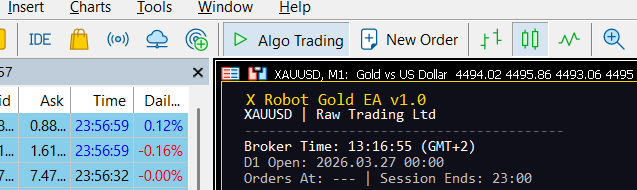
Step 4: Verify Final Settings and Operation
Now, adjust the EA parameters (Inputs) as explained in our User Manual (e.g., Risk Percent, Gold Symbol).
1. Ensure your Gold Symbol (e.g., XAUUSD or GOLD.ecn) matches your Market Watch exactly.
2. Set your Risk Management
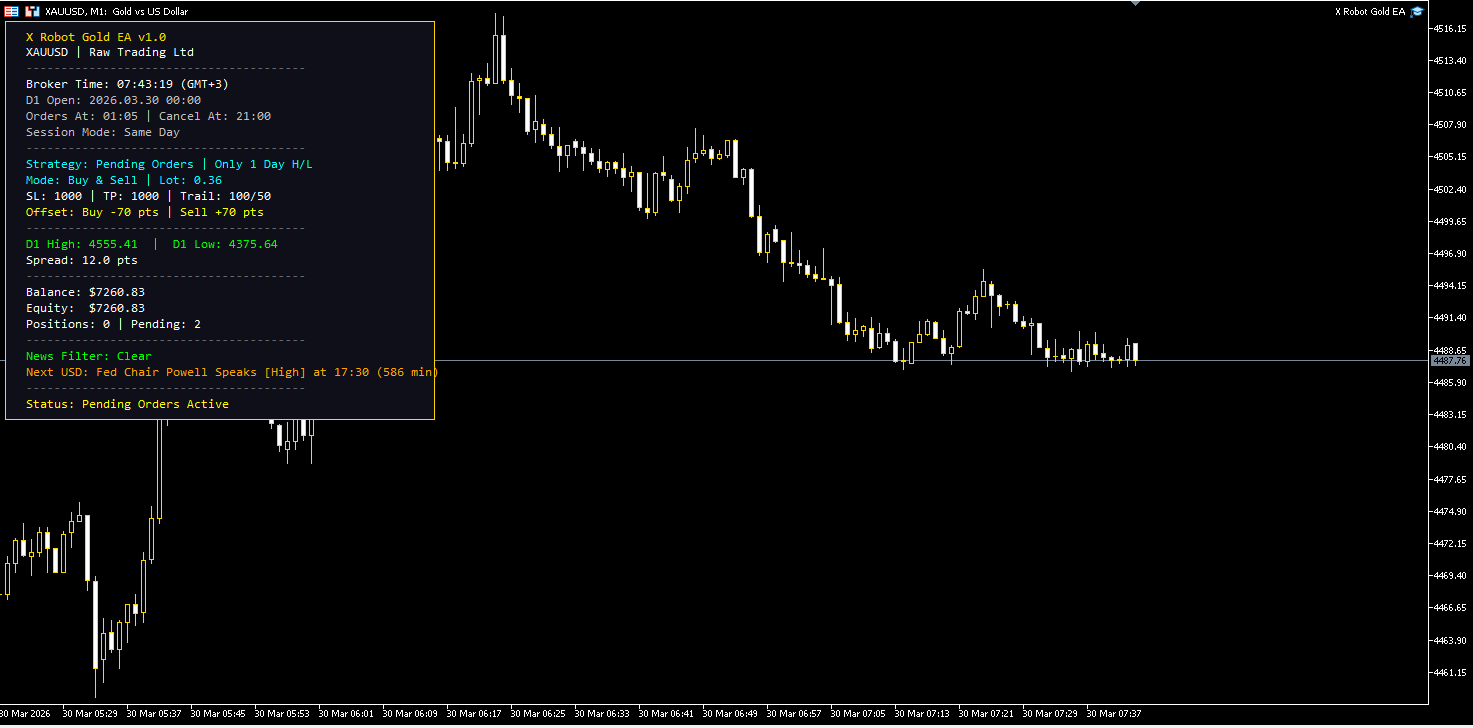
3. Once the setup is complete, you should see the X Robot Gold EA Info Panel appear in the top-left corner of your chart.
4. Verify that the Status at the bottom of the panel says: "Algo Trading Active".
Congratulations! You are Ready to Trade.
X Robot Gold EA is now fully active, utilizing its precise entry logic, slippage guards, and news filters to manage your account with mathematical discipline.
Final Pro Tip: Always perform extensive testing on a Demo Account before committing real capital to understand the strategy's behavior.
TECHNICAL USAGE OF THE INTERFACE
To optimize performance, each input can be configured according to specific market conditions.
1. TRADE STRATEGY MODEL

- Gold Symbol: Enter the exact symbol name used by your broker or Leave Empty (e.g., XAUUSD+, GOLD.ecn).
- Trade Type: You can choose your trade order type as you need.
- Pending Orders Strategy: Uses Buy/Sell Stop orders at specific thresholds. This institutional method minimizes slippage risk.
- Instant Orders Strategy: Direct market execution for rapid entry/exit during high liquidity.
- Trade Strategy: You have the option to choose either the high or low from just the previous day, the high or low from two days prior, or both strategies at the same time.
- Max Slippage & Max Spread: Operational safety filters. The EA automatically halts execution if point limits are exceeded to protect against high costs.
2. TP/SL AND SIDE SETTINGS

- Buy and Sell Mode: Choose between bidirectional (Buy & Sell) or trend-specific (Only Buy / Only Sell) trading.
- TP/SL & Trailing Mode: In Auto, the EA dynamically calculates levels based on volatility. In Manual, user-defined inputs are used. If you select “Manual,” you can enter the points of your choice in the fields below, and these values will apply to your transactions.
- Trailing SL Start & Steps: Profit realization strategy manuelly. Once the threshold is reached, the SL follows the price at set intervals to lock in gains.
3. RISK MANAGEMENT

- Risk Type: Defines the lot sizing methodology.
- Auto Lot Size Per Balance: Dynamically increases lot size as your capital grows.
- Capital Balance: If you want to manually increase your lot size, enter the balance amount you want to use here.
- Risk Percent of Balance: Sets risk as a percentage of equity. Ideal for Prop Firm users to strictly manage daily drawdown.
- Fixed Lot Size: Executes all trades with a constant lot volume.
4. ADVANCED SETTINGS
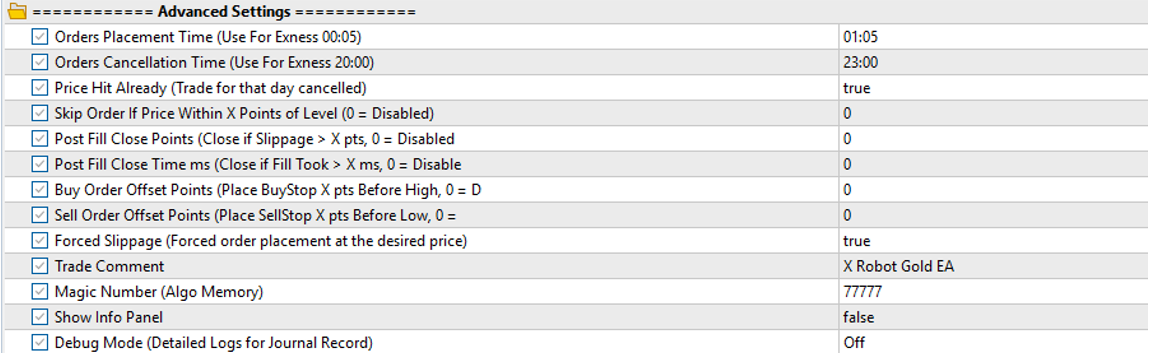
In addition to our core strategy, X Robot Gold EA includes a sophisticated suite of protection tools to safeguard your capital against market irregularities and poor execution:
- Order Placement Time: You can specify the time when the orders will be placed.
- Order Cancellation Time: It automatically cancels pending orders at the specified time (default: 11 PM), so you don’t have to deal with expired trade setups. It is important to select a time before your broker’s market close.
- Price Hit Already: If the target price level is hit before the order is placed, the trade for that day is automatically canceled to prevent late entries.
- Skip Order if Within X Points: Prevents entering a trade if the current price is already too close to the entry level, maintaining a healthy Risk-to-Reward ratio.
- Post-Fill Close Points: Automatically terminates a position if the broker executes the entry with a slippage (price gap) exceeding your predefined point limit..
- Post-Fill Close Time (MS): Instantly closes a trade if the broker's execution delay (latency) exceeds your safety threshold in milliseconds, protecting you from poor fills.
* IMPORTANT PRO TIP: Since latency above 2000 MS often indicates extreme volatility or the risk of dangerous slippage, we recommend that risk-averse investors set a specific delay threshold here to provide an extra layer of protection for their capital.
- Buy Order Offset Points: Allows you to place your BuyStop order a specific number of points below the previous day’s high. This enables you to enter the market just before the actual breakout, securing a better price and maximizing potential profit.
- Sell Order Offset Points: Enables you to place your SellStop order a specific number of points above the previous day’s low. By entering the trade slightly before the support level breaks, you stay ahead of the crowd and capture the early momentum of the move.
* IMPORTANT PRO TIP: You can also use a negative value ("-") for these parameters. Entering a negative point value will achieve the exact opposite: it will "offset" the pending orders beyond the high/low levels. This powerful flexibility allows you to the freedom to build and test your own unique trading strategies.
- Forced Slippage Control: Ensures that the order placement strictly adheres to your desired price requirements.
- Show Info Panel: It offers a high-quality, real-time dashboard designed to provide full transparency and control over your trading activities. You can monitor all key indicators directly from your chart. If you want your backtests to run quickly, you can perform them after closing the dashboard.
- Debug Mode & Trade Comment: Detailed logs for your journal records and clear trade identification (X Robot Gold EA) for easy tracking.
5. TRADING SCHEDULE

- Monday – Friday: Weekly planning. Set to Trade or No Trade based on the economic calendar or liquidity expectations for specific days.
6. NEWS FILTER
Our advanced News Filter is designed to keep your account safe during high-volatility events, such as NFP or FOMC: Filter events by importance. We recommend selecting the “High-Impact News Only” option for gold trading; however, you can also protect your account against lower-impact news if you prefer.
How to Enable News Filter (Mandatory Setup)
Enable News Filter: Set to True to pull live USD High-Impact or Medium-Impact event data from Forex Factory. The EA will automatically pause trading, close open positions, and cancel pending orders during the news window.
⚠️ IMPORTANT: To allow the EA to fetch real-time economic data from Faireconomy, you must manually authorize the URL in your MT5 terminal. Without this step, the News Filter will not function.
1. Open your MT5 Terminal and go to Tools > Options.
2. Select the Expert Advisors tab.
3. Check the box "Allow WebRequest for listed URL".
4. Double-click the "+" sign and add exactly this link: https://nfs.faireconomy.media and https://nfs.faireconomy.media/ff_calendar_thisweek.json
5. Click OK.
Show News Lines On Chart: When enabled, the EA will draw vertical lines on your chart representing upcoming news events, allowing for better visual monitoring.
No Trade Before News Minute: The EA will stop opening new positions X minutes (default: 20) before the scheduled news release and will cancel any pending orders that have been placed.
No Trade After News Minute: The EA waits for market spreads to stabilize and remains in “wait” mode for X minutes (default: 20) after the news is released; at the end of this period, it will re-place pending orders.

***For any questions or support, please DM***
Regards



