StealthTrade Commander ST v2.0 — Official User Manual
1. Introduction
StealthTrade Commander ST is a visual trading panel for MetaTrader 5 designed for manual traders, scalpers, and Prop-Firm challengers. The ST Edition (Strategy Tester Edition) works fully inside the MT5 Strategy Tester with Visual Mode enabled, allowing traders to practice their complete manual workflow on historical data before applying it in live conditions.
The panel handles lot calculation, risk sizing, and position management automatically, allowing the trader to focus on chart analysis and decision making.
2. Installation
Live Trading
After purchasing the product in the MQL5 Market, open MetaTrader 5. Go to the Navigator panel (Ctrl+N) and find the panel under the Market section. Drag it from the Navigator onto the chart of the instrument you want to trade. The inputs window will open automatically — configure your risk parameters before clicking OK.
Alternatively, right-click the panel name in the Navigator and select Attach to a chart.
Strategy Tester
To run the panel in the Strategy Tester, right-click the panel name in the Navigator and select Test. The Strategy Tester will open with the panel already selected as the Expert Advisor.
Alternatively, open the Strategy Tester via View — Strategy Tester or press Ctrl+R, then select StealthTrade Commander ST manually from the Expert Advisor dropdown.
Set your symbol, timeframe, and date range. Enable Visual Mode — this is required. The panel will return an initialization error and stzop if Visual Mode is not active. Click Start. The panel will appear on the chart with full functionality.

3. Input Parameters
All parameters are configured in the inputs window before attaching the panel to a chart or starting a test.
Risk Guardian
| Parameter | Default | Description |
|---|---|---|
| Max Daily Loss ($) | 500.0 | Closes all trades and locks the panel if daily loss reaches this value |
| Daily Profit Target ($) | 200.0 | Closes all trades when daily profit reaches this value |
| Magic Number | 777888 | Identifies trades opened by this panel |
| Risk Base | RISK_BALANCE | Base for risk calculation: Balance, Equity, Free Margin, or Fixed USD |
| Include Commission | true | Include broker commission in lot size calculation |
| Commission per Lot | 7.0 | Commission per lot, round turn, in account currency |
| Close Scope | SCOPE_MAGIC | SCOPE_MAGIC — panel trades only. SCOPE_GLOBAL — all account trades |
| Parameter | Default | Description |
|---|---|---|
| Price Magnet ON at start | true | Lines snap to nearest candle High or Low when dragged |
| Magnet snap distance (points) | 50 | How close a line must be to snap to a candle extreme |
| OCO mode ON at start | false | Cancels remaining pending orders when one is filled |
| Stealth Mode ON at start | false | Hides real SL and TP from broker |
| Stealth lines color | Orange | Color of virtual Stealth SL and TP lines on chart |
| Ghost Entry line color | Gold | Color of virtual pending order line on chart |
| Auto close at specific time | false | Enables automatic close of all trades at set time |
| Auto close time (HH:MM) | 22:55 | Time to close all trades |
| Enable hotkeys | true | Enables L, E, X, M keyboard shortcuts |
| Parameter | Default | Description |
|---|---|---|
| Auto Partial Close | true | Suspended automatically when TP Levels are active |
| Partial Close trigger (pips) | 30 | Pips in profit to trigger partial close |
| Partial Close volume (%) | 50.0 | Percentage of position volume to close |
| Auto Breakeven | true | Moves SL to entry when profit target reached |
| Breakeven trigger (pips) | 15 | Pips in profit to trigger breakeven |
| Breakeven offset (pips) | 1 | Pips above entry to place the breakeven stop |
| Auto Trailing Stop | true | Follows price automatically |
| Trailing Mode | TRAIL_ATR | Points, ATR, Fractals, MA, or Candles |
| Trailing activates after (pips) | 10 | Pips in profit before trailing starts |
| Trail distance — Points mode | 20 | Fixed distance from price in Points mode |
| Minimum trail step (pips) | 5 | Stop only moves if new level is this many pips better |
| ATR Period | 14 | ATR indicator period for ATR trailing |
| ATR Multiplier | 2.0 | Trail distance = ATR x this value |
| MA Period | 20 | Moving Average period for MA trailing |
| Parameter | Default | Description |
|---|---|---|
| Enable TP1 / TP2 / TP3 | true | Activates multi-level partial close system |
| TP1 — close X% of initial volume | 33.0 | Percentage closed when price reaches TP1 |
| TP2 — close X% of initial volume | 33.0 | Percentage closed when price reaches TP2 |
| TP3 — close remaining volume | 34.0 | Full close of remaining position at TP3 |
| TP1 line color | Orange | Visual color of TP1 line on chart |
| TP2 line color | Green | Visual color of TP2 line on chart |
| TP3 line color | Light Blue | Visual color of TP3 line on chart |
| Parameter | Default | Description |
|---|---|---|
| UI Theme | THEME_NEON_PRO | Classic — dark minimal. Neon Pro — high contrast with green accents |
| Entry line color | Grey | Color of Entry line on chart |
| Stop Loss line color | Red | Color of Stop Loss line on chart |
| Take Profit line color | Green | Color of standard Take Profit line on chart |
| Parameter | Default | Description |
|---|---|---|
| Save HTML report on close | true | Generates report automatically when panel is removed |
| Report folder | Reports\ | Subfolder inside Common\Files where reports are saved |
4. Panel Layout
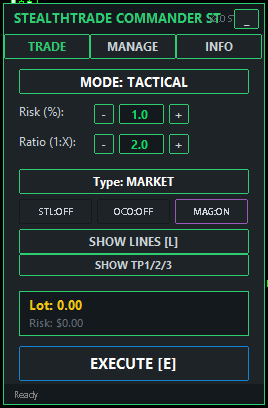
The panel has three tabs at the top: TRADE, MANAGE, and INFO.
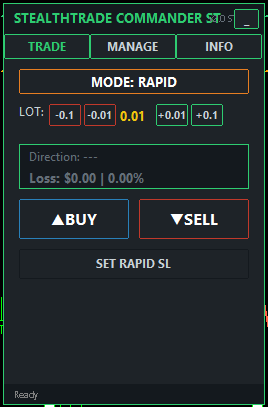
ParameterDefaultDescriptionEnable TP1 / TP2 / TP3trueActivates multi-level partial close systemTP1 — close X% of initial volume33.0Percentage closed when price reaches TP1TP2 — close X% of initial volume33.0Percentage closed when price reaches TP2TP3 — close remaining volume34.0Full close of remaining position at TP3TP1 line colorOrangeVisual color of TP1 line on chartTP2 line colorGreenVisual color of TP2 line on chartTP3 line colorLight BlueVisual color of TP3 line on chartThe TRADE tab contains the mode selector, risk settings, order type selector, tactical toggles, line controls, and the execute button. In Rapid Mode it shows the lot controls, direction preview, and the SL line button.
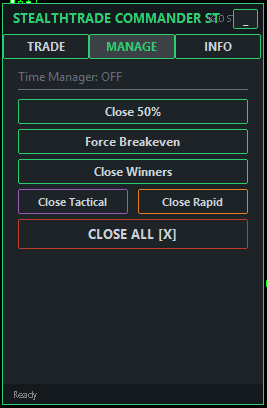
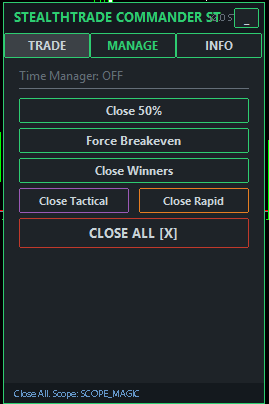
The MANAGE tab contains manual position management buttons and shows the time manager status.
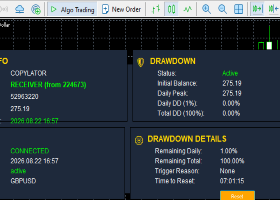
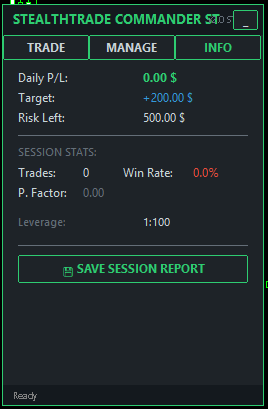
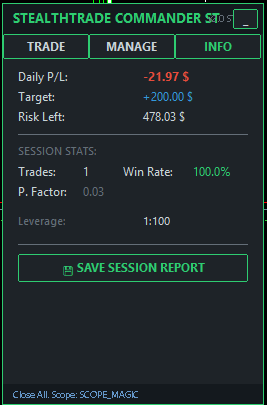
The INFO tab displays daily and session statistics and the Save Report button.
The status bar at the bottom of the panel shows the last system message or action result.
Below the panel, each open position managed by the panel is shown in a two-line status block.
5. Hotkeys
| Key | Action |
|---|---|
| L | Show or hide Tactical lines on the chart |
| E | Execute trade in Tactical Mode |
| X | Close all positions and pending orders immediately |
| M | Toggle Price Magnet on or off |
Hotkeys can be disabled by setting InpUseHotkeys to false in the inputs.
6. Tactical Mode
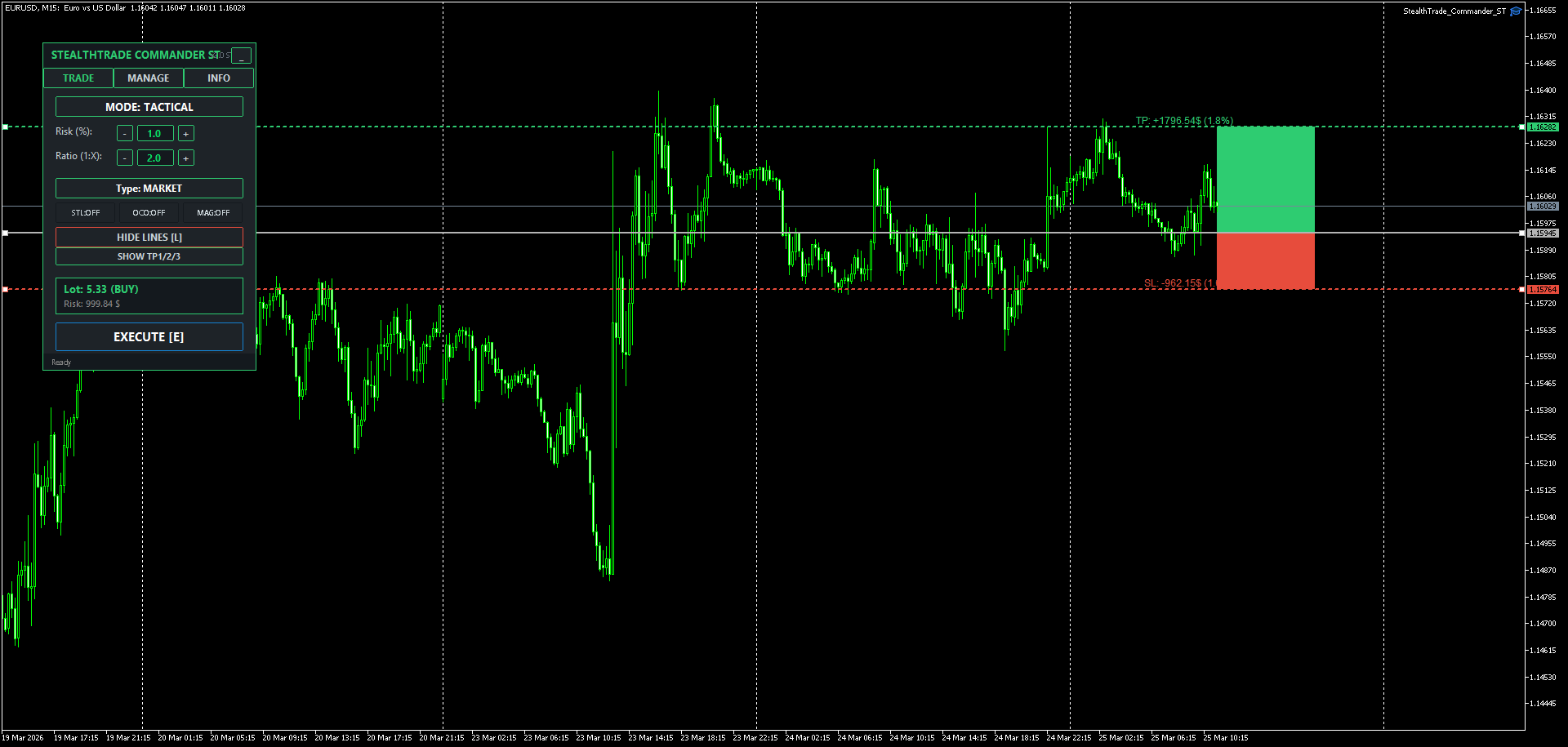
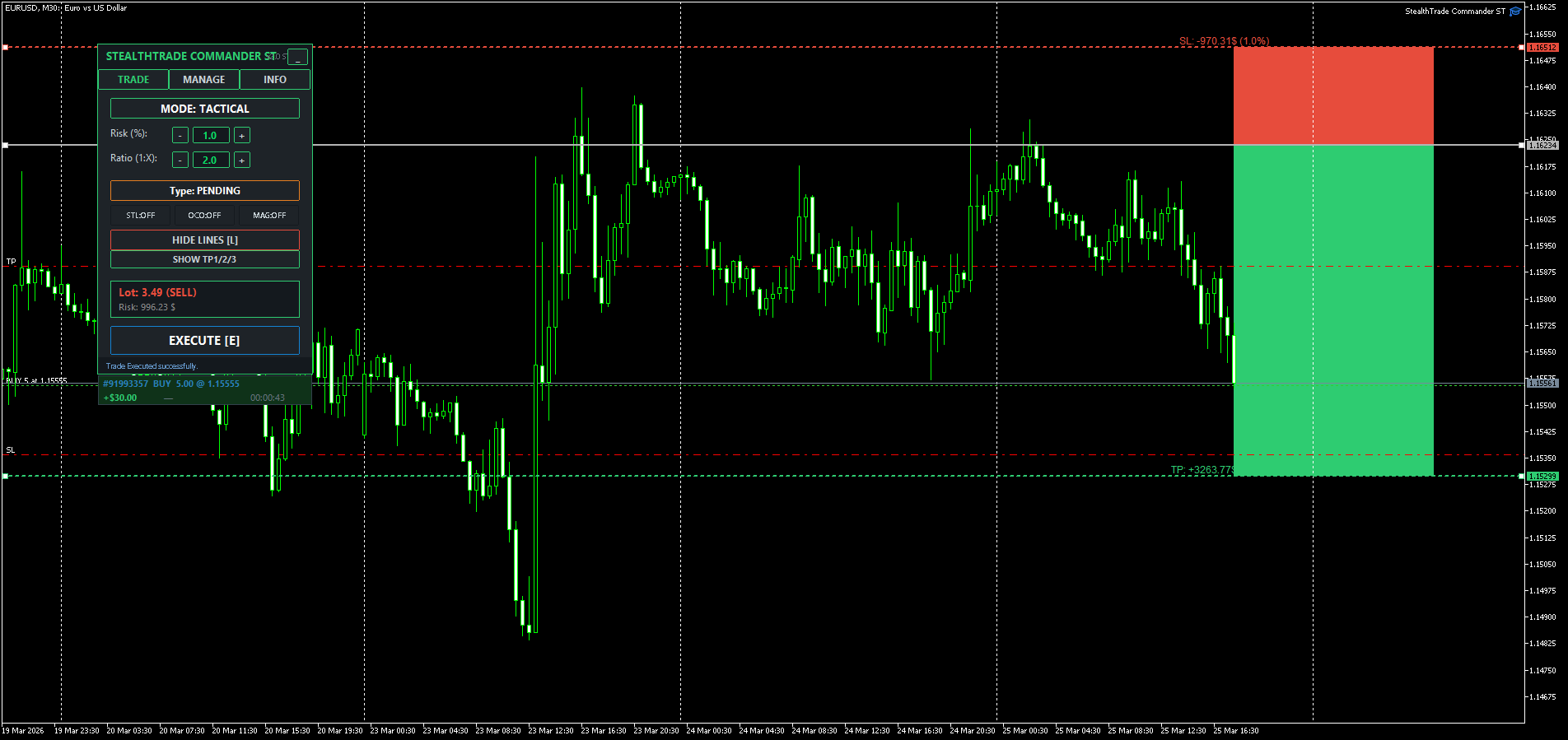
Tactical Mode is designed for planned entries where risk management precision is required. The trader places lines on the chart, adjusts settings, and executes.
Step by step:
- On the TRADE tab, confirm MODE: TACTICAL is shown. Click the mode button to switch if needed.
- Set the Risk value using the plus and minus buttons. The label shows whether risk is in percent or fixed dollars based on InpRiskBase.
- Set the Reward Ratio. The TP line will be repositioned automatically when this value is changed while lines are active.
- Select the order Type: MARKET, PENDING, or VIRTUAL.
- Click SHOW LINES or press L. Three lines appear on the chart.
- Drag the lines to your desired levels. The panel recalculates the lot size and displays it in the info box along with the dollar risk amount.
- Click EXECUTE or press E.
Order Types
MARKET sends a market order immediately at the current price.
PENDING places a limit or stop order at the Entry line. The order type is determined automatically: if the Entry line is above the current price for a buy, a Buy Stop is placed; if below, a Buy Limit. The same logic applies to sell orders.
VIRTUAL places a Ghost Entry. No order is sent to the broker. A line is placed on the chart and the panel monitors price. When price touches the line, the panel executes a market order instantly.
Tactical Toggles
STL activates Stealth Mode. When on, no stop loss or take profit is sent to the broker. The panel holds virtual levels internally and closes the position when price reaches them. The button border changes color when active.
OCO activates One Cancels Other mode. When on, if any pending order with the same magic number is filled and becomes a position, all remaining pending orders are deleted automatically.
MAG activates the Price Magnet. When on, dragging any line snaps it to the nearest candle high or low within the InpMagnetPoints distance.

7. TP1 / TP2 / TP3 Levels
TP Levels allow the position to be closed in three separate stages at three independent price targets. This feature works in Tactical Mode with market orders.
How to use:
- Enable InpUseTPLevels in the inputs.
- In Tactical Mode, click SHOW LINES to display the main lines.
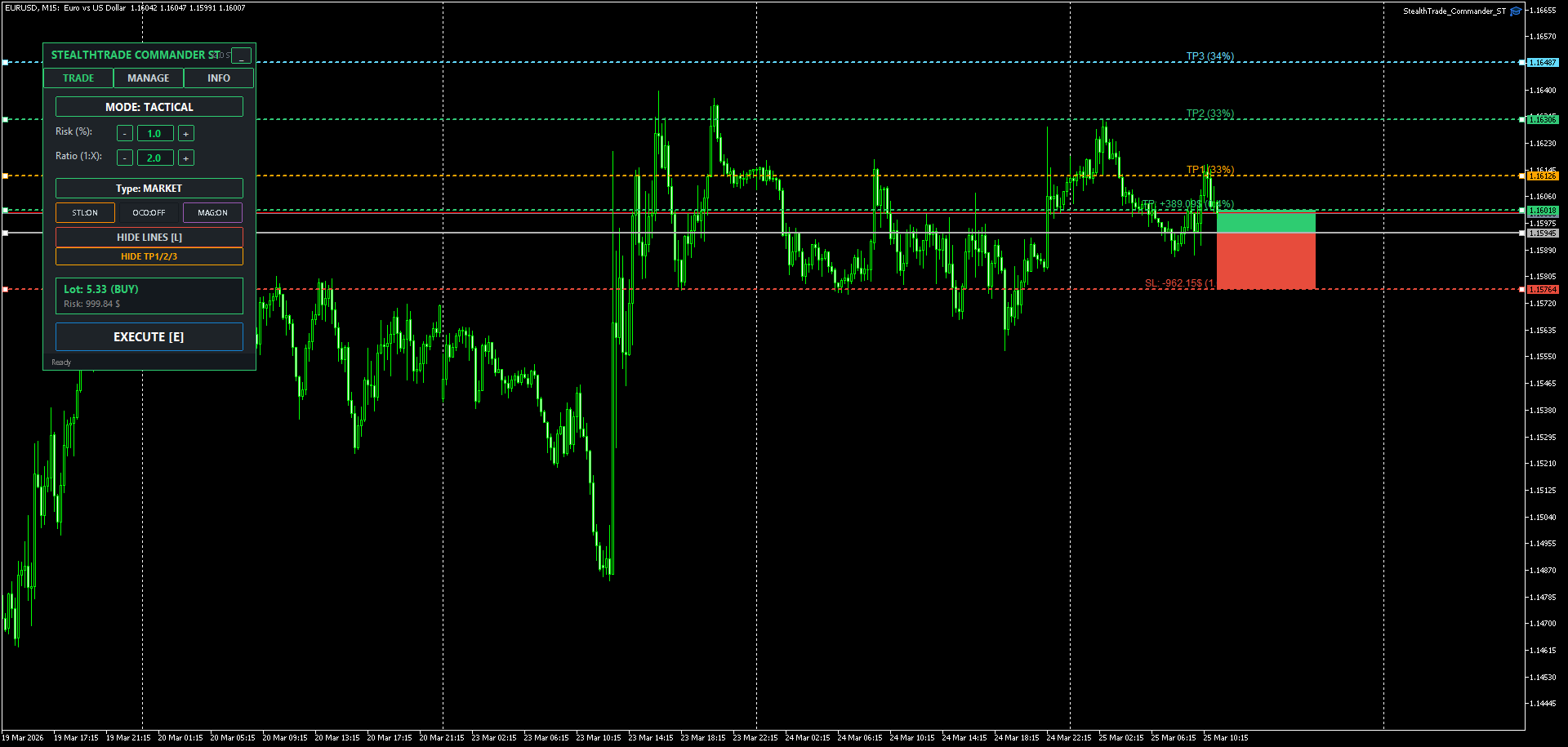
- The SHOW TP1/2/3 button appears below the Lines button. Click it.
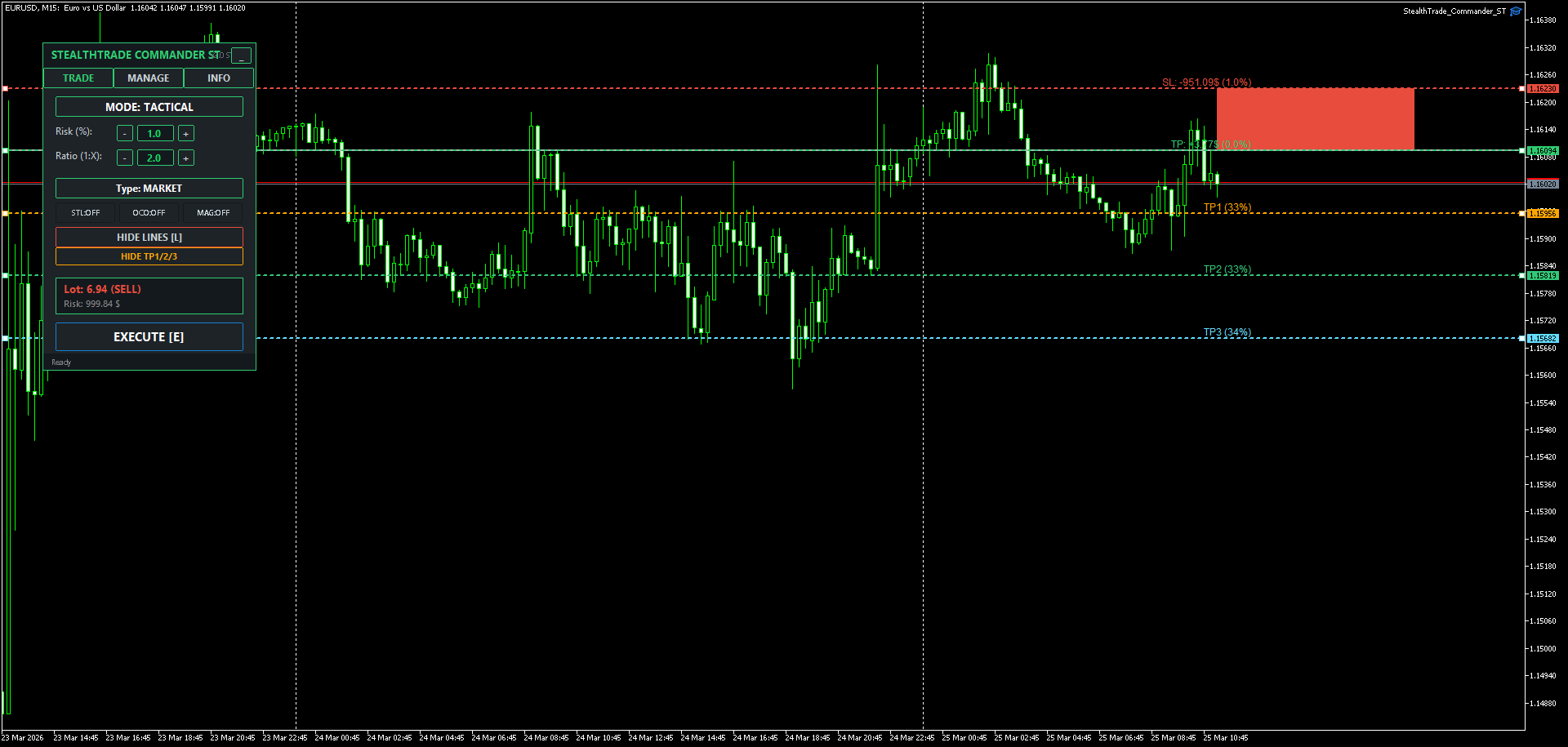
- Three additional lines appear on the chart at 1:1, 1:2, and 1:3 from the Stop Loss distance.
- Drag the lines to your preferred levels on a live chart.
- Execute the trade as usual.
When TP1 is reached, the panel closes InpTP1_Percent of the initial position volume. The TP1 line turns grey to indicate it has triggered. The same process applies to TP2. When TP3 is reached, the remaining volume is closed in full and all TP lines are removed from the chart.
When TP Levels are active, the broker-side TP is set to zero. The Auto Partial Close from Smart Manager is suspended automatically.
TP Levels in Strategy Tester
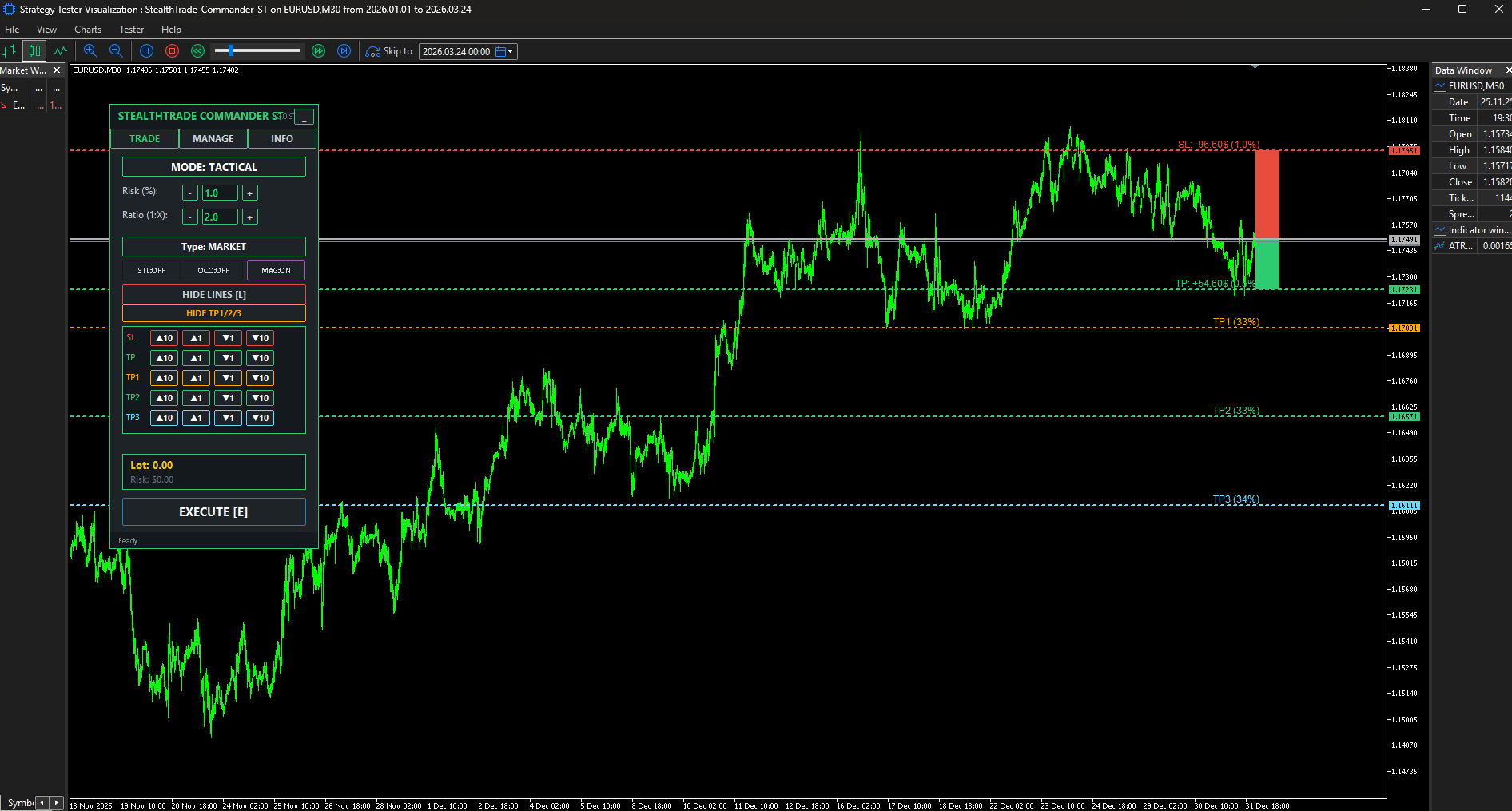
In the tester, all three levels are controlled via button rows on the panel. After clicking SHOW TP1/2/3, rows for TP1, TP2, and TP3 appear, each with four buttons to move the line up or down by 1 or 10 pips.
Important notes on TP Levels
TP Levels are designed for market orders. For pending orders, disable InpUseTPLevels and use the standard Take Profit line instead.
Per-ticket TP level assignment for multiple simultaneous pending orders is planned for a future update.
8. Rapid Mode
Rapid Mode is designed for fast scalping entries.
Step by step:
- Click MODE: TACTICAL to switch to MODE: RAPID.
- Adjust the lot size using the minus and plus buttons. Steps of 0.01 and 0.1 are available.
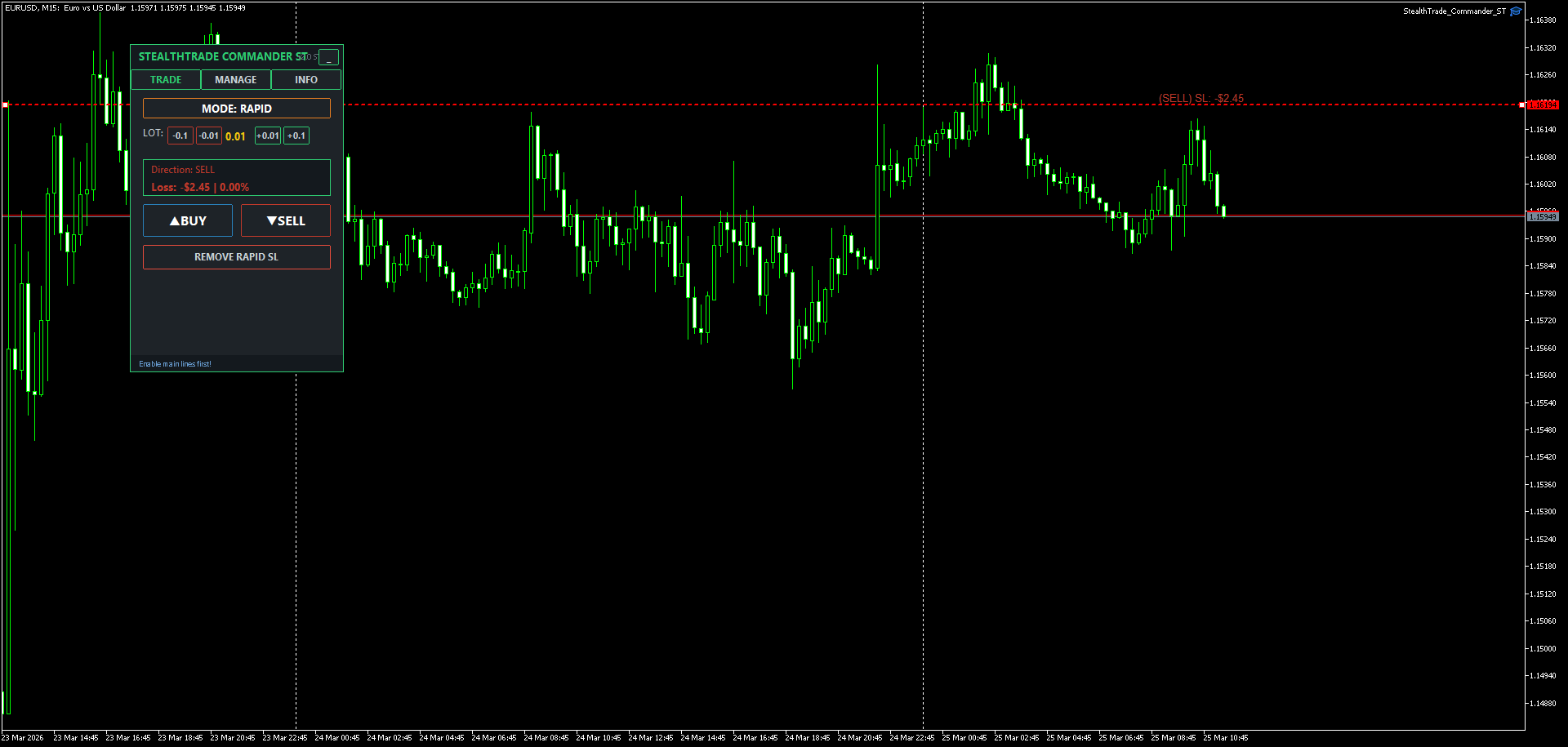
- Click SET RAPID SL. A dashed red line appears below the current price.
- Drag the line to your desired stop loss level. On a live chart, drag it with the mouse. In the tester, use the up and down buttons that appear on the panel.
- The panel shows the estimated dollar loss and risk percentage in the status box and labels the line on the chart.
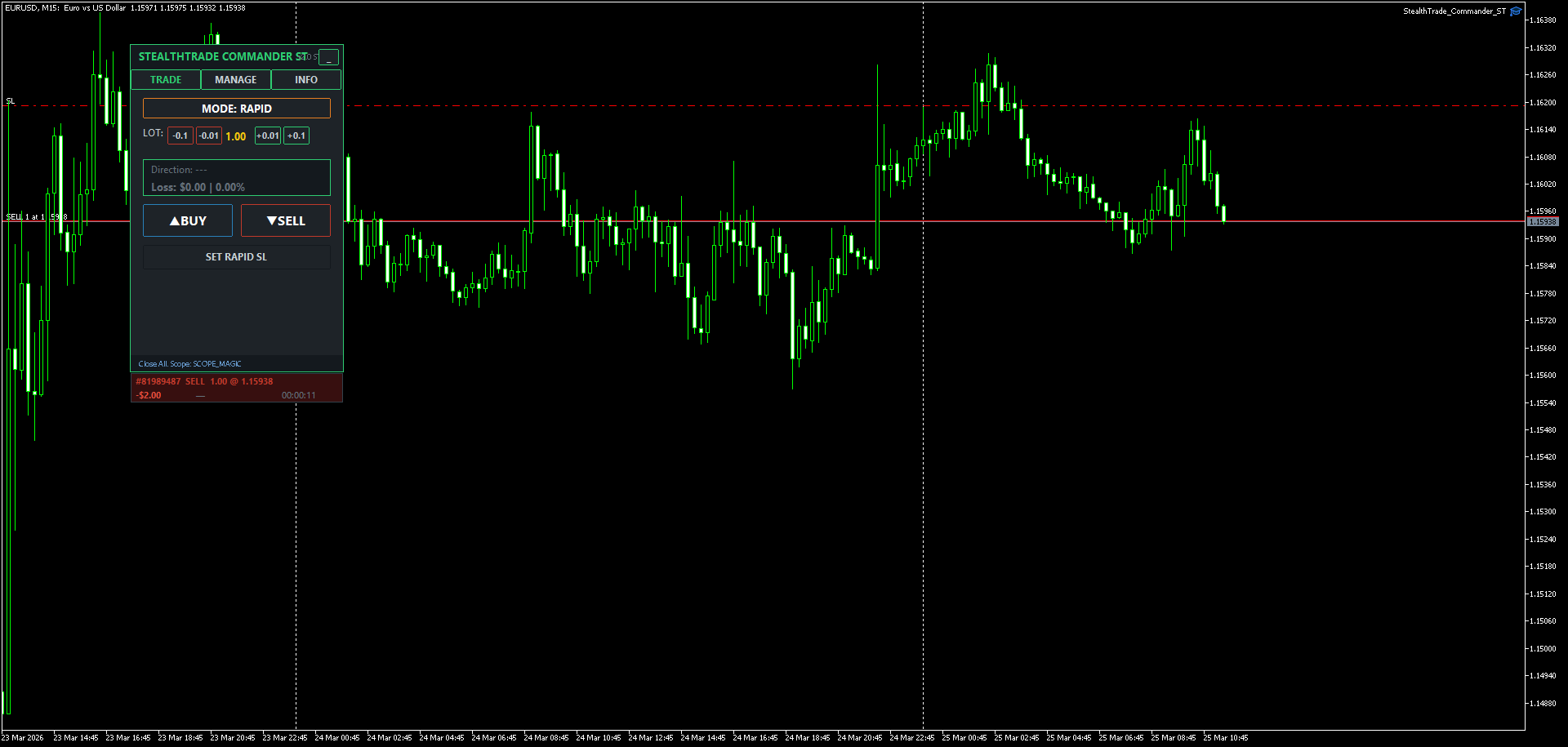
- Click BUY or SELL to execute.
After execution the SL line is removed and the lot resets to the symbol minimum.
No take profit is sent in Rapid Mode. Exit is managed manually via the MANAGE tab or through the automatic trailing and breakeven from Smart Manager.
9. Smart Manager
The Smart Manager runs automatically on every tick for all positions opened by the panel. It cannot be controlled from the panel during a trade — all settings are configured in the inputs before launch.
Auto Partial Close
When the position reaches InpPart_Trigger pips in profit, the panel closes InpPart_Percent of the position volume. This action triggers once per position ticket. When TP Levels are active, this function is suspended.
Auto Breakeven
When the position reaches InpBE_Trigger pips in profit, the stop loss is moved to entry price plus InpBE_Offset pips. If InpCalcComm is enabled, the commission cost is included in the calculation so the breakeven level truly covers the cost of the trade.
Trailing Stop
Trailing activates after the position has moved InpTrail_Start pips in profit. The stop loss only moves in the favorable direction. It moves only when the new level is at least InpTrail_Step pips away from the current stop.
Points mode trails the stop at a fixed InpTrail_Points distance from the current price.
ATR mode calculates the trail distance as the current ATR value multiplied by InpATR_Mult. This adjusts automatically with market volatility.
MA mode places the stop at the current Moving Average value. The MA period is set by InpMA_Period.
Fractals mode trails to the last confirmed fractal low for long positions and the last confirmed fractal high for short positions. Only confirmed fractals are used — the most recent unconfirmed bar is skipped.
Candles mode places the stop at the low of the previous completed candle for long positions and the high for short positions. This updates on every new bar.
10. MANAGE Tab
The MANAGE tab provides manual controls for open positions.
Close 50% closes half the volume of all active positions managed by the panel in one click.
Force Breakeven moves the stop loss of all profitable positions to their entry price immediately, regardless of whether Auto Breakeven has triggered.
Close Winners closes all positions that are currently showing a profit.
Close Tactical closes only positions opened in Tactical Mode. These are identified by the STC-Tac comment in the position.
Close Rapid closes only positions opened in Rapid Mode. These are identified by the STC-Rap comment.
Close All closes all positions and pending orders within the configured close scope. This is also triggered by the X hotkey.
If Auto close timer is enabled, the MANAGE tab shows the configured auto-close time.
11. Risk Guardian
The Risk Guardian monitors daily equity change on every tick.
If the equity drop from the session start balance reaches InpMaxDailyLoss, the panel closes all positions and pending orders within the close scope and locks. The status bar shows the lock message. No new trades can be opened until the panel is restarted.
If the equity gain reaches InpDailyProfitTarget, all positions are closed to protect the result.
SCOPE_MAGIC limits the close action to positions and orders carrying the panel's magic number. SCOPE_GLOBAL closes everything on the account regardless of how it was opened. Use SCOPE_GLOBAL for Prop-Firm accounts where all positions must be included in the daily drawdown calculation.
12. INFO Tab
The INFO tab displays session and daily statistics.
Daily P/L shows the net equity change since the panel was loaded. Green when positive, red when negative.
Target shows the configured InpDailyProfitTarget value.
Risk Left shows how much further the account can move against the trader before the Guardian triggers. It equals InpMaxDailyLoss minus the current daily loss.
Session Stats shows the total number of closed trades, win rate percentage, and profit factor calculated from the session start time.
Leverage shows the account leverage ratio.
13. Session Report
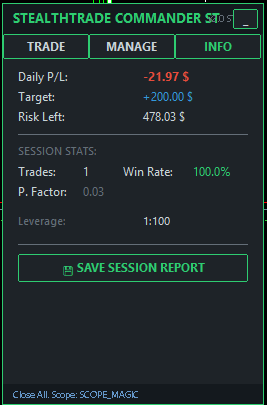
If InpSaveReport is enabled, a Save Session Report button appears at the bottom of the INFO tab. Clicking it generates an HTML file. The report is also generated automatically when the panel is removed from the chart or MetaTrader is closed.
The report file is saved to the MetaTrader Common Files folder at the path Common\Files\Reports\STC_Report_SYMBOL_DATE.html. This folder is accessible from any terminal installation on the same computer.
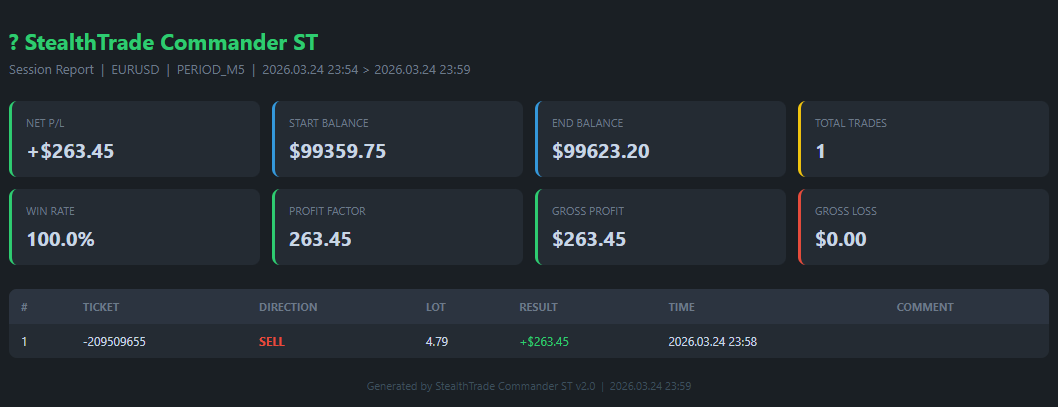
The report contains the session date, symbol, and timeframe, starting and ending balance, net profit or loss, total trades, win rate, profit factor, gross profit and gross loss, and a full table of all closed deals showing ticket number, direction, lot size, result in account currency, close time, and trade comment.
14. Live Position Monitor
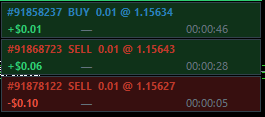
Each open position managed by the panel is displayed in a status block below the panel. The block occupies two rows per position.
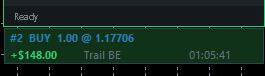
The first row shows the position ticket number, direction (BUY or SELL), lot size, and entry price. The text color is blue for buy positions and red for sell positions.
The second row shows the current profit or loss in account currency, active management states, and the elapsed time since the position was opened. Active states shown are Trail when trailing stop is active, BE when breakeven has triggered, and Part when the auto partial close has executed.
The background color of the block is dark green when the position is in profit and dark red when it is in loss. The display updates approximately every 250 milliseconds.
15. Recommended Configuration by Trading Style
Prop-Firm Challenge
Set InpCloseScope to SCOPE_GLOBAL so the Guardian closes all account trades when the limit is hit. Set InpMaxDailyLoss to match the challenge daily drawdown rule. Enable InpUseBreakeven and consider enabling Stealth Mode if the broker has restrictions on visible stop levels.
Swing Trading with Scaled Exits
Use Tactical Mode with MARKET order type. Enable InpUseTPLevels and configure the percentages to match your exit plan, for example 25%, 25%, and 50%. Use ATR trailing for the remaining position after TP2 is hit. Disable InpUsePartial to avoid conflicts with TP Levels.
Scalping
Use Rapid Mode. Disable InpUseTPLevels. Set InpTrailMode to TRAIL_CANDLES or TRAIL_POINTS with a small step. Keep InpBE_Trigger low, around 5 to 10 pips. Manage final exit manually via the MANAGE tab.
Strategy Testing and Skill Building
Use the ST Edition in Visual Mode. Practice placing all line types, adjusting TP levels with the tester buttons, and managing positions under realistic conditions. Enable InpSaveReport to collect a record of each practice session.
Download StealthTrade Commander ST here
Upgrade your chart analysis with these premium tools (available for both MT4 and MT5):
-
⚡ Prime Power: The ultimate Forex market monitor. A professional analytical tool designed to identify the real-time strength and weakness of 8 major currencies through the mathematical comparison of relative capital flows.
-
🚀 Prime Trend Pro: A 100% non-repainting trend system with an advanced "Flat Market" filter. It actively analyzes market volatility (ADX) and global baselines to keep you safe from losing money during choppy, sideways markets.
-
🛡️ Prime Master Pro: An adaptive dual-core trading engine featuring a Live Statistical Dashboard. It calculates 3 Take Profit targets dynamically and shows your exact historical Win Rate before you even open a trade.
-
💠 VantageFX Matrix: The ultimate multi-currency and multi-timeframe dashboard. Monitor the relative strength of 8 major currencies plus your custom watchlist (Crypto, Metals, Indices) across 5 timeframes simultaneously.
-
📐 Prime Gann Pro: A professional-grade Gann Grid and Fan angle system. Built on a strict "Locked Anchor" non-repainting engine with a Safe Pullback Filter to pinpoint high-probability reversal zones.
-
🌊 Prime Flow SMC: Master the Smart Money Concepts with automated precision. Analyzes price action in real-time to detect Fair Value Gaps (FVG), Break of Structure (BOS), and Change of Character (CHoCH) without lagging signals.
- 👑 StealthTrade Commander ST V2.0 (Pro Edition): The ultimate upgrade to this free panel! Unlock the powerful Strategy Tester Simulator with precision pip-by-pip control buttons. Features include an advanced Risk Guardian (daily loss/profit limits), Auto-Breakeven, Smart Trailing Stops, and Multi-Level Take Profits (TP1, TP2, TP3) to scale out of winning trades like a pro.
👉 Click here to view my full portfolio on MQL5 Market