This is a practical guide setting up MT4 / MT5 To Telegram And Discord Multi Channel EA
MT5 Version : https://www.mql5.com/en/market/product/194600
MT4 Version : soon . . .

Check out the Demo Version for Free
How to install Demo Version :
- Download the file from the links below
- Open the MT4/MT5 platform Select <<File>> from the main menu
- Open Data Folder // MQL4/5 // Expert
- Copy your EA file into this folder
- Restart Meta Trader
MT5 to Telegram And Discord Signal Provider is an easy-to-use and customizable tool. This product is presented in an attractive graphical interface that allows you to send adjustable signals in two ways (Manual or Automatic) from Metatrader5 / 4 to the Telegram channel or Discord channel. In this case, your account becomes a Signal Provider. You can also share News reports with others.
All message formats - language - emojis can be adjusted and personalized.
You can Enable or Disable certain parts of the message.
No need for technical knowledge, we will guide you step by step
Public channel : https://www.mql5.com/en/channels/mqlexp
Install Telegram Bot
Telegram Bot : @BotFather
Token Url : https://api.telegram.org/bot<token>/getUpdates
ChatID Url : https://api.telegram.org/bot<token>/sendMessage?chat_id=<ChatID>&text=MQLEXP%20[%20Successfully%20created%20]
Telegram Api : https://api.telegram.org
Install Discord Bot
Discord Api : https://discord.com/api
Install News
News Api : https://nfs.faireconomy.media/ff_calendar_thisweek.xml
News WebRequest URL : https://nfs.faireconomy.media
Expert Settings
Expert Input - Expert Advisors :
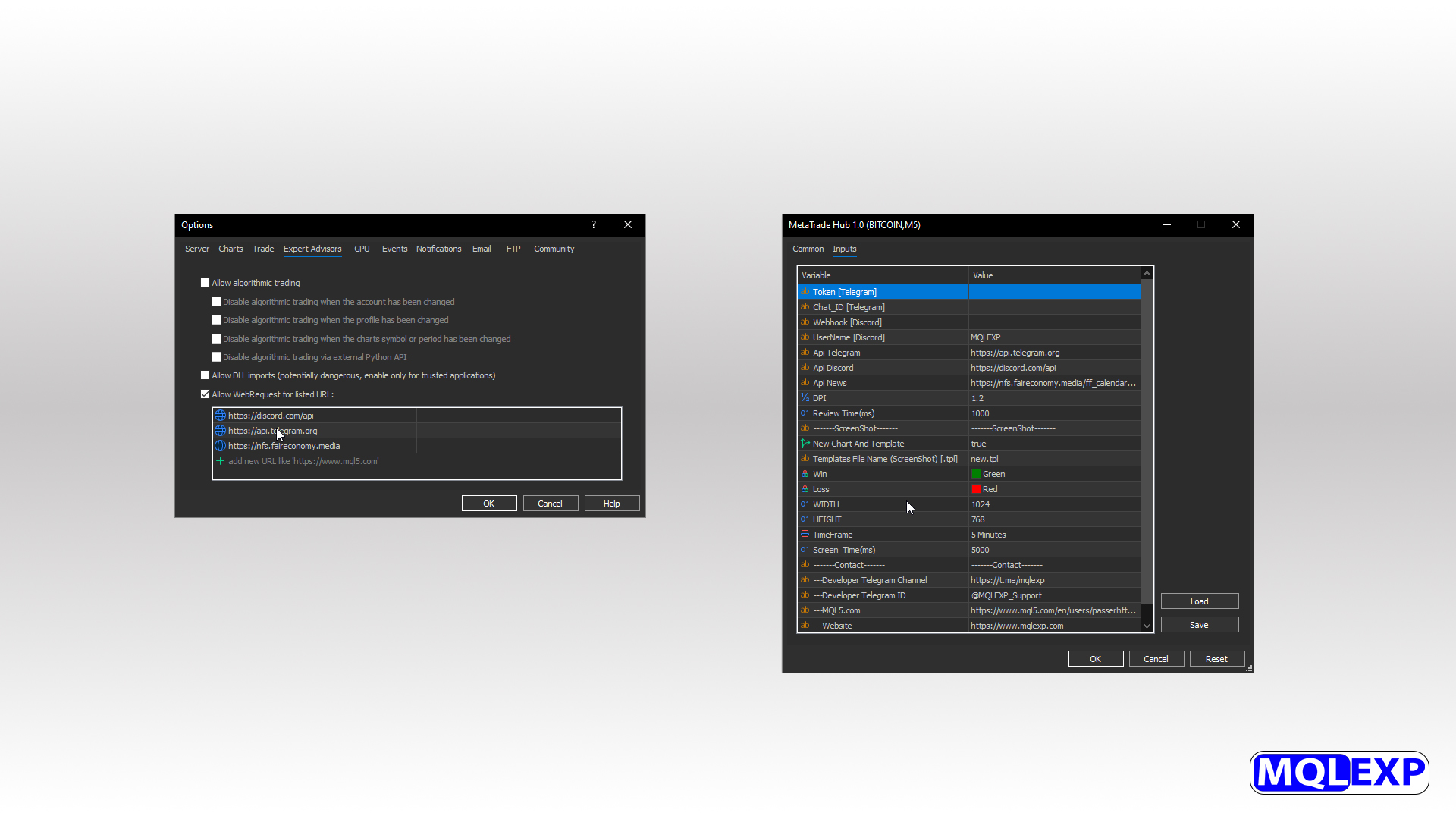
Tools / Options / Expert Advisors :
- Discord Api : https://discord.com/api
- Telegram Api : https://api.telegram.org
- News Api : https://nfs.faireconomy.media
Expert Input :
- The (Token And Chat ID) or (Web hook and Username) were explained in the video above.
- DPI : You can adjust the graphic panel to the size of your computer screen. Restart the Expert Advisor.
- Review Time : Review Time is the duration of the system check based on (ms) Based on this time period, it checks the changes made such as (opened new position - closing position - profit limit change or...) and sends data according to the applied settings. It is recommended not to choose less than 500 (ms).
- New Chart and Template : If the option New Chart And Template is (true), when the Screenshot is taken, a new Chart will be opened and the added Template file will be executed, and the Screenshot will be taken with this condition. if (false), a Screenshot of the current Chart is taken.
- Template File Name : In this option Template File Name Create a Template file of the customized Chart and register the Template file name with [.tpl] extension here so that this Template file will be added when taking a Screenshot. For Example (mqlexp.tpl).
- Win - Loss : Win box and Loss box to display the amount of profit limit and loss limit in the Screenshot of closing position.
- WIDTH - HEIGHT : Specify the Width and Height for the Screenshot range in Pixels.
- Time frame - Screen Time : Setting for the time interval from which the photo is taken. - Screen Time is the delay time based on (ms). How long it takes to take a Screenshot. And it is recommended not to choose less than 2000 (ms).
Main Panel :
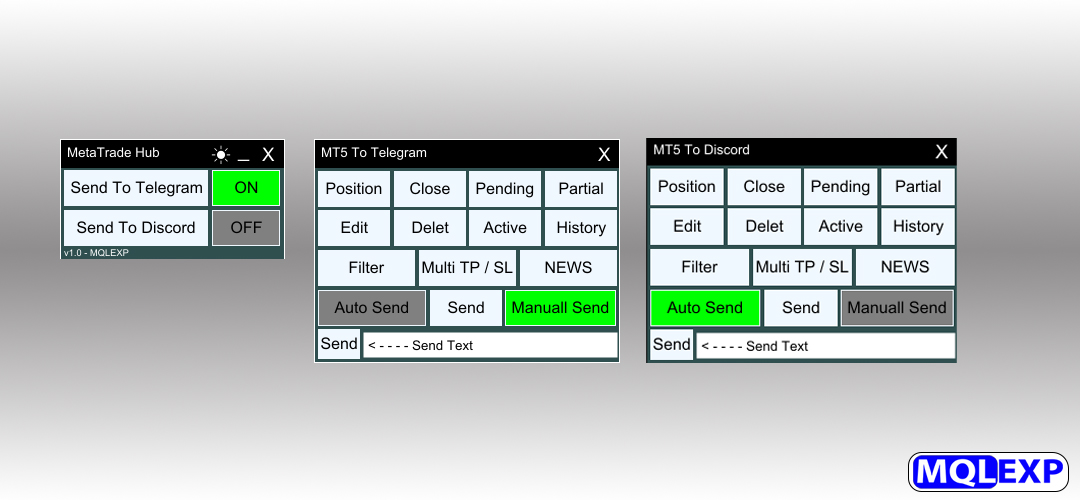
MT5_4 To Telegram / MT5_4 To Discord :
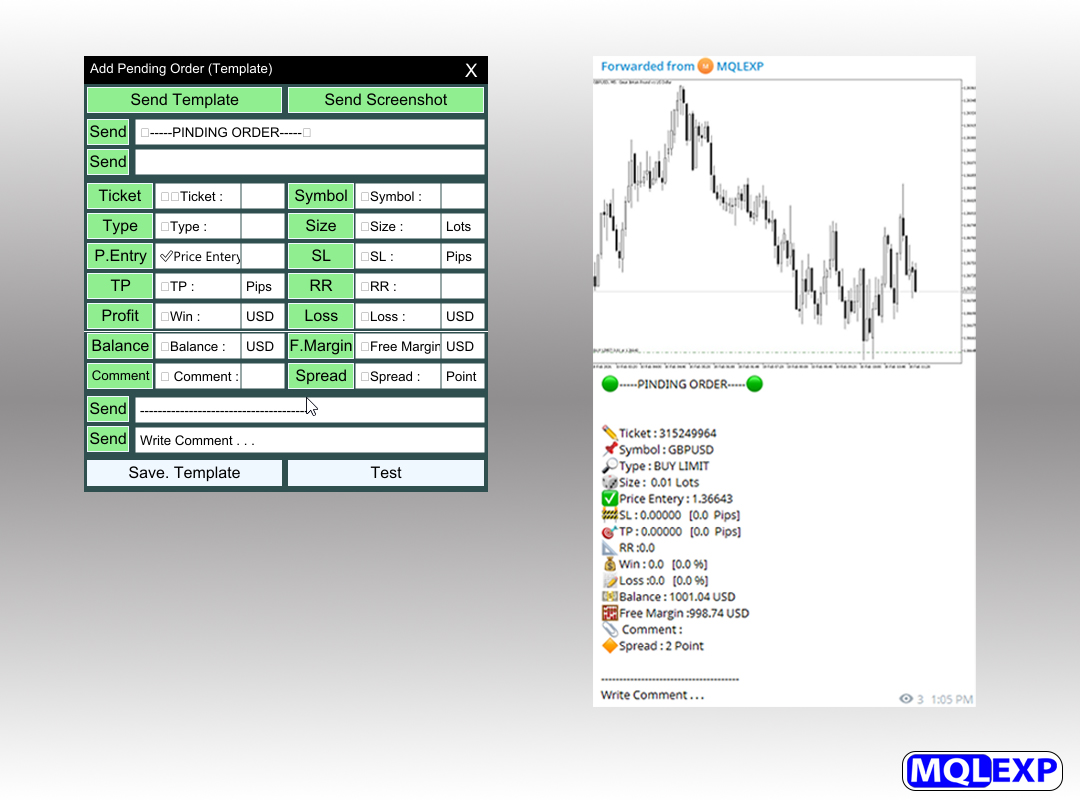
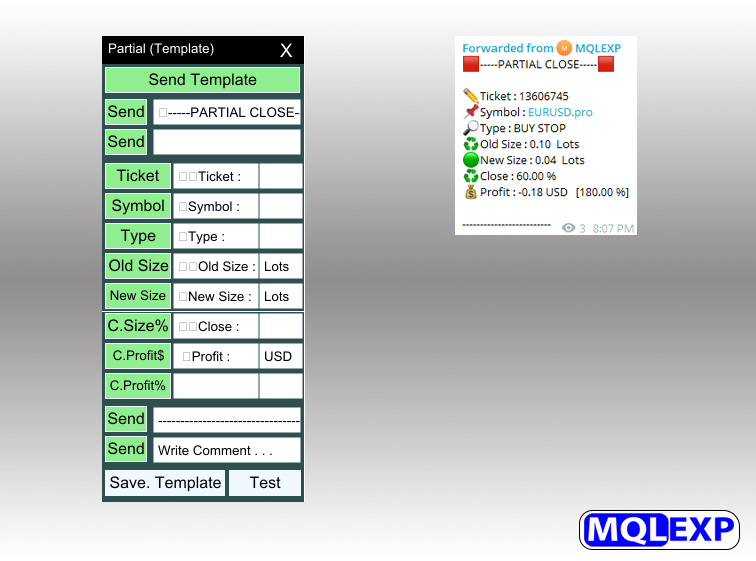
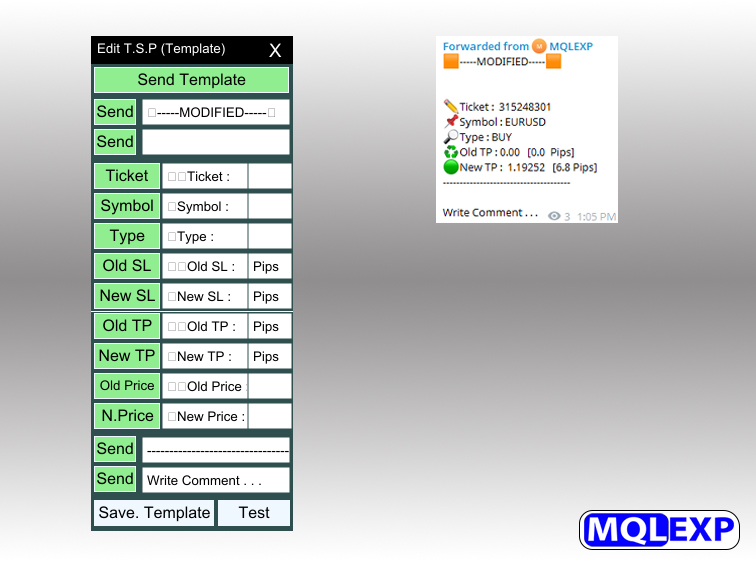
- Each section is completely configurable and can be set to send reports manually or automatically.
- You can transfer your written text or explanations to your channel via the box.
All settings are customizable and customizable. Such as: Emoji - Language - Sent Template.
After each reset, you must use the "Save. Template" option to save. After resetting, you can view the settings by using the "Test" option.
Position :
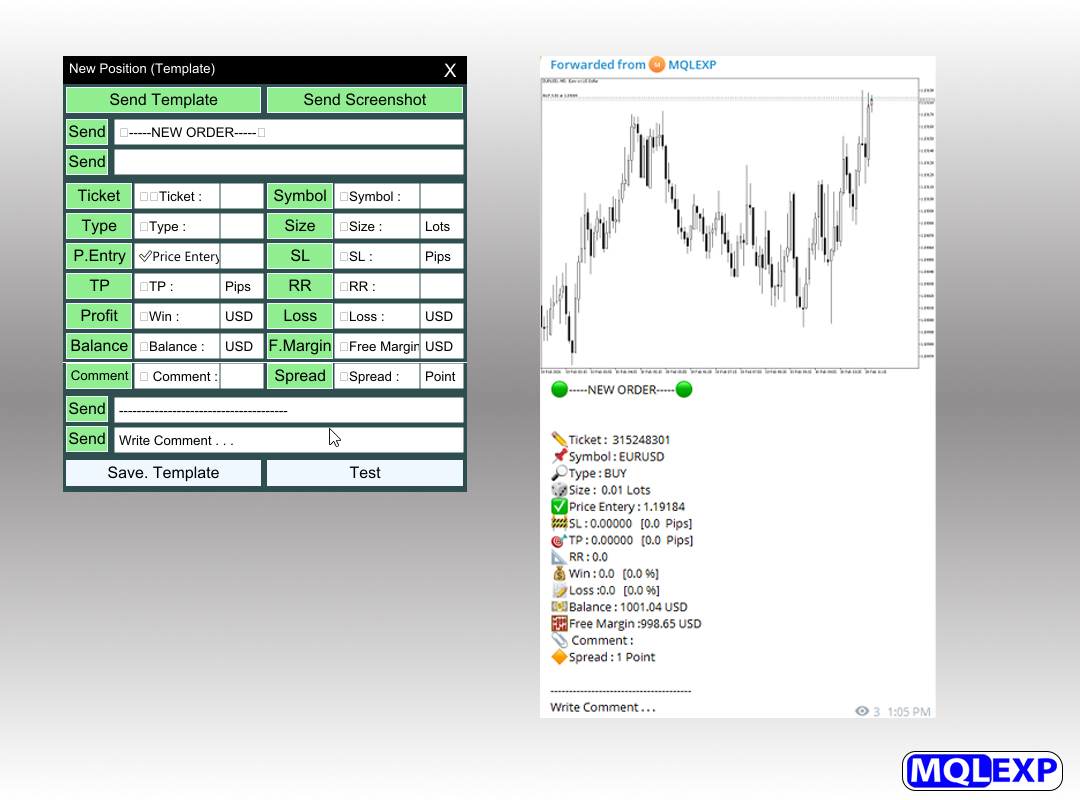
Close :
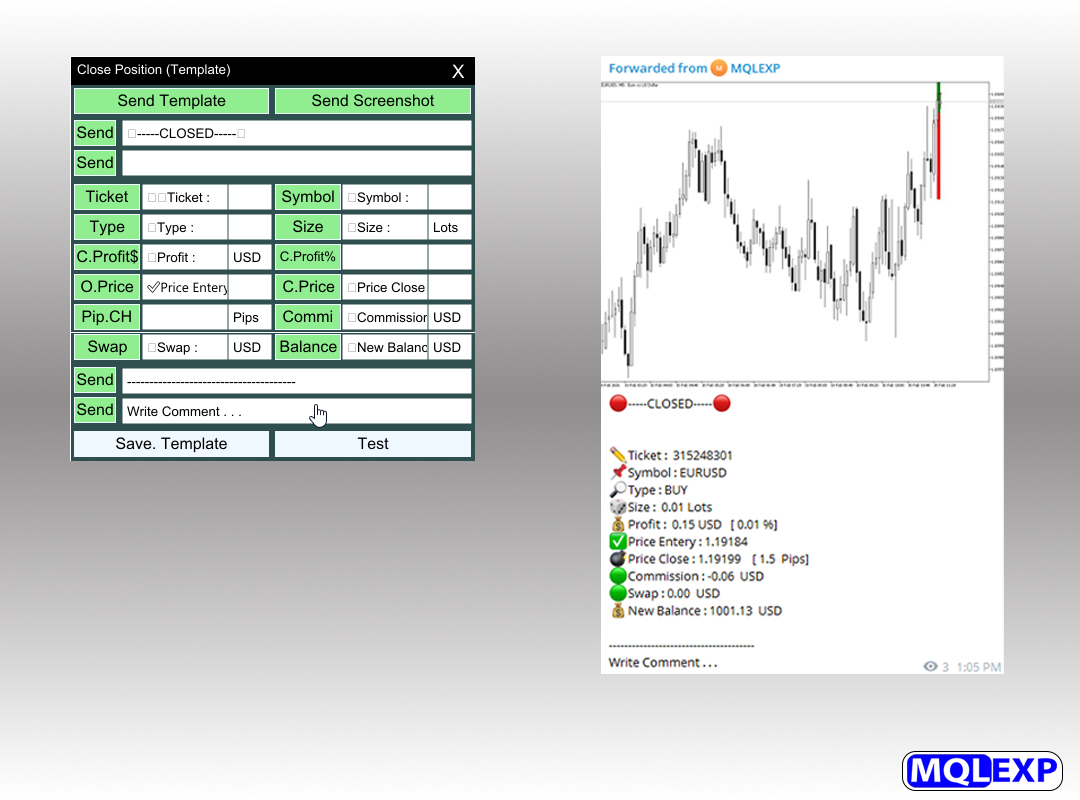
Pending :
Partial :
Edit : You will receive a new report if the profit limit - loss limit or new price changes in pending orders.
Delet or Cancel :
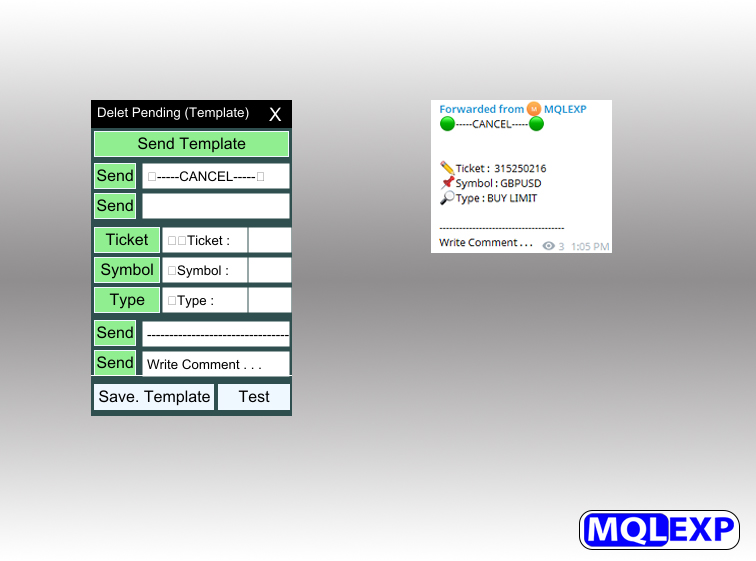
Active :
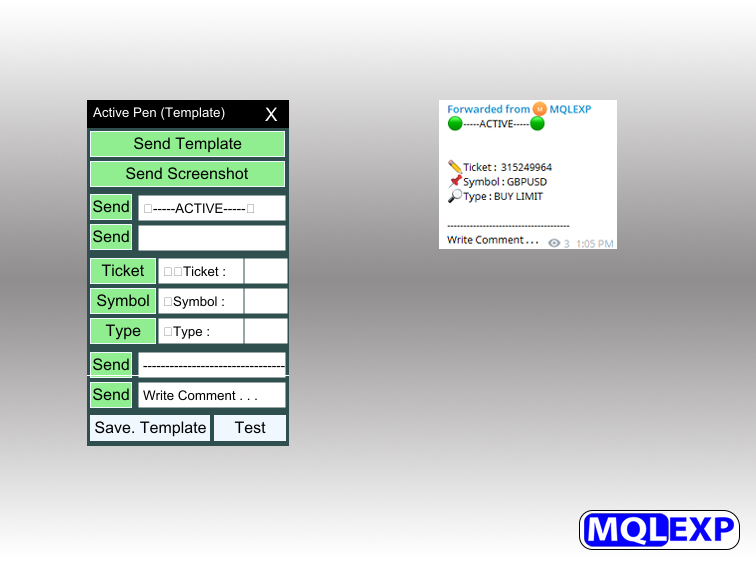
History :
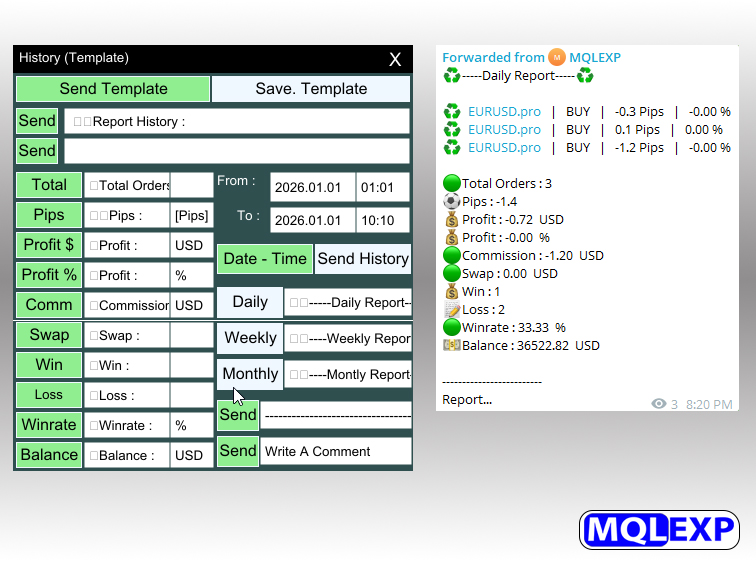
After making any changes, use the "save. Template" button.
To send a report based on a date or time period - after setting, use the "Send History" button.
To receive a report based on a daily - weekly or monthly basis, use the corresponding buttons.
Filter :
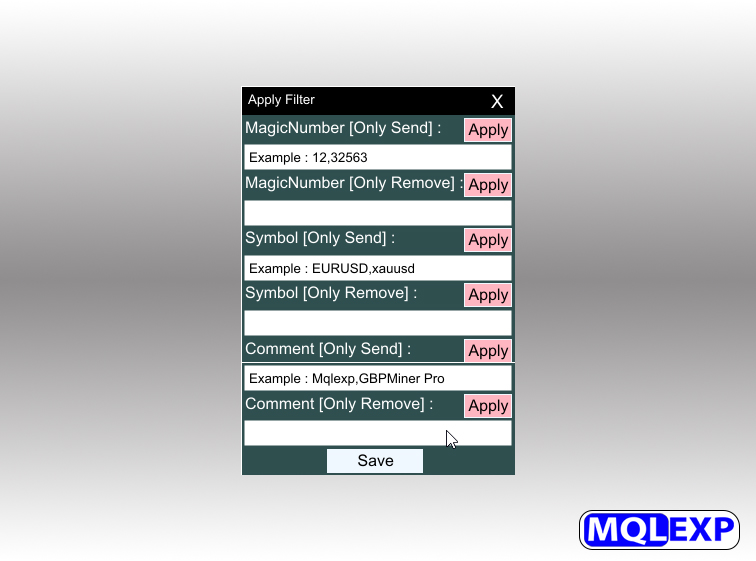
You can filter all positions by "MagicNumber" - "Symbol" or "Comment" to send only some positions and not all of them.
Multi TP / SL :
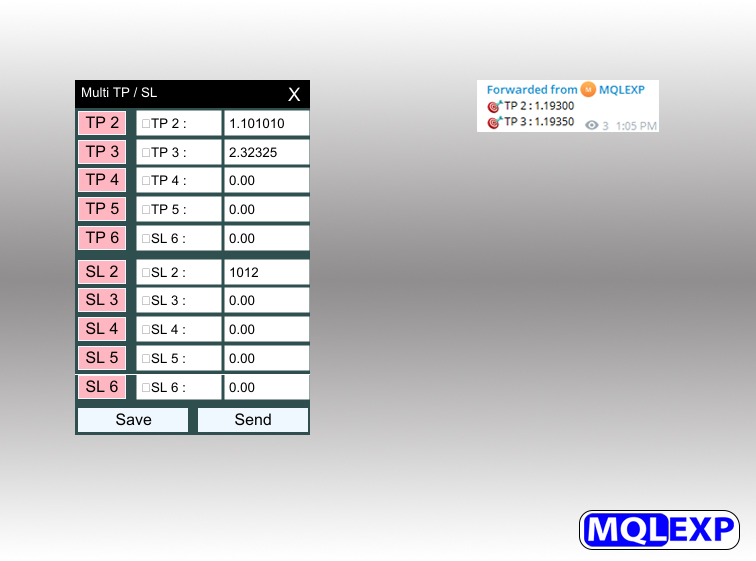
You can use multiple profit or loss limits.
Use the "save" button after making any changes.
Use the "Send" button to send multiple reports.
News :
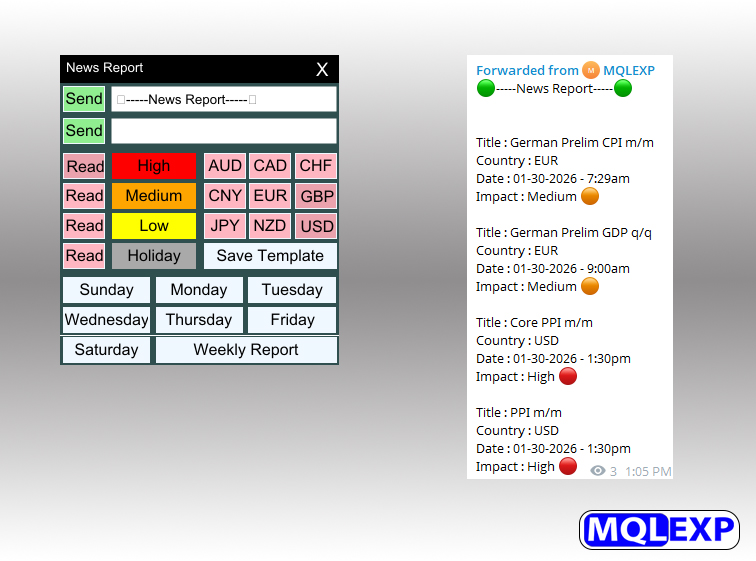
Filter news reports by impact - currency name - report by day of the week - and send reports to Telegram or Discord channels.
To send a general report, you can use the "Weekly Report" button.
After making any changes, use the "save. template" button.
This product is under development. if you have any comments, you can share them with me.