Jupiter Desk Pro
- Uzmanlar
-
Domenico Rizza
 Il mio nome sui social è GIOVE.
Sono conosciuto per le mie strategie e il rispetto totale del Money Management.
Ho gestito capitali per terzi fino a 100.000 euro, con discreto profitto per il committente, non per me che, mi davano solo il 3% del profitto netto. - Sürüm: 3.99
- Etkinleştirmeler: 5
Welcome to Jupiter Desk 3.99 PRO
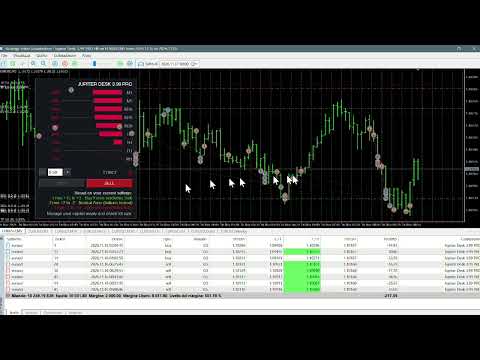
Jupiter Desk is an ultra-high-precision trading dashboard engineered to measure market hot spots and cold spots in real time across 9 different timeframes (from M1 to W1), without relying on standard off-the-shelf technical indicators. Powered by its weighted multi-timeframe engine, the tool calculates market directional momentum and guides the trader's execution in an intuitive way.
How to Test the Demo Version (Quick Strategy Tester Guide)
If you have downloaded the free trial version, you can test it immediately in action using the MetaTrader 5 Strategy Tester in visual mode. Follow these simple steps:
-
Open the Tester: Press Ctrl + R on your keyboard to open the Strategy Tester window at the bottom of MT5.
-
Select the Expert: In the Settings tab, under the Expert field, select Jupiter Desk Lite that you just downloaded.
-
Configure the Test: Set the Symbol of the asset you want to test, the Period (base chart timeframe), and your desired date range.
-
Enable Visual Mode: Highly recommended — check the Visual mode box to see the graphical dashboard appear directly on the test chart.
-
Configure Capital: Set your virtual deposit (e.g., 10,000), account currency, and leverage.
-
Set Input Parameters: Before starting the test, click on the Expert Properties (or Inputs) button. There you will find the exact same configurable parameters as the full version:
-
Signal Activation Threshold (Neutral Zone): Adjusts the width of the indecision zone where buttons remain locked to avoid background noise.
-
Initial Lot Size: The starting volume for trades.
-
Stop Loss and Take Profit: Protection levels expressed in points.
-
Magic Number: Mandatory unique identifier allowing the EA to properly manage order opening and closing.
-
Position and Dimensions: Distance from the right border, distance from the top, bar length, and panel background color.
-
-
Start the Test: Click Start.
Testing Note: When the automated tester is launched, to meet the platform's technical validation requirements and prevent execution blocks, the EA will automatically execute a test trade upon the first valid signal. This behavior is completely normal inside the tester; during real usage on a Demo or Live account, you retain 100% manual control.
How Jupiter Desk 3.99 PRO Works in Live Trading
Once applied to a live chart (or during interactive testing), everything you need is right before your eyes on the dashboard on the right side of the screen:
-
The 9 Multi-Timeframe Bars: From top (M1) to bottom (W1), the extra-thick horizontal bars display real-time bullish and bearish strength for each individual time horizon. The central white notch marks the 50% equilibrium point.
-
Dynamic Force Indicator: The dashboard computes an overall score ranging from -15 to +15:
-
Green (Buy Force): The market shows strong upward momentum beyond your set threshold. The BUY button activates, while the SELL button is automatically excluded to prevent counter-trend entries.
-
Red (Sell Force): The market shows strong downward momentum below your set threshold. The SELL button activates, excluding the BUY button.
-
Yellow (Neutral Zone): The market is ranging or lacks multi-timeframe agreement. Both buttons remain locked to protect your capital.
-
-
Complete Trader Control: You freely choose your desired lot size using the + and - buttons (or by typing it directly into the box) and decide at any moment whether to click the button enabled by the engine.
Always manage your capital wisely (Money Management) and verify your lot size before placing any trade.