Timed Flatten Guard
- Yardımcı programlar
- Sürüm: 1.0
- Etkinleştirmeler: 5

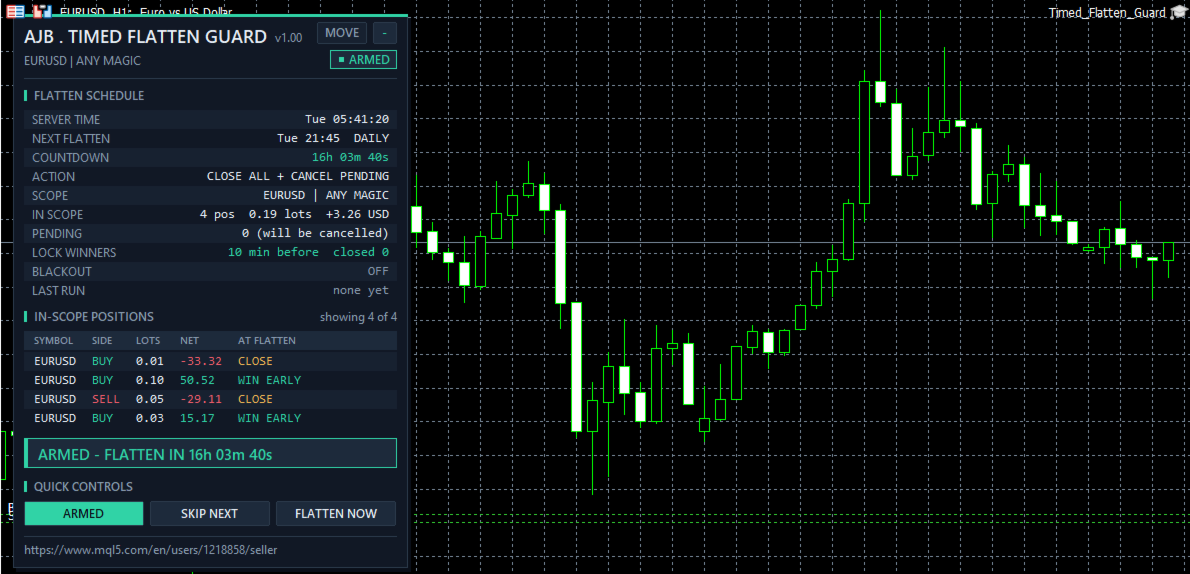
Watch it before you rely on it: load Timed Flatten Guard into the Strategy Tester, switch on visual mode and see the panel count down, close the winners first, flatten the rest and cancel the pending orders at the exact server minute you chose.
YOUR TRADES GO FLAT AT THE TIME YOU DECIDED, EVEN WHEN YOU ARE NOT AT THE SCREEN.
Timed Flatten Guard is a utility Expert Advisor for MetaTrader 5. It does not look for entries and it does not trade for you. It has one job: at a server time you set, on the week days you set, and at a separate Friday cutoff before the weekend, it closes or trims the positions you put in scope and removes their pending orders. Then, if you ask it to, it keeps the account flat for a while so nothing sneaks back in.
At a glance
• A daily flatten time for the days you pick, plus its own Friday cutoff so the weekend gap never meets an open position by accident.
• Close everything in scope, or reduce every position by a percent and keep a runner.
• Scope by the chart symbol or the whole account, and by any magic, one magic number, or manual trades only.
• Lock Winners window: in the last minutes before the flatten, positions already in profit are closed first.
• Blackout Guard: after a flatten, any new position that appears in scope is closed again until the blackout ends.
• A warning a few minutes before, a Skip Next button for one-off exceptions, and a two-click Flatten Now.
• Not a grid, no martingale, no averaging, no DLLs, no extra files.
QUICK START
Attach it to any chart, for example EURUSD H1. Leave the default schedule (Monday to Thursday at 21:45, Friday at 20:30 server time) or type your own times. Choose the scope: the chart symbol only is the default, and that is the safest place to begin. Keep the action on Close the whole position for the first days. Make sure Algo Trading is switched on in the terminal, then read the NEXT FLATTEN and COUNTDOWN rows on the panel. That is all it needs.
Why a scheduled flatten matters
Many traders lose money that has nothing to do with their analysis. A scalper who meant to finish at the New York close forgets one position and wakes up to rollover swap and a spread that was ten times wider at midnight. A swing trader leaves a trade over the weekend and meets a gap on Monday that jumps straight over the stop. A prop firm account has a rule that no trade may be held after a certain hour, and one late fill breaks it. An EA that is only meant to trade one session keeps a position open into the next one. In every case the plan was right; the clock was the problem. Timed Flatten Guard takes the clock away from memory and gives it to the terminal.
What is new and different here
Most closing tools act at one instant and stop there. Timed Flatten Guard treats the flatten as a short process with a before and an after.
Before: the Lock Winners window. During the last minutes before the flatten time (10 minutes by default), any in-scope position whose net result, after swap, is above your minimum is closed straight away. The reasoning is simple: a winning trade has nothing more to gain from a final spike, but it can lose what it has. The losers are left alone until the flatten minute itself, exactly as you planned.
After: the Blackout Guard. When it is on, the minutes after a flatten are guarded. A manual click, another EA on the account or a pending order that fills late would normally leave you holding a position you thought you no longer had. During the blackout, any new position that falls inside the scope is closed again, and the panel counts each one. Flat stays flat.
Around it: a warning alert or push message a set number of minutes before, a Skip Next button for the day you want to hold on purpose, and a two-click Flatten Now when you want to end the session early.
How one flatten unfolds
1. The schedule. Every second the utility reads the server time, works out the next event (the daily time on the selected days, or the Friday cutoff on Fridays) and shows it on the panel with a live countdown. A time that has already passed when you attach it is never fired late; the next one is used.
2. The warning. When the countdown reaches your warning minutes, a pop-up and, if enabled, a push message tell you what is about to happen.
3. The Lock Winners window. In the last minutes, positions in profit inside the scope are closed one by one.
4. The flatten minute. Every position inside the scope is closed, or reduced by your percent. Pending orders inside the scope are cancelled if you allowed it.
5. Patient execution. If the spread is above your limit the utility waits for it to settle; if the broker rejects a request, it tries again on the next second. When everything is done, or the run timeout is reached, a summary is printed and alerted: how many positions were closed, how many were reduced, how many pending orders were cancelled, the result, and anything that could not be completed.
6. The blackout. If you set one, new positions inside the scope are closed until the blackout time shown on the panel.
7. The next event is scheduled, and the cycle waits again.
The panel
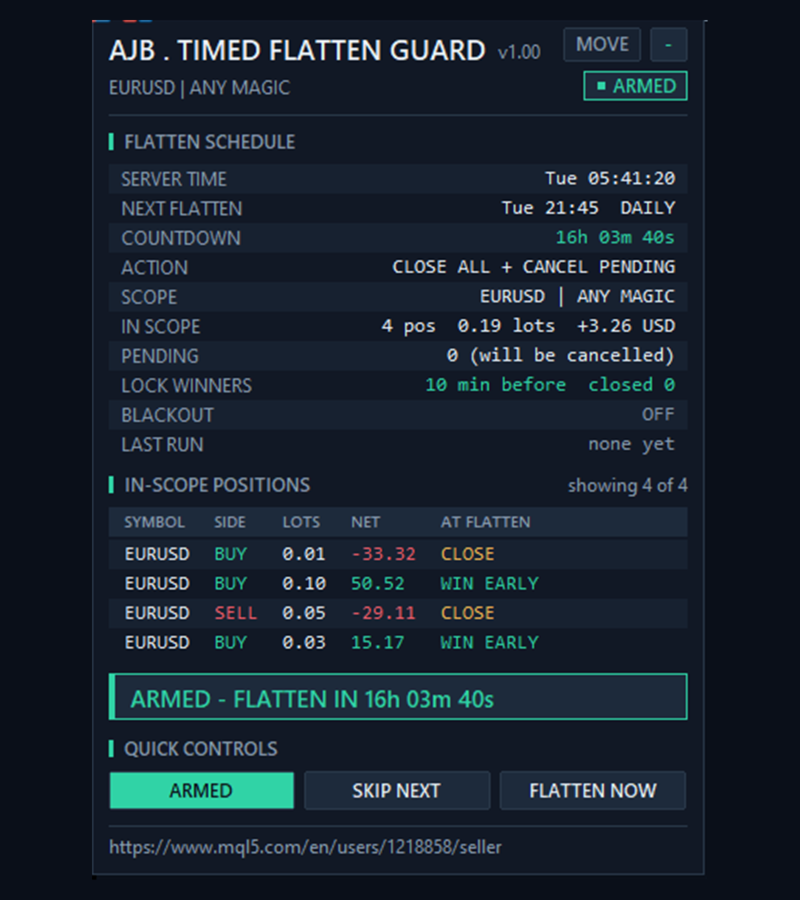
The panel sits in the top-left corner and leaves the right side of the chart and the price scale clear. Its header carries the product name, the version, the scope and a status pill: ARMED, PAUSED, FLATTENING or BLACKOUT. The FLATTEN SCHEDULE block shows server time, the next flatten and whether it is the daily time or the Friday cutoff, a live countdown, the action, the scope, the positions in scope with their total lots and net result, the pending orders and what will happen to them, the Lock Winners state, the Blackout state and the summary of the last run. The IN-SCOPE POSITIONS table lists each position with symbol, side, lots, net result and what will happen to it at the flatten: CLOSE, CUT with the volume that will be closed, or WIN EARLY when the Lock Winners window will take it first. A coloured banner states the situation in one line. Three buttons give you ARMED / PAUSED, SKIP NEXT and FLATTEN NOW (press twice within six seconds to confirm). The panel can be dragged with MOVE and minimised with the small button, it measures its own text and shrinks to fit smaller screens, and it is not drawn at all in a non-visual backtest, so tests and optimisations run at full speed.
Safety in your hands
It only touches what you put in scope. With the defaults that is the chart symbol, with any magic number. Positions on other symbols are never touched unless you choose the whole account.
It never opens trades on a live or demo account. In the Strategy Tester only, an optional demo position and a far pending order are placed once a day so the flatten can be watched; switch that off if you test it together with your own EA.
A time already passed at start is never fired late, so attaching the utility in the evening cannot close your trades by surprise.
PAUSED stops all scheduled actions at once, and SKIP NEXT lets one event pass without disarming the rest.
Every action is written to the Experts journal with the ticket and the reason.
Every setting explained
Schedule - when to flatten (server time)
Daily flatten on the selected days (InpDailyEnabled) - switches the daily flatten on or off (on).
Daily flatten time (InpDailyTime) - server time in HH:MM, for example 21:45. Your broker's server time is the clock shown in Market Watch, not your local clock.
Days for the daily time (InpDays) - comma-separated list of week days, 0 Sunday, 1 Monday up to 6 Saturday (1,2,3,4 = Monday to Thursday).
Separate Friday cutoff (InpFridayEnabled) - on Fridays this time is used instead of the daily time, so you can leave before the weekend (on).
Friday cutoff time (InpFridayTime) - server time in HH:MM for Fridays (20:30).
Action - what happens at the flatten time
Close or reduce (InpAction) - Close the whole position, or Reduce each position by a percent.
Reduce percent (InpReducePercent) - share of each position closed in Reduce mode, 1 to 100 (50). The volume is rounded down to the symbol's lot step.
Close fully when the part is below min lot (InpReduceTinyFull) - when the reduced part would be smaller than the minimum lot, the whole position is closed instead of being left untouched (on).
Cancel pending orders (InpCancelPending) - also deletes in-scope pending orders (on).
Filter - which trades are in scope
Symbol scope (InpScope) - only the chart symbol (default) or every symbol on the account.
Magic filter (InpMagicFilter) - any magic, only the magic number below, or manual trades only (magic 0).
Magic number (InpMagic) - the magic number used by the "only the magic number" filter (0).
Lock Winners window
Minutes before the flatten (InpLockMinutes) - how long before the flatten time winners are closed first; 0 switches the window off (10).
Minimum net profit (InpLockMinProfit) - a position counts as a winner only above this net result in account currency, after swap (0.0).
Blackout Guard
Blackout minutes (InpBlackoutMinutes) - after a flatten, new in-scope positions are closed for this many minutes; 0 switches it off (0). Over a weekend you can set a long value, for example 3000.
Execution
Max deviation (InpSlippage) - allowed slippage in points for each close (30).
Wait while spread is above (InpMaxSpread) - the close waits while the spread is above this many points; 0 never waits (0).
Run timeout (InpRunTimeoutSec) - after this many seconds of retrying, the run ends and reports what was not completed (120).
Alerts
Warning minutes (InpWarnMinutes) - a warning this many minutes before the flatten; 0 switches it off (5).
Pop-up alert (InpAlertPopup) - shows warnings and summaries in the terminal alert window (on).
Push notification (InpAlertPush) - sends them to the MetaTrader app on your phone; set your MetaQuotes ID in the terminal options first (off).
Panel
Show the panel (ShowPanel) - draws the panel on the chart (on).
Panel X and Y (PanelX, PanelY) - distance of the panel from the top-left corner in pixels (12, 15).
Base font size (PanelFontSize) - the panel scales its whole layout from this size and shrinks it when the chart is small (9).
Rows in the table (MaxTableRows) - maximum in-scope positions listed (8).
Strategy Tester demo
Tester demo (InpTesterDemo) - in the Strategy Tester only, opens a minimum-lot position and a far pending order once a day when nothing is in scope, so the flatten has work to show. It is ignored on live and demo accounts (on).
Good ways to use it
Session traders: set the daily time a few minutes before your broker's rollover so no position pays the overnight swap or meets the rollover spread.
Weekend avoiders: keep the daily time off and use only the Friday cutoff, with a blackout long enough to cover the weekend.
Prop firm rules: set the time a safe margin before the firm's deadline and use the whole account scope.
EA supervisors: run it with the magic filter on one EA's magic number so that one robot is flattened on schedule while your other trades stay open.
Partial exit at the close: use Reduce at 50 percent to bank half of every position at the end of the session and let the rest run.
Honest expectations
Timed Flatten Guard closes positions at a time; it does not decide whether closing at that time is good for a particular trade. A position closed at the flatten minute is closed at the market price of that minute, which may be worse than you hoped. The terminal must be running and connected with Algo Trading enabled for anything to happen, so a VPS is the natural home for it. Markets that are closed at your chosen minute will reject the close, and the summary will tell you so. Test your schedule in the Strategy Tester with your broker's server time first. It runs on any symbol and timeframe, on hedging and netting accounts.
If you use it, an honest review describing how it worked on your account, good or bad, helps other traders decide.