VenusGrid Pro
- Uzmanlar
- Sürüm: 17.7

VenusGrid Pro
1. What is VenusGrid Pro?
VenusGrid Pro is an automated trading program (EA) for MetaTrader 5. Attach it to a single chart and it handles entry, exit and position management automatically.
It switches between several decision criteria according to market conditions, so it can capture opportunities in both trending and ranging markets. It also includes a proprietary position management function that gradually recovers from a state of floating loss.
No discretionary judgment is required. Set the parameters, attach the EA to a chart, and the EA makes the decisions.
2. Key features
- Automatic switching according to conditions
Entry conditions switch automatically to match the market environment. Rather than a single fixed logic, it selects the most suitable decision based on current positions and price movement.
- Simultaneous buy and sell
It can hold both buy and sell positions on one symbol at the same time, so opportunities are not lost when price moves strongly in one direction. You can also restrict it to buy only or sell only.
- Gradual position management
When floating losses occur, it does not realize the loss all at once but unwinds it in stages. It uses profitable positions while resolving unfavorable ones in order.
- Capital management
When account equity reaches a specified growth rate, all positions are closed and the state is reset, allowing you to accumulate profit and start again.
- Automatic pause on market shock
When a rapid price move or a sudden spike in volume is detected, only new entries are stopped automatically. Closing of existing positions is not stopped.
- On-chart control panel
An information panel is displayed on the chart. Number of positions, average entry price, floating profit/loss and the next target are visible at a glance, and buttons allow pause, resume and manual close.
- Alert function
When the lot size of a single position exceeds a specified value, the EA changes the chart background color, shows a pop-up, sends a push notification to your smartphone and plays a warning sound.
3. Recommended for
- Traders who cannot spend time watching charts manually
- Traders who find managing multiple positions burdensome
- Traders who want the EA to stop automatically during market shocks
- Traders who want to check status from a smartphone
Not recommended for
- Traders looking for a completely fixed single-shot logic
- Traders seeking guaranteed profit in a short period (nothing is guaranteed in the markets)
4. Requirements
Item / Requirement
Platform ... MetaTrader 5 (build 3000 or later recommended)
Account type ... Hedging account recommended
Symbols ... One symbol per chart
Recommended timeframe ... M1
Recommended symbols ... Liquid instruments such as XAUUSD
DLL ... Not required
External files ... Not required (the EA runs standalone)
The EA does not work correctly on the daily (D1) timeframe. On D1 every bar opens at a time before the broker's market opens, so orders are not accepted. Please use M30 or H1.
### Testing in the Strategy Tester
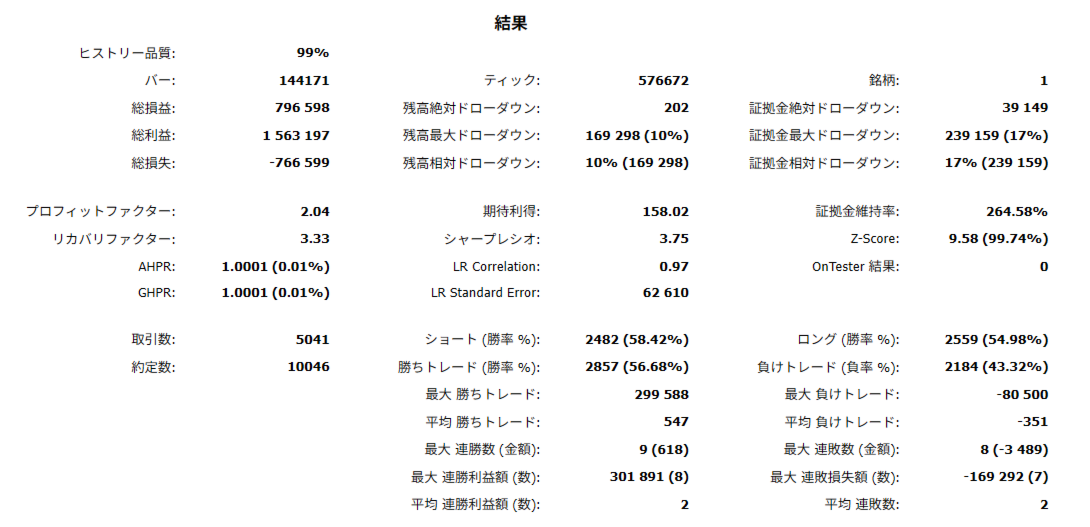
The EA makes its decisions on the open price of confirmed bars, so the "Open prices only" model is sufficient.
Steps
1. Press Ctrl+R in MT5 to open the Strategy Tester
2. Select VenusGrid Pro as the expert
3. Select XAUUSD (or another liquid symbol such as EURUSD)
4. Select M30 or H1 as the timeframe (D1 is not supported)
5. Set the model to "Open prices only"
6. Set the period and initial deposit, then start
Notes
- "Open prices only" judges on the open price of confirmed bars, which matches the EA's trading timing
- Changing to Every tick / Real ticks / OHLC does not change the EA's decisions, which remain based on open prices; it only makes the test take longer
- "Open prices only" is also recommended when running optimization
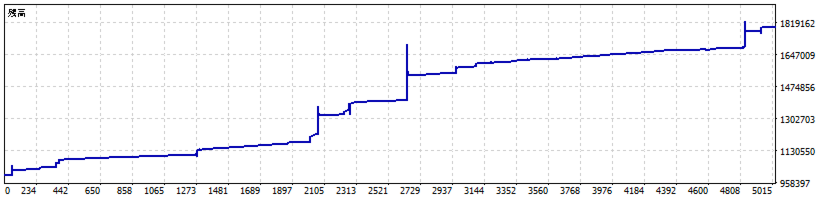
- The tester does not reproduce real spread, slippage or order rejections. Please verify on a demo account before live trading
5. Setup
1. Open a chart of the target symbol on M30 or H1 in MT5
2. Drag and drop VenusGrid Pro onto the chart from the Navigator
3. Allow "Algo Trading"
4. Check the parameters and click OK
5. Setup is complete when the panel appears in the upper-left corner of the chart
The EA works with the default settings, but always review the base lot size according to your account balance. The default is 0.02 lots.
If you use other EAs on the same account, make sure the magic numbers do not overlap.
6. Parameters
Parameters are grouped by purpose. The following group names appear on the MT5 parameter screen.
Group / Contents
Identification ... Magic number, order comment, trading direction, whether buy and sell may be held together
Lots ... Base lot, lot scaling mode and coefficient
Loss absorb ... Whether to adjust lot size to recover floating loss, and its limits
Equity reset ... Growth rate that triggers closing all positions and resetting
Bollinger Bands ... Period, deviation, applied price, signal timeframe, signal timing
Order frequency ... Decision interval, suppression of consecutive entries
Kick crisis filter ... Sensitivity of the pause detection and the conditions for resuming
Filters ... Maximum spread, trading hours, trading days
Grid ... Enable/disable additional orders, maximum number of orders, scope of each filter
Basket exit ... Target profit distance, per-order stop loss, monetary take profit and stop loss
Virtual trailing ... Enable/disable trailing exit and distance settings
Pair offset close ... Enable/disable the function that unwinds large positions and its thresholds
Panel / display ... Panel position, line display, chart display settings, RSI display
Lot overrun alert ... Alert threshold, notification methods, sound file
The defaults are verified settings, so it is recommended to first check operation without changing them.
Settings that need attention
- Base lot: if it is too large for your account balance, a sudden adverse move can cause a margin shortage
- Maximum absorb lot: the default is 0 (unlimited). If your capital is limited, always set a limit
- Maximum spread: on brokers with wide spreads, orders will be suppressed
7. Chart panel
The panel is displayed in the upper-left corner of the chart.
Display ... Spread / number of positions / average entry price / floating profit and loss / next target / equity target / status
Buttons ... Both / buy only / sell only switching, pause and resume, close buy, close sell, close all
The panel can be moved by dragging. Its position can also be set from the parameters (re-attach the EA after changing it).
8. Alerts
When the lot size of a single position exceeds the specified value, the EA does the following at the same time.
- Changes the chart background color
- Shows a pop-up notification
- Sends a push notification to your smartphone (MetaQuotes ID)
- Plays a warning sound
The alert is not repeated while the same overrun state continues. The background color returns to normal once the condition is cleared.
9. Risk and important notes
This EA is not investment advice. Past results do not guarantee future profit. Foreign exchange margin trading and CFD trading can result in losses exceeding your deposited funds.
Always confirm the following.
- Verify operation on a demo account for a sufficient period before using a live account
- Strategy Tester results do not match actual execution prices, spread or slippage
- Results may differ from expectations during market shocks, spread widening or economic releases
- Required margin increases as positions increase. Trade with sufficient capital
- Running on a VPS or an always-on environment is recommended. The EA does not run while MT5 is closed
- Behavior may vary depending on broker specifications (spread, execution type, trading hours, maximum lot)
Operational assumptions
- This EA is designed to hold buy and sell positions simultaneously. Use a hedging account for simultaneous two-way operation
- It also runs on netting accounts, but because buy and sell cannot be held at the same time it operates in one direction only
- Trading decisions are made on confirmed bars. It does not place multiple orders within a single bar
- Depending on settings, large lot sizes can occur. Use the product only after understanding the meaning of each parameter
10. Support
For questions, please contact us through the MQL5 messaging function. When reporting a problem, the following information helps.
- MT5 build number
- Symbol, timeframe and broker name used
- What happened, and the log at that time (contents of the Experts tab)