NextGen Premium
- Эксперты
- Версия: 1.2
- Активации: 5

NextGen Premium is an automated Expert Advisor for MetaTrader 5 designed primarily for XAUUSD (Gold).
The EA uses a two-sided pending order grid. It places Buy Stop orders above the current market price and Sell Stop orders below the current market price. The EA does not use indicators or trend prediction to determine the trading direction. Orders are activated when market price reaches the corresponding pending order level.
The EA is designed to maintain a structured grid and includes position management, money-based stop loss and trailing stop, daily trading limits, a weekend filter and grid refresh functions.
How the EA Works
When the EA starts, it creates Buy Stop and Sell Stop pending orders around the current market price. The first order on each side is placed according to the configured initial distance, while additional orders are placed using the configured grid step.
The grid levels are maintained using a fixed price spacing. When the grid is rebuilt, the EA continues to use the configured grid step to determine the available levels.
If the broker requires a larger minimum distance for pending orders, the EA adjusts the first valid order level accordingly.
When one pending order is triggered, the remaining pending orders on the same side are removed. This leaves one open position on that direction while the opposite side can continue to maintain its pending orders.
The EA does not increase the lot size after a losing trade.
Grid Refresh
The EA includes two grid refresh mechanisms.
The first mechanism is based on the recovery of a losing position. When an open trade reaches the configured loss threshold and later recovers to that threshold, the EA can rebuild the opposite pending order grid using the configured distance from the trade entry price. The open position itself is not modified by this refresh operation.
Each open trade can trigger its own refresh according to the configured conditions.
The second mechanism operates when one side has an open position and the opposite side does not. The EA records the last closing level of the empty side and can rebuild that side's grid when the market moves the configured distance away from the recorded level.
The reference price is updated after each qualifying movement so that the opposite grid can continue to be repositioned when the market moves further in the same direction.
Grid refreshing is paused when both sides have open positions. A pending refresh condition can remain available until the conditions required for the refresh are met.
Stop Loss and Trailing Stop
The EA provides a money-based stop loss. The stop loss amount is specified in account currency and is adjusted according to the position volume.
The EA also provides a money-based trailing stop. When a position reaches the configured trailing activation profit, the EA records the highest floating profit reached by the position. The position is closed when the floating profit falls by the configured trailing distance from that peak.
The stop loss and trailing stop are managed by the EA and are not placed as conventional stop levels on the broker server.
For this reason, the MetaTrader 5 terminal must remain running for these protective functions to operate. Continuous hosting through a VPS is recommended.
Daily Trading Limits
The EA can use daily loss and daily profit limits based on the account equity recorded at the beginning of the trading day.
When the configured daily limit is reached, the EA stops opening new trades and removes pending orders. Losing positions can be closed according to the configured settings, while positions that are already in profit can remain active and continue to be managed by the trailing stop.
The daily reference equity is reset at the beginning of the next trading day.
Weekend Filter
The EA includes a configurable weekend filter.
At the configured Friday stop time, the EA can remove pending orders, close open positions and stop trading until the configured Monday resume time.
A pre-shutdown period can also be configured so that the closing process begins before the stated Friday stop time.
The weekend schedule uses a GMT offset specified by the user. This allows the Friday and Monday times to be configured independently of the broker server time.
Dynamic Lot Size
The EA supports dynamic lot sizing based on account balance.
When dynamic lot sizing is disabled, the EA uses the configured LotSize value.
When dynamic lot sizing is enabled, the lot size increases according to the BalancePerLotStep setting.
For example, with a LotSize of 0.01 and a BalancePerLotStep of 500, the configured progression is 0.01 at lower balance levels, 0.02 after reaching the next balance step, and 0.03 after the following step.
Users should verify the resulting position size and margin requirements on their own trading account before using the EA with real funds.
On-Chart Information
The EA provides an on-chart panel showing information about the current trading state.
The panel can display the current market mode and session, the number of pending Buy Stop and Sell Stop orders, the number of open positions, floating profit or loss, current spread and the algorithmic trading status of the terminal.
The EA also provides a CLOSE ALL button for manual intervention. This function removes the EA's pending orders and closes its positions on the selected symbol.
Account and Symbol Requirements
The EA was developed and tested primarily for XAUUSD (Gold).
The default grid distances are designed around the price scale of Gold. The EA can be used on other instruments, but the price-distance settings should be adjusted according to the instrument being traded.
A hedging account is required because the EA can maintain positions in both directions at the same time.
The EA works on any chart timeframe because its entry logic is based on tick and price information rather than bar indicators.
A broker with suitable spread conditions and support for pending stop orders is recommended.
The stop loss, trailing stop, daily limits and weekend filter are managed internally by the EA. The terminal should therefore remain connected and running during operation. A VPS is recommended for continuous operation.
Each EA instance should use a different MagicNumber when multiple instances are running on the same account.
Getting Started
Attach the EA to an XAUUSD chart and enable algorithmic trading in MetaTrader 5.
Check the on-chart panel to confirm that the EA is active and that pending orders have been created.
Set the GMT offset according to the time zone you want to use for the weekend schedule.
Set the lot size or enable dynamic lot sizing and configure the balance step.
Configure the money-based stop loss according to the amount you are prepared to risk on an individual position.
Test the EA on a demo account with your broker before using it on a live account. Broker spreads, execution conditions and trading specifications can affect the behavior of a pending-order strategy.
Input Parameters
MagicNumber identifies the orders and positions managed by this EA. Use a different value for separate EA instances.
ShowVerboseLogs controls detailed messages written to the MetaTrader 5 Experts journal.
LotSize defines the base lot size.
UseDynamicLot enables or disables balance-based lot progression.
BalancePerLotStep defines the account balance required for each additional lot-size step.
UseDollarSL enables the money-based stop loss.
StopLossDollars defines the stop loss amount in account currency for the configured position size.
UseTrailingStop enables the money-based trailing stop.
TrailingStartDollars defines the profit level at which the trailing stop becomes active.
TrailingStopDollars defines the amount of floating profit that can be given back from the highest recorded profit.
UseDailyLossLimit enables the daily loss limit.
UseDailyProfitLimit enables the daily profit limit.
DailyLossPct defines the percentage decrease in equity from the start-of-day equity that stops trading.
DailyProfitPct defines the percentage increase in equity from the start-of-day equity that stops trading.
GridStepDollars defines the price distance between neighbouring grid levels.
InitialOrderDistance defines the initial distance between the market price and the first pending order.
PendingOrdersPerSide defines the number of pending orders maintained on each side.
PendingRefreshDistance defines the price distance used when rebuilding the opposite grid after a losing-trade refresh.
RefreshTriggerLoss defines the floating loss level that can activate a recovery-based grid refresh.
ReversalRefreshDistance defines the market movement required to rebuild the grid on the empty side.
OrdersPerBatch controls the number of orders used for each lot-size batch.
MaxOpenTradesPerDir defines the maximum number of orders and positions allowed in one direction.
UseWeekendFilter enables the weekend trading restriction.
FridayStopTime defines the Friday stop time.
MondayResumeTime defines the Monday resume time.
TimeZoneGMTOffset defines the GMT offset used for the weekend schedule.
PreShutdownMinutes defines how many minutes before the Friday stop time the closing process begins.
Risk Information
The stop loss and trailing stop are executed by the Expert Advisor rather than being placed as conventional stop levels on the broker server. If MetaTrader 5 is closed or loses its connection, these protective functions cannot operate until the terminal is running again. Continuous VPS hosting is recommended.
The EA can have positions open in both directions at the same time. The total account exposure therefore depends on the lot size, stop loss settings and trading conditions.
The default settings should not be considered suitable for every account or broker. Users should calculate the potential loss and required margin before selecting their lot size and grid parameters.
The relationship between account balance, lot size and stop loss depends on the configured LotSize, BalancePerLotStep and StopLossDollars values. Users should review these settings and adjust them according to their own risk tolerance.
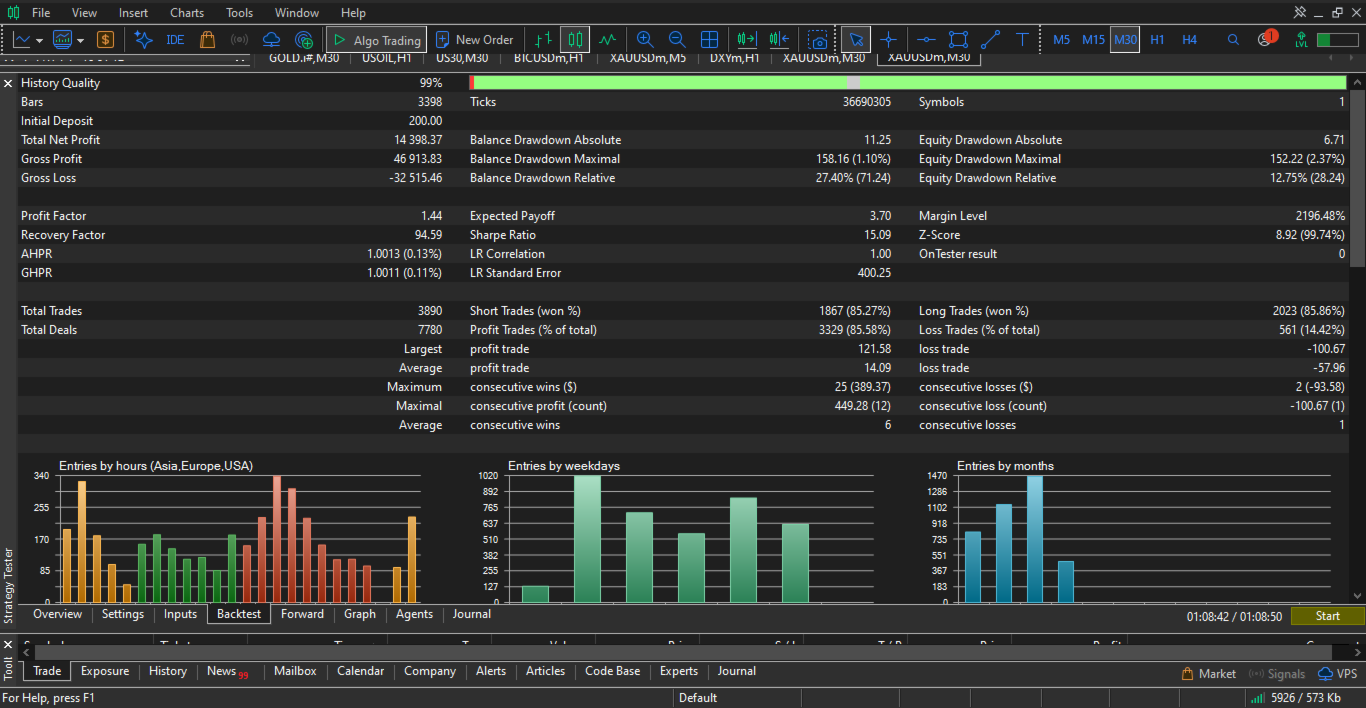
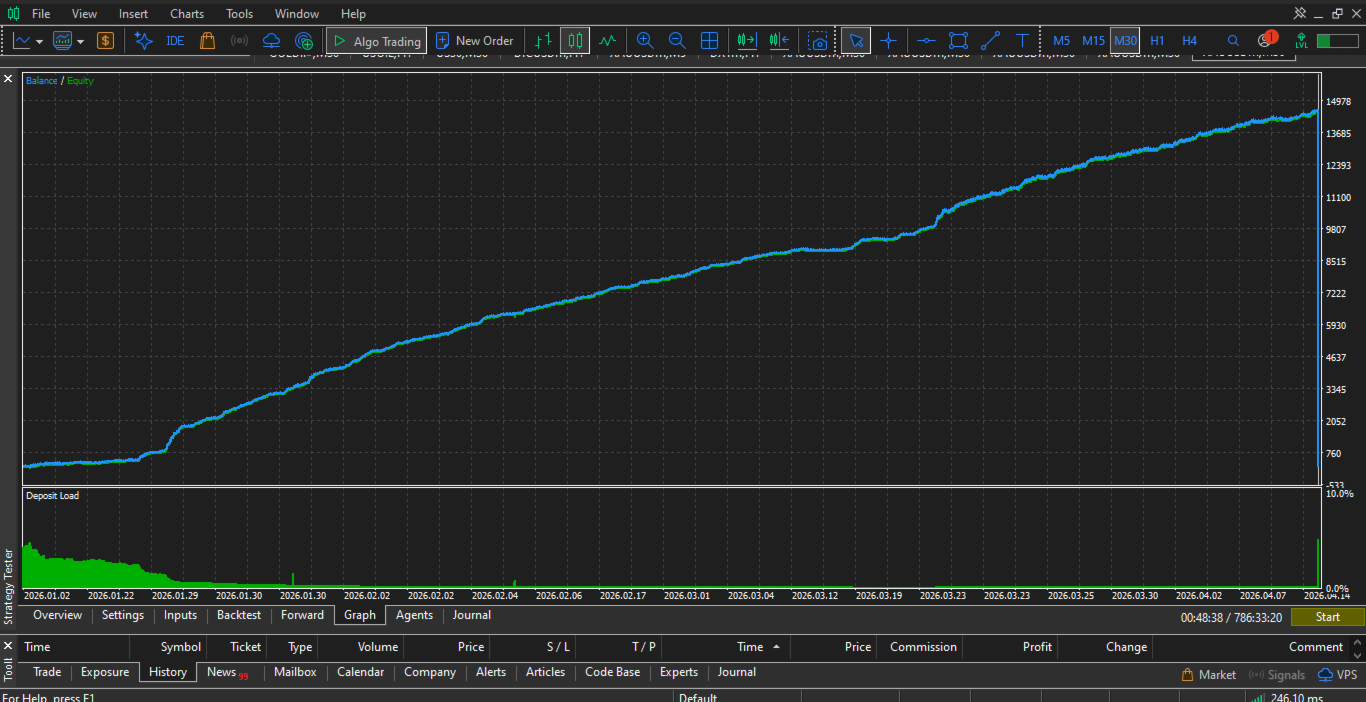
Trading financial markets involves the risk of loss. Historical testing and past results do not guarantee future performance. Test the EA in the Strategy Tester and on a demo account before using real funds.
Support
For questions about the EA settings or operation, use the MQL5 messaging system or the product comments section.
When requesting support, provide relevant information such as the broker, account type, symbol and the settings being used.