Step 1
Figure 1: Step 1
FX ADAPTIVE OPTIMIZATION GUIDEStep-by-Step Strategy Tester Optimization Manual
About This Guide
This guide will help you properly optimize the FX Adaptive Expert Advisor in MetaTrader 5’s Strategy Tester. The process consists of three stages:
1. Rough optimization of Price Structure block (wide step)
2. Rough optimization of Momentum Filter + Trend Direction Filter blocks (wide step)
3. Fine optimization of all parameters (narrow step around found values) Follow the steps sequentially for best results.
Using MQL5 Cloud Network (optimization ac- celeration)

For significant acceleration of the optimization process, you can use MQL5 Cloud Network — a distributed computing network:
1. In the Settings tab, find the Use MQL5 Cloud Network section
2. Enable the checkbox
3. Ensure you are logged in to MQL5.com through the terminal (Tools → Options → Community)


STEP 1: Opening Strategy Tester
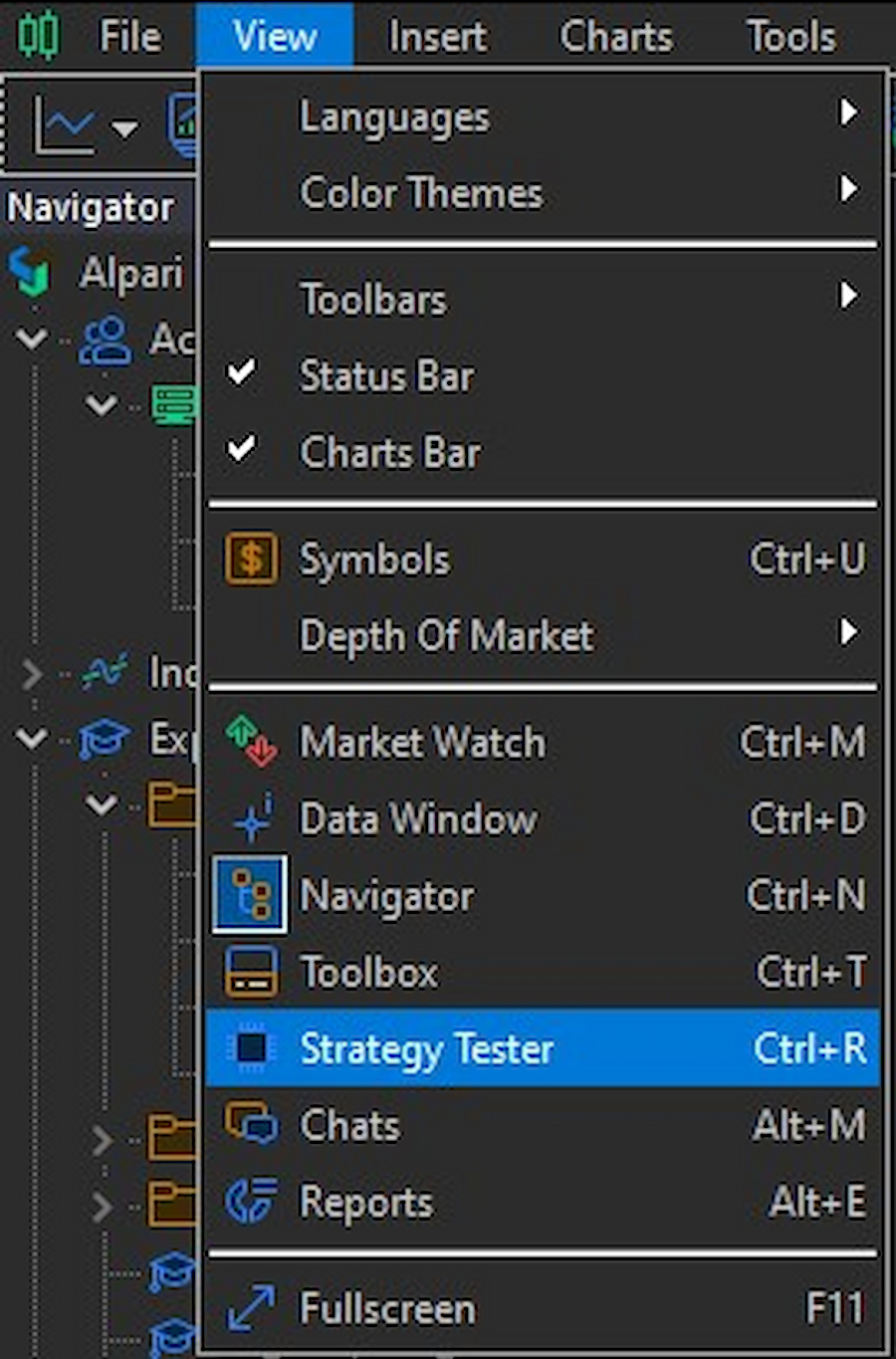
Open S
trategy Tester in MetaTrader 5: - Menu: View → Strategy Tester - Or use hotkey: Ctrl+R
Explanation: Strategy Tester is MT5’s built-in tool for testing and optimizing Expert
Advisors. This is where we’ll perform all operations to find optimal parameters.
STEP 2: Selecting Expert Advisor and Basic Settings
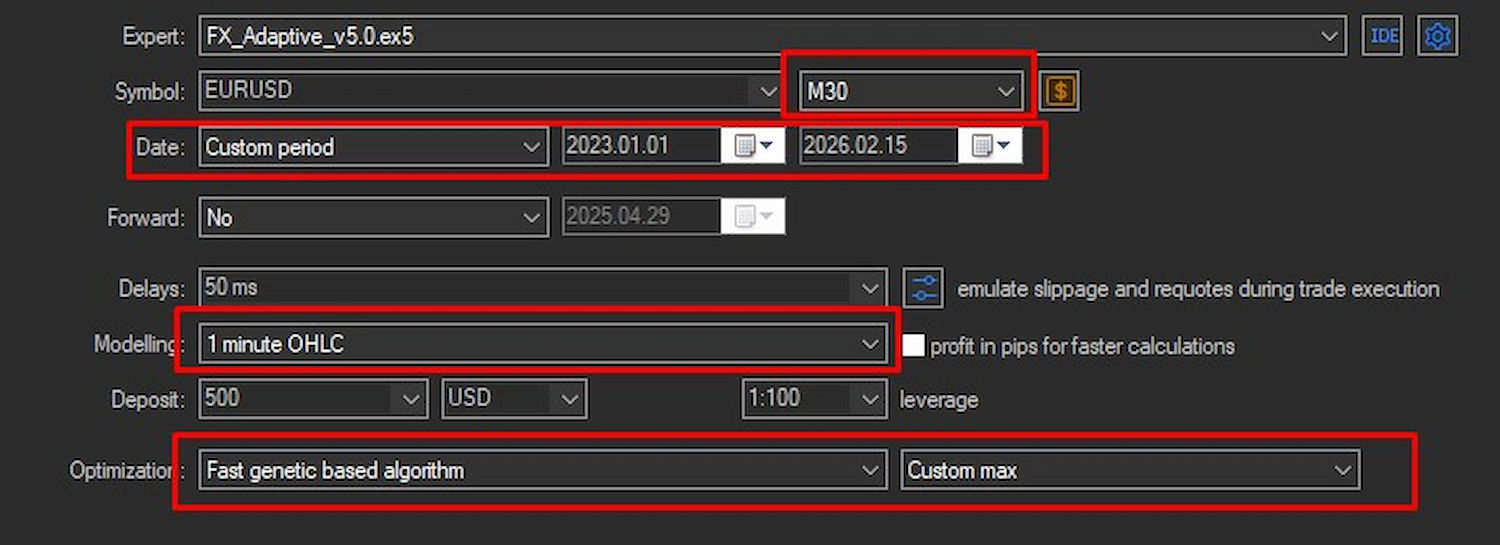
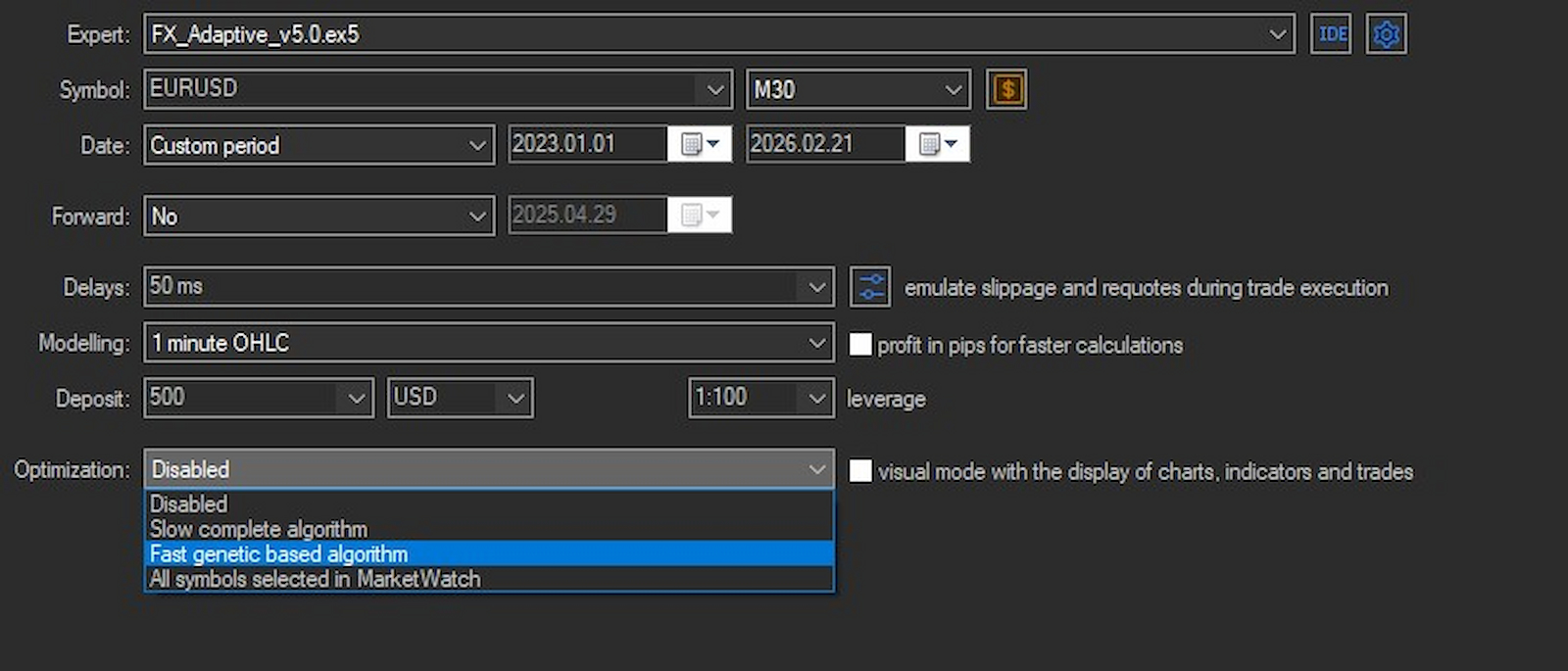
In the Settings tab, configure the following parameters:
• Expert: FX_Adaptive_v5.0.ex5
• Symbol: EURUSD (or any other instrument for optimization)
• Period: M30 (recommended timeframe)
• Date: Custom period → from 2023.01.01 to 2026.02.15 (3 years of data)
• Forward: No (forward testing disabled)
• Deposit: 500 USD
• Leverage: 1:100
• Optimization: Fast genetic based algorithm
• Optimization criterion: Custom max
Step 3
Important about Custom max:
The Custom max criterion is necessary for optimization to automatically filter out variants with few trades. FX Adaptive’s code has a built-in threshold of < 50 trades over 3 years — the tester will automatically discard all results with fewer trades.
Why this matters: We don’t need variants that made only 20 trades over 3 years — such results lack statistical significance and may be random.
STEP 3: Resetting Parameters to Default Values
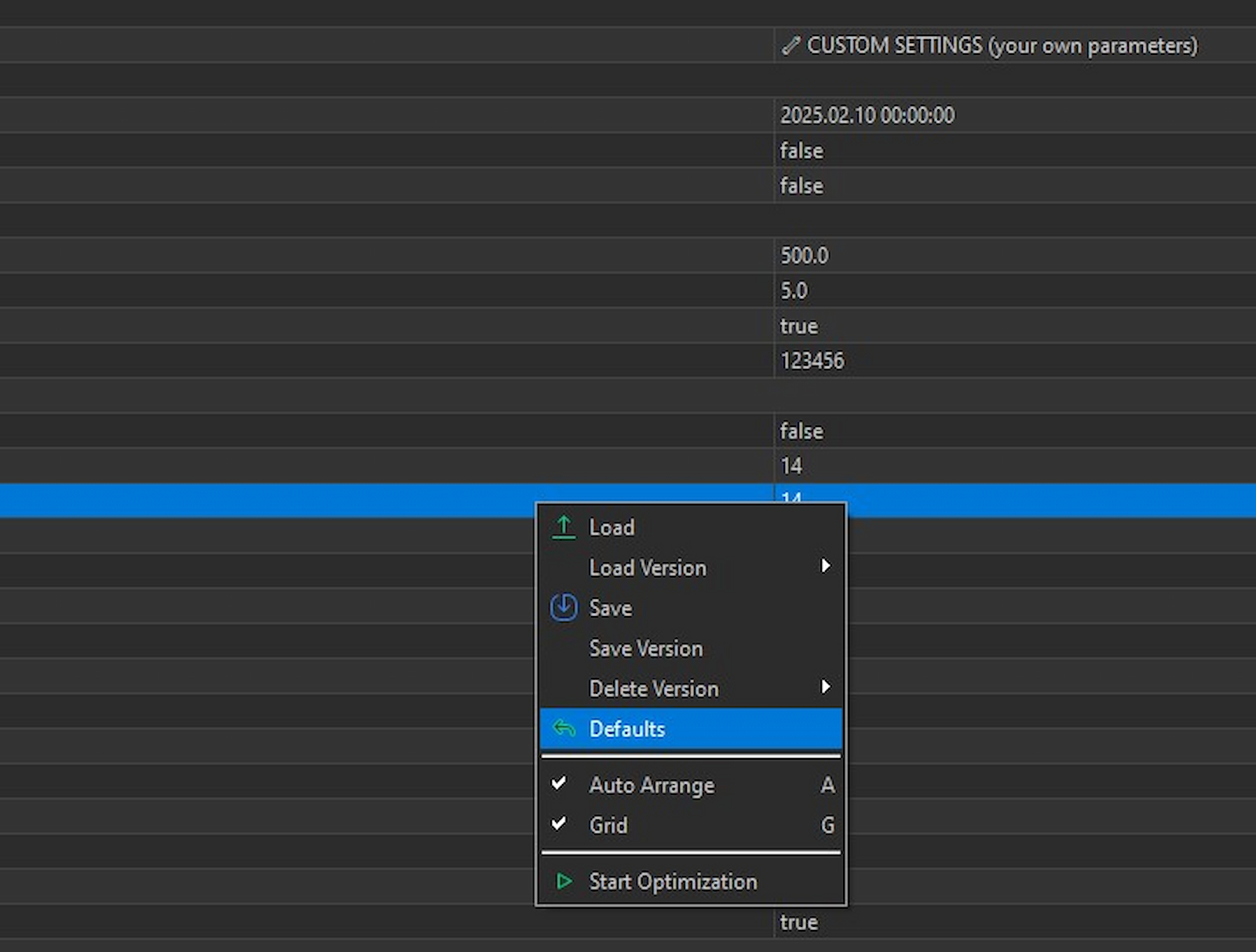
Before starting optimization, always reset all parameters to default values:
1. Go to the Inputs tab
2. Right-click on any parameter
3. Select Defaults from the context menu
Explanation: This ensures we start optimization from baseline settings without accidental changes from previous tests.
STEP 4: FIRST ROUGH OPTIMIZATION — Price Structure Settings
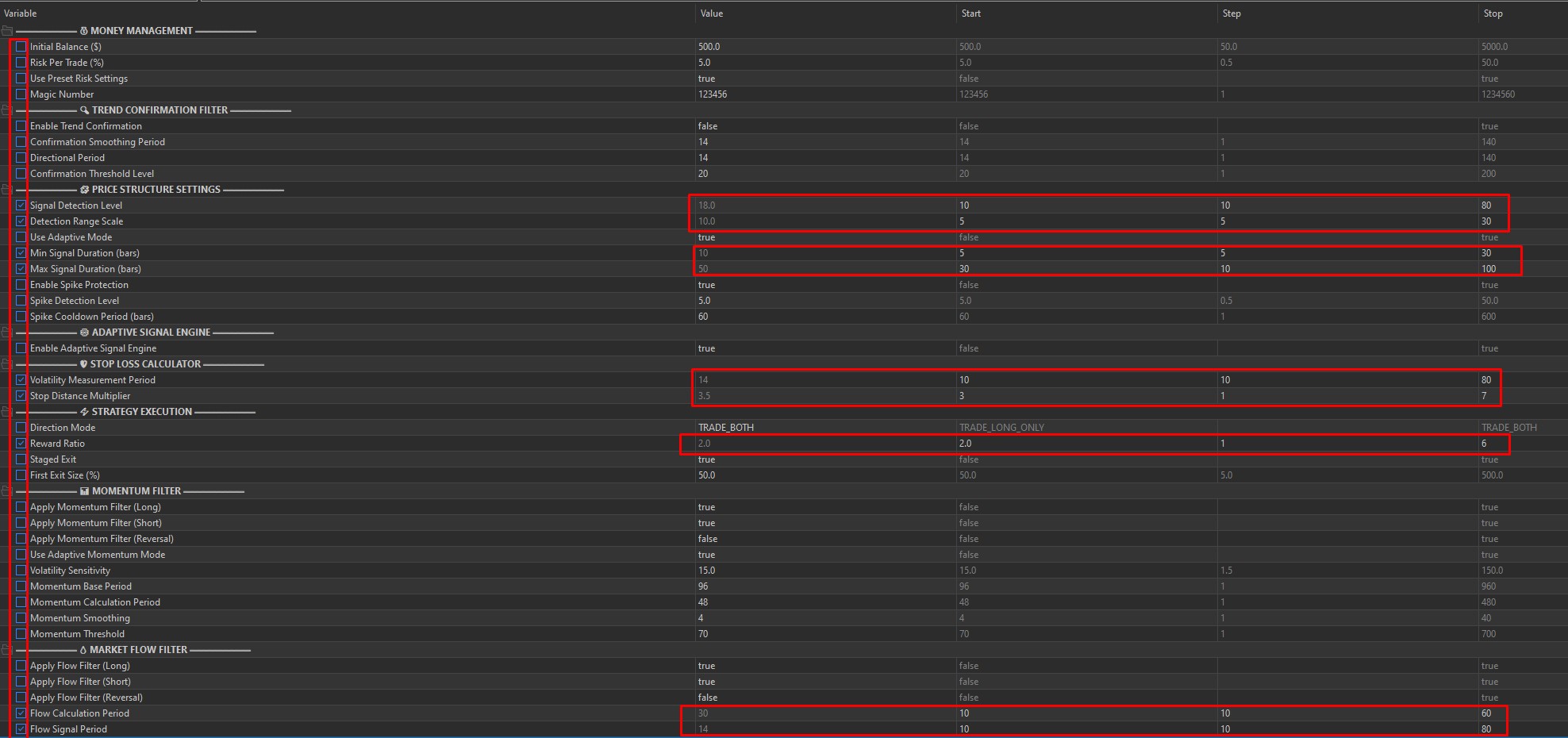
In the Inputs tab, enable checkboxes and set ranges only for these parameters:
Explanation:
• Wide step allows quickly finding the approximate range of optimal values
We optimize only the Price Structure block first to avoid overloading the tester
• After this, click Start and wait for completion
Estimated time: 20–40 minutes (depending on computer power)
STEP 5: Analyzing First Optimization Results
After optimization completes:
1. Go to the Optimization Results tab
2. Click on the Profit Factor column header to sort results in descending order
3. Study the top 10 results
4. Double-click on the best result to run a full backtest with these parameters
What to look for: - Profit Factor — preferably > 2.0 - Total Trades — should be 50 trades (Custom max already filtered out small ones) - Drawdown % — preferably <
20%
Warning: Don’t rush to choose the result with maximum PF — verify that the number of trades is sufficient and drawdown is reasonable.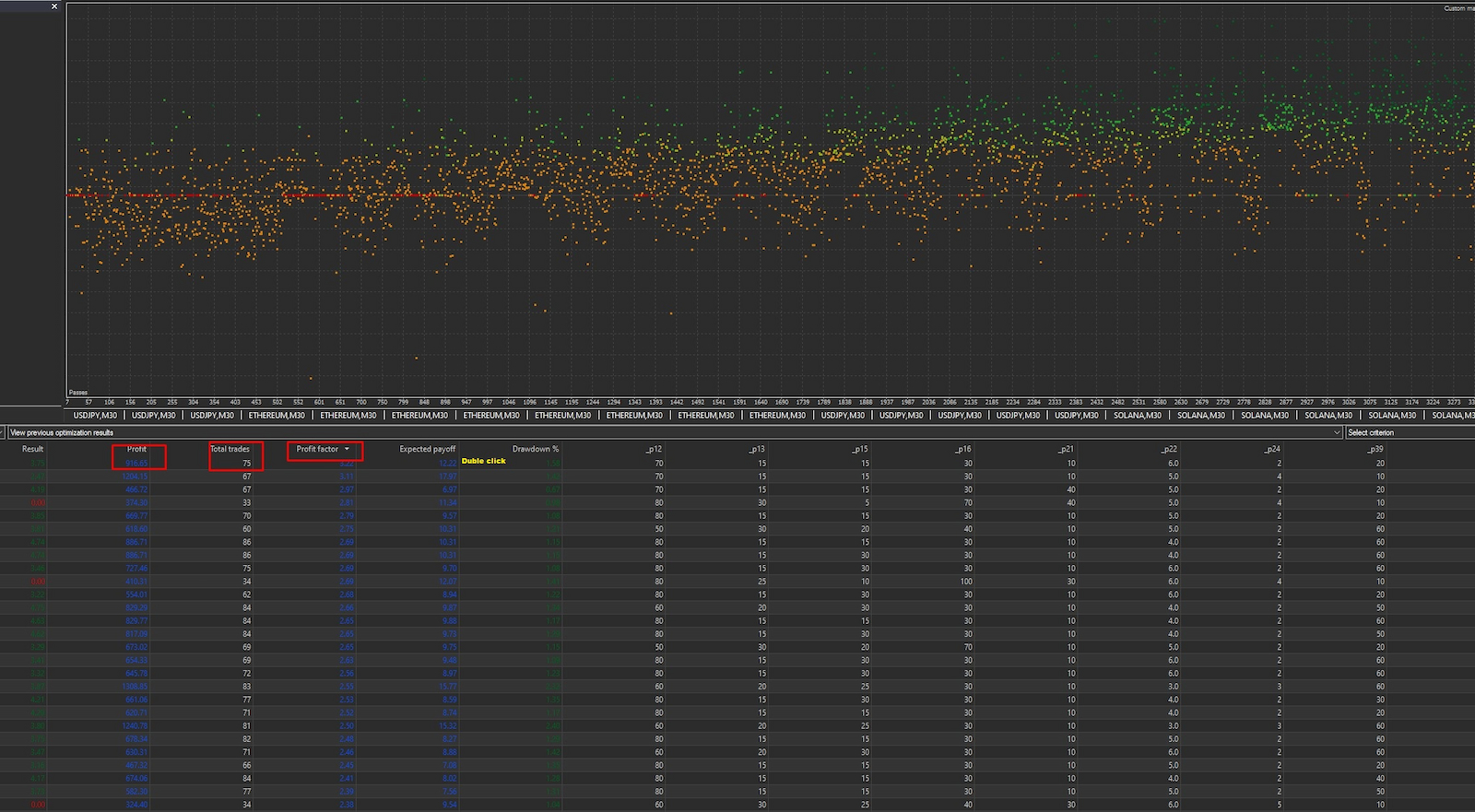
STEP 6: Configuration for Second Optimization Stage
Return to the Settings tab and ensure:
• Optimization: Fast genetic based algorithm
• Optimization criterion: Custom max (will be pulled automatically)
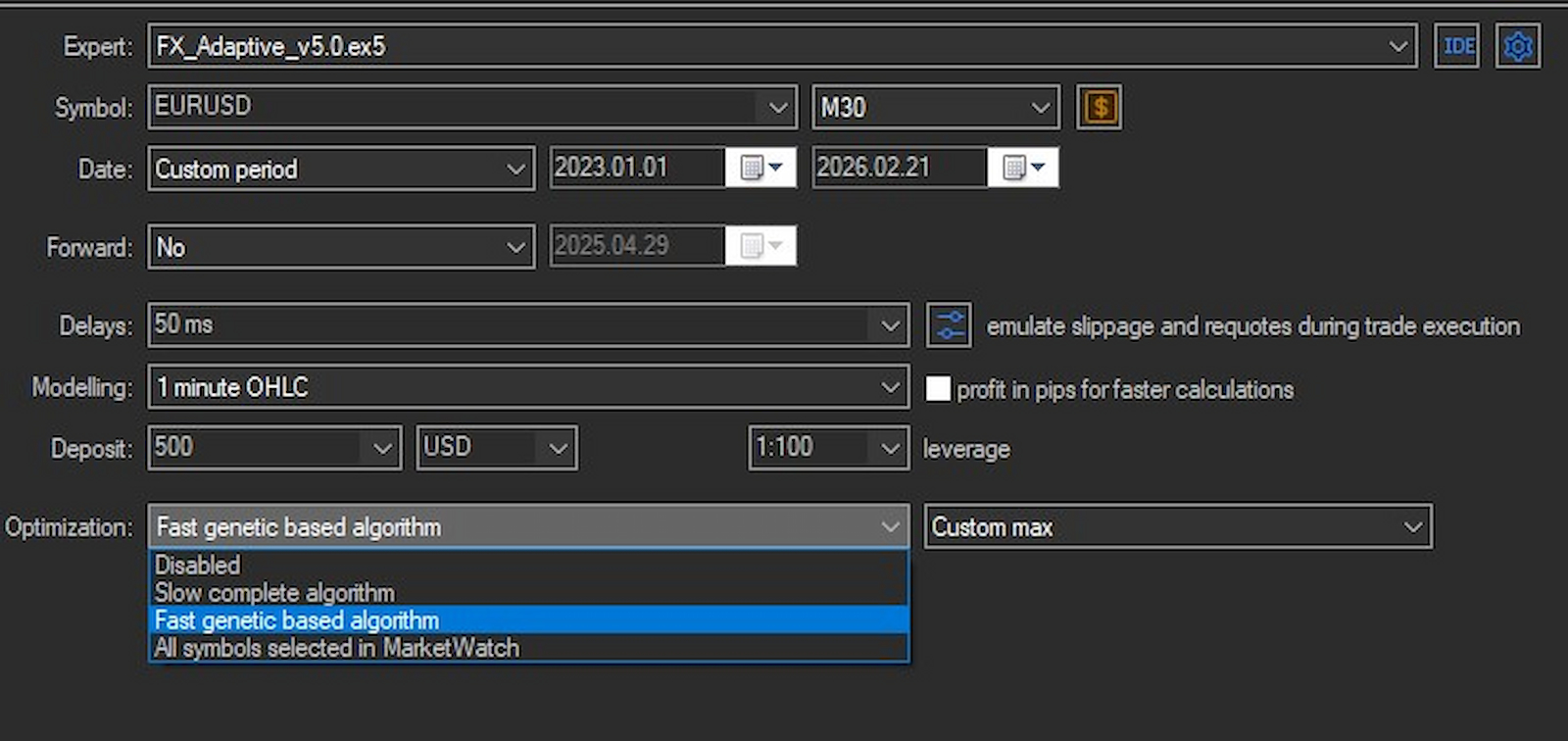
Explanation: Before each new optimization stage, verify these settings — they should remain unchanged.
STEP 7: SECOND ROUGH OPTIMIZATION — Momentum + Trend Filters
In the Inputs tab, enable checkboxes and set ranges for new parameters:
Parameters to optimize:
MOMENTUM FILTER block:
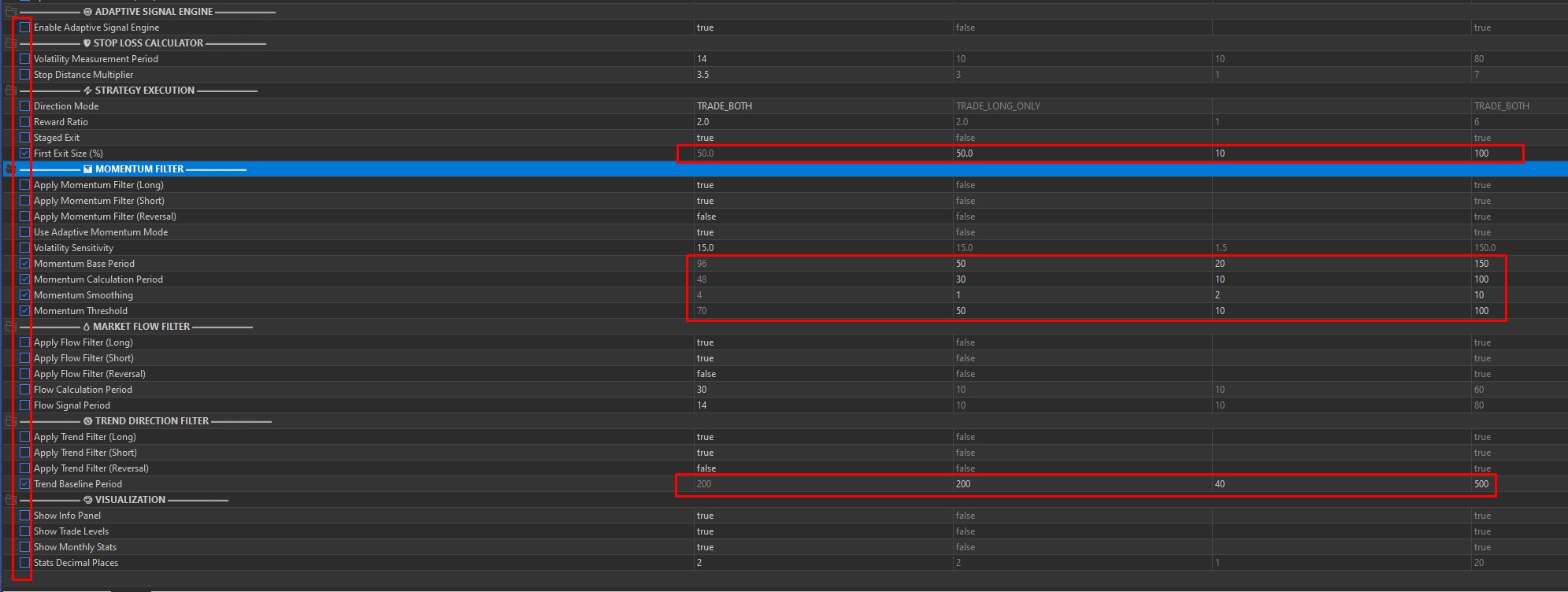
Explanation: Here we optimize filter blocks and risk management. This is the second rough optimization stage — again with a wide step.
STEP 8: Configuration for Third Stage
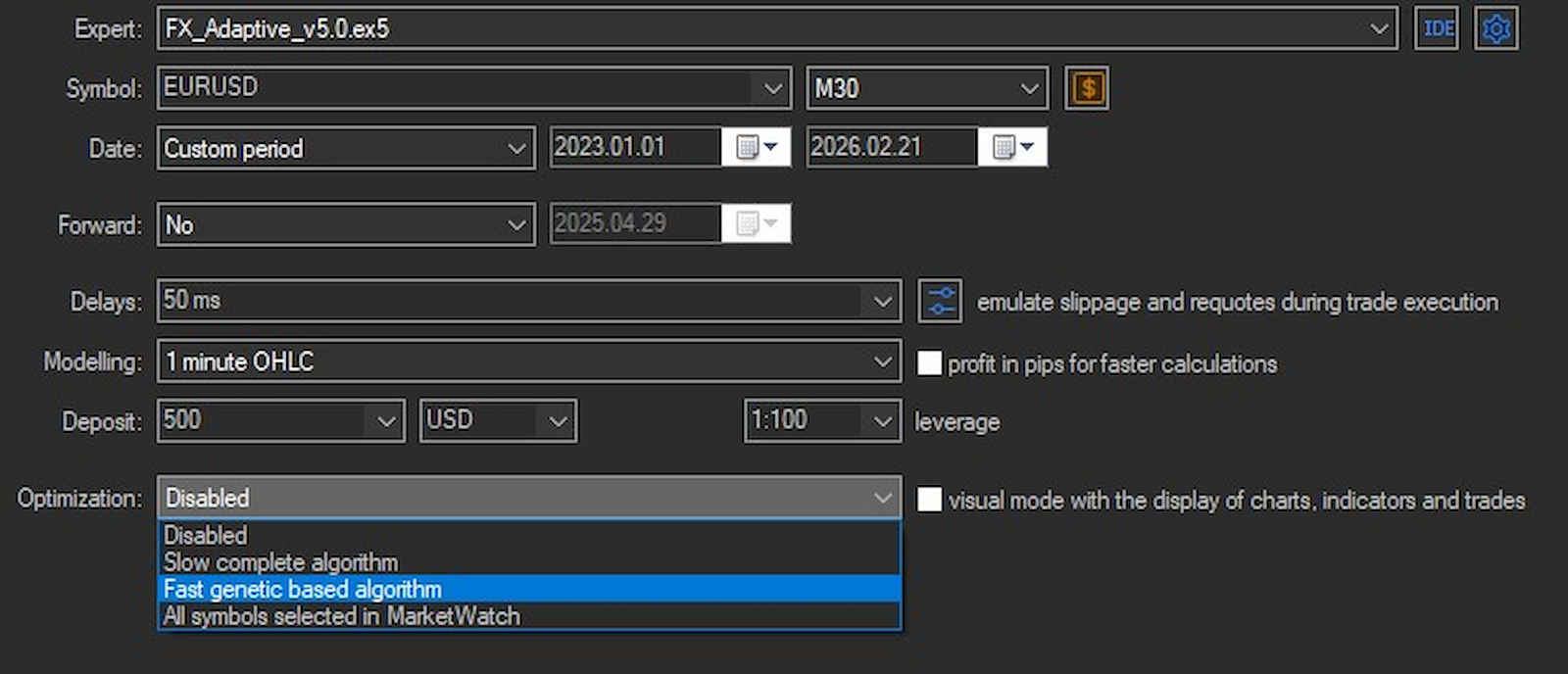
Verify settings in the Settings tab again:
• Optimization: Fast genetic based algorithm
• Optimization criterion: Custom max (will be pulled automatically)
STEP 9: FINE OPTIMIZATION — Price Structure (narrow step)
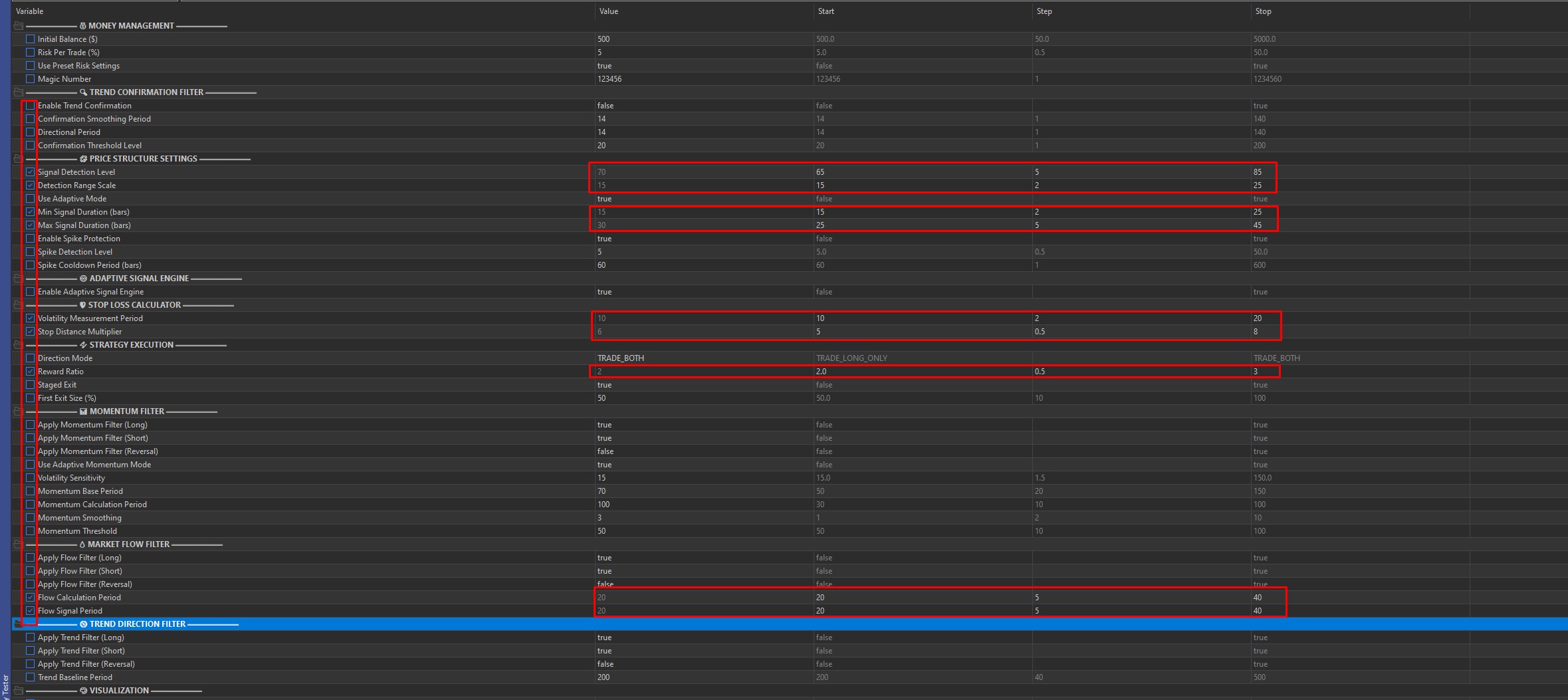
In the Inputs tab, set reduced steps around the values found in Step 4:
Example (if in Step 4 the best values were Signal Detection Level = 30, Detection Range Scale = 15):
Important: Use the values found in Step 4 as the center of the range ± 20%.
STEP 10: Configuration Before Fine Filter Block Opti- Mization
Verify again:
• Optimization: Fast genetic based algorithm
• Optimization criterion: Custom max
STEP 11: FINE OPTIMIZATION — Momentum + Trend Filters (narrow step)
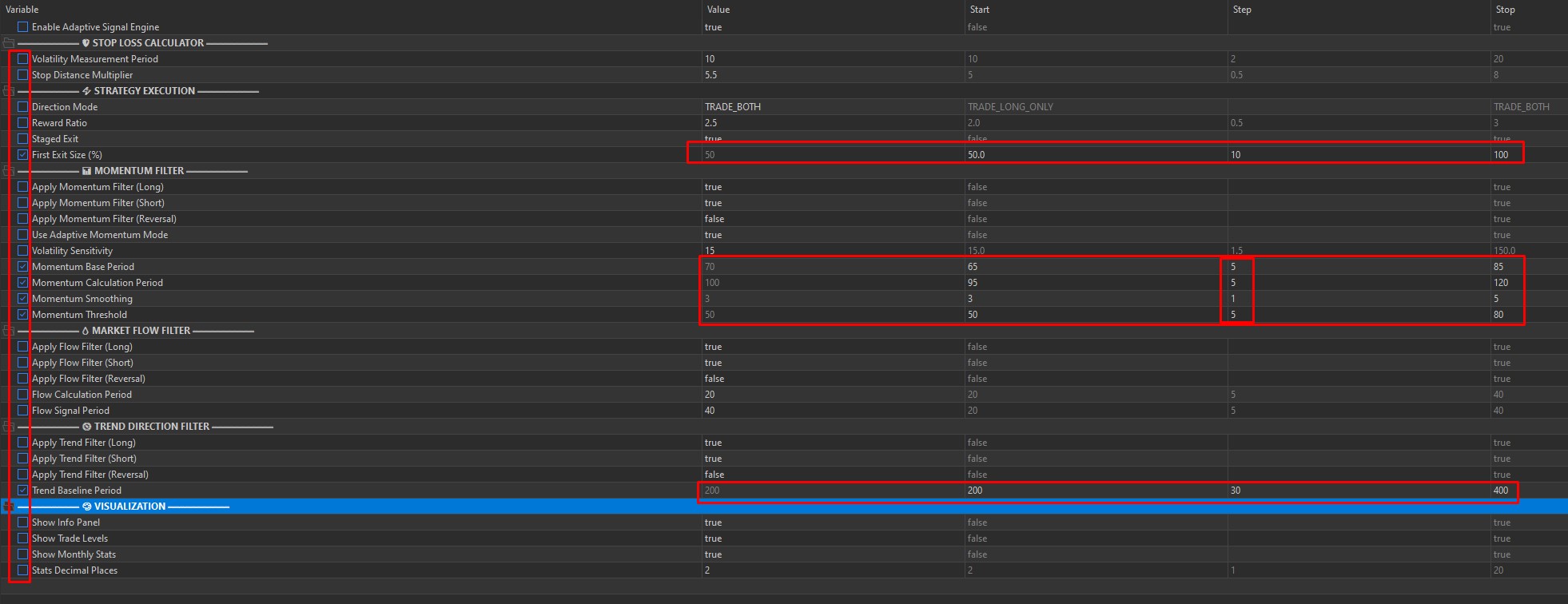
Similar to Step 9, but for parameters from Step 7. Set a narrow step around found values.
Click Start and wait for completion.
STEP 12: Final Optimization Results
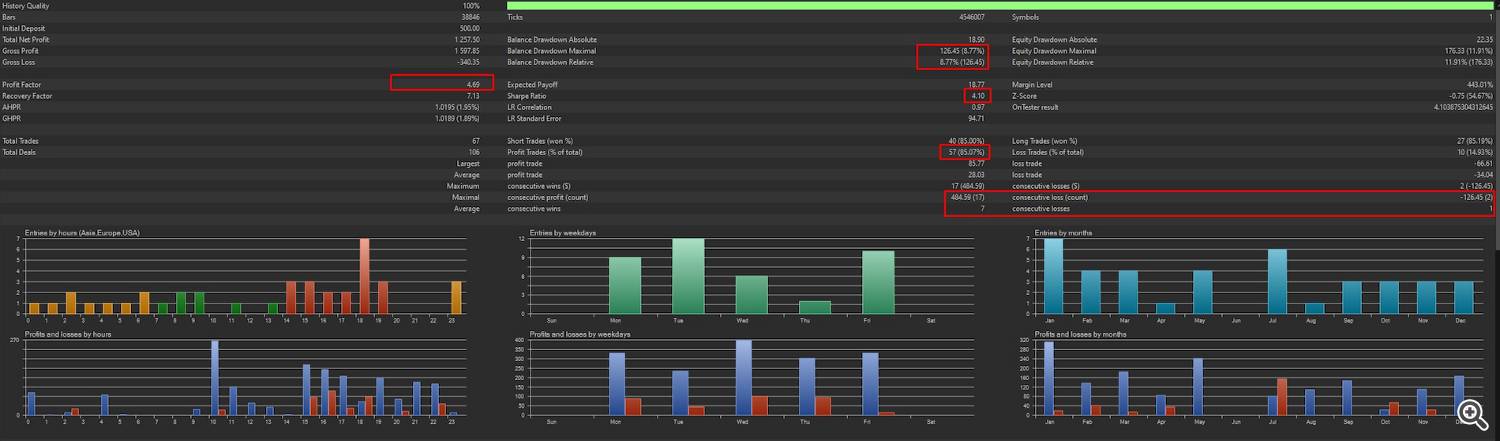
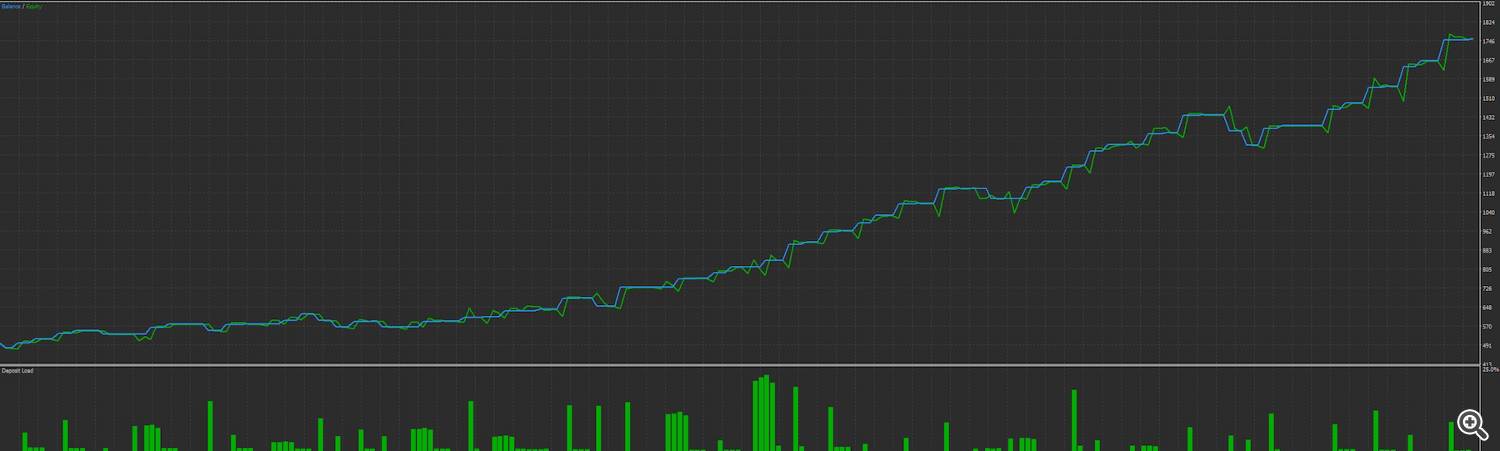
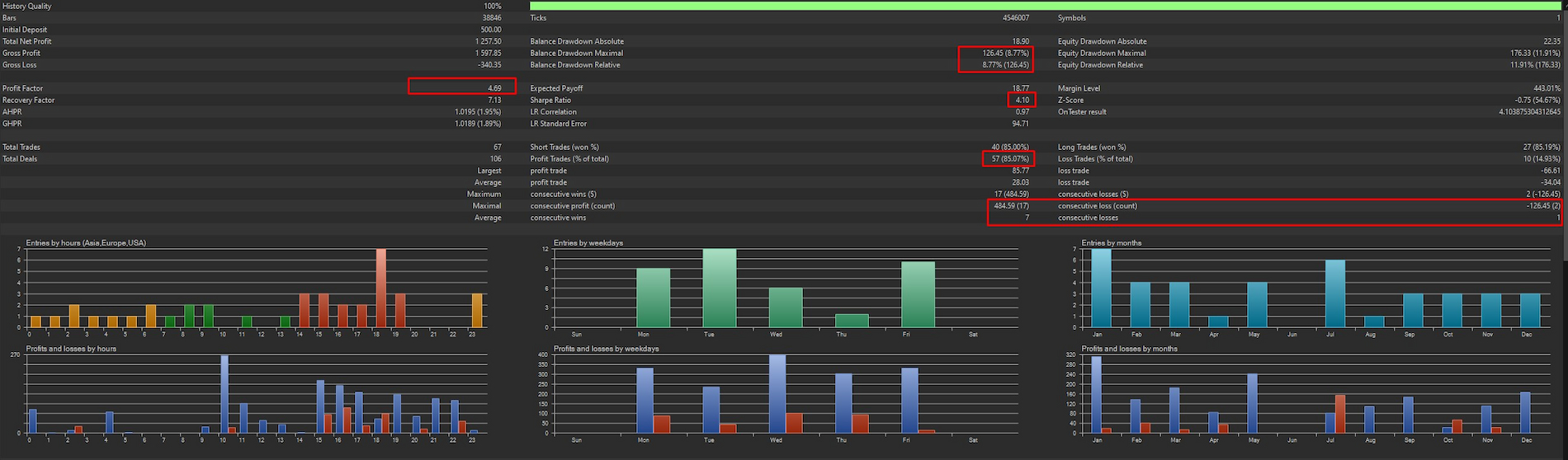
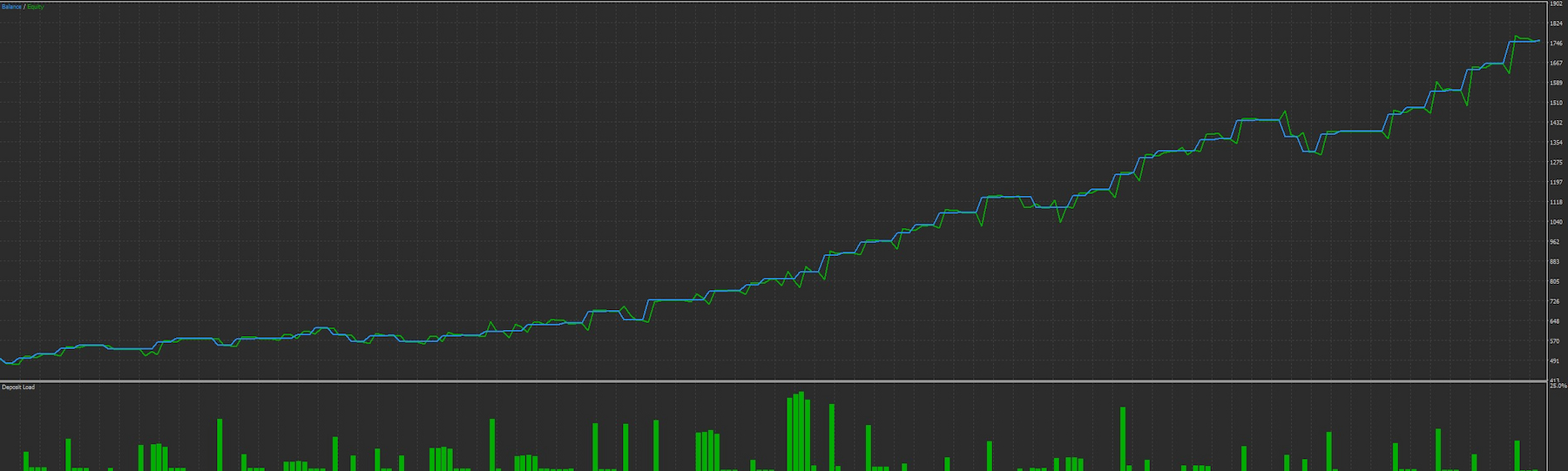
Results graph: Use the Optimization Graph tab to visually assess the distribution of results.
Final verification: - Profit Factor 2.5 - Total Trades <50 (over 3 years)
- Max Drawdown < 15% - Win Rate > 70%
Using MQL5 Cloud Network (optimization ac- celeration)