Vector Quick Trade
- 유틸리티
- 버전: 1.0
- 활성화: 5

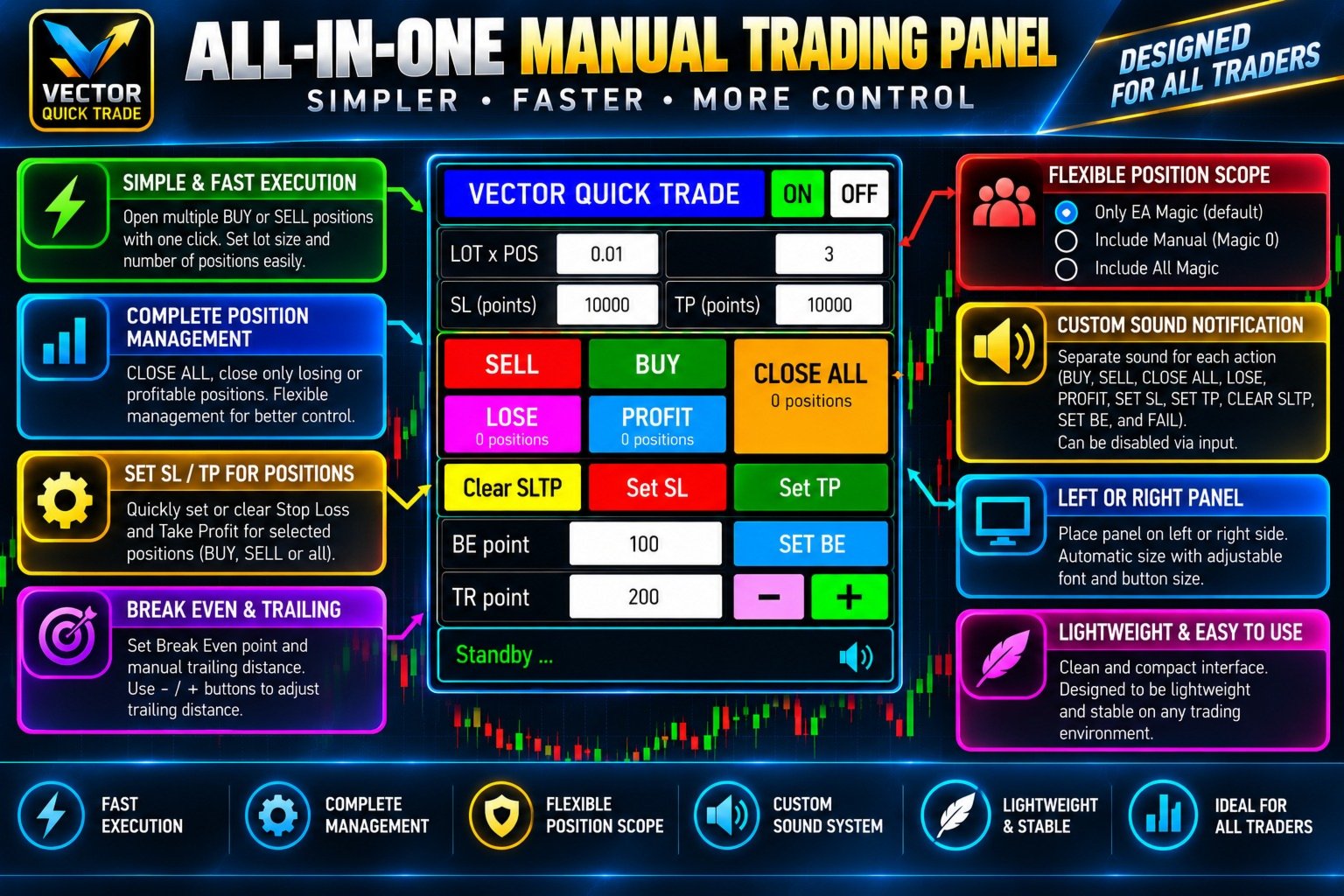
Vector Quick Trade is a fast and lightweight manual trading panel for MetaTrader 5.
It is designed for traders who want to open, close and manage positions directly from the chart with a compact and easy-to-use interface.
Vector Quick Trade does not contain an automated trading strategy and does not generate trading signals. All trading actions are initiated manually by the user.
Main Features
- Open BUY or SELL positions directly from the chart
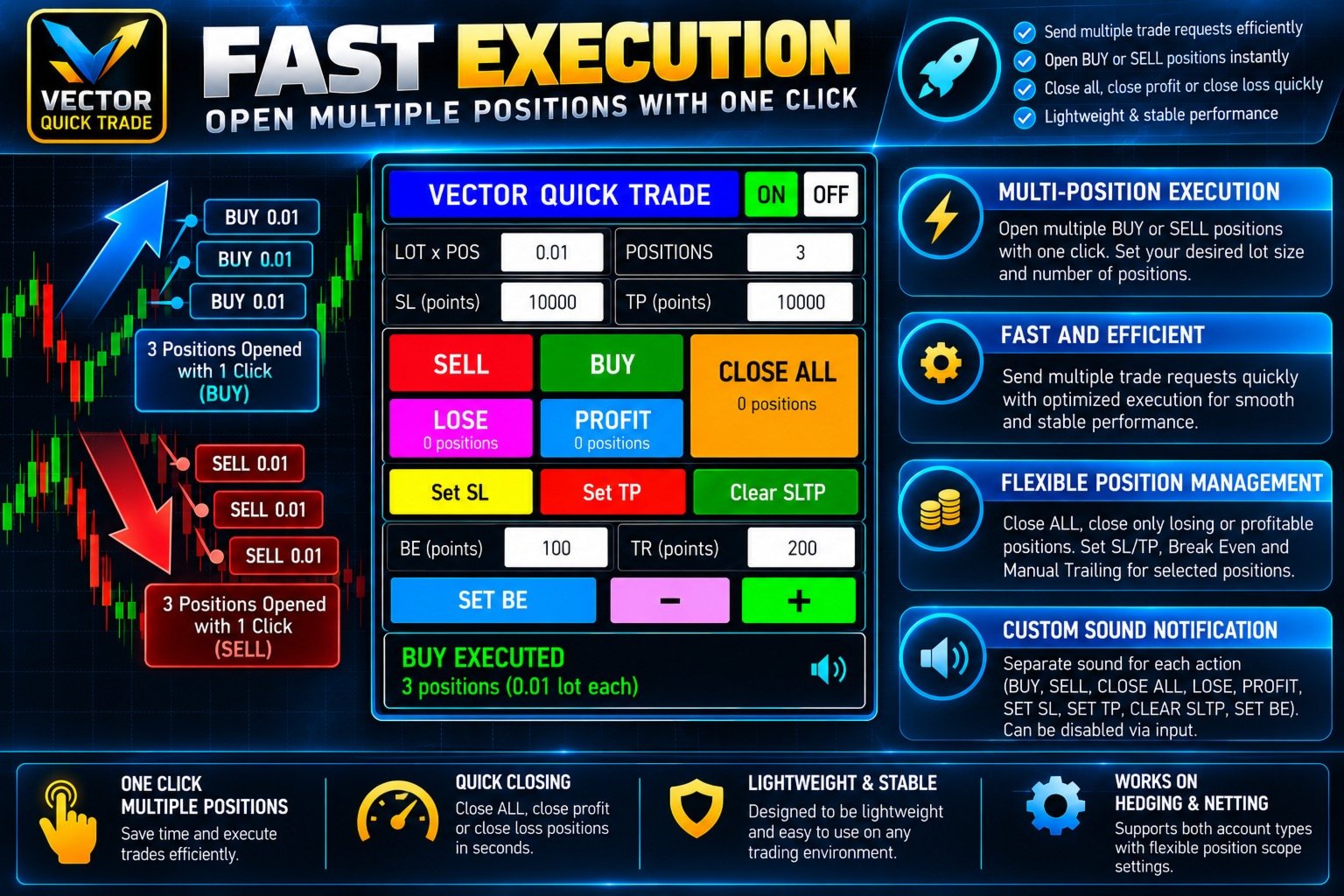
- Open multiple positions with one click
- Adjustable lot size and positions per click
- Stop Loss and Take Profit in points for new positions
- Close all managed positions
- Close only losing positions
- Close only profitable positions
- Set Stop Loss for existing positions
- Set Take Profit for existing positions
- Separate absolute price inputs for SL and TP
- Clear SL/TP from managed positions
- Set Break Even
- Manual trailing adjustment using - and + buttons
- Left or right panel placement
- Multiple panel size presets
- Adjustable panel, button and font sizes
- Built-in sound notifications
- Custom WAV sound support
- Detailed execution status and failure diagnostics
- Support for both HEDGING and NETTING accounts
Fast Multi-Position Execution
Vector Quick Trade is designed for efficient manual execution.
BUY and SELL can send multiple trade requests without waiting for every request to finish one by one.
Major position-management actions are also optimized to reduce unnecessary waiting when several positions must be processed.
The panel displays the execution result after the broker response is received.
Possible status messages include:
- REQUEST SENT
- EXECUTED
- PARTIAL
- REJECTED
- FAILED
- BLOCKED
Actual execution speed depends on broker latency, server conditions, network quality, symbol conditions and the number of requests being processed.
Position Scope
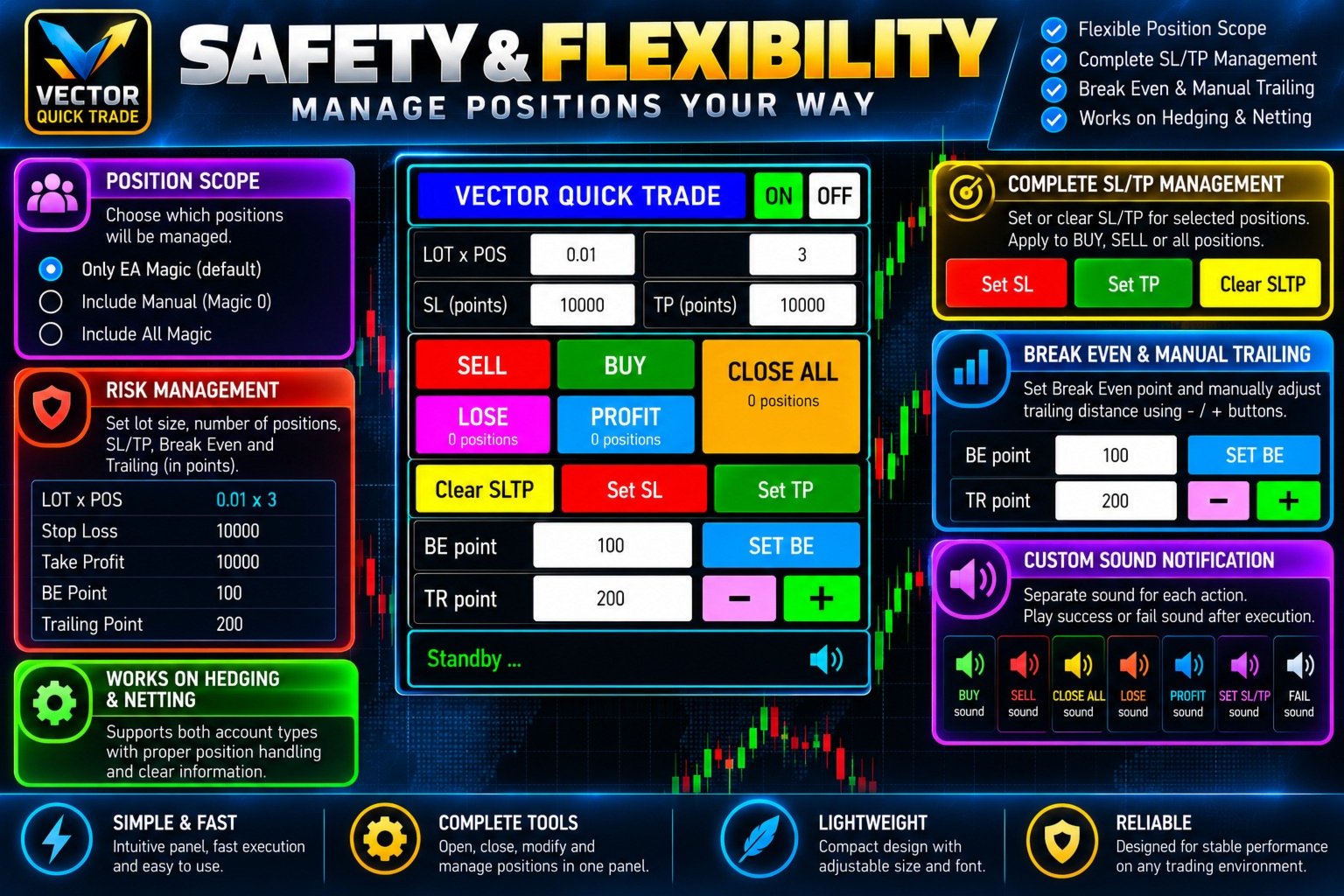
Vector Quick Trade provides three position-management modes:
Own Magic Number only — Default
Only positions opened with the configured Vector Quick Trade Magic Number are managed.
Own Magic + Manual
Positions opened by Vector Quick Trade plus manual positions with Magic Number 0 are managed.
All Magic Numbers
All positions on the current chart symbol can be managed, including positions opened by other Expert Advisors.
Use the wider position scopes carefully.
Position Safety Limits
Optional safety limits are available in the EA inputs.
Maximum lot per order
max_lot_per_order = 0
A value of 0 disables this limit.
When enabled, BUY and SELL orders above the configured maximum lot are blocked.
Maximum positions
max_total_positions = 0
A value of 0 disables this limit.
When enabled, BUY and SELL positions are counted separately.
Example:
If the maximum is 10, there are already 9 BUY positions and Positions Per Click is set to 3, the next BUY action can open only the remaining 1 BUY position.
SELL positions are counted independently.
CLOSE ALL and Emergency Override
The CLOSE ALL button normally closes all managed positions according to the selected position scope.
If another action is still waiting for a broker response, pressing CLOSE ALL again within the configured emergency time window activates the Emergency Close override.
This allows CLOSE ALL to proceed even while another action is busy.
Emergency Close does not make the broker execute faster. It allows the close request to bypass the normal action-busy protection.
Stop Loss and Take Profit Management
Vector Quick Trade provides two different ways to work with Stop Loss and Take Profit.
For new positions:
- SL in points
- TP in points
For existing positions:
- Set absolute SL price
- Set absolute TP price
- Clear SL/TP
SL and TP prices have separate input fields, so the user does not need to repeatedly replace one value when switching between Stop Loss and Take Profit adjustments.
When both BUY and SELL positions are open, Vector Quick Trade processes only the position side for which the entered SL or TP price is valid.
Positions on the opposite side are skipped and are not counted as failures.
Break Even and Manual Trailing
SET BE
Moves the Stop Loss of managed positions to the configured Break Even level.
TR - / +
Allows the user to manually adjust the Stop Loss distance using the configured trailing-point value.
This is a manual control and does not run an automatic trailing strategy on every tick.
Sound Notifications
Vector Quick Trade includes built-in sound notifications for:
- BUY
- SELL
- CLOSE ALL
- CLOSE LOSE
- CLOSE PROFIT
- SET SL
- SET TP
- CLEAR SLTP
- SET BE
- FAIL
All default sounds are embedded inside the product.
The master input:
enable_sound = true
can be set to false to disable all sounds.
Users can also use their own WAV files from the MetaTrader MQL5\Sounds folder.
Embedded sound names begin with:
::
Example:
::QuickTrade_BUY.wav
A custom external sound can be entered without :: .
Example:
MyBuySound.wav
HEDGING and NETTING Accounts
At startup, Vector Quick Trade briefly displays the detected account mode.
HEDGING
Multiple separate positions can exist on the same symbol.
NETTING
Multiple orders on the same symbol may be combined into one net position.
Therefore, on a NETTING account, requesting several positions does not necessarily result in several separate position rows.
Trading Permission Diagnostics
If trading cannot be performed, Vector Quick Trade can show a clear reason directly on the panel.
Examples include:
- No broker connection
- Terminal Algo Trading disabled
- EA Algo Trading permission disabled
- Account trading disabled
- EA trading blocked by account
- Symbol trading disabled
- Symbol is close-only
This helps distinguish an EA problem from a terminal, broker, account or symbol restriction.
Panel Presets
Available panel presets:
- SMALL
- DEFAULT
- MEDIUM
- BIG
- JUMBO
- CUSTOM
The panel can also be placed on either the left or right side of the chart.
Default preset:
PANEL BIG
Important Notes
Vector Quick Trade is a manual trading and position-management utility.
It does not provide trading signals and does not automatically decide when to enter or exit the market.
Trading results depend entirely on the user's trading decisions and may also be affected by:
- Broker execution
- Server latency
- Internet connection
- Spread
- Slippage
- Symbol specifications
- Account type
- Market conditions
Always test the product on a demo account before using it on a live trading account.