 MetaTrader 5
 Experts
 지표
지표
 스크립트
스크립트
 라이브러리
라이브러리
 보관함
보관함
당사 팬 페이지에 가입하십시오

News Lines Utility – Economic Calendar Lines and Event Panel - MetaTrader 5용 expert

https://www.mql5.com/en/market/product/133653 (Best EA bundle deal)
- 조회수:
- 130
- 평가:
- 게시됨:
-
 이 코드를 기반으로 한 로봇이나 지표가 필요하신가요? 프리랜스로 주문하세요
프리랜스로 이동
이 코드를 기반으로 한 로봇이나 지표가 필요하신가요? 프리랜스로 주문하세요
프리랜스로 이동


Version 1.30 · Expert Advisor (utility, does not trade) · MetaTrader 5
1. Overview
News Lines puts the economic calendar where you actually look: on the price chart. Every scheduled release appears as a vertical line at its exact time, coloured by importance. Hover over a line to see the event names, forecast, previous and actual values. A compact panel lists what is coming in the next hours and what was released in the past hours, and can be moved, resized, collapsed and scrolled.
The product is a utility. It does not open, modify or close any trades and does not require trading permissions.
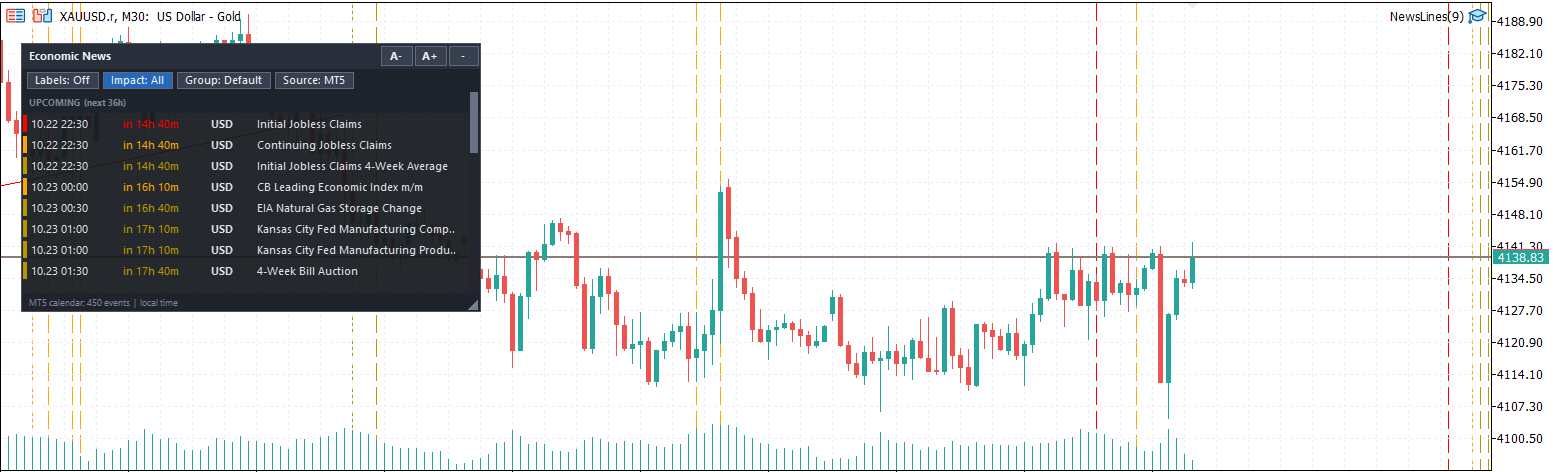
Key features
| Feature | Description |
|---|---|
| Colour-coded lines | Red = high impact, orange = medium impact, dark yellow = low impact (all colours adjustable) |
| Tooltips | Hover over a line to see time, currency, event title, forecast, previous and actual value. Events at the same minute share one line and one tooltip |
| History and future | Lines are drawn for the whole visible chart, including the empty area to the right of the last bar (scheduled events) |
| All timeframes | M1 to MN1, any symbol |
| Two news sources | MT5 built-in Economic Calendar or Forex Factory weekly JSON feed – switchable with one button |
| Event panel | Upcoming events (default next 36 h) and past events (default last 36 h), with countdown timers |
| Draggable and resizable | Drag by the header, resize from the bottom-right corner, collapse to a title bar, scroll with the wheel or the draggable scrollbar |
| Quick-filter buttons | Labels on/off, Impact High/All, Group cycle, Source switch, font size A− / A+ |
| Instrument groups | Gold & Silver, Forex Majors, Indices, Oil & Gas – each group has its own currency list and title keywords that you can edit |
| Click-to-focus | Click an event in the panel to show only that event on the chart, at every occurrence. One click on Reset restores everything |
| Optional labels | Rotated text labels next to the lines, hidden by default, toggled by a button. Labels sit behind the panel |
| Strategy Tester support | Works in visual mode with your own CSV history or a clearly-labelled sample schedule; actual values are hidden until release time (no look-ahead) |
| Remembers your settings | Panel position, size, font size and button states are kept between timeframe changes and restarts |
| No DLL | Does not use any DLL imports |
2. How it works
| Step | What happens |
|---|---|
| 1 | The EA loads events from the selected source (MT5 calendar or Forex Factory feed). |
| 2 | Events are filtered by impact level and by the active group (currencies + keywords). |
| 3 | Lines are created for the visible chart range plus one screen-width on each side, so scrolling stays filled. The range is recalculated shortly after you scroll or zoom. |
| 4 | The panel shows events within the configured window around the current server time. |
| 5 | The data is refreshed automatically (default every 15 minutes) so new forecast and actual values appear. |
If more than the maximum number of lines would be drawn (default 1000), the lowest-impact lines are dropped first.
3. News sources
| MT5 Economic Calendar | Forex Factory feed | |
|---|---|---|
| Provider | MetaQuotes calendar built into MetaTrader 5 | Free weekly JSON feed (FairEconomy mirror of the Forex Factory calendar) |
| History | Full history – lines go back as far as the chart does | Current week and next week only |
| Future | As far as the broker's calendar has events scheduled (usually several weeks) | Current week and next week |
| Actual values | Yes | Not provided by the feed |
| Setup | None | Add the web address to the WebRequest allowed list (see Section 4) |
| Tester | Not available in the tester (see Section 8) | Not available in the tester (see Section 8) |
| Notes | Requires a connected terminal; some brokers provide limited calendar data | The feed is a third-party service. The EA keeps a local copy and falls back to it if a download fails. Downloads are limited to once every 5 minutes at most |
Use the Source button in the panel to switch at any time. The panel and lines update immediately.
4. Installation and setup
- Copy the .ex5 file to MQL5\Experts (or install from the Market) and restart or refresh the Navigator.
- Drag News Lines onto a chart. Allow algorithmic trading is not required for display, but the EA must be allowed to run.
- Only for the Forex Factory source: open Tools → Options → Expert Advisors, tick Allow WebRequest for listed URL, and add the address https://nfs.faireconomy.media . Without this, the footer of the panel shows the reason for the failed download.
- Only one Expert Advisor can run per chart. If you already run a trading EA on a chart, attach News Lines to a second chart of the same symbol.
System requirements
| Item | Requirement |
|---|---|
| Platform | MetaTrader 5 (build with Economic Calendar support) |
| Account | Any (demo / real, hedging / netting) |
| Symbols / timeframes | All |
| Internet | Required for the calendar and for the Forex Factory feed |
| DLL imports | Not required |
| Trading permission | Not required |
5. The panel
Layout
| Area | Content |
|---|---|
| Header | Title, A− / A+ (font size), − / + (collapse / expand). Drag the header to move the panel |
| Toolbar | Labels, Impact, Group, Source buttons (and Reset while an event is focused). Wraps to a second row on narrow panels |
| List | UPCOMING section (soonest first) and PAST section (most recent first). Columns: date/time, countdown, currency, event title. With a wide panel, forecast / previous / actual are shown on the right |
| Footer | Status (source, event count, errors) and time zone. Drag the triangle in the bottom-right corner to resize |
The coloured bar at the left of each row shows the impact. Rows starting within 30 minutes are highlighted.
Buttons and mouse actions
| Control | Action |
|---|---|
| Labels: On / Off | Show or hide text labels on the chart (off by default) |
| Impact: High / All | High only (default), or also medium and low impact (subject to the Allow inputs) |
| Group: … | Cycles Default → Gold & Silver → Forex Majors → Indices → Oil & Gas |
| Source: MT5 / FF | Switches between the MT5 calendar and the Forex Factory feed |
| A− / A+ | Decrease / increase the panel font size |
| − / + | Collapse the panel to its header / expand it |
| Click an event row | Focus: only this event (same currency and title) is shown on the chart at every occurrence. Click the row again to clear |
| Reset | Clears the focus and restores the normal filters |
| Mouse wheel over the list | Scrolls the list |
| Scrollbar | Drag the thumb, or click the track to jump |
| Drag header | Moves the panel |
| Drag bottom-right corner | Resizes the panel |
While the mouse is over the panel, chart scrolling by mouse is paused so that the panel can be used without moving the chart.
Colours
| Colour | Impact |
|---|---|
| Red | High |
| Orange | Medium |
| Dark yellow | Low |
6. Instrument groups
A group is a filter made of a currency list and an optional keyword list. An event is shown if its currency is in the list and (the keyword list is empty or the event title contains at least one keyword; matching ignores upper/lower case). Events can belong to several groups.
| Group | Default currencies | Default keywords |
|---|---|---|
| Default | Set by Currency filter input (chart symbol currencies, all, or custom list) | – |
| Gold & Silver | USD | non-farm, payroll, employment, unemployment, jobless, cpi, inflation, pce, ppi, retail sales, gdp, fed, fomc, federal funds, interest rate, ism, powell, treasury |
| Forex Majors | USD, EUR, GBP, JPY, CHF, CAD, AUD, NZD | (empty = all events of these currencies) |
| Indices | USD, EUR, GBP, JPY | non-farm, payroll, employment, unemployment, cpi, ppi, gdp, retail sales, pmi, ism, fed, fomc, ecb, boe, boj, interest rate, rate decision, consumer confidence, ifo, zew, sentiment |
| Oil & Gas | USD, CAD | crude, oil, natural gas, eia, api, baker hughes, rig count, gasoline, distillate, cushing, refinery, opec, non-farm, fomc, fed, cpi, gdp |
All lists can be edited in the input settings, separated by commas.
7. Input parameters
News source
| Parameter | Default | Description |
|---|---|---|
| News source | MT5 built-in Economic Calendar | Source used at start-up (can be switched with the panel button) |
| FF feed: this week | feed address | Address of the current-week JSON feed |
| FF feed: next week | feed address | Address of the next-week JSON feed |
| Refresh interval (minutes) | 15 | How often data is refreshed. The Forex Factory feed is never downloaded more often than every 5 minutes |
Start-up state
| Parameter | Default | Description |
|---|---|---|
| Start group | Default | Group active at start-up |
| Start showing ALL impact levels | false | false = High only |
| Start with labels visible | false | Labels hidden by default |
| Ignore remembered state/position | false | Set to true to re-apply these inputs and the initial panel position/size |
The buttons are remembered between sessions. If you change one of the start-up inputs, the new value is applied at the next start.
Default group – currency filter
| Parameter | Default | Description |
|---|---|---|
| Currency filter | Currencies of the chart symbol | Chart symbol currencies / All currencies / Custom list |
| Custom currencies | USD,EUR,GBP,JPY | Used when Custom list is selected |
Impact levels allowed
| Parameter | Default | Description |
|---|---|---|
| Allow HIGH impact | true | Master switch for high-impact events |
| Allow MEDIUM impact | true | Shown only when the Impact button is set to All |
| Allow LOW impact | true | Shown only when the Impact button is set to All |
Group settings
| Parameter | Default | Description |
|---|---|---|
| Gold & Silver – currencies / keywords | see Section 6 | Edit to fine-tune |
| Forex Majors – currencies / keywords | see Section 6 | |
| Indices – currencies / keywords | see Section 6 | |
| Oil & Gas – currencies / keywords | see Section 6 |
Chart lines
| Parameter | Default | Description |
|---|---|---|
| Draw lines on chart | true | Master switch for lines |
| High / Medium / Low colour | Red / Orange / dark yellow | Line and label colours |
| Line style | Dash | Style of the vertical lines |
| Line width | 1 | Width of the lines |
| Label font size | 8 | Font size of the chart labels |
| Label max characters | 32 | Longer labels are shortened |
| Max lines drawn | 1000 | Lowest-impact lines are dropped first when exceeded |
| Limit history in days | 0 | 0 = as far as the chart goes |
| Lines selectable | false | Enable if tooltips do not appear in your build |
Panel
| Parameter | Default | Description |
|---|---|---|
| Show panel | true | Show or hide the event panel |
| Panel: hours back | 36 | Past window in the panel |
| Panel: hours ahead | 36 | Upcoming window in the panel |
| Panel time zone | Local PC time | Local time or broker server time. Chart lines always use server time |
| Initial X / Y | 20 / 40 | Initial position in pixels |
| Initial width / height | 460 / 400 | Initial size in pixels (minimum width 340) |
8. Strategy Tester
The calendar and web access are not available inside the Strategy Tester, so the EA uses its own tester data.
| Mode | Behaviour |
|---|---|
| Non-visual | The EA starts, prints one message to the journal and does nothing else. No lines, no panel, no errors |
| Visual | Full panel and lines using tester data (below) |
Tester data
| Priority | Data | Notes |
|---|---|---|
| 1 | File NewsLines_history.csv in the Common\Files folder (or MQL5\Files) | Your own history. Format below |
| 2 | Built-in sample schedule | Recurring pattern of typical events (payrolls, CPI, FOMC, ECB, crude inventories, jobless claims, ISM, sentiment). Titles end with "(sample)" and the footer states that this is not real data |
CSV format – one event per line, separated by semicolons, time in broker server time. Lines that do not start with a digit (headers, comments) are ignored.
2025.01.10 15:30;USD;High;Non-Farm Payrolls;160K;227K;143K 2025.01.14 15:30;USD;High;CPI m/m;0.3%;0.3%;0.4% 2025.01.15 10:00;EUR;Low;Sentiment Index
| Column | Content |
|---|---|
| 1 | Date and time yyyy.mm.dd hh:mm (server time) |
| 2 | Currency code |
| 3 | High , Medium or Low (or 3 / 2 / 1) |
| 4 | Event title |
| 5–7 | Forecast, previous, actual (optional) |
In the tester, actual values are hidden until the event time has passed, so the display does not reveal the future.
9. Frequently asked questions
| Question | Answer |
|---|---|
| Does it trade? | No. It only displays information. |
| Why can't I see lines to the right of the last bar? | Enable Chart Shift or scroll the chart to open empty space on the right. On higher timeframes the empty area covers more days. |
| The lines show no tooltip. | Set Lines selectable to true. |
| The footer says the Forex Factory download failed. | Add the feed address to Tools → Options → Expert Advisors → Allow WebRequest for listed URL. The footer text shows the exact error. |
| The MT5 calendar shows no data. | The terminal must be connected to the broker. Some brokers provide limited calendar data. |
| Labels are hidden behind candles. | Labels are drawn in the chart background so that the panel is always above them. |
| Can I use it together with a trading EA? | Only one EA can run per chart. Attach News Lines to a second chart of the same symbol. |
| Times look different from my local time. | Chart lines use broker server time. The panel can show local or server time (input Panel time zone). |
| How do I reset the panel position? | Set Ignore remembered state/position to true. |
10. Limitations
| Item | Detail |
|---|---|
| One EA per chart | MetaTrader restriction. |
| Forex Factory feed | Covers the current and next week only and contains no actual values. It is a third-party service whose availability the author cannot guarantee. |
| MT5 calendar | Depends on the data supplied by the broker's terminal connection. Values are shown as plain numbers without units. |
| Strategy Tester | Real historical news is only available through your own CSV file; otherwise the sample schedule is used. |
| High-DPI screens | Panel text is sized in pixels; use A− / A+ to adjust. |
11. Disclaimer
This product displays information from third-party sources and is provided as a visual aid. It does not provide trading signals or investment advice. Economic data may be delayed, incomplete or incorrect. Trading involves risk; you are responsible for your own decisions.
12. Version history
| Version | Changes |
|---|---|
| 1.30 | Strategy Tester support (CSV history / sample schedule), actual values hidden until release in the tester, quiet non-visual mode |
| 1.20 | Click-to-focus on an event and Reset button, source switch button, draggable scrollbar, instrument groups, font size buttons, label toggle, high-impact-only default |
| 1.00 | First release |
 Margin Call Radar
Read-only panel that shows the distance to margin call and stop out in money, percent of equity and points, plus adverse price and equity shock scenarios. Hedge-aware, does not trade.
HTF Candles (ICT Power of Three) - higher timeframe candles next to your chart
Draws the last candles of one or two higher timeframes (auto: M15 -> H4 + D1, H1 -> D1 + W1) next to your chart at real prices, with a countdown, lines to the live candle's open, high and low, alerts and EA buffers.
 AttachExpert: attach an EA with inputs to a chart from code
AttachExpert.mqh attaches an Expert Advisor to a chart from MQL5 code, with the inputs you choose and with "Allow Algo Trading" on or off.
FxCraft Example EA – MA Cross
Educational Expert Advisor: moving average crossover with clean, commented MQL5 code – margin, volume, stop level and spread checks, order retries. Demo accounts and Strategy Tester only.