
True Signal FX
- Indicatori
-
Andrey Kozak
 Laboratory of Automatic Systems (LAS) - more than 10 years, we have been developing, testing and programming automatic trading robots for the forex market.
 - Versione: 1.0
- Attivazioni: 20
For MetaTrader5 you can download it from the link https://www.mql5.com/en/market/product/187668
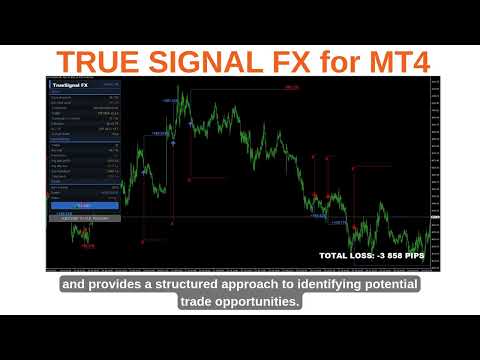
True Signal FX is a multi-timeframe trading indicator for MetaTrader 4 designed to provide a complete trading setup directly on the chart.
Instead of displaying a single directional signal, the indicator combines market analysis, signal confirmation and trade level calculation in one workspace. When a setup is detected, the trader can see the direction, Entry, Stop Loss and Take Profit levels together with the current signal score and market information.
The indicator is designed for traders who want to structure the decision-making process around predefined trading setups rather than manually comparing multiple indicators and calculating trade levels for every potential position.
True Signal FX does not execute trades. It provides analytical setups and leaves the final trading decision and order execution to the trader.
How True Signal FX works
The indicator analyzes the market on several selected timeframes and calculates a combined BUY and SELL score.
The default configuration uses M5, M15, M30, H1 and H4. Up to five analysis timeframes can be configured independently.
A separate Trigger Timeframe is used to determine when the conditions for a new setup are activated. The default Trigger Timeframe is M1.
The signal engine uses several technical market components, including Moving Average, RSI, MACD, Stochastic, CCI, ADX, Bollinger Bands, Momentum, Parabolic SAR and Williams %R.
These components are evaluated across the selected timeframes and contribute to the internal market assessment. The exact formula, weighting and sequence of the proprietary signal algorithm are not disclosed.
The result is presented to the trader as a BUY or SELL setup together with the calculated trade levels.
Trading setup
When a BUY setup is generated, the chart displays the Entry level together with the calculated Stop Loss and Take Profit.
When a SELL setup is generated, the corresponding Entry, Stop Loss and Take Profit levels are displayed for the downward scenario.
The levels are calculated automatically according to the selected SL/TP mode.
This means that the trader does not need to manually calculate the distance between Entry, Stop Loss and Take Profit for every signal.
The setup can therefore be evaluated as a complete trading scenario:
Direction → Entry → Stop Loss → Take Profit.
The levels are displayed on the chart when InpShowLevels is enabled.
Multi-timeframe analysis
True Signal FX supports up to five independent analysis timeframes.
The default configuration is M5/M15/M30/H1/H4.
InpTF1, InpTF2, InpTF3, InpTF4 and InpTF5 define the timeframes used by the signal engine. Each timeframe can be changed independently.
The selected timeframes determine the market context used in the calculation. Changing them can therefore change both the BUY/SELL score and the frequency of generated setups.
InpTriggerTF defines the separate timeframe used by the trigger mechanism. Its default value is M1.
The combination of multiple analysis timeframes and a separate trigger timeframe allows the indicator to distinguish between the broader market context and the shorter-term conditions used for setup activation.
Signal score
The indicator displays separate BUY and SELL scores in the information panel.
InpMinScore defines the minimum score required for signal activation. The default value is 30.
Increasing InpMinScore makes the score requirement more restrictive. Decreasing it allows setups with a lower calculated score.
The score should be interpreted together with the selected timeframes and trigger settings. Changing the configuration can change the number and timing of detected setups.
Trigger settings
The trigger calculation uses a Stochastic-based mechanism on the selected Trigger Timeframe.
InpTrigK defines the K period of the trigger Stochastic. Default: 5.
InpTrigD defines the D period. Default: 3.
InpTrigSlow defines the slowing parameter. Default: 3.
InpOverbought defines the upper trigger level. Default: 80.
InpOversold defines the lower trigger level. Default: 20.
These parameters control the sensitivity and activation area of the trigger component. They can be adjusted when a different signal frequency or trigger sensitivity is required.
For the initial setup, using the default values is recommended.
Stop Loss and Take Profit
True Signal FX provides two methods for calculating Stop Loss and Take Profit: ATR-based and fixed-distance calculation.
InpSLTPMode selects the calculation method.
ATR mode
In ATR mode, the distance of the calculated levels is based on current market volatility.
InpATRPeriod defines the ATR calculation period. Default: 14.
InpATRSLx defines the ATR multiplier used for Stop Loss. Default: 6.0.
InpATRTPx defines the ATR multiplier used for Take Profit. Default: 4.0.
Increasing InpATRSLx moves the calculated Stop Loss farther from Entry. Increasing InpATRTPx moves the calculated Take Profit farther from Entry.
ATR mode allows the calculated distances to change according to the current volatility of the instrument.
Fixed Pips mode
Fixed-distance mode uses predefined distances.
InpSLPips defines the Stop Loss distance. Default: 300.
InpTPPips defines the Take Profit distance. Default: 250.
This mode can be used when a fixed SL/TP structure is preferred.
InpCostPips defines the estimated trading cost used in the historical result calculation. Default: 1.5.
This parameter affects the displayed historical statistics and does not change the actual spread or commission charged by the broker.
Auto-Tune
True Signal FX includes an Auto-Tune function that can automatically test different indicator configurations using historical market data.
The purpose of Auto-Tune is to reduce the amount of manual parameter searching required when working with different symbols or configurations.
Depending on the selected options, Auto-Tune can modify the signal threshold, trigger settings, technical indicator parameters, analysis timeframes and SL/TP parameters.
InpTuneTimeframes enables automatic modification of the analysis timeframes.
InpTuneSLTP enables automatic modification of the Stop Loss and Take Profit parameters.
InpTuneAttempts defines the maximum number of configurations tested during the tuning procedure. Default: 10.
InpTuneMinTrades defines the minimum number of historical setups required by the tuning procedure. Default: 3.
InpShowButton controls the visibility of the AUTO-TUNE button.
InpLogPreset enables writing the generated preset information to the MetaTrader log.
After Auto-Tune is completed, the resulting configuration is used by the indicator and the current preset is shown in the information panel.
Auto-Tune is based on historical data. A configuration that produces favorable historical statistics does not guarantee the same behavior under future market conditions.
Historical calculation
True Signal FX performs a historical calculation using the selected configuration.
For historical setups, the indicator calculates Entry, Stop Loss and Take Profit and then evaluates the subsequent price movement according to the selected setup parameters.
The historical calculation is used to generate statistics shown in the PERFORMANCE section.
InpMaxBars defines the maximum number of historical bars processed by the indicator. Default: 3000.
InpMaxTradeBars defines the maximum number of bars for which a historical setup remains active. A value of 0 disables this limitation.
The amount of historical data affects the number of calculated setups and the resulting statistics.
Performance statistics
The PERFORMANCE section provides a compact overview of the calculated historical setups.
Trades shows the number of calculated setups.
Win Rate shows the percentage of setups that finished with a non-negative calculated result.
Profit Factor represents the relationship between gross positive and gross negative results.
Avg Take Profit shows the average result of positive setups.
Avg Stop Loss shows the average result of negative setups.
Avg Drawdown shows the average adverse movement recorded during the calculated setups.
Total Result shows the accumulated result in pips.
These values are intended for evaluating and comparing configurations on historical data. They should not be interpreted as a forecast of future trading results.
Information panel
The information panel is divided into SETUP, PERFORMANCE and ENGINE sections.
SETUP shows the current score threshold, BUY/SELL scores, selected timeframes, Trigger parameters, overbought/oversold levels, the number of active analytical components and the selected SL/TP mode.
PERFORMANCE displays the historical calculation statistics.
ENGINE displays the number of processed bars, the current preset and the current calculation status.
The panel allows the trader to monitor the main information without opening multiple additional indicator windows.
Technical indicator parameters
The following parameters control the individual technical components used by the signal engine.
InpMAFast defines the fast Moving Average period. Default: 14.
InpMASlow defines the slow Moving Average period. Default: 50.
InpMAMethod selects the Moving Average method. Default: EMA.
InpRSIPeriod defines the RSI period. Default: 14.
InpMACDFast, InpMACDSlow and InpMACDSignal define the fast, slow and signal periods of MACD. Defaults: 12, 26 and 9.
InpStochK, InpStochD and InpStochSlow define the main Stochastic parameters. Defaults: 14, 3 and 3.
InpCCIPeriod defines the CCI period. Default: 14.
InpADXPeriod defines the ADX period. Default: 14.
InpBBPeriod defines the Bollinger Bands period. Default: 20.
InpBBDeviation defines the Bollinger Bands deviation. Default: 2.0.
InpMomPeriod defines the Momentum period. Default: 14.
InpSARStep defines the Parabolic SAR step. Default: 0.02.
InpSARMaximum defines the Parabolic SAR maximum acceleration factor. Default: 0.20.
InpWPRPeriod defines the Williams %R period. Default: 14.
These parameters affect the individual technical calculations used by the signal engine. Changing them can change the resulting BUY/SELL scores and the frequency of generated setups.
The internal weighting and final decision formula remain proprietary.
Display and chart settings
InpShowPanel enables or disables the information panel.
InpShowTotal controls the display of the total calculated result.
InpUIScale controls interface scaling. A value of 0 enables automatic DPI-based scaling.
InpPanelX and InpPanelY define the panel position, while InpPanelW controls its width.
InpFontSize, InpFontName and InpFontBold control the panel font.
InpShowLevels displays the Entry, Stop Loss and Take Profit levels on the chart.
InpShowProfit displays historical setup results.
InpLots defines the lot size used only when converting the calculated pip result into a monetary representation. It does not open or manage orders.
InpArrowATRx defines the distance between the signal arrow and the price using an ATR multiplier.
InpBuyColor and InpSellColor define the colors of BUY and SELL signals.
The remaining panel color parameters control the visual appearance of the interface and do not affect signal calculation.
Alerts and diagnostics
InpAlerts enables alerts when a new signal is generated. Default: false.
InpDebug enables additional diagnostic information in the MetaTrader log. Default: false.
For normal use, InpDebug can remain disabled.
Recommended initial setup
True Signal FX is supplied with a complete default configuration.
For the first installation, it is recommended to keep the default timeframes and indicator parameters unchanged and allow the indicator to complete its historical calculation.
After loading, check the SETUP, PERFORMANCE and ENGINE sections.
If the default configuration is not suitable for the selected instrument or trading approach, Auto-Tune can be used to test alternative configurations.
When manually adjusting the indicator, it is preferable to change one logical group of parameters at a time. This makes it easier to understand how a particular change affects the generated setups and historical statistics.
The most important groups for manual configuration are the analysis timeframes, Trigger settings, signal threshold and SL/TP calculation.
How to use True Signal FX
- Attach True Signal FX to the required MetaTrader 4 chart.
- Allow the indicator to load the available historical data.
- Check the active timeframes, BUY/SELL scores and current indicator status.
- If required, run AUTO-TUNE and wait until the tuning process is completed.
- When a BUY or SELL setup appears, check the displayed Entry, Stop Loss and Take Profit.
- Evaluate the setup according to your own trading plan, risk management and current market conditions.
- If you decide to trade the setup, execute the order manually using your broker's normal trading interface.
The indicator does not send, modify or close trading orders.
Who can use the indicator
True Signal FX can be used by traders who want a structured way to evaluate potential market setups.
For a beginner, the main advantage is that the essential elements of a potential trade are presented together: direction, Entry, Stop Loss and Take Profit.
For an experienced trader, the indicator can be used as an additional analytical tool for multi-timeframe market assessment and setup filtering.
For traders who regularly work with different instruments, Auto-Tune provides a way to test alternative configurations without manually changing every parameter one by one.
What makes the workflow different
A conventional chart setup may require the trader to open several indicators, compare their readings, determine whether they agree, calculate an entry level and then separately determine Stop Loss and Take Profit.
True Signal FX brings these stages into one analytical workflow.
The trader can see the market assessment, signal direction and calculated trade levels in the same chart environment, while the PERFORMANCE section provides additional historical information about the selected configuration.
The indicator therefore focuses not only on signal generation, but on presenting a complete and clearly defined trading scenario.






















































L'utente non ha lasciato alcun commento sulla valutazione.