Auto Line Trader Spider Pro
- Utilità
- Versione: 1.0
- Attivazioni: 20

Main Features
- Auto Entry & Exit
Automatically enters and closes positions when price reaches a trendline or horizontal line you draw.
Note: Your PC and MT5 must remain running. - Quick & Easy Setup
Configure everything via on-chart input fields and buttons. - Advanced Entry Controls
Includes trigger lines to refine entry conditions, invalidation lines to block unwanted entries, trailing stops, entry-time restrictions, and time-specified exits.
How to Set Up Lines
Draw your desired entry, exit, trigger, or invalidation line directly on the chart. Then use the on-chart inputs to assign each line’s role.
Function Descriptions
1. Entry Line
Automatically enters a position when price breaks above or below the specified entry line.
2. Re-Entry Settings
- After closing a position, choose whether to allow re-entries on winning trades and on losing trades separately.
- If disabled, the entry line becomes inactive after a close.
Tip: Use the “Reset State” button at the top of the chart to reactivate. - Manual closes via the MT5 terminal do not trigger the “disabled” state.
3. Trigger Line
Add an extra condition: the trigger line must be broken before the entry line becomes active. Ideal for waiting for a pullback after hitting a trend support/resistance.
Example: Only enter long if price first breaks below the yellow trigger line, then breaks above the pink entry line.
4. Exit Line
- Automatically closes the position when price breaks above or below the specified exit line.
- You can set up to two exit lines—one for stop-loss, one for take-profit.
5. Invalidation Line
If price reaches the invalidation line, the entry line is deactivated and no new entries occur. Useful when you expect an uptrend to continue, but want to block longs if a significant break lower suggests a downtrend.
6. Take Profit & Stop Loss Settings
- Specify take-profit and stop-loss values in pips. These orders attach directly to the position, so they remain effective even if MT5 shuts down or disconnects.
- Unlike exit lines, these built-in TP/SL orders work independently of the tool’s operation.
7. Trailing Stop Settings
Enter your desired trailing stop distance and step. Leave blank to disable.
8. Break-Even Settings
Enter the break-even trigger distance in pips. Leave blank to disable.
9. Other Filters
• Spread Filter
Limit the maximum spread (in pips) allowed at entry. The tool will not enter if the spread exceeds this value. This filter only applies at entry, not at exit.
• Entry Time Window
Specify start and end times (HH:MM, 24-hour format) during which entries are allowed. Required field. To allow trading anytime, set from 00:00 to 23:59 .
• Position Close Time
Specify a time (HH:MM) at which all open positions will be closed. Leave blank to disable.
• Chart ID
When running on multiple charts, assign each chart a unique numeric ID. The tool adds this ID to the magic number—without unique IDs, settings like trailing stop and close-time will overlap across charts.
• Reset State Button
If the tool becomes disabled after an invalidation-line hit and you have no further re-entries allowed, press “Reset State” to re-enable entries.
• Instant Buy/Sell Buttons
Manually enter immediately, rather than waiting for a line break. A confirmation popup prevents accidental clicks.
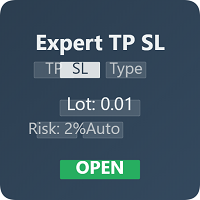
• Lot Size
Specify the lot size for each entry.
Notes & Cautions
- The system only works while MT5 is running and the tool is active on the chart. It will not function if MT5 is closed, the indicator is removed, or price data is unavailable.
- If you use MT5’s standard Buy/Sell buttons, none of this tool’s TP/SL, trailing stop, break-even, or close-time settings will apply, because the magic number is not set. Only entries made via this tool’s instant buy/sell buttons will include those features.
- Supported line types: trendlines and horizontal lines only.