Tick Data HTTP Exporter NZDUSD
- Utilitaires
- Version: 2.0
- Mise à jour: 11 octobre 2026

Tick Data HTTP Exporter NZDUSD
This free version exports NZDUSD only; the full version, Tick Data HTTP Exporter, exports any symbol.
Description
The EA turns your terminal into a historical/realtime tick data provider for your application.
There are many market data providers on the internet, but in practice, the data provided is not always of good quality. Moreover, these services are often more expensive and typically require monthly subscription fees per each symbol.
With this EA, you can feed your application with exactly the same tick data that you see in the terminal, the same data on which you base your trades and market analysis.
Together with the Candle Data HTTP Exporter, which provides rates data (OHLC, candles), a complete data set necessary for market analysis is offered.
Capabilities
- Enables the transmission of tick data to a pre-configured external HTTP URL.
- Guarantees the delivery of every tick, with the capability to resume from the last sent tick in case of disruptions.
- Offers two storage options for tick timestamp offsets:
- Local files (default, managed automatically)
- HTTP endpoint (for integration with applications)
- Ensures reliable delivery of ticks, with retry mechanisms for HTTP request failures.
- Allows for data transfer with configurable batching.
Configuration
| Input | Description | Default |
|---|---|---|
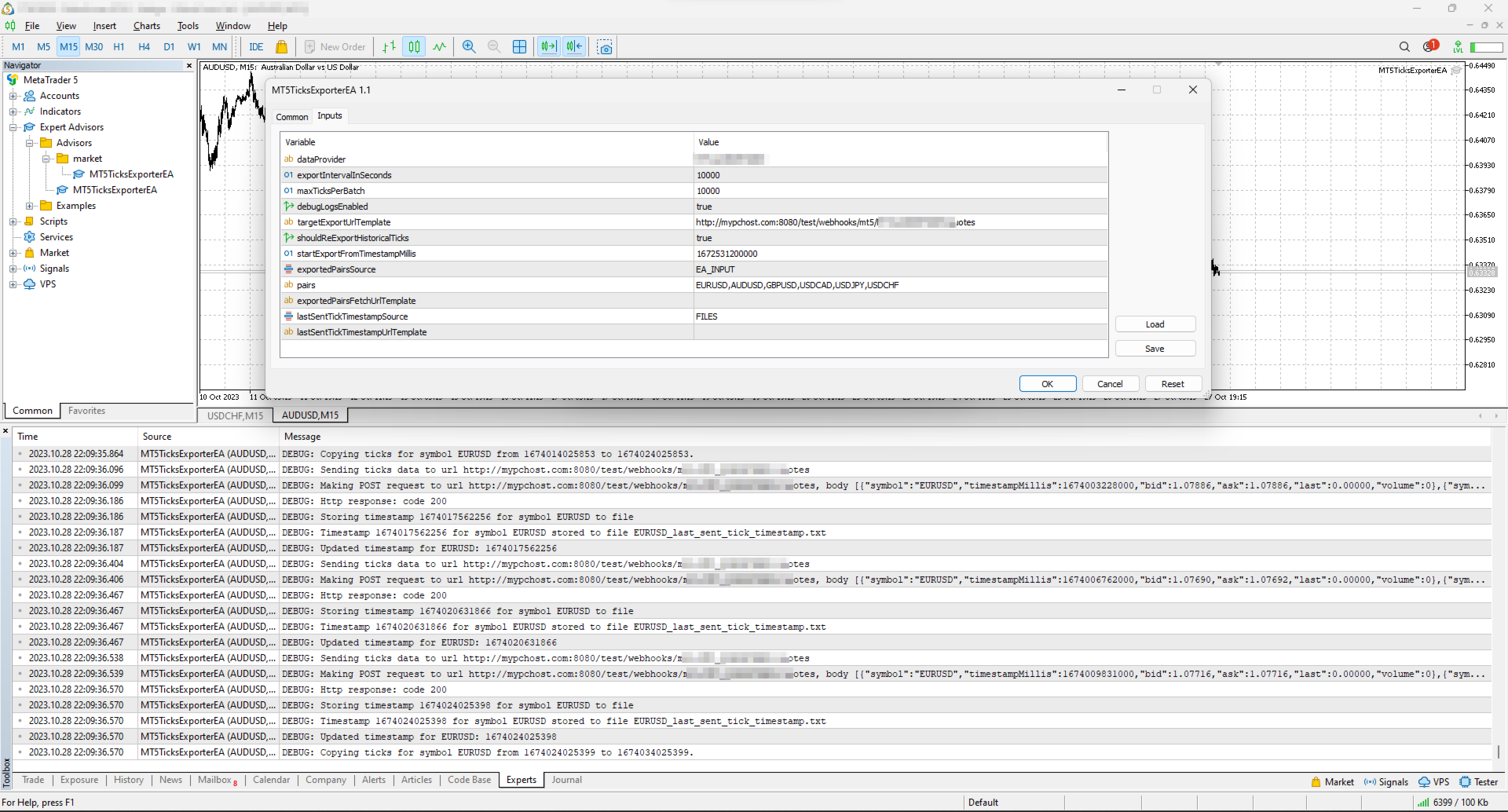
| dataProvider | Specifies the name of the data provider. This name can then be used in URL templates as {dataProvider}. | - |
| tickQueryingIntervalDurationSeconds | Interval for querying ticks from the broker, in seconds. | 10000 seconds |
| maxTicksPerBatch | Maximum number of ticks that can be sent in a single batch. | 10000 ticks |
| debugLogsEnabled | Whether to enable debug logs. | false |
| dataSendingIntervalMilliseconds | Period for querying ticks and sending them to an external URL. | 10000 milliseconds |
| targetExportUrlTemplate | URL template for the endpoint where the tick data will be sent. Supported placeholders: dataProvider. | - |
| shouldReExportHistoricalTicks | Option to re-export ticks starting from a specific value, as specified in the startExportFromTimestampMillis input. | false |
| startExportFromTimestampMillis | If shouldReExportHistoricalTicks is set to true, ticks will be sent starting from the timestamp specified in milliseconds (on the server clock, the time the terminal shows). | 1672531200000 (2023-01-01 00:00:00) |
| exportedSymbolsSource | Not available in this version: it always exports NZDUSD. Source for the symbols for which ticks will be exported. Options are: 'HTTP_ENDPOINT' or 'EA_INPUT'. | EA_INPUT |
| symbols | Not available in this version: it always exports NZDUSD. In cases where exportedSymbolsSource is set to 'EA_INPUT', this setting specifies for which symbols ticks will be exported. | EURUSD,AUDUSD,GBPUSD,USDCAD,USDJPY,USDCHF |
| exportedSymbolsFetchUrlTemplate | Not available in this version: it always exports NZDUSD. URL template to fetch the symbols. Used in case exportedSymbolsSource='HTTP_ENDPOINT'. Supported placeholders: dataProvider. | - |
| lastSentTickTimestampSource | Source for the timestamp of the last sent tick. Options are: 'HTTP_ENDPOINT' or 'FILES'. | FILES |
| lastSentTickTimestampUrlTemplate | URL template to fetch/store the timestamp of the last sent tick. Used in case lastSentTickTimestampSource='HTTP_ENDPOINT'. Supported placeholders: dataProvider, symbol. | - |
| serverTimeZoneMode | The server clock, used to convert tick times to UTC. AUTO (default) detects the server clock; or choose it explicitly: US_DST (New York close), EU_DST (Eastern European), NO_DST, MANUAL (manualServerGmtOffsetMinutes) — an explicit choice gives exact timestamps for the whole history. | AUTO |
| manualServerGmtOffsetMinutes | Server offset from GMT in minutes, used with MANUAL. | 120 |
EA Workflow Description
Upon initialization, the Expert Advisor (EA) performs the following operations:
-
Reset Offset Check: The EA checks the shouldReExportHistoricalTicks variable to determine if there's a need to export historical tick data from a specific timestamp. If a re-export is required, it:
- Establishes the startExportFromTimestampMillis value as the new timestamp offset.
- Saves this offset securely, either locally in a file or by sending it to a designated HTTP endpoint, based on the configuration set by lastSentTickTimestampSource.
-
Periodic Tick Data Harvesting and Sending: The EA is programmed with a timer set to activate at intervals defined by dataSendingIntervalMilliseconds. Upon each activation, the EA:
- Requests tick data from the broker, starting from the last stored offset (the most recent tick timestamp) to the present moment.
- Converts the acquired tick data into JSON and sends it to the predefined URL derived from the targetExportUrlTemplate input.
By executing these steps, the EA ensures a continuous and automated stream of the most recent tick data for external use, keeping your application or analysis tools supplied with up-to-the-minute market information.
Usage
Below are the minimum actions required for the EA to start exporting ticks to your configured URL:
-
Implement an HTTP endpoint that handles a POST request on a URL derived from the targetExportUrlTemplate. This endpoint should:
- Accept tick data with the JSON structure described below.
- Respond with a 200 status code if the reception is successful.
-
Allow the terminal to send data to your server: open Tools > Options > Expert Advisors, tick the box "Allow WebRequest for listed URL" and add your server address, e.g. https://data.example.com.
- If you are testing locally on localhost, create a hostname in 'C:\Windows\System32\drivers\etc\hosts' on Windows or '/etc/hosts' on Linux-based systems. Use this hostname in the targetExportUrlTemplate.
-
Attach the EA to any chart in the terminal and configure the following inputs:
- dataProvider and targetExportUrlTemplate: required; the EA does not start without them.
- startExportFromTimestampMillis: set the timestamp from which you need to get ticks.
- shouldReExportHistoricalTicks: this must be set to true on the first run so that the EA creates all necessary files for tracking the last sent tick timestamp. After the first run set it back to false, otherwise every restart sends everything again from startExportFromTimestampMillis.
Note: the EA does not work in the Strategy Tester, because the tester blocks sending data over the internet.
Offset Management
The EA maintains the timestamp (offset) of the last successfully sent tick in order to continue the export process in the event of disruptions or a terminal restart.
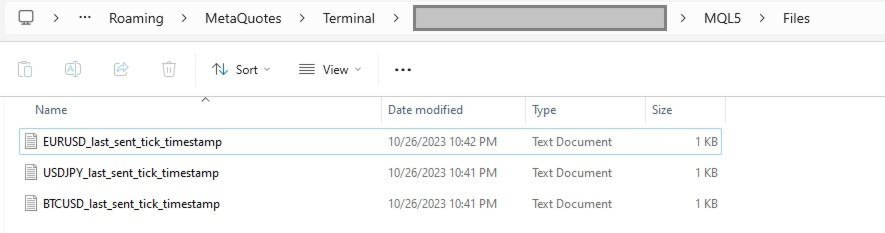
By default, timestamps are stored in files that are automatically created in the terminal's MQL5\Files folder. There is a separate file for each symbol.
Additionally, there is an option to use separate HTTP endpoints for reading/storing the offset instead of files.
To use this feature, set lastSentTickTimestampSource to 'HTTP_ENDPOINT' and implement HTTP endpoints based on the URL defined in lastSentTickTimestampUrlTemplate.
As a backend solution, you can choose to store offsets in a database (such as PostgreSQL). If you need to re-export ticks for a specific symbol, you would only need to update the timestamp values in the database table.
What the offset is. The offset is the time of the last delivered tick, in milliseconds since 1970-01-01 on the broker's server clock (the time the terminal shows), not UTC. If you keep offsets on your server, return exactly the number the EA posted.
EA External Management
If you set lastSentTickTimestampSource to 'HTTP_ENDPOINT', you can start a re-export without any actions in the terminal.
REST API Specification for Application Integration
| HTTP Endpoint | Description | Method | Request | Response |
|---|---|---|---|---|
| targetExportUrlTemplate | URL for sending tick data. timestampMillis is the tick time in UTC. | POST | Headers: Content-Type: application/json Body [
{
"symbol": "NZDUSD",
"bid": 0.61200,
"ask": 0.61215,
"last": 0.61210,
"volume": 1234.56,
"timestampMillis": 1625135912000
},
...
] | Response Code 200 in case ticks are obtained successfully |
| exportedSymbolsFetchUrlTemplate | Not available in this version: it always exports NZDUSD. The URL is used to retrieve the list of symbols that the EA will export to the URL derived from 'targetExportUrlTemplate'. | GET | Headers: Content-Type: text/plain Body (comma separated list of symbols) EURUSD,GBPUSD,AUDUSD,BTCUSD | |
| lastSentTickTimestampUrlTemplate | The URL is utilized to fetch the specific timestamp from which the export process should begin. The body is the offset exactly as the EA posted it. | GET | Headers: Content-Type: text/plain Body 1625135912000 | |
| lastSentTickTimestampUrlTemplate | The URL is used to store the timestamp of the last successful POST request made to the URL derived from 'targetExportUrlTemplate'. The body is the offset. | POST | Headers: Content-Type: text/plain Body 1625135912000 |
IMPORTANT: Before using this EA, please verify that your broker supports exporting historical tick data. Availability and depth of tick data vary across brokers.
Tags: ticks, tick, quotes, quote, stream, streaming, export, exporting, webhook, webhooks, integration, http, rest, forex, crypto, data, historical, realtime, rest api, provider, data feed