Goku Candle Timer
- Indicateurs
- Version: 2.50
- Mise à jour: 22 juillet 2026
- Activations: 20

𝗚𝗢𝗞𝗨 𝗖𝗔𝗡𝗗𝗟𝗘 𝗧𝗜𝗠𝗘𝗥 - 𝗣𝗔𝗡𝗘𝗟 𝗗𝗘 𝗖𝗨𝗘𝗡𝗧𝗔 𝗥𝗘𝗚𝗥𝗘𝗦𝗜𝗩𝗔 𝗣𝗔𝗥𝗔 𝗘𝗟 𝗖𝗜𝗘𝗥𝗥𝗘 𝗗𝗘 𝗩𝗘𝗟𝗔𝗦
𝗤𝘂𝗲́ 𝗲𝘀:
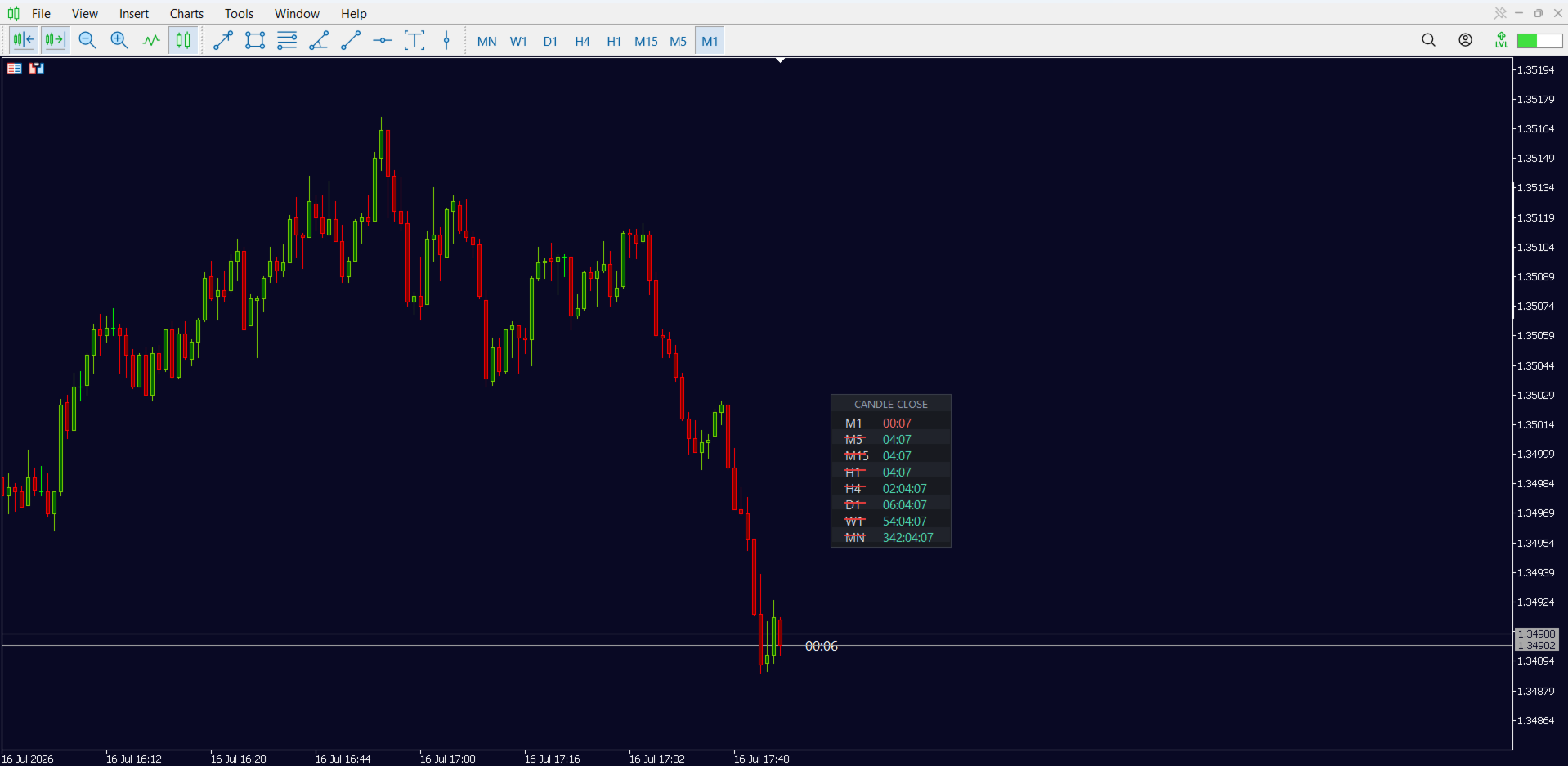
Un panel visual que muestra, en tiempo real, cuánto falta para que cada vela se cierre — en varios períodos al mismo tiempo, directo en tu gráfico. No más cálculos mentales ni cambios de temporalidad solo para saber cuándo se cierra la vela actual.
𝗙𝘂𝗻𝗰𝗶𝗼𝗻𝗲𝘀 𝗽𝗿𝗶𝗻𝗰𝗶𝗽𝗮𝗹𝗲𝘀
𝗖𝘂𝗲𝗻𝘁𝗮 𝗿𝗲𝗴𝗿𝗲𝘀𝗶𝘃𝗮 𝗺𝘂𝗹𝘁𝗶-𝗽𝗲𝗿𝗶́𝗼𝗱𝗼
Muestra el tiempo que falta para el cierre en hasta 21 períodos diferentes al mismo tiempo — desde M1 (1 minuto) hasta MN1 (mensual), incluyendo M2, M3, M4, M5, M6, M10, M12, M15, M20, M30, H1, H2, H3, H4, H6, H8, H12, D1 y W1. Tú eliges cuáles quieres mostrar, uno por uno.
𝗔𝗹𝗮𝗿𝗺𝗮 𝗽𝗮𝗿𝗮 𝗰𝗮𝗱𝗮 𝗽𝗲𝗿𝗶́𝗼𝗱𝗼
Cada período puede tener su propia alarma, activada o desactivada de forma independiente. Por ejemplo: alarma activada solo en M5 y H1, y desactivada en todos los demás — sin necesidad de abrir ningún menú. Solo haz clic directamente sobre el nombre del período dentro del panel: aparece una línea roja tachando el texto cuando la alarma de ese período está apagada, y desaparece cuando está encendida. Simple, visual, y la configuración se guarda automáticamente (se mantiene guardada incluso después de reiniciar la computadora).
𝗛𝗼𝗿𝗮𝗿𝗶𝗼 𝘆 𝗮𝘃𝗶𝘀𝗼 𝗱𝗲 𝗹𝗮 𝗮𝗹𝗮𝗿𝗺𝗮
Cuando la alarma se activa, tú eliges con cuántos segundos de anticipación avisa, y cómo avisa — puede ser con sonido (elige de una lista lista, o usa tu propio sonido personalizado), un aviso en pantalla (pop-up) y/o una notificación push en tu celular.
𝗣𝗮𝗻𝗲𝗹 𝟭𝟬𝟬% 𝗽𝗲𝗿𝘀𝗼𝗻𝗮𝗹𝗶𝘇𝗮𝗯𝗹𝗲
Posición en la pantalla: elige la esquina de anclaje y las coordenadas X/Y exactas.
Arrástralo con el mouse para moverlo donde quieras, en cualquier momento — el indicador recuerda la posición elegida, incluso después de cerrar y abrir MetaTrader de nuevo.
Tamaño: ancho del panel, altura de cada línea y altura del encabezado, todo ajustable.
Colores: fondo del panel, fondo de las líneas, borde, título, texto, color de la cuenta regresiva, color de aviso (cuando está por cerrar) y color de la marca de "alarma apagada" — cada uno se puede configurar por separado.
Fuente: elige entre varias fuentes listas en una lista (Segoe UI, Arial, Tahoma, Verdana, Calibri, Consolas, Courier New).
𝗥𝗲𝗹𝗼𝗷 𝗱𝗲𝗹 𝗽𝗿𝗲𝗰𝗶𝗼 𝗮𝗰𝘁𝘂𝗮𝗹
Un mini contador extra, separado del panel principal, que se mantiene justo en la línea del precio actual — sube y baja junto con él, en tiempo real, sin trabarse ni atrasarse aunque desplaces o hagas zoom en el gráfico. Siempre muestra la cuenta regresiva del período que está activo en el gráfico, y cambia solo cuando cambias de temporalidad. Tú controlas el color, el tamaño de la letra y la distancia respecto al precio.
𝗕𝗼𝘁𝗼́𝗻 𝗱𝗲 𝗺𝗼𝘀𝘁𝗿𝗮𝗿/𝗼𝗰𝘂𝗹𝘁𝗮𝗿
De forma opcional, activa un botón en pantalla que abre y cierra todo el panel con un clic — útil si usas varios indicadores y quieres liberar espacio en el gráfico cuando no lo estés usando. El botón también es totalmente personalizable: posición, tamaño, color de fondo, color de borde y color del texto.
𝗟𝗶𝘃𝗶𝗮𝗻𝗼 𝘆 𝗼𝗽𝘁𝗶𝗺𝗶𝘇𝗮𝗱𝗼
Hecho pensando en el rendimiento: el indicador solo actualiza la pantalla cuando algo realmente cambia (evitando redibujados innecesarios), reacciona al instante cuando cambias de temporalidad en el gráfico, y tiene un sistema de recuperación automática por si algún elemento visual desaparece por un momento — todo esto sin sobrecargar la memoria ni trabar la terminal, incluso en mercados con muchos movimientos por segundo.
██████████████████████████████████████████
𝗚𝗢𝗞𝗨 𝗖𝗔𝗡𝗗𝗟𝗘 𝗧𝗜𝗠𝗘𝗥 - 𝗖𝗢𝗡𝗙𝗜𝗚𝗨𝗥𝗔𝗖𝗜𝗢𝗡
██████████████████████████████████████████
██████████████████████████████████████████
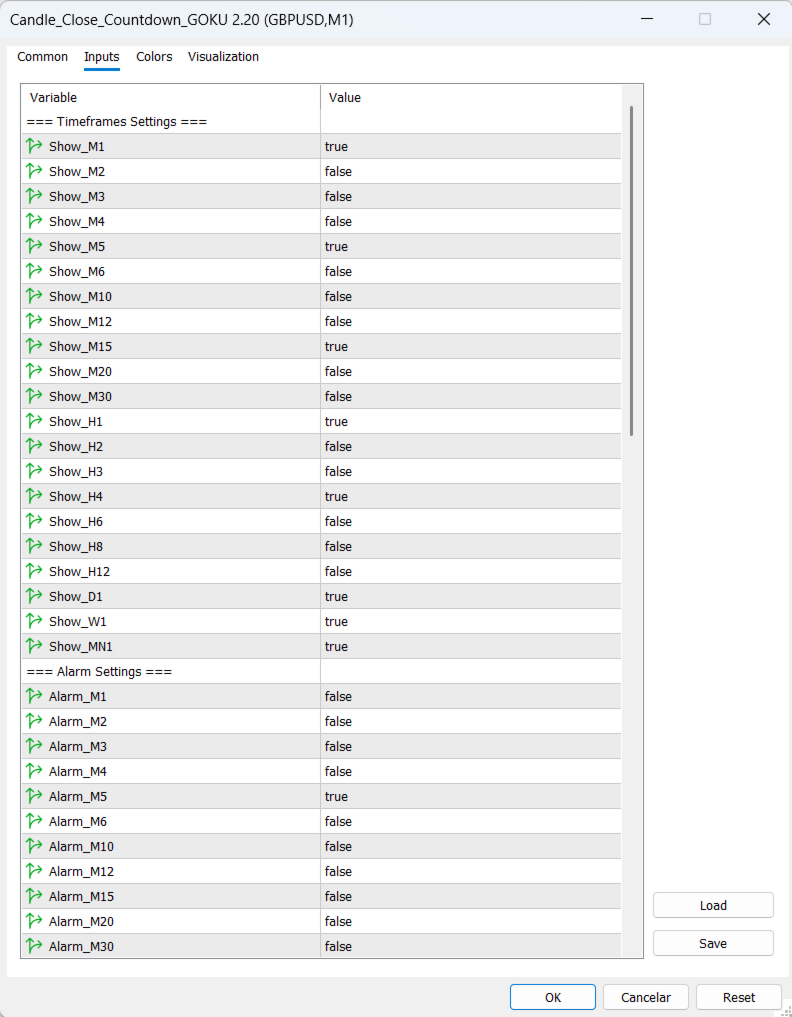
𝗧𝗜𝗠𝗘𝗙𝗥𝗔𝗠𝗘𝗦 𝗦𝗘𝗧𝗧𝗜𝗡𝗚𝗦
██████████████████████████████████████████
𝗦𝗵𝗼𝘄_𝗠𝟭 𝗮 𝗦𝗵𝗼𝘄_𝗠𝗡𝟭
Elige qué períodos de tiempo (velas) aparecen en la lista del panel. Por ejemplo, si activas Show_M5, aparece una línea con la cuenta regresiva del gráfico de 5 minutos en el panel. Si lo desactivas, esa línea simplemente no aparece — así solo ves los períodos que realmente usas.
██████████████████████████████████████████
𝗔𝗟𝗔𝗥𝗠 𝗦𝗘𝗧𝗧𝗜𝗡𝗚𝗦
██████████████████████████████████████████
𝗔𝗹𝗮𝗿𝗺_𝗠𝟭 𝗮 𝗔𝗹𝗮𝗿𝗺_𝗠𝗡𝟭
Activa o desactiva la alarma para ese período en concreto. Cada período tiene su propio interruptor — por ejemplo, puedes querer que te avise solo cuando se cierre la vela de 5 minutos, y dejar todos los demás períodos en silencio.
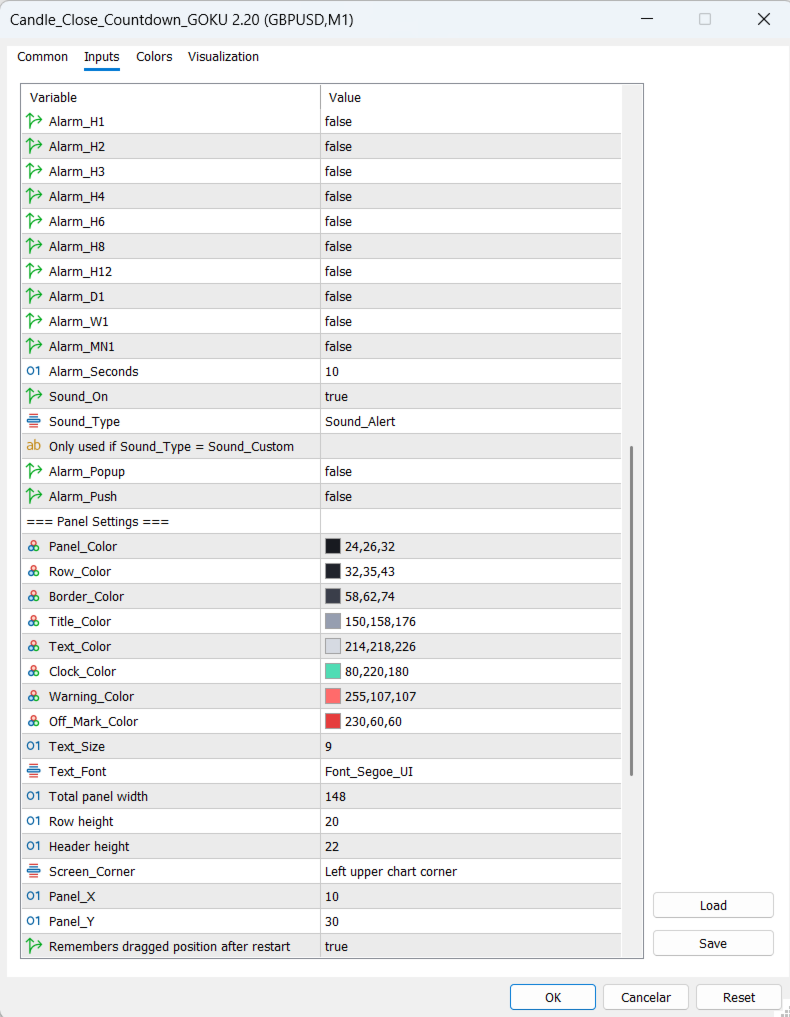
𝗔𝗹𝗮𝗿𝗺_𝗦𝗲𝗰𝗼𝗻𝗱𝘀
Con cuántos segundos de anticipación debe sonar la alarma, antes de que la vela se cierre de verdad. Si pones 10, el aviso ocurre 10 segundos antes del cierre — dándote tiempo para reaccionar antes de que la vela se cierre.
𝗦𝗼𝘂𝗻𝗱_𝗢𝗻
Activa o desactiva el sonido de la alarma. Si está desactivado, la alarma igual puede avisarte de otras formas (aviso en pantalla o notificación al celular), solo que no sonará.
𝗦𝗼𝘂𝗻𝗱_𝗧𝘆𝗽𝗲
Qué sonido se reproduce cuando la alarma se activa. Eliges de una lista lista con los sonidos que ya existen en MetaTrader, sin necesidad de escribir ningún nombre de archivo.
𝗦𝗼𝘂𝗻𝗱_𝗙𝗶𝗹𝗲_𝗡𝗮𝗺𝗲
Solo se usa si eliges la opción "Custom" en el campo de arriba — aquí escribes el nombre de tu propio sonido, en caso de que quieras usar un archivo de audio personalizado en vez de los sonidos por defecto de MetaTrader.
𝗔𝗹𝗮𝗿𝗺_𝗣𝗼𝗽𝘂𝗽
Activa o desactiva un aviso que aparece en la propia pantalla de la computadora (una ventana de alerta) justo cuando la vela está por cerrarse.
𝗔𝗹𝗮𝗿𝗺_𝗣𝘂𝘀𝗵
Activa o desactiva el envío de una notificación a la aplicación de MetaTrader en tu celular, avisando que la vela se está cerrando — útil para cuando no estás frente a la computadora.
██████████████████████████████████████████
𝗣𝗔𝗡𝗘𝗟 𝗦𝗘𝗧𝗧𝗜𝗡𝗚𝗦
██████████████████████████████████████████
𝗣𝗮𝗻𝗲𝗹_𝗖𝗼𝗹𝗼𝗿
El color de fondo de todo el panel — la "caja" donde están los períodos y las cuentas regresivas.
𝗥𝗼𝘄_𝗖𝗼𝗹𝗼𝗿
El color de fondo usado en las líneas alternadas, creando un efecto "rayado" que facilita distinguir una línea de otra.
𝗕𝗼𝗿𝗱𝗲𝗿_𝗖𝗼𝗹𝗼𝗿
El color de la línea fina que rodea todo el panel.
𝗧𝗶𝘁𝗹𝗲_𝗖𝗼𝗹𝗼𝗿
El color del texto del título, en la parte superior del panel.
𝗧𝗲𝘅𝘁_𝗖𝗼𝗹𝗼𝗿
El color del texto que muestra el nombre de cada período (M1, M5, H1...).
𝗖𝗹𝗼𝗰𝗸_𝗖𝗼𝗹𝗼𝗿
El color de los números de la cuenta regresiva, en condiciones normales.
𝗪𝗮𝗿𝗻𝗶𝗻𝗴_𝗖𝗼𝗹𝗼𝗿
El color que toma la cuenta regresiva cuando está muy cerca de cerrarse la vela — una forma visual de llamar tu atención sin necesidad de sonido.
𝗢𝗳𝗳_𝗠𝗮𝗿𝗸_𝗖𝗼𝗹𝗼𝗿
El color de la línea roja que tacha el nombre del período cuando su alarma está apagada.
𝗧𝗲𝘅𝘁_𝗦𝗶𝘇𝗲
El tamaño de la letra usada en todo el panel.
𝗧𝗲𝘅𝘁_𝗙𝗼𝗻𝘁
La fuente (tipo de letra) usada en el panel — la eliges de una lista lista, sin necesidad de escribir el nombre.
𝗣𝗮𝗻𝗲𝗹_𝗪𝗶𝗱𝘁𝗵
El ancho del panel en la pantalla — cuánto espacio ocupa en horizontal.
𝗥𝗼𝘄_𝗛𝗲𝗶𝗴𝗵𝘁
La altura de cada línea dentro del panel — controla qué tan espaciado o compacto se ve.
𝗧𝗶𝘁𝗹𝗲_𝗛𝗲𝗶𝗴𝗵𝘁
La altura solo de la barra del título, en la parte superior del panel.
𝗦𝗰𝗿𝗲𝗲𝗻_𝗖𝗼𝗿𝗻𝗲𝗿
En qué esquina de la pantalla se ancla el panel como referencia (superior izquierda, superior derecha, etc.) — la posición X e Y se cuentan desde esa esquina.
𝗣𝗮𝗻𝗲𝗹_𝗫
La distancia del panel hasta el borde lateral del gráfico, desde la esquina elegida arriba.
𝗣𝗮𝗻𝗲𝗹_𝗬
La distancia del panel hasta el borde superior o inferior del gráfico, desde la esquina elegida arriba.
𝗞𝗲𝗲𝗽_𝗣𝗼𝘀𝗶𝘁𝗶𝗼𝗻
Si está activado, cuando arrastras el panel a otro lugar de la pantalla con el mouse, esa nueva posición se guarda y se recuerda siempre — incluso después de cerrar y abrir MetaTrader de nuevo. Si está desactivado, el panel siempre vuelve a la posición definida en Panel_X y Panel_Y.
██████████████████████████████████████████
𝗣𝗥𝗜𝗖𝗘 𝗖𝗟𝗢𝗖𝗞 𝗦𝗘𝗧𝗧𝗜𝗡𝗚𝗦
██████████████████████████████████████████
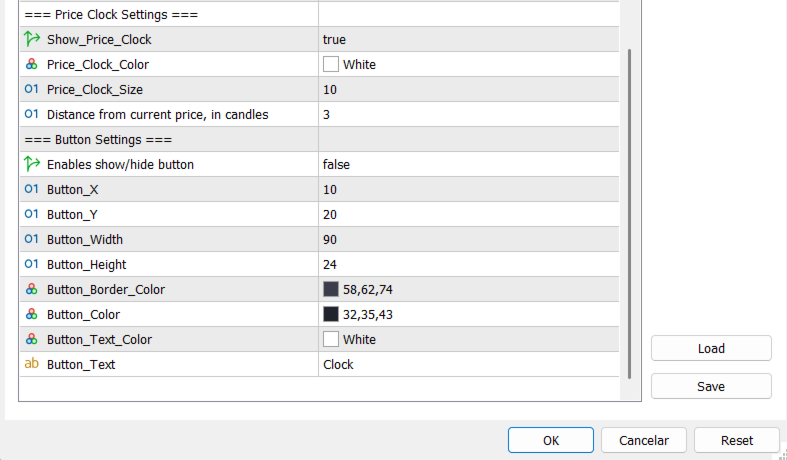
𝗦𝗵𝗼𝘄_𝗣𝗿𝗶𝗰𝗲_𝗖𝗹𝗼𝗰𝗸
Activa o desactiva un mini contador extra que se mantiene justo a la altura del precio actual en el gráfico, mostrando la cuenta regresiva del período que está activo en ese momento.
𝗣𝗿𝗶𝗰𝗲_𝗖𝗹𝗼𝗰𝗸_𝗖𝗼𝗹𝗼𝗿
El color de ese mini contador.
𝗣𝗿𝗶𝗰𝗲_𝗖𝗹𝗼𝗰𝗸_𝗦𝗶𝘇𝗲
El tamaño de la letra de ese mini contador.
𝗣𝗿𝗶𝗰𝗲_𝗖𝗹𝗼𝗰𝗸_𝗗𝗶𝘀𝘁𝗮𝗻𝗰𝗲
Qué tan lejos queda ese contador del precio actual, medido en número de velas — mientras más alto el número, más alejado queda hacia la derecha.
██████████████████████████████████████████
𝗕𝗨𝗧𝗧𝗢𝗡 𝗦𝗘𝗧𝗧𝗜𝗡𝗚𝗦
██████████████████████████████████████████
𝗦𝗵𝗼𝘄_𝗕𝘂𝘁𝘁𝗼𝗻
Activa o desactiva un botón en pantalla que sirve para mostrar u ocultar todo el panel con un clic — útil cuando quieres liberar espacio en el gráfico por un momento sin tener que desactivar el indicador.
𝗕𝘂𝘁𝘁𝗼𝗻_𝗫
La posición horizontal del botón en la pantalla.
𝗕𝘂𝘁𝘁𝗼𝗻_𝗬
La posición vertical del botón en la pantalla.
𝗕𝘂𝘁𝘁𝗼𝗻_𝗪𝗶𝗱𝘁𝗵
El ancho del botón.
𝗕𝘂𝘁𝘁𝗼𝗻_𝗛𝗲𝗶𝗴𝗵𝘁
La altura del botón.
𝗕𝘂𝘁𝘁𝗼𝗻_𝗕𝗼𝗿𝗱𝗲𝗿_𝗖𝗼𝗹𝗼𝗿
El color del borde del botón.
𝗕𝘂𝘁𝘁𝗼𝗻_𝗖𝗼𝗹𝗼𝗿
El color de fondo del botón.
𝗕𝘂𝘁𝘁𝗼𝗻_𝗧𝗲𝘅𝘁_𝗖𝗼𝗹𝗼𝗿
El color del texto escrito dentro del botón.
𝗕𝘂𝘁𝘁𝗼𝗻_𝗧𝗲𝘅𝘁
El texto que aparece escrito dentro del botón — puedes escribir lo que quieras (por ejemplo, "Clock", "Mostrar", etc.).