Trading a currency group as one basket: drag a target, then press Apply

The previous post, Seeing a whole currency group at once: the point inside the polygon, explains the shared picture: a group of currencies as a polygon, a market point with its trail, and values against the equal basket that always add up to zero. Currency Polygon MT5 is that reading. It does not place orders. This post does not repeat that concept.
Currency Polygon Trader is the same logic in a form that can trade. It is an Expert Advisor, but the picture on the chart is the same market-point view. What it adds is a target you can drag, the legs that match that target, and the settings that control size, execution and what you can check before anything is sent.
Product page: Currency Polygon Trader MT5 on the MQL5 Market (MetaTrader 5). The MetaTrader 4 version is Currency Polygon Trader MT4.
There is no unattended strategy: orders are sent only when you press Apply or Flat. You do not have to have the indicator installed; the Expert Advisor already carries the same picture.
From a target to an open basket
On top of the market point you already know, the Trader draws two more points and a table:
- A target (white ring), which you drag.
- The point of your open position (green).
- A table of the target and open exposure of every currency and every leg: target lots, open lots, the change, and its spread cost.
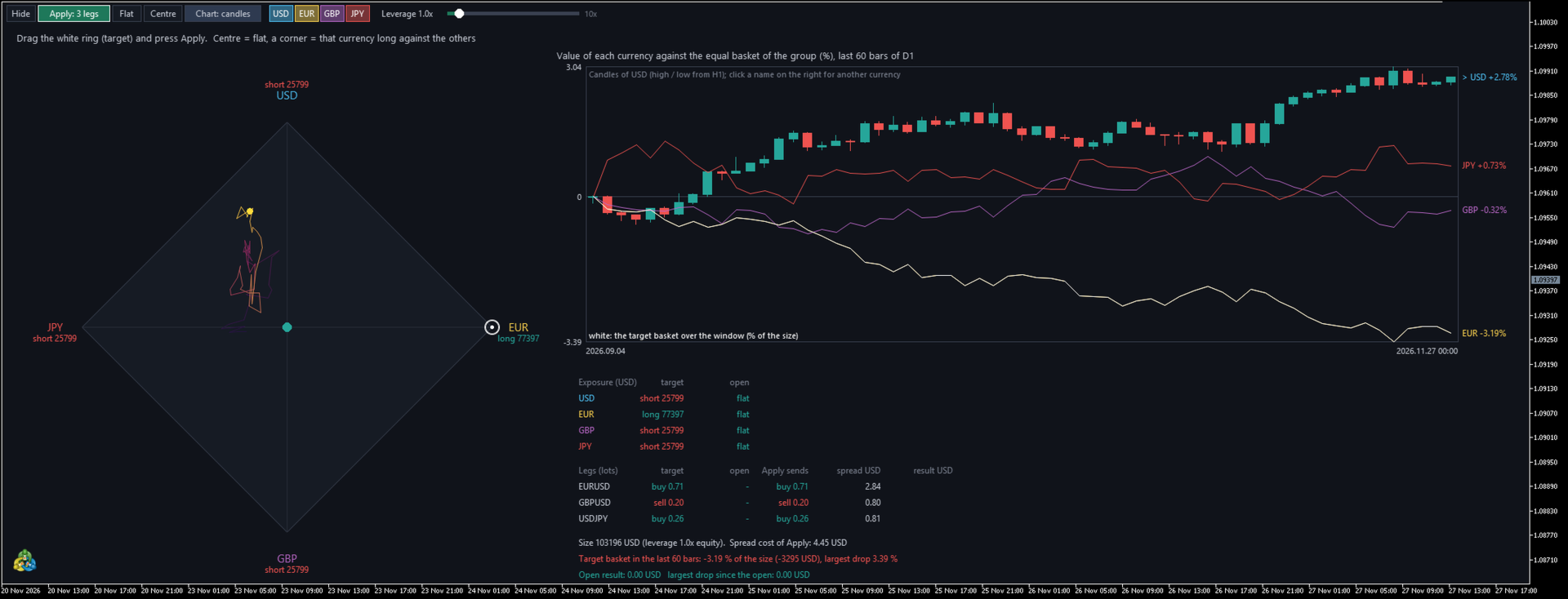
A four-currency square before Apply: the white-ring target is at one corner, the open position is still flat, and the table lists target lots, the change and the spread cost. The size slider is on the chart. Screenshot from the Currency Polygon Trader MT5 product page. The figures on the chart are not a trading result and not a forecast.
Where you put the target decides the mix, and only the mix:
- The centre: all currencies equal, no position.
- A corner: that currency long against all the others of the group.
- An edge: the two currencies of the edge long against the others.
- Anywhere between: a mix. The closer the point is to a corner, the more of that currency you hold.
The position is always market-neutral inside the group: the long and the short exposures add up to zero. That is how the legs are balanced against each other, not a claim that the account cannot lose money.
Each currency is traded through its USD pair (EURUSD, USDJPY, GBPUSD, XAUUSD and others). The USD exposure follows from the others. The account currency does not have to be USD: the value of USD in the account currency comes from its USD pair.
The Apply button shows what will happen before you send anything: “Apply: N legs” in green when the target differs from your position (“Apply: 1 leg” when there is only one), “Sending ...” while the orders are being sent, and “Applied” when they match. Flat closes all legs.
When you press Apply, only the differences to the open legs are traded. On netting accounts that is one order per leg; on hedging accounts the Expert Advisor can add, close partly or reverse. A margin check against free margin runs first; Apply stops if the margin is not enough. Lots are rounded to the volume step; a change below the threshold set by smallest leg change is skipped (0 means the minimum lot). Changing the group needs a flat position.
Trading settings
Attach the Expert Advisor to one chart and enable Algo Trading (AutoTrading on MetaTrader 4). The default group is a square: USD, EUR, GBP and JPY. You can choose 3 to 8 components on the chart, set the timeframe, window and trail of the market point (the same kind of window as in the indicator; the indicator defaults are D1, 60 bars and 60 bars), and set Size at start: % of equity (100 = 1x). Then drag the target, read the table, and press Apply only after you have done so.
The inputs are grouped as follows:
- Group: components, symbol suffix (when the input is empty, the suffix is taken from the chart symbol).
- Position: Size at start: % of equity (100 = 1x), Leverage slider: maximum, smallest leg change, magic number, slippage.
- Market point: timeframe, window, trail.
- View: font size, colours.
- Strategy Tester: self-test on or off (on by default).
The size slider is on the chart. It sets the basket size as a multiple of the equity, from 0.1x to the input Leverage slider: maximum (default 10x), in 0.1 steps. The start value comes from Size at start: % of equity (100 = 1x). The product page gives one mechanical example for a square (a group of four): at 1x, a corner is 75 % of the equity long in that currency and 25 % short in each of the other three; at 2x, twice that. The slider moves in 0.1 steps and only changes the target; Apply sends the difference. Nothing is traded until you press Apply. That example is about how size is split, not about what the basket will return.
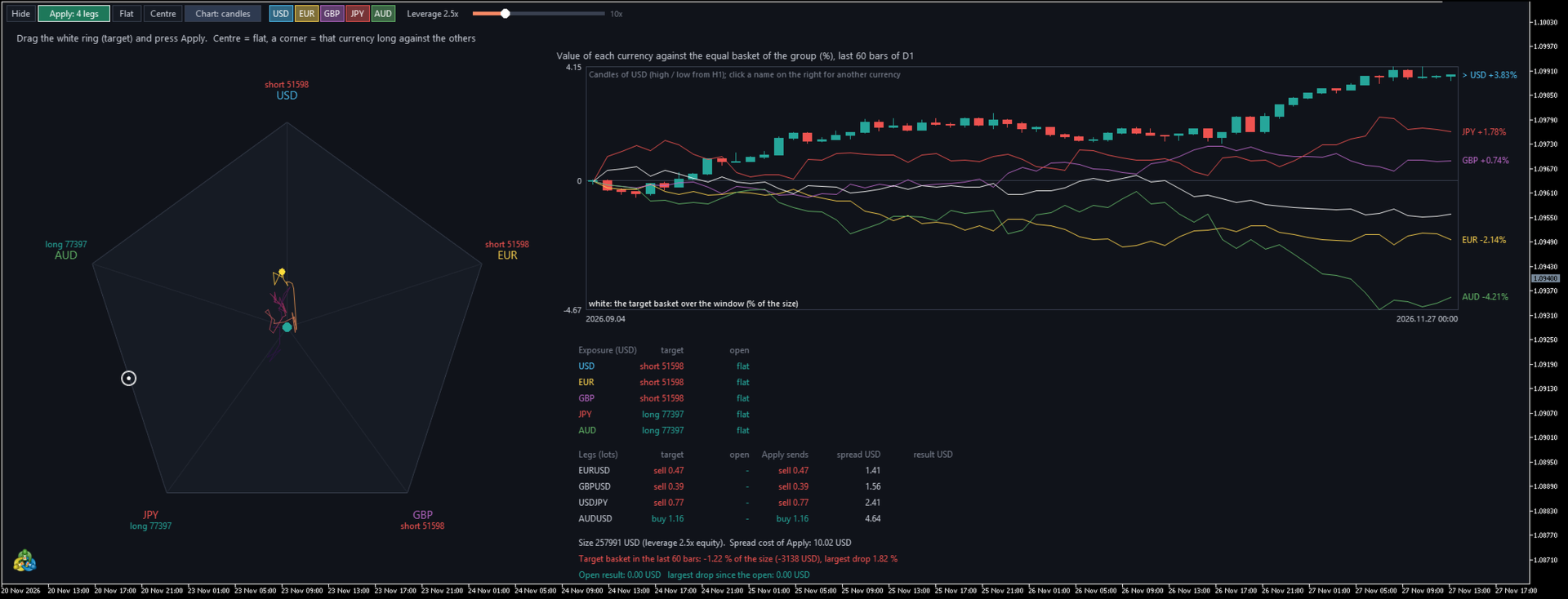
The same kind of picture with five currencies and a higher size setting on the slider. The table still shows target lots, the orders Apply would send, and the spread cost — to be read before anything is sent. Screenshot from the Currency Polygon Trader MT5 product page.
What you can check before and after Apply
These are the controls and readings on the chart. They help you see size, cost and how far the basket has moved. There is no stop-loss, no daily loss limit and no equity stop. The only risk checks are the margin check before Apply and the smallest-leg-change filter. None of the figures are quoted here.
- Spread cost in the table, for the change you are about to send.
- A margin check before Apply; Apply stops if free margin is not enough.
- The smallest leg change input, together with rounding to the volume step: a change below the threshold is skipped (0 means the minimum lot), so a tiny move of the target may not be applied in full.
- The target basket over the window, drawn as a white line on the value chart, with its return and largest drop over that window. That line describes the target on past values in the window you set. It is not a live trading result and not a promise of a future return.
- The open position after you have applied: the result of every leg, the total, and the largest drop since it was opened (tracked from the best open result). Read those figures on your own chart.
- Flat, when you want every leg closed.
- Slippage and the magic number, in the position inputs.
Gaps, slippage and spread affect the result of every leg. Market-neutral inside the group does not remove those costs, and it does not remove the risk of the basket you chose.
A short walk-through (hypothetical, not a result)
Suppose the Expert Advisor is on one chart, Algo Trading is on, and the default four currencies are selected as a square. The market point and its trail are the same kind of reading as in the previous post. The open position is still at the centre. You drag the white ring toward one corner — the currency you want to hold long against the other three.
Before Apply, read the table: target lots, open lots, the change, and the spread cost. Look at the size slider. If this is a square and the target is a corner, the 1x split on the product page is 75 % of equity long in that currency and 25 % short in each of the other three. If that is larger than you want to hold, lower the slider first — the slider only changes the target; Apply sends the difference. The button should show that several legs will be sent. Only then press Apply.
To leave the basket, drag the target back to the centre and Apply, or press Flat.
Nothing in this walk-through is a trade result. The screenshots above show the same situation: a target away from the centre, a flat open position, and the table to read before you press Apply. The Expert Advisor matches the target you set when you press the button; it does not decide the corner for you.
Limits that belong with the settings
- Orders are sent only on Apply or Flat. If you do not press a button, no orders go out.
- A margin check is not a guarantee that every fill will match the table.
- There is no stop-loss, no daily loss limit and no equity stop.
- You can change the group only when the position is already flat.
- In the MetaTrader 5 Strategy Tester the Expert Advisor walks its target through a corner, an edge and the centre (self-test, on by default), so that you can see the legs it opens. That walk is a demonstration of the legs, not a performance test, and no tester figures are quoted here.
- On MetaTrader 4 the Strategy Tester can trade only the tested symbol, so there the Expert Advisor opens one small sample position at the minimum lot, only if the free margin is enough, and closes it at the centre. The basket itself works on a live or demo chart.
Try it on a demo chart first
Product page: Currency Polygon Trader MT5 (MetaTrader 5). For MetaTrader 4, use Currency Polygon Trader MT4. For the concept and the reading of the group, start with the previous post and with Currency Polygon MT5 (or Currency Polygon MT4).
Questions and suggestions are welcome in the comments on those pages, or by private message on MQL5.
This post is educational and reflects my own views. It is not investment advice and not a recommendation to buy or sell any instrument or to use any leverage. A basket that is market-neutral inside its group can still lose money. Gaps, slippage and spread affect every leg. Always test on a demo account and use your own risk rules.


