Trade Suite: Setup Guide and Input Reference (MT4 / MT5)
Thank you for choosing Trade Suite. This guide takes about three minutes and covers installation, every tab of the panel and the most useful inputs. If anything is unclear, send me a private message.
Join my AI based market analysis Telegram channel: https://t.me/AINewsInsightBOTChannel
1. Allow the news connection
Trade Suite receives its news analysis and calendar from our server, so MetaTrader must be allowed to connect to it. This is a one-time step.
- Open Tools > Options > Expert Advisors.
- Tick Allow WebRequest for listed URL.
- Add https://newssignal.it and press OK.
The panel can show technical strength without this connection. MT5 can also fall back to its built-in economic calendar.
2. Attach Trade Suite to a chart
- Open a chart of a supported symbol: EURUSD, GBPUSD, USDJPY, AUDUSD, USDCAD, USDCHF, NZDUSD, EURJPY, GBPJPY, EURGBP, AUDJPY, XAUUSD, XAGUSD, USOIL (WTI crude oil), US500, US100, US30, DE40, UK100, JP225, BTCUSD or ETHUSD.
- Drag Trade Suite from the Navigator (Market folder) onto the chart.
- Broker names such as EURUSD.a, EURUSDm, GER40, XTIUSD or US500Cash are recognised automatically; the Settings tab shows the news symbol in use. Set CanonicalSymbol only if your broker uses an unusual name.
- Other pairs of the major currencies (AUDNZD, EURCHF…) get a news view derived from both currencies; exotic pairs use their major currency. Related markets use a labelled proxy: Brent follows WTI, the CAC 40 and Euro Stoxx follow the DAX, the Hang Seng follows the Nikkei, and other cryptocurrencies follow Bitcoin.
Each chart needs its own copy. You can run Trade Suite on several charts at the same time.
Use − to collapse the panel or × to remove Trade Suite from the chart.
3. The Market tab
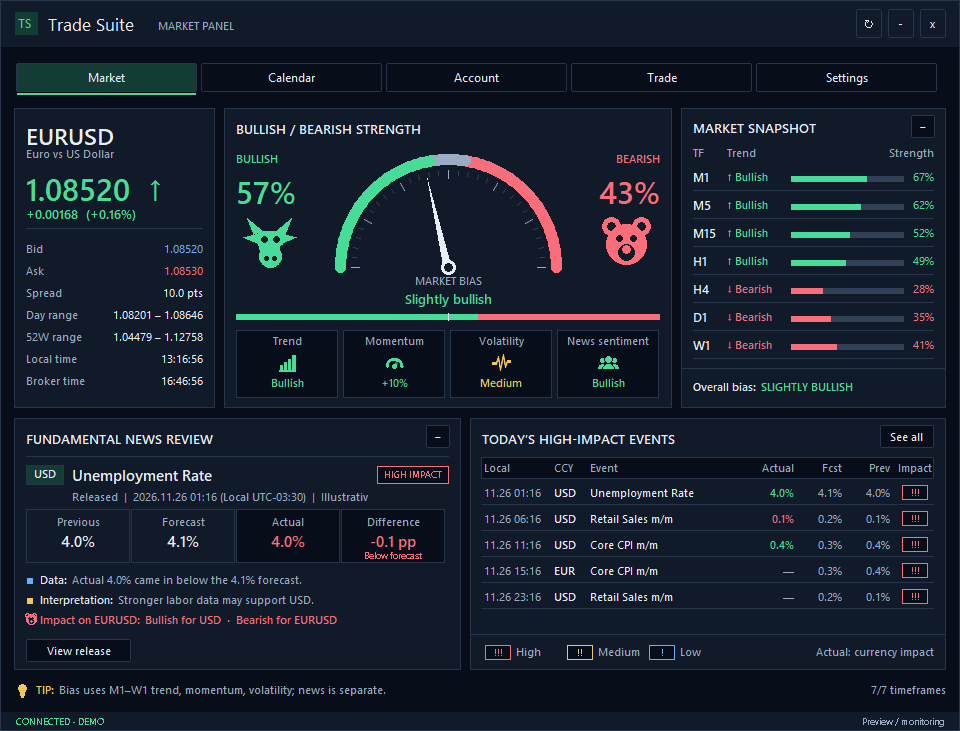
- Quote card: price, change, spread, day and 52-week range, local and broker time.
- Bullish / Bearish Strength: buyer and seller strength from M1 to W1 trend, momentum and volatility, with one market bias needle. The four tiles show trend, momentum, volatility and news sentiment.
- Market Snapshot: direction and strength for each timeframe.
- Fundamental News Review: the latest high-impact release for your symbol's currencies: previous, forecast, actual, the surprise, what it means and the likely impact on your symbol.
- Release list: green Actual values indicate a positive effect for the release currency, red indicates a negative effect, and neutral or undetermined outcomes use the default text color.
Technical strength and news are shown separately on purpose, so you can see when they agree and when they don't.
4. The Calendar tab
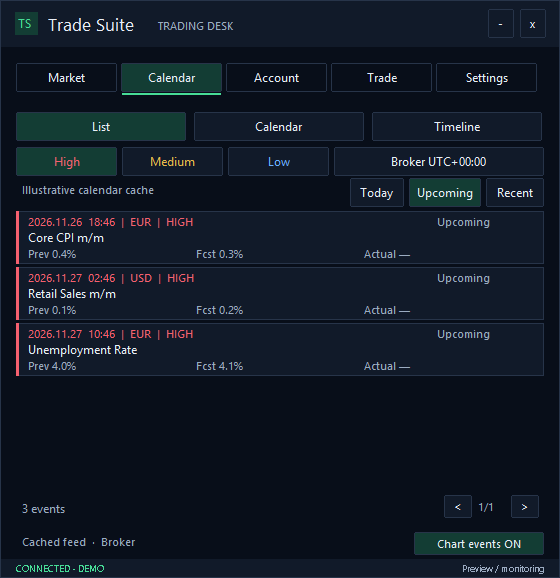
- High-impact events are shown by default. Click Medium or Low to add more.
- Switch between List, Calendar and Timeline views, and between Upcoming and Recent releases.
- Click the clock button to show times in your local or broker time.
- Chart events ON marks scheduled events on the chart. If a release falls within the current or next candle, its band highlights that candle.
5. The Trade tab
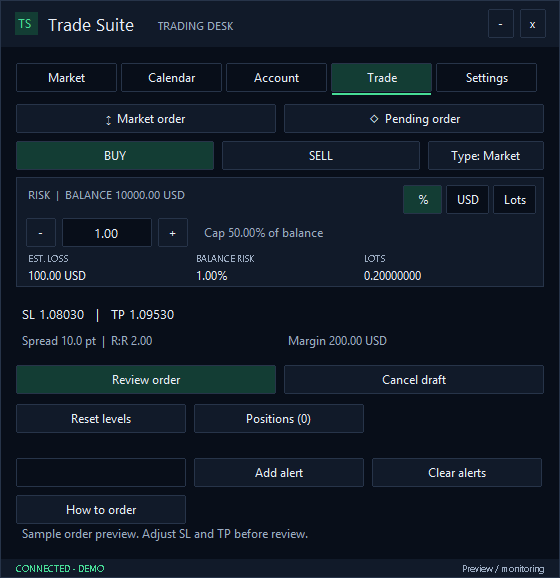
Trading from the panel is off by default. To turn it on, set EnableManualTrading = true and allow algo trading in MetaTrader (MT5: Algo Trading button. MT4: AutoTrading button and Allow live trading in the Common tab).
- Choose BUY or SELL and the order type (market, limit or stop).
- Choose how to size the trade: % of balance, account money (USD) or Lots.
- For a pending order, place the entry on the chart and drag SL and TP independently. For a market order, the entry follows the quote. The panel shows estimated loss, reward/risk, spread and margin.
- Press Review order, check the size, levels and any warnings, then press Confirm order.
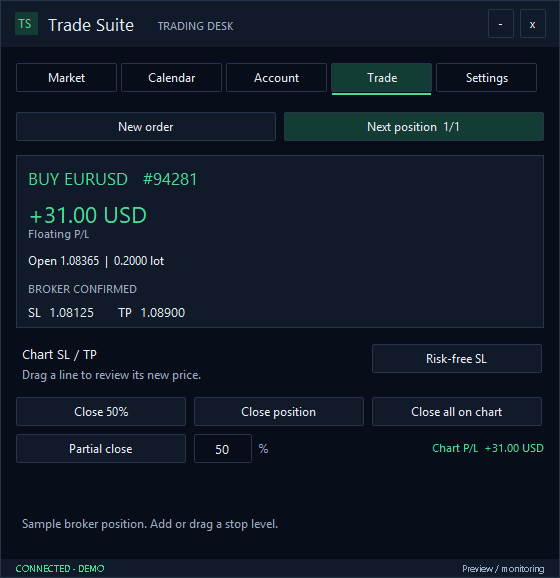
The panel manages open positions on its chart, including trades you opened manually in MetaTrader. The position card shows floating P/L and the broker-confirmed SL and TP. Drag the lines or use Risk-free SL to review a change. Trade Suite checks the proposed levels against your broker's stop and freeze rules. In Pending, select an order to review changes to its SL or TP before it fills.
Automatic break-even and trailing stop are off by default. Turn them on in Inputs (AutoBreakEven, TrailingStop). They need EnableManualTrading, only ever tighten a stop and respect your broker's minimum stop distance.
Order confirmation warns if high-impact news is within five minutes or if the calendar is unavailable. Set NewsBlockMinutes to 0 to disable those warnings.
6. The Account tab (prop-firm monitor)
Trade Suite records balance and equity on your terminal and compares the drawdown with your limits. Set them to match your account:
- PropInitialBalance: your starting balance. 0 uses the first balance it sees.
- PropDailyLossPercent / PropTotalLossPercent: your daily and total loss limits.
- PropDailyBasis / PropTotalBasis: how your firm measures them (initial balance, balance or equity; static or trailing).
- PropResetHour / PropResetUTCOffsetMinutes: when your firm's trading day resets.
History starts when you attach Trade Suite. On MT4, choose All History in the Account History tab.
7. Input reference
| Input | Default | What it does |
|---|---|---|
| ApiBaseUrl | https://newssignal.it | News server address. Keep the default. |
| CanonicalSymbol | empty | Override the automatic symbol recognition for an unusual broker name. |
| PollSeconds | 60 | How often the news is refreshed. |
| DarkPanel | true | Dark or light theme. You can also switch in the Settings tab. |
| UIScale | 1.0 | Panel size (0.7 to 1.6). The panel also shrinks to fit small charts. |
| PanelX / PanelY | 24 / 28 | Starting position. Drag the title bar to move it. |
| HighImpactChartMarkers | true | Show economic events on the chart. |
| CalendarTimeDisplay | Local | Show calendar times in local or broker time. |
| BrokerCalendarDST | Current offset | Your broker's daylight-saving rule (fixed, Europe or North America) for dates across clock changes. |
| ShowCandleTimer / ShowLineLabels | true | Candle countdown and price labels on the trade lines. |
| EnableManualTrading | false | Allows sending orders from the panel after Review order and Confirm order. |
| DefaultRiskMode | Percent | Default sizing: percent of balance, money or lots. |
| DefaultRiskPercent / MaxRiskPercent | 1.0 / 50.0 | Default risk per trade and configurable maximum risk as a percentage of balance. |
| DefaultRewardRisk | 2.0 | Take profit as a multiple of the stop distance. |
| DefaultStopPoints | 500 | Starting stop distance for new orders. |
| CommissionPerLot | 0 | Your round-trip commission, so estimates include it. |
| MaxSpreadPoints | 0 | Spread threshold in points for an order confirmation warning. 0 turns this off. |
| NewsBlockMinutes | 5 | Minutes around a high-impact event that trigger a confirmation warning. 0 turns this off. |
| BreakEvenOffsetPoints | 0 | Extra points beyond the entry when you press Break-even. |
| DefaultPartialPercent | 50 | Share of the position closed by a partial close. |
| ManageAllChartPositions | true | Also manage manual trades and other EAs' positions on this chart's symbol. |
| AutoBreakEven / BreakEvenTriggerPoints | false / 300 | Move SL to entry (plus BreakEvenOffsetPoints) once the position is this many points in profit. |
| TrailingStop / TrailingStartPoints | false / 300 | Trail the SL once the position is this many points in profit. |
| TrailingDistancePoints / TrailingStepPoints | 200 / 20 | How far behind price the trailing SL sits, and the minimum improvement per update. |
8. Frequently asked questions
The news part is empty. Check step 1 (WebRequest) and your internet connection. The Settings tab shows News API live once the connection works.
My broker's symbol is not recognised. Set CanonicalSymbol to the standard name, for example EURUSD for EURUSD.a.
Why is nothing shown in the Strategy Tester? News is live data and cannot be replayed in the tester. The tester shows the panel layout only.
Is the news score a trading signal? No. It describes the pressure in recent news so you can include fundamentals in your own decision. It is not a probability of profit.
Will Trade Suite open trades for me? New orders require you to review and confirm. Automatic break-even and trailing stops are optional and off by default.