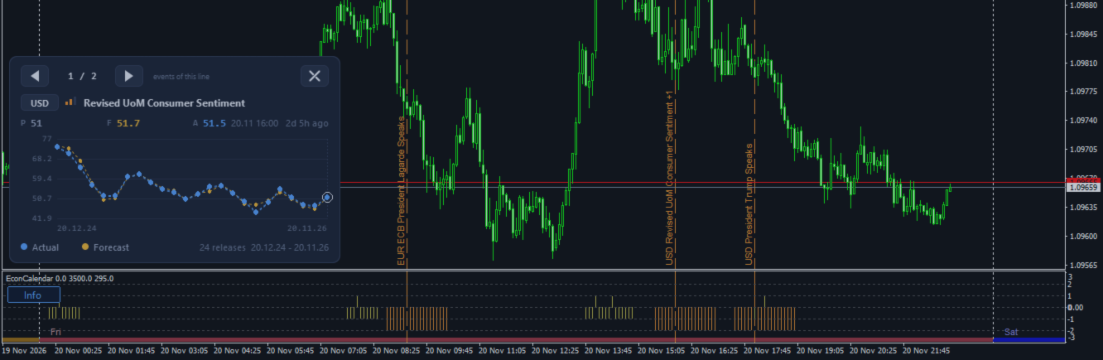
Economic Calendar for MetaTrader 4 - the full guide to the indicator and the Expert Advisor.

MetaTrader 4 has no built-in economic calendar, unlike MT5. You have to keep a news site open next to the chart and watch the clock, and the sharp move that follows an important release does not wait while you switch tabs. The indicator Economic Calendar For MT4 and the Expert Advisor Economic Calendar Feed For MT4 close this gap right in the terminal. This is the full guide: installation, setup, alerts, order protection, and how to read the data from your own Expert Advisors.
The products can be used separately, but they work best as a set:
- the indicator draws the news on the chart, shows the history of the values and gives the data to your Expert Advisors through buffers. The database of events since 2007 is built into it, so it works without the internet and in the Strategy Tester;
- the Expert Advisor receives live data (the actual value, the forecast, the previous value, rescheduled events), sends alerts, and can close orders and stop trading before important news.
One Expert Advisor on any single chart is enough for all the indicators of the terminal: it feeds them the data itself.
What you need
- MetaTrader 4 on Windows;
- the indicator and/or the Expert Advisor from the Market (Economic Calendar For MT4, Economic Calendar Feed For MT4);
- for the live data: the terminal must be online and WebRequest must be allowed (step 2);
- to stop the Expert Advisors and to switch Algo Trading on by force: the AlgoSwitchHelper helper (step 6, optional).
Step 1. Install the indicator
- Download the indicator from the Market and drag it onto a chart like any other indicator.
- A separate indicator window opens. The currencies are taken from the symbol (EURUSD → EUR and USD); you can set your own list in the Currencies input.
- Click the Info button in the top left corner of the indicator window: the info panel with the last and the next event appears at the bottom left of the chart.
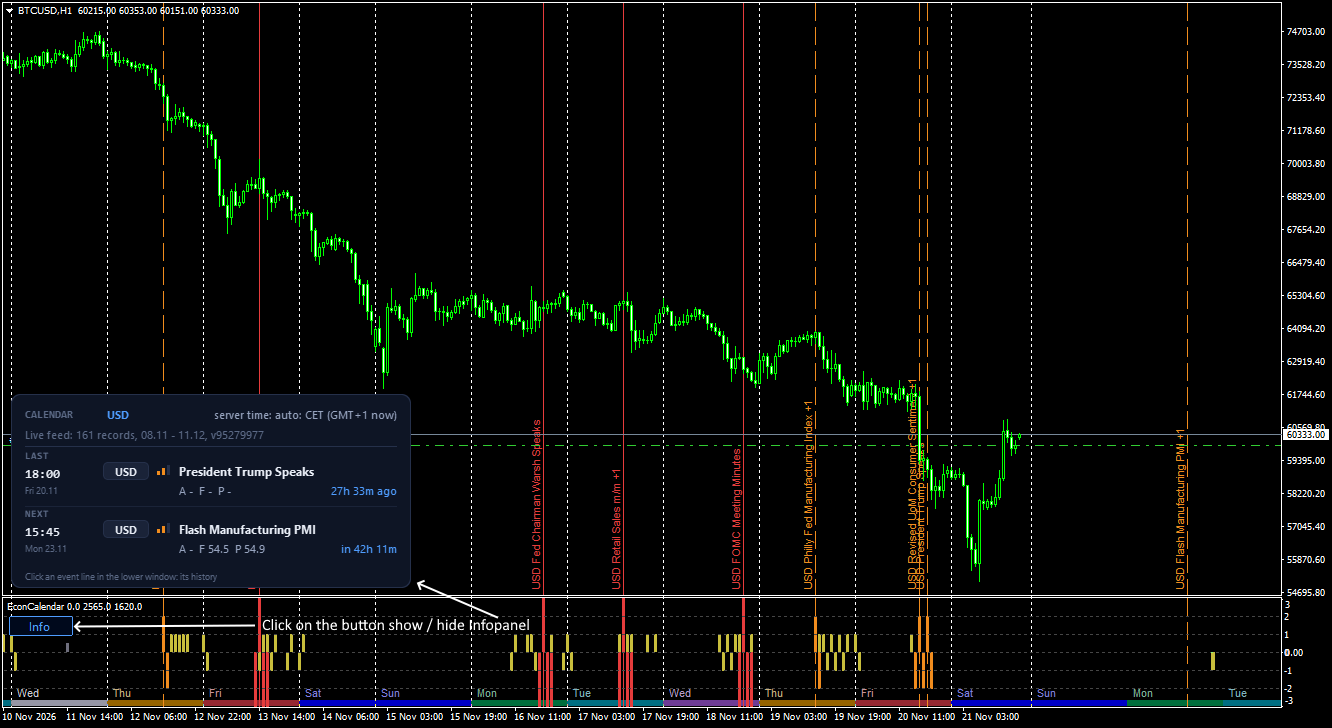
What you will see on the chart:
- bars by importance: holiday, low, medium, high. A bar up is the candle of the event itself, a bar down is the window before and after the news (by default for high importance 60 minutes before and 120 after);
- vertical lines of the events with their names, in the indicator window and on the main chart. The most important ones come first, the number is limited by the MaxLines input;
- the weekday strip: weekends, holidays and weekdays in their own colors.
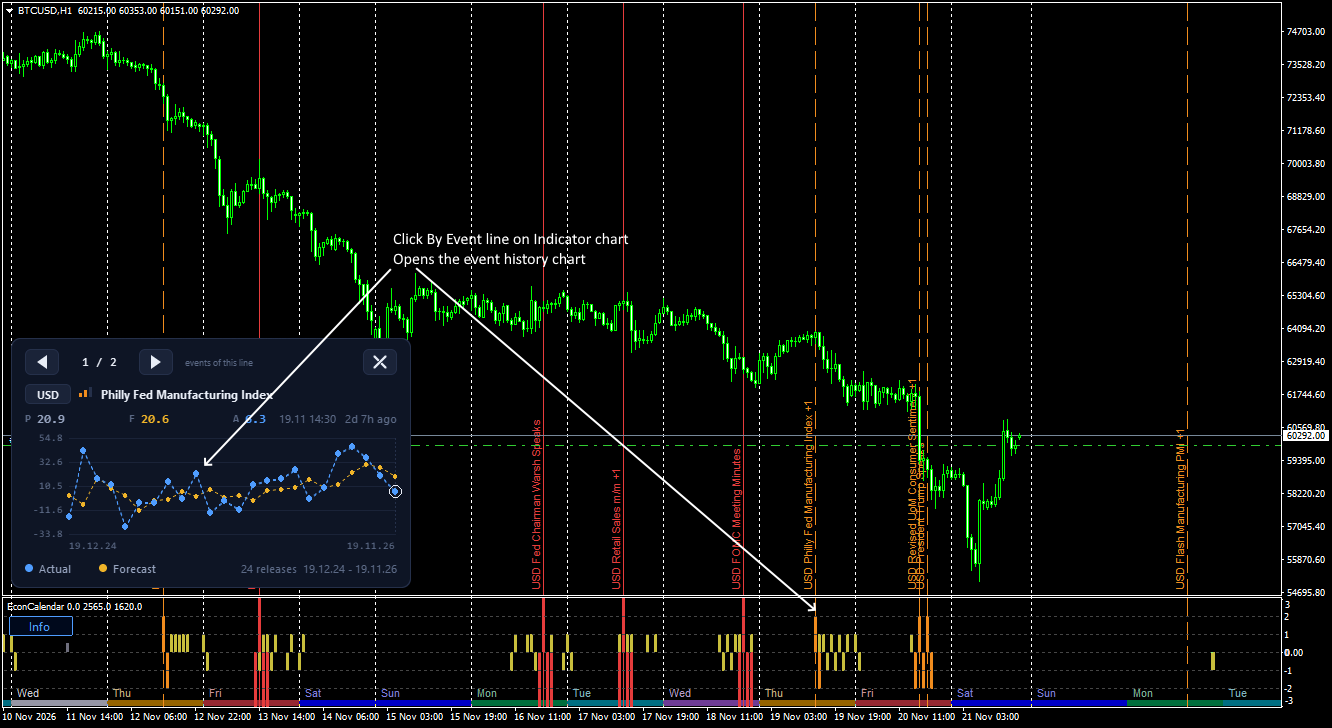
The history of an event. Click a vertical line in the indicator window: the info panel shows a chart of the values of this news for its past releases. The actual value and the forecast are drawn as lines, the arrows switch between the events of the same line, the cross closes the chart.
Step 2. Install the Expert Advisor and allow WebRequest
The Expert Advisor receives the live data over the network, and the terminal allows such requests only for the addresses on a list.
- Drag the Expert Advisor onto any one chart of the terminal. The size and the kind of the chart do not matter.
- Open Tools → Options → Expert Advisors, tick "Allow WebRequest for listed URL" and add the address from the FeedUrl input of the Expert Advisor (it is set in its default settings).
- If you are going to use Telegram, add https://api.telegram.org there too.
- Make sure the Algo Trading button is on and that trading is allowed for the Expert Advisor, if you are going to use Guard.
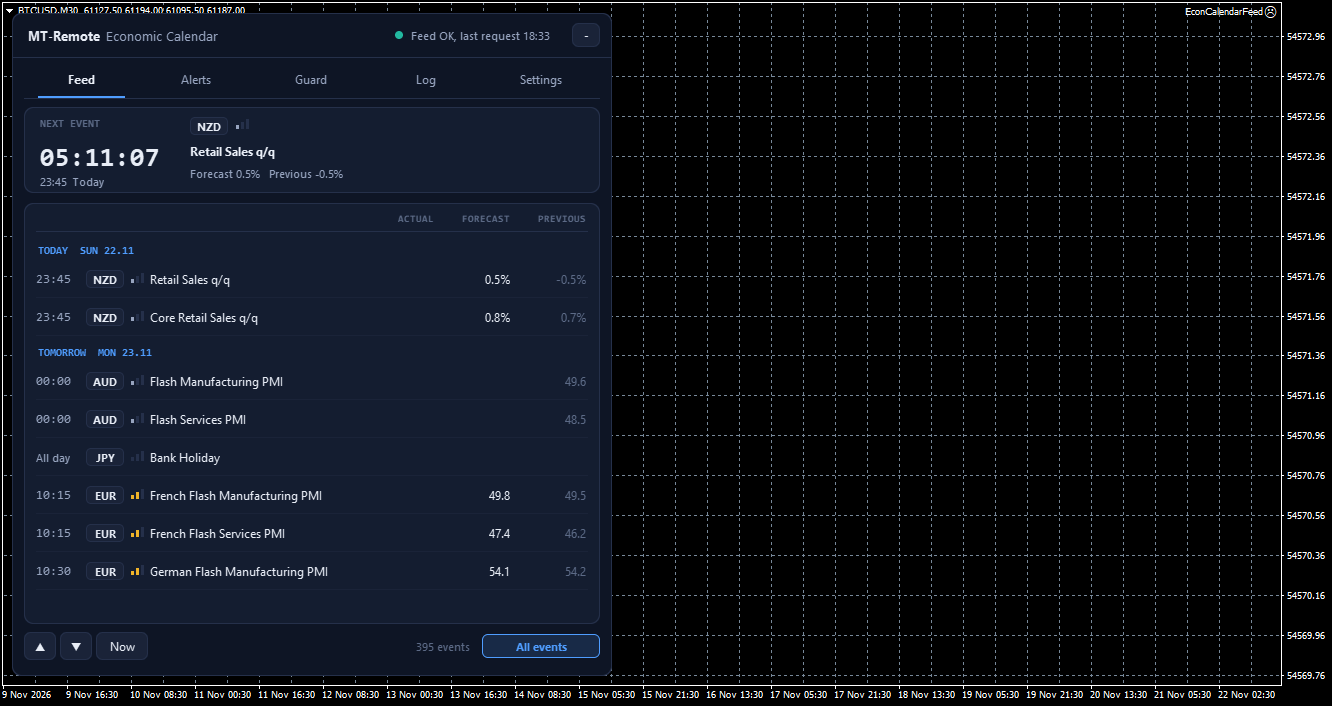
After that the panel of the Expert Advisor appears in the top left corner of the chart. At the top you see the state of the feed: "Feed OK" and the time of the last request. If the connection is lost, the panel and the "feed is silent" alert tell you about it, and the data stays as it was.
The main inputs of the Expert Advisor:
| Input | What it does |
|---|---|
| PollMinutes | how often to request the feed, in minutes (5 by default) |
| DaysBack, DaysAhead | the data window: days back and ahead |
| TelegramToken, TelegramChatId | the Telegram settings (step 4) |
| GuardSlippage | slippage when Guard closes the orders, in points |
| TurnOnAlgoTradingByForce | switch Algo Trading on for the time of closing the orders if it is off |
| AlgoSwitchHelperPath, AlgoSwitchHelperName | where the helper is (step 6) |
| PanelScale | the scale of the panel, 100 / 125 / 150 % |
Step 3. The panel of the Expert Advisor
The panel has five tabs:
- Feed: the list of the nearest events. The filter by currencies and importance is set on the Settings tab; the time is shown in the local time of the computer, in the broker's time or in UTC;
- Alerts: the alerts (step 4);
- Guard: the protection of the orders (step 5);
- Log: the log of the actions of the Expert Advisor. Every line is duplicated in the terminal's Experts journal;
- Settings: the time zone, the sound, the size of the panel, the list of currencies and the importance to watch.
The panel is dragged by its header, collapsed with the button in the top right corner, and by default follows the height of the chart. While the cursor is over the panel the mouse wheel scroll of the chart is switched off, so that you can scroll the list.
Step 4. Alerts
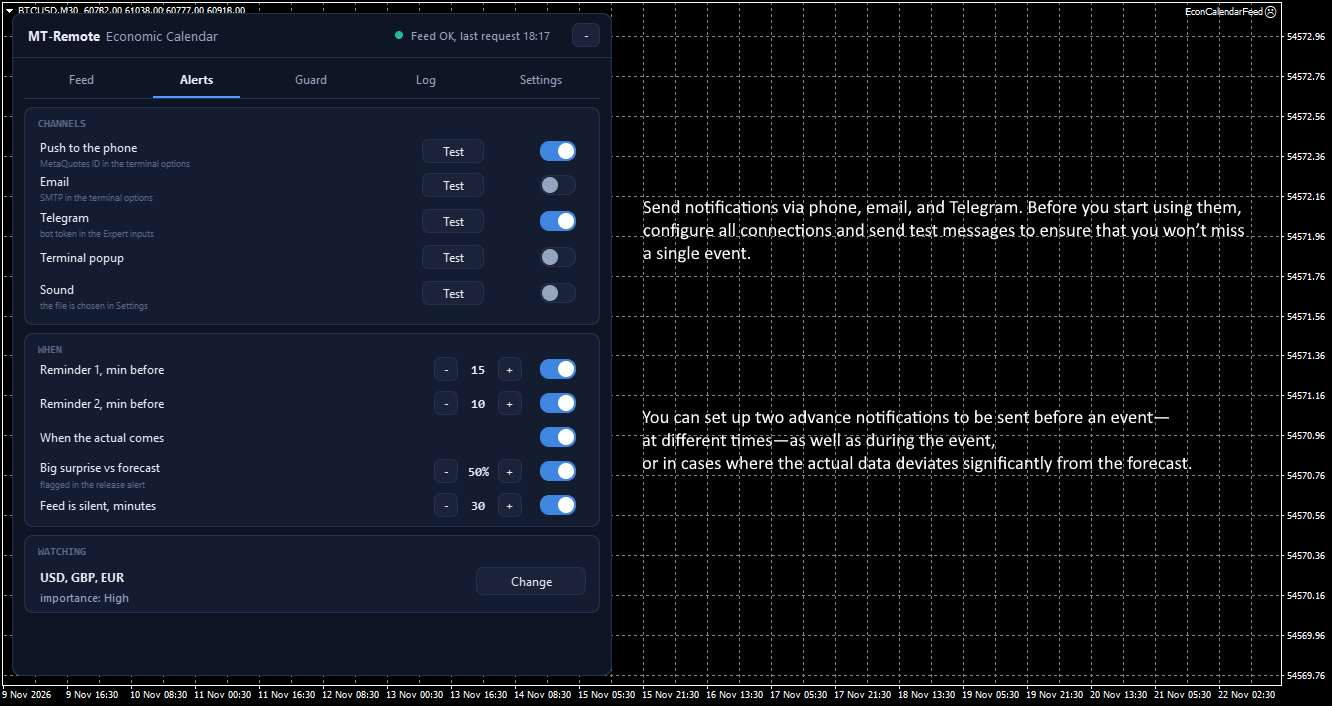
Choose the channels on the Alerts tab. Each of them has a switch and a Test button that checks at once that the message arrives:
- push to the phone: needs the MetaQuotes ID in the terminal settings (Tools → Options → Notifications);
- email: needs the SMTP settings in the terminal (Tools → Options → Email);
- Telegram: the token of the bot in the TelegramToken input, see below;
- the terminal pop-up and the sound (the file is chosen on the Settings tab).
What to send:
- two reminders N minutes before the news (15 and 5 by default). Each reminder has its own switch, the minutes can be changed at any time: a reminder with a new value fires again;
- the actual value: when it appears;
- "surprise": a mark in the message about the actual value if it differs from the forecast by more than the set percentage (50 % by default);
- the feed is silent: a message if the data has not been updated for more than the set number of minutes (30 by default), and a message when it is back.
Every reminder is sent once and is not repeated after a restart of the terminal.
How to create a Telegram bot
- In Telegram find the @BotFather bot and send it the /newbot command.
- Choose a name and a username for the bot (the username must end with bot). BotFather sends you a token: a long string like 123456789:AA....
- Paste the token into the TelegramToken input of the Expert Advisor. The token is a secret: do not publish it and do not post screenshots that show it.
- Open your bot in Telegram and send it any message (for example /start). If TelegramChatId is left empty, the Expert Advisor takes the chat of the last message and remembers it. You can also type the numeric chat id by hand.
- Do not forget to allow https://api.telegram.org in the WebRequest list (step 2) and to switch the Telegram switch on in the Alerts tab.
- Click Test: a message should arrive in the chat.
If the log shows "no chat yet" or "the bot has no messages yet", nobody has written to the bot yet: send it a message and try again. If it shows "401", the token is wrong.
Step 5. Guard: protection of the orders before the news
Guard is automation that takes your orders out of the market and stops the Expert Advisors before an important release. By itself it does nothing: you switch on each block of news by hand.
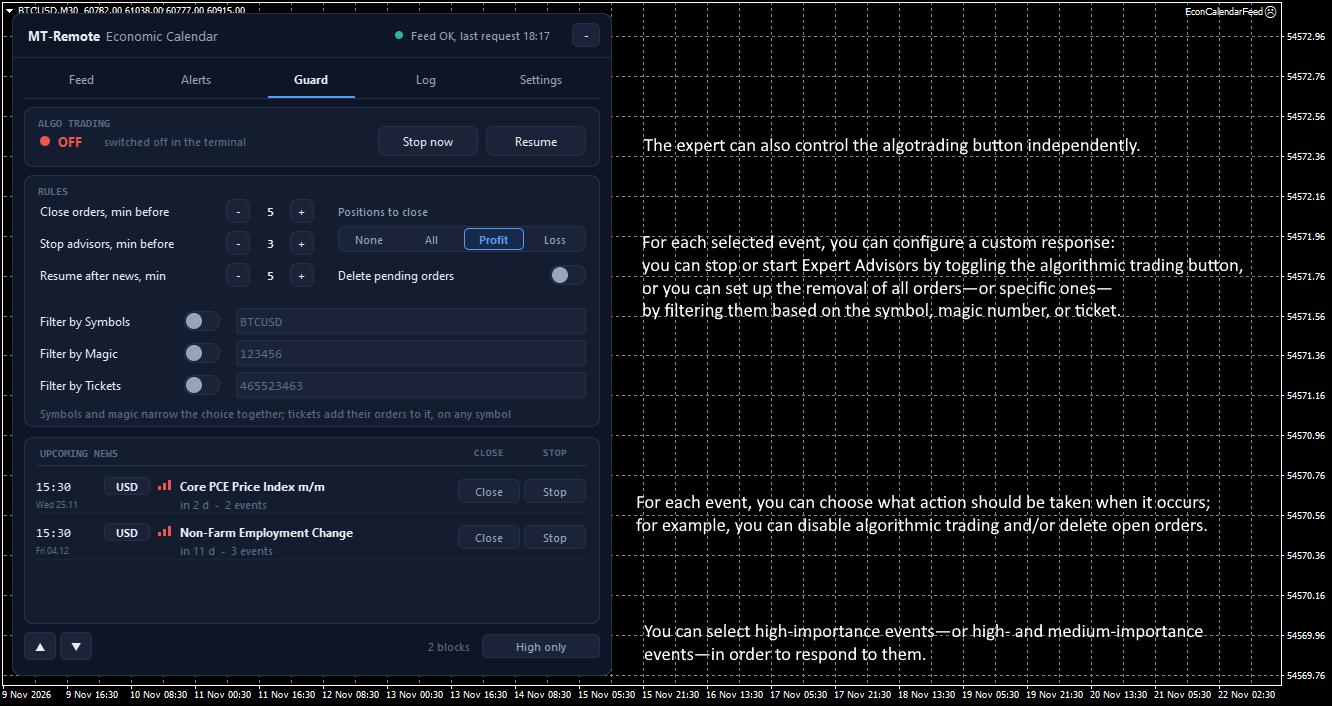
Open the Guard tab. In the list of the nearest important news the events of the same time are joined into a block. For a block you can press:
- Close - close the orders N minutes before the news;
- Stop - switch the Algo Trading button off M minutes before the news and back on K minutes after (only if the Expert Advisor itself switched it off).
The rules (the Rules card):
| Setting | What it means | Default |
|---|---|---|
| Close orders, min before | how many minutes before the news to close the orders | 5 |
| Stop advisors, min before | how many minutes before the news to stop the advisors | 3 |
| Resume after news, min | how many minutes after the news to switch them back on | 5 |
| Positions to close | None / All / Profit / Loss: which positions to close (none, all, only in profit, only in loss) | All |
| Delete pending orders | whether to delete the pending orders (independent of the positions) | on |
Filters. Three switches with input fields: Filter by Symbols, Filter by Magic, Filter by Tickets. An order is closed if it matches both the symbols and the magic numbers (the filters that are on), or if its ticket is in the list of tickets (on any symbol). A filter that is on but empty does not filter. Values are entered separated by commas.
Example: close all the orders on EURUSD with the magic number 12345, and also the orders with the tickets 100500 and 100501 on any symbols. The symbol and the magic number narrow the choice together, the tickets add their own orders to it.
Forced switching on of Algo Trading. If you switched the button off yourself and Guard has to close the orders, with TurnOnAlgoTradingByForce = true the Expert Advisor switches it on for the time of closing and switches it off again. This needs the helper (step 6). Without it the orders are closed only while Algo Trading is on.
Guard alerts. Every closed order gets its own message:
GUARD: #12345 EURUSD buy 0.10 Closed By Guard 1.08765
GUARD: #12346 GBPUSD sell limit 0.20 Deleted By Guard 1.27350
You also get messages about switching Algo Trading on and off, and about any errors with the explanation of the trade server code (for example "error 132: Market is closed"). If the market is closed or the server is busy, Guard keeps trying until the news.
The Stop now and Resume buttons on the Algo Trading card switch trading off and on by hand. After Stop now trading is not switched on automatically until you press Resume.
Closing the orders before the news is a risk management tool, not a guarantee. Check the settings (minutes, filters, types of orders) on a demo account before you trust Guard with real money. Slippage, wider spreads and connection failures are possible when news is released.
Step 6. AlgoSwitchHelper (optional)
The Algo Trading button cannot be pressed directly from an Expert Advisor, this is a limitation of MQL4. That is why stopping and starting trading is done by a separate small Expert Advisor, AlgoSwitchHelper: Guard opens a chart with a template, the helper presses the button once and closes the chart. It is free and open source, and is on GitHub: github.com/xrust/AlgoSwitchHelper. It does not trade, does not read your account and does not use the network; it needs DLL only for one system call, PostMessage.
Without the helper Guard closes the orders (if Algo Trading is on) but cannot stop and start the button.
Installation:
- Download AlgoSwitchHelper.mq4 from the GitHub repository and put it into the MQL4\Experts folder of the terminal (a subfolder is fine).
- Open the file in MetaEditor and press F7 (compile).
- In the terminal open Tools → Options → Expert Advisors and tick "Allow DLL imports".
- If the file is in a subfolder of Experts, put it into the AlgoSwitchHelperPath input of the Expert Advisor (for example ForMarket). The file name without .ex4 goes into AlgoSwitchHelperName (AlgoSwitchHelper by default).
- You do not have to attach the helper to any chart by hand.
If the helper is not found or does not answer, Guard writes it to the Log and sends an alert with a hint where to download it.
Step 7. The data of the indicator in your Expert Advisors: buffers and iCustom
The indicator gives its data through buffers, so it can be used as a news filter in your own Expert Advisor. The whole database of events is built in, so the calls work in the Strategy Tester on the history since 2007, online or offline.
double v = iCustom(Symbol(), Period(), "EconCalendar", buffer, shift);
The buffer is a number from 0 to 6, the shift is the number of the bar (0 the current one, 1 the last closed one). Default values do not have to be passed. The inputs of the indicator are passed in the order of their declaration, starting from the first one. The first three are Currencies, TimeZoneMode and FixedOffsetHrs. After that the settings are divided into groups, and every group starts with an empty separator input (in the properties window it is a line like ------ Bars: look ------). The separator also takes a place in the list, so in the call you have to pass an empty string "" in its place. The full order with the numbers is at the end. If you need the default values, you do not have to pass anything. To set only the list of currencies, pass one first input:
double v = iCustom(Symbol(), Period(), "EconCalendar", "USD,EUR", buffer, shift);
To change an input that comes later, pass all the inputs before it too. For example:
// show the events of medium importance and higher in the bars (the 5th input)
// 1: Currencies "", 2: TimeZoneMode 0, 3: FixedOffsetHrs 2, 4: separator "", 5: MinImportance 2
double v = iCustom(Symbol(), Period(), "EconCalendar", "", 0, 2, "", 2, buffer, shift);
The inputs of the enumeration types are passed as numbers: importance 1 low, 2 medium, 3 high; TimeZoneMode: 0 auto, 1 NY-close, 2 EET, 3 fixed, 4 CET; DayStopMode: 0 off, 1 whole day, 2 from the window; Weekdays: 0 off, 1 in the indicator window, 2 on the chart, 3 both. The indicator does not accept values out of the allowed ranges (for example negative windows): it does not start and shows a message with the name of the input.
| № | Buffer | What it holds |
|---|---|---|
| 0 | Holiday | holidays |
| 1 | Low | events of low importance |
| 2 | Medium | events of medium importance |
| 3 | High | events of high importance |
| 4 | Trade stop | "trade stop": 0 free, 1 inside the window of a news release, 2 the day is closed |
| 5 | Min to next | minutes to the next event |
| 6 | Min since last | minutes since the last event |
Buffers 0-3. 0 - nothing. A positive value (0.5 / 1 / 2 / 3 for a holiday, low, medium and high importance) - an event is released on this bar. A negative value - the bar is inside the window before or after an event; the length of the windows is set by the High / Medium / Low "minutes before / after" inputs. The levels below MinImportance stay zero in the buffer.
// was there a high importance news on the last closed bar?
bool highNews = (iCustom(Symbol(), Period(), "EconCalendar", 3, 1) > 0);
Buffer 4, "trade stop". The main buffer for Expert Advisors. 0 - free; 1 - the bar is inside the stop window of some news (by default for high importance 1 hour before and 2 hours after, for medium half an hour before and an hour after, for low it is off); 2 - the day is closed (for example the day has a rate decision or Non-Farm: the list of the events is set in DayStopNames, and DayStopHighAll closes the day for any high importance news); EMPTY_VALUE - the bar is outside the database of events, there is no data, and your Expert Advisor has to decide.
double stop = iCustom(Symbol(), Period(), "EconCalendar", 4, 0);
if(stop != EMPTY_VALUE && stop >= 1.0)
   return;                       // do not open trades close to the news and on a closed day
Buffer 5. The minutes from the open of the bar to the nearest future event of the importance DataMinImportance and higher (medium and high by default). 0 means that the event is released exactly at the open of the bar. EMPTY_VALUE if there are no more events ahead.
double toNext = iCustom(Symbol(), Period(), "EconCalendar", 5, 0);
if(toNext != EMPTY_VALUE && toNext <= 15)
   CloseAllMyOrders();           // news in 15 minutes or closer
Buffer 6. The minutes that have passed since the last event of the importance DataMinImportance and higher. EMPTY_VALUE if there has been no event yet.
double since = iCustom(Symbol(), Period(), "EconCalendar", 6, 0);
if(since != EMPTY_VALUE && since < 30)
   return;                       // wait out the first 30 minutes after the news
EMPTY_VALUE in MQL4 is 2147483647, not zero. Without an explicit check the Expert Advisor takes "no data" for a huge number.
The stop windows are set separately from the windows on the chart (the StopHigh…, StopMedium…, StopLow… and DayStopMode inputs). Buffers 5 and 6 give a window around the news with your own numbers, independent of these settings. On a live account the Expert Advisor from the set also gives the indicator the rescheduled and the new events, and they get into the buffers at once. In the tester the built-in database is used.
The order of the inputs of the indicator
| № | Input | Default | Allowed |
|---|---|---|---|
| 1 | Currencies | "" | |
| 2 | TimeZoneMode | 0 | 0 - 4 |
| 3 | FixedOffsetHrs | 2 | -12 - 14 |
| 4 | Sep1 | "" | group separator, pass "" |
| 5 | MinImportance | 1 | 1 - 3 |
| 6 | ShowHolidays | true | |
| 7 | HighBefore | 60 | 0 - 1440 |
| 8 | HighAfter | 120 | 0 - 1440 |
| 9 | MediumBefore | 30 | 0 - 1440 |
| 10 | MediumAfter | 60 | 0 - 1440 |
| 11 | LowBefore | 15 | 0 - 1440 |
| 12 | LowAfter | 30 | 0 - 1440 |
| 13 | Sep2 | "" | group separator, pass "" |
| 14 | BarWidth | 1 | 1 - 5 |
| 15 | HolidayColor | C'110,110,125' | |
| 16 | LowColor | C'200,190,60' | |
| 17 | MediumColor | C'240,140,30' | |
| 18 | HighColor | C'230,60,60' | |
| 19 | Sep3 | "" | group separator, pass "" |
| 20 | LinesSub | true | |
| 21 | LinesMain | true | |
| 22 | LineMinImportance | 2 | 1 - 3 |
| 23 | MaxLines | 30 | 1 - 1000 |
| 24 | LineLabels | true | |
| 25 | LabelSize | 8 | 4 - 30 |
| 26 | Sep4 | "" | group separator, pass "" |
| 27 | StopHighBefore | 1.0 | 0 - 48 |
| 28 | StopHighAfter | 2.0 | 0 - 48 |
| 29 | StopMediumBefore | 0.5 | 0 - 48 |
| 30 | StopMediumAfter | 1.0 | 0 - 48 |
| 31 | StopLowBefore | 0.0 | 0 - 48 |
| 32 | StopLowAfter | 0.0 | 0 - 48 |
| 33 | DayStopMode | 1 | 0 - 2 |
| 34 | DayStopNames | event list | |
| 35 | DayStopHighAll | false | |
| 36 | Sep5 | "" | group separator, pass "" |
| 37 | DataMinImportance | 2 | 1 - 3 |
| 38 | Sep6 | "" | group separator, pass "" |
| 39 | ShowInfo | false | |
| 40 | InfoMinImportance | 2 | 1 - 3 |
| 41 | InfoSize | 9 | 6 - 22 |
| 42 | Sep7 | "" | group separator, pass "" |
| 43 | HistoryClick | true | |
| 44 | HistoryCount | 24 | 6 - 60 |
| 45 | Sep8 | "" | group separator, pass "" |
| 46 | Weekdays | 1 | 0 - 3 |
| 47 | WeekendColor | C'0,0,200' | |
| 48 | MondayColor | C'0,110,60' | |
| 49 | TuesdayColor | C'0,110,130' | |
| 50 | WednesdayColor | C'110,60,150' | |
| 51 | ThursdayColor | C'150,100,0' | |
| 52 | FridayColor | C'150,40,50' | |
| 53 | WdLabels | true | |
| 54 | HolidayDays | true | |
| 55 | HolidayDayColor | C'150,150,165' | |
| 56 | HolidayText | true | |
| 57 | WdHeightPct | 6.0 | 1 - 30 |
The database of events and the updates
The database of events in the indicator covers the period from 2007 to the end of 2026. Every month an update comes out that adds to the database: update the product through the Market as usual. The indicator warns in the info panel when the data is about to run out.
FAQ
The Expert Advisor shows "feed is silent", or the Log shows a WebRequest error. Check that the address from FeedUrl is added to the list of allowed URLs (Tools → Options → Expert Advisors) and that the terminal is online. Error 4060 means the address is not on the allowed list; 5200 - the address or the port is not valid (the terminal accepts only ports 80 and 443).
An alert does not arrive. Press Test for the channel on the Alerts tab. Push needs the MetaQuotes ID, email needs SMTP, Telegram needs the token and the allowed api.telegram.org. If all the channels are off, the Log shows the line "alert(s) not sent: all the channels are off".
Guard did not close the orders. Look at the Log tab and the Experts journal: the reason is there with the explanation of the error code. The usual reasons: Algo Trading is off and there is no helper, the market is closed, the order did not match the filters.
The indicator does not show the actual values. The actual values of new events appear with the update of the database, or right after the release if an Expert Advisor of the set works on any chart of this terminal.
Can the indicator be used in the Strategy Tester? Yes, the database of events is built in, the internet is not needed.
Please write your questions and wishes in the comments to the product on MQL5.com.