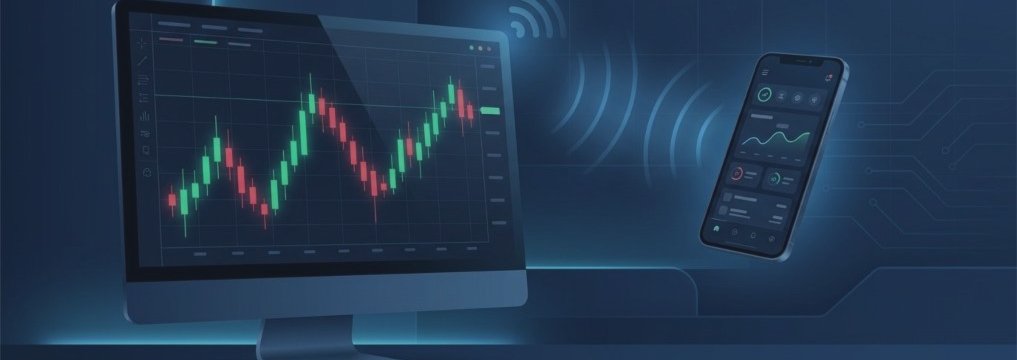
MTRemote – incredible remote control capabilities for your MetaTrader 4/5

MTRemote — your terminals in one panel
MetaTrader runs on your home PC or a VPS — and every now and then you need to check on it from your phone: see how the Expert Advisor is doing, glance at positions, switch accounts.
The usual way is RDP from your phone. And it is the same every time: the Windows desktop has to load, you hunt for the MetaTrader window among the others, your finger keeps missing tiny elements designed for a mouse cursor.
The native MetaTrader mobile app does not cover everything — it works with one account only and does not show Expert Advisors. WebTerminal — also one account only, and far from every broker has it enabled.
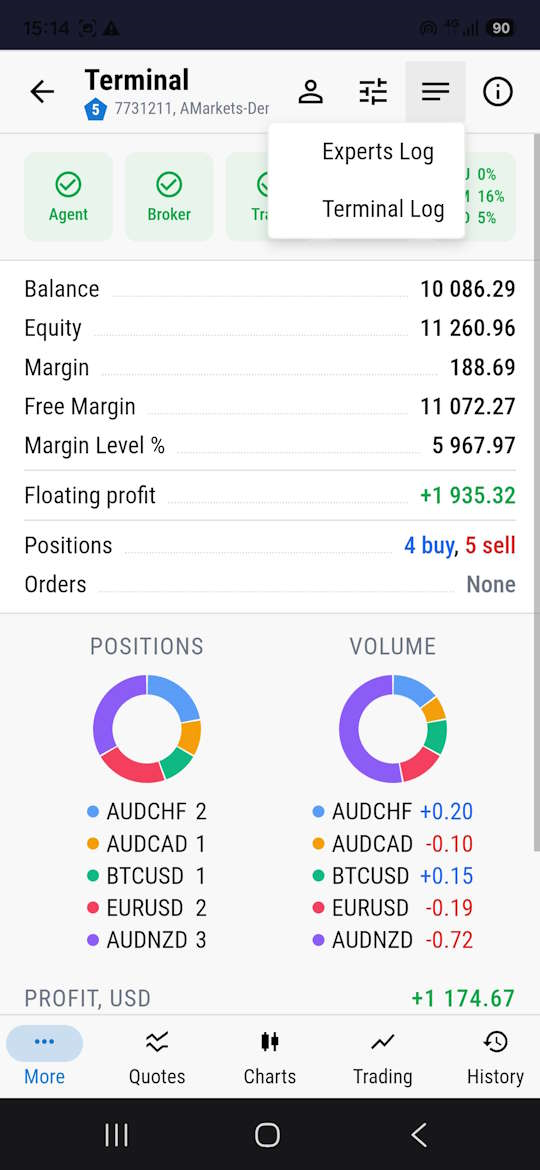
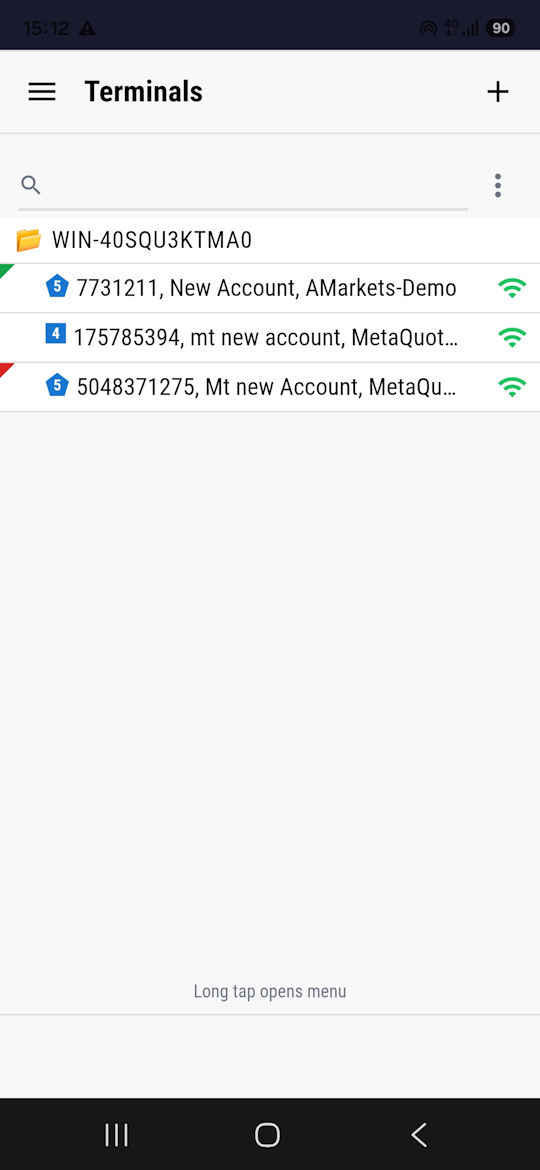
MTRemote works differently: it opens only the MetaTrader content, in a mobile interface. Terminals (one or several), their charts with Expert Advisors, logs and statistics — all in one panel on your phone.
Two equally good options — the same interface, the same capabilities:
- Web app — the page opens in any browser on any device, nothing to install.
- Android app (APK) — for those who value a snappy interface and low resource use: one tap to launch, runs faster and does not drain the battery the way a browser does.
💡 What It Solves
🪟 Only the MetaTrader content, designed for mobile use: touch navigation, large elements, symbol search, filters.
📊 A single list of agents and the terminals under them. For each one — a live summary: connection status, machine load, Expert Advisor logs, account state. All in one panel.
🎛️ From the MTRemote panel, for each terminal you can:
- turn the terminal on / off
- turn Algo Trading in the terminal on / off
- log in to another account
- add / remove symbols in Market Watch
- open / close charts
- launch / remove an Expert Advisor on a chart
- turn Algo Trading on / off for a specific Expert Advisor
- view Expert Advisor and terminal logs
- view statistics and trading history
- receive real-time events

☁️ Trading robots keep running on the home PC, just as they did before. You simply gain the ability to check on them from anywhere and from any device — from a desktop at the office, from a laptop in a hotel, from a tablet or a phone.
⚙️ How It Works
1️⃣ This Expert Advisor — attached to a chart. Links one terminal to MTAgent through a local pipe (fast and efficient). Shows the connection status. All networking is done by MTAgent — the on-chart panel itself never goes online.
2️⃣ MTAgent — Windows application. Installed once on the computer where the terminals run. Receives data from the connected terminals and, on request, passes it to your client in encrypted form (🔒 end-to-end encryption). Starts with regular user rights, opens no inbound ports, requires no setup. A regular internet connection is enough.
MTRemote — MTAgent installation
1 Run the installer on the computer where your terminals are running. 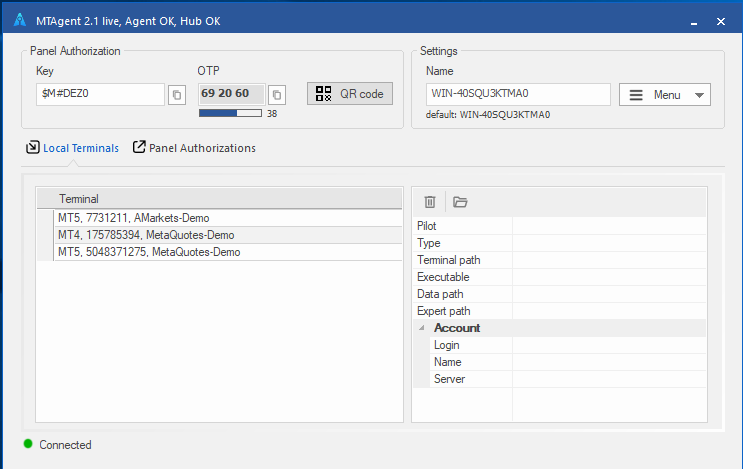 | 2 Attach the MTRemote Expert Advisor to a chart in every terminal that should appear in the panel. 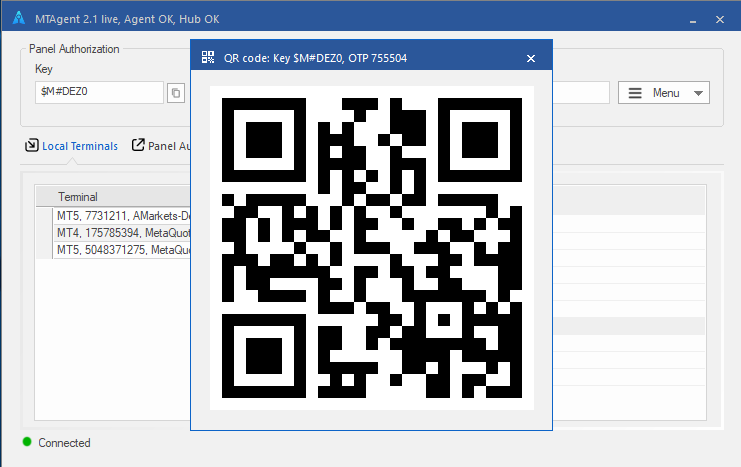 | 3 Open the panel and connect the agent by PIN or QR code. 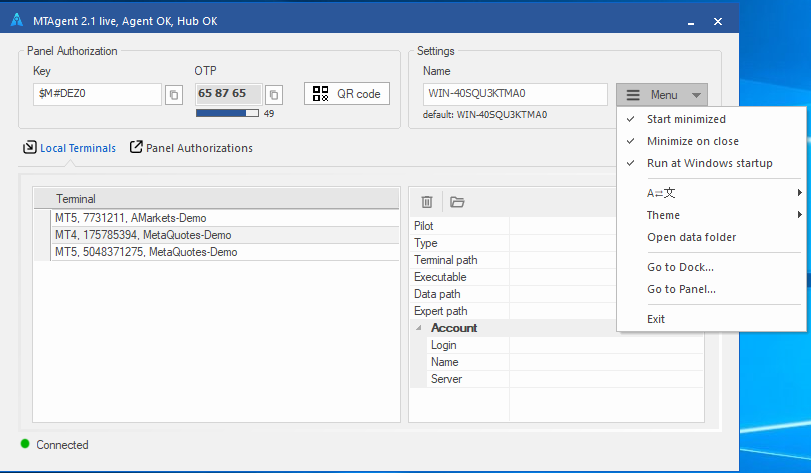 |
3️⃣ MTRemote — Android or Web app. Your remote panel. Connects to the agent by PIN or QR code.
🔒 Security
- End-to-end encryption between your MTAgent and the web or APK client.
- The key is derived from a password you set yourself — it never leaves your side.
- No intermediate point can decrypt the content.
The on-chart panel: loads no external libraries, and talks only to the local MTAgent over a pipe.
🎯 Who It Is For
- Anyone working with several brokers at once
- Anyone running Expert Advisors on a home PC or a VPS
- Anyone tired of switching between five apps on their phone
- Anyone who wants to see and control their terminals without turning remote access into an RDP quest
👁️ What The Expert Advisor Shows
- Connection status with MTAgent
- Sync time
- Product version
💬 Support
Questions, bug reports and feature requests — in the "Discussion" and "Comments" tabs on the product page.
#management · #panel · #remote-management · #remote