🔑 How to Get and Set the Claude API Key for the AOT Bot
This guide helps users set up APIs for the trading bot MT5 to enhance trading with AI
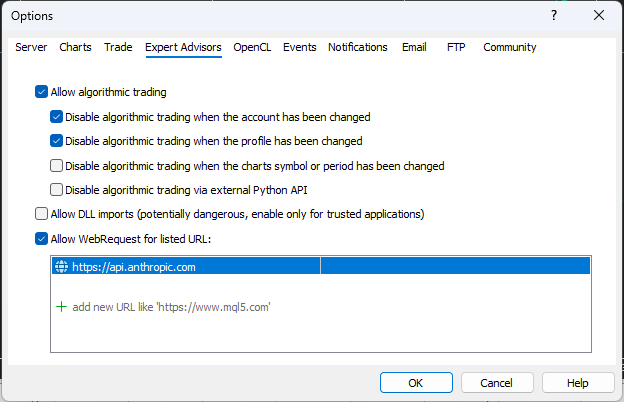
Initial step is to go into MT5, ensure your MT5 terminal is running, then configure the setting as follows.
Step 1: Access the Claude API Page
This guide helps users set up APIs for the trading bot MT5 to enhance trading with AI
Initial step is to go into MT5, ensure your MT5 terminal is running, then configure the setting as follows.
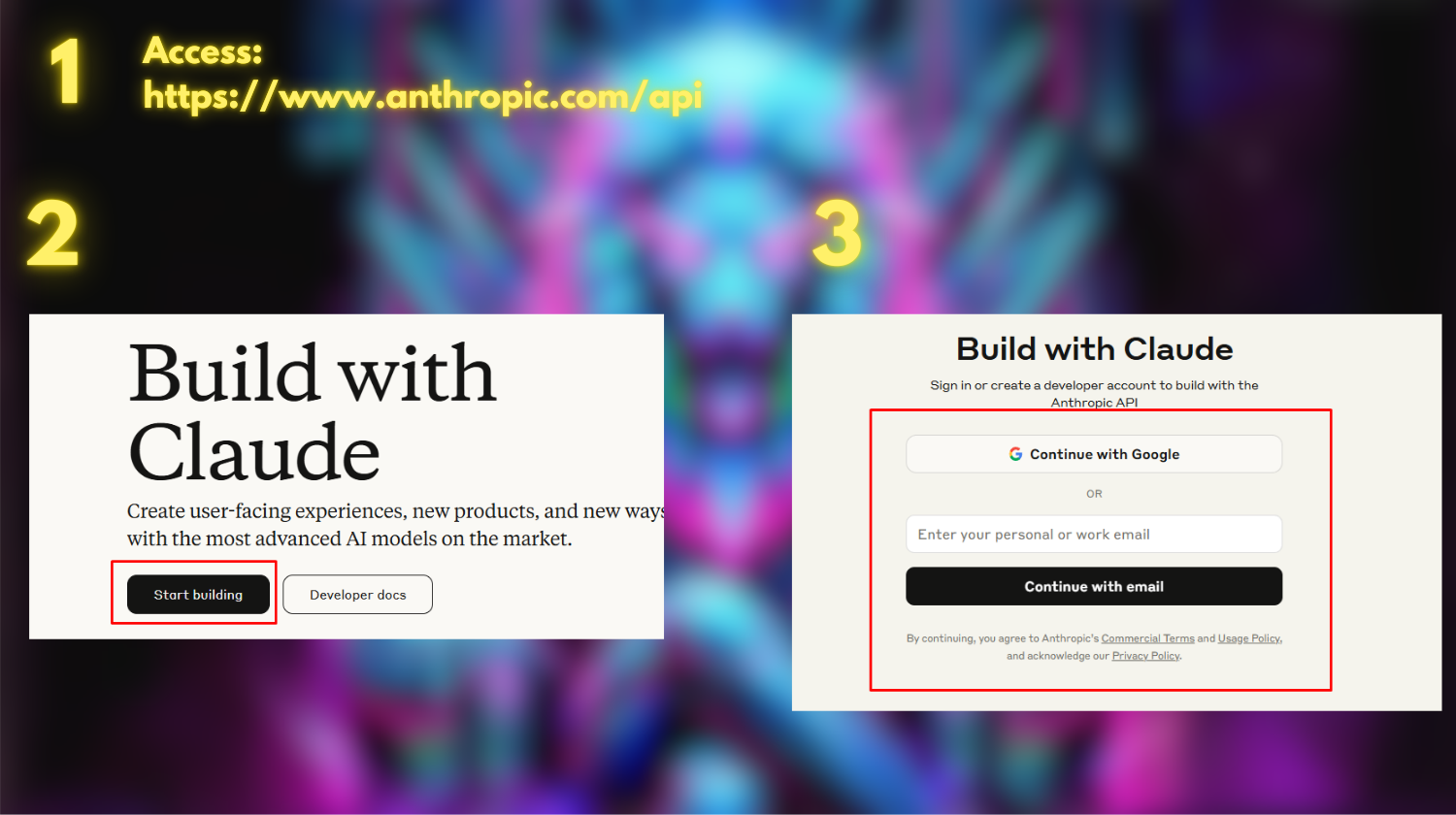
Go to https://www.anthropic.com/api
Step 2: Click Start Building
Step 3: Create an Account or Log In
If you don’t have an account, register one. If you already have an account, simply log in.
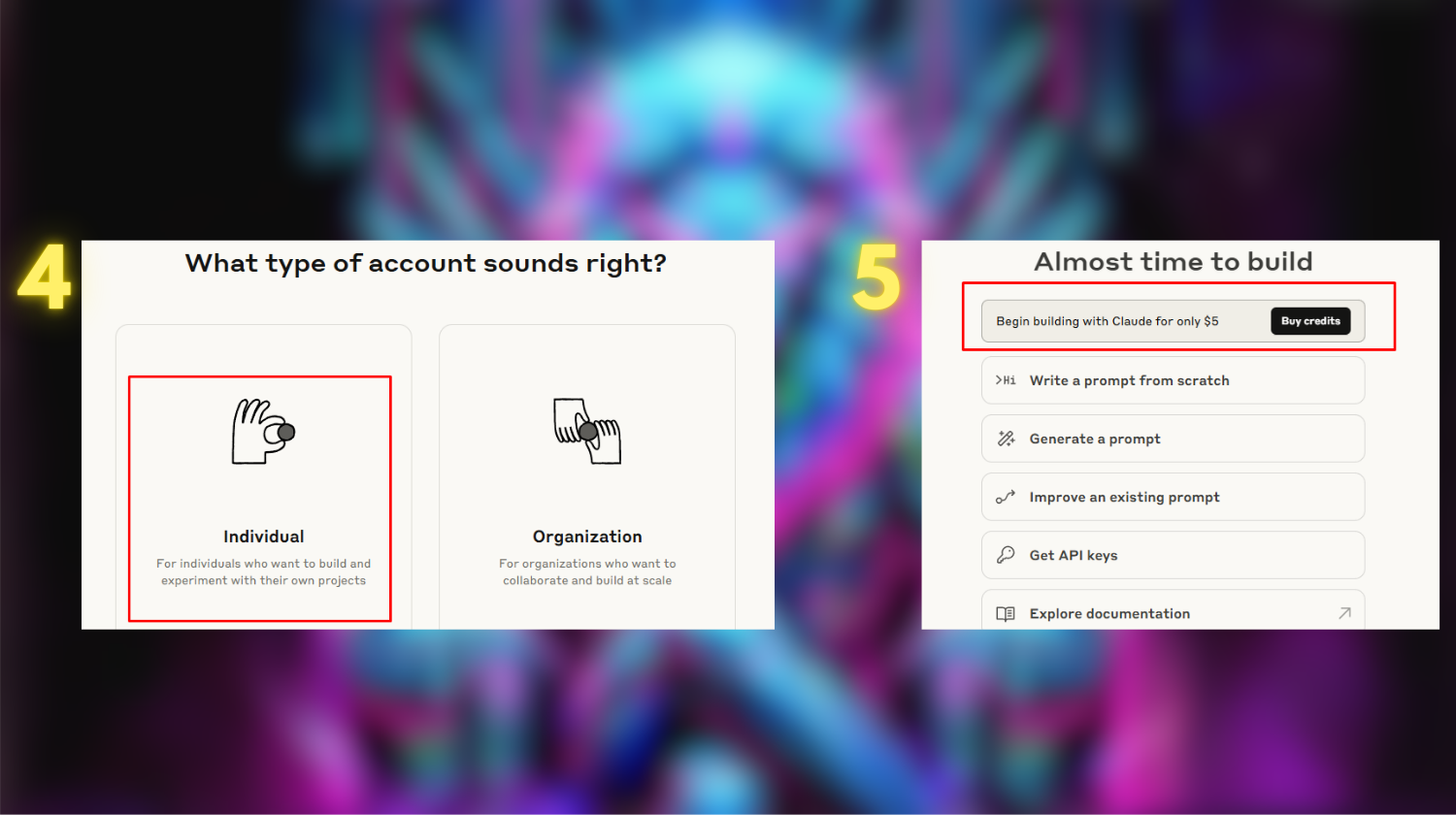
Step 4: Select Individual Account Type
Step 5: Click Buy Credits
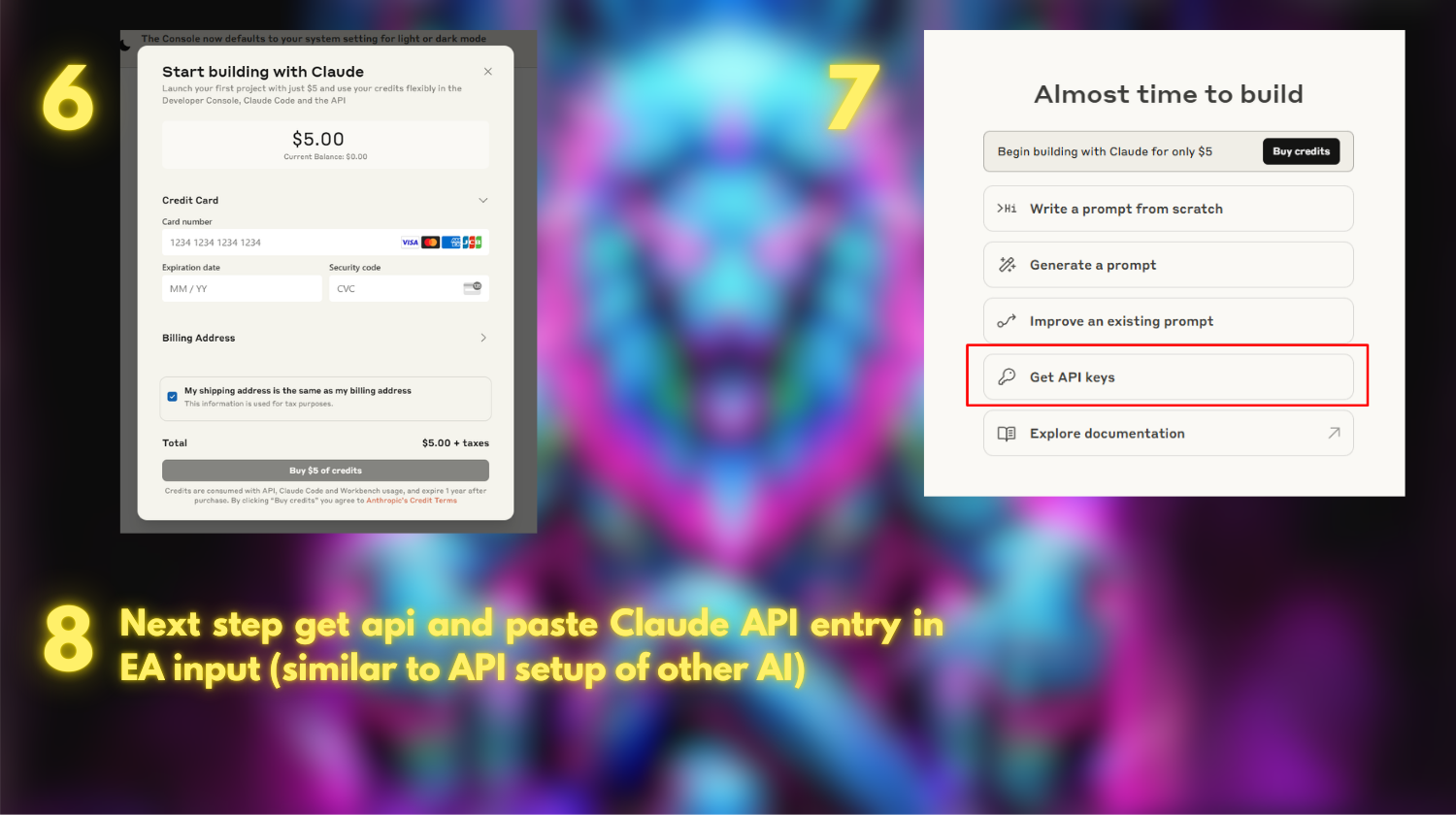
Step 6: Add a Payment Method and Complete Your Purchase
Step 7: Click Get API Keys
Step 8: Copy the API Key and Paste It into the AOT EA
Paste the API key into the Claude API Key field in the EA's input settings.
⚠️ Important: Keep your API key private. Do not share it with anyone or post it publicly.
🤖 How to Enable AI Model Analysis in the AOT Bot
Step 1: Attach the EA to a Chart
Open your MT5 terminal, and drag the EA onto the chart.
Step 2: In the Common Tab
Make sure to enable Allow Algo Trading.
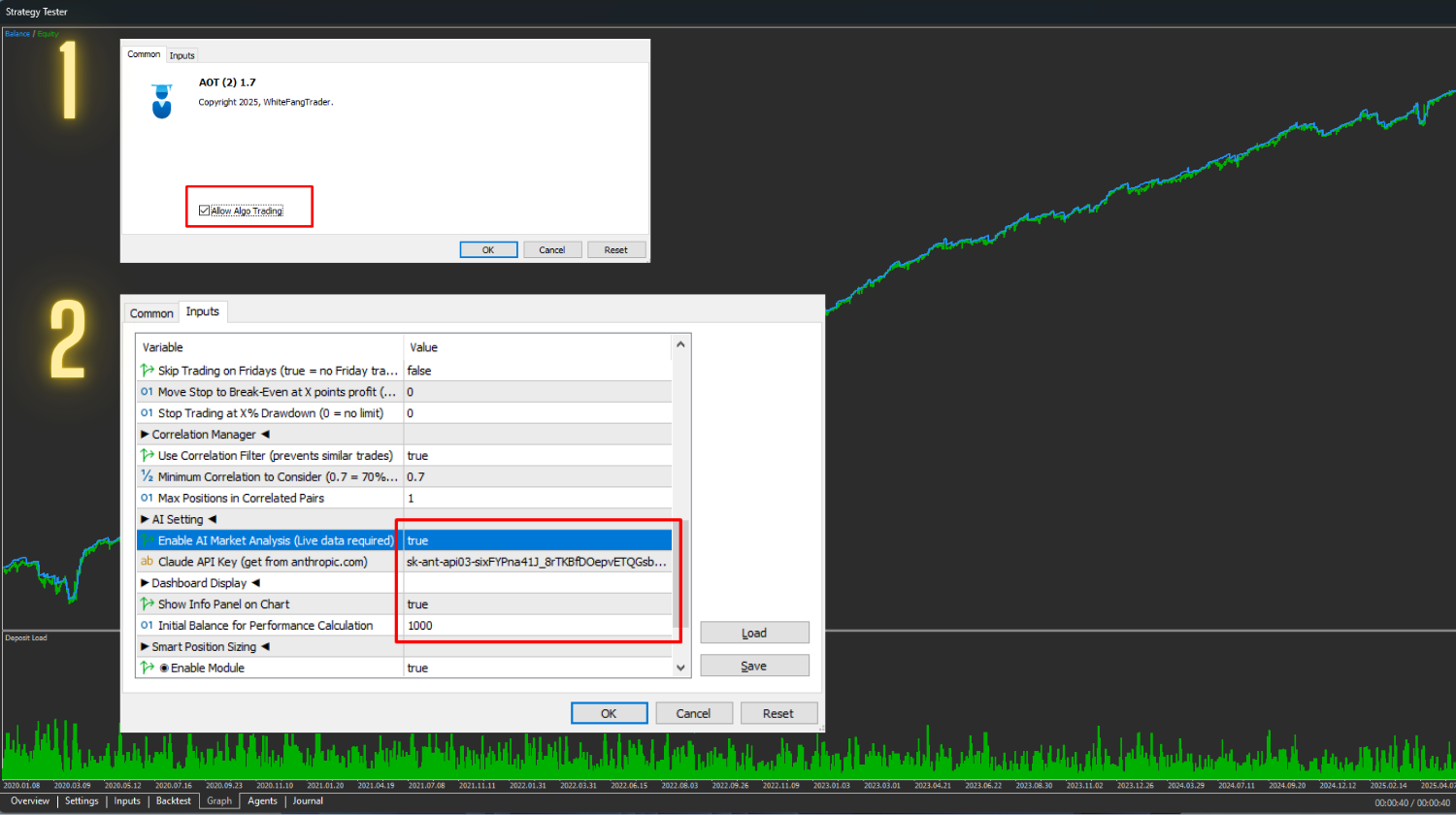
Step 3: In the Inputs Tab
-
Scroll down to the Claude AI settings.
-
Set Use Claude AI Model to True .
-
Paste your Claude API key in the corresponding field.
Step 4: Set Show Info Panel on Chart to True
Then click OK to apply all settings.
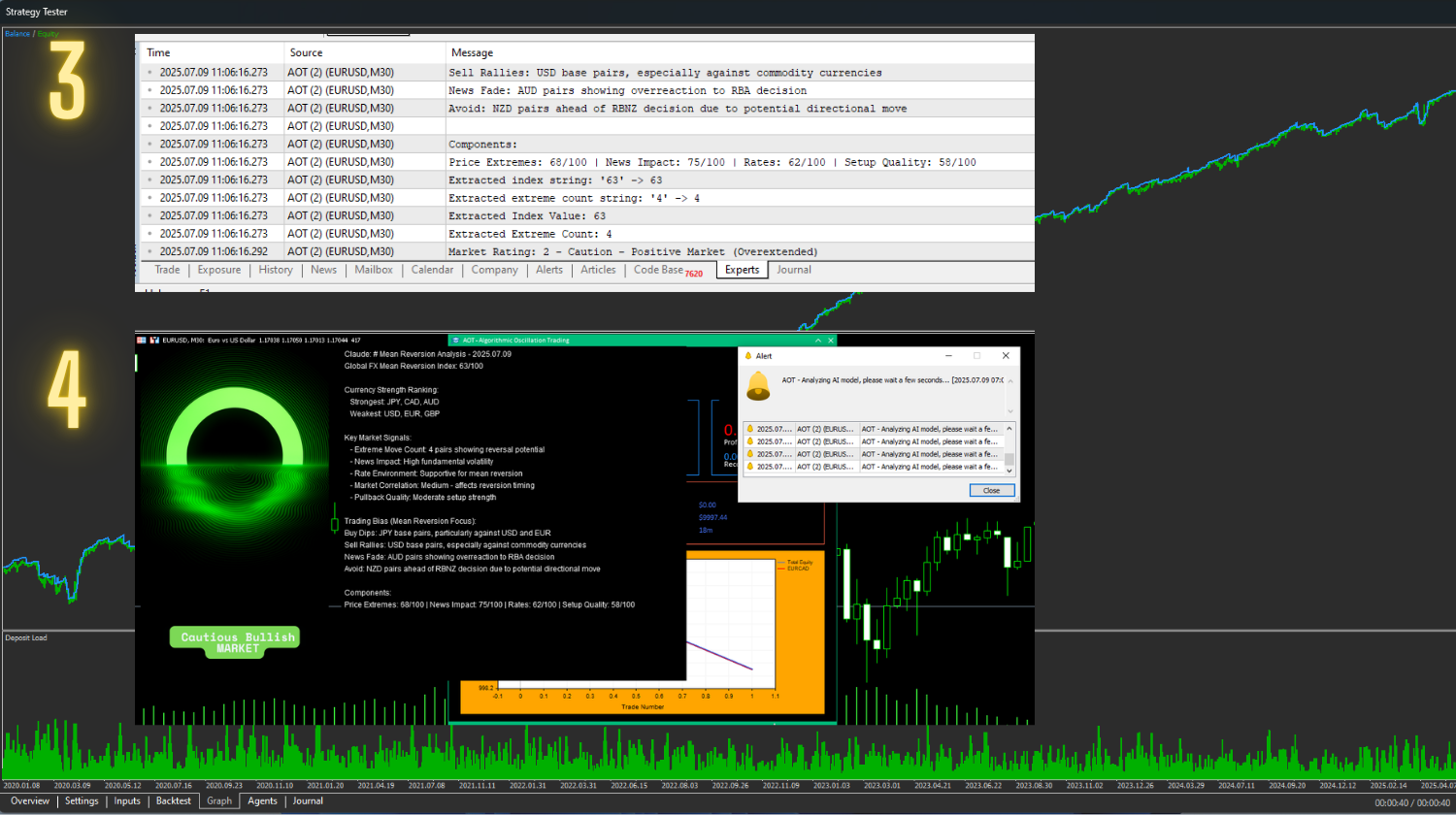
✅ After Setup
-
You will see the AI panel with a circular icon on the chart.
-
Sometimes this panel may disappear — don’t worry, the AI continues working in the background and still analyzes the market normally.
📋Note
- If you want to use the AI feature, your MT5 terminal language must be set to English.
- Remember to add the Claude URL (exactly as shown in the images at the beginning of this guide).
- When entering your API key, copy it carefully and make sure there are no extra spaces at the start or end.