After Breakout
- Uzmanlar
- Sürüm: 1.0
- Etkinleştirmeler: 5

The EA operates independently using MT5 chart data. It does not require external indicators, webhooks, DLLs, Python, or additional applications. The main trading settings are configurable from the Inputs tab, while BUY/SELL availability and visual settings use the product's internal configuration.
After Breakout supports the MT5 Strategy Tester, demo accounts, and live accounts. Its chart visualization is informational only and does not affect the EA's internal trading decisions.
Download Preset : Click Here
Preset For XAUUSD, M5
Main Features
- Automatic channel and breakout analysis.
- Signals confirmed using completed candles.
- Automatic BUY and SELL execution.
- One trading opportunity per channel.
- Three Stop Loss modes: Fixed Points, Signal Candle, and Channel Boundary.
- Fixed Take Profit or broker-side Trailing Stop.
- Fixed Lot or balance-based Auto Lot.
- Spread and trading-day filters.
- Configurable maximum positions per symbol.
- Broker volume, margin, tick size, stop level, and freeze level validation.
- Support for MT5 hedging and netting accounts.
- TradingView-inspired channel visualization on the main chart.
- Historical channel reconstruction without opening historical trades.
- No Martingale, Grid, Recovery Lot, or Averaging system.
Stop Loss
Fixed Points
The Stop Loss is placed at a fixed distance from the entry price. All point-based calculations use the symbol's native _Point value.
Signal Candle
The Stop Loss is based on the High or Low of the completed signal candle, with an additional configurable buffer.
Channel Boundary
The Stop Loss is based on the relevant channel boundary at the time of the breakout, with an additional configurable buffer.
Every Stop Loss price is normalized to the symbol's tick size and checked against the broker's minimum stop distance before an order is submitted.
Take Profit and Trailing Stop
Fixed Take Profit
The Take Profit is placed at a fixed point distance from the entry price. In this mode, the position is managed using broker-side Stop Loss and Take Profit levels.
Trailing Stop
Trailing Stop mode does not use a fixed Take Profit target. After the position reaches the configured Trailing Start level, the EA begins updating the Stop Loss according to the Trailing Distance and Trailing Step settings.
The Stop Loss is moved only when the new level improves the existing protection and complies with the broker's stop and freeze restrictions. The terminal and EA must remain running for the trailing level to continue updating.
Money Management
Fixed Lot
Every new position uses the fixed lot size selected by the user. The lot size does not change after a winning or losing trade.
Auto Lot by Balance
Auto Lot is calculated from the account balance using balance steps:
steps = floor(Account Balance / Balance Step) lots = steps × Lots per Balance Step
The result is capped by Maximum Auto Lot and validated against the broker's minimum, maximum, and volume-step requirements. If the calculated volume is below the broker minimum, no trade is opened. Auto Lot uses Account Balance rather than equity.
The EA does not increase lot size after a loss.
Input Parameters
Entry Settings
- Normalization Length — price normalization period.
- Channel Detection Length — channel detection period.
- Confirm Breakout by Candle Body — selects the candle confirmation method.
- Allow Overlapping Channels — allows active channels to overlap.
Lot Settings
- Lot Mode — Fixed Lot or Auto Lot by Balance.
- Fixed Lot Size — volume used in Fixed Lot mode.
- Balance per Auto-Lot Step — account balance required for one complete step.
- Lots per Balance Step — volume assigned to each complete balance step.
- Maximum Auto Lot — maximum volume allowed in Auto Lot mode.
- Maximum Positions per Symbol — maximum number of EA positions on the same symbol.
- Expert Magic Number — unique identifier for positions managed by the EA.
Stop Loss Settings
- Stop Loss Mode — Fixed Points, Signal Candle, or Channel Boundary.
- Fixed SL Distance — fixed Stop Loss distance in broker points.
- Candle/Channel Buffer — additional buffer for candle-based or channel-based Stop Loss modes.
Take Profit and Trailing Settings
- Take Profit Mode — Fixed Points or Trailing Stop.
- Fixed TP Distance — fixed Take Profit distance in broker points.
- Trailing Start — minimum favorable movement before trailing begins.
- Trailing Distance — distance maintained between the market price and Stop Loss.
- Minimum Trailing Step — minimum improvement required before the Stop Loss is updated.
Filter Settings
- Enable Spread Filter — enables spread filtering for new entries.
- Maximum Spread — maximum permitted spread in broker points.
- Maximum Price Deviation — maximum permitted order-price deviation.
Trading Days
- Monday — enabled by default.
- Tuesday — enabled by default.
- Wednesday — enabled by default.
- Thursday — enabled by default.
- Friday — enabled by default.
- Saturday — disabled by default.
- Sunday — disabled by default.
Trading days are determined using the broker's server time, not the computer's local time. The day filter affects new entries only. Open-position management and Trailing Stop operation remain active on disabled days.
Chart Visualization
The EA displays its channel visualization directly on the main MT5 chart, including:
- White background with a light gray grid.
- Turquoise bullish candles and red bearish candles.
- Light gray channel boxes.
- Pastel red resistance zones.
- Mint-green support zones.
- Dashed channel midlines.
- BUY and SELL breakout arrows.
- Volume approximation inside channels.
- Volume labels and a delta gauge.
Depending on the symbol, MT5 may provide real volume or tick volume. The displayed up/down distribution is an OHLCV-based approximation and is not true aggressor volume. Volume visualization is not used as a trading filter.
Installation
- Copy After Breakout.ex5 to the terminal's MQL5/Experts folder.
- Open MetaTrader 5 and refresh the Navigator, or restart the terminal.
- Drag After Breakout from the Navigator onto the selected chart.
- Enable Allow Algo Trading in the EA properties.
- Enable the Algo Trading button on the MT5 toolbar.
- Review the lot, Stop Loss, Take Profit, spread, trading-day, and Magic Number settings.
Backtesting
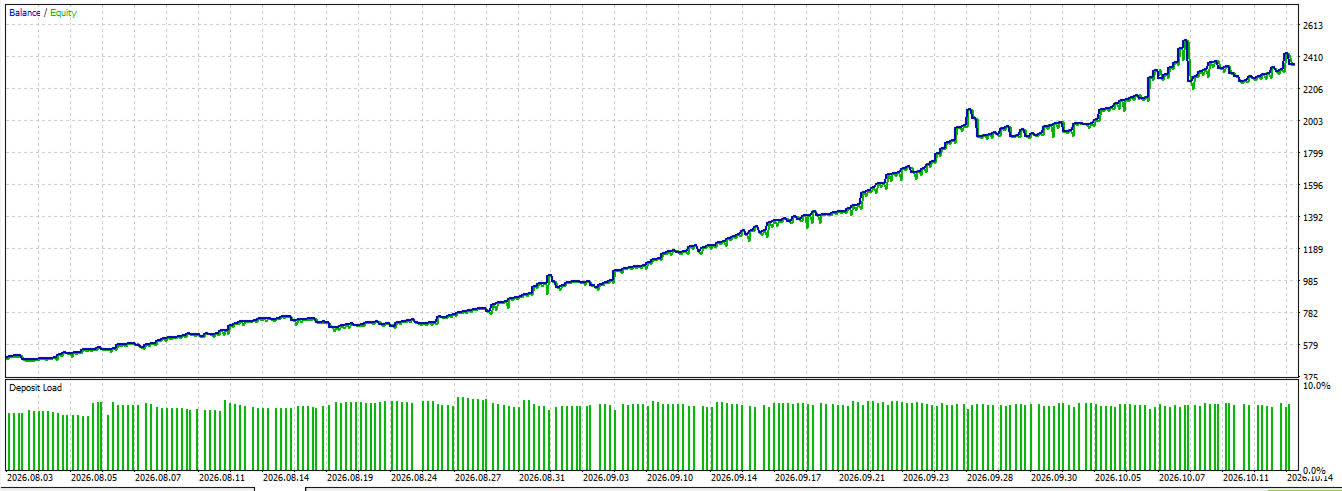
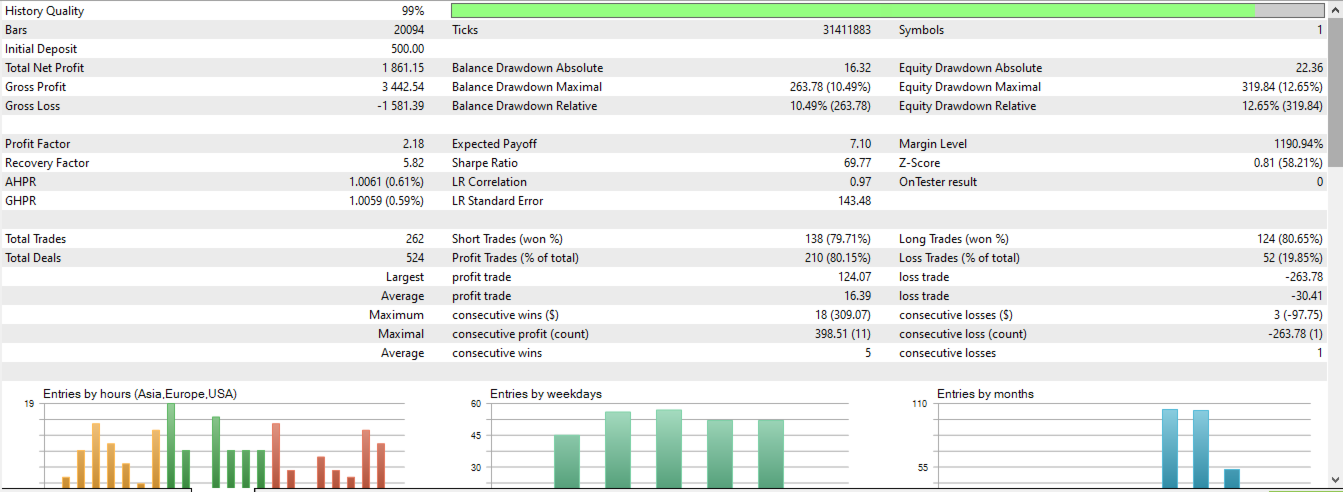
Use the MT5 Strategy Tester with Every tick based on real ticks when suitable data is available. Ensure that the selected test period contains sufficient historical data.
- Disable Visual Mode when chart-object inspection is not required.
- Begin with the M5 or H15 timeframe.
- Use a short test period before running long M1 tests.
- Review the Journal for orders rejected because of spread, volume, margin, or stop-level restrictions.
Chart visualization is skipped during non-visual tests. Historical signals reconstructed during initialization do not open historical trades.
Risk Notice
Trading involves risk. After Breakout does not guarantee profits or prevent losses. Performance can be affected by price feeds, spreads, commissions, swaps, slippage, symbol specifications, and broker execution conditions.
Results may differ between brokers, TradingView, and MetaTrader 5 because of differences in historical data and candle construction. Backtesting results do not guarantee future trading performance. Test the EA in the Strategy Tester and on a demo account before considering live use.