NevermissTP
- Uzmanlar
- Sürüm: 1.4
- Güncellendi: 18 Eylül 2026
- Etkinleştirmeler: 5

NevermissTP — Telefonunuzdan işlem açın, profesyonelce yönetilsin
İşlemi telefonunuzdan açın. Gerisini NevermissTP halleder.
Hareket halindesiniz, bir fırsat görüyorsunuz, MT5 mobil uygulamasından bir pozisyon açıyorsunuz — hepsi bu kadar. Yolda telefonunuzdan iz süren zarar durdur ayarlayamazsınız. İşteyken bir grid sepetini takip edemezsiniz. NevermissTP, MT5 terminalinizde (masaüstü veya VPS) çalışır ve her pozisyonu ortaya çıktığı anda yönetmeye başlar — telefonunuzdan açtıklarınız da dahil — böylece girişleriniz, açtığınız anda masa başında olmadığınız için asla yönetimsiz kalmaz.
Hareket halindeyken işlem yapan trader'lar için tasarlandı
NevermissTP'nin çözdüğü sorun şu: MT5 mobil, pozisyon açmanıza ve kapatmanıza izin verir, ancak bir EA çalıştıramaz. Telefonunuzda "Al"a dokunduğunuz anda, o pozisyonun kâr al mantığı, iz süren zarar durdur'u veya grid koruması yoktur — başka bir şey onu izlemediği sürece. NevermissTP o "başka bir şey"dir. Grafiğinize bir kez ekleyin (7/24 çalışan bir masaüstü terminalde veya VPS'de) ve o andan itibaren, telefonunuzdan, tabletinizden veya masaüstünüzden açtığınız her pozisyon otomatik olarak algılanır ve tam olarak yapılandırdığınız şekilde yönetilir.
🎯 Zaten işlem yapma şeklinize göre tasarlanmış iki asistan modu
Assist OneShot
Tek seferlik, kararlı pozisyonlar alan trader'lar için.
- Pozisyonunuz ortaya çıktığı anda otomatik TP/SL uygulanır — ister mobilden ister masaüstünden açılmış olsun
- 4 iz sürme modu: Devre dışı, Klasik (sabit adım), Percent Lock (kârı kademeli olarak kilitler, kazanılmış korumayı asla geri vermez) ve Auto Breakeven (SL daha sonra manuel olarak hareket ettirilse bile başabaşı zorlamaya devam eden isteğe bağlı Lock modu ile)
- Manuel giriş sayısında pratik bir sınır yok — NevermissTP aynı anda 100 pozisyona kadar takip eder, her biri bağımsız olarak yönetilir
Assist Averaging (Grid/DCA)
Giriş fiyatlarını ortalamak için pozisyona kademeli giren trader'lar için.
- Yapılandırılabilir grid adımı, lot çarpanı ve grid çarpanı, maksimum grid sayısı ve maksimum lot büyüklüğü üzerinde katı sınırlarla
- 5 kâr al hesaplama yöntemi: Weighted Average, Dynamic Layer, By Dollar Target, By Percent of Balance/Equity ve Last High/Low Candle
- Grid tek bir pozisyonun ötesine büyümeden önce, ilk girişiniz için de aynı 4 iz sürme modu kullanılabilir
- 2+ pozisyonlu sepetler için Basket Dollar Trailing — tüm sepetin dalgalı kârını sabit bir geri verme miktarı veya tepe noktasının bir yüzdesi ile takip eder, tamamen sanal olduğundan derin gridlerde bile hafif kalır
- İstediğiniz zaman manuel bir pozisyon ekleyin, kâr al otomatik olarak yeniden hesaplansın — bu hem Assist Averaging hem de Auto with Averaging için geçerlidir. Bir sepet aktifken aynı yönde ek bir pozisyon açın, NevermissTP bunu sepete dahil eder ve seçtiğiniz TP yöntemini kullanarak yeni birleşik pozisyon için TP'yi yeniden hesaplar.
- Yön başına bir sepet. NevermissTP aynı anda yalnızca bir BUY döngüsü ve bir SELL döngüsü yönetir. Aynı yöndeki ek manuel girişler, yeni bir sepet başlatmak yerine o yönün mevcut sepetine katılır.
- Bir sonraki grid katmanının büyüklüğü en derin pozisyonunuzu takip eder, mutlaka en yeni olanı değil. Bir sonraki grid katmanının lot büyüklüğü, o sepette en çok zararda olan pozisyona (en düşük fiyatlı BUY veya en yüksek fiyatlı SELL) göre hesaplanır — sadece en son açılan pozisyona göre değil. Yeni manuel girişiniz önceki bir girişten daha iyi bir fiyatta olsa bile, grid yine de önceki (daha derin) pozisyonun lot büyüklüğünü takip eder.
Ayrıca dahil: Auto Mode
NevermissTP ayrıca, isteğe bağlı işlem saatleri ve haber filtreleriyle birlikte RSI + ADX sinyali kullanarak kendi girişlerini açabilen basit, yerleşik bir başlangıç stratejisi (Auto with Averaging) ile birlikte gelir. Bu bir bonustur, ana özellik değil — gerçek değer yukarıda anlatılan her şeyde: nerede olursanız olun kendi açtığınız işlemleri düzgün bir şekilde yönetilen pozisyonlara dönüştürmek. Tam manuel kontrol için istediğiniz zaman Assist OneShot veya Assist Averaging'e geçin.
Auto Mode aynı Averaging motorunda çalıştığından, aynı kurallar geçerlidir: yön başına yalnızca bir sepet (aynı yöndeki yeni bir manuel giriş, ayrı bir sepet başlatmak yerine aktif otomatik açılmış sepete katılır), bir pozisyon eklendiğinde TP otomatik olarak yeniden hesaplanır ve bir sonraki grid katmanının büyüklüğü en derin pozisyonu takip eder — mutlaka en son açılanı değil.
🔁 Akıllı Katman Yenileme (Smart Layer Refill)
Bir grid pozisyonunu yanlışlıkla mı kapattınız — muhtemelen yanlış düğmeye basmanın kolay olduğu telefonunuzdan mı? NevermissTP, son grid katmanını kapatmakla orta bir katmanı kapatmak arasındaki farkı bilir:
- Son katmanı kapatın → tam olarak aynı fiyat ve lot büyüklüğünde otomatik olarak yeniden açılır.
- Orta bir katmanı kapatın → yeniden doldurulmaz, sadece sepetin geri kalanı için kâr al yeniden hesaplanır.
🛡️ Yerleşik risk koruması
- Bakiye yüzdesi veya sabit dolar tutarı ile Auto Cut Loss, bu paritenize veya tüm hesabınıza kapsamlı
- TP vuruşları, SL vuruşları, cut-loss tetiklenmeleri ve grid limitleri için telefonunuza anında push bildirimleri — kurulum için aşağıdaki bölüme bakın
- Grafiğinizde ekonomik haber çizgileri, her modda kullanılabilir (yalnızca Auto'da değil) — yaklaşan ve geçmiş yüksek/orta/düşük etkili haber olaylarını doğrudan grafikte işaretli görün, haberden belirli sayıda dakika önce isteğe bağlı push bildirimi ile
- Yerel MT5 emir/TP/SL/bekleyen çizgileri her zaman grafikte görünür kalır
- Brokerınız XAUUSD'yi 2 veya 3 ondalık basamakla kote etse de tutarlı çalışır — manuel ayara gerek yok
📊 Canlı Panel ve Tek Tıklamayla Kontroller
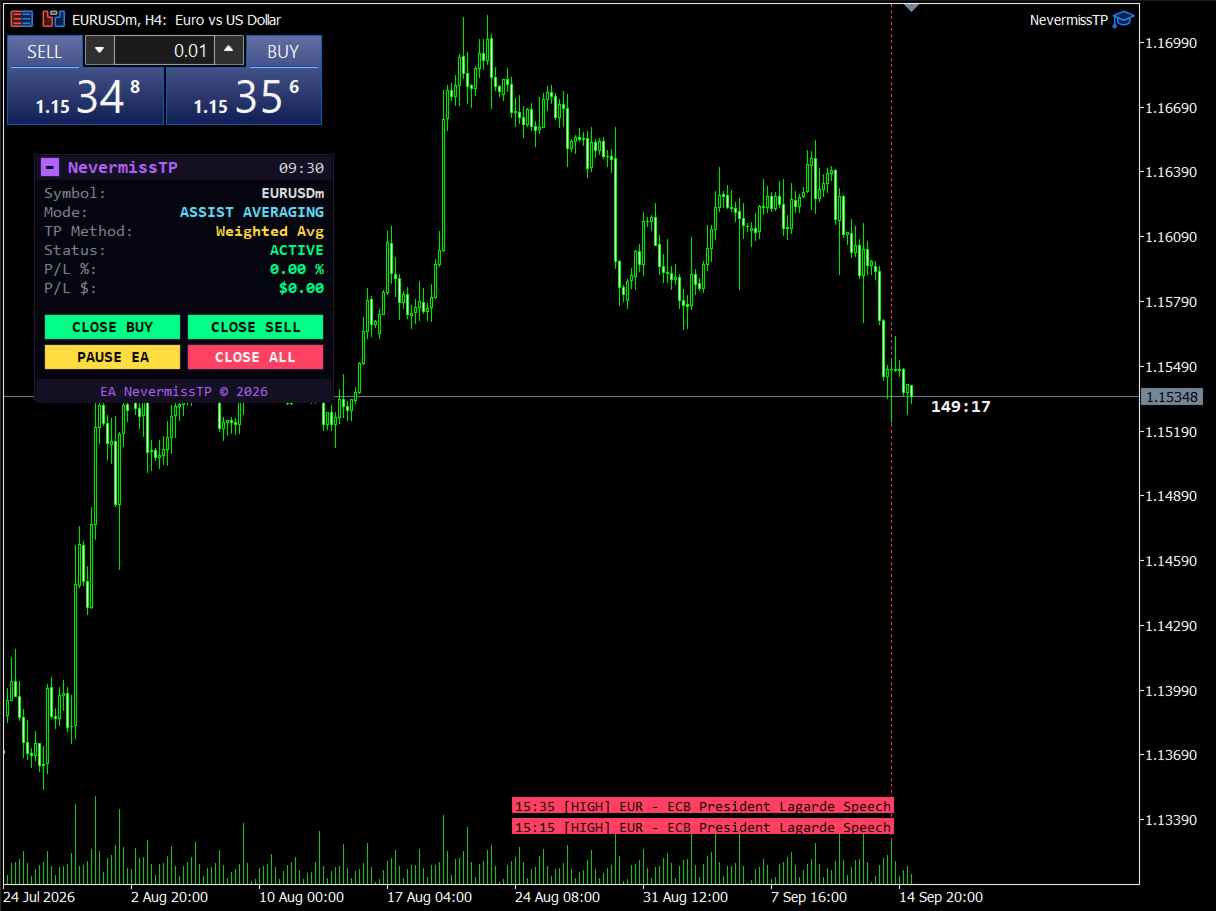
Grafikteki bir panel, dalgalı K/Z, mevcut modu, aktif TP yöntemini ve cut-loss durumunu gösterir. Tek tıklamalı düğmeler (onay istemleriyle) tüm alışları, tüm satışları kapatmanıza veya EA'yı duraklatmanıza olanak tanır — döngü ortasında bırakmak yerine açık işlemlerinizi bitene kadar yönetmeye devam eden bir "temizlenince duraklat" seçeneği dahil.
📱 Push Bildirimlerini Ayarlama (MQL ID)
Push bildirimleri, NevermissTP'nin bir şey olduğu anda telefonunuza ulaşmasını sağlayan özelliktir — bir TP vuruşu, bir SL vuruşu, bir cut-loss tetiklenmesi. İşte nasıl bağlanacağınız:
- Telefonunuzda, MetaTrader 5 mobil uygulamasını açın ve ticaret hesabınıza giriş yapın.
- Ayarlar → Mesajlar'a gidin (veya uygulama sürümüne bağlı olarak bildirimler/sohbet simgesine).
- MetaQuotes ID etiketli bir kod göreceksiniz — bu sizin MQL ID'nizdir. Kopyalayın.
- NevermissTP'nin çalıştığı masaüstü terminalde, Araçlar → Seçenekler → Bildirimler'e gidin.
- "Push Bildirimlerini Etkinleştir"i işaretleyin, MQL ID'nizi MetaQuotes ID alanına yapıştırın ve Test Et'e tıklayın — birkaç saniye içinde telefonunuza bir test bildirimi almalısınız.
- NevermissTP'nin girdi parametrelerinde, "tüm bildirimler için ana anahtar"ın true olarak ayarlandığından ve istediğiniz belirli uyarıların da açık olduğundan emin olun.
Bu kurulduktan sonra, bir bilgisayara yakın olmasanız bile NevermissTP bir işlem yaptığı anda telefonunuza bir bildirim alacaksınız.
✅ Önerilen Kullanım
- Gerçek fonları riske atmadan önce iz sürme modlarına ve TP yöntemlerine aşina olmak için önce bir demo hesapta test edin.
- İşlemleriniz açıkken terminali çalışır durumda tutun — ister bir VPS'de, ister aktif olarak işlem yaparken masaüstünüzde. NevermissTP'nin iz süren zarar durdur'ları, grid katmanlarını ve cut-loss'u yönetebilmesi için çalışıyor olması gerekir; yalnızca görebildiği şey üzerinde hareket edebilir, bu yüzden terminal kapanırsa (dizüstü bilgisayar uykuya geçerse, internet kesilirse) yönetim tekrar çalışana kadar duraklar. Bir VPS, siz düşünmenize gerek kalmadan onu 7/24 aktif tutar; bu, özellikle mobil cihazdan işlem açıyorsanız ve her zaman masaüstünüze yakın olmayacaksanız yardımcı olur. Ancak bir VPS zorunlu değildir — terminali işlemlerinizin yönetilmesini istediğiniz süre boyunca (örneğin, işlem yapmaya başladığınızdan pozisyonlarınız kapanana kadar) açık ve bağlı tuttuğunuz sürece NevermissTP'yi masaüstünüzde çalıştırmak da aynı derecede iyi çalışır.
- Özellikle Averaging modunda lotlarınızı bilinçli olarak boyutlandırın — grid çarpanları her katmanda lot büyüklüğünü bileşik olarak artırır, bu yüzden canlıya geçmeden önce hesabınızın marj gereksinimlerini "Max Lot Size" ve "Max Grid Count" ile karşılaştırın.
- Grafiklerden uzakta olduğunuzda bile neler olduğunu bilmek için push bildirimlerini ayarlayın (yukarıya bakın).
- Grid/averaging'i etkinleştirmeden önce Auto Cut Loss ayarlarını gözden geçirin — bir sepet beklenenden daha fazla hareket ederse bu sizin güvenlik ağınızdır.
❌ Yapılmaması Gerekenler
- Bir pozisyon veya döngü hâlâ açıkken Trading Mode'u değiştirmeyin. NevermissTP, işlemi yönetim ortasında bırakmak yerine her şey netleşene kadar önceki modu aktif tutar, ancak döngü ortasında gereksiz yere değiştirmek yalnızca kafa karışıklığı yaratır — bir döngünün önce bitmesine izin vermek en iyisidir.
- EA'nın birden fazla kopyasını aynı sembole aynı Magic Number ile eklemeyin — bu, aynı pozisyonların çelişkili şekilde yönetilmesine neden olabilir.
- Bir grid veya iz sürme döngüsü aktifken terminali uzun süre bağlantısız bırakmayın — unutmayın, EA yalnızca görebildiğini yönetebilir.
- Marjınızı kontrol etmeden agresif grid/lot çarpanları ayarlamayın — fiyat aleyhinize hareket etmeye devam ederse averaging stratejileri pozisyon büyüklüğünü hızla artırabilir.
- Auto Mode'a ana stratejiniz olarak güvenmeyin. Bu, temel filtrelere sahip bir kolaylık özelliğidir, kendi piyasa değerlendirmenizin yerini tutmaz.
NevermissTP bir işlem yönetim aracıdır, kâr garantisi değildir. Geçmiş performans ve backtest sonuçları gelecekteki sonuçları garanti etmez. Her zaman hesap büyüklüğünüze uygun risk yönetimi ile işlem yapın.