Fast Trade
- Uzmanlar
- Sürüm: 1.15
- Etkinleştirmeler: 5

⚡ FastTrade MetaTrader Panel – Operations & Sales Manual
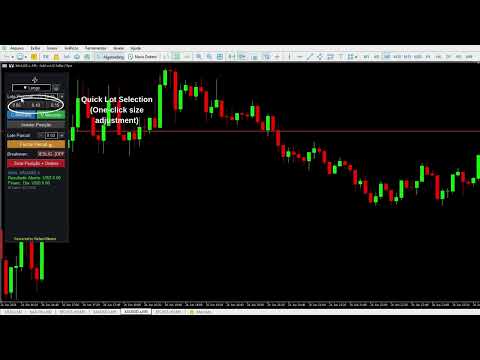
FastTrade is a high-performance chart panel developed for manual order execution and agile risk management in MetaTrader. It replaces the platform's native, slow commands with a clean, responsive, and performance-optimized interface, ensuring your trades are executed with surgical precision and maximum speed.
1. Input Fields and Volume Selection
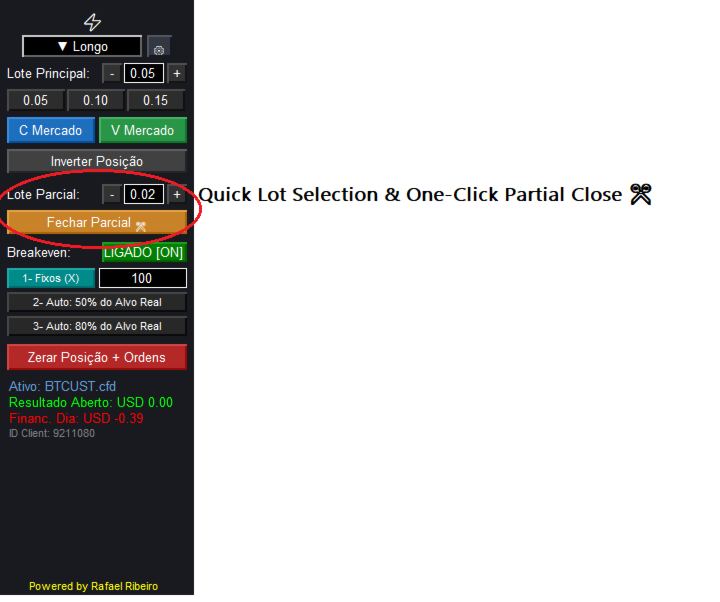
Direction Menu (Top): Visual dropdown menu to define the strategy or operational chart bias (e.g., ▼ Longo / Long).
Main Lot (Lote Principal): Editable field with fine-tuning buttons (- and +) to set the exact volume of your initial order or position increase.
Quick Lot Buttons (0.05, 0.10, 0.15): Visual shortcuts to instantly change the Main Lot value with a single click, speeding up volume adjustments.
Partial Lot (Lote Parcial): Editable field with fine-tuning buttons (- and +) to set the exact volume you want to close when triggering a partial exit.
2. Advanced Breakeven Module (Smart & Dynamic Protection)
Unlike cluttered panels that require complex manual calculations in the heat of the trade, FastTrade features an intelligent system. When the main Breakeven button is toggled LIGADO [ON], you gain access to 3 automated protection modes:
1- Fixos (X) / Fixed: Automatically moves the Stop Loss to the entry price (break-even) as soon as the trade reaches the exact point value typed in the field (e.g., 100 points).
2- Auto: 50% do Alvo Real (50% of Real Target): The panel detects your final target (Take Profit) and automatically pulls the Stop Loss to break-even as soon as the price goes halfway (50% of the target).
3- Auto: 80% do Alvo Real (80% of Real Target): Late-stage protection. The system secures your entry price as soon as the trade reaches 80% of the specified target distance.
3. Execution and Management Buttons
C Mercado (Blue): Executes an immediate Buy Market order using the volume set in the Main Lot field.
V Mercado (Green): Executes an immediate Sell Market order using the volume set in the Main Lot field.
Inverter Posição (Gray) / Reverse Position: Closes your current position at market price and simultaneously opens an opposite position with the exact same volume.
Fechar Parcial ✂️ (Orange) / Close Partial: Executes a partial exit, reducing your current position by the volume configured in the Partial Lot field.
Zerar Posição + Ordens (Red) / Flatten + Cancel: The essential panic button. Instantly closes any open position and cancels all pending orders for the current asset.
4. Keyboard & Mouse Shortcuts (Directly on the Chart)
Trade fast without taking your eyes off the price action or clicking panel buttons:
Hold SHIFT + Click on Chart: Sends a Buy order.
Hold CTRL + Click on Chart: Sends a Sell order.
5. Monitoring Panel (Real-Time Metrics)
Ativo / Asset: Displays the current asset ticker on the chart (e.g., BTCUST.cfd).
Resultado Aberto / Open P&L: Displays the floating profit or loss of the current trade in real time.
Financ. Dia / Daily P&L: Displays the consolidated financial result of the entire day for this specific asset.
ID Client: Connected account identification.
Candle Timer: Countdown timer showing the exact time remaining before the current candle closes—crucial for price action closing setups.
Spread Atual / Current Spread: Real-time tracking of the broker's spread, letting you avoid entering trades during low liquidity or spread spikes.
❌ What the Product DOES NOT Do:
No automated trading: All trading decisions, entries, and directions remain 100% under the control and responsibility of the trader.
No signals or automatic analysis: The panel does not perform technical or fundamental analysis, nor does it indicate buy/sell points. It is a tool for operational support and rapid execution.
No guaranteed profits: Operational tools optimize execution speed and management but do not eliminate the inherent risks of the financial markets.
🛠️ Technical Requirements & Recommendations:
MetaTrader installed with the "Algorithmic Trading" option enabled (green) in the top toolbar for all panel functions and protections to work properly.
Recommendation: Test the panel on a demo account first to become familiar with execution speeds and click shortcuts before trading with real capital.
Profitchart Profit