Vectorithm YHigh Retest
- Uzmanlar
- Sürüm: 1.0
- Etkinleştirmeler: 5

Vectorithm YHigh Retest EA
Overview
NB: Product is suitable for EURUSD, GBPUSD & USDJPY
Vectorithm YHigh Retest is a simple breakout and retest Expert Advisor that trades only one idea.
-
Price must break above yesterday’s daily high.
-
Price must retest the yesterday high area.
-
Price must close back above the level again to confirm the retest.
-
Then the EA opens a Buy trade.
This EA is designed to trade the chart symbol you attach it to. It does not scan multiple symbols.
Trading Logic
Step 1. Calculate yesterday’s range
At the start of each broker day, the EA reads:
-
Yesterday High from the D1 candle shift 1
-
Yesterday Low from the D1 candle shift 1
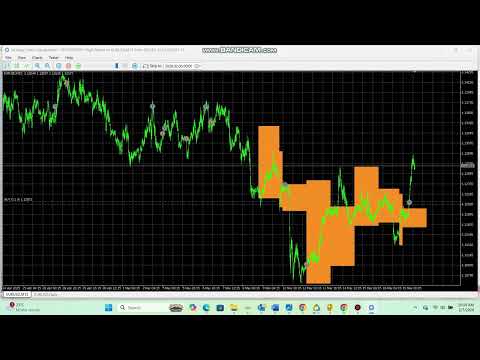
It can also draw a rectangle that shows yesterday’s high and low range across the current day.
Step 2. Breakout detection
The EA waits for a candle close above yesterday’s high by a buffer.
-
Breakout level = Yesterday High + BreakoutBufferPoints
If the last closed candle close is above this level, the EA marks a breakout as detected.
Step 3. Retest detection
After breakout, the EA waits for a candle that touches a retest zone around yesterday’s high.
-
Retest zone top = Yesterday High + RetestTolerancePoints
-
Retest zone bottom = Yesterday High - RetestTolerancePoints
A retest is detected when a candle’s high and low range overlaps this zone.
Step 4. Entry confirmation and Buy
After the retest, the EA requires confirmation.
-
Entry level = Yesterday High + EntryBufferPoints
If the last closed candle close is above the entry level, the EA attempts to open a market Buy order.
The EA opens only one position at a time for the symbol and MagicNumber.
Trade Filters and Safety Rules
Spread filter (optional)
If enabled, the EA checks current spread before entering.
-
If spread is above MaxSpreadPoints, it will not trade.
Trade permission checks
The EA will not trade if trading is disabled in:
-
The EA input EnableTrading
-
Terminal trading permissions
-
Account trading permissions
-
MQL trade permission flags
Random trade gate (sigmoid filter)
Before placing a trade, the EA generates a random percent from 0 to 100 using a sigmoid distribution.
-
The trade is allowed only if the value is less than or equal to MaxSigmoidTradePercent.
This is a built in randomness filter that can reduce the number of trades.
No Stop Loss, no Take Profit, no trailing
This version places Buy trades with:
-
Stop Loss = 0
-
Take Profit = 0
There is no trailing stop and no break even.
Daily position closing rule
Close at new day
When the broker day changes, the EA closes any open positions that belong to:
-
The current chart symbol
-
The EA MagicNumber
This happens once per day when the EA detects a new daily start.
This means trades are intended to be intraday and are not held across daily rollover.
Chart Visuals
Yesterday range rectangle (optional)
If enabled, the EA draws a rectangle for each day that spans:
-
Time: from today start to the next day start
-
Price: from Yesterday High to Yesterday Low
Old rectangles are automatically deleted after KeepRectDays.
Inputs Explained
Core settings
-
EnableTrading: Master on or off switch.
-
MagicNumber: ID used to manage only this EA’s trades.
-
Lots: Fixed lot size. The EA normalizes lots to broker minimum, maximum, and step.
Signal settings
-
SignalTimeframe: Timeframe used for signals. Default is the current chart timeframe.
-
BreakoutBufferPoints: Close must be above yesterday high by this many points to count as breakout.
-
RetestTolerancePoints: Retest zone size around yesterday high.
-
EntryBufferPoints: Confirmation close buffer above yesterday high before entry.
Filters
-
UseSpreadFilter: Enable or disable spread filter.
-
MaxSpreadPoints: Max allowed spread in points.
Random gate
-
MaxSigmoidTradePercent: Trade only when the generated percent is less than or equal to this value.
Visuals
-
DrawYesterdayRangeRect: Enable or disable the rectangle.
-
RectColor: Rectangle color.
-
RectAlpha: Rectangle transparency level.
-
KeepRectDays: How many days of rectangles to keep on the chart.
Execution
-
SlippagePoints: Max slippage in points for market orders.
How to Use
Installation
-
Copy the EA file into: MQL5\Experts\
-
Compile in MetaEditor.
-
Attach the EA to a chart.
Recommended setup
-
Use one chart per symbol you want to trade.
-
Start with a major pair or an instrument with reliable spreads.
-
Enable AutoTrading in MetaTrader 5.
Suggested first test
-
Run Strategy Tester in Visual Mode.
-
Watch the daily high line and the retest area.
-
Confirm that trades only occur after breakout, retest, and confirmation.
Important Notes
-
This EA is Buy only.
-
It uses fixed lot sizing.
-
It closes trades at the start of a new broker day.
-
It needs enough D1 history to read yesterday high and low. If history is missing, it will wait until data is available.