Lotwise Risk Console
- Utilitários
- Versão: 3.0
- Atualizado: 14 novembro 2026
- Ativações: 10

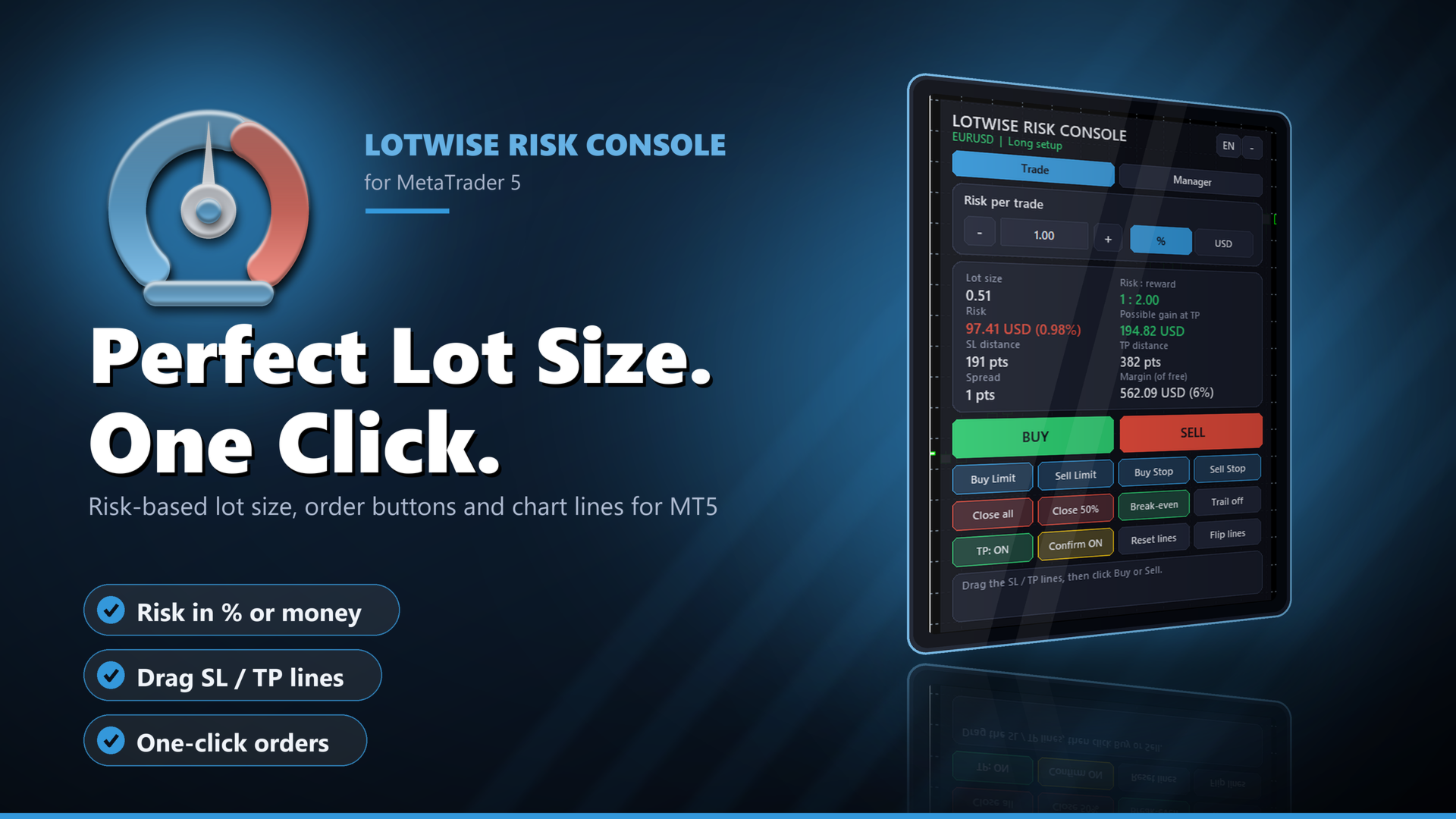
Lotwise Risk Console works out the lot size from the risk you choose and the stop loss line you drag on the chart. You click Buy or Sell, and the manager can then look after the open position: break-even, partial closes, trailing, time exit. It never opens a trade by itself.
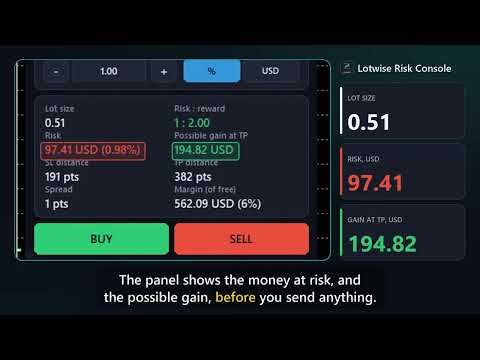
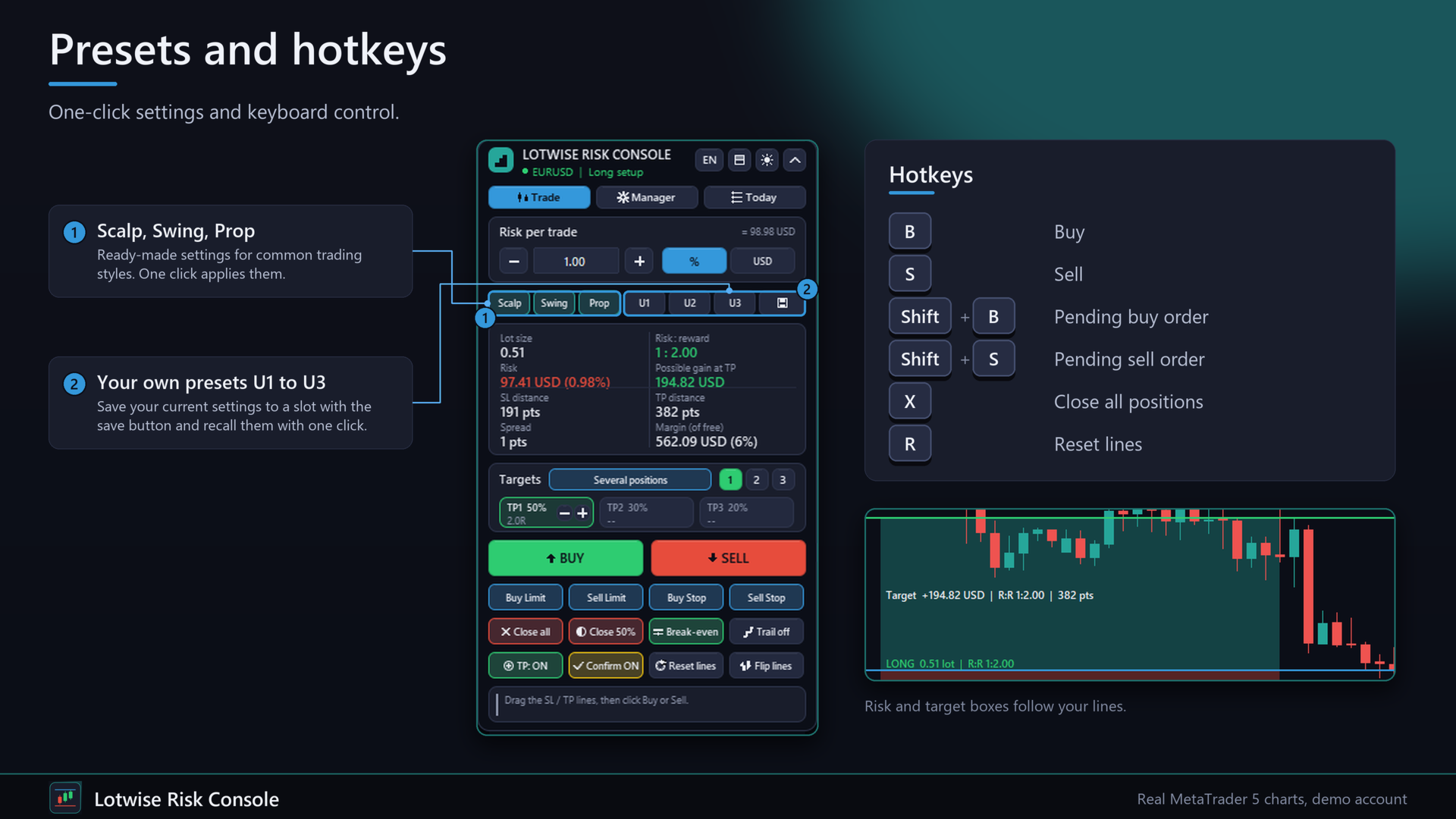
It takes the lot calculation off your hands for every order. Example on a 10,000 USD account: 1 % risk and a stop of 191 points give 0.51 lot on EURUSD. The panel shows the money at risk (97.41 USD) and the possible gain at your TP before you send anything.
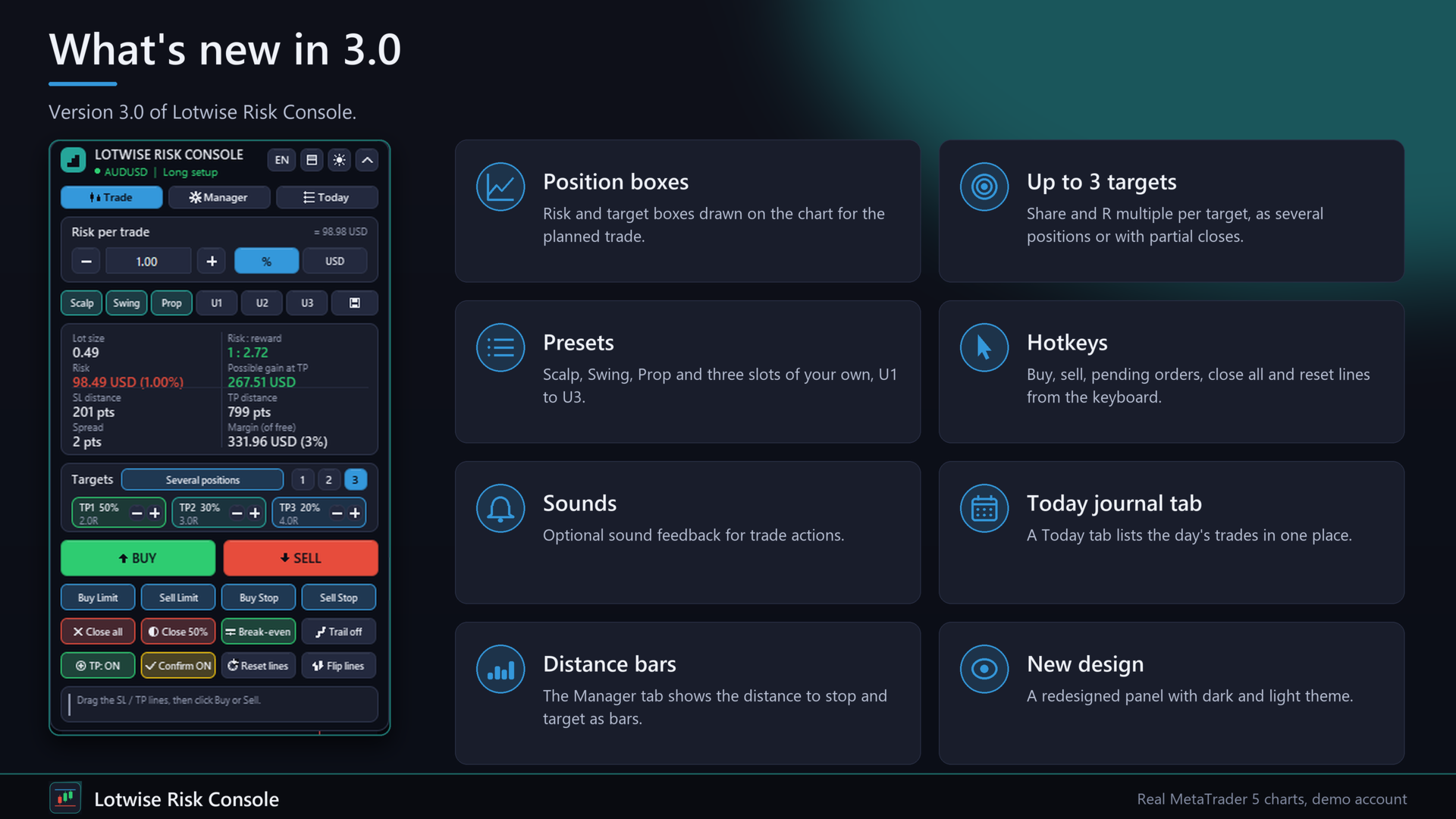
New in version 3.0
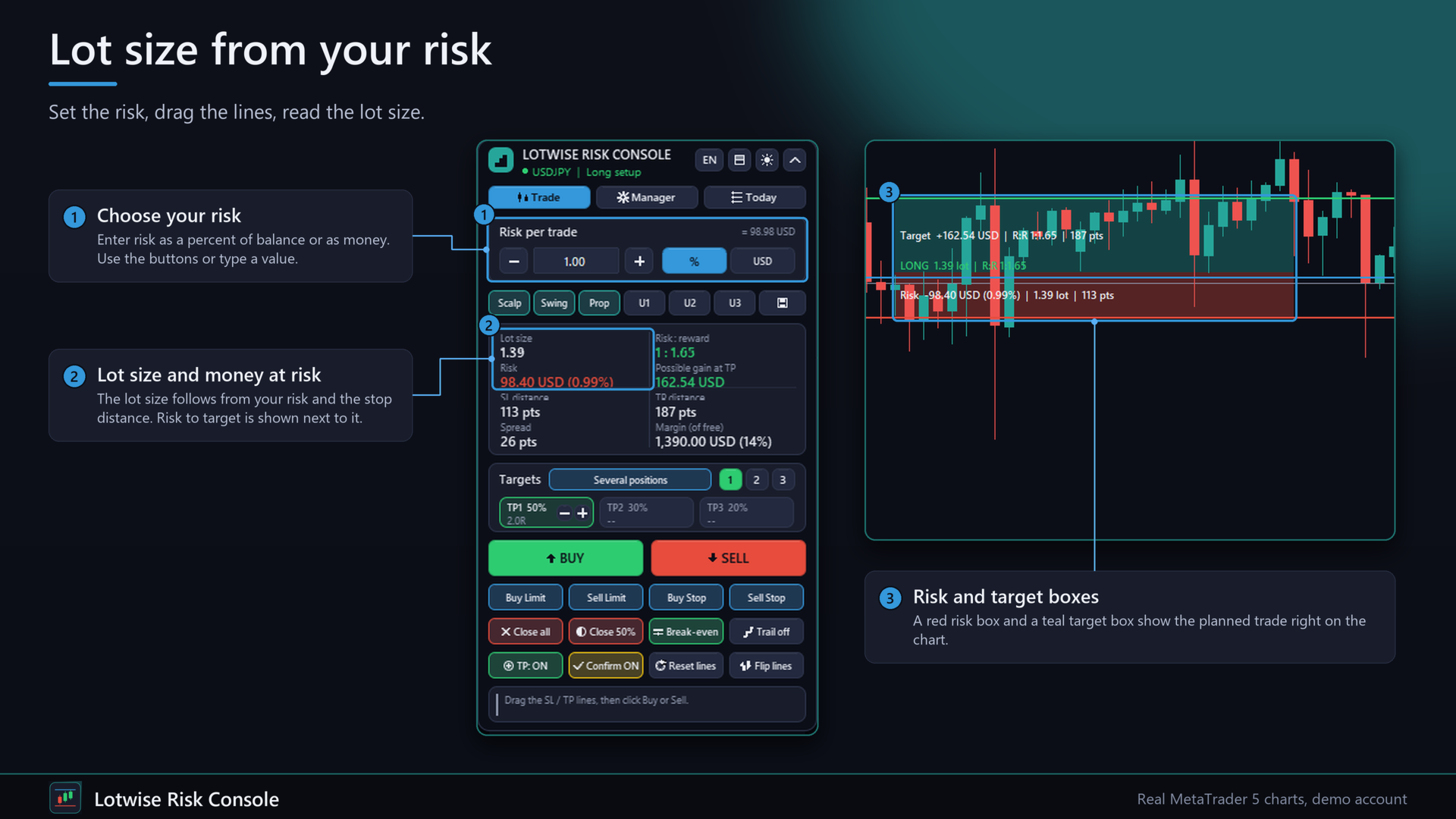
- Risk and target boxes on the chart with lot, money, R:R and points. They update live while you drag a line.
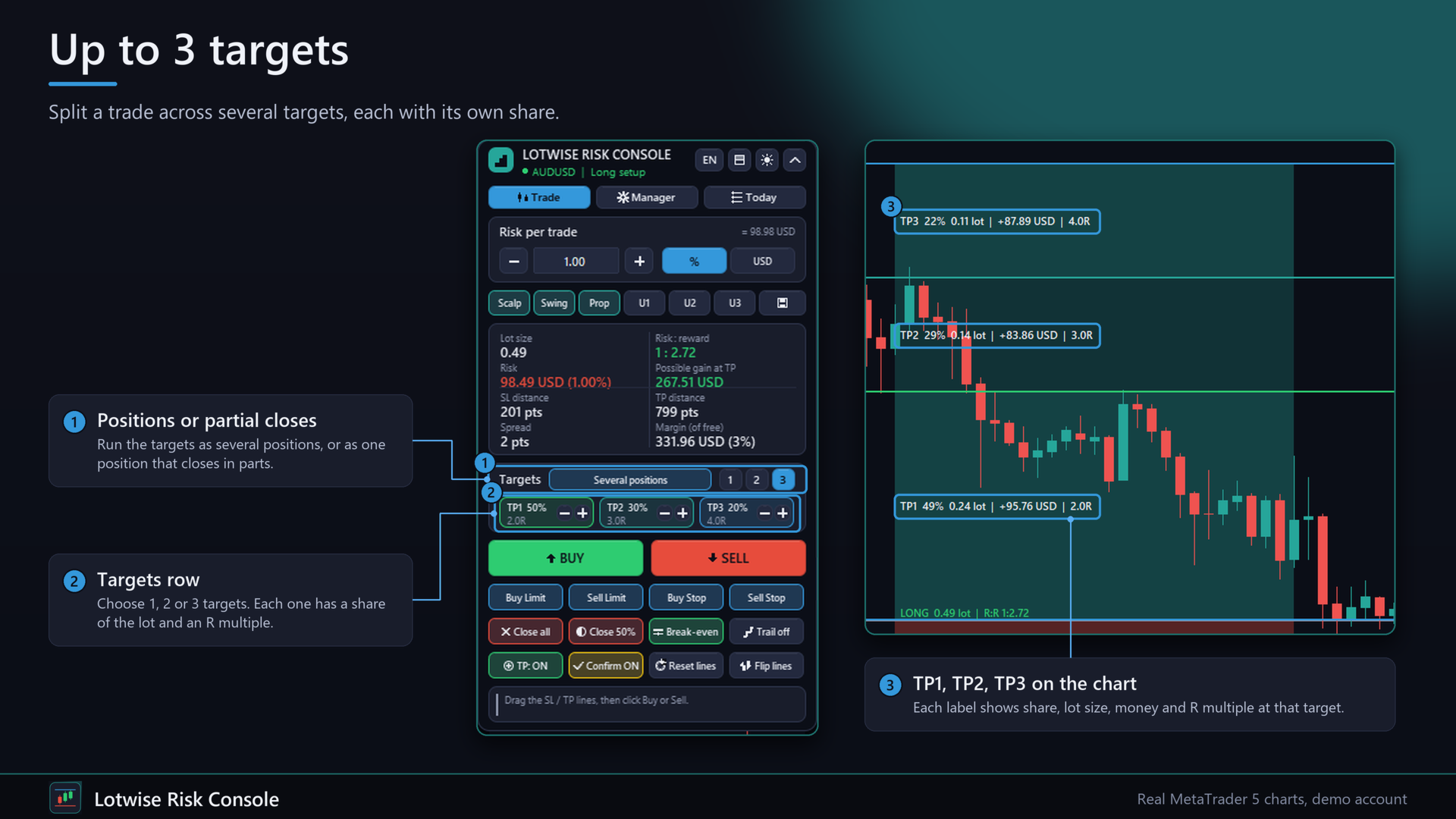
- Up to 3 targets (TP1 to TP3), each with its own share: sent as several positions or as one position with partial closes at the lines.
- Presets with one click: Scalp 0.5 %, Swing 1 %, Prop safe 0.25 %, plus 3 slots of your own.
- Hotkeys (can be switched off): B buy, S sell, Shift+B / Shift+S pending order at the entry line, X close all (second press), R reset lines.
- Today tab with the closed trades of the day, R sum, win rate and profit. Distance bars to SL and TP in the Manager tab.
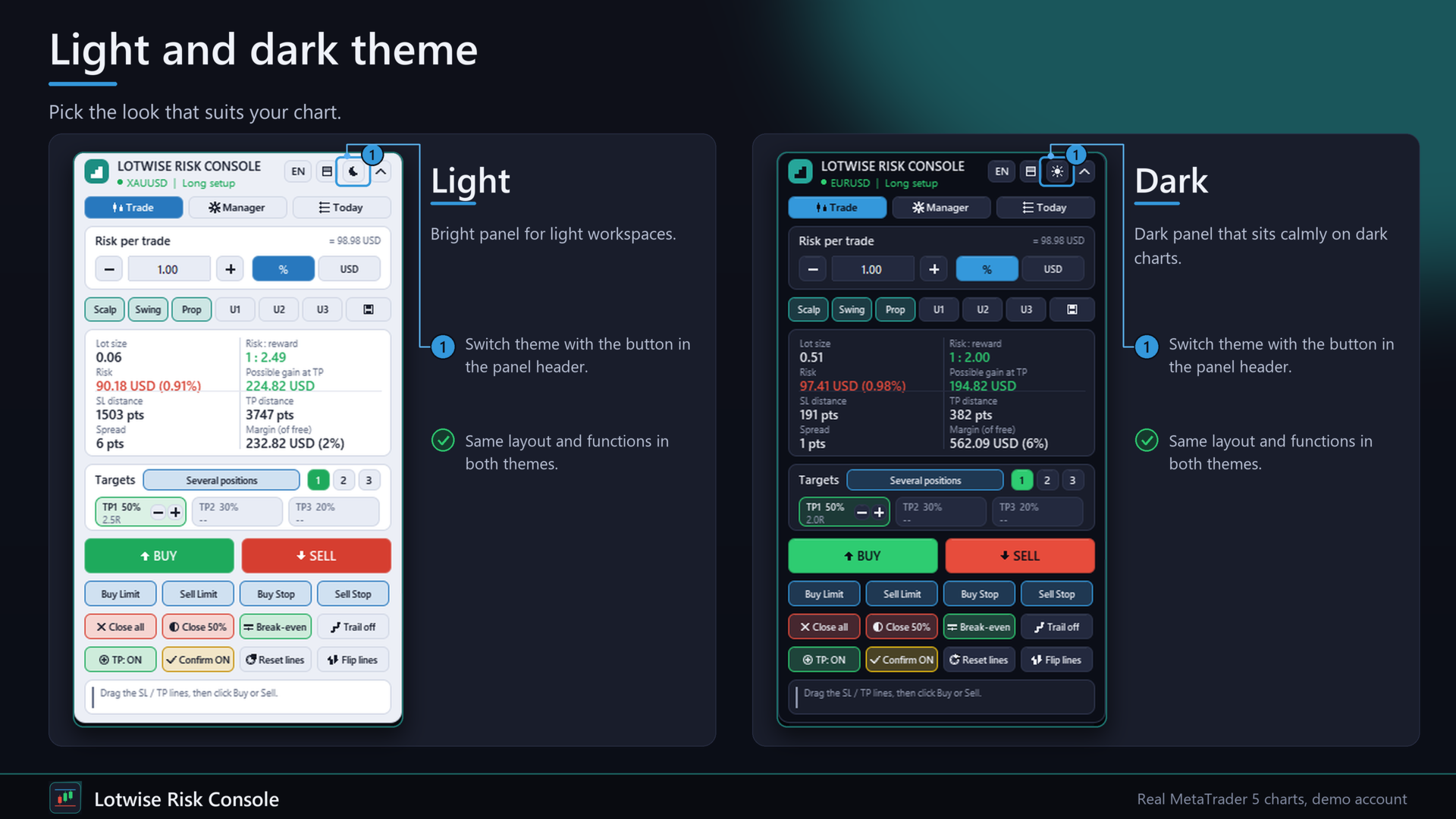
- New design with light and dark theme, sounds on execution and errors (optional).
Three problems it solves
1. Lot size by hand. A wrong lot is the most common way to risk more than planned. The panel calculates it from risk and SL distance and rounds down to the broker's volume step.
2. Orders that need several steps. Entry, stop, target and size are set on the chart with draggable lines, then one click sends the order. An optional second click confirms it.
3. Positions that need the same routine every time. Break-even after 1R, a partial close at 1R and 2R, a trailing stop. The manager does that for you, once per ticket, and remembers it after a terminal restart.
Trade tab
- Draggable SL, TP and ENTRY lines. Long or short is read from the SL line.
- Lot from risk: percent of balance, equity or free margin, or a fixed money amount (uses OrderCalcProfit).
- Shown live: lot size, risk in money and percent, possible gain, risk to reward, SL and TP distance, spread, margin.
- Buy, Sell, Buy Limit, Sell Limit, Buy Stop, Sell Stop. Optional second click to confirm.
- Close all, Close 50 %, Break-even, simple points trailing, Reset lines, Flip lines, TP on or off, English or German.
- Checks before every order: algo trading allowed, symbol trade mode, trading session, SL and TP side, stop level, freeze level, free margin and an optional maximum spread. Server answers are shown in plain words. The filling mode is taken from the symbol and the other modes are tried if it is refused.
Manager tab
- A master switch and one switch per rule: Break-even, Partial close, Trailing, Time exit, Friday close, Virtual SL/TP. Switches are remembered per account.
- Scope: all positions of the account, only the chart symbol, only a list of magic numbers, or only manual trades (magic 0). Trades of other EAs and from the mobile app are included when the scope allows it.
- Break-even after X R or X points, with a buffer in points.
- Partial close in up to 3 steps, each with its own R level and percent of the start size. A step that cannot be split at the symbol's volume step is skipped and reported.
- Trailing: fixed points, ATR multiple, or high and low of the last N closed candles. Starts at X R, with a minimum step.
- Time exit after N minutes or at a server time. Friday close at a server time.
- Virtual SL and TP: the levels are kept by the EA, not by the broker, and checked about twice a second. If you remove the EA, the levels are handed back to the broker. They do not protect you while the terminal is closed or offline.
- List of managed positions with current R, steps done and the next step. R is the distance from open price to SL when the manager first sees the position.
Quick start
1. Attach the EA to a chart and allow algo trading. Drag the red SL line and the green TP line to your levels.
2. Choose your risk, check the lot size on the panel, click Buy or Sell (click again to confirm).
3. Open the Manager tab, choose the scope and switch on the rules you want. Defaults: break-even at 1R, partial close at 1R and 2R, trailing from 1.5R.
4. Press Manager ON. The list shows every managed position.
FAQ
Does it trade by itself?
No. Orders are sent only when you click. The manager only changes or closes positions that already exist. In the Strategy Tester a few small demo trades are opened so the manager can be seen working. That is required for the automatic Market check and never happens on a live or demo chart.
What happens if I restart the terminal in the middle of a trade?
The state of each ticket (R, start volume, steps done, virtual levels) is stored in terminal global variables. No step is repeated after the restart.
What is R?
The distance from open price to stop loss when the manager first sees the position. Without an SL there is no R. You can set a fallback R in points. Break-even in points works without it.
Can it manage trades of other EAs?
Yes, if the scope includes them. Make sure no other EA moves the same stop loss.
Can I use the Trail button and the manager trailing together?
Better not. Use one of the two for the same positions.
Which accounts?
Hedging and netting accounts, any symbol and timeframe. No DLL, no web requests.
Trading conditions
- "Allow Algo Trading" must be enabled.
- Panel orders use the magic number from the inputs.
- Manager time inputs are in server time.
- ATR and candle trailing use the timeframe of the chart the EA runs on.
- Settings changed on the panel are remembered per account. Changing the inputs resets them to the input values.
Important
Trading leveraged products carries a high risk of loss. The panel helps to size and manage positions. It does not predict the market and does not promise any result. You are responsible for every order. Try the settings on a demo account first.
Input parameters
Risk: risk mode (percent or money), risk value (1.0), base for percent risk (balance, equity, free margin), step of the +/- buttons, own maximum lot, allow minimum lot even if risk gets higher.
Lines: default SL distance in points (0 = automatic), default TP distance as multiple of SL (2.0), use take profit line.
Trading: magic number of panel orders (770101), order comment, max slippage (30), second click before sending (true), maximum spread (0 = off), scope of the Close, Break-even and Trail buttons, manage only the magic number above.
Break-even and trailing buttons: offset, start profit, distance, minimum step, trailing active at start.
Manager general: active at start, which positions to manage, magic list ("770101,0"), R in points for positions without SL.
Manager break-even: on or off, trigger unit (R or points), trigger (1.0), buffer (5).
Manager partial close: on or off, step 1 at R 1.0 and 33 %, step 2 at R 2.0 and 33 %, step 3 at R (0 = off) and percent.
Manager trailing: on or off, mode (points, ATR, candles), start at R (1.5), points distance (150), ATR period 14 and multiple 2.0, candles 5 and buffer 10, minimum SL step (10).
Manager time exits: time exit on or off, minutes, server time HH:MM, Friday close on or off (21:30).
Manager virtual SL/TP: hide SL/TP from the broker (false).
Display: language, panel X and Y, panel scale (0.7 to 1.6), start collapsed.