Twinlane Copier One

Twinlane Copier One copies positions from one MetaTrader 5 terminal to one other terminal on the same PC or VPS. The same EA works as Master or as Slave. The terminals exchange a small snapshot file in the shared common folder. No DLL, no web request, no passwords.

Twinlane Copier One is the reduced version of Twinlane Copier. It has no time limit. It is limited in these points:

  • One slave account (the master binds itself to the first slave that answers).
  • Lot mode: master lot multiplied by a factor. No fixed lot, balance, equity or risk mode.
  • Symbol names: identical names, plus one manual pair (for example EURUSD=EURUSD.pro).
  • No pending orders, no reverse copy, no filters, no daily loss protection, no automatic prefix/suffix matching.

Three problems it is built to avoid

1. Duplicate positions. Each copy carries the master ticket in its comment. The slave checks open positions before it sends an order, and a state file survives restarts. A restart or lost connection does not create a second copy.

2. Wrong lot after a partial close. When the master closes part of a position, the slave closes the same share of its own position, rounded to the volume step.

3. Difficult setup. Four steps and one channel name.

What it does

  • Master writes the snapshot to a temporary file and renames it, so the slave never reads half a file. Sequence number and heartbeat are included.
  • Slave opens, changes and closes trades to match the snapshot. A trade is closed only after it is missing in two snapshots.
  • Stop loss and take profit are copied and follow later changes (distance from the own entry price).
  • No action when the master heartbeat is older than 10 seconds.
  • Trades older than 30 seconds at the time the slave sees them are skipped. Trades that were open before the slave started are not copied.
  • Margin check, stop and freeze level check, filling mode selection, retries with pause.
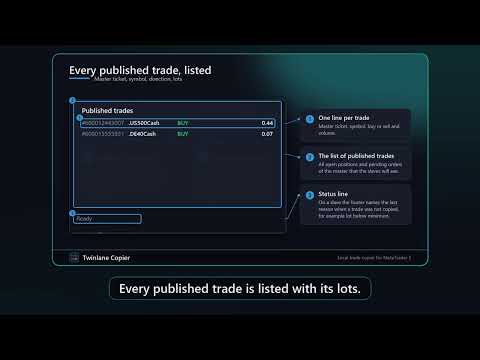
  • Panel on the chart: connection, heartbeat age, delay in ms, counters, list of copied trades with master and slave ticket, on and off switch, collapse button, English or German.
  • Strategy Tester: copying between terminals is not possible in the tester. The EA runs a built-in self-test with a simulated master snapshot and small test trades (open, partial close, SL/TP change, close).

Quick start

1. Install the EA on both terminals and allow algorithmic trading. Both terminals must run on the same Windows PC or VPS under the same Windows user.

2. Master terminal: attach with Role = Master and a channel name, for example Main.

3. Slave terminal: attach with Role = Slave, the same channel name and a factor. The slave must be a hedging account.

4. Check the panel: green dot and a heartbeat age below one second. Test with small lots first.

FAQ

Different PCs? No, same PC, VPS or Windows user only. Not on the built-in MQL5 VPS.

Netting slave? No, the slave must be hedging.

More slaves? Use the full version Twinlane Copier.

Why is a trade not copied? The footer of the panel shows the last reason.

Input parameters

General: Role of this terminal, Channel name, Panel language, Show status panel, Panel scale, Timer interval in ms.

Slave sizing: Lot factor (slave lot = master lot x factor).

Symbol mapping: One pair, for example EURUSD=EURUSD.pro (empty = same names).

Honest limits

Same PC, VPS or Windows user only. MT5 to MT5 only, hedging slave. Copies are not identical to the master trades because of delay, spread and slippage. No guarantee of results. Test with small lots first.
Mais do autor
Lotwise Risk Console works out the lot size from the risk you choose and the stop loss line you drag on the chart. You click Buy or Sell, and the manager can then look after the open position: break-even, partial closes, trailing, time exit. It never opens a trade by itself. It takes the lot calculation off your hands for every order. Example on a 10,000 USD account: 1 % risk and a stop of 191 points give 0.51 lot on EURUSD. The panel shows the money at risk (97.41 USD) and the possible gain at
Limitline Prop Monitor shows the limits of a funded or challenge account in one foldable panel on the chart and warns you before a limit is reached. If you enable the trade brake or the emergency stop, it can also close trades and delete orders that would break a limit. It does not open trades by itself. The reason I built it: the daily loss limit usually resets at the firm's own time, not at broker midnight, and open stops and pending orders count too. The panel does that arithmetic for you. In
Event Window Manager reads the economic calendar that is already built into your terminal and opens a protection window around important events. Inside the window it can warn you, block new trades, delete and later restore pending orders, and close positions or move them to break-even. Your other EAs can ask for its state through global variables. It needs no DLL, no WebRequest and no website. The calendar comes through your broker connection. One instance on one chart covers the whole account,
Magic Atlas Journal reads the closed positions of your account and sorts them by magic number, symbol, calendar day, weekday and entry hour. You see profit factor, win rate, drawdown and expectancy for each EA without a spreadsheet. It only reads history and places no orders on a live account. I use it when several EAs run on one account and the broker statement only gives one total. A profitable account can hide one EA that has been losing for weeks, and a flat account can hide one that works.
Magic Atlas Snapshot reads the closed positions of your account and shows net profit, win rate, profit factor, maximum drawdown and expectancy for each EA. It covers the three magic numbers with the most closed positions. It only reads history and places no orders on a live account. Magic Atlas Snapshot is the reduced version of Magic Atlas Journal. Same source, with the extra views and reports removed. Three problems it solves 1. Several EAs on one account and no idea which one earns. 2. Broker
FREE
Twinlane Copier copies positions and pending orders from one MetaTrader 5 terminal to one or more other terminals that run on the same PC or VPS. The same EA works as Master or as Slave, and the terminals exchange a small snapshot file in the shared common folder. No DLL, no web request, no account passwords. It is built so that a copied trade is never opened twice: every copy carries the master ticket in its comment, the slave checks open positions and orders before it sends anything, and a sta
Fleetdeck shows the state of every MetaTrader 5 account that runs on your computer in one panel on one chart. You see total equity, profit of the day and week, open risk and the health of each account at a glance, and you get an alert when something is wrong. Fleetdeck only reads. It never opens, closes or changes a trade. Problems it solves You run several terminals (own accounts, funded accounts, demo) and have to switch windows to see how they are doing. An account goes offline, or Algo Tradi
Magic Brake
Markus Hentschel
Magic Brake watches every EA on your account, one row per magic number. It scores each EA from 0 to 100, tells you why, and, if you want it to, brakes only the EA that misbehaves: it closes its new trades, closes all of its trades, or sets the stop loss it forgot. Default mode is warn only. Problems it solves 1. You run five or ten EAs on one account. One of them starts doubling its lot after every loss or piles up a grid, and you only see it when the account equity has already dropped. 2. Some
Fleetdeck Account Overview is the reduced version of Fleetdeck Multi Account Monitor. It shows up to three MetaTrader 5 accounts that run on your computer in one panel on one chart: total equity, profit of the day and week, open profit and a traffic light for each account. It only reads and never opens, closes or changes a trade. Problems it solves You run several terminals and have to switch windows to see how they are doing. An account goes offline or Algo Trading is off after a restart, and y
FREE
Daymark Chart Companion puts the timing of your trading day on the chart: a candle countdown on five timeframes, the four trading sessions with their average range, the levels of the previous day, week and month, today's range against the daily ATR and your own event times. Everything sits in one calm panel and every part can be switched off. The indicator never trades. It is built for traders who plan entries around session opens, candle closes and key levels. Example from the screenshots: GBPU
Daymark Session Timer combines three small tools in one light indicator: a countdown to the candle close, the Sydney, Tokyo, London and New York sessions as soft boxes on the chart, and the previous day high and low. A small panel shows the countdown, which session is open, the spread and the server time. The indicator never trades. Two problems it solves 1. Session boxes in the wrong place. Brokers use different GMT offsets and change them with daylight saving, and the cities change on other da
FREE
Filtro:
Sem comentários
Responder ao comentário