
MP Smart Panel
- 유틸리티
- 버전: 1.30
- 업데이트됨: 28 8월 2026
- 활성화: 5

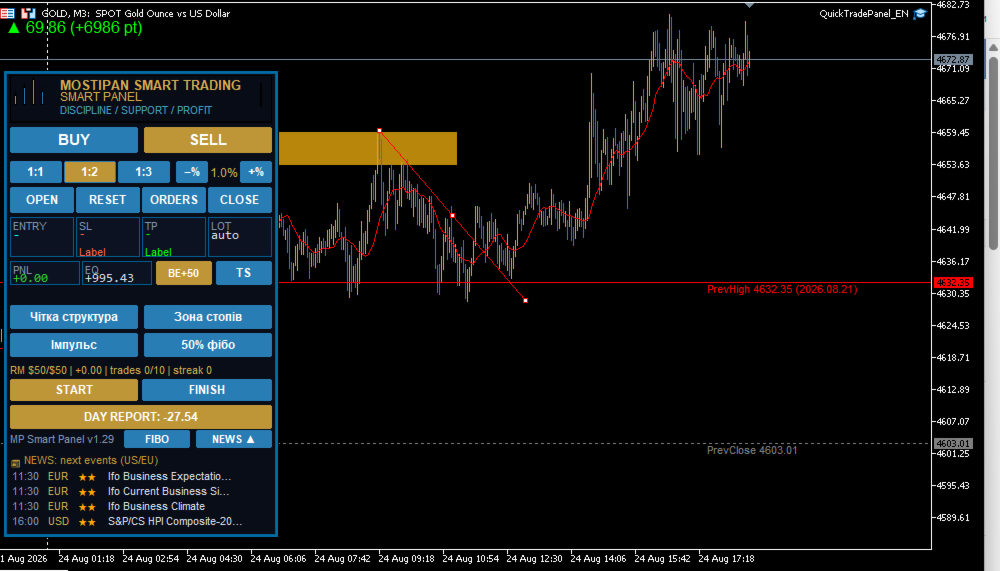
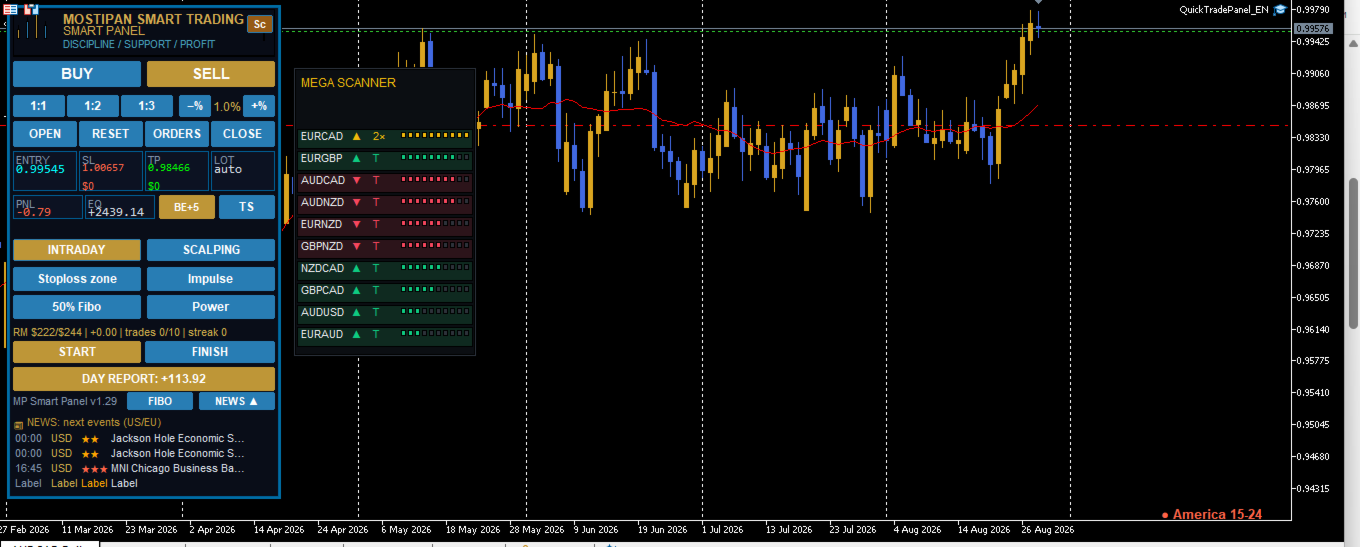
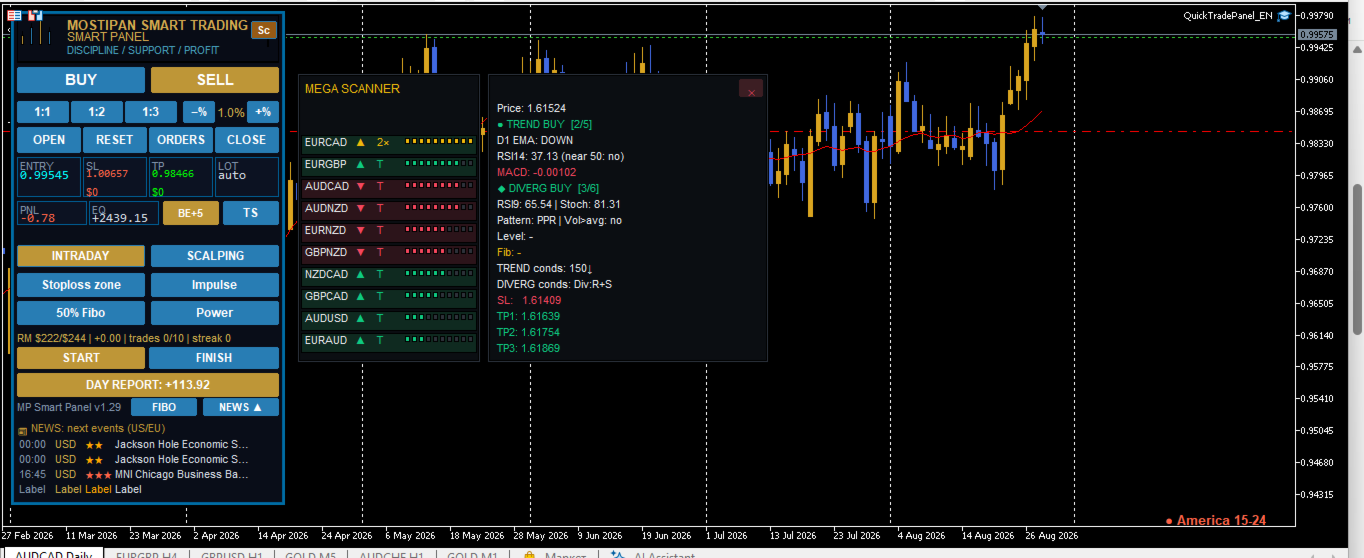
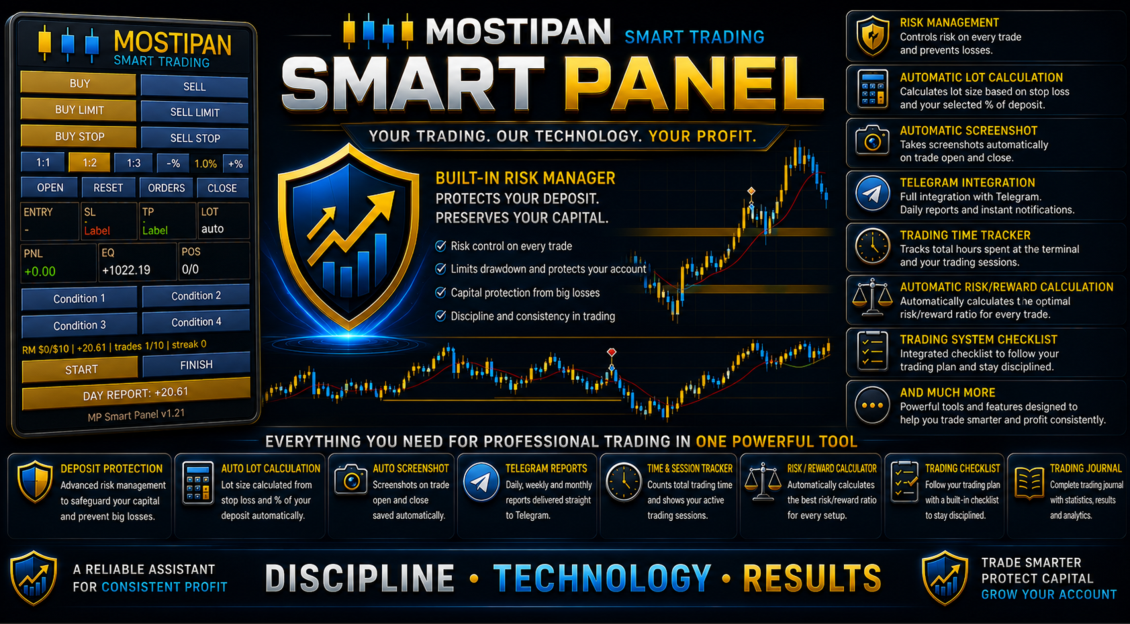
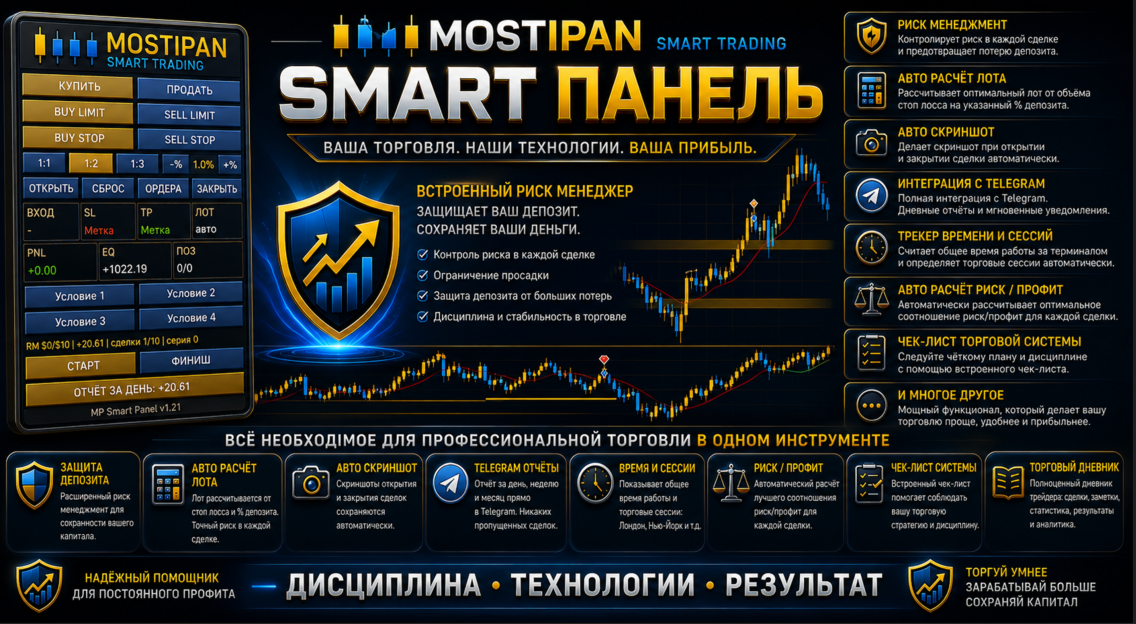
🛡️ MPSmartPanel — your reliable trading assistant
The trading panel includes a Risk Manager with trade blocking when the daily risk limit is exceeded, a trading system with checklists and templates, all types of orders, break-even, one-click trailing stop, Fibonacci levels, news, and full Telegram integrationMPSmartPanel is a compact trading panel for MetaTrader 5 that combines the convenience and efficiency of manual trading with strict discipline and full risk control. The panel protects your deposit from losses and helps you trade consciously, following your own system.
✅ Trading-system checklist (program-controlled)
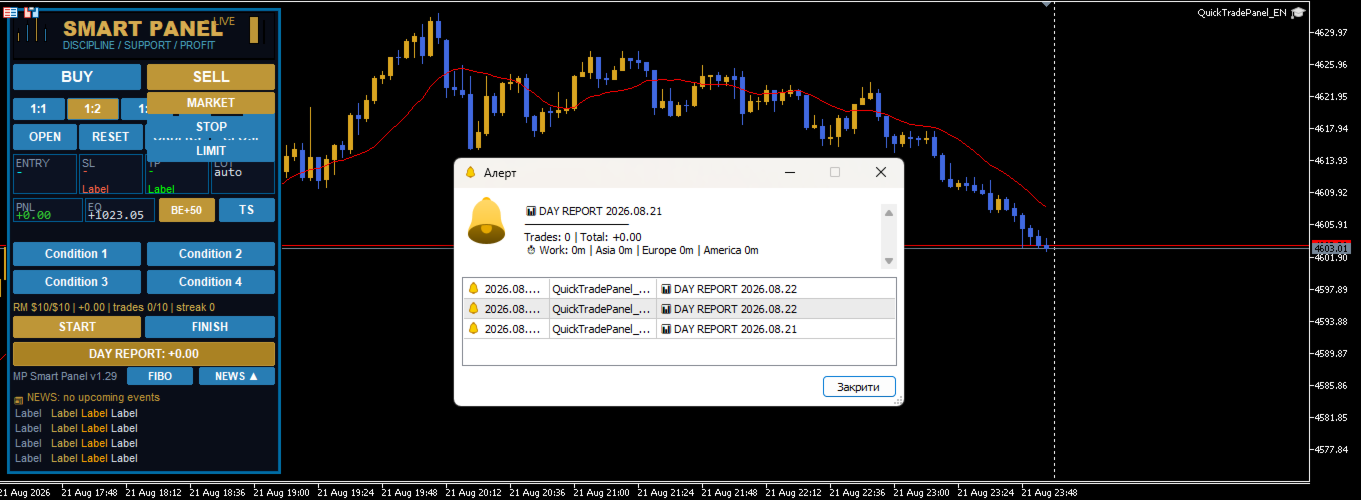
You fill in your own checklist yourself (4 condition tiles, e.g.: trend, news, pattern, signal), and the panel automatically controls it before every trade — unless all conditions are confirmed, you cannot open a position. This eliminates impulsive and random trades.
🛡️ Risk Manager — deposit protection
The built-in Risk Manager automatically blocks new trades when at least one condition is breached:
- 📉 Daily loss reached the set limit (e.g. $500)
- 📈 Daily profit reached the target level
- 🔢 Daily number of trades exceeded the limit (e.g. 10)
- ❌ Consecutive losses exceeded the allowed limit (e.g. 3)
- 💰 Total daily risk of open trades exceeded the limit (daily risk limit)
It also keeps daily risk accounting: the panel shows how much risk has been used and how much is left, preventing you from exceeding the set limit.
⏱️ Time and trading-session control
The built-in trading timer (START/FINISH buttons) records your working time, automatically distributes it across trading sessions (Asia, Europe, America) and provides reports and progress monitoring — so you can see how long and how efficiently you trade.
📊 Daily risk report
The panel generates a daily report of used risk volume, number of trades and day results — so you always know how well you follow your limits.
📱 Telegram integration and full reporting
Built-in Telegram integration provides full reports on every trade (open, close, SL/TP, PnL), screenshots, START/FINISH messages, daily reports — and the ability to send trading signals directly to a chat/channel.
⚡ Efficient one-click trading
- BUY / SELL / LIMIT / STOP with a single touch
- Automatic lot calculation from the stop (fixed amount or % of balance)
- RR 1:1 / 1:2 / 1:3 ratio
- Draggable Entry / SL / TP lines
All this makes MPSmartPanel a convenient and effective tool that controls risk, disciplines trading and preserves your deposit.
🚀 Quick Start
- Attach the Expert Advisor to any symbol chart (currency, gold, indices, etc.).
- Configure the main inputs in the "Inputs" tab (see "Settings" section).
- The panel appears in the upper-left corner of the chart.
- Choose direction — press BUY / SELL / LIMIT / STOP button.
- Drag the lines Entry, SL, TP to the desired levels.
- Complete the checklist — press all 4 condition tiles (see "Checklist" section).
- Press OPEN — the trade is opened with automatic lot calculation.
🎛️ Settings (Inputs)
📊 "Trading" section
| Parameter | Type | Default | Description |
|---|---|---|---|
| InpMagic | int | 20260815 | Unique magic number of panel trades |
| InpDefaultLots | double | 0.01 | Base lot (if auto lot is disabled) |
| InpDefSL | double | 45.0 | Initial SL/TP distance from entry (in points) |
| InpEntryPts | int | 20 | Initial entry distance for limit/stop orders |
| InpDefRR | double | 2.0 | Risk/reward ratio (1:1 / 1:2 / 1:3) |
| InpDeviation | int | 20 | Maximum price slippage (points) |
| InpTheme | string | "dark" | Panel theme: dark or light |
| InpLang | string | "EN" | Panel language: UA / EN / RU |
💰 "Risk (auto lot)" section
| Parameter | Type | Default | Description |
|---|---|---|---|
| InpRiskMoney | double | 50.0 | Risk per trade, $ |
| InpRiskPercent | double | 1.0 | Risk, % of balance |
🛡️ "Risk Manager" section
| Parameter | Type | Default | Description |
|---|---|---|---|
| InpRM_Enabled | bool | true | Enable risk manager |
| InpRM_MaxDailyLoss | double | 500.0 | Condition 1: max daily loss, $ (0 = off) |
| InpRM_MaxDailyProfit | double | 0.0 | Condition 2: max daily profit, $ (0 = off) |
| InpRM_MaxTradesDay | int | 10 | Condition 3: max trades per day (0 = no limit) |
| InpRM_MaxConsLoss | int | 3 | Condition 4: max consecutive losses (0 = off) |
| InpRM_DayRiskMoney | double | 300.0 | Max daily risk cap, $ (0 = no cap) |
| InpRM_DayRiskPct | double | 0.0 | Daily risk, % of balance (0 = like trade risk) |
| InpRM_ResetDay | bool | false | Reset day now (set true and press OK) |
📱 "Telegram" section
| Parameter | Type | Default | Description |
|---|---|---|---|
| InpTG_Enabled | bool | false | Send to Telegram (screenshots + text) |
| InpTG_Token | string | "" | Bot token (from BotFather) |
| InpTG_ChatID | string | "" | Channel ID (e.g. @channel or -100...) |
| InpStartMsg | string | ... | START button text (empty = panel language) |
| InpFinishMsg | string | ... | FINISH button text (empty = panel language) |
🔑 "License" section
| Parameter | Type | Default | Description |
|---|---|---|---|
| InpLicKey | string | "" | License key/password (provided separately) |
✅ "Condition Buttons" section (checklist)
| Parameter | Type | Default | Description |
|---|---|---|---|
| InpCondEnabled | bool | true | Enable checklist (4 condition tiles) |
| InpCond1 | string | "Condition 1" | Tile 1 label (editable) |
| InpCond2 | string | "Condition 2" | Tile 2 label (editable) |
| InpCond3 | string | "Condition 3" | Tile 3 label (editable) |
| InpCond4 | string | "Condition 4" | Tile 4 label (editable) |
✅ Checklist — Trading Discipline
What is it for?
MPSmartPanel is designed primarily for trader self-discipline. Successful trading is not just pressing buttons, but strictly following your own trading system. To avoid opening trades on emotions or gut feeling, the panel forces you to go through all the steps of your strategy before each trade.
The 4 condition tiles are a kind of checklist of your trading system. They remind you of the key points of your strategy that you must verify before opening a position.
How they work
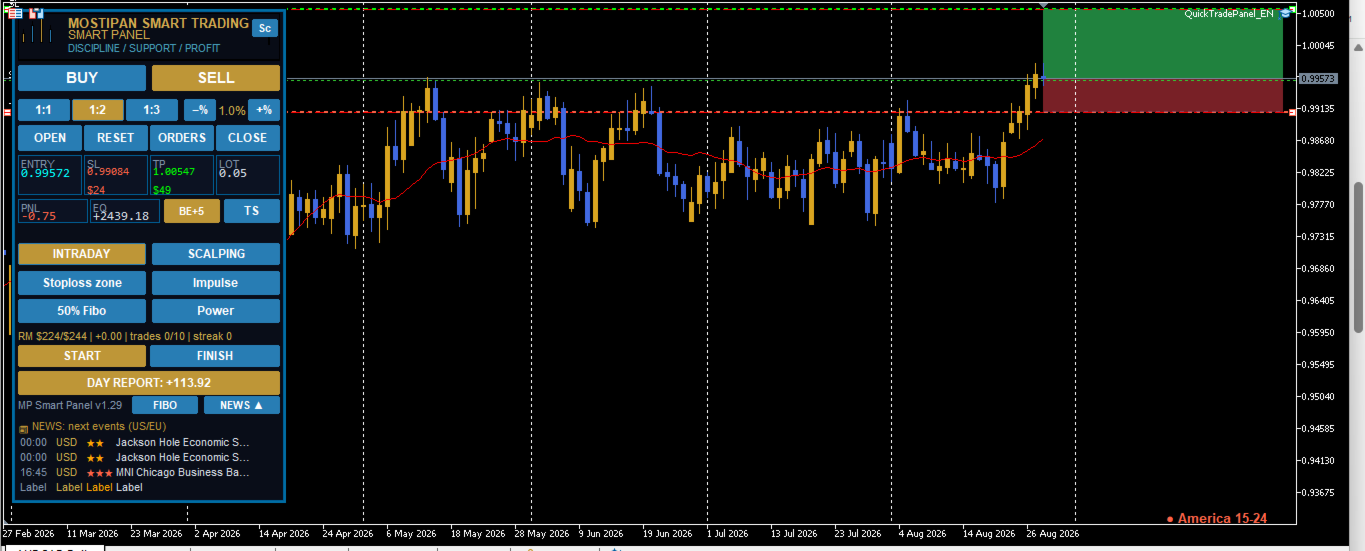
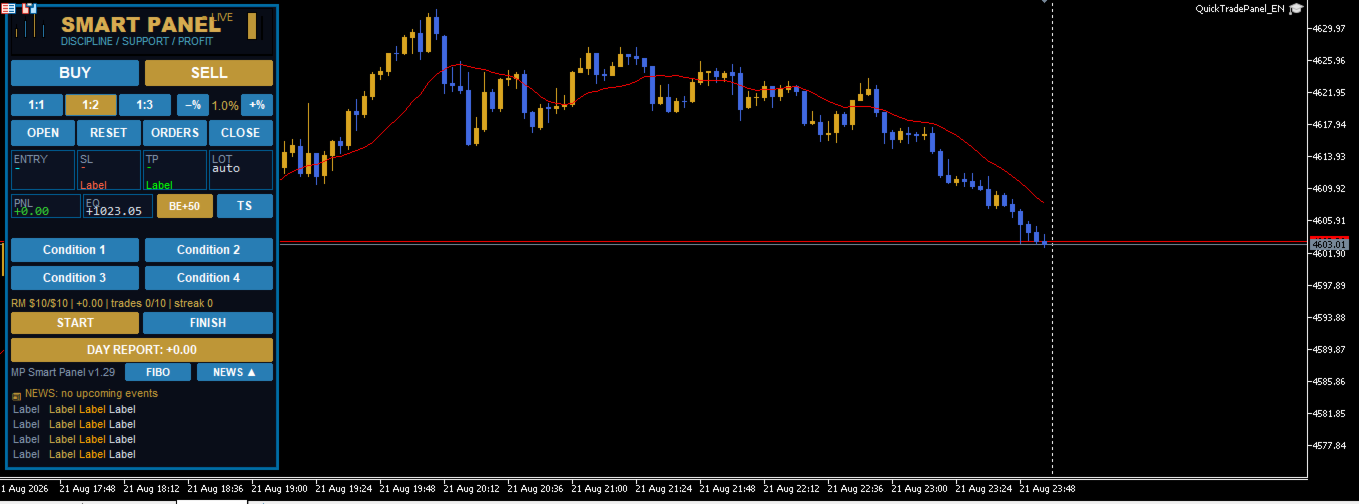
- The panel has 4 tiles (buttons) placed in one row: Condition 1 , Condition 2 , Condition 3 , Condition 4 .
- Initially the tiles are gray (not pressed).
- After pressing, a tile turns green and a checkmark ✅ appears before its label.
- The trade is BLOCKED until you press all 4 tiles at the same time.
- The OPEN button turns green only when all conditions are met and the trade is ready.
- After a successful trade opening, all tiles are automatically reset (turn gray), so before the next trade you go through the checklist again.
Usage example
You can configure the tiles to match your trading system, for example:
| Tile | Example label | What you verify |
|---|---|---|
| 1 | Trend | Confidence in the trend direction |
| 2 | Level | Confirmation of a key level/zone |
| 3 | Risk | Risk matches your rules (RR, % of deposit) |
| 4 | Signal | Your strategy signal is present |
How to edit the tile labels
Tile labels are entirely up to you. You edit them in the Expert Advisor settings:
- Open the Expert Advisor properties (double-click the EA in the Navigator, or press F7 on the chart).
- Go to the "Inputs" tab.
- Find the Condition Buttons section.
- Change the fields:
- InpCond1 — label of tile 1
- InpCond2 — label of tile 2
- InpCond3 — label of tile 3
- InpCond4 — label of tile 4
- Enter your own text (for example: "Trend", "News", "Risk 1%", "Signal").
- Press OK — the labels on the panel update.
💡 If the field is left empty, the tile shows the automatic Condition N label in the panel language.
⏱ Trading Time Control (START / FINISH)
What is it for?
One of the key aspects of self-discipline is controlling the time spent trading. The panel helps you track how much time you actually spend trading and structures it by trading sessions.
How it works
- START button — starts the work timer. Press it when you sit down to trade.
- FINISH button — stops the timer. Press it when you end your trading session.
- The time between START and FINISH is added to the daily work-time accounting.
Time distribution by sessions
The time elapsed between START and FINISH is automatically distributed across trading sessions:
| Session | Time window |
|---|---|
| 🌏 Asia | 00:00 – 07:00 |
| 🌍 Europe | 07:00 – 13:00 |
| 🌎 America | 13:00 – 24:00 |
So if you traded from 08:00 to 11:00, this time is counted in the Europe session. If a trading session spans several time zones, the time is distributed across the corresponding sessions automatically.
Where to see the result
Press the DAY REPORT button — the report shows:
- ⏱ Work — total trading time for the day
- breakdown by sessions: Asia | Europe | America
- list of closed trades and total PnL
💡 If you pressed START but forgot to press FINISH — time is only added up to the moment the session ends. Always finish your work with the FINISH button so the time accounting is accurate.
🖥️ Panel elements
Logo
At the top of the panel, the MOSTIPAN / SMART TRADING logo is displayed in the "candles in M shape" style.
Trading buttons
| Button | Action |
|---|---|
| BUY | Prepares opening a buy at market price |
| SELL | Prepares opening a sell at market price |
| BUY LIMIT | Prepares a buy limit order (below price) |
| SELL LIMIT | Prepares a sell limit order (above price) |
| BUY STOP | Prepares a buy stop order (above price) |
| SELL STOP | Prepares a sell stop order (below price) |
RR ratios (risk/reward)
| Button | Value | Description |
|---|---|---|
| 1:1 | 1.0 | TP equals the distance to SL |
| 1:2 | 2.0 | TP is twice the distance to SL |
| 1:3 | 3.0 | TP is three times the distance to SL |
Manually dragging the TP line turns off RR (value becomes 0). To restore, press the RR button again.
Risk (%)
- −% — decrease risk by 0.2%
- +% — increase risk by 0.2%
- Range: 0.2% – 10%
Actions
| Button | Action |
|---|---|
| OPEN | Opens the trade/order (green button = everything ready and checklist completed) |
| RESET | Cancels the preparation, hides lines |
| CLOSE | Closes all panel positions |
| DEL ORD | Deletes all panel pending orders |
Information fields (tiles)
| Field | Description |
|---|---|
| ENTRY | Entry price |
| SL | Stop loss price (+ risk amount in $) |
| TP | Take profit price (+ profit amount in $) |
| LOT | Calculated order volume (auto/manual) |
| PNL | Total profit/loss of open positions |
| EQ | Current equity (balance + floating profit) |
| POS | Number of positions / orders |
DAY REPORT
Shows daily report: list of closed trades, total PnL, trade count and work time by sessions.
Version
At the bottom of the panel — MP Smart Panel v1.21.
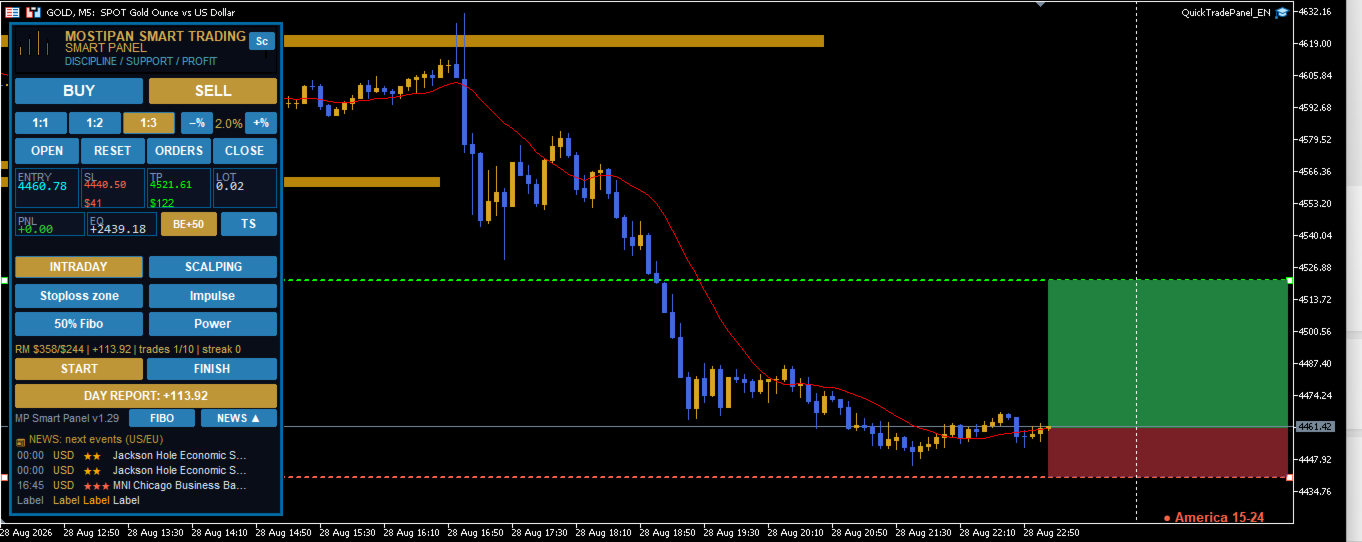
🎯 Chart lines
When a direction is selected, 3 dashed lines appear on the chart:
| Line | Color | Draggable |
|---|---|---|
| Entry | Blue | Yes |
| SL | Red | Yes |
| TP | Green | Yes |
Dragging behavior:
- Dragging Entry → SL and TP move together (distances preserved)
- Dragging SL → TP is recalculated by the selected RR
- Dragging TP manually → RR is turned off
🧮 Automatic lot calculation
Lot is calculated by the formula:
Lot = Risk ($) / (Distance to SL × Contract size)
- Risk is taken from InpRiskMoney (if > 0) or InpRiskPercent of balance
- Lot is rounded by broker volume step and limited to min/max values
🛡️ Risk manager logic
Blocks new trades if at least one condition is met:
- Daily loss ≤ InpRM_MaxDailyLoss
- Daily profit ≥ InpRM_MaxDailyProfit
- Number of trades per day ≥ InpRM_MaxTradesDay
- Consecutive losses ≥ InpRM_MaxConsLoss
Separately — daily risk limit ( InpRM_DayRiskMoney or % of balance): if the total risk of open trades exceeds the limit, new trades are blocked.
📱 Telegram notifications
When InpTG_Enabled is on and token/chat are correct, the panel sends:
- 🟢 Position opening (type, volume, symbol, price, SL, TP)
- 🔴 Position closing (type, symbol, close price, PnL, reason: SL/TP/manual)
- 📌 Pending order placement
- 📷 Screenshots of open/close/orders
- ⏱ START/FINISH messages
- 📊 Daily report
⚠️ Important: add https://api.telegram.org to allowed URLs: Tools → Options → Expert Advisors → Allow WebRequest for listed URL
⚙️ Notes
- The panel automatically fits the window height (lower rows always visible)
- For gold (GOLD/XAU) SL/TP distances are automatically increased ×10
- All panel chart objects have the QT_ prefix (Entry, SL, TP, bg, btn...)
- The panel is designed as a self-discipline tool: the condition checklist and trading time control help you stick to your chosen strategy and avoid impulsive trades






































사용자가 평가에 대한 코멘트를 남기지 않았습니다