
CopyMasterPro MT4
- 유틸리티
- 버전: 1.20
- 업데이트됨: 13 2월 2026

# CopyMaster Pro Trade Copier
## What Is This
CopyMaster Pro is a local trade copying tool that syncs trades between multiple MT4/MT5 terminals. One account trades, others follow automatically. No server needed, no VPS required. Works on a single computer with multiple terminals.
## What It Does
Copies trades from one account to others. You open a gold position on Account A, Account B and C will follow. You close on A, others close too. Simple as that.
## Why This One
**Free** — No monthly fees, no subscription, no hidden charges. Download it and it is yours.
**Private** — All data stays on your computer. Nothing goes through third party servers. Your trading info remains yours.
**Easy** — Works out of the box. Click a few buttons in the interface and you are set. No config files, no command lines.
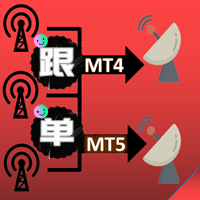
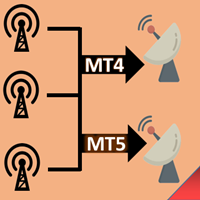
**Cross Platform** — MT4 and MT5 can copy from each other. You run MT5 as master, your friend follows on MT4. Works fine.
## Main Features
**Flexible Lot Sizing** — Copy by multiplier, fixed lots, or auto calculate based on balance ratio. Small accounts can safely follow large ones.
**Smart Symbol Matching** — Different brokers name symbols differently. XAUUSD might be GOLD somewhere else, or have a suffix. The system figures it out automatically. You can also set manual mappings.
**Reverse Copy** — Think a signal source always loses money? Turn on reverse mode. They buy, you sell.
**Risk Controls** — Set limits on max lot size, max positions, max drawdown percentage. Copying stops automatically when limits are hit.
**UI Scaling** — Interface size is adjustable from 50% to 200%. Works great on high-DPI screens or small monitors.
**Independent Settings** — Each account saves its own settings file. Multiple receivers won't overwrite each other's configuration.
## Who Should Use This
- Traders managing multiple personal accounts
- Those helping friends or clients with their accounts
- People sharing signals within a small group
- Testing execution speed across different brokers
## Who Should Not
- Those building large scale commercial copy trading services — this is a local tool, no remote support
- Ultra low latency high frequency strategies — local file sync has about 500ms delay
- Anyone needing complex permission management or billing systems
---
## Detailed Usage Guide
### Installation
1. After purchasing from the MQL5 Market, the EA will be installed automatically in your terminal
2. Find CopyMaster Pro under "Expert Advisors" in the Navigator panel
3. Drag the EA onto any chart
4. Confirm the settings in the popup parameters window and click OK
### Input Parameters
When dragging the EA onto a chart, a parameters window will appear:
| Parameter | Default | Description |
|-----------|---------|-------------|
| Language | English | Interface language, English or Chinese |
| Panel X | -1 | Horizontal panel position, -1 means auto-center |
| Panel Y | 10 | Vertical panel position, pixels from top |
| UI Scale % | 100 | Interface scaling, range 50-200. Increase for high-DPI screens, decrease for small monitors |
These parameters are set once at load time. All other configuration is done through the interface.
### Main Interface
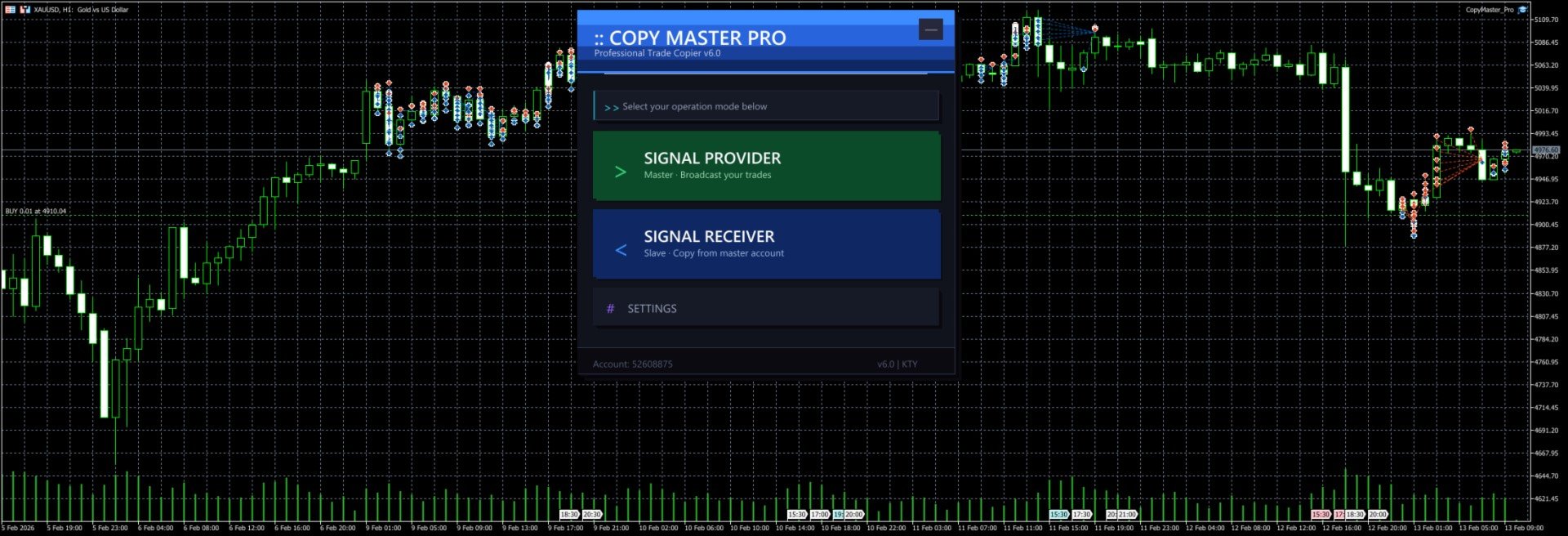
After launch you will see the selection screen with three options:
- **Signal Provider** — Your account acts as the signal source, broadcasting trades to other accounts
- **Signal Receiver** — Your account follows trades from another signal source
- **Settings** — Configure lot sizing, risk controls, symbol mapping and other parameters
The `--` button in the top right corner minimizes the panel to a floating bar. Click `[]` on the floating bar to restore.
### Signal Provider Mode
1. Click "Signal Provider" on the main screen
2. Enter a server name (e.g. `MySignal` or `Gold_Strategy`). This name will appear in the receiver's server list
3. Click the "Start" button
4. Trade normally. All open and close operations are broadcast automatically
5. The panel shows real-time position count and online follower count
6. Click "Stop" to end broadcasting
7. Click "Back to Menu" at the bottom to switch modes
Notes:
- Server name cannot be empty
- Do not start multiple providers with the same server name on the same computer
- Closing the EA or switching charts will automatically stop broadcasting and clean up signal files
### Signal Receiver Mode
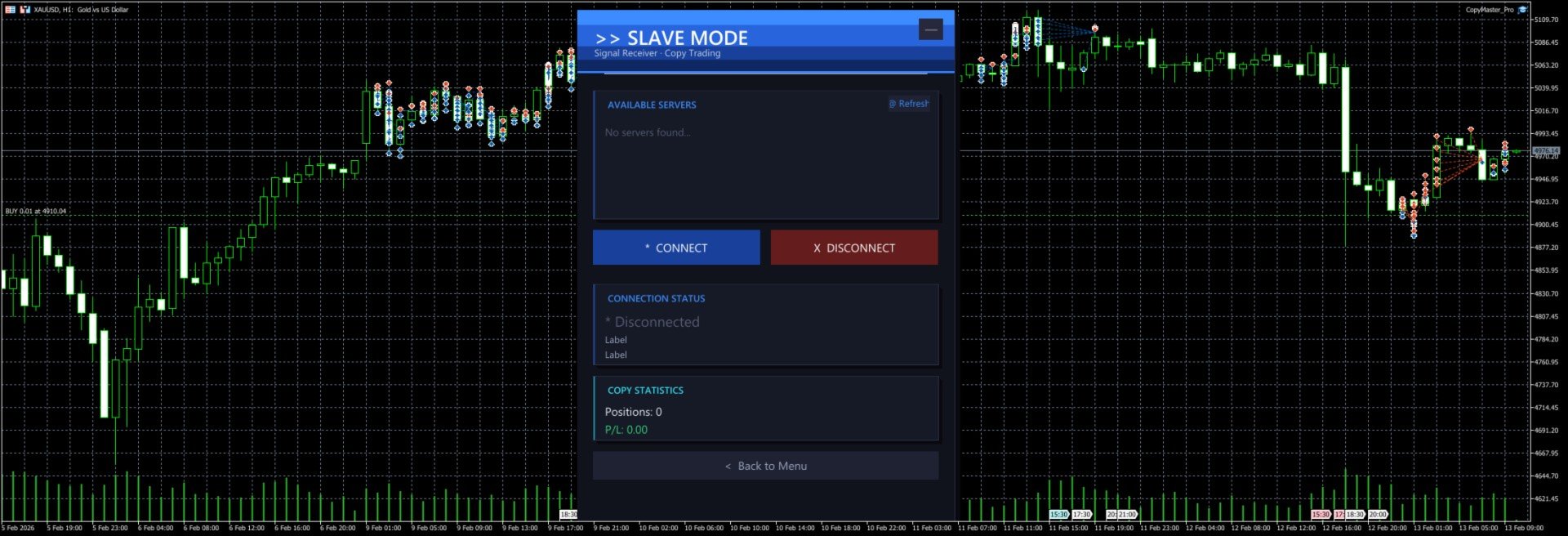
1. Click "Signal Receiver" on the main screen
2. The system automatically scans for available signal servers and displays them in the list
3. Click a server name in the list to select it (selected server is highlighted)
4. Click "Connect" to start copying
5. The panel shows real-time connection status, copied position count and profit/loss
6. Click "Disconnect" to stop copying (existing positions will not be closed automatically)
7. If no servers appear in the list, click "Refresh" to rescan
Notes:
- You must select a server before connecting
- After connecting, new positions from the signal source are copied automatically. When the source closes a position, the copied position is closed too
- Positions that existed before connecting are not copied. Only new trades after connection are processed
- Copied orders have a `CMP_` prefix in their comment field for easy identification
### Settings Panel
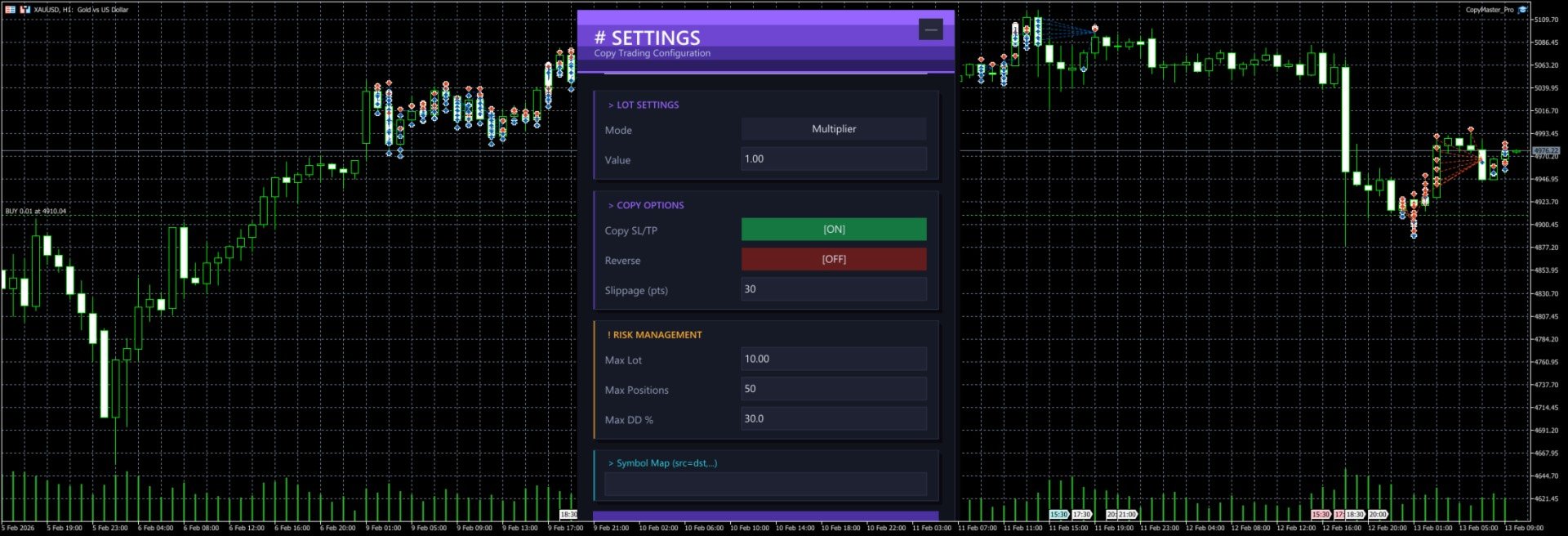
Click "Settings" on the main screen to open the configuration page. All changes require clicking "Save Settings" to take effect.
#### Lot Settings
**Mode** — Click the button to cycle through three modes:
| Mode | Description | Example |
|------|-------------|---------|
| Multiplier | Multiply the source lot size by a factor | Source opens 0.5 lots, multiplier is 2.0, copy opens 1.0 lots |
| Fixed | Use a fixed lot size regardless of source | Source opens 1.0 lots, fixed is 0.1, copy opens 0.1 lots |
| Risk % | Auto-calculate lot size based on account balance and risk percentage | Balance 10000, risk 1%, system calculates appropriate lot size |
**Value** — The number used with the selected mode. For multiplier mode enter the factor (e.g. 1.0, 0.5, 2.0), for fixed mode enter the lot size (e.g. 0.01, 0.1), for risk mode enter the percentage (e.g. 1, 2, 5).
#### Copy Options
**Copy SL/TP** — When enabled, copies the stop loss and take profit from the signal source. When disabled, positions are opened without SL/TP. Enabled by default.
**Reverse** — When enabled, buy signals become sell orders and vice versa. SL and TP are also swapped. Disabled by default.
**Slippage (pts)** — Maximum allowed slippage in points. Too small may cause order failures, too large may result in poor fill prices. Default is 30 points, usually no need to change.
#### Risk Management
**Max Lot** — Maximum lot size per copied trade. Even if the calculated lot exceeds this value, it will be capped. Default 10.0 lots.
**Max Positions** — Maximum number of copied positions. No new positions are opened once this limit is reached. Default 50.
**Max DD %** — Maximum drawdown percentage. When (Balance - Equity) / Balance exceeds this ratio, no new positions are opened. Default 30%.
#### Symbol Mapping
**Symbol Map** — Manually specify symbol mappings in the format `source=destination`, separated by commas for multiple pairs.
Examples:
- `XAUUSD=GOLD` — Signal source's XAUUSD trades as GOLD locally
- `XAUUSD=GOLD,EURUSD=EURUSDm` — Multiple mappings
- `NAS100=USTEC,US30=DJ30` — Index symbol mapping
If left empty, the system will try to match automatically:
1. First tries using the source symbol name directly
2. Tries removing common suffixes (.pro, .ecn, .std, etc.)
3. Tries auto-mapping common symbols (XAUUSD to GOLD, NAS100 to USTEC, etc. across 20 groups)
### Cross-Platform Usage
MT4 and MT5 can copy from each other as long as they run on the same computer.
Common setups:
- MT5 provider → MT4 receiver
- MT4 provider → MT5 receiver
- MT5 provider → Multiple MT4/MT5 receivers
When copying across platforms, symbol names may differ. Configure symbol mappings in settings or rely on the auto-matching feature.
### Typical Use Cases
#### One-to-Many Copying
You run the provider on MT5. Three friends each run a receiver on their own MT4/MT5. You trade normally, their accounts follow automatically. Each person can set their own lot multiplier based on their account size.
#### Multi-Account Sync
You have 3 accounts at different brokers. Run the provider on your main account, receivers on the other two. Open one trade, all three accounts open simultaneously.
#### Reverse Copying
You notice a friend has a very low win rate. Have them run the provider, you run the receiver with reverse mode enabled. They lose, you win.
### FAQ
**Q: Receiver cannot see any servers?**
Make sure the provider is running and shows "Broadcasting" status. Both terminals must be on the same computer. Click the Refresh button to retry.
**Q: Orders fail to open?**
Check if the symbol is matched correctly, if the account balance is sufficient, and if the lot size is within the broker's allowed range. Check the Journal tab in MT4/MT5 for detailed error messages.
**Q: How much latency?**
Typically around 500 milliseconds (timer interval). Perfectly fine for intraday and swing trading. Not suitable for millisecond-level high frequency strategies.
**Q: What happens to existing positions after disconnecting?**
After disconnecting, copied positions that are already open will not be closed automatically. You need to manage them manually.
**Q: Where are settings saved?**
Settings are saved in `CopyMaster/settings_{account_number}.ini` in the MT4/MT5 common data folder. Each account has its own file, so multiple receivers won't overwrite each other.
**Q: Interface too big or too small?**
Adjust the `UI Scale %` parameter in the EA settings. Range is 50-200. 100 is default size, 150 enlarges by 50%, 75 shrinks by 25%. Requires reloading the EA after changing.
---
CopyMaster Pro v1.2 | Copyright 2026, KUM TONG YU














































The software is easy to use, but the transaction to be copied ends automatically even though the transaction from the source has not ended.