Silence Watch

EA Silence Watch is a read-only utility for traders who run several Expert Advisors. It does not place, modify or close any order. It learns the normal entry rhythm of every EA from the deal history of the account and tells you when one of them has been silent for longer than usual.

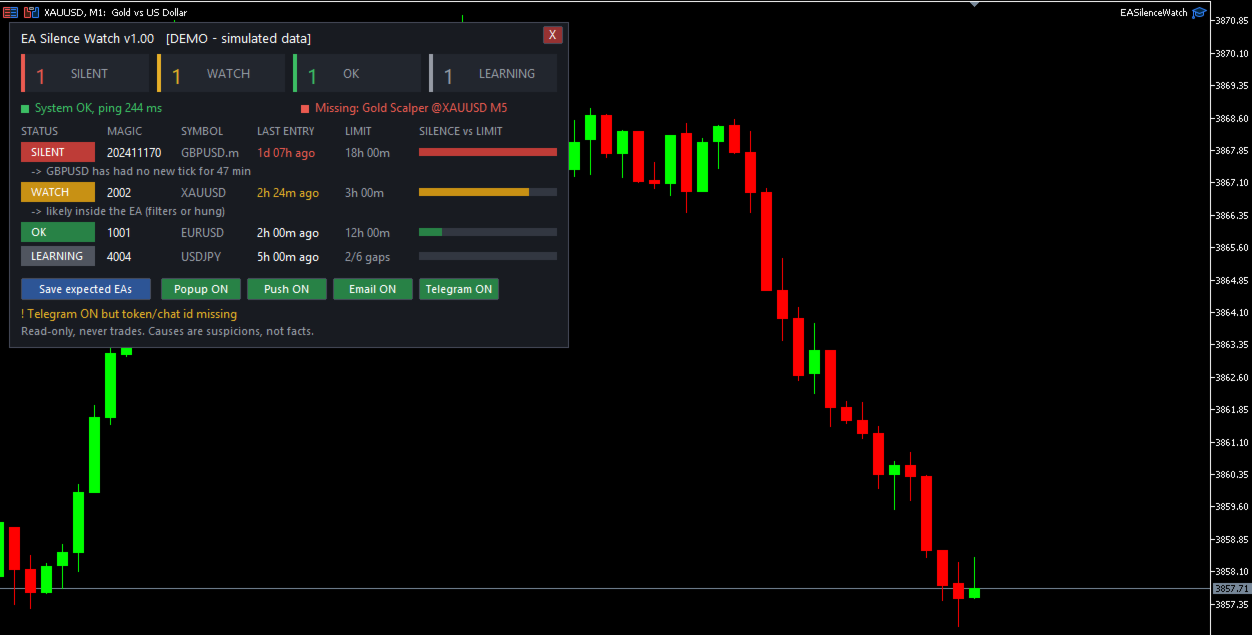
What you see on the chart

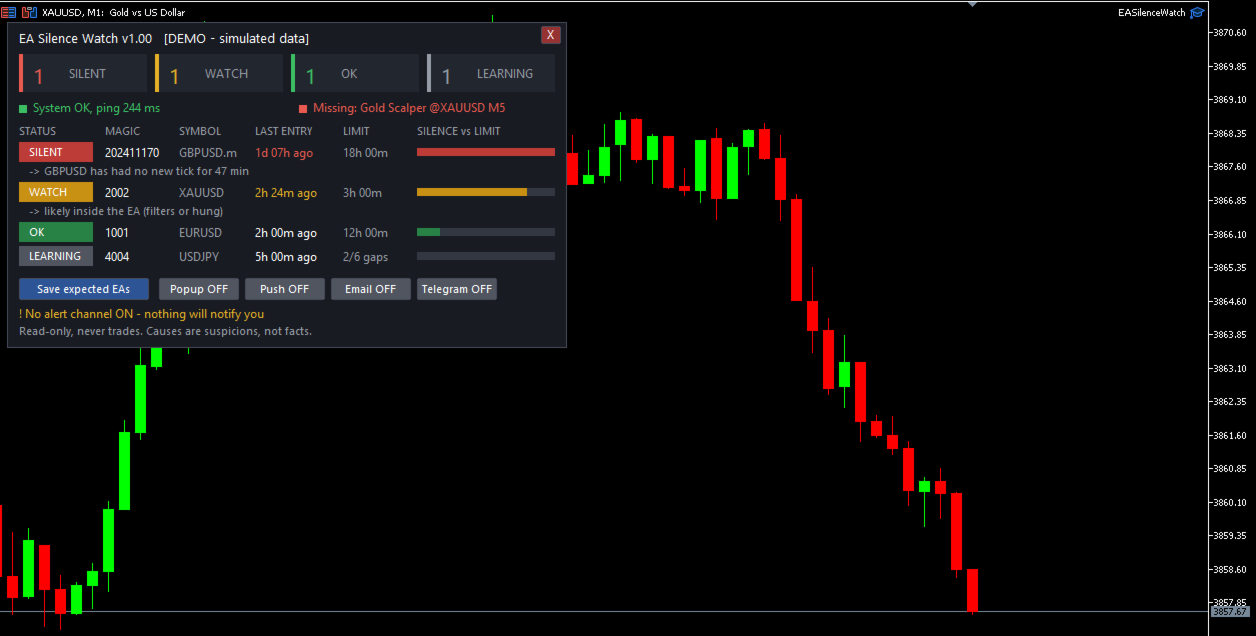
  • Four counters at the top: SILENT, WATCH, OK and LEARNING.
  • A status strip with the terminal state (connection, Algo Trading, ping) and the state of your expected EA list.
  • One row per EA with its magic number, symbol, time since the last entry, the alert limit and a bar that shows how close the silence is to that limit.
  • Under a WATCH or SILENT row, one short line with the possible cause.
  • Buttons to save the expected EA list, to switch each alert channel on or off, and a button to remove the utility from the chart.

How it works

  • Entry deals are grouped by magic number. For each EA the utility measures how long the gaps between entries normally are.
  • The alert limit is a multiple of the 95th percentile gap, never lower than a minimum number of minutes. Saturdays and Sundays are not counted as silence unless you turn that option off.
  • WATCH means the silence has reached 70% of the limit. SILENT means the limit is exceeded.
  • LEARNING means there is not enough history yet to trust a baseline. No alert is sent for an EA in this state, and the limit column shows what is still missing.
  • Several positions opened within a few seconds by a grid or basket can be counted as one entry (input "Entries closer than this many seconds count as one entry").
  • An EA that has been silent for a long time stays on the panel for the number of days you choose, so it does not disappear.

Possible causes

For every EA that is WATCH or SILENT, the utility lists the causes that the terminal can actually show: no connection to the broker, Algo Trading switched off, trading not allowed for the account or for Expert Advisors, high ping, low margin level, a symbol that is not fully tradable, outside its trading session or without new ticks, or an expected EA that is no longer on its chart. If none of these is found, it says the cause is probably inside the EA itself. Causes are suspicions, not facts.

Expected EA list

When all your EAs are running correctly, press the button "Save expected EAs". If an EA later disappears from its chart, for example after a terminal restart, the panel and the alerts report it.

Alerts

  • Popup, push notification, email and Telegram. All of them are off by default. Switch them on in the inputs or with the buttons on the panel.
  • The same alert is not repeated for a while, and the interval grows if the EA stays silent. This state survives an EA reload and a terminal restart.
  • Remote messages start with the account number and the server, so you can tell several terminals apart.

How to start

  1. Attach EA Silence Watch to one chart. Any symbol and timeframe work. No other chart and no settings are needed to start.
  2. Wait for the baseline to be learned. Rows show LEARNING until enough entries exist.
  3. Press "Save expected EAs" when everything runs correctly.
  4. Optional: choose the alert channels. For Telegram, create a bot, enter its token and your chat id in the inputs, and add api.telegram.org to the list in Tools > Options > Expert Advisors > Allow WebRequest.
  5. For strategies that trade rarely, set a manual rule per magic number in the input "Manual rules", for example 1001:240 (magic 1001, 240 minutes).

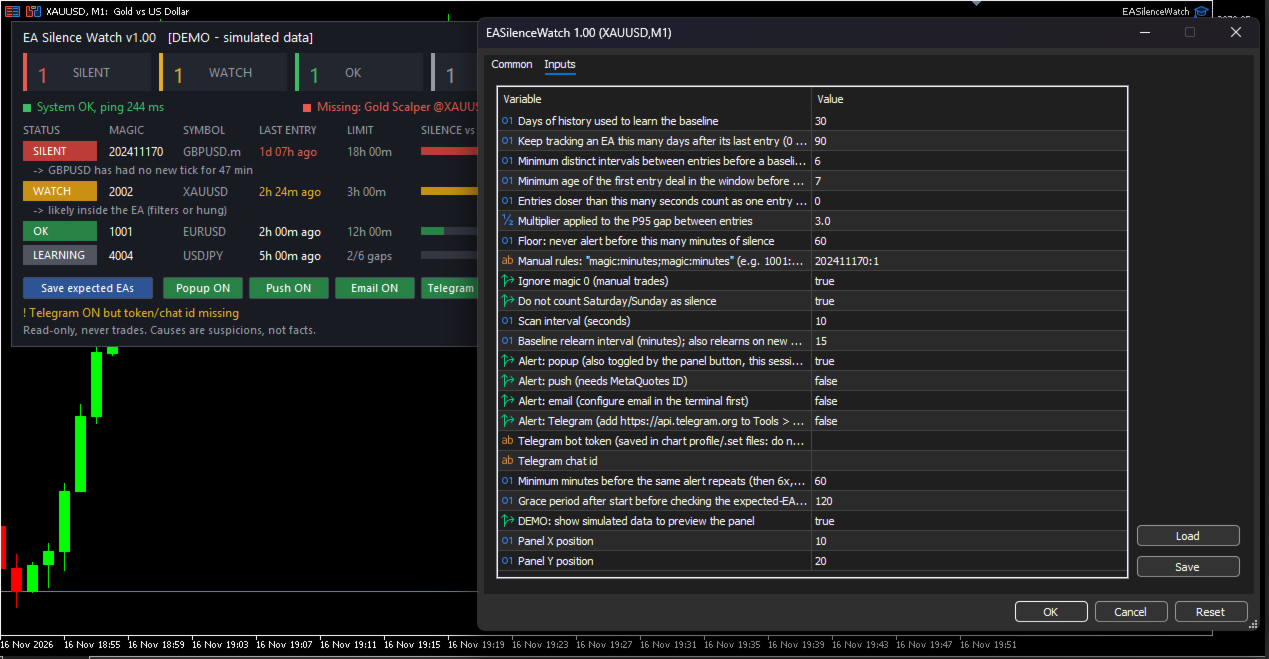
Main inputs

  • Days of history used to learn the baseline (default 30).
  • Multiplier applied to the 95th percentile gap (default 3.0) and the minimum limit in minutes (default 60).
  • Minimum number of distinct entry intervals (default 6) and minimum age of the first entry in days (default 7) before a baseline is trusted.
  • Days an EA stays tracked after its last entry (default 90).
  • Entries closer than this many seconds count as one entry (default 0, only identical timestamps are merged).
  • Manual rules, magic 0 handling, weekend handling, scan interval, alert channels, repeat interval and panel position.

Strategy Tester

In the Strategy Tester in visual mode, the utility shows the panel with simulated example data so you can see the layout. It reads no history and sends no alerts there. On a real chart it uses the deal history of your own account.

Limits you should know

  • It can only see what the terminal shows: deal history, connection state and the settings listed above. It cannot read the logs or error codes of other Expert Advisors, and it cannot tell whether an EA is frozen. It only sees that no trades arrived.
  • EAs that share a magic number, or trade with magic number 0, cannot be told apart.
  • Strategies with very few trades may give false alarms. Use manual rules for them.
  • If the whole terminal or VPS stops, this utility stops as well.
  • The Telegram option sends messages with WebRequest to api.telegram.org using your own bot token. The token is stored in the chart input settings, so do not share saved chart templates or preset files that contain it.

This product does not predict trades and does not change how your Expert Advisors trade.
作者のその他のプロダクト
Gold Command Dashboard is a compact information panel for XAUUSD charts in MetaTrader 5. It shows market context before you place a trade: the current session, the daily range, a macro reading for gold, the trend direction on four timeframes and the nearest key price levels. The indicator does not draw arrows, does not generate trading signals and does not place trades. It is intended to support your own analysis. What the panel shows Session - the active session (Tokyo, London, New York; overla
FREE
** NOTE: This indicator uses realtime data. Thus DO NOT download Demo version. If you still need demo version, please refer to trial version . Version for MT4:  https://www.mql5.com/en/market/product/123597 Symbol Chart Changer is an indicator/utility that offers you the option to switch between symbols and timeframes. You can choose any symbol and timeframe on the same chart with just a few clicks.  In addition, this indicator also shows the profit of the symbol through the color of the butt
Panel Trading MT5 - On-Chart Trading Panel for Manual Trading Panel Trading MT5 is a compact, draggable control panel for manual trading in MetaTrader 5. It lets you open and close positions, watch the live price and profit/loss, and switch symbols without leaving the chart or opening the order ticket. This utility does not trade by itself and does not generate trading signals. Every order is placed by you. The panel is built on the standard CTrade class. Close requests are retried automatically
FREE
This indicator displays two important pieces of information on the MT5 chart: Current Spread - Trading cost measured in points, helping traders assess optimal entry timing when spread is low. Time Countdown - Remaining time (minutes:seconds) until the current candle closes and a new candle forms, supporting candle-based trading strategies. Information is displayed as compact text in a chart corner (default top-right), with customizable position, color, and font size. The indicator updates in rea
FREE
This indicator displays two important pieces of information on the MT4 chart: Current Spread - Trading cost measured in points, helping traders assess optimal entry timing when spread is low. Time Countdown - Remaining time (minutes:seconds) until the current candle closes and a new candle forms, supporting candle-based trading strategies. Information is displayed as compact text in a chart corner (default top-right), with customizable position, color, and font size. The indicator updates in rea
FREE
For MT5: TP SL Calculator This tool helps you to automatically calculate profit at Take - Profit price and loss at Stop - Loss price. Feature: - Calculate profit at TP price. Apply to all operators (BUY / BUY LIMIT / BUY STOP / SELL / SELL LIMIT / SELL STOP), with TP price is greater than 0. Profit is expressed in money and points. - Calculate loss at SL price. Apply to all operators (BUY / BUY LIMIT / BUY STOP / SELL / SELL LIMIT / SELL STOP), with SL price is greater than 0. Loss is express
** NOTE:   This indicator uses realtime data. Thus   DO NOT   download Demo version. If you still need demo version, please refer to   free version . Version for MT5:   https://www.mql5.com/en/market/product/115489 Symbol Chart Changer   is an indicator/utility that offers you the option to switch between symbols and timeframes. You can choose any symbol and timeframe on the same chart with just a few clicks.  In addition, this indicator also shows the profit of the symbol through the color o
For MT4: TP SL Calculator for MT4 This tool helps you to automatically calculate profit at Take - Profit price and loss at Stop - Loss price. Feature: - Calculate profit at TP price. Apply to all operators (BUY / BUY LIMIT / BUY STOP / SELL / SELL LIMIT / SELL STOP), with TP price is greater than 0. Profit is expressed in money and points. - Calculate loss at SL price. Apply to all operators (BUY / BUY LIMIT / BUY STOP / SELL / SELL LIMIT / SELL STOP), with SL price is greater than 0.   Loss is
Dashboard Basket MT5 is a multi-symbol trading dashboard for manual traders. One panel shows the market state of up to 40 symbols at a glance (spread, daily move, average daily range, candle direction on 9 timeframes and position versus a moving average) and lets you open, close and manage trades on any of them with a single click, including whole currency baskets, with an automatic basket take profit and stop loss. The EA does not trade by itself. Every position is opened by you. The dashboard
Economic Calendar: News Panel, Alerts and News Guard Economic Calendar puts the news calendar on your MetaTrader 5 chart and keeps you ready for it: the next events, vertical lines on the price chart, alerts on your phone, signals for your other Expert Advisors, and optional protections that act before the news. Everything is configured from a panel on the chart. The Expert Advisor itself needs no DLL and no external program. Please note that this product does not work in the strategy tester. To
ExpertActions: manage all Expert Advisors of your terminal from one chart Running many EAs on many charts? ExpertActions lets you list, restart and remove them, load and save their inputs and close charts, all from one small panel, without opening each chart and each input dialog. You can also do it from your phone with your own Telegram bot. User guide and free demo: Guideline The demo (demo accounts only) can be downloaded from the guide or directly here: download Free add-on for buyers: afte
Gold Command Dashboard Pro is an information panel for XAUUSD charts in MetaTrader 5. It shows market context and sends alerts when that context changes: the next high-impact news, a closing session with a short summary, macro and trend direction lining up, and price reaching a key level or a support / resistance zone. The indicator does not draw buy/sell arrows, does not generate trading signals and does not place trades. It provides context and timing for your own analysis. What the panel show
フィルタ:
レビューなし
レビューに返信