
MT5 Trading Deck
- ユーティリティ
- バージョン: 2.3
- アップデート済み: 23 5月 2026
- アクティベーション: 5

One button. One trade. MT5 Trading Deck is a hotkey trading panel for MetaTrader 5 that turns the platform into a keyboard-driven execution cockpit. Stop loss, take profit and lot size are pre-calculated for every key; the moment you press, a market order is live on the broker.
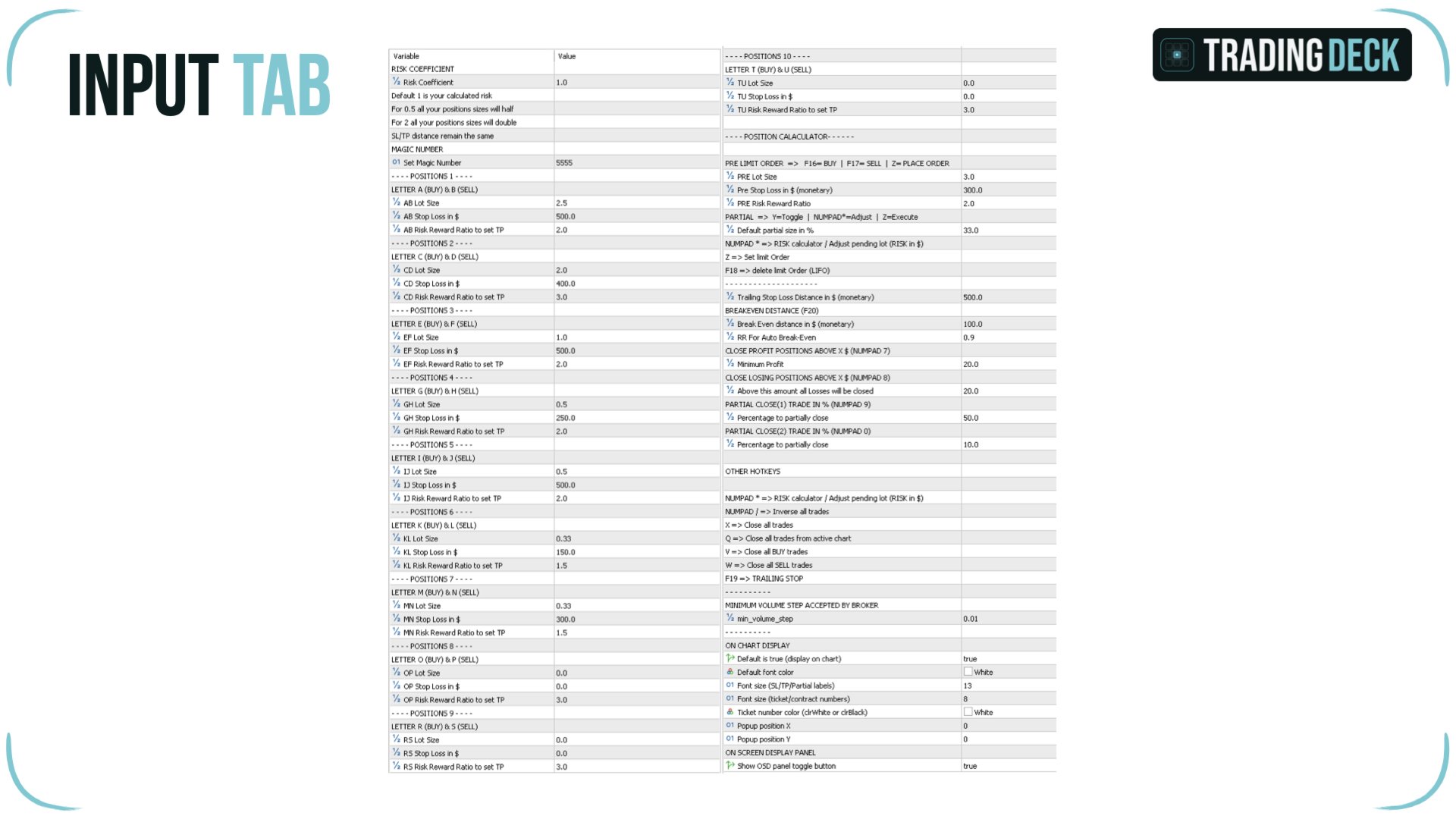
A complete technical user manual is attached in the product Comments section. It documents every input parameter, the full hotkey map, the recommended Stream Deck XL layout, and the advanced workflows for Pre-Limit orders, partial closes and the inverse-trade feature. Read it before purchase if you want the full technical picture.
Why Trading Deck stands apart
Two design choices separate this hotkey trading panel for MT5 from every other one-click EA and position size calculator on the MQL5 Market.
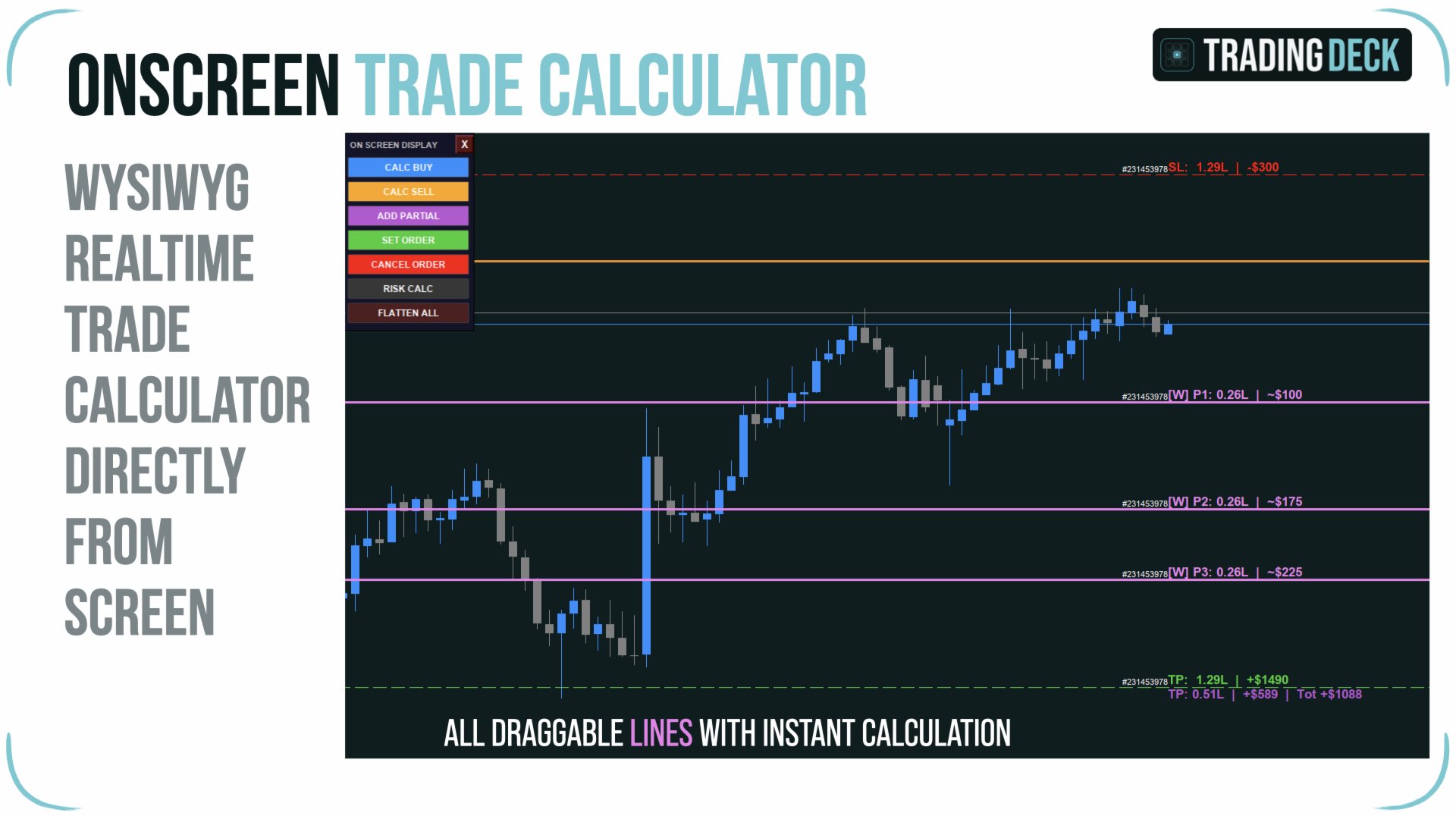
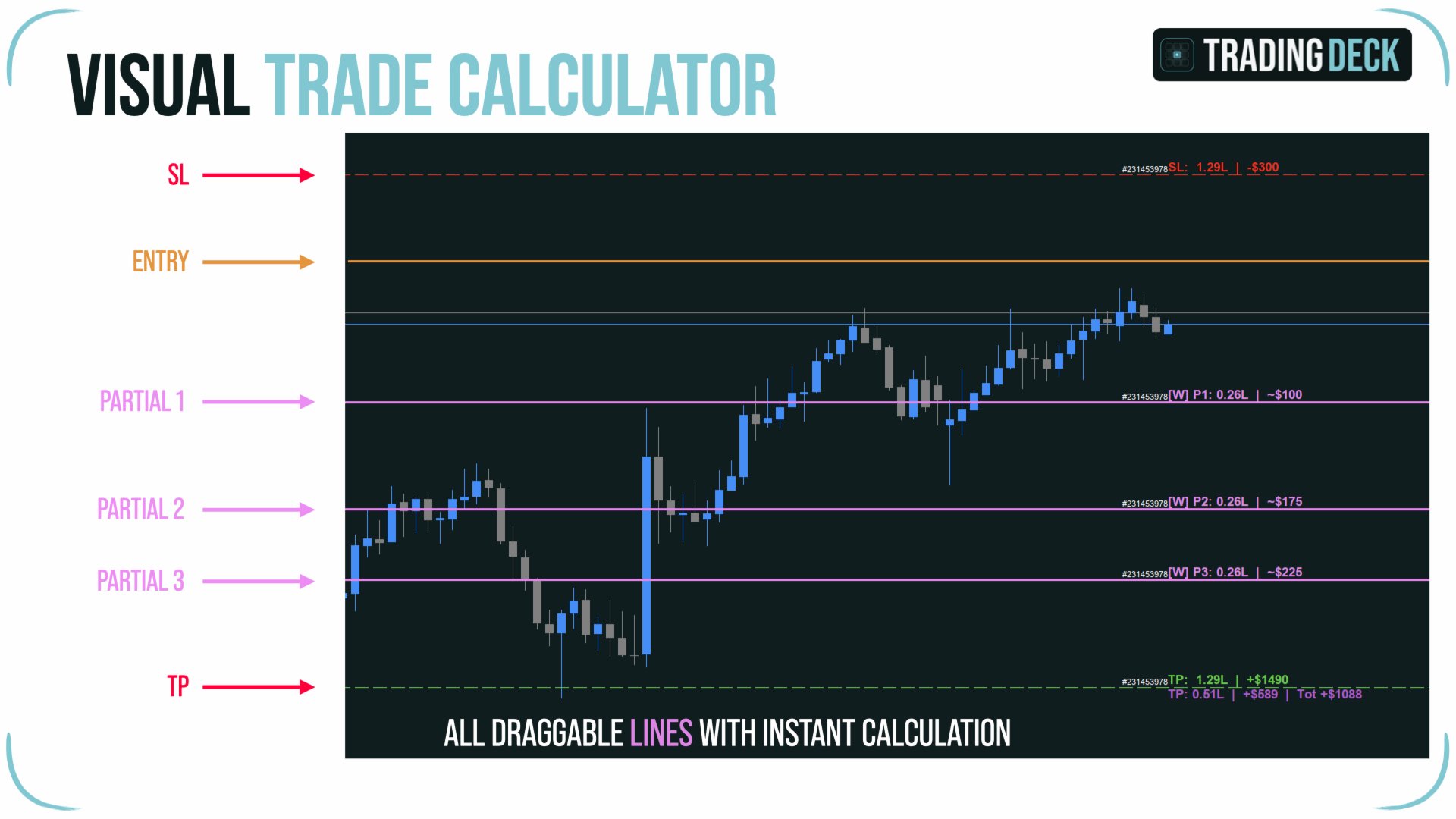
Your chart stays visible at all times. Conventional position size calculators overlay a floating panel on top of the price action. Trading Deck does the opposite: Entry, Stop Loss and Take Profit are three draggable lines drawn directly on the chart. Lot size, monetary risk and monetary reward update in real time as you slide each line, but the chart itself is never covered by a UI element. You read price structure and you plan the order on the same surface.
The Stream Deck is optional. Trading Deck is built around an Elgato Stream Deck workflow, but no hardware is required to use the EA. A built-in on-chart control panel exposes the essential functions as clickable buttons, and every action is bound to a standard keyboard shortcut. Start trading on any Windows or Mac MetaTrader 5 installation today; add a Stream Deck later when you want the physical cockpit experience.
Twenty instant order slots
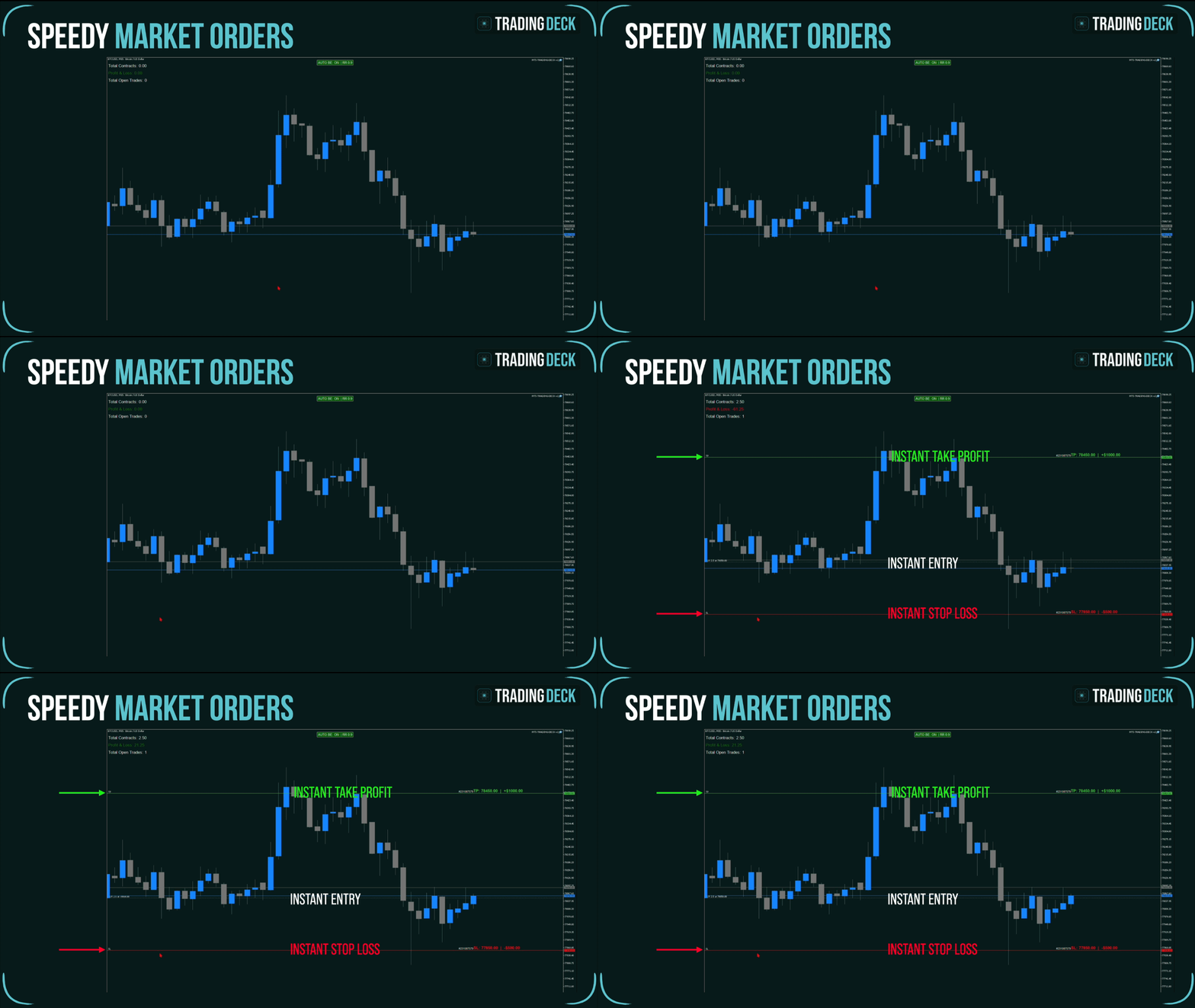
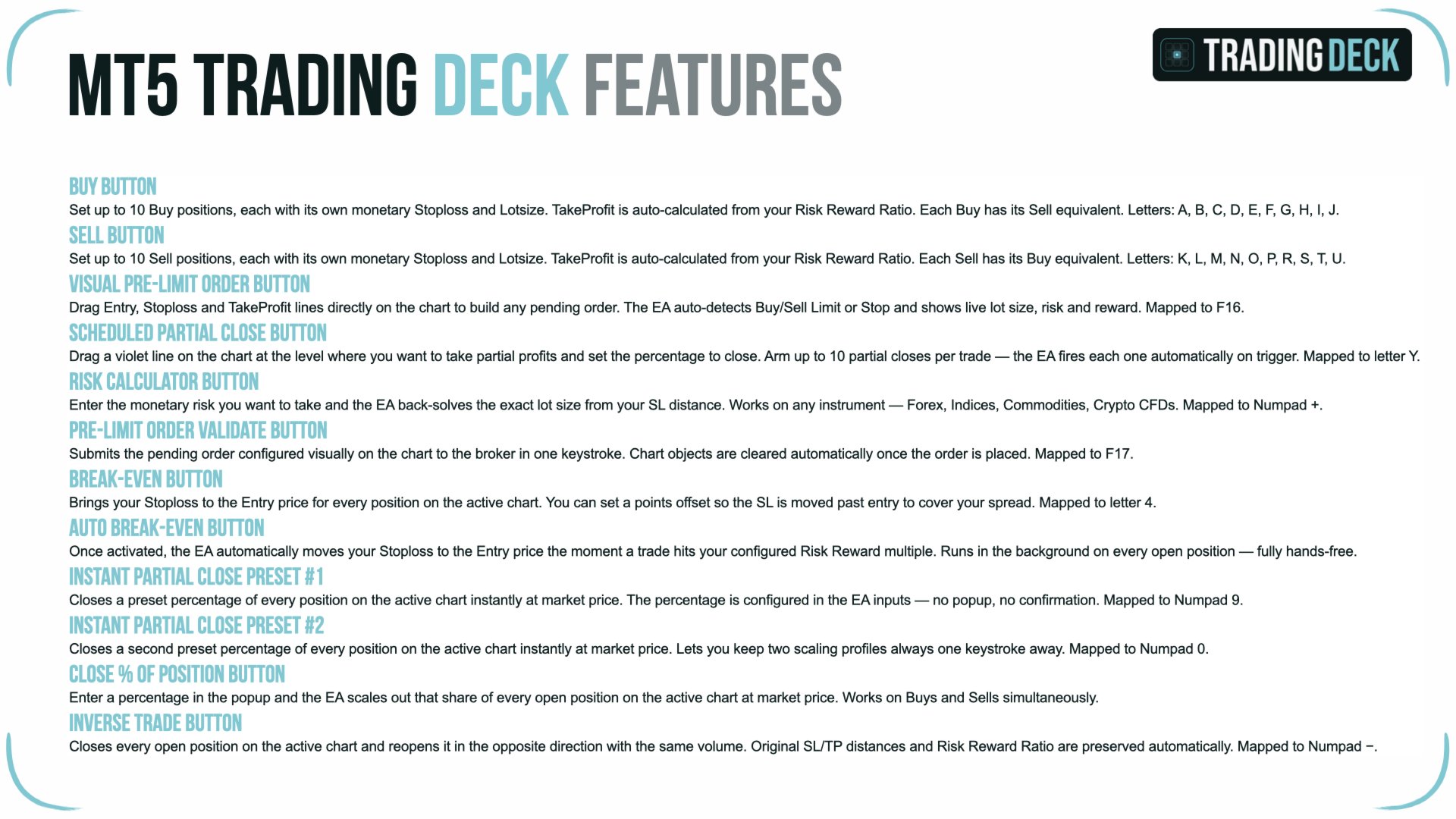
The core idea of Trading Deck is to remove every decision from the moment of execution. Twenty order slots are configured up front: 10 BUY slots on keys A, C, E, G, I, K, M, O, R, T and 10 SELL slots on keys B, D, F, H, J, L, N, P, S, U. Each slot carries its own pre-configured lot size, monetary stop loss and risk/reward ratio. Press the key and a market order is sent immediately, the stop is placed at the configured monetary distance, and the take profit is placed at the configured R/R multiple.
Stops and targets are defined in account currency, not in pips or points. If your stop is set at fifty units of your account currency, that is the actual loss you risk if the SL is hit. The EA reads the broker's tick value for the active symbol and converts the monetary amount to the correct number of points. The same slot configuration works on EURUSD, XAUUSD, US500 or BTCUSD without any retuning.
A global Risk Coefficient multiplier scales all twenty slots simultaneously. Set it to 0.5 before a high-impact news event to halve every position size at once. Set it to 1.5 on your highest-conviction setups. Set it to 0 to lock the EA into observation mode. One input parameter, twenty positions resized in a single move.
On-chart visual position calculator
For pre-planned trades, Trading Deck provides a visual lot size calculator MT5 traders can actually use without losing sight of the chart. Press F16 to arm a BUY plan or F17 to arm a SELL plan. Three horizontal lines appear directly on the price: a blue line for a BUY entry (or orange for a SELL), a red line for the stop loss and a green line for the take profit.
Drag any of the three lines to set your levels. The EA reads the geometry and auto-detects the correct MT5 order type — Buy Stop, Buy Limit, Sell Stop or Sell Limit are chosen automatically based on the position of the Entry line relative to the current market price. Labels next to the SL and TP lines display the exact stop price, the lot size that respects your monetary risk, and the resulting monetary loss and gain.
The Numpad * key opens the Risk Calculator panel. Enter the monetary risk you want to commit and the EA back-calculates the exact lot size that respects your stop loss distance, while honouring the broker's minimum lot, maximum lot and minimum lot increment. When the Entry line is moved, the SL and TP lines preserve their relative distance from it; your original risk-to-reward ratio is never accidentally distorted by a chart adjustment.
Press Z to submit the pending order. Press F18 to open the LIFO cancel popup that lists every pending order and every armed partial on the active symbol, most recent first, and lets you cancel any of them in one click.
Stream Deck integration
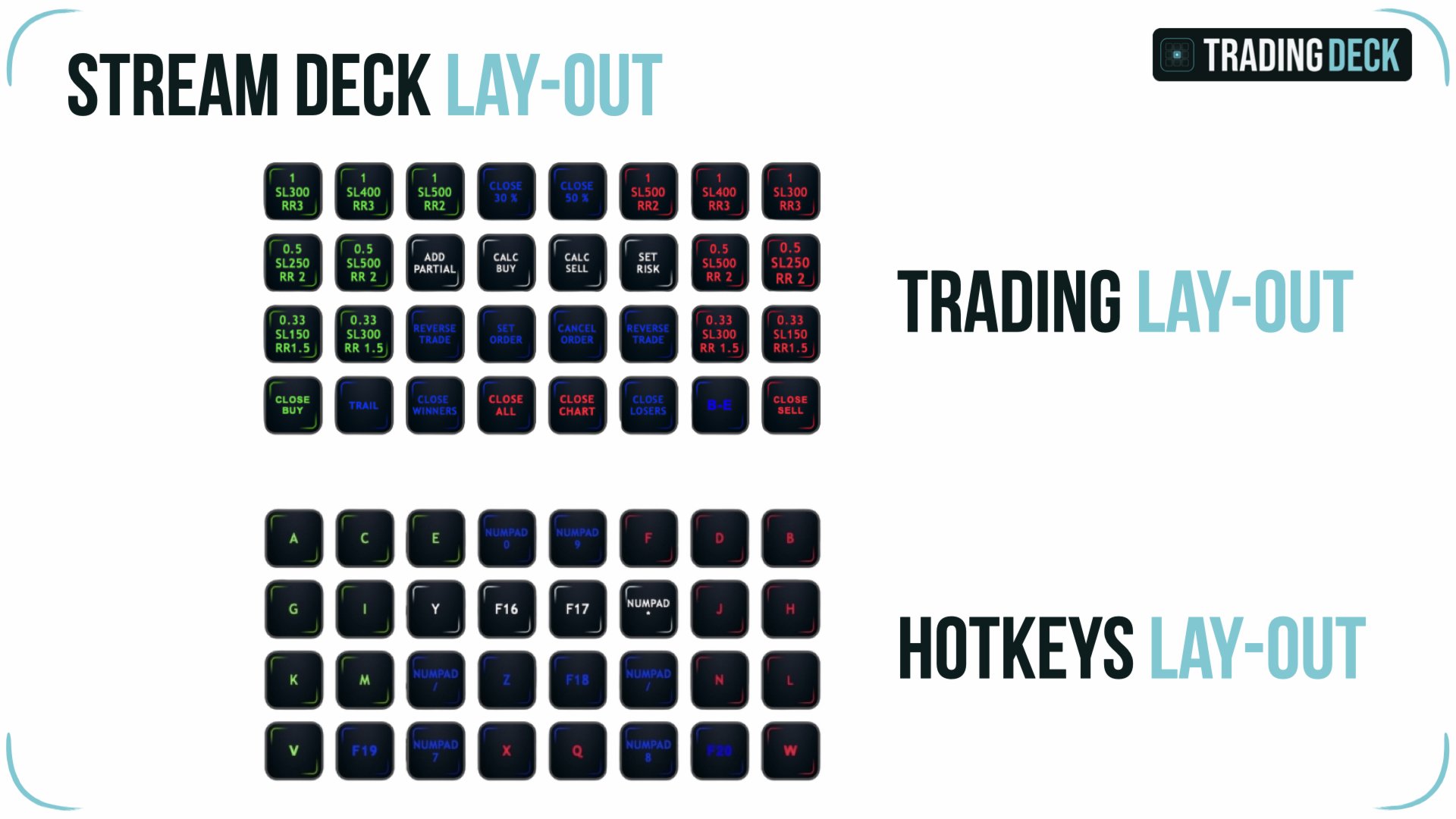
For traders who already own an Elgato Stream Deck, Trading Deck provides a documented Stream Deck XL button layout that maps every essential function to a backlit physical key. Order execution slots, Pre-Limit BUY and SELL, partial close presets, auto break-even toggle, trailing stop, inverse trade and the close-all hotkey all sit on the device in a logical grid. The mapping is done through the standard Stream Deck Hotkey action: each button sends the keystroke the EA expects, so the EA itself does not require any external integration.
The full layout file and a step-by-step setup guide are included in the user manual. You can also rebuild the layout from scratch and assign the functions to your own preferred buttons in a few minutes.
Full hotkey reference
Every action in Trading Deck is bound to a single, dedicated key. Below is the full reference. F-keys F13 to F20 and the full Numpad work on both Windows and macOS, which makes the panel fully usable on a MacBook keyboard.
Twenty instant order slots
A / B — slot 1 BUY / SELL
C / D — slot 2 BUY / SELL
E / F — slot 3 BUY / SELL
G / H — slot 4 BUY / SELL
I / J — slot 5 BUY / SELL
K / L — slot 6 BUY / SELL
M / N — slot 7 BUY / SELL
O / P — slot 8 BUY / SELL
R / S — slot 9 BUY / SELL
T / U — slot 10 BUY / SELL
Close and cancel
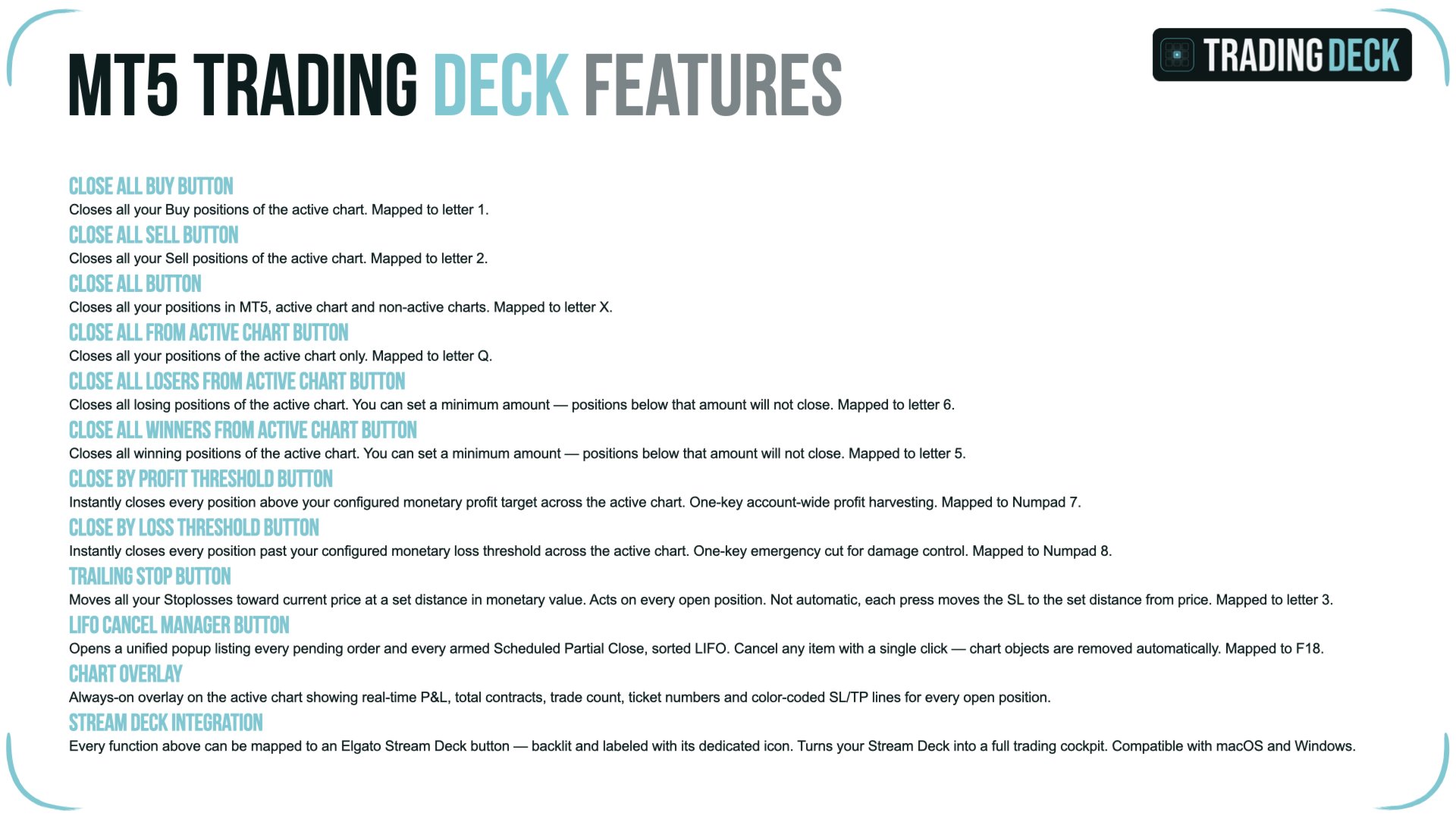
X — close every open position on every chart
Q — close every open position on the active symbol
V — close every open BUY on the active symbol
W — close every open SELL on the active symbol
Pre-Limit order workflow
F16 — toggle Pre-Limit BUY lines on the chart
F17 — toggle Pre-Limit SELL lines on the chart
Z — submit the pending order
F18 — open the LIFO cancel popup
Numpad * — open the Risk Calculator panel
Position management
F19 — trailing stop on every open position
F20 — manual break-even on eligible positions
Numpad 7 — close every position above a profit threshold
Numpad 8 — close every position below a loss threshold
Numpad 9 — partial close preset 1 (default 50%)
Numpad 0 — partial close preset 2 (default 30%)
Numpad / — inverse trade on every open position
Y — arm a price-triggered partial close on a position
Risk management built in
Trading Deck is designed as a risk management EA MT5 traders can rely on under pressure. Every protection is a single keystroke away.
Auto break-even. When a position reaches a configurable unrealised R/R threshold, the EA automatically moves the stop loss to the entry price. The on-chart AUTO BE toggle button shows the current state in green or red, and a single click flips it. A manual break-even key (F20) is also available for traders who prefer to trigger it themselves.
Trailing stop. F19 activates a monetary-distance trailing stop on every open position on the active chart. The trailing distance is configured in account currency, so the behaviour is consistent across instruments without any per-symbol tuning.
Partial closes. Two presets (Numpad 9 and Numpad 0) close a configurable percentage of every open position instantly. For more granular work, the advanced partial system lets you arm up to ten price-triggered partials per position, each closing a custom percentage at a specific level. Partials can also be attached to pending orders and are promoted to live positions automatically when the order fills.
Profit harvest and loss cutoff. Numpad 7 closes every position whose unrealised profit exceeds a configurable amount. Numpad 8 closes every position whose unrealised loss exceeds a configurable amount — a session-level emergency brake when the market turns against the open book.
Inverse trade. Numpad / closes every open position on the active chart and immediately reopens each one in the opposite direction at the current market price. Stop loss and take profit distances in points are preserved relative to the new entry, so the original risk-to-reward ratio survives the flip. If the broker's minimum stop distance is reached, the take profit is scaled proportionally rather than rejected.
Three workflows the panel was built for
Fast manual scalping. Pre-configure your favourite slot sizes and risk values up front. When a setup prints, press the slot key for the right size and direction. The order is live with stop loss and take profit before you would have finished clicking through the standard MetaTrader order dialog.
News and event-driven trading. Lower the global Risk Coefficient to 0.5 or 0.3 in the minutes before a release. After the release, your usual slot keys keep working, but every position size is automatically scaled down. Restore the coefficient when conditions normalise.
Pre-planned swing entries. Draw the Pre-Limit lines at your invalidation and target levels while you wait for price to reach the trigger. The EA submits the correct Buy Limit, Buy Stop, Sell Limit or Sell Stop automatically. Walk away from the screen knowing the lot size respects your monetary risk and the order will only execute on your level.
Compatibility and requirements
MetaTrader 5 on Windows or macOS. Works on any broker MT5 build that supports live trading from an Expert Advisor. Compatible with both hedging and netting account types. Symbol-agnostic and timeframe-agnostic; you can attach Trading Deck to any chart at any timeframe. The EA respects the broker's minimum lot, maximum lot and minimum lot increment, and queries the broker's tick value to convert monetary stops into instrument points.
AutoTrading must be enabled in the MetaTrader 5 toolbar. Each EA instance can carry a unique Magic Number to manage multiple instances on the same account, or zero to manage every trade on the symbol.
FAQ
Is a Stream Deck required?
No. Every function is also bound to a standard keyboard shortcut and to an on-chart control button. A Stream Deck adds physical, backlit buttons, but the EA is fully usable without one.
Does the EA take signals or place trades on its own?
No. Trading Deck is a discretionary execution and risk management tool. It never opens a position on its own initiative. You decide when and where to enter; the EA handles the mechanics, the sizing and the protections.
How is the stop loss defined?
In account currency. You specify the monetary amount you accept to lose on a slot or on a Pre-Limit order, and the EA converts it to the correct distance in points using the broker's tick value for the symbol.
Does the position calculator hide my chart?
No. Entry, Stop Loss and Take Profit are drawn as draggable horizontal lines on the price itself. The chart remains fully visible at all times. The Risk Calculator popup is a small, repositionable window that you can drag away from your analysis area.
Does it work on MetaTrader 4?
No. Trading Deck is sold exclusively for MetaTrader 5. The hedging-and-netting handling, the symbol tick conversion and the order workflow are all built on the MT5 trading API and would not transfer cleanly to MT4.
Can I run several instances on the same account?
Yes. Each instance carries its own Magic Number and operates only on the positions tagged with that number. You can attach Trading Deck to several charts and isolate each instance to its own set of trades.
About the project
Trading Deck is the result of a personal need: a hotkey trading panel for MT5 that respects monetary risk, never hides the chart, and works equally well with a Stream Deck or with a bare keyboard. Every feature in the panel exists because the workflow of a manual trader demands it. The product is maintained, updated, and supported through the MQL5 platform. Our goal is to grow Trading Deck alongside the traders who use it. We are actively listening for new workflows, risk tools and quality-of-life improvements to add in upcoming versions. If you have a feature request or a scenario you want the EA to handle, share it with us and we will consider it for a future update on the MQL5 platform.













































Been looking for something like this to use with stream deck Neo, works great and responsive seller. Thank you. I recommend. AKARA