Canvas Footprint
- Indicatori
- Versione: 1.0
- Attivazioni: 7

Footprint Indicator for MT5
1. Introduction
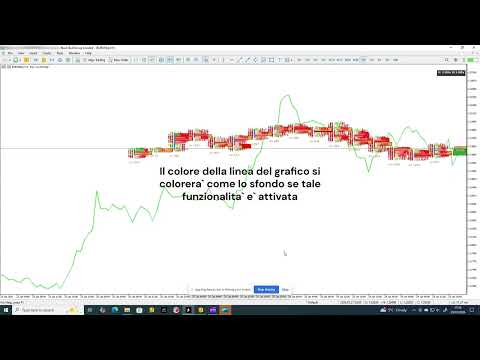
This Indicator provides a real-time footprint and volume profile visualization per candle directly on MetaTrader 5 charts, allowing traders to analyze order flow, volume distribution, and market pressure with precision.
2. Installation
1. Copy the Indicator file into the MetaTrader 5 /Indicators folder.
2. Restart MetaTrader 5.
3. Drag the Indicator onto a chart.
3. Indicator Overview
The Indicator renders a footprint representation for each candle, displaying Bid and Ask traded volume, delta values, and the Point of Control (POC). Columns can be stacked or scrolled horizontally to inspect historical order flow without changing timeframe.
4. Footprint Concepts Bid / Ask Volume
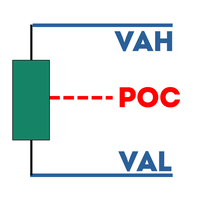
Displays traded volume at each price level separated by aggressor side. Delta: The difference between Ask and Bid volume, indicating buying or selling pressure. Point of Control (POC): The price level with the highest traded volume within a candle.
5. Inputs and Settings
All Indicator parameters are configurable via the Inputs tab. Typical settings include:- Number of footprint columns displayed- Price aggregation step- Color settings for Bid, Ask, Delta, and POC- Scroll and stacking behaviour. Refer to the input descriptions in MT5 for precise parameter definitions.
6. How to Read the Footprint
High Ask volume above the POC suggests aggressive buying. High Bid volume below the POC suggests aggressive selling. Divergence between delta and price movement may indicate absorption or exhaustion.
7. How to use the vertical zoom
Dragging with the left mouse button pressed on the price scale will activate the vertical zoom at the speed set in the input parameter.
8. How to use the horizontal zoom
Scrolling the mouse wheel while pressing the ctrl key will activate the horizontal zoom at the speed set in the parameters. Minimum and maximum zoom level can be set as input parameter.
9. Typical Use Cases
Identifying institutional activity- Confirming breakouts and reversals- Scalping and intraday order-flow analysis
10. Performance Notes & Limitations
The Indicator is optimized for intraday analysis. Very low timeframes and extended history depth may increase CPU usage depending on broker tick density.
11. Troubleshooting
Check broker provides real tick volume- Reduce visible columns if performance degrades. If on lunching the indicator only one bar is visible, just switch timeframe to reload ticks data.
12. Disclaimer
This Indicator is a trading analysis tool and does not provide trading signals. Trading involves risk. Past performance is not indicative of future results
13. Input parameters definition
GENERAL INPUT PARAMETERS
-
Number of footprint bars to display on chart
Sets how many footprint columns are drawn on the chart at the same time. -
Number of ticks to load for footprint calculation
Defines how much tick history is loaded to build the footprints. If you notice missing footprints or a weekend gap increase the value
-
Use the chart's current timeframe (true) or custom period (false)
Chooses whether footprints follow the chart timeframe or a custom one. -
Custom footprint period in minutes
Sets a manual timeframe for footprints when not using chart timeframe. -
Horizontal spacing between footprint columns in pixels
Controls the distance between each footprint column. -
Multiplier for price step size in footprint display
Adjusts the vertical price resolution of footprint rows. -
Display large numbers in 'K' notation (e.g., 1K = 1000)
Shortens large volume numbers for readability. -
Fix the footprint canvas height regardless of zoom
Prevents canvas height from changing when zooming. -
Fixed canvas height in pixels
Sets the exact height of the footprint drawing area. -
Margin from top of chart to footprint display
Adds vertical spacing above the footprint area. -
Show bid price line
Enables drawing of the bid price line. -
Color of bid price line
Sets the color of the bid line. -
Transparency of bid price line (0 = transparent, 255 = opaque)
Controls how visible the bid line is. -
Show ask price line
Enables drawing of the ask price line. -
Color of ask price line
Sets the color of the ask line. -
Transparency of ask price line
Controls how visible the ask line is. -
Hide the default chart price line
Removes MetaTrader’s standard price line.
PRICE AND TIMEFRAME COUNTER BOX
-
Show price and timeframe counter box
Displays a box with current price and timeframe information. -
Background color of counter box
Sets the background color of the box. -
Transparency of counter box background
Controls box background opacity. -
Text color inside counter box
Sets the color of the text in the box. -
Transparency of counter box text
Controls text opacity inside the box. -
Border color of counter box
Sets the outline color of the box. -
Transparency of counter box border
Controls the opacity of the box border.
VOLUME PROFILE HISTOGRAM
-
Show volume profile histogram
Enables the volume profile next to footprints. -
Selected histogram position
Chooses whether the histogram is centered, left, or right. -
Use gradient coloring based on volume intensity
Changes bar color intensity according to volume size. Higher the volume more intense the bar color
-
Color for buy volume bars
Sets the color of buy volume histogram bars. -
Color for sell volume bars
Sets the color of sell volume histogram bars. -
Transparency of volume profile bars
Controls histogram bar opacity. -
Show border around histogram bars
Enables borders around each bar. -
Border color for buy volume bars
Sets border color for buy bars. -
Border color for sell volume bars
Sets border color for sell bars. -
Transparency of histogram bar borders
Controls border opacity. -
Height of each histogram row in pixels
Sets vertical size of each price level row.
TEXT LABELS (VOLUME & DELTA)
-
Font size for volume and delta text labels
Controls the size of text labels. -
Font name used for all text labels
Sets the font family used throughout.
TOTAL VOLUME LABELS (Histogram Side)
-
Show total buy/sell volume labels on histogram side
Displays aggregated volume values next to histogram. -
Text color for total buy volume labels
Sets color of total buy volume text. -
Text color for total sell volume labels
Sets color of total sell volume text.
BUY / SELL VOLUME LABELS
-
Show separate buy and sell volume labels
Displays individual buy and sell values per price level. -
Text color for buy volume labels
Sets color of buy volume text. -
Text color for sell volume labels
Sets color of sell volume text.
DELTA LABELS
-
Show delta (buy-sell) volume labels
Displays the difference between buy and sell volume. -
Text color for positive delta values
Sets color for positive delta numbers. -
Text color for negative delta values
Sets color for negative delta numbers.
CANDLES
-
Show candlestick chart overlay
Enables candle drawing over footprints. -
Width of each candle body in pixels
Controls candle body thickness. -
Color for bullish candles
Sets color of bullish candles. -
Color for bearish candles
Sets color of bearish candles. -
Transparency of candle bodies
Controls candle body opacity. -
Show candle borders and wicks
Enables drawing of candle outlines and wicks. -
Color for candle borders and wicks
Sets color of candle outlines and wicks. -
Transparency of candle borders and wicks
Controls opacity of candle outlines.
POINT OF CONTROL (POC)
-
Show Point of Control (POC) line/marker
Displays the price level with highest volume. -
Color for POC when delta is positive
Sets POC color for positive delta. -
Color for POC when delta is negative
Sets POC color for negative delta. -
Transparency of POC fill
Controls POC visibility. -
Border color for POC
Sets outline color of the POC.
ZOOM CONTROLS
-
Disable default MetaTrader zoom controls
Turns off built-in platform zoom behaviour. -
Display current horizontal zoom level on chart
Shows numerical zoom level. -
Distance of zoom level display from top of canvas
Controls vertical placement of zoom label. -
Font size for zoom level text
Sets zoom label text size. -
Font name for zoom level text
Sets zoom label font. -
Background color of zoom level box
Sets zoom label background color. -
Transparency of zoom level box background
Controls zoom label background opacity. -
Border color of zoom level box
Sets border color of zoom label box. -
Transparency of zoom level box border
Controls border opacity. -
Font color for zoom level text
Sets zoom label text color. -
Transparency of zoom level text
Controls zoom label text opacity.
HORIZONTAL ZOOM
-
Enable horizontal zoom functionality
Allows zooming in and out horizontally. -
Speed factor for horizontal zoom
Controls how fast horizontal zoom reacts. -
Maximum allowed horizontal zoom level
Sets upper horizontal zoom limit. -
Minimum allowed horizontal zoom level
Sets lower horizontal zoom limit.
PERFORMANCE OPTIMIZATION
-
Target frames per second for rendering
Limits rendering speed to reduce CPU usage. -
Enable caching to improve chart rendering performance
Reuses cached data to improve performance. -
Cache update interval in milliseconds
Controls how often cached data is refreshed.
14. How to use the zoom
The vertical zoom is activated by dragging on the chart's price with the left mouse's button while the horizontal zoom is activated by scrolling while pressing the ctrl key. Press 'r/R' key to reset the zoom.
15. Panning function
To pan horizontally simply press ctrl key and left click the mouse on the screen (the mouse button must be released). The panning remains active as long as the ctrl key is pressed. To pan vertically, drag on the chart with the left mouse's button.
If any further explanation about this Indicator is needed or if any problem is encountered, kindly get in touch.
This Indicator is under active development thus stay tuned for more functionality to be added.
16. Set files
Sorry but I had to remove the link to my google-drive as it doesn't comply with the market rules. I will write soon a blog entry and put some link there to download some pre-defined set file for various pairs.