
Apex Trade Terminal is a visual trading dashboard for MetaTrader 5. It never decides when to enter the market by itself — you do that — but it calculates your position size from the risk you choose, places the order, and then takes over everything that comes after: partial closes, trailing stops, breakeven, account protection, a multi-currency news calendar and timed operations. This manual covers the dashboard exactly as it is in version 46.6.
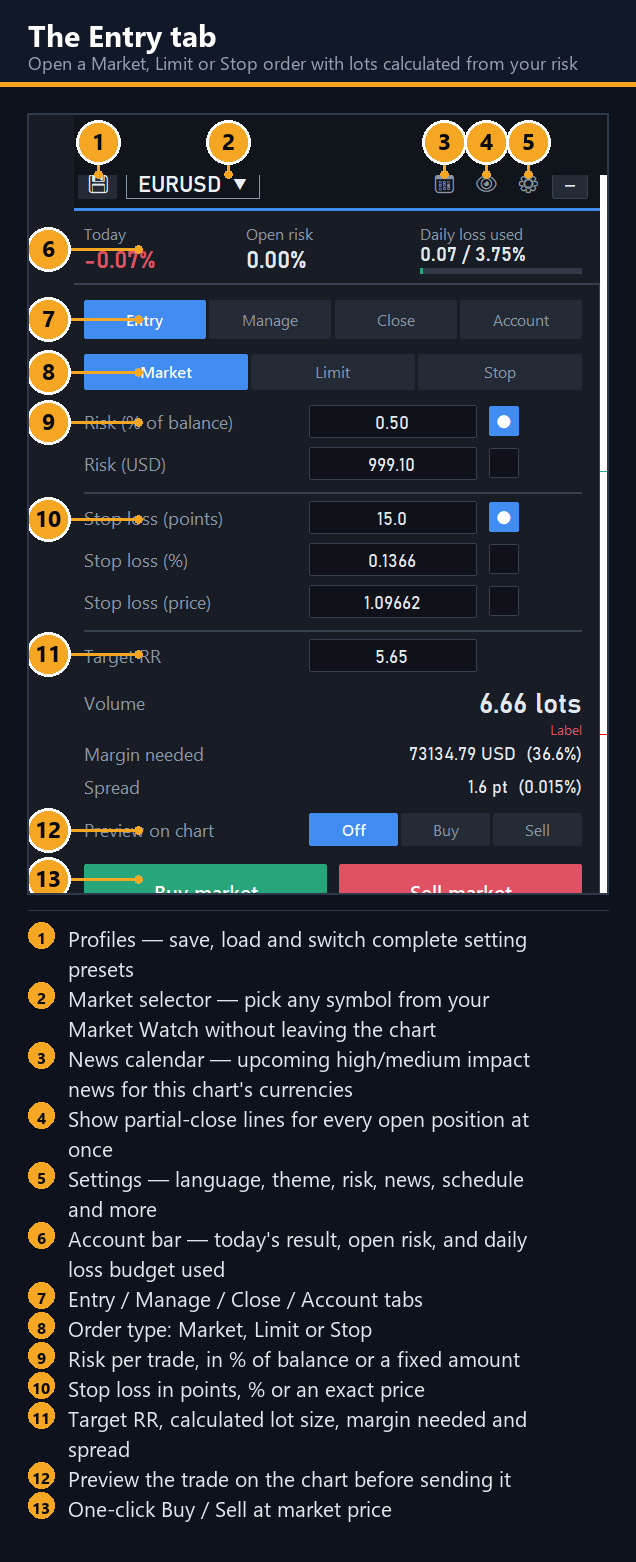
1. Getting started
Drag Apex Trade Terminal MT5 onto any chart, in any timeframe, on any symbol — forex, indices, metals, energies, crypto or stocks. The only input you must set is InpMagicNumber, a unique number that marks the orders the EA itself is responsible for (0 is not accepted, because 0 is reserved for your manual trades). InpFinnhubKey and InpNewsApiKey are optional: leave them empty unless you want US-earnings and breaking-news items in the calendar. Everything else — risk, stop loss, management plan, languages, colours, news, schedule — is set from inside the panel itself and is remembered automatically.
2. Placing an order: Market, Limit and Stop
Every order starts from the risk you choose, not from a lot size. Set your risk as a percentage of balance or as a fixed amount, and your stop loss in points, in percent, or as an exact price — Apex works out the lot size for you: it asks MetaTrader what a one-lot position would lose between your entry and your stop, including the conversion between the symbol's currency and your account currency, and rounds the result down to the broker's lot step. You never risk more than you asked for.
Target RR sets your take profit as a multiple of the risk (0 removes the take profit). Preview on chart draws the whole trade on the chart before you send it — see section 4.
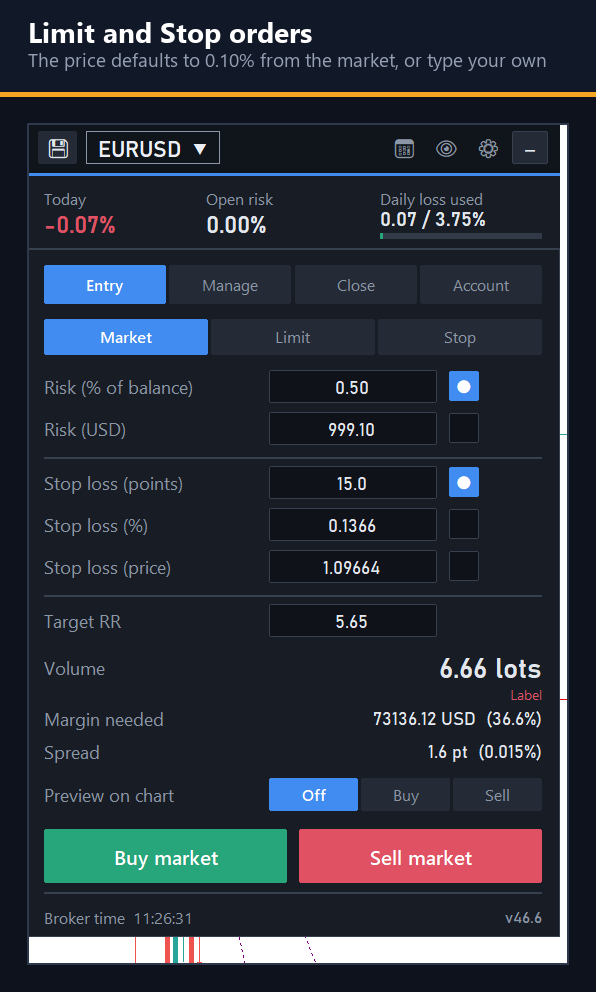
Limit and Stop work the same way, with one extra field: the entry price. Leave it on auto and it sits 0.10% from the current market price, or type your own. A Stop order also unlocks Trig+Stop, covered next.
3. Trig+Stop — a virtual conditional order
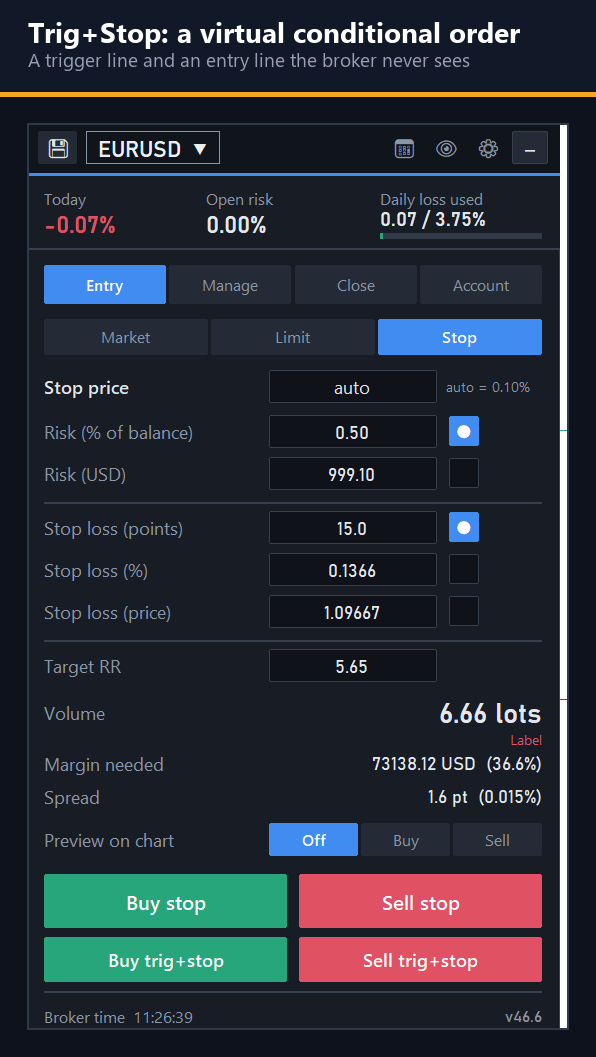
A Trig+Stop order is entirely managed by the EA — your broker never sees it until it actually fires. It has two lines: a trigger, 0.15% from the current price, and an entry, at a distance you choose (in points or in %). Once the trigger is touched, the entry line activates — with trailing switched on, it follows the price — and the moment price reaches the entry line, the order opens at market.
Optional extras, available from the order's own panel: a trigger that follows an EMA instead of a fixed distance, a cancel line that scraps the order if price reaches it first, OCO (one order cancels the paired one), and virtual stop loss / take profit. Everything is checked again right before the trade opens: daily loss, a new-entry block, progressive risk and free margin.
4. The visual trade preview
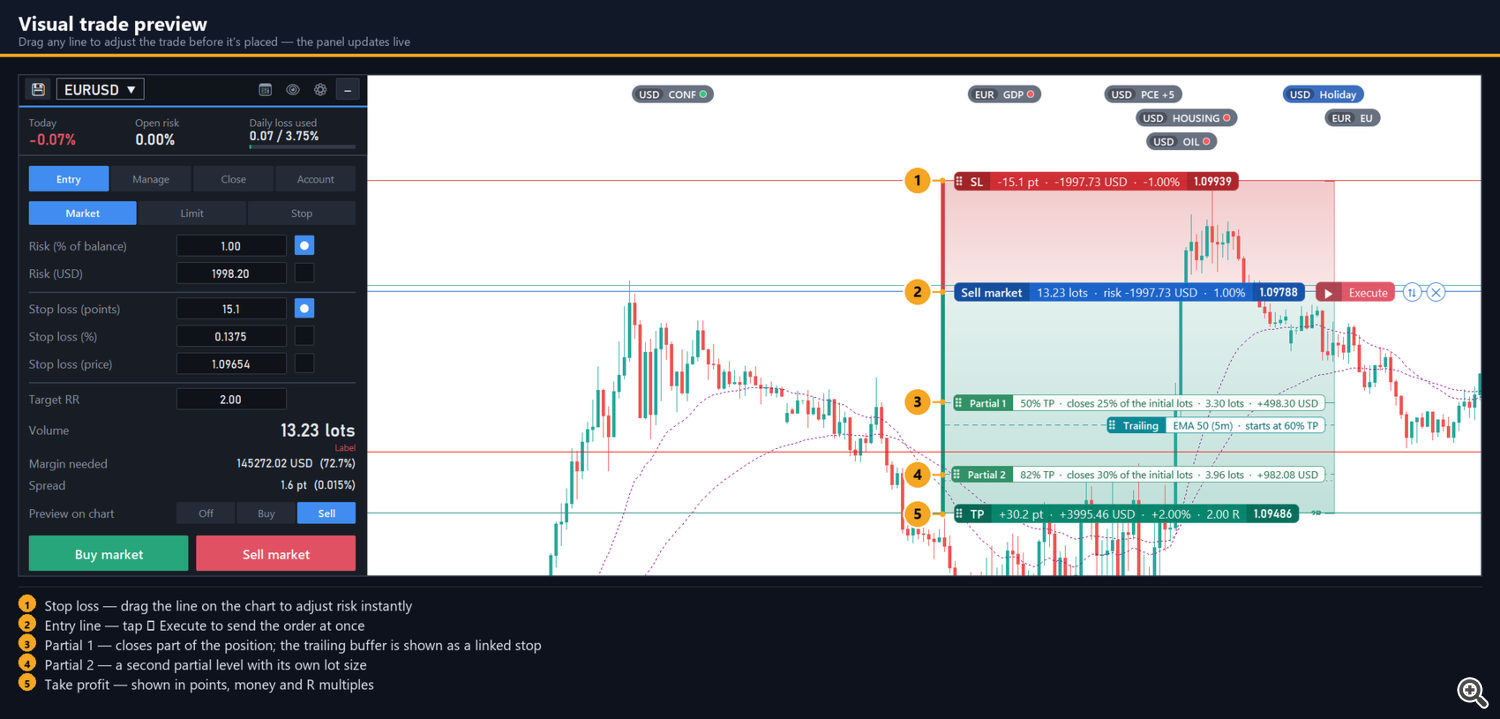
Switch Preview on chart to Buy or Sell on the Entry tab and the whole trade appears directly on the candles — before you have risked a cent. The stop loss and take profit lines can be dragged: drop the stop loss anywhere and the panel's field, the lot size and the money-at-risk all update immediately; the take profit stays in place and only its reward-to-risk changes. The entry line (Limit/Stop only) can be dragged too; cross it over the current price and the order switches itself between Limit and Stop.
A management plan is drawn as dashed lines inside the same preview — partial closes, SL mover, partial stop losses, the start of the trailing stop — so you see exactly what will happen to the position after it opens, and you can drag any of those lines to change the plan before you commit. The Execute button on the entry line sends the order immediately, with every check already applied; the preview switches itself off the moment the order is sent.
5. Managing an open position
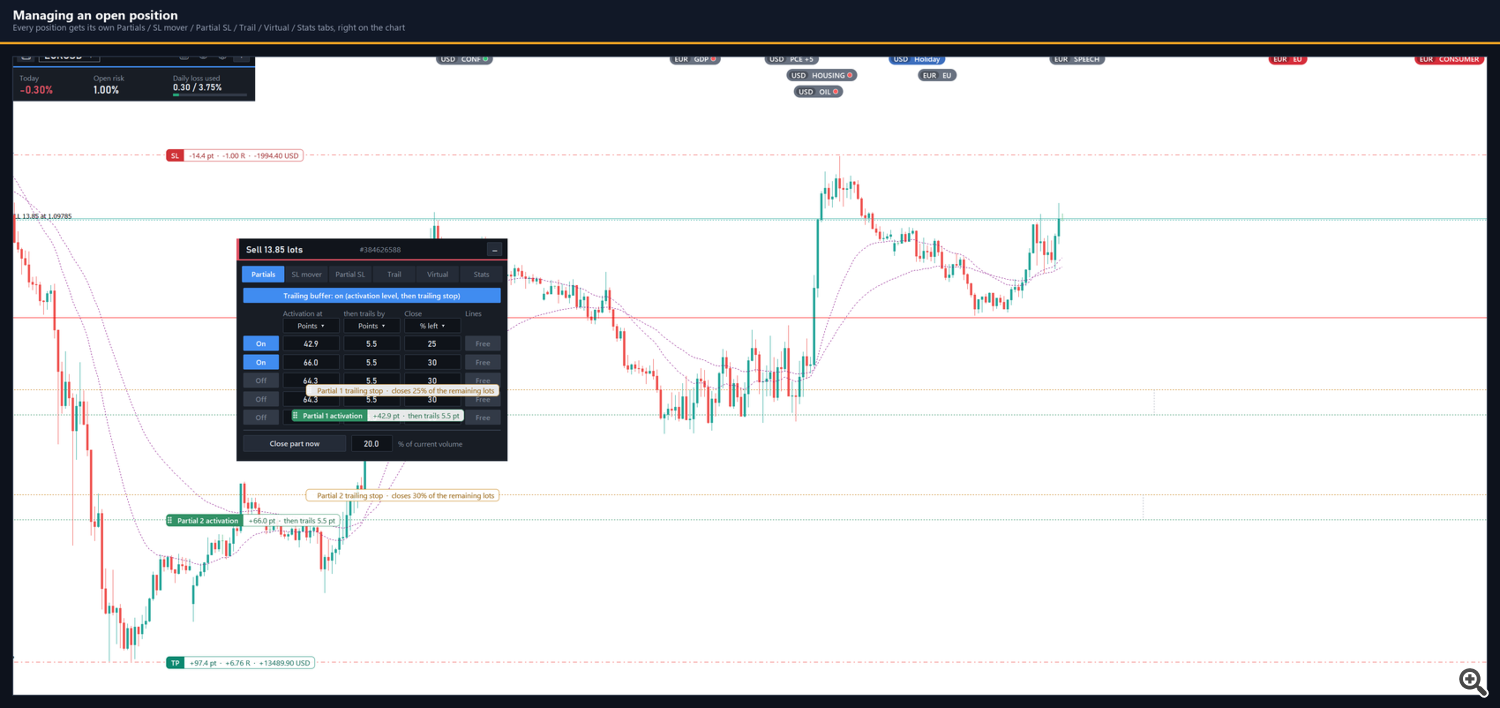
Every position Apex opens — and, if you turn it on, every manual position too — gets its own floating bar on the chart, right next to its entry line, with six tabs: Partials, SL mover, Partial SL, Trail, Virtual and Stats.
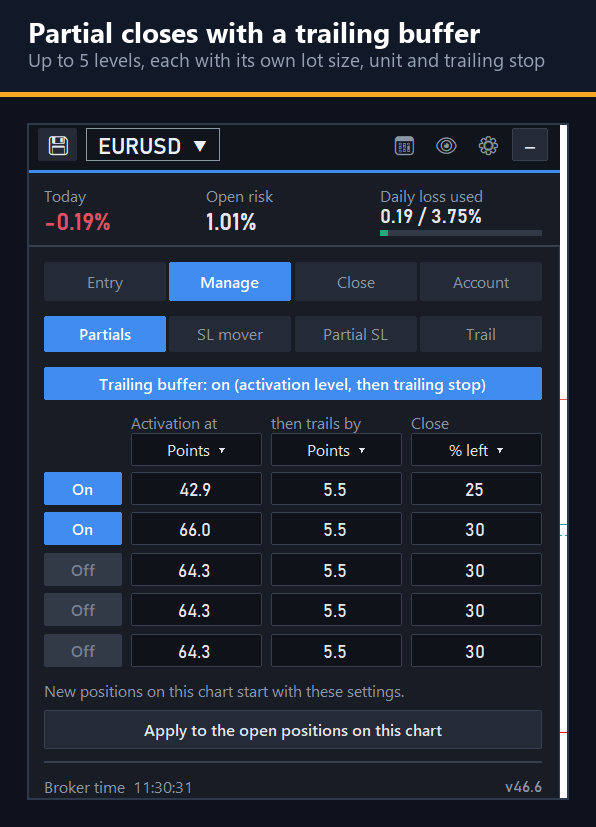
- Partials — up to 5 independent levels. Each has its own trigger (in R, % of take profit, points, % of price, money, % of balance, or multiples of ATR) and its own lot size (as a % of the initial volume, a % of what's left, or a fixed lot amount). Turn on the trailing buffer and, once triggered, a level doesn't close at once: the exit follows the price at a distance you set and only closes when price pulls back to it.
- SL mover — up to 3 levels that move the stop loss forward once the trade reaches a trigger.
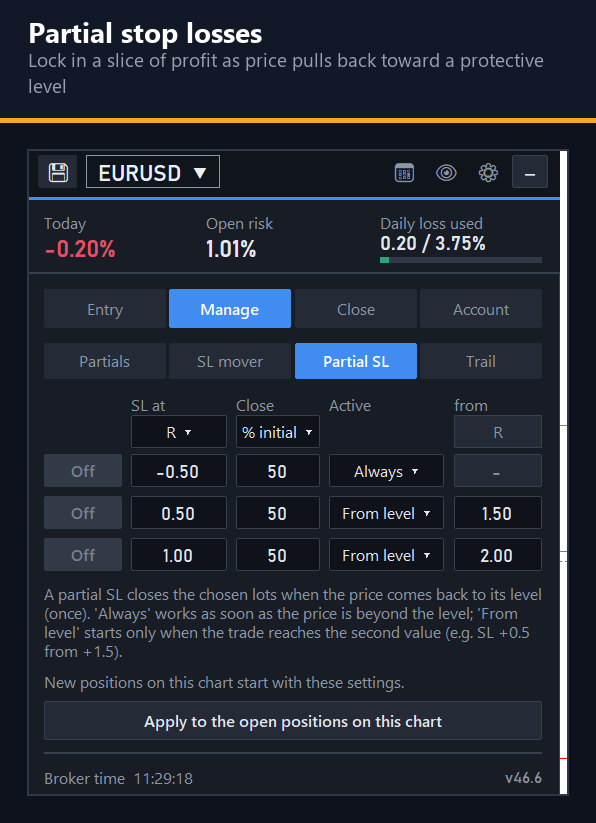
- Partial SL — up to 3 protective levels that lock in a slice of profit as price pulls back. "Always" arms the level as soon as the trade opens; "From level" only arms it once the trade first reaches a further target.
- Trail — seven trailing methods, see below.
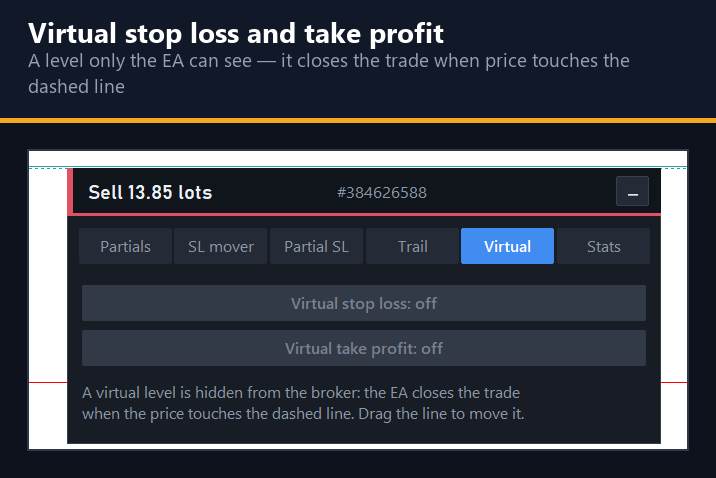
- Virtual — a stop loss and/or take profit that only Apex can see. Apex itself closes the trade the instant the market touches the dashed line.
- Stats — the trade's own numbers since it was opened.
Seven trailing stop methods
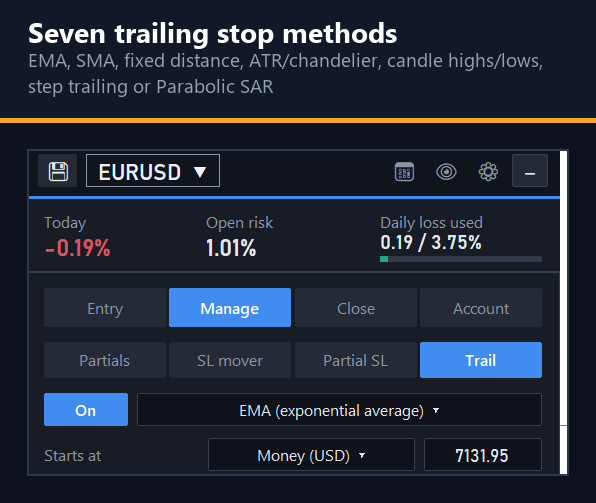
Once the trade reaches the level you set, the stop loss starts following the market — always towards profit, and always respecting the broker's minimum stop distance: EMA or SMA of a period and timeframe you choose, a fixed distance in points or in %, ATR / chandelier (price minus N × ATR), the highest/lowest of the last N candles, step trailing (every +X R the stop jumps forward by X R), or Parabolic SAR.
Partial stop losses
Partial closes with a trailing buffer
Three safety rules run quietly in the background on every position: lots are cut if a stop loss is ever widened; a stop loss never moves back more than 0.03% from its best level; and a stop loss that gets deleted is put straight back.
6. Protecting the account
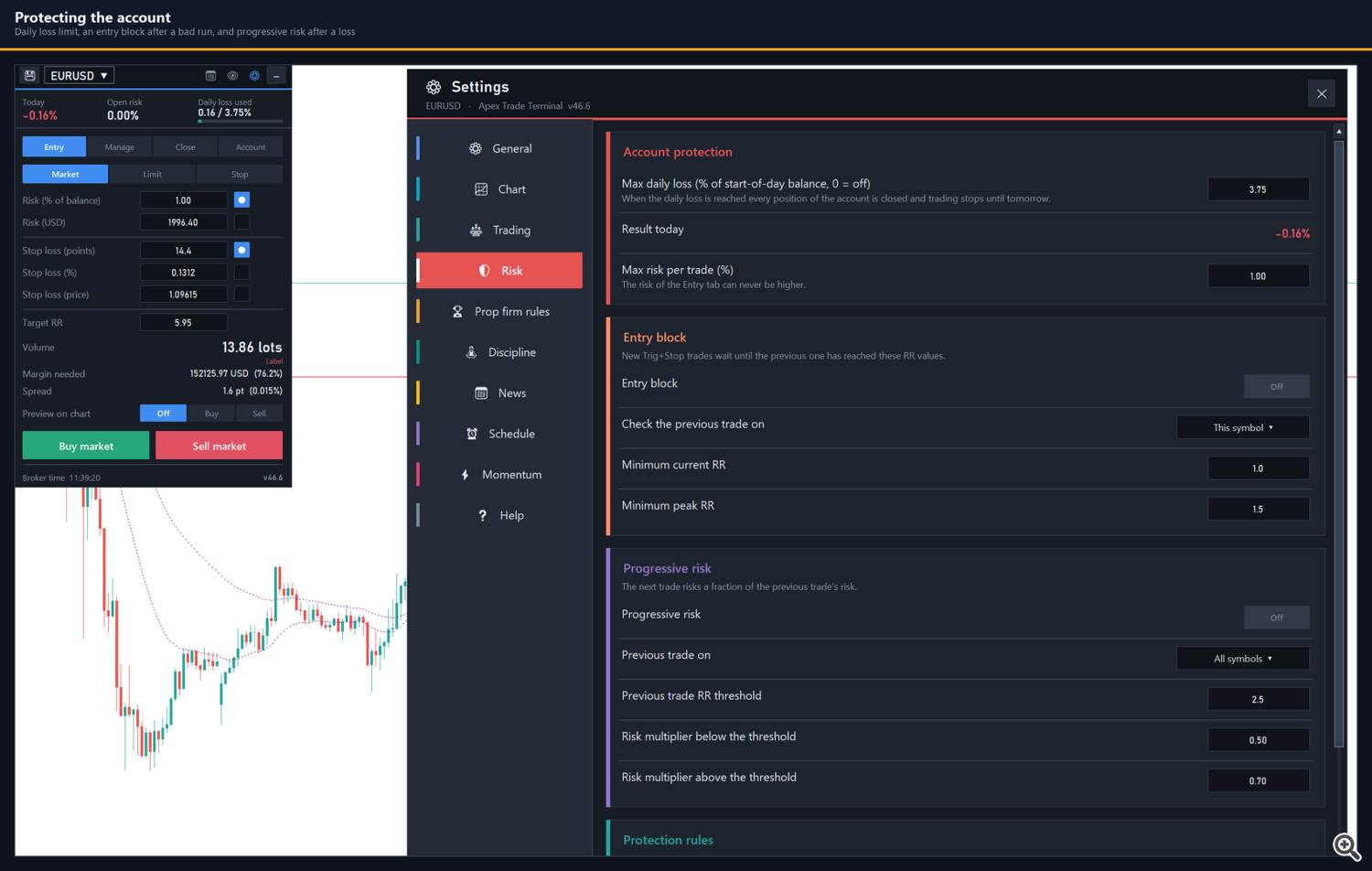
Max risk per trade (%) is a hard ceiling: the Entry tab can never ask for more. Max daily loss (3.75% of the day's starting balance by default) closes every position on the account, cancels every pending order, and blocks new trades until the next day. An entry block can require the previous Trig+Stop trade to have reached a minimum current or peak RR before a new one is allowed. Progressive risk scales the next trade's risk by a multiplier below or above an RR threshold on the previous trade.
7. A built-in prop firm challenge
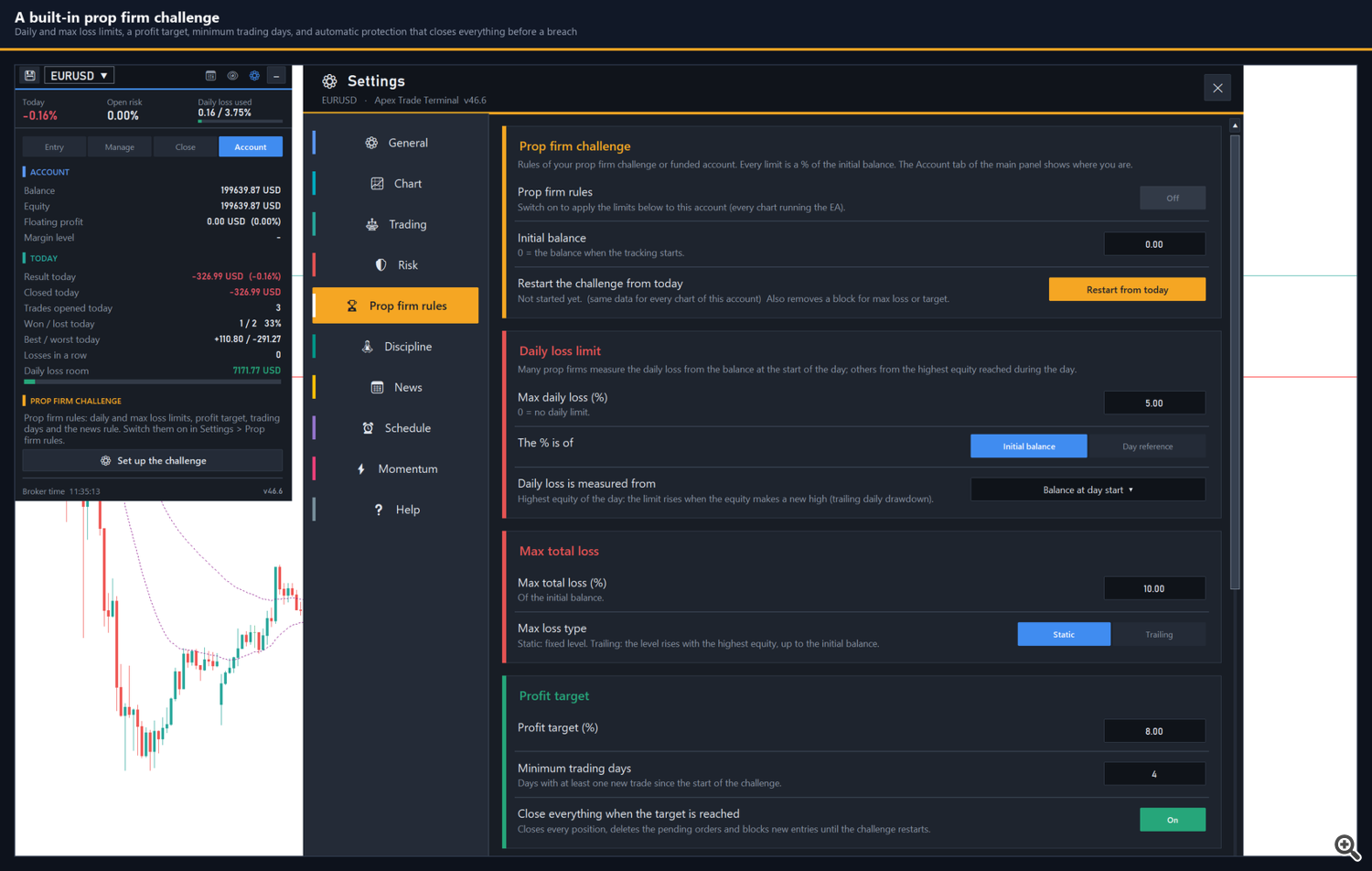
Turn on Prop firm rules and Apex tracks a challenge the same way a funded-account provider would, account-wide, across every chart: a daily loss limit, a max total loss (fixed or trailing with the equity's peak), a profit target with a minimum number of trading days, and an optional rule around high-impact news. When automatic protection is on, the moment equity reaches a limit (plus the safety margin you set) Apex closes every position, deletes every pending order and blocks new trades until you restart the challenge.
8. Closing trades from the Close tab
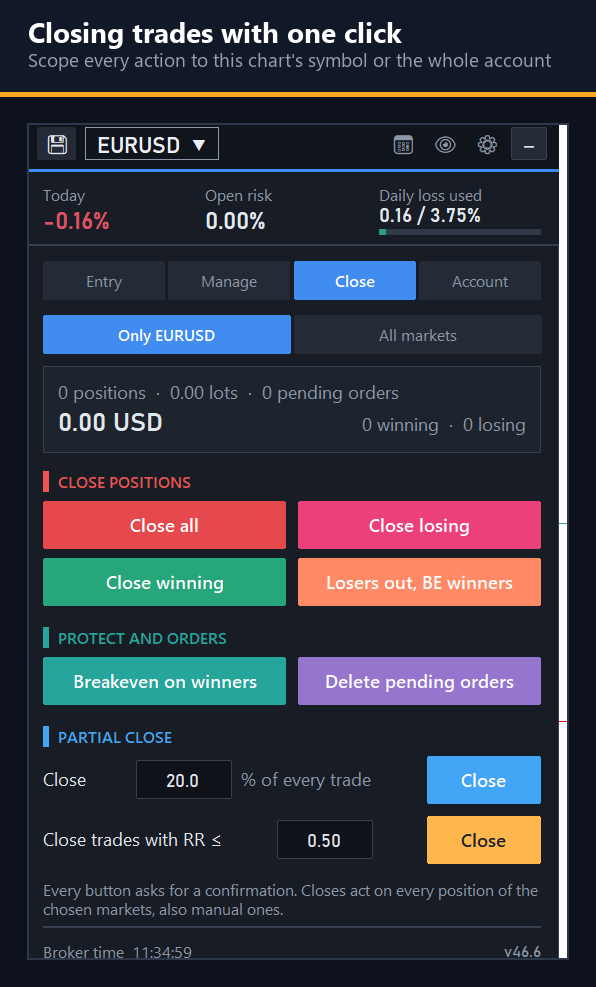
Every action can be scoped to this chart's symbol only or to the whole account: close everything, close only the losing trades, close only the winning trades, move losers out and winners to breakeven, move every winner to breakeven, delete every pending order, close a percentage of every trade, or close only the trades at or below a reward-to-risk you choose. Every button asks for confirmation first.
9. The Account tab
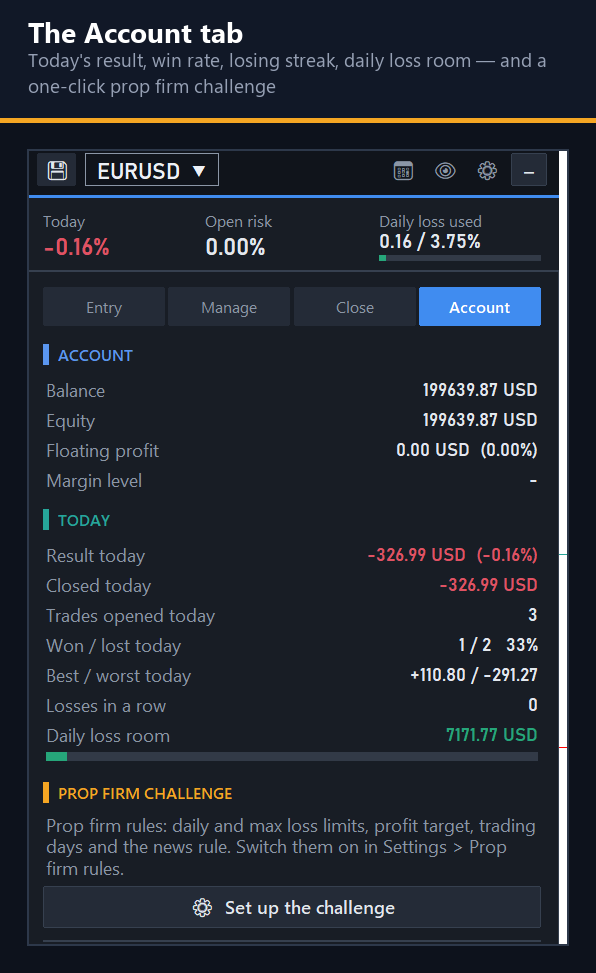
Balance, equity, floating profit and margin level at a glance, then today's own numbers: result in money and %, how many trades were opened, the win rate, the best and worst trade, and a losing streak that turns amber at two losses and red at three or more, with the remaining daily-loss room shown as a bar.
10. Profiles
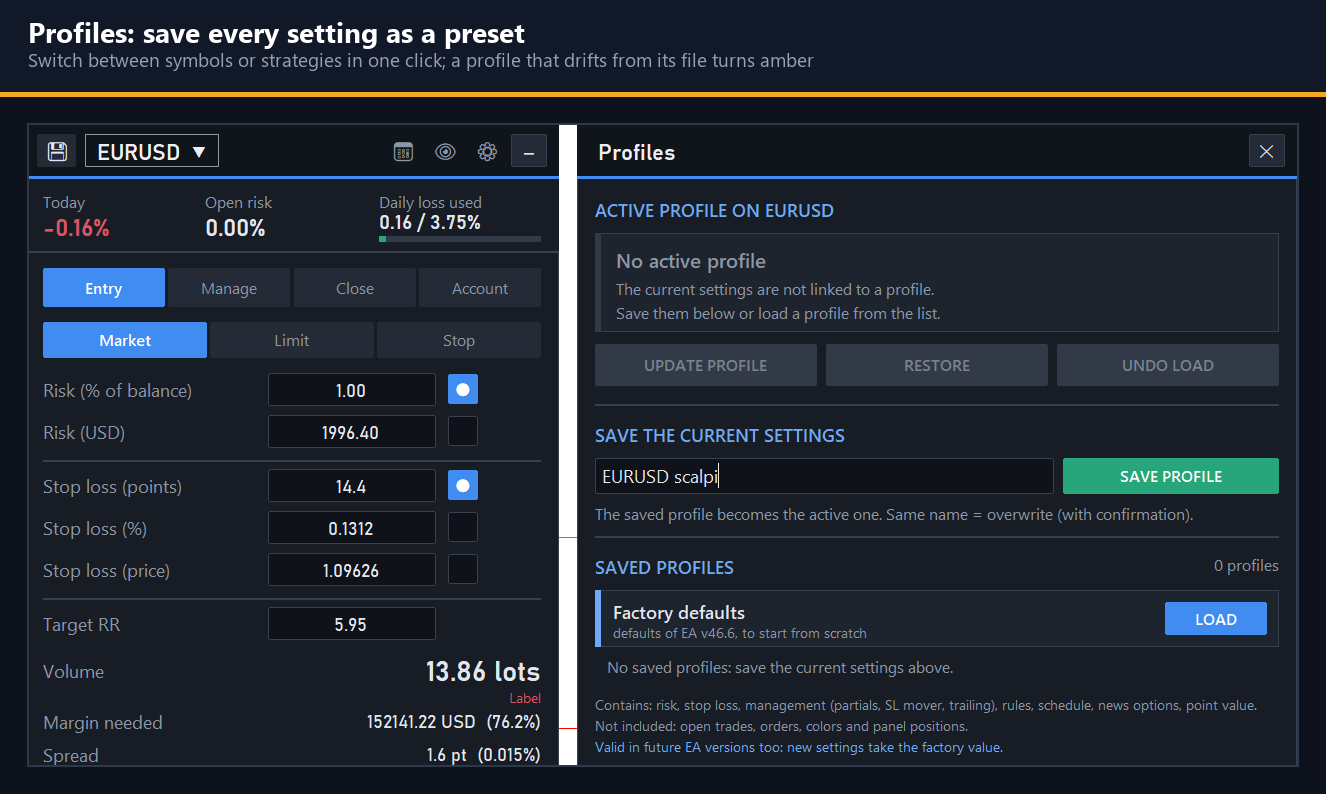
A profile is every trading setting the panel holds, bundled under a name you choose. Save your current setup and it becomes the active profile; change anything afterwards and the profile indicator turns amber (MODIFIED) until you either update the profile or restore it. Open a chart on a symbol for the very first time and, if a profile with that symbol's name already exists, it loads itself automatically.
11. The news calendar and automatic actions

The calendar panel lists high- and, if you choose, medium-impact news from two days ago to the next seven, for the currencies that matter to this chart. Bank holidays appear too, and — if you add the free API keys — US mega-cap earnings and keyword-matched breaking news.

From the detail view, attach up to six automatic actions to a single release: close everything, close only the losses and move winners to breakeven, close trades at or below a chosen RR, close only losers, move winners to breakeven, close a percentage, cancel orders — or simply raise an alert. A single rule can also be set for every high-impact release, for the currencies of each individual chart.

Coloured pills along the top of the chart mark every release without opening any panel — red for high impact, orange for medium, purple for earnings, blue for holidays, grey once released — click one for its detail.
12. Scheduled operations
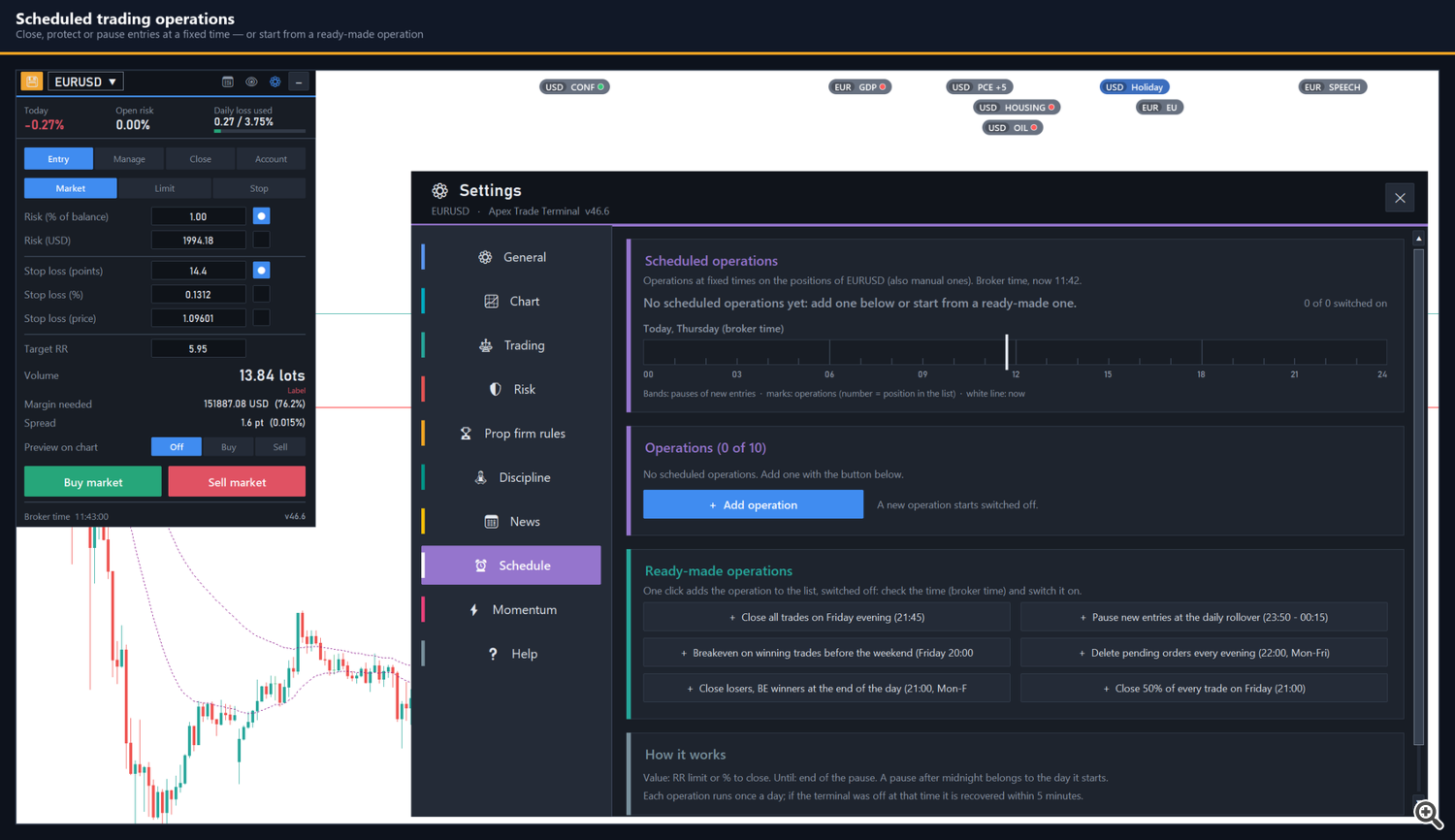
Up to ten operations per chart, each at a fixed broker time, each acting on this chart's symbol, the whole account, or a symbol you choose: close everything, close only the losses and move winners to breakeven, close trades at or below a chosen RR, close only losses, move winners to breakeven, close a percentage, delete pending orders, or pause new entries between two times. Ready-made operations are one click away for common routines.
13. Language, theme and screen size
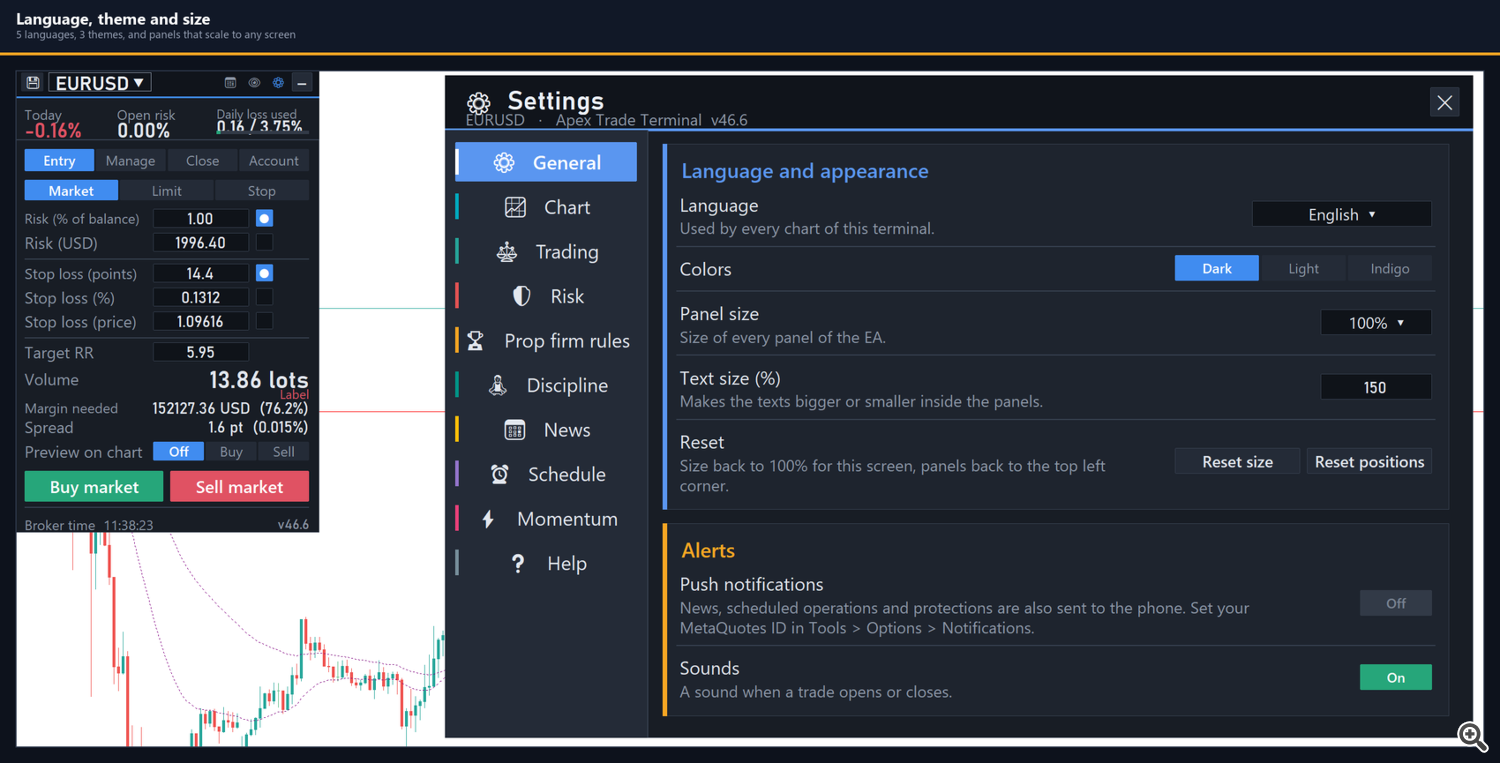
Five interface languages — English, Russian, Chinese, Spanish, French — apply to every chart on the terminal at once. Three themes (dark, light, indigo) and two independent scales for panel size and text size adapt the dashboard to any screen.
14. The point value, explained
Every distance shown "in points" uses the dashboard's own point value, not necessarily the broker's raw tick. Left on Automatic (the default), Apex picks 1 pip on forex, and on everything else — indices, metals, energies, crypto, stocks — a sensible unit based on the price level. Type a value yourself to switch to manual.
15. Strategy Tester behaviour
Inside the Strategy Tester the panel's buttons cannot be clicked, so Apex opens one small demonstration trade at a time by itself, purely to show its own management logic working. On a real or demo account this demo code does nothing at all.
FAQ
Does Apex ever open a trade on its own, on a real account? No. Every entry is started by you, from the panel. Everything after that is automatic only because you switched it on.
Will it work with my broker and my market? Yes — the lot-size formula is universal; if your broker is missing an exchange-rate quote for a cross pair, Apex tells you exactly which symbol to add to the Market Watch.
What happens if I remove the EA from the chart? Your settings, profiles and position management all come back the moment you reattach it. Trig+Stop orders are the only thing that doesn't survive.
________________________________________
Back to the Apex Trade Terminal MT5 product page.


