
Buying Gold (XAUUSD) with Averaging Down | Free MT5 Expert Advisor

On the hourly gold chart, we buy a bounce off a moving average and average down if the price moves against the position. The Expert Advisor (EA) uses the two lines of Moving Average Cross Signal to find the first buy. With the default settings, it adds a buy if the Ask at the start of the hour is at least 2% below the last entry and MA1 is still above MA2. From the second buy onward, the positions share a single Take Profit.
You only need the EA file to get started. In the default Location indicator → Integrated mode, the EA calculates both moving averages using a built-in copy of the indicator. You can run a test on XAUUSD H1 right away with the supplied settings.
Download the free MT5 Expert Advisor (.ex5)
If you want to see all trades alongside the configured moving averages after the test, install the free Moving Average Cross Signal from the Market. Before running the test, select Location indicator → Market. The EA passes its settings for both lines to the indicator, so you can compare them with the first buy, the additions, and the basket exit on the results chart.
Which candle triggers the first buy?
The first line (MA1) is a 93-bar simple moving average of the DeMark price. The second (MA2) is a 70-bar parabolic moving average of the typical price. The EA waits for the following conditions before opening the first buy.
- MA1 is above MA2. The candle opens strictly above both lines.
- The lower wick reaches MA1. The low can touch the line or dip below it. By the close, the bottom of the candle body must be at or above MA1.
- The lower wick is longer than both the body and the upper wick. If it is the same length as either, the EA skips the candle. The body can be bullish or bearish.
- MA1 is still above MA2 on the first tick of the next hour. If there are no open buys in the basket, the EA buys at market. A break above the signal candle's high is unnecessary.
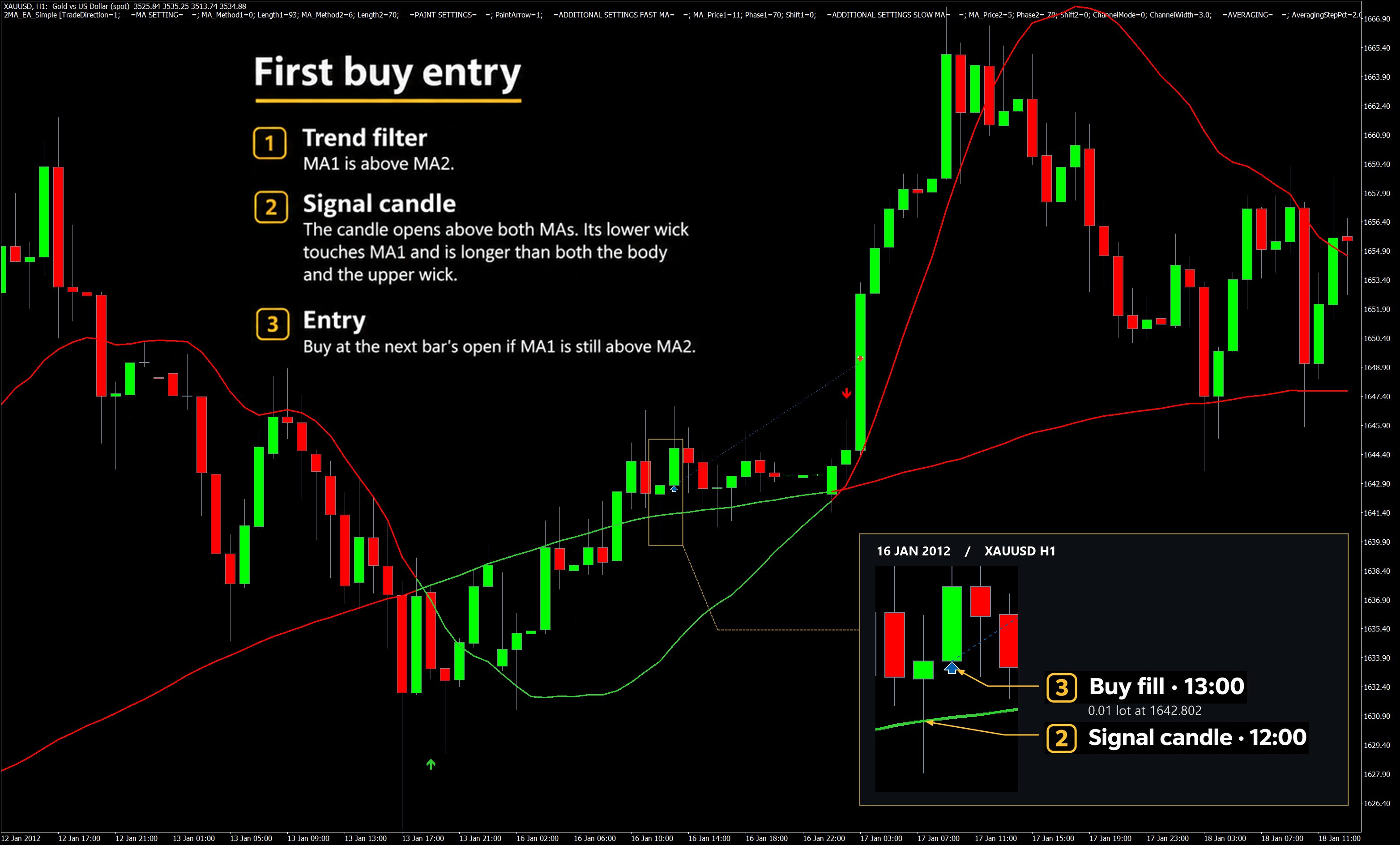
January 16, 2012, XAUUSD H1. The 12:00 candle gave the signal. At 13:00, the EA bought 0.01 lots at 1,642.802. The large green arrow to the left marks an earlier moving-average crossover. The blue marker shows the actual trade.
When the second buy opens and where the basket closes
With one buy open, the Take Profit target is 0.35% above the entry price. If gold falls, the EA checks for an addition at the start of each hour. MA1 must still be above MA2, and the current Ask must be at least 2% below the last fill price. An addition needs no new signal candle. Even if the market crosses several such steps in one hour, the EA can add only one position at the opening of a bar.
Each additional buy is larger than the previous one by the size of the first buy. If the first entry is 0.01 lots, the next two are 0.02 and 0.03 lots. If MA1 falls to MA2 or below it, the EA pauses additions. Open positions retain their exit target.
From the second position onward, the EA sets a common Take Profit for the basket. It looks for the nearest valid price tick at which the combined estimated result turns positive after accrued swap and entry commissions and fees already charged. It recalculates the level at the start of a bar. The broker's minimum stop distance can push the level farther away, and a placed Take Profit can execute within the hour.
How two buys closed at the same price
In the chart below, the first buy closes at a loss and the second at a profit. The first-entry and basket charts come from a 2MA_EA_Simple test on XAUUSD H1 that used the same entry and exit rules as the EA in this post.
| Date and action | Volume | XAUUSD price |
| September 9, 2016, first buy | 0.01 lots | 1,337.80 |
| September 16, additional buy | 0.02 lots | 1,310.90 |
| September 21, both buys closed | 0.03 lots total | 1,323.07 |
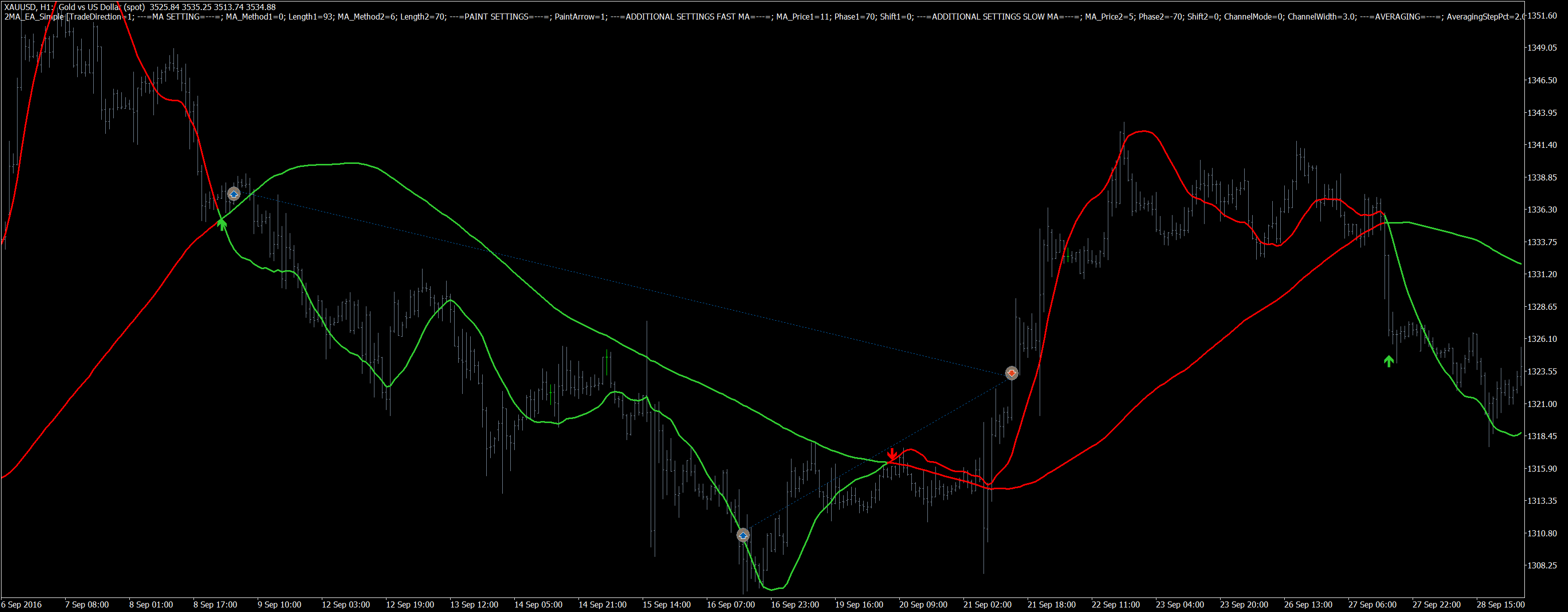
September 2016. Gold never recovered to the price of the first buy before the basket closed. The second buy was twice as large, so a partial recovery was enough to close the basket.
The addition threshold was 1,337.80 × 0.98 ≈ 1,311.04. The buy was filled at 1,310.90. At exit, the first position returned −14.73 USD and the second +24.34 USD. Swap for the holding period was −9.60 USD. The two positions closed with a combined +0.01 USD. The example shows why the basket target sits above the volume-weighted average price even though the 0.35% Take Profit no longer applies to the basket.
The basket has no stop loss or preset limit on the number of additions. Three buys of 0.01, 0.02, and 0.03 lots bring the total to 0.06 lots. A prolonged decline increases the floating loss and margin usage. The 2% step determines the next entry. Account losses can exceed 2%.
How to see all trades alongside the configured moving averages
For a standard run, leave 0 — Integrated selected. To review trades on a chart with the Market version of the indicator, set Location indicator (ShowMode) to 2 — Market.
input INDICATOR_SHOW_MODE ShowMode = 0; // Location indicator
- 0 — Integrated (default). The EA file includes a copy of the indicator. It can calculate both averages and run the test without a separate installation. MT5 keeps the trade history in the test results.
- 1 — Local. The EA looks for a separate local build at MQL5\Indicators\Me_ShopFree\CrossMA\CrossMA.ex5. Use this mode if that exact file is installed in the terminal.
- 2 — Market. The EA loads MQL5\Indicators\Market\Moving Average Cross Signal.ex5 and passes its smoothing methods, periods, applied prices, shifts, arrow mode, and channel settings. Use this mode to see all trades on the results chart with the configured Market indicator.
- In MT5, go to File → Open Data Folder and place the EA file in MQL5\Experts. Refresh the list of Expert Advisors in the Navigator.
- Install the free indicator from the Market in the same terminal. Keep its original file name in MQL5\Indicators\Market. Open Moving Average Cross Signal in the Market.
- Open the Strategy Tester (Ctrl + R), select the downloaded EA, choose XAUUSD and H1, and set up a single test. The basket's separate positions require a hedging account without the FIFO close rule.
- Under Inputs, select Location indicator → Market and run the test. Enable visualization to follow the trades candle by candle. To review the full period after the run, use Open Chart on the test results.
On the results chart, MT5 marks the fill prices, and Moving Average Cross Signal draws the lines and selected arrows. You can review the trades from the first buy to the final exit and see where MA1 and MA2 were at each point. Both averages use the settings from the test run. MT5 help on trade visualization.
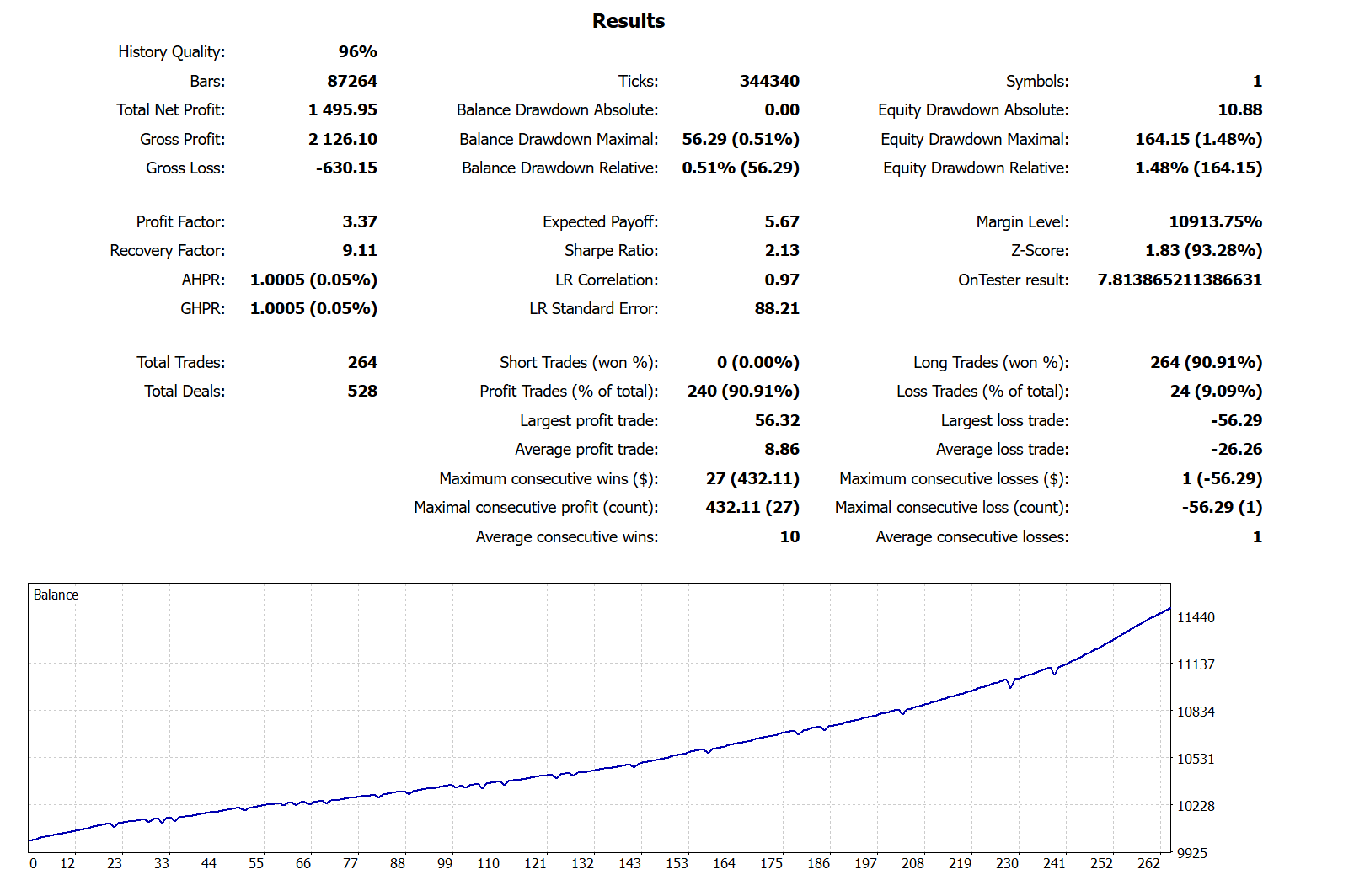
XAUUSD H1 backtest results
Trade direction: buy only (BUY).
Setting up the EA for another instrument
XAUUSD H1 is the starting configuration. You can run the EA on any tradable symbol your broker offers in MT5 and on any timeframe available in the terminal. The EA takes the symbol and timeframe from the chart to which you attach it. In the tester, select both before the run.
- Tune the entry signal. The methods, periods, and applied prices determine where MA1 and MA2 sit. Periods are measured in bars, so 93 bars on H1 cover a different length of time than 93 on M15.
- Adjust averaging and exits. The step is a percentage of the last buy price, and the single-position target is a percentage of its entry price. Choose values that suit the instrument's price range on the selected timeframe.
- Check the broker's conditions. Match the initial volume and allowed slippage to the minimum lot, point size, and available margin. When evaluating the basket target, account for the instrument's swap and commissions.
Run a separate test for the selected symbol and timeframe. In Market mode, the chart displays the moving averages configured for that particular run.
All Expert Advisor inputs
The tables list the EA defaults for XAUUSD H1. The first column uses the labels shown on MT5's Inputs tab.
Direction, moving averages, and arrows
| Input and value | What it controls |
| Direction | Allowed directions for new entries and additions. 0 enables both, 1 enables buys, 2 enables sells, and 3 disables new entries. The first trade in this strategy can only be a buy, so mode 2 never starts a basket from an empty account. Mode 3 continues to manage open positions. |
| Fast MA Mode | Calculation method for MA1. In this setup, price must return to a simple moving average. |
| Fast MA | MA1 lookback in bars of the selected timeframe. |
| Slow MA Mode | Calculation method for MA2. The parabolic moving average is the second line used to filter direction. |
| Slow MA | MA2 lookback in bars. |
| PaintArrow | Selects the signals the indicator marks with arrows. 1 marks MA crossovers, and 0 hides the arrows. The wick-based entry rule applies in every mode. |
Applied prices, shifts, and channel width
| Input and value | What it controls |
| Fast MA Price | Price input for MA1. For a bullish candle, it averages the high and close. For a bearish candle, it averages the low and close. If the open and close are equal, it uses the closing price. |
| Fast MA Phase | Additional input for smoothing methods that use a phase parameter. It has no effect on SMA. |
| Fast MA Shift | Bar shift for the price inputs to MA1. 0 uses the price of the candle being processed, and 1 uses the previous candle. |
| Slow MA Price | Price input for MA2. Typical price is the high, low, and close added together and divided by three. |
| Slow MA Phase | Additional smoothing input for MA2. The selected ParMA method does not use a phase parameter. |
| Slow MA Shift | Bar shift for the price inputs to MA2. 0 uses unshifted prices. |
| Channel Expansion Method | 0 keeps both lines unchanged. Mode 1 widens the gap symmetrically, and mode 2 applies the entire shift to MA1. The EA uses the resulting line levels to check entries. |
| Channel width | Multiplier for the distance between the lines. When expansion is enabled, 1 keeps the original width and 3 triples it. With ChannelMode = 0, the multiplier has no effect. |
Averaging, exits, and volume
| Input and value | What it controls |
| Averaging step, % | Minimum move against the position as a percentage of the last fill price. Must be greater than 0 and less than 100. |
| Single position TP, % | Percentage target for a single position. Must be greater than 0 and less than 100. From the second position onward, the shared target is based on the basket's result in account currency. |
| MM selection | First-trade volume. 0 uses the symbol's minimum lot, 1 uses the fixed Lot value, and 3 uses Lot for every 1,000 units of free margin in the account currency. Modes 2 and 4 require a stop loss and prevent this EA from starting. |
| LOT | Initial volume in mode 1, or volume per 1,000 in mode 3. It must be positive in both modes. In mode 0, the broker's minimum determines the initial lot. |
Indicator source and execution
| Input and value | What it controls |
| Location indicator | Indicator source. 0 selects the built-in copy, 1 a local build, and 2 the version installed from the Market. To review trades alongside the configured lines, select Market before running the test. |
| Magic Number | Trade identifier. The EA groups positions by symbol, direction, and magic number. Assign a different number to an independent instance on the same symbol. |
| Slippage | Allowed deviation from the requested execution price, in broker points. For example, if one point is 0.001, 5,000 points correspond to a deviation of 5.00 in the XAUUSD price. |
If you test the strategy on your XAUUSD data, share your longest basket in the indicator discussion. It would be useful to compare the number of additions, the drawdown before exit, and how far swap moved the shared target. Moving Average Cross Signal in the MQL5 Market.