HowToTrade Adaptive Pro
- Experts
- 버전: 5.60
- 활성화: 5

HowToTrade Adaptive Pro
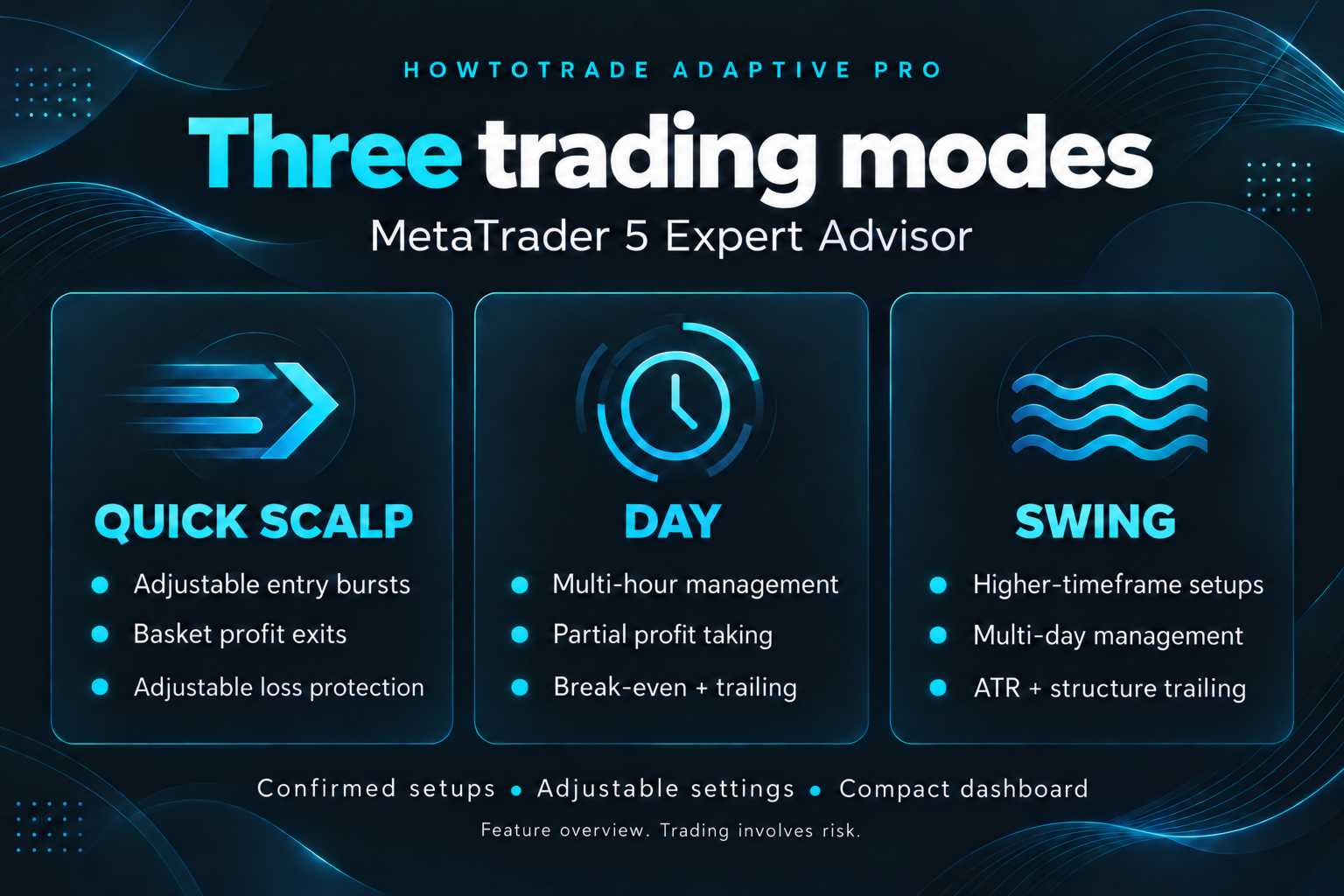
Three trading modes. One clear trading workspace.
HowToTrade Adaptive Pro is a MetaTrader 5 Expert Advisor with Quick Scalp, Day and Swing profiles. Choose the pace of your strategy while the EA applies the matching signal timeframes and trade-management rules. A compact on-chart dashboard keeps the current setup, exposure and management status easy to read.
Try The Free Demo Before Buying
Download the free Market demo and run it in MT5's Strategy Tester. Select Quick Scalp, Day or Swing in Inputs and enable visual mode to see the dashboard, entries and exits. The free demo is limited to Strategy Tester; it cannot trade on an online chart. A purchased or rented copy can be used on a broker demo account.
Read the setup guide and watch the 43-second feature overview. The guide includes a PDF buyer guide and starting presets for all three modes.
Confirmed Setups, Multiple Signal Engines
The EA combines trend and price-action signals with market structure, supply-and-demand zones, break-and-retest setups, opening-range breakouts and range signals. Higher-timeframe context and adjustable scoring help decide whether an entry qualifies. Automatic mode timeframes are enabled by default.
Quick Scalp
Built for traders who want multiple entries when a setup confirms, with basket-level profit exits evaluated on each tick.
- Default burst: 8 entries of 0.01 lots each; both values are adjustable.
- Default basket target: 20 in the account currency.
- Profitable reversal exit and peak-profit giveback exit are adjustable.
- One burst per confirmed decision candle; later aligned setups can add entries.
- M1 signals, M15 trend context and H1 structure by default.
The Market version enables adjustable Quick Scalp loss protection by default: a basket loss exit at 5% of account balance and an initial broker stop loss at 1.5 times signal-timeframe ATR. The basket exit is checked on every tick; an exit already triggered continues retrying until the basket is flat. Fixed take profit remains off. The EA's other session, spread, news and portfolio entry blockers are bypassed in Quick Scalp. Entry bursts remain adjustable, with no fixed EA position-count cap; broker volume and margin restrictions still apply. Exposure and losses can accumulate. Gaps, slippage and unavailable execution can cause losses beyond the configured exit level. Basket exits require the EA to remain running and receive ticks; broker stop execution is subject to the broker's rules. Disabling loss protection removes these Quick Scalp protections. Separate positions require a hedging account; netting accounts combine entry deals into one symbol position.
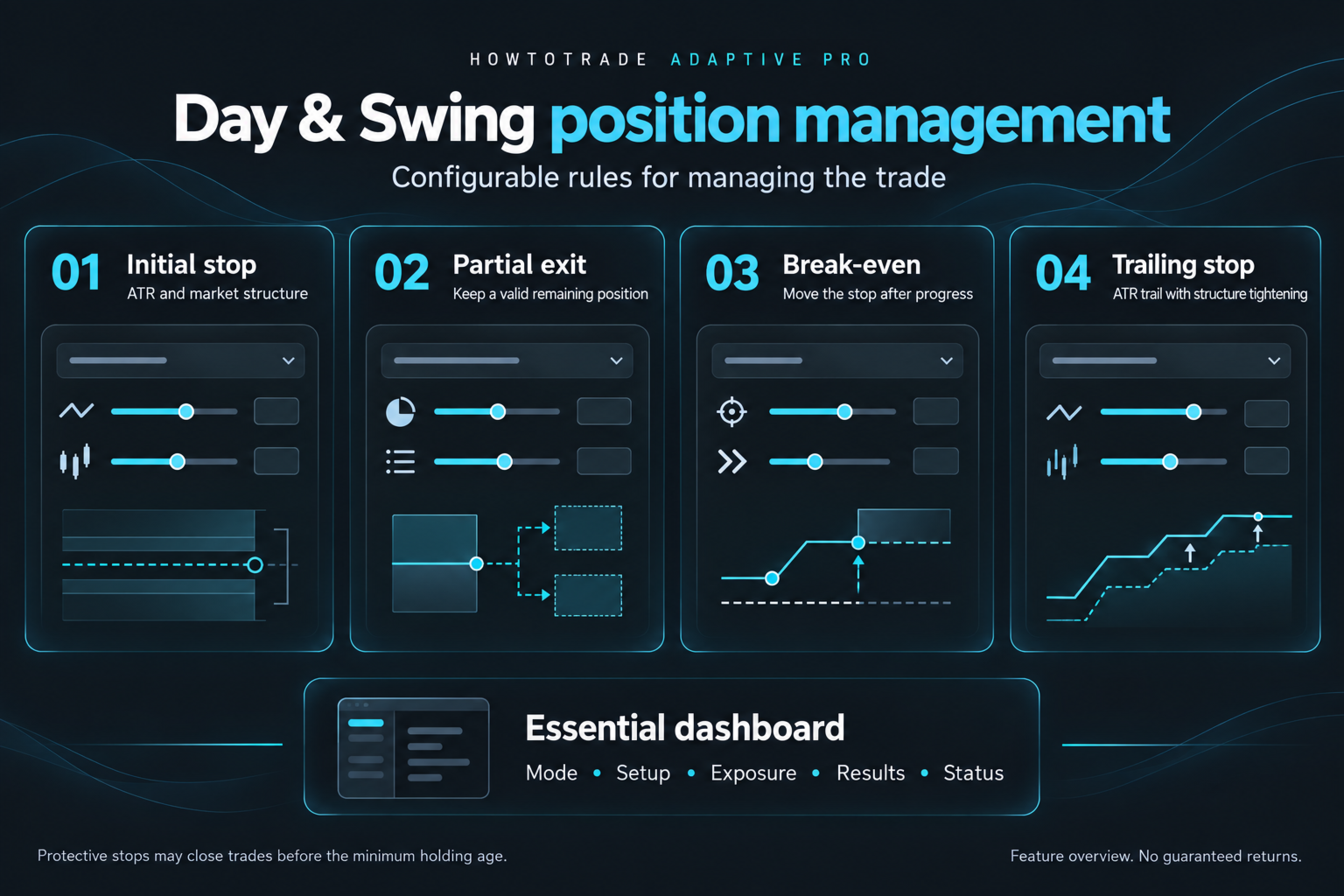
Day And Swing
These profiles use initial ATR/structure-based stops, risk-based sizing or optional fixed lots, partial profit taking, break-even movement and ATR trailing to manage the remaining position.
- Day: M15 / H1 / H4 signal, trend and structure timeframes.
- Swing: H1 / H4 / D1 signal, trend and structure timeframes.
- A 35% partial exit is the default when broker volume rules allow it.
- Fixed take profit is off by default, allowing the remaining position to follow its trailing stop; optional fixed targets are available.
- Discretionary reversal exits require confirmation and a minimum holding age: 5 hours for Day and 24 hours for Swing. Protective stops can close trades sooner.
Clear Dashboard And Mode Changes
See the active mode, effective timeframes, floating result, today's realized result, position count and lots, setup quality, spread, current status and management state. Select the mode in the EA's Inputs. If trades remain open, the EA manages them under their original profile, pauses new entries and queues the selected mode until the basket is clear.
Main Inputs
- InpTradingMode: Quick Scalp, Day or Swing.
- InpScalpEntriesPerSetup / InpScalpLotPerEntry: entries per confirmed setup and lots per entry.
- InpScalpBasketProfitTarget: basket target in account currency; 0 disables the hard target.
- InpScalpUseLossSafeguard: enable the Market version's basket loss exit and initial broker stop.
- InpScalpMaxBasketLossPct / InpScalpSafetyStopATR: basket loss threshold as a percentage of balance and initial stop distance in ATR units.
- InpScalpReversalMinProfit / InpScalpProfitLockStart / InpScalpProfitGivebackPct: profitable reversal and peak-profit exit settings.
- Day/Swing stop and trailing ATR inputs: adjust each profile's stop and trailing distance.
- InpManagedPartialPercent: percentage to close at the partial profit level.
Getting Started
Install through the MT5 Market, attach the EA to the intended symbol, allow algorithmic trading and select InpTradingMode. The EA checks for a confirmed setup on the first tick with ready indicators. Loading history, lack of a qualifying setup or broker/platform restrictions can delay trading. Keep MT5 running with a stable connection; a VPS can support continuous operation.
Test the intended symbol, broker and settings in the Strategy Tester and on a demo account before live use. This release has been compiled and checked for code-level behavior; no verified historical or live performance results are advertised. Profit targets are settings, not promised returns. Trading involves risk, and profits are not guaranteed.
Quick Setup
- Install through MT5 Market and find HowToTrade Adaptive Pro in Navigator.
- Choose Test, or open Strategy Tester with Ctrl+R and select the EA.
- Set the symbol, dates, deposit and leverage. Use available real ticks and check costs and execution assumptions.
- In Inputs, reset to defaults, select InpTradingMode and start the test. Review the full report and Journal.
Common Questions
Does attaching it guarantee an immediate trade? The EA checks a confirmed setup on the first tick with ready indicators. History loading, the absence of a qualifying setup, trading permission and broker restrictions can delay orders.
Why has my selected mode not started? With existing EA positions or pending orders, their original profile remains active, new entries pause and the selected mode is queued until the basket is clear and the new data are ready.
Why do multiple entries appear as one position? Netting accounts combine entry deals into one symbol position. Separate positions require a hedging account.
Which symbol and minimum balance are recommended? No symbol-specific profitability or minimum suitable balance has been validated here. Test the intended symbol, costs, settings and broker volume and margin rules.
For setup help, use the product's MQL5 Comments section or the seller's MQL5 messaging. Include the version, mode, symbol, preset and relevant Status or Journal message.