Narrow Range 448 Scanner
- 지표
-
Shin Kojima
 MT4 indicator developer with 10+ years of live trading experience.
Specializing in alert tools and scanners for ICT-based traders.
Zero complaints. Reliable tools. Real support.
MQL4 / MQL5 Development Services
• Custom Indicator Modifications - 버전: 1.0
## 1. Overview
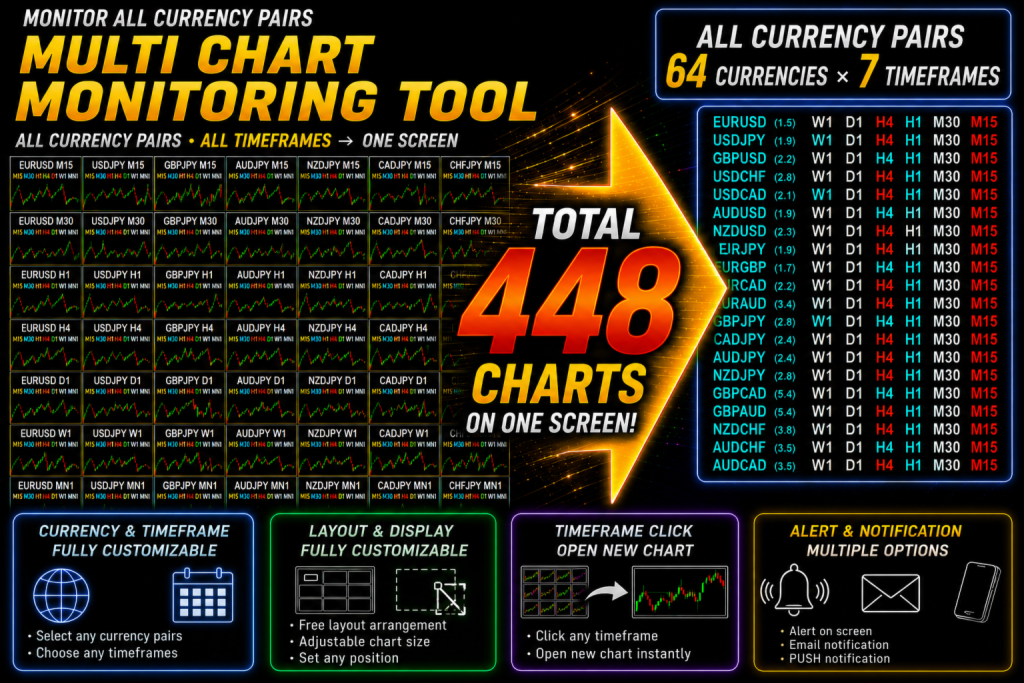
Scan up to
64 symbols $FFFD~ 7 timeframes = 448 combinations
simultaneously.
---
## 2. All-Currency Monitoring Series
Tools that monitor all currency pairs at once become an incredibly powerful weapon once mastered ? a trading tool for life.
The key is to match the right tool to your trading strategy.
Here are the hottest tools available right now:
- IFVG All-Currency Scanner
The most effective tool for catching ICT fake-out moves.
Especially powerful for targeting AMD movement setups.
- MA + Pin Bar All-Currency Scanner
A precision tool that finds pin bars bouncing off moving averages to catch pullback entries.
The ultimate edge comes from knowing [what was swept]. Works perfectly with ICT methodology.
- AutoLineSaver
An almost essential companion for all-currency monitoring.
Automatically saves and restores your drawn lines even after closing charts ? an extremely
convenient tool that dramatically improves the efficiency of multi-pair chart analysis.
---
## 3. Basic Specifications
* Signals are determined on confirmed (closed) bars only
* The currently forming bar is not used for signal detection
* No repainting
* Compatible with all symbols displayed in MT4's Market Watch (FX, Gold, indices, crypto, etc.)
* Default display: 29 symbols $FFFD~ 7 timeframes
* Maximum: 64 symbols $FFFD~ 7 timeframes = 448 combinations
* Symbols, timeframes, and alert settings can be customized
---
## 4. Basic Usage
### Step 1
Search for signals using the 448 Scanner.
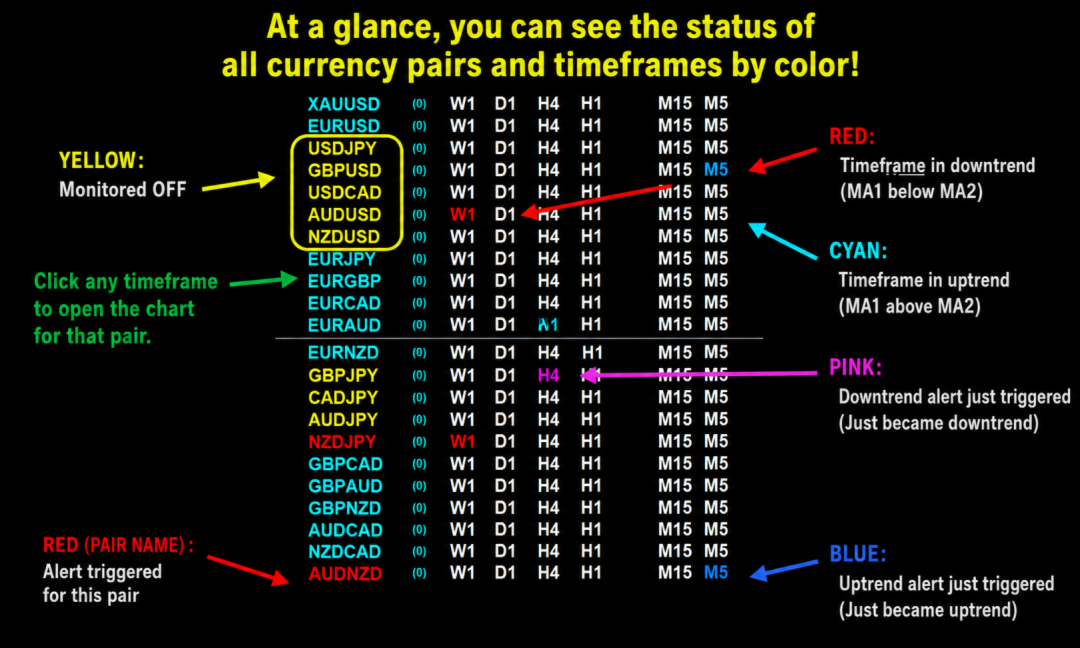
Cells that match the signal conditions will be highlighted in color.
### Step 2
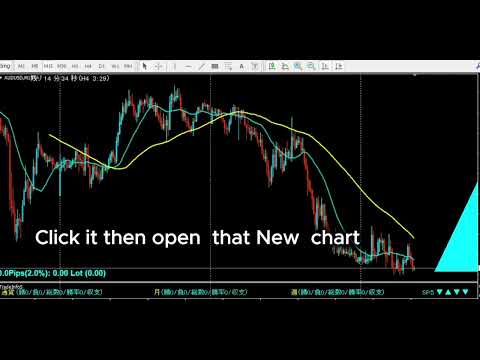
Click on a timeframe cell in the panel to open the chart for that symbol and timeframe.
The chart opens using the layout saved in your default.tpl template (this is standard MT4 behavior).
### Step 3
Use trendlines, horizontal lines, and other tools on the opened chart to perform your own analysis.
### Step 4
Use AutoLineSaver for 448 to save and restore any lines you have drawn.
---
## 5. Color Meanings
Each cell represents:
1 symbol x 1 timeframe
| Color | Meaning |
| ----------- | ----------------------------------------------------------- |
| Cyan | Bullish condition is currently active |
| Light Blue | Alert: just changed to bullish $2014 a new bullish signal fired |
| Red | Bearish condition is currently active |
| Pink | Alert: just changed to bearish $2014 a new bearish signal fired |
| White | No signal present |
| Yellow | Alert: signal just ended $2014 condition returned to no-signal |
Alert colors appear only at the moment the signal fires.
They revert to normal colors on the next scan cycle.
In addition, when an alert fires, the symbol name temporarily turns red.
If the spread exceeds the maximum limit, the spread display turns red and that symbol is excluded from the current scan cycle.
---## 6. Installation
1. Copy the file to the MT4 MQL4/Indicators folder.
2. Restart MT4.
3. Apply the indicator to any chart.
---
## 7. First Launch Warning
On first launch, if MT4 does not have history data for a target symbol or timeframe, the following warning may appear:
Please load [Symbol][Timeframe] chart once
In this case, manually open a chart for the indicated symbol and timeframe once.
Once MT4 loads the required history data, the scanner will operate normally.
---
## 8. Symbol Settings ? UseSymbols
Only symbols currently displayed in MT4's Market Watch are eligible for scanning.
### Specify by currency code
EUR USD JPY
Entering codes like this automatically generates currency pairs such as:
EURUSD
EURJPY
USDJPY
### Specify a symbol directly
XAUUSD
Entering a full symbol name adds it directly to the scan list.
### Mixed input
XAUUSD USD EUR JPY
In this case, XAUUSD is added along with all combinations of USD, EUR, and JPY pairs.
---
## 9. Unique Parameters
(Varies by product ? see individual product manual)
---
## 10. Common Parameters
### Timeframe Display Settings
bUseM1
bUseM5
bUseM15
bUseM30
bUseH1
bUseH4
bUseD1
bUseW1
Sets whether each timeframe is shown in the panel and included in scanning.
### Alert Settings
bAlertOnce
bFindAlert
bLostAlert
bAlertM1
bAlertM5
bAlertM15
bAlertM30
bAlertH1
bAlertH4
bAlertD1
bAlertW1
Configure alert ON/OFF per timeframe.
Display and alerts can be managed independently.
### Spread Settings
bUseSpread
MaxSpread
Displays the spread and temporarily excludes any symbol exceeding MaxSpread from scanning.
### Notification Settings
bMail
bPush
Configure email and mobile push notifications.
MT4's notification settings must be configured before use.
### Symbol Settings
UseSymbols
AddSymbol
Set the symbols to monitor and any broker-specific suffix.
### Special Functions
SelfRifresh
SymOnOff
AddText
Used when running multiple instances of the indicator simultaneously, or for the symbol click-exclude feature.
### Display Position Settings
ATRCorner
TxtXBase
LineMax
FontSize
TxtXPos
TxtXSpace
TxtYPos
Adjust the panel position, font size, line spacing, and column spacing.
---
## 11. Usage Tips
* All signals are determined on confirmed (closed) bars
* The current (unconfirmed) bar is not used for signal detection
* When a signal appears, always open the target chart and perform your own analysis
* Turning off unused timeframes improves performance
* When running multiple instances, assign different values to AddText to avoid conflicts