Sniper Grade Bot
- エキスパート
-
Emmanuel Chinedu Ifechukwu
 Developer/ Circuit Technician
 - バージョン: 8.25
- アップデート済み: 1 10月 2026
- アクティベーション: 5
SNIPER GRADE BOT — COMPLETE USER GUIDE
1. WHAT SNIPER GRADE BOT DOES
Sniper Grade Bot watches the market and looks for trading opportunities in different market situations.
The available trading modes are:
- Trending
- Ranging
- Correction
- Scalp
- Synthetic
It can use:
- Market Buy
- Market Sell
- Buy Limit
- Sell Limit
- Buy Stop
- Sell Stop
It also has protections for spread, daily loss, maximum trades, account equity, economic news, market spikes, entry-price movement, loss streaks, pending-order expiry and broker trading restrictions.
2. HOW THE TRADING MODES WORK
For normal Forex, metals, commodities and similar instruments, Trending, Ranging and Correction can be checked independently when enabled.
If more than one produces a valid opportunity, the program compares confidence values and uses the valid opportunity with the highest confidence. If confidence is exactly equal, the preference is Trending, then Ranging, then Correction.
The market condition can also be displayed on the chart when the dashboard is enabled.
3. SCALP MODE
Scalp mode watches the M1 chart and can check for opportunities during live price movement rather than waiting only for the next M5 candle.
There is at least a 5-second interval between scalp execution attempts.
Before a scalp trade can be placed, the program checks protections including spread, daily drawdown, trading time, trading days, maximum open trades, equity floor, news filter, optional spike protection, optional minimum confidence, optional DXY filter, loss-streak protection and entry/SL/TP validity.
4. SYNTHETIC INSTRUMENTS
Synthetic instruments can be automatically recognized when Auto Detect Synthetic is true. The default is ON.
When a synthetic instrument is detected and synthetic trading is enabled, the program uses the separate synthetic trading rules.
Synthetic trading has additional controls for M15 confirmation, pending orders, stop orders, liquidity sweep requirement, abnormal spikes, spread, pending-order expiry and different synthetic families.
5. LOT SIZE AND RISK
Use Fixed Lot Size — Default: OFF.
When OFF, position size is calculated from percentage risk. When ON, the specified fixed lot size is used.
Fixed Lot Size — Default: 0.10 lot.
Risk Per Trade — Default: 1.0%.
The file limits this setting to a maximum of 5%. Position size is calculated after the final stop-loss position has been checked.
6. MAXIMUM DAILY LOSS
Maximum Daily Drawdown — Default: 10%.
This is based on the account balance at the beginning of the UTC trading day.
For example, with a $1,000 opening balance and a 10% limit, the daily loss allowance corresponds to $100.
The daily starting balance is maintained rather than simply being reset whenever the terminal restarts.
7. FIXED TAKE-PROFIT SETTINGS
TP1 = 1.0R
TP2 = 1.8R
TP3 = 3.0R
R means the distance between entry and stop-loss. If entry-to-SL is 10 points, 1R is 10 points, 1.8R is 18 points and 3R is 30 points.
8. ENGINE TP OVERRIDE
Override Engine TPs With Fixed RR — Default: OFF.
When OFF, the program keeps the take-profit levels supplied by the selected trading mode. When ON, the three global RR settings are used.
9. TP1 AND TP2 PARTIAL CLOSING
TP1 Close % — Default: 50%.
TP2 Close % — Default: 25%.
These settings specify how much of the position is intended to be closed at those milestones. The file also describes TP1 as the point associated with moving the stop toward breakeven and TP2 as the partial-close milestone.
10. TRAILING STOP
Enable Trailing Stop — Default: ON.
Trailing Step — Default: 150 points.
11. SPREAD PROTECTION
Maximum Spread — Default: 1000 points.
If current spread is above the allowed limit, the program will not proceed with a new trade. Synthetic instruments have additional spread controls.
12. ENTRY PRICE PROTECTION
Maximum Entry Drift — Default: 40 points.
For a market trade, the program compares the opportunity price with the current executable price. If price has moved farther than allowed, the trade is rejected instead of chasing the market.
13. REQUOTE PROTECTION
Maximum Requote Retries — Default: 2.
If a market order is rejected because of a price change, requote or similar price-related condition, the program can retry according to this setting. Pending orders are not silently moved to a different entry price.
14. MARKET ORDERS
BUY: sent at the current executable Buy price.
SELL: sent at the current executable Sell price.
Before sending, the program checks entry, SL/TP direction, broker minimum distance, spread, position size and whether the symbol is allowed to trade.
15. BUY LIMIT
A Buy Limit is used when the desired Buy entry is below the current market price. The requested price must satisfy the required distance from the market.
16. SELL LIMIT
A Sell Limit is used when the desired Sell entry is above the current market price. The requested price must satisfy the required distance from the market.
17. BUY STOP
A Buy Stop is used when the desired Buy entry is above the current market price. The requested price must satisfy the required distance from the market.
18. SELL STOP
A Sell Stop is used when the desired Sell entry is below the current market price. The requested price must satisfy the required distance from the market.
19. PENDING ORDER EXPIRY
Pending Order Expiry — Default: ON.
Hours — 0.
Minutes — 45.
With the default settings, a pending order can have an expiry of 45 minutes. The expiration time is calculated from when the pending order is placed.
If pending expiry is OFF, the broker's normal continuing-order behavior is used. The broker must support specified pending-order expiration for the requested expiry to be used.
20. SMART MONEY CONCEPT CONFLUENCE
Supply & Demand Zones — ON.
Inverse FVG — ON.
Fibonacci OTE — ON, referring to the 61.8%–78.6% retracement area.
Price Action Detection — ON, including pin bars and engulfing candles.
Divergence Detection — ON, including MACD and RSI divergence.
CVD Delta — ON.
Chart Patterns — ON, including patterns such as double tops, double bottoms and flags.
These settings are described in the main file as additional confirmation/confluence rather than replacing the primary trading decision.
22.MINIMUM CONFLUENCE SCORE
Minimum Confluence Score controls how much supporting confirmation is required for each trading mode.
The setting is separate for each mode:
- Scalp — Minimum Confluence Score
- Trending — Minimum Confluence Score
- Ranging — Minimum Confluence Score
- Correction — Minimum Confluence Score
- Synthetic — Minimum Confluence Score
Each trading mode has its own ON/OFF setting.
When a mode's minimum confluence check is ON, the trading opportunity must meet or exceed the minimum confluence score you set for that mode. If it does not reach the required score, that opportunity is not allowed through the confluence check.
When the setting is OFF for a mode, that mode does not use its minimum confluence score as a requirement.
The five settings work independently. Changing the minimum confluence score for Scalp does not change the setting for Trending, Ranging, Correction or Synthetic.
Example:
If the Scalp minimum confluence score is set to 4.0 and the Scalp confluence check is ON, a Scalp opportunity with a score below 4.0 is rejected by this check. A different minimum can be used for Trending, Ranging, Correction and Synthetic.
Minimum Confluence Score is different from Minimum Confidence. Confluence represents supporting confirmations, while Confidence represents the overall strength assigned to a trading opportunity.
22.MINIMUM CONFIDENCE
Enable Global Minimum Confidence — Default: OFF.
Minimum Confidence — Default: 0.65.
When enabled, a signal below the specified confidence level is rejected. The setting accepts values from 0.00 to 1.00.
23.LOSS-STREAK PROTECTION
Loss-Streak Guard — Default: ON.
Loss-Streak Expiration — Default: 4 hours.
The file describes this as a precision guard that reacts after multiple consecutive losses.
24.DXY FILTER
DXY Filter — Default: OFF.
DXY Symbol — Default: USDX.
When enabled, the program checks DXY direction before allowing applicable trades. The file identifies bullish, bearish and neutral/unavailable conditions.
The filter accounts for whether USD is the base or quote currency and handles inverse DXY instruments. Crypto and automatically detected synthetic instruments are excluded. If the broker does not provide the requested DXY symbol, the file is designed to bypass the DXY filter.
25.ECONOMIC NEWS FILTER
News Filter — Default: OFF.
News Blackout — Default: 30 minutes.
When enabled, the program checks the MT5 economic calendar before allowing a trade.
26.TRADING HOURS
Session Management — Default: OFF.
Time Filter — Default: OFF.
When enabled: 07:00–23:00 UTC.
Avoid Asian Session — Default: OFF.
When enabled, the program avoids 00:00–07:00 UTC.
27.DAYS OF THE WEEK
Monday Trading — ON.
Friday Trading — ON.
Friday Stop Hour — 22:00 UTC.
These controls are used when session management is applicable.
28.MAXIMUM NUMBER OF TRADES
Maximum Trades Per Symbol — Default: 1.
Maximum Total Trades — Default: 3.
These limits control the number of concurrent trades.
29.EMERGENCY EQUITY FLOOR
Equity Floor — Default: OFF.
Minimum Equity — Default: 9000.
When enabled, if account equity falls below the configured threshold, new trading is blocked.
30.SPIKE PROTECTION
Spike Detector — Default: OFF.
When enabled, the program can look for abnormal movement using:
- Large candle range: 2.5 × ATR
- Extreme wick: 70%
- Opening gap: 1.0 × ATR
- Three-candle acceleration
- Tick-speed burst: 1000 points/second over 2 seconds
- Spread blowout: 3 × recent average spread
Post-Spike Waiting Period — Default: 2 M5 bars.
Crypto is excluded from the normal spike detector, while automatically detected synthetic instruments use their own protection.
31.SYNTHETIC SPIKE PROTECTION
Synthetic Spike Protection — Default: ON.
Spike Threshold — Default: 3 × M5 ATR.
Waiting Period — Default: 2 M5 bars.
32.SYNTHETIC PENDING ORDERS
Pending Limit Orders — ON.
Stop Orders — ON.
Synthetic mode can use pullback-style pending entries and breakout-style stop entries when conditions produce them.
33.SYNTHETIC LIQUIDITY SWEEP REQUIREMENT
Require Sweep — Default: OFF.
When enabled, the synthetic setup requires the specified M5 liquidity event.
34.SYNTHETIC M15 CONFIRMATION
M15 Confluence — Default: OFF.
When enabled, M15 information is added as additional confirmation.
35.SYNTHETIC PENDING ORDER PROTECTION
Pending Invalidation — ON.
Maximum Pending Lifetime — 6 M5 bars, approximately 30 minutes.
The program can cancel an invalidated synthetic pending setup when price moves sufficiently far from the setup according to the configured ATR threshold.
36.SYNTHETIC FAMILY SETTINGS
Boom:
- Minimum confidence: 0.74
- Stop multiplier: 1.35 ATR
- Minimum displacement: 0.70 ATR
Crash:
- Minimum confidence: 0.74
- Stop multiplier: 1.35 ATR
- Minimum displacement: 0.70 ATR
Volatility:
- Minimum confidence: 0.75
- Stop multiplier: 1.15 ATR
- Minimum displacement: 0.55 ATR
Step:
- Minimum confidence: 0.75
- Stop multiplier: 1.15 ATR
- Minimum displacement: 0.55 ATR
Other synthetic families:
- Minimum confidence: 0.75
- Stop multiplier: 1.15 ATR
- Minimum displacement: 0.55 ATR
37.HOW A NORMAL TRADE GETS THROUGH THE CHECKS
1. Check the M5 bar.
2. Check spread.
3. Check synthetic protections if applicable.
4. Check spike protection if enabled.
5. Check daily drawdown.
6. Check trading time.
7. Check trading day.
8. Check maximum open trades.
9. Check equity floor.
10. Check economic news.
11. Update DXY information if enabled.
12. Determine the current market condition.
13. Evaluate enabled trading modes.
14. Select the valid signal with the highest confidence.
15. Apply minimum-confidence protection if enabled.
16. Apply DXY protection if enabled.
17. Apply loss-streak protection if enabled.
18. Add applicable volume-profile confirmation.
19. Apply fixed RR settings only if TP override is ON.
20. Check Entry, SL and TP.
22.Calculate position size.
23.Check broker distance requirements.
24.Place the trade.
38.HOW A SCALP TRADE GETS THROUGH THE CHECKS
1. M1 market movement.
2. Spread check.
3. Daily-loss check.
4. Time/day check.
5. Maximum-trade check.
6. Equity check.
7. News check.
8. Optional fast spike checks.
9. Scalp opportunity analysis.
10. Minimum confidence if enabled.
11. DXY check if enabled.
12. Loss-streak protection.
13. Optional RR override.
14. Entry/SL/TP safety check.
15. Trade execution.
39.STOP-LOSS AND TAKE-PROFIT SAFETY
Before sending an order, the program checks the broker's minimum distance requirements.
For a Buy, SL must be below entry and TP above entry.
For a Sell, SL must be above entry and TP below entry.
If the broker requires a greater minimum distance, the program adjusts the final SL/TP outward to satisfy those requirements. Position size is calculated using the final stop-loss distance.
40.PENDING ORDERS ARE NOT TREATED LIKE MARKET ORDERS
A pending order is allowed to remain away from the current market because that is the purpose of a pending order.
The market-price drift protection is not used to force a pending entry closer to the current price. Instead, the program checks whether the pending entry satisfies broker minimum-distance requirements.
41.WHAT HAPPENS IF THE BROKER REJECTS A TRADE?
The program checks the broker's actual response. A trade is considered accepted only when the broker returns an accepted result.
For market orders, price-related rejection can cause another attempt according to the configured retry count. With Maximum retries = 2, additional attempts can occur for requote, price unavailable or price changed conditions.
The program does not repeatedly retry every type of rejection.
42.DUPLICATE SYNTHETIC SETUPS
Synthetic setups have additional protection against entering the same setup repeatedly.
The program remembers an accepted synthetic setup and checks existing trades and pending orders for the same setup identity.
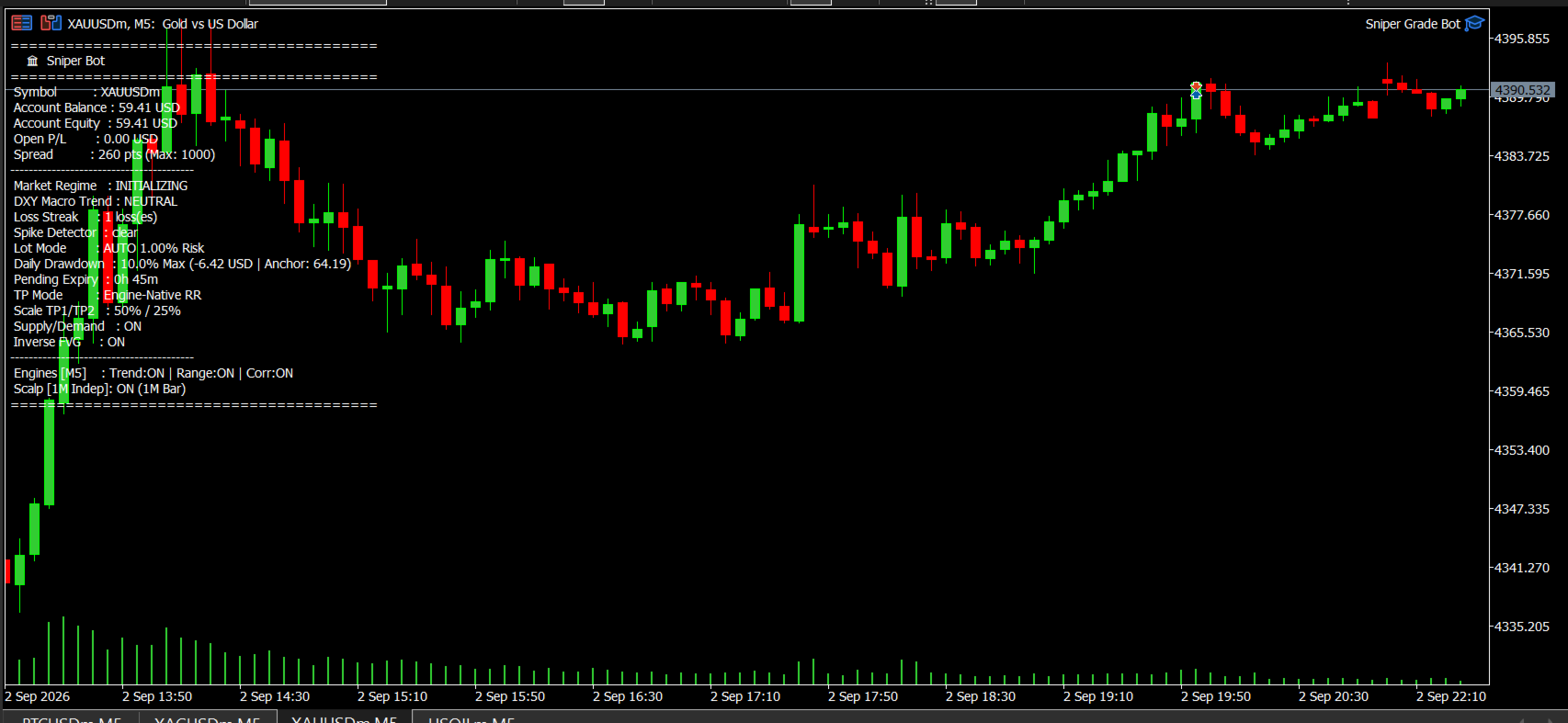
43.ON-SCREEN DASHBOARD
Show HUD Dashboard — Default: ON.
When enabled, the chart can display:
- Symbol
- Balance
- Equity
- Current profit
- Account currency
- Current spread
- Maximum allowed spread
- Market condition
- DXY condition
- Consecutive losses
- Spike status
- Lot/risk mode
- Daily-loss information
- Pending-order expiry
- TP mode
- Trending status
- Ranging status
- Correction status
- Scalp status
44.MOBILE PUSH NOTIFICATIONS
Push Notifications — Default: OFF.
When enabled, the program can send a mobile notification after a successfully accepted trade, including Buy/Sell, symbol, lot size, entry and TP3.
45.EMAIL NOTIFICATIONS
Email Alerts — Default: OFF.
46.VERBOSE LOGGING
Verbose Logging — Default: OFF.
When enabled, additional information can be printed in the MT5 log.
47.MAGIC NUMBER
Magic Number — Default: 888111.
This identifies trades belonging to this trading program. If you run multiple automated programs on the same account, keeping their identification numbers separate is important.
48.MAIN SETTINGS AT A GLANCE
Setting | Default | Simple meaning
Fixed Lot | OFF | Automatically calculate position size
Fixed Lot Size | 0.10 | Lot size when fixed-lot mode is ON
Risk Per Trade | 1% | Target account risk per trade
Max Daily Loss | 10% | Daily loss protection
TP Override | OFF | Keep each mode's own TP settings
TP1 / TP2 / TP3 | 1R / 1.8R / 3R | Global RR levels if override is ON
Trailing Stop | ON | Use trailing protection
DXY Filter | OFF | Ignore DXY direction by default
News Filter | OFF | No news blocking by default
Loss-Streak Guard | ON | Protection against repeated losing conditions
Minimum Confidence | OFF | No global confidence cutoff by default
SMC confirmations | ON | Additional market confirmations
Minimum Confluence Score | Separate for each mode | Set the minimum supporting confirmation for Scalp, Trending, Ranging, Correction and Synthetic
Session Management | OFF | Time/day restrictions not active by default
Synthetic Detection | ON | Automatically recognize synthetic instruments
Trending / Ranging / Correction | ON / ON / ON | Main trading modes enabled
Scalp | ON | Scalp mode enabled
Max Trades/Symbol | 1 | One concurrent trade per symbol
Max Total Trades | 3 | Three concurrent trades maximum
Pending Expiry | ON / 45 min | Pending orders can expire
Equity Floor | OFF | Minimum equity protection disabled by default
Max Entry Drift | 40 points | Reject stale market entries
Requote Retries | 2 | Retry certain market-price failures
Dashboard | ON | Show information on chart
Push / Email Alerts | OFF / OFF | Notifications disabled by default
Verbose Logs | OFF | Keep logs quiet
Max Spread | 1000 points | Reject excessive spreads
Spike Detector | OFF | Normal spike detector disabled
49.WHAT YOU SHOULD CHECK BEFORE LIVE TRADING
Before using a live account, check the account, risk, trading modes, spread, pending expiry, DXY filter, news filter, minimum confidence, loss-streak guard, spike protection, equity protection and notifications according to your intended setup.
50.IMPORTANT DIFFERENCE BETWEEN OFF AND ON
DXY Filter = OFF means the DXY check is not used to block a trade.
News Filter = OFF means the economic-news protection is not used.
Minimum Confidence = OFF means the global minimum-confidence gate is not used.
Minimum Confluence Score = OFF for a mode means that mode's minimum confluence requirement is not used.
Spike Detector = OFF means the normal spike detector is not used.
Turning these settings ON adds their corresponding checks.
51.SIMPLE EXPLANATION OF THE WHOLE SYSTEM
Think of Sniper Grade Bot as a security-controlled trading assistant:
Market arrives
→ It checks whether trading is safe
→ It checks the available trading opportunities
→ It compares valid opportunities
→ It chooses the strongest valid opportunity when several normal modes qualify
→ It checks the final entry, stop-loss and target
→ It calculates the position size
→ It checks broker requirements
→ It places the order
→ It monitors the trade according to the configured protections
The program does not simply see a setup and immediately trade it. There are several safety checks between finding an opportunity and actually placing the trade.
52.BEGINNER GLOSSARY
Buy — You expect the price to rise.
Sell — You expect the price to fall.
Buy Limit — A Buy waiting below the current market price.
Sell Limit — A Sell waiting above the current market price.
Buy Stop — A Buy waiting above the current market price.
Sell Stop — A Sell waiting below the current market price.
Stop-Loss — The price level used to limit the loss if the trade moves against you.
Take-Profit — The price level used to close a trade when the intended target is reached.
Spread — The difference between the Buy and Sell prices.
RR / R — A way of comparing potential target distance with stop-loss distance.
Confidence — The strength value assigned to a trading opportunity.
Confluence — Additional information supporting a trading opportunity.
DXY — A measure of the U.S. dollar's strength against a group of major currencies.
ATR — A measure used to compare current price movement with typical price movement.
Drawdown — The amount by which the account has fallen from the relevant starting level.
Equity — The current account value including open-trade profit or loss.
Synthetic — A synthetic market recognized by the program as belonging to the synthetic-instrument category.