SnapDraw Drawing Panel MT4
- Utilità
-
Tamara Garcia Infantes
 Welcome to QuantEdgeSys, an algorithmic trading studio focused on MetaTrader 4 and MetaTrader 5.
I develop Expert Advisors, indicators and trading utilities, both custom projects for clients and my own systems.
What I offer:
Custom Expert Advisors built exactly from your rules - Versione: 1.73
SnapDraw — every MT4 drawing tool in a panel under your chart
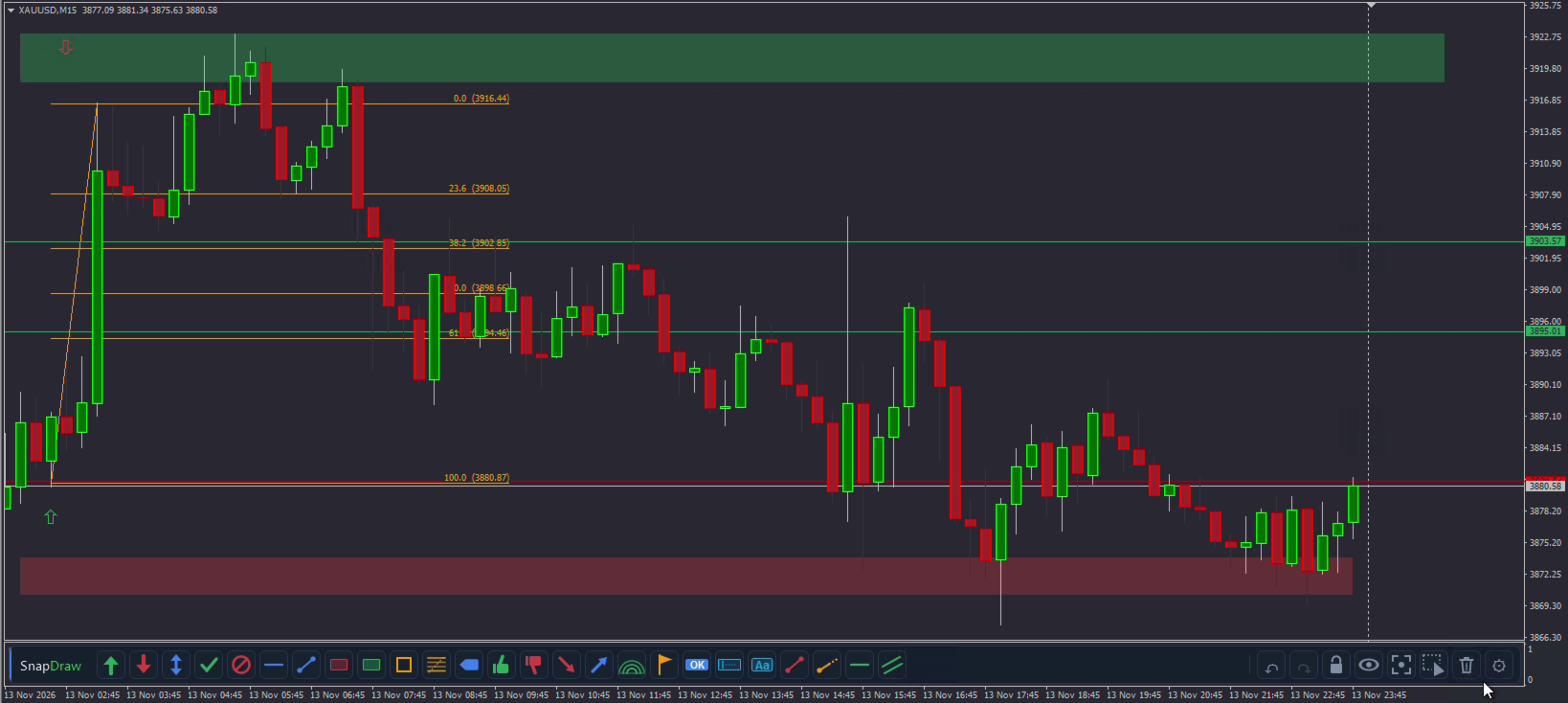
Drawing in MetaTrader means hunting through menus and toolbars, and changing the colour of every line by hand. SnapDraw puts the tools you use in a slim panel docked under the chart: drag one onto the chart, or click it and draw, and it lands in your colour, snapped to the candle.
What it includes
• Every object in the MT4 Insert menu: lines, channels, Gann, Fibonacci, shapes, arrows and text, plus graphical objects such as event, rectangle label, button, edit field and image.
• Extra tools: supply, demand and range zones, square, ray, horizontal ray and double arrow.
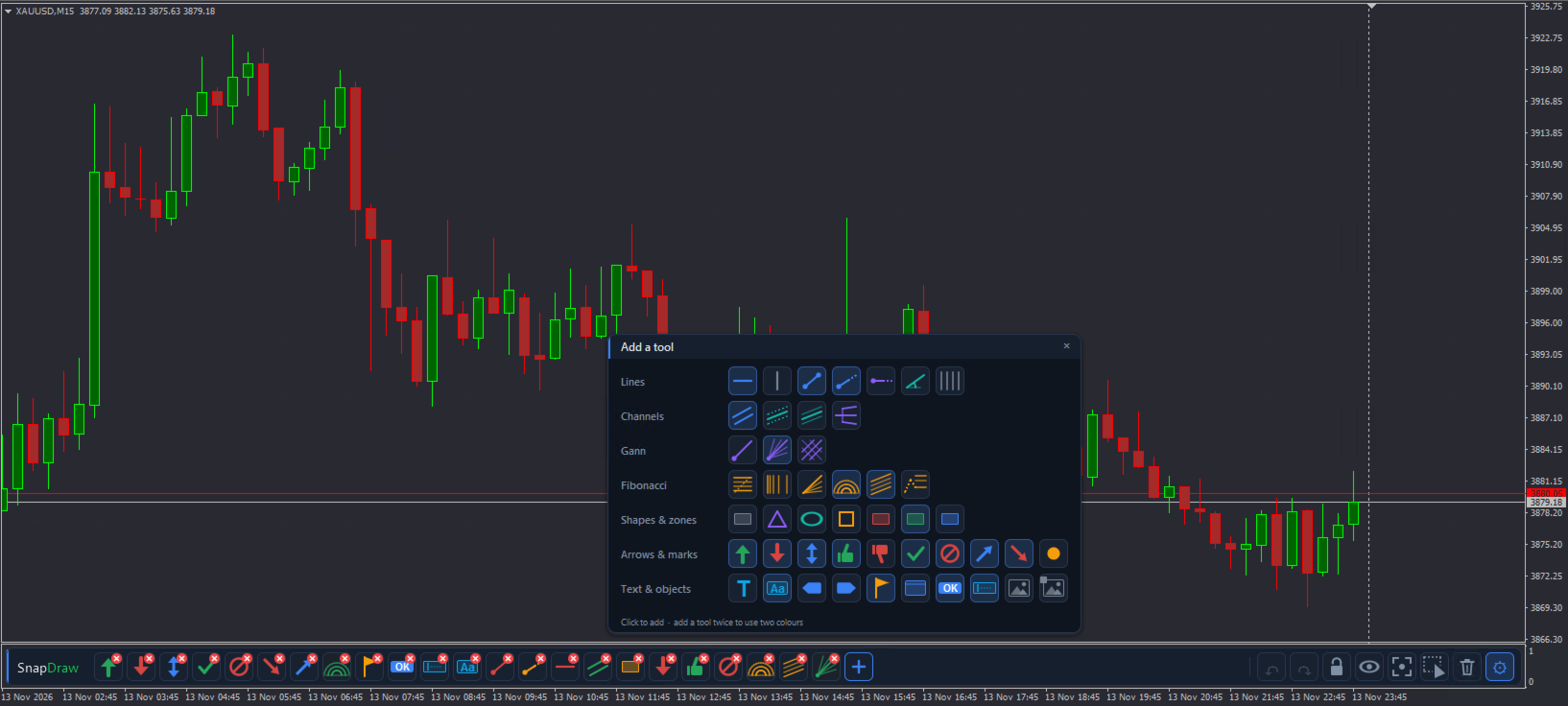
• A catalogue grouped like the Insert menu, from which you add only the tools you need.
What you can do
• Drag a tool onto the chart, or click it and then click or drag on the chart. A preview follows the cursor and points snap to the candle; an optional magnet snaps them to high, low, open or close.
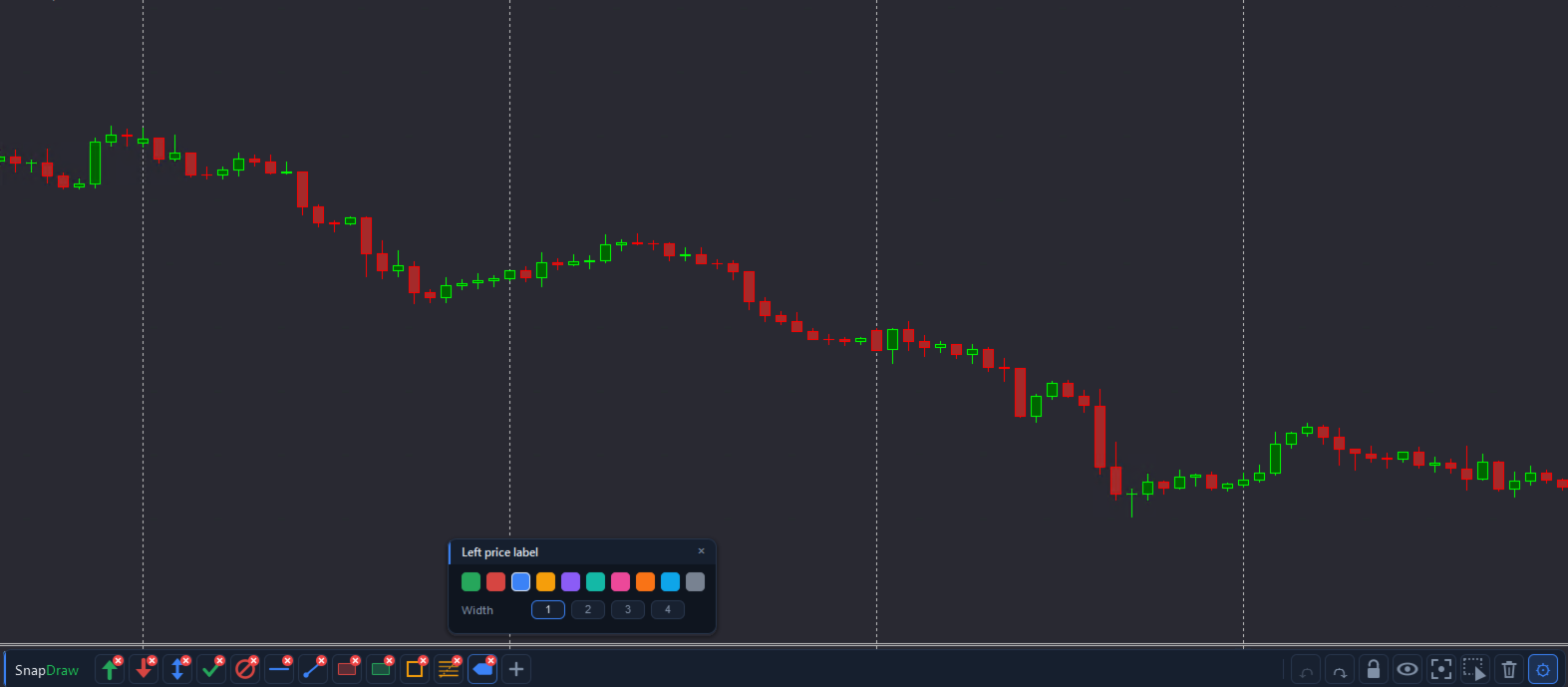
• Build your own panel: add, remove and reorder tools, and give each one its colour, width and line style. Add the same tool several times to have it in different colours.
• Change a drawing's colour with one click: select a tool and Ctrl+click any drawing on the chart, including those made by hand.
• Undo the last drawing and redo it exactly as it was, levels and style included.
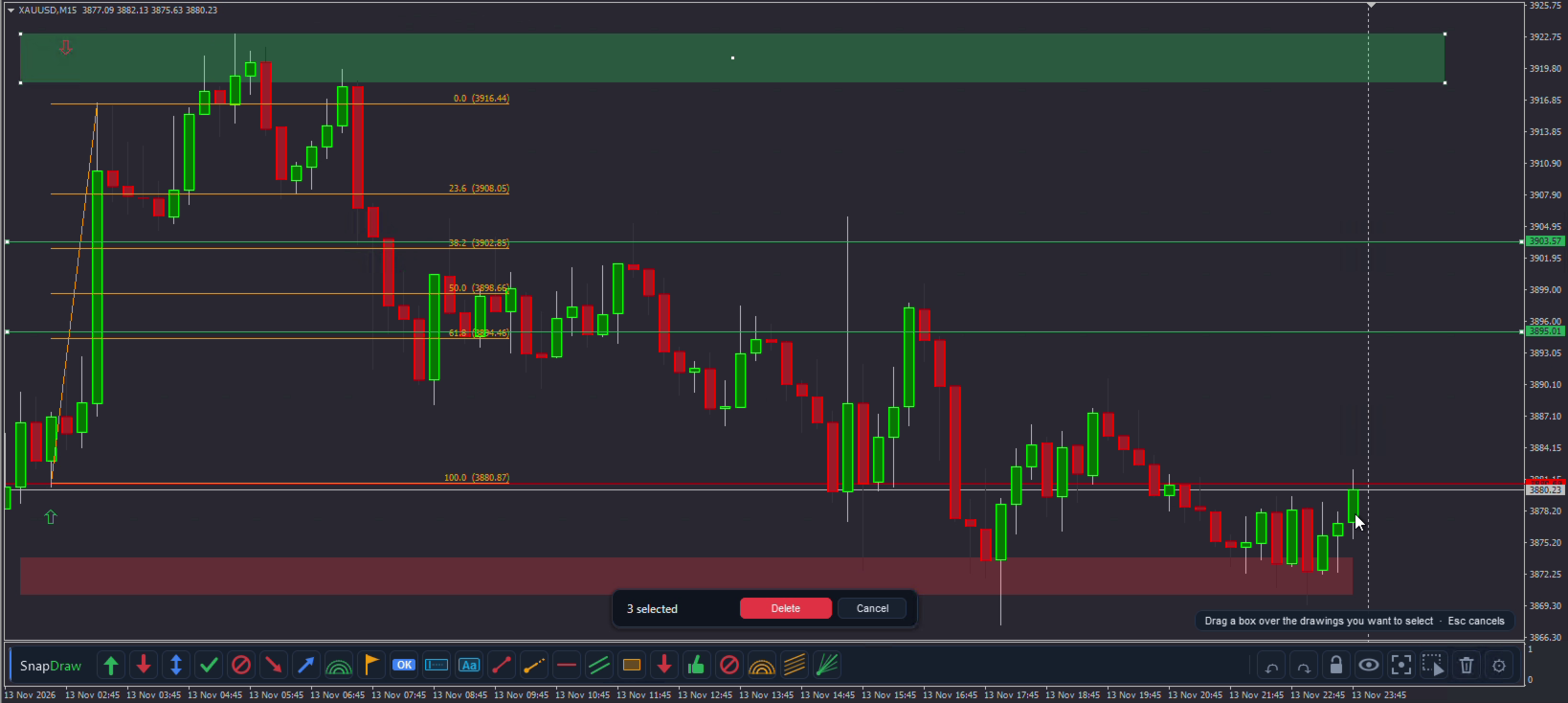
• Select several drawings with a box and delete them at once; redo brings them back.
• Lock drawings against accidental moves, hide them, or make them all visible again on every timeframe with Show all.
• Erase everything drawn with SnapDraw in two clicks, without touching other objects.
Designed to be safe
• It only acts on the chart where it is loaded.
• Lock, hide and erase only affect drawings made with SnapDraw.
• If you remove SnapDraw, your drawings stay on the chart as normal MetaTrader objects, unlocked and visible.
• The panel's own objects never appear in MetaTrader's object list.
Panel
• It sits in its own subwindow under the chart, so it never covers the candles.
• Your tools, their order and colours are saved and shared by every MT4 chart and terminal on the computer.
• Light and dark theme (automatic, following the chart background) and English or Spanish interface.
Inputs
• Language: English or Spanish.
• Panel theme: automatic, dark or light.
• Snap to the candle, magnet and keep the tool selected after drawing.
SnapDraw does not open, close or modify trades. It is a chart utility and works on any symbol and timeframe. A full user guide is available in the comments. Also available for MetaTrader 5.
Installation: SnapDraw is an indicator, even though it is listed as a utility. After downloading it, you will find it in the Navigator under Indicators → Market. Drag it onto any chart: the panel opens in a subwindow below the candles. It does not take the place of the Expert Advisor running on that chart.
Drawing in MetaTrader means hunting through menus and toolbars, and changing the colour of every line by hand. SnapDraw puts the tools you use in a slim panel docked under the chart: drag one onto the chart, or click it and draw, and it lands in your colour, snapped to the candle.
What it includes
• Every object in the MT4 Insert menu: lines, channels, Gann, Fibonacci, shapes, arrows and text, plus graphical objects such as event, rectangle label, button, edit field and image.
• Extra tools: supply, demand and range zones, square, ray, horizontal ray and double arrow.
• A catalogue grouped like the Insert menu, from which you add only the tools you need.
What you can do
• Drag a tool onto the chart, or click it and then click or drag on the chart. A preview follows the cursor and points snap to the candle; an optional magnet snaps them to high, low, open or close.
• Build your own panel: add, remove and reorder tools, and give each one its colour, width and line style. Add the same tool several times to have it in different colours.
• Change a drawing's colour with one click: select a tool and Ctrl+click any drawing on the chart, including those made by hand.
• Undo the last drawing and redo it exactly as it was, levels and style included.
• Select several drawings with a box and delete them at once; redo brings them back.
• Lock drawings against accidental moves, hide them, or make them all visible again on every timeframe with Show all.
• Erase everything drawn with SnapDraw in two clicks, without touching other objects.
Designed to be safe
• It only acts on the chart where it is loaded.
• Lock, hide and erase only affect drawings made with SnapDraw.
• If you remove SnapDraw, your drawings stay on the chart as normal MetaTrader objects, unlocked and visible.
• The panel's own objects never appear in MetaTrader's object list.
Panel
• It sits in its own subwindow under the chart, so it never covers the candles.
• Your tools, their order and colours are saved and shared by every MT4 chart and terminal on the computer.
• Light and dark theme (automatic, following the chart background) and English or Spanish interface.
Inputs
• Language: English or Spanish.
• Panel theme: automatic, dark or light.
• Snap to the candle, magnet and keep the tool selected after drawing.
SnapDraw does not open, close or modify trades. It is a chart utility and works on any symbol and timeframe. A full user guide is available in the comments. Also available for MetaTrader 5.
Installation: SnapDraw is an indicator, even though it is listed as a utility. After downloading it, you will find it in the Navigator under Indicators → Market. Drag it onto any chart: the panel opens in a subwindow below the candles. It does not take the place of the Expert Advisor running on that chart.