Countdown Candle Pro
- Indicatori
- Versione: 2.10

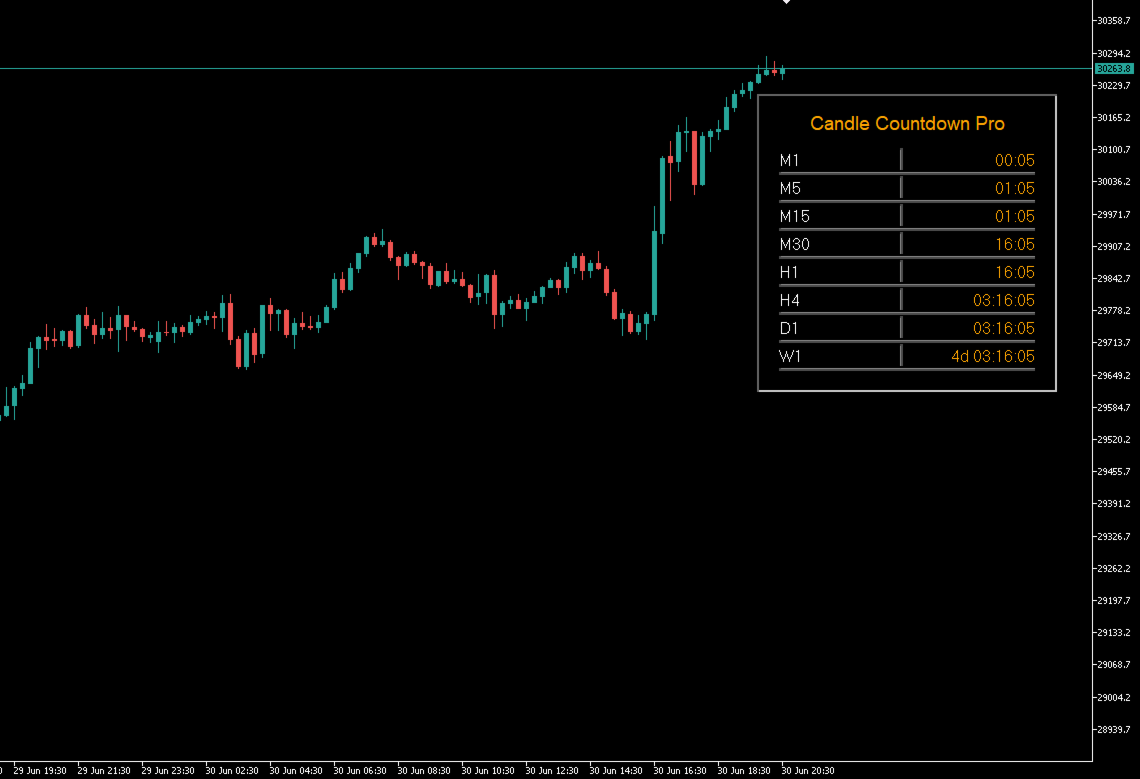
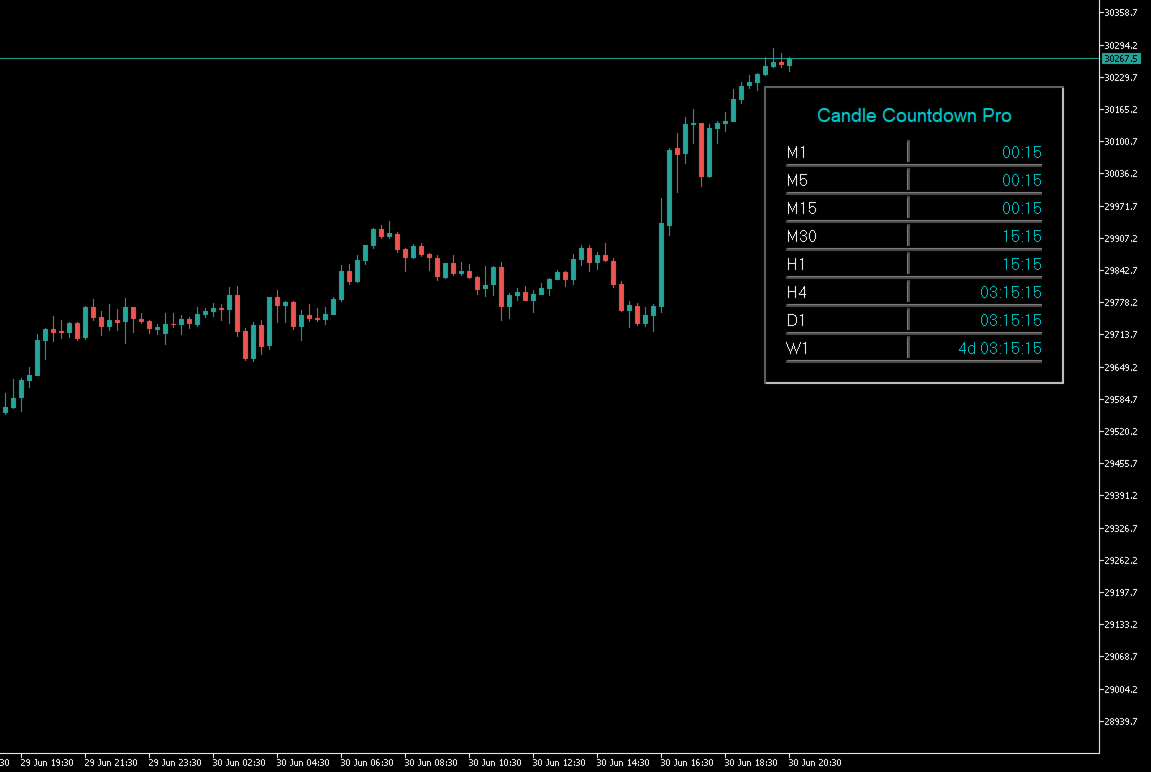
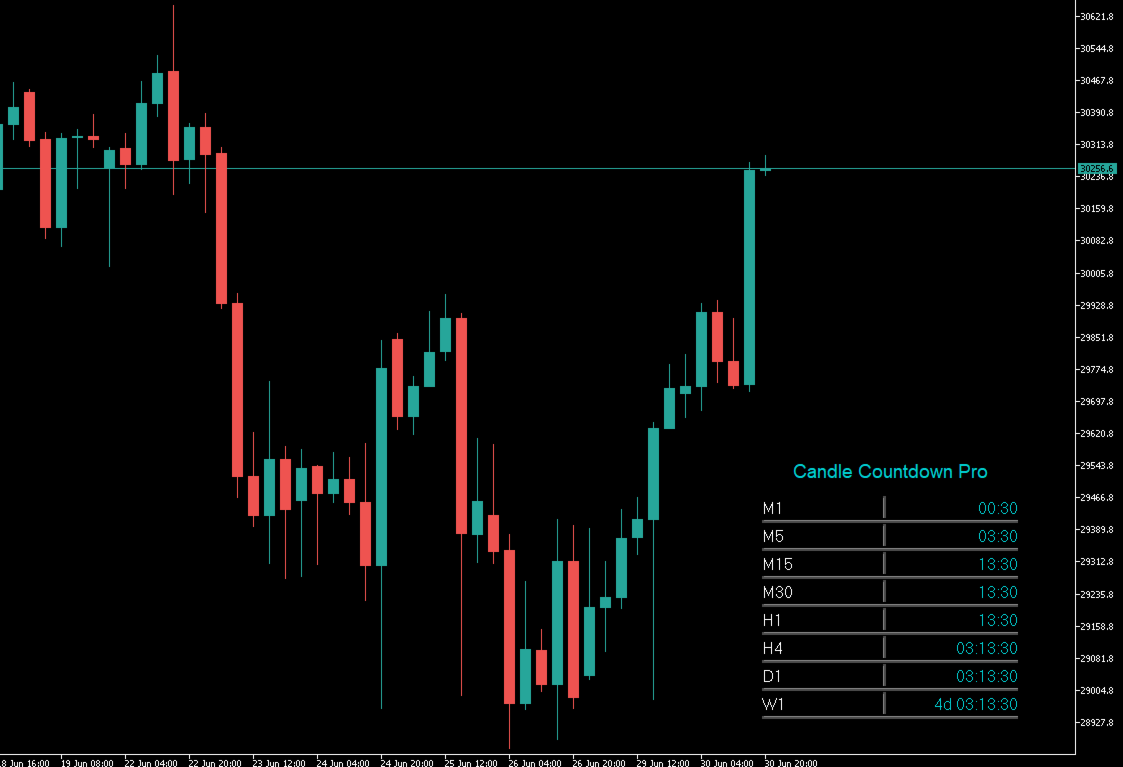
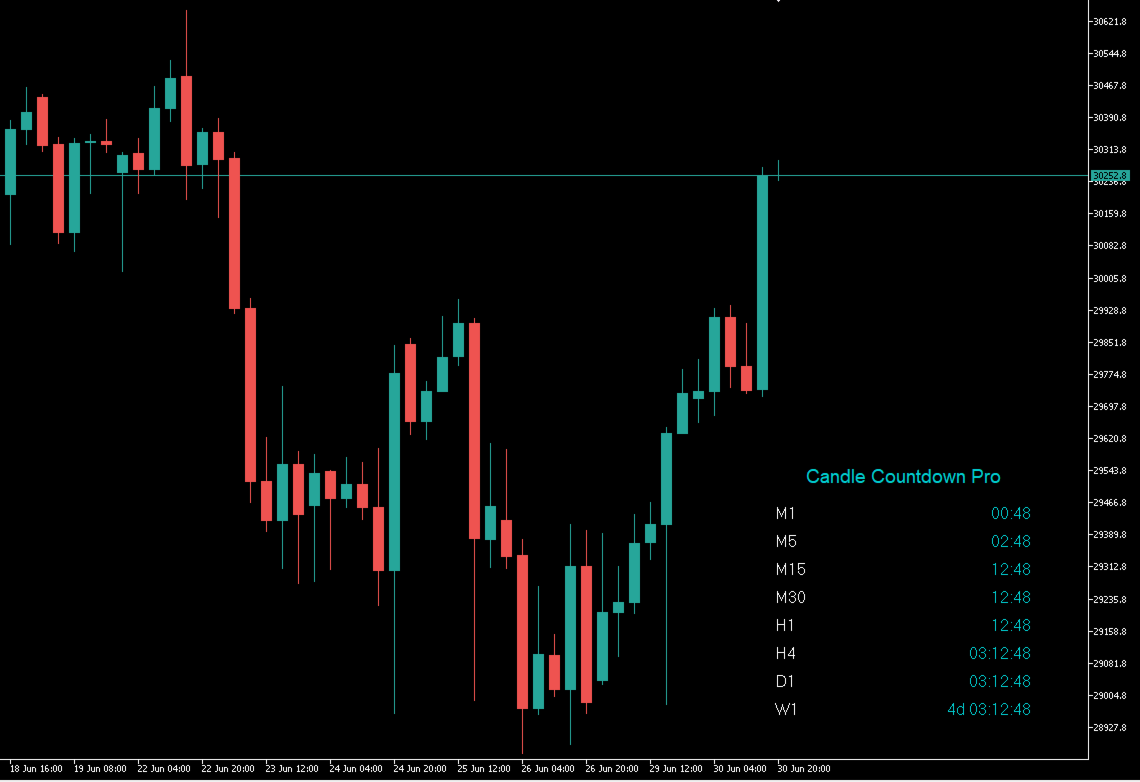
Candle Countdown Pro is a professional multi-timeframe indicator for MetaTrader 5 that displays the remaining time until the next candle closes across multiple timeframes simultaneously.
The indicator features a clean and easy-to-read countdown panel directly on the chart and supports all major timeframes from M1 to W1. This allows you to instantly see when the next candle will close on every selected timeframe.
The panel is fully customizable. Colors, font size, transparency, position, and the displayed timeframes can all be adjusted to perfectly match your chart layout and personal preferences.
Candle Countdown Pro is especially useful for scalpers, day traders, and swing traders who rely on candle closes from multiple timeframes to make trading decisions.
Main Features- Countdown timer for multiple timeframes simultaneously
- Supports all timeframes from M1 to W1
- Freely selectable timeframes
- Automatic real-time updates every second
- Clean and easy-to-read countdown panel
- Perfectly right-aligned countdown display
- Optional background panel
- Optional grid lines (show or hide)
- Customizable background color
- Adjustable background transparency
- Customizable text color
- Customizable countdown color
- Adjustable font size
- Optional bold font
- Display in front of or behind the candles
- Freely movable panel via drag & drop
- Automatically saves the panel position
- Very resource-efficient
- Optimized for all MT5 charts
Candle Countdown Pro is ideal for:
- Scalping
- Day Trading
- Swing Trading
- Multi-Timeframe Analysis
- News Trading
- Session Trading
- Breakout Trading
- Price Action Trading
For strategies that rely on candle closes, Candle Countdown Pro helps traders monitor multiple timeframes simultaneously without having to calculate the remaining candle time manually.
Advantages- Monitor all important timeframes at the same time
- No manual calculation of remaining candle time
- Clean and professional display
- Fully customizable to match any chart layout
- Extremely low CPU usage
- Works on every symbol and every chart
- Perfect for traders monitoring multiple timeframes simultaneously
Select which timeframes should be displayed in the countdown panel.
Available timeframes:
- Show M1
- Show M2
- Show M3
- Show M4
- Show M5
- Show M6
- Show M10
- Show M12
- Show M15
- Show M20
- Show M30
- Show H1
- Show H2
- Show H3
- Show H4
- Show H6
- Show H8
- Show H12
- Show D1
- Show W1
Each timeframe can be enabled or disabled independently.
APPEARANCEBackground Color
Sets the background color of the panel.
Background Transparency
Controls the transparency of the panel background.
- 0 = Fully opaque
- 255 = Fully transparent
Border Color
Sets the color of the panel border.
Grid Color
Sets the color of the grid lines inside the panel.
Title Color
Sets the color of the panel title.
Text Color
Sets the color of the timeframe labels.
Countdown Color
Sets the color of the countdown values.
Font Size
Adjusts the font size.
Bold Font
Enables or disables bold text.
Font Name
Selects the font used by the panel.
Show Background
Shows or hides the panel background.
When disabled, only the text remains visible on the chart.
Show Grid Lines
Shows or hides the grid lines between each row.
This allows you to switch between a clean minimalist design and a structured table layout.
Draw Behind Candles
Choose whether the panel is displayed:
- Behind the candles
- In front of the candles
By default, the panel is displayed behind the candles.
POSITION & DISPLAYHorizontal Offset
Sets the horizontal position of the panel.
Vertical Offset
Sets the vertical position of the panel.
Panel Width
Defines the width of the panel.
Row Height
Adjusts the vertical spacing between each timeframe row.
Horizontal Padding
Sets the left and right padding inside the panel.
Vertical Padding
Sets the top and bottom padding inside the panel.
Show Title
Shows or hides the panel title.
Title Text
Allows you to customize the panel title.
Show Seconds
Determines whether seconds are displayed in the countdown timer.
Allow Drag
Allows the panel to be moved directly on the chart using drag & drop.
Save Dragged Position
Automatically saves the panel's last position.
The next time the indicator is loaded, the panel will appear in the same location.
BEHAVIORUpdate Interval (Seconds)
Defines how often the countdown is refreshed.
The default value is 1 second, ensuring an accurate and real-time countdown display at all times.